 +
+
Turn a tl;dv recording into a room draft you can edit.
Connect tl;dv to foyai and your recorded sales calls are matched to their Attio deals and used to draft each buyer room: what the buyer said, suggested next steps and matching case studies, for you to review and publish. Each seller connects their own tl;dv account with an API key and one pasted URL. The integration is in Beta.
Updated
Connect tl;dv in three steps.
You'll need your tl;dv API key. The last step is one paste into tl;dv, so new calls reach foyai when they're processed.
Connect tl;dv in foyai
Go to Settings → Integrations → Manage transcript sources, and click Connect on tl;dv.
Paste your tl;dv API key
The connect window links to the page in tl;dv where you get your key. Paste it and click Connect. The card shows your account and starts importing recent calls.
Paste the webhook URL into tl;dv
foyai shows you a webhook URL and where it goes in tl;dv. Once it's there, new calls arrive right after processing. Until then, they still come in on a regular catch-up sync.
-
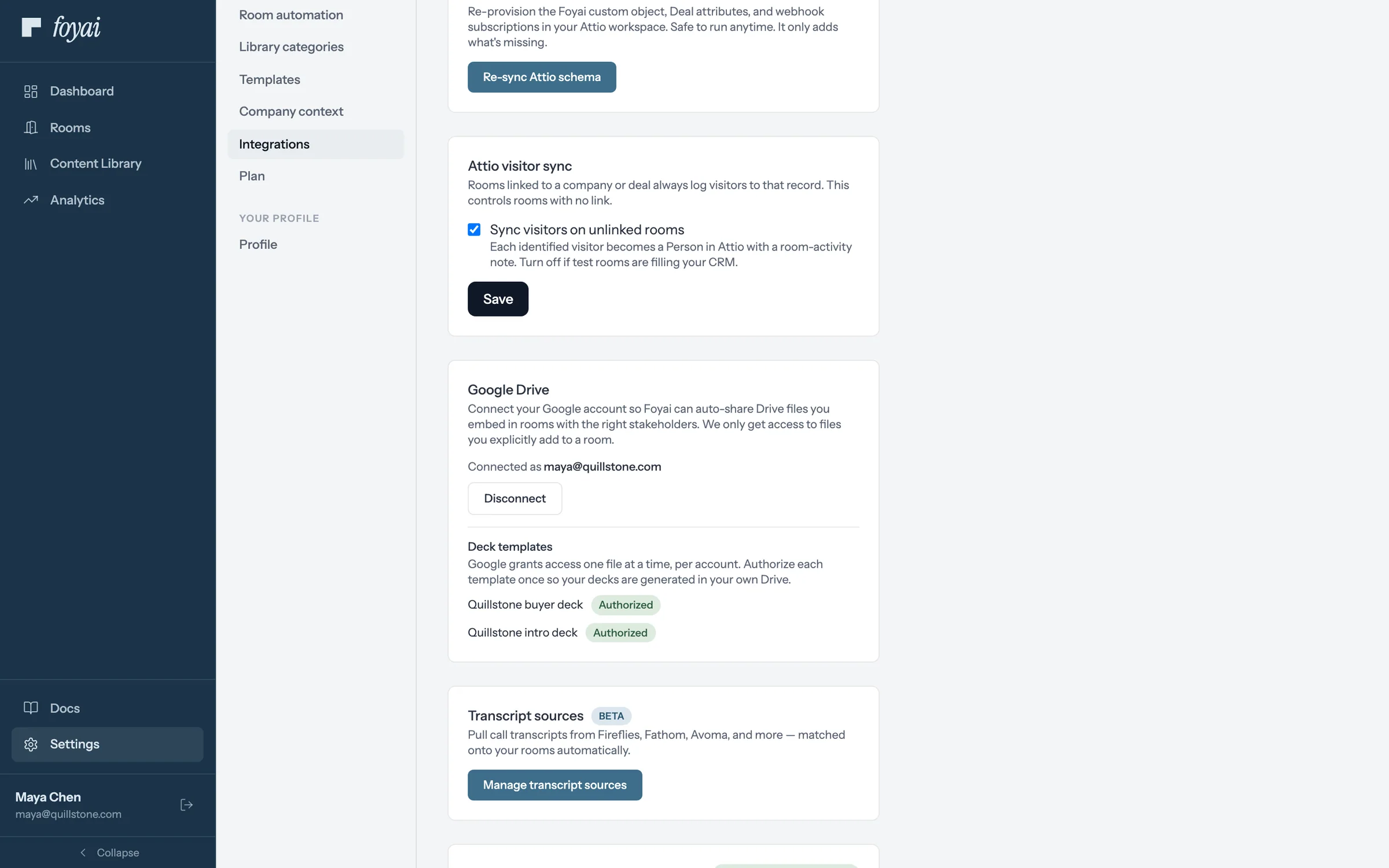
Step 1 of 9 Open transcript sources In foyai's Settings, under Integrations, click Manage transcript sources.
-
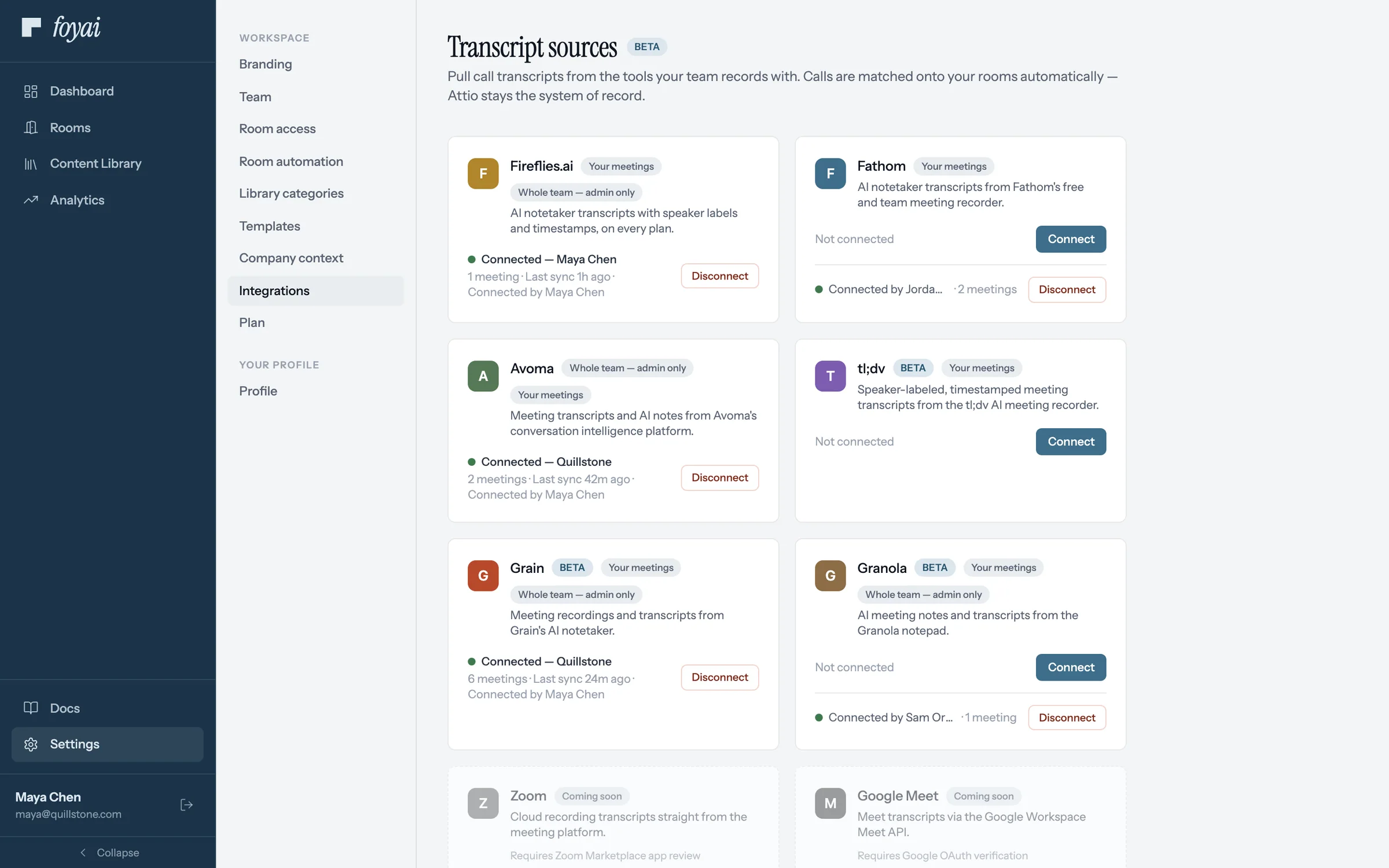
Step 2 of 9 Connect tl;dv tl;dv sits with the other call recorders. Click Connect on its card.
-
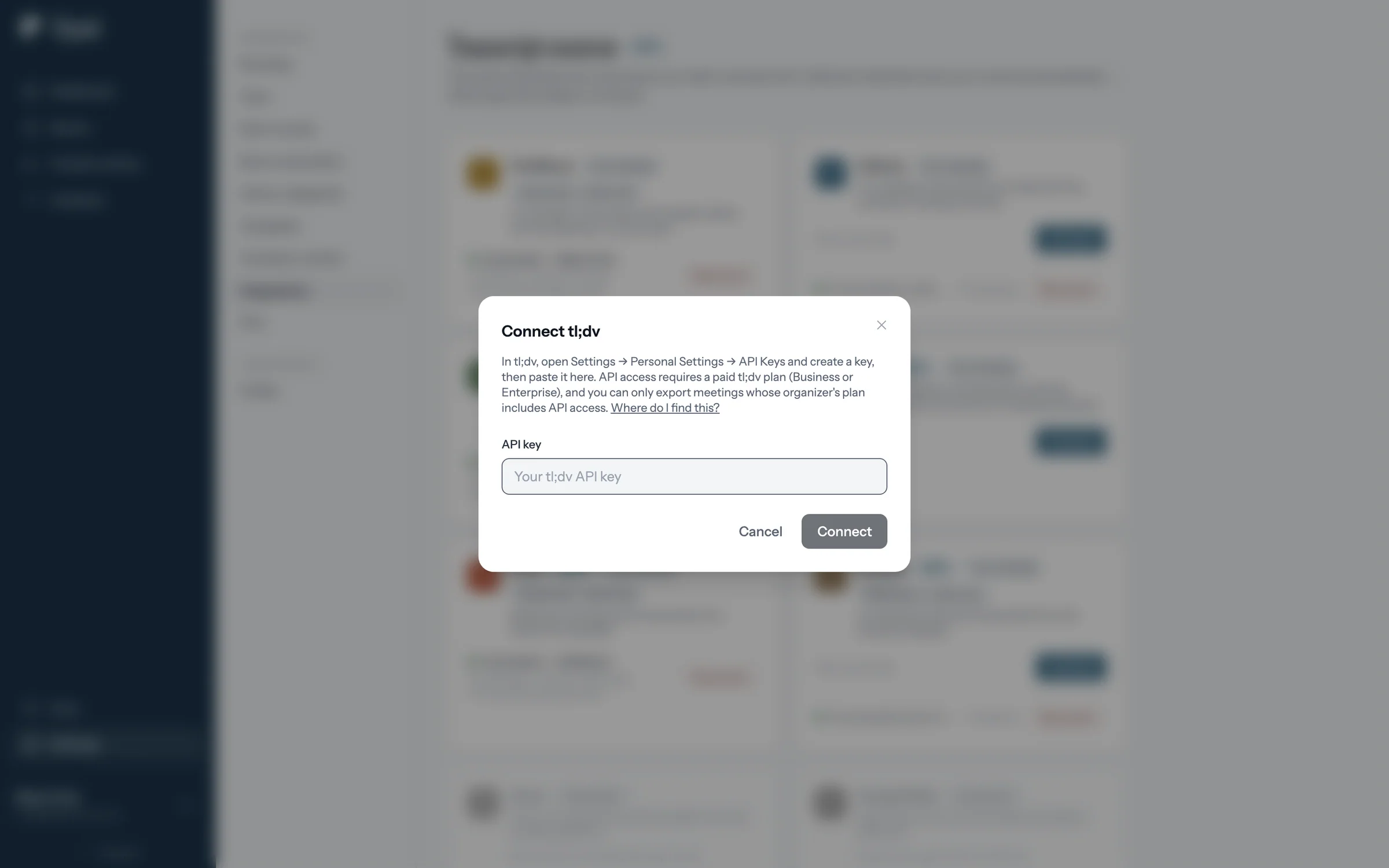
Step 3 of 9 Find the API key The window says where tl;dv keeps API keys, and links straight to that page.
-
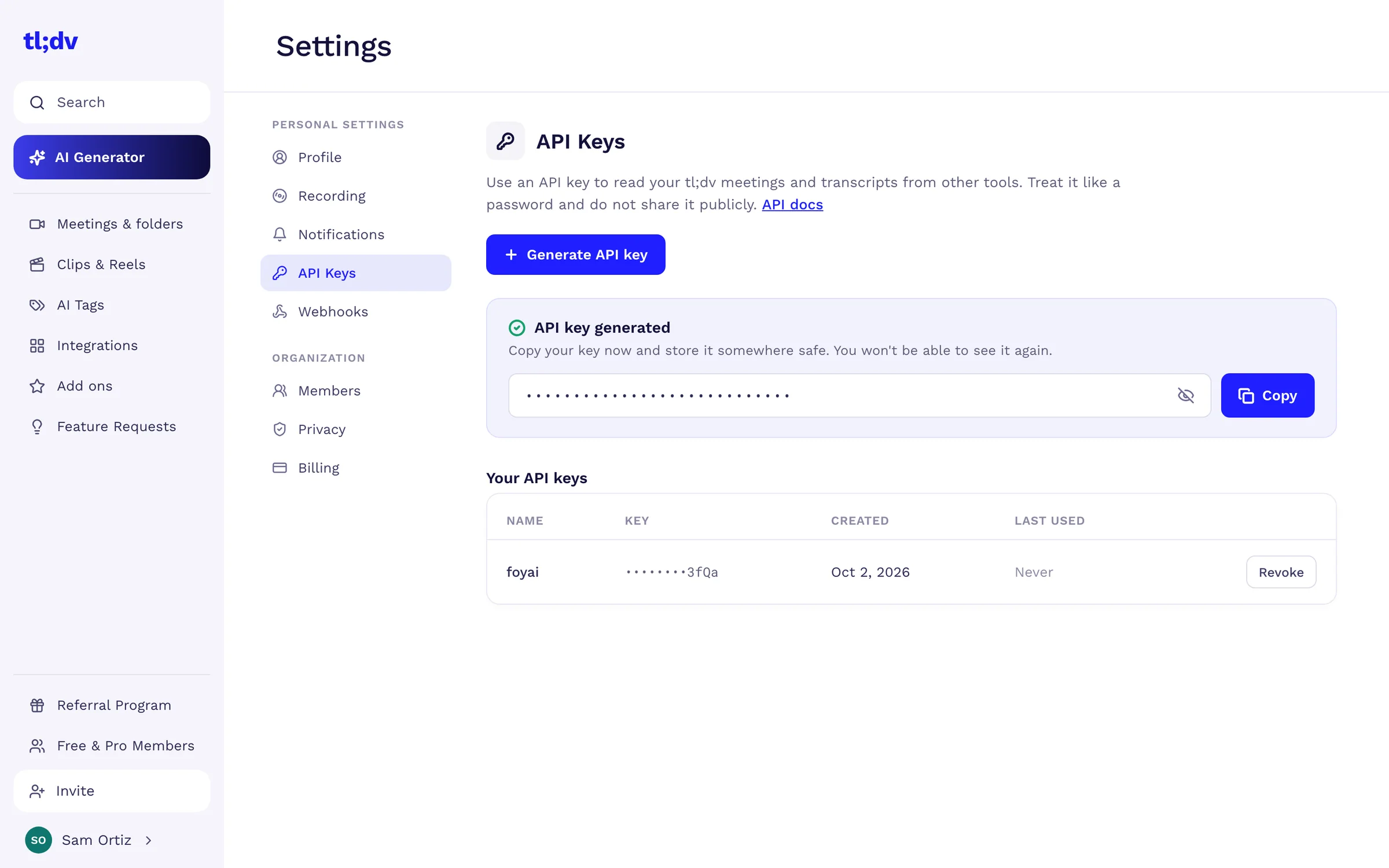
Step 4 of 9 Copy your tl;dv key In tl;dv's personal settings, create an API key and copy it.
-
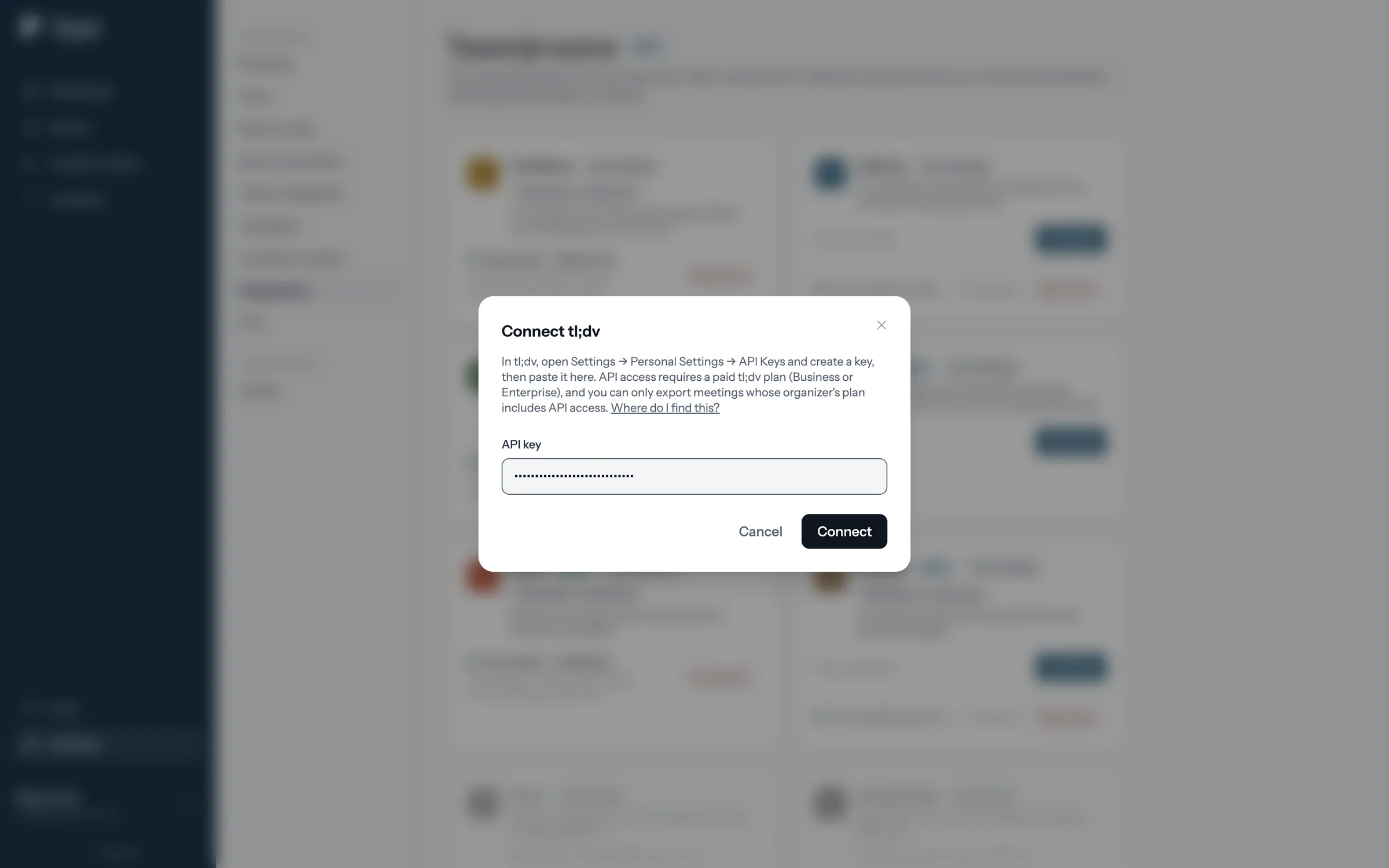
Step 5 of 9 Paste the key Paste it into the API key field. tl;dv's API needs a Business or Enterprise plan.
-
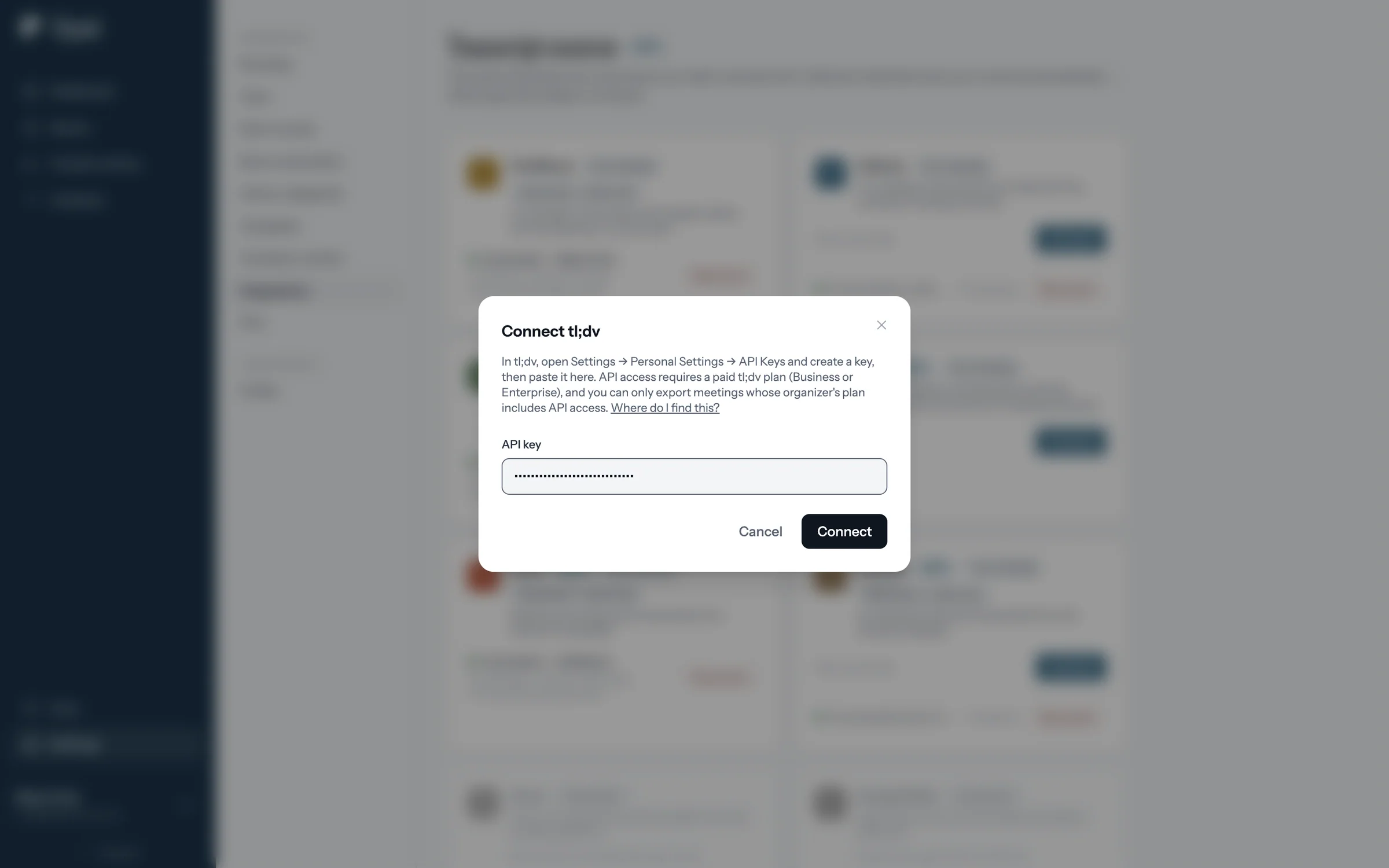
Step 6 of 9 Connect foyai checks the key with tl;dv, then shows one more step.
-
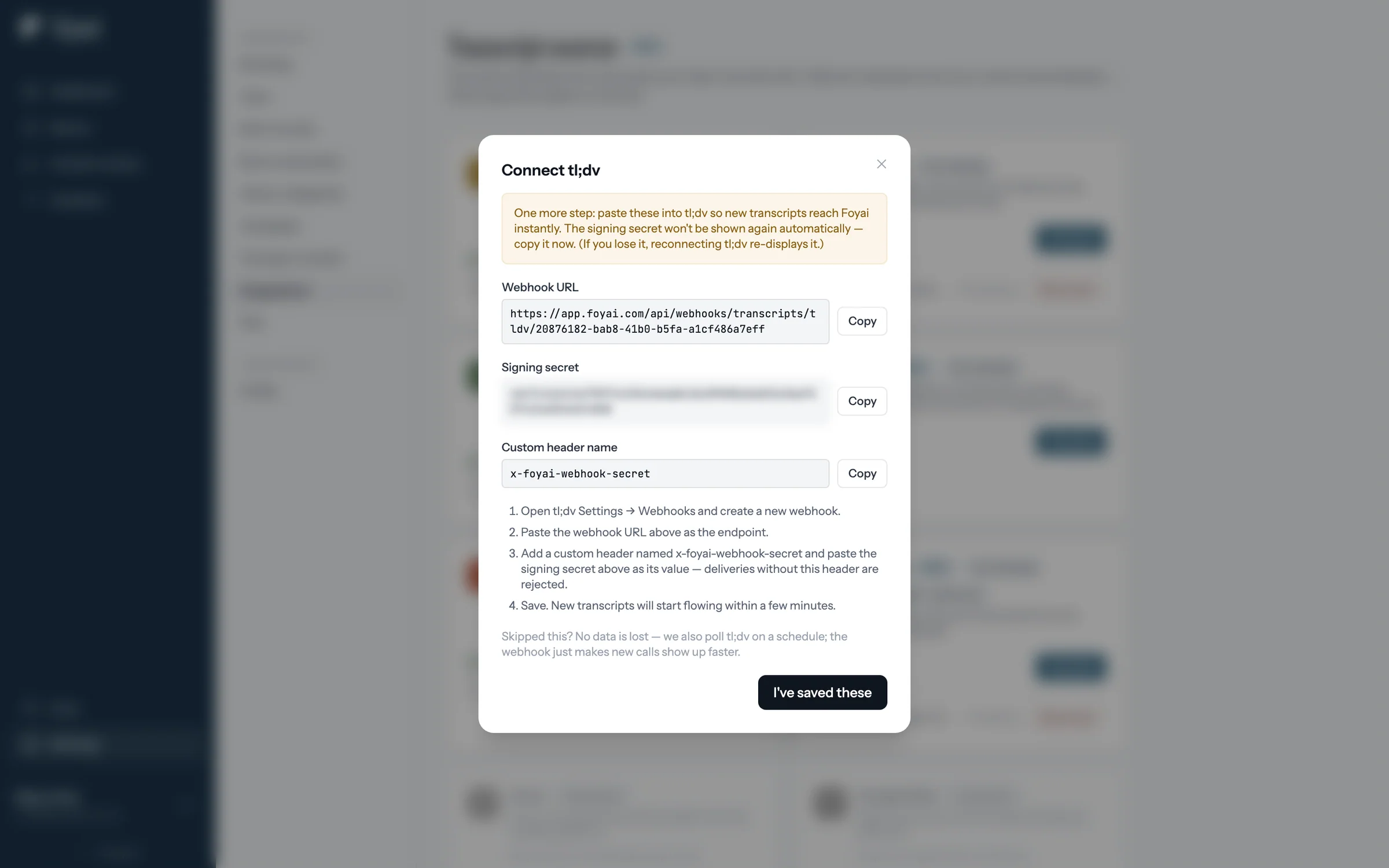
Step 7 of 9 Copy the webhook details foyai shows a webhook URL, a signing secret, and a header name, each with a copy button.
-
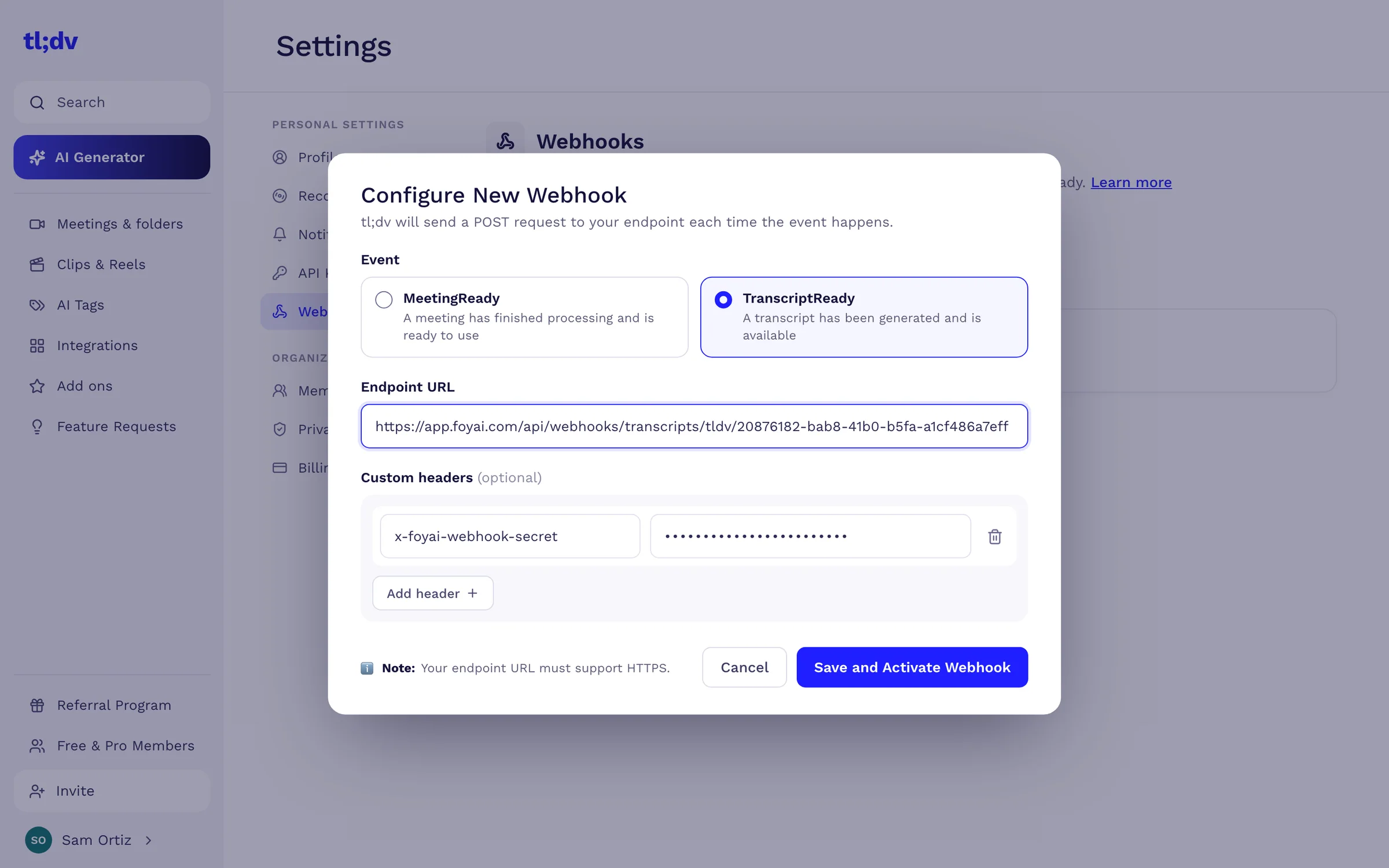
Step 8 of 9 Add the webhook in tl;dv In tl;dv's webhook settings, paste the URL, add the header with the secret, and save.
-
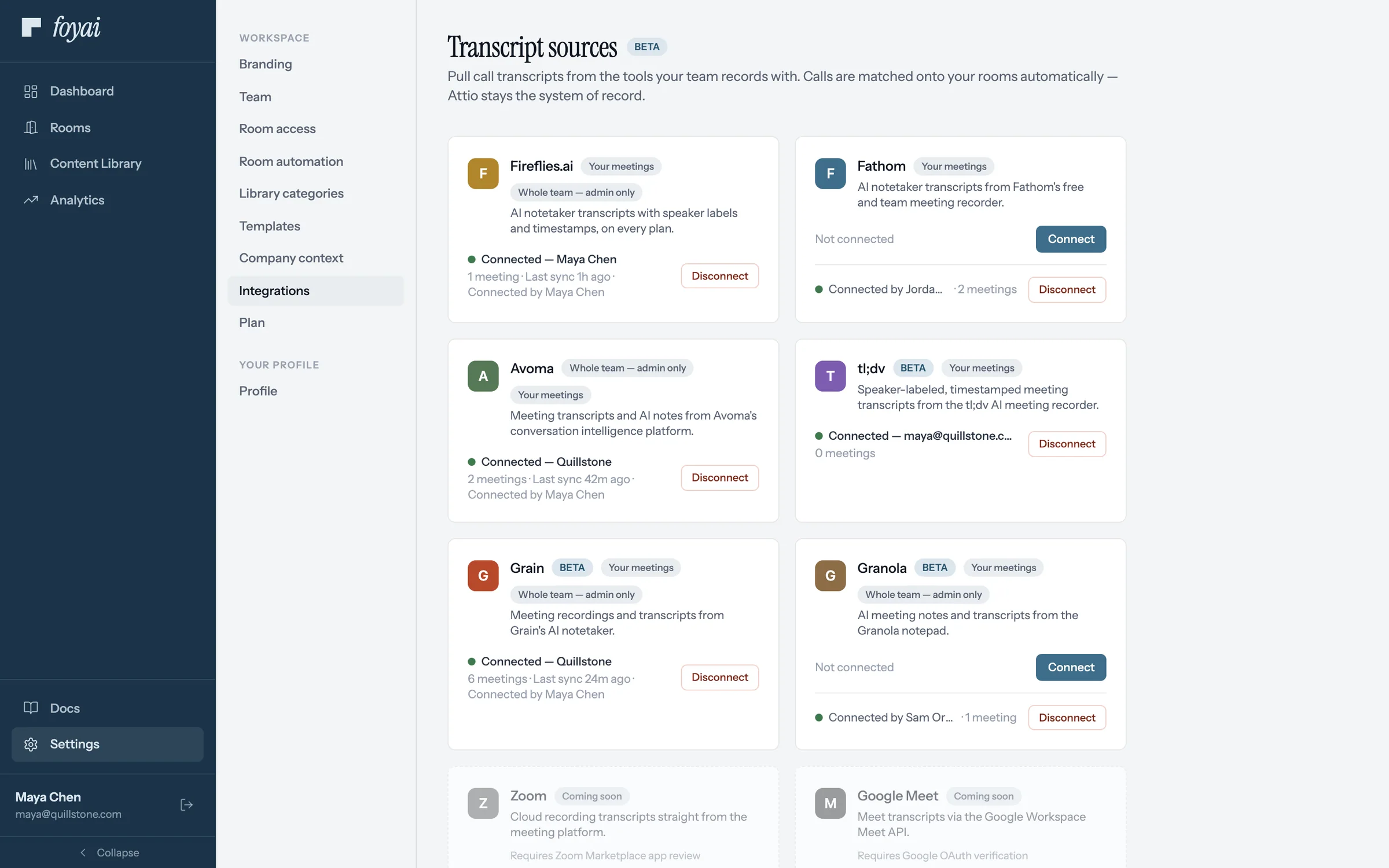
Step 9 of 9 tl;dv is connected New calls arrive right after tl;dv processes them. Without the webhook, a scheduled sync still brings them in.
Draft your next room from a tl;dv call.
Connect Attio and tl;dv, and foyai drafts rooms from your recorded calls for you to review.
Each seller connects their own tl;dv account.
tl;dv connections are always personal, and foyai imports only that seller's calls.
Once a call is matched to a deal, it's shared context: anyone working that deal can pick it when drafting or updating the room. If someone leaves, a workspace admin can disconnect their connection.
What a draft from one tl;dv call looks like.
Here's the shape of a room drafted from a single tl;dv call. Every section is editable, and nothing reaches the buyer until you publish.
What we heard
[A short recap in the buyer's own terms: why they took the call, what's broken today, what changes if it's fixed.]
Goals and challenges
- [Goal the buyer named, and the date they're working toward]
- [Challenge they raised, in their words]
Recommended case studies
- [Up to four from your library, each with the reason it fits]
Suggested next steps
- [Action items from the call, waiting for your approval before they join the plan]
Stakeholders
[People named on the call, ready to add to the room]
How each call finds its deal.
- A stakeholder was on it: the call attaches to that stakeholder's room.
- A participant's company is in Attio: matched by email domain, the call attaches to that company.
- Only your own team: ignored, so internal calls aren't used in buyer material.
- Recorded twice: the same meeting from tl;dv and Attio is flagged as a duplicate.
Uncertain matches wait for you. If a call could belong to more than one deal, foyai doesn't guess. It goes to Unmatched calls with a suggested match, one click to confirm. Calls with personal email addresses, or for a company that isn't in Attio yet, go there too, for you to attach to a room or ignore.