Learn foyai one task at a time.
Every how-to, two ways: watch a short narrated video of the real product, with captions, or click through it step by step at your own pace. Start with your onboarding series, then come back for the rest when you need it.
Admin onboarding
Go through these in order to set up the workspace for your team, from connecting Attio to rooms that create themselves.
 011:29
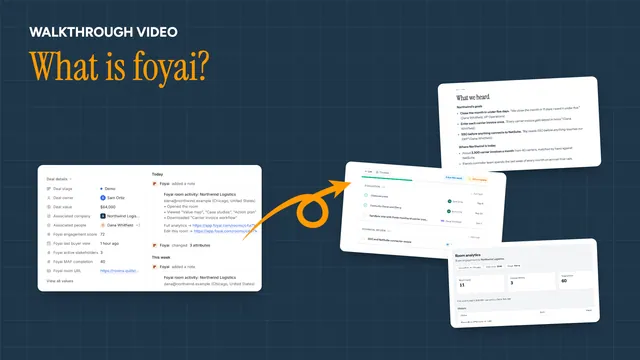
What is foyai?
The whole loop in one walk: a deal in Attio, a drafted room, the buyer inside it, and what comes back to you.
Watch · 1:29Click through · 8 steps
011:29
What is foyai?
The whole loop in one walk: a deal in Attio, a drafted room, the buyer inside it, and what comes back to you.
Watch · 1:29Click through · 8 steps
-
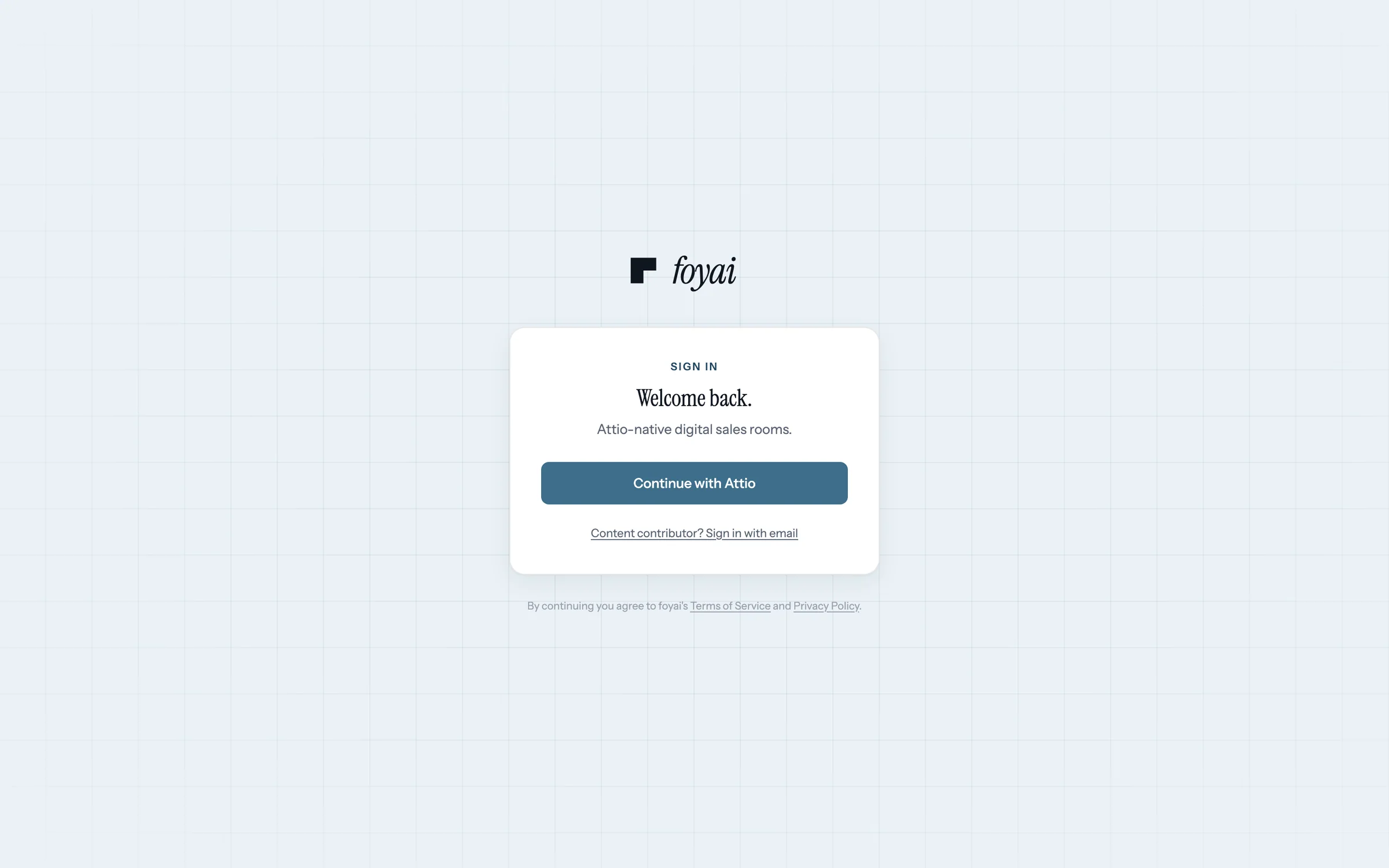
Step 1 of 8 Sign in with Attio foyai runs on your Attio workspace, so deals, companies, and calls come across automatically.
-
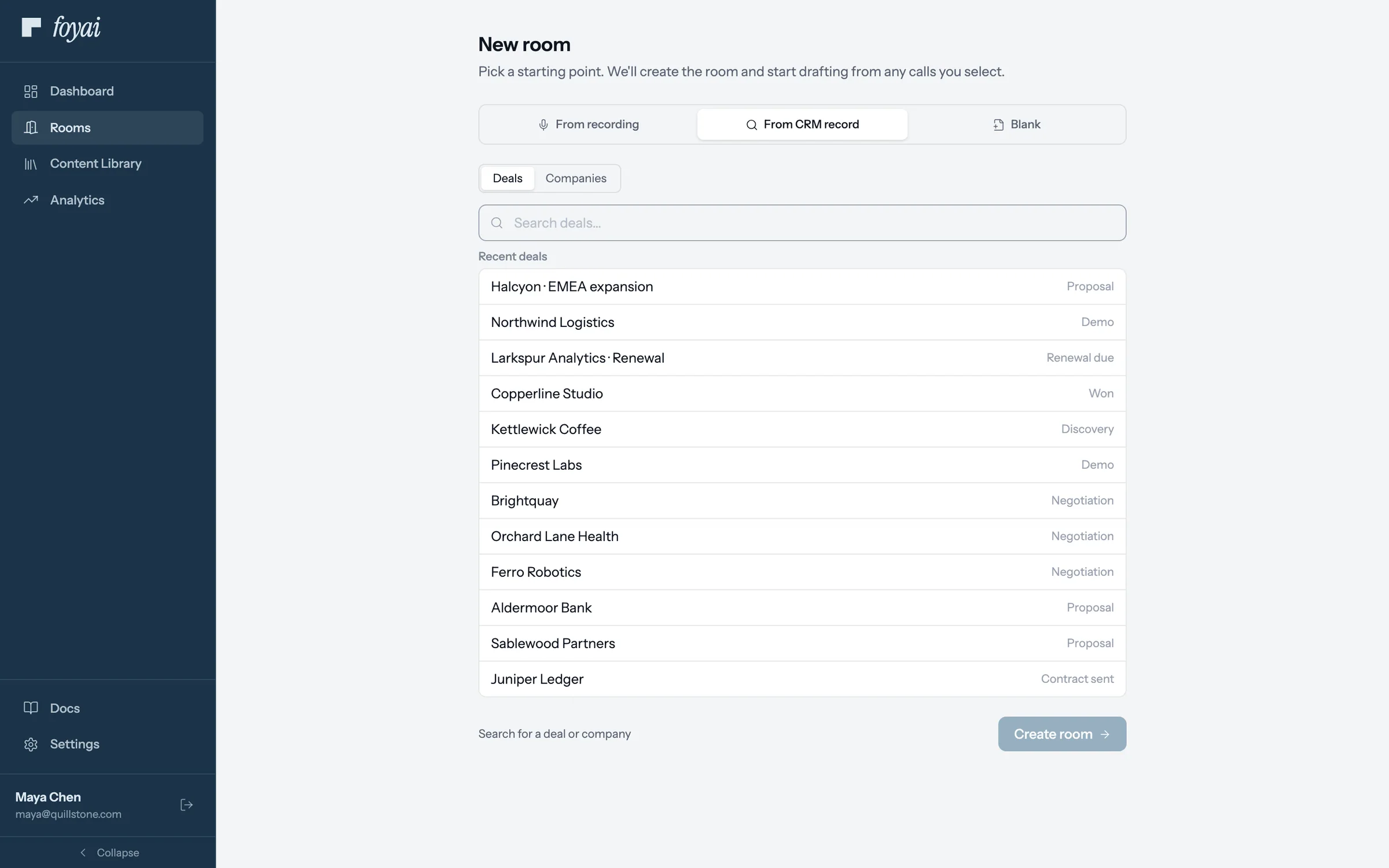
Step 2 of 8 New room from a deal Click New room, then From CRM record, and pick a deal from Attio.
-
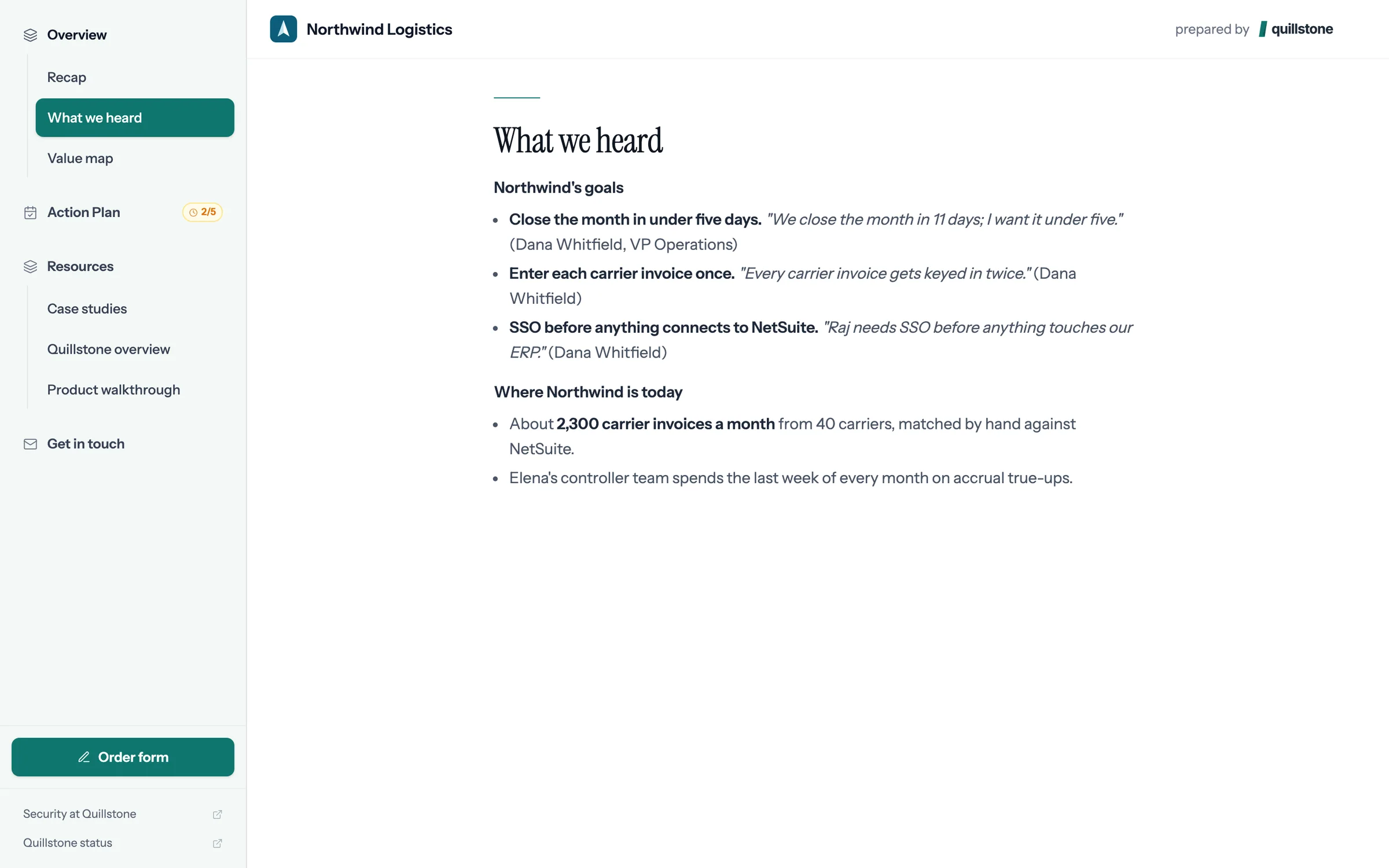
Step 3 of 8 What we heard foyai drafts the room from the calls, in the buyer's own words.
-
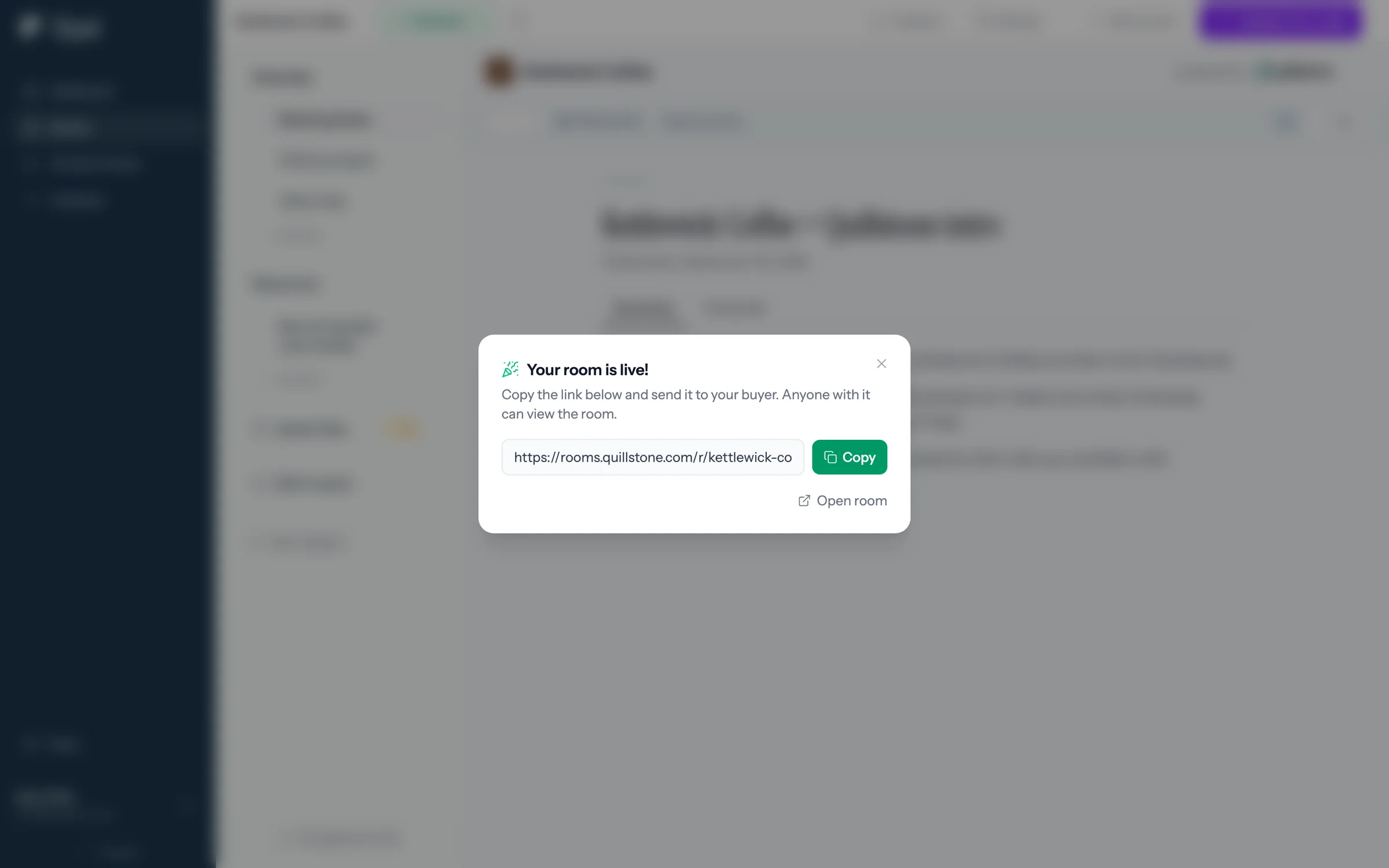
Step 4 of 8 Publish and get a link Once you have checked the draft, publish it and the room goes live with a link to share.
-
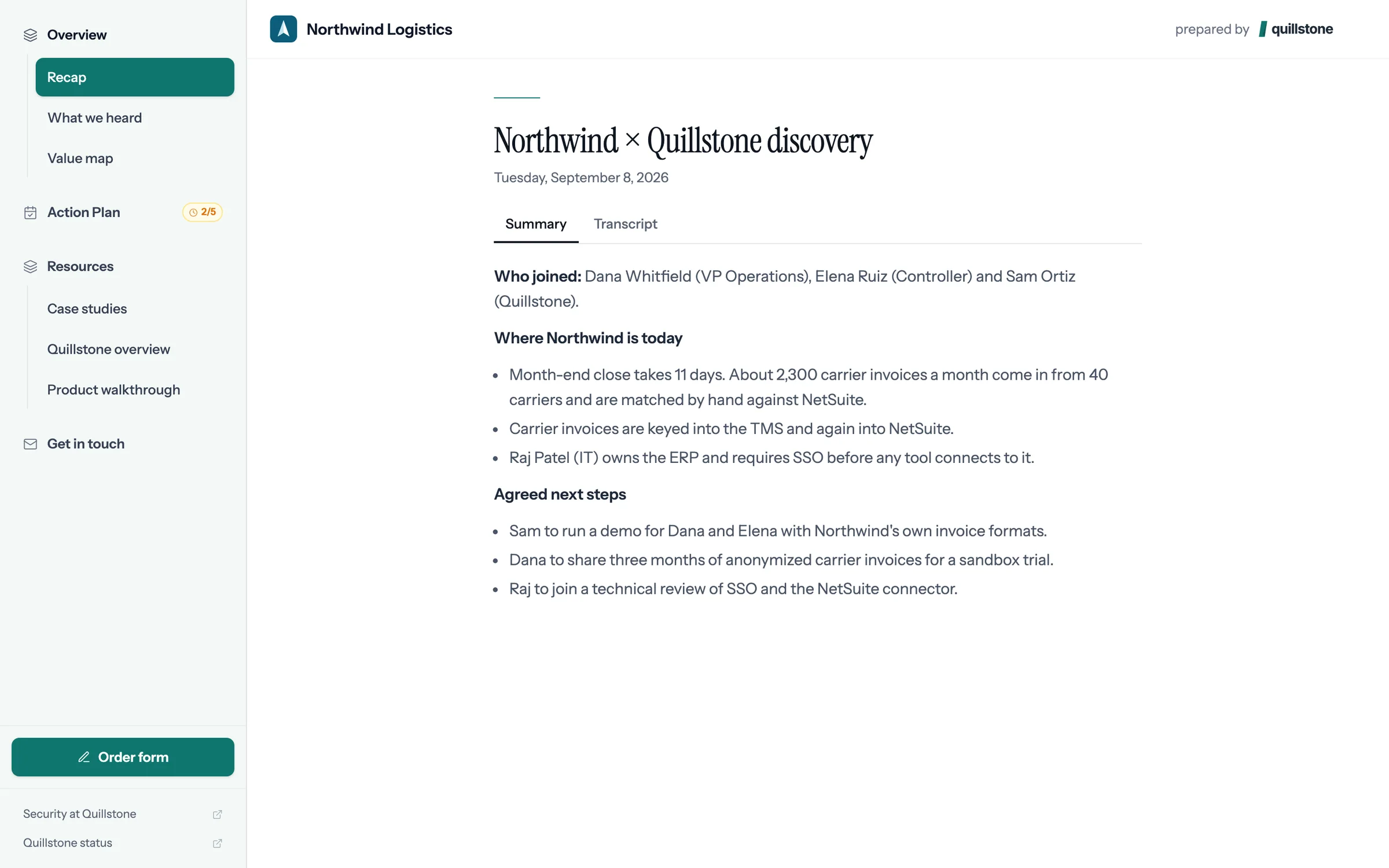
Step 5 of 8 The buyer opens the room No account to create. The buyer clicks the link and the room opens.
-
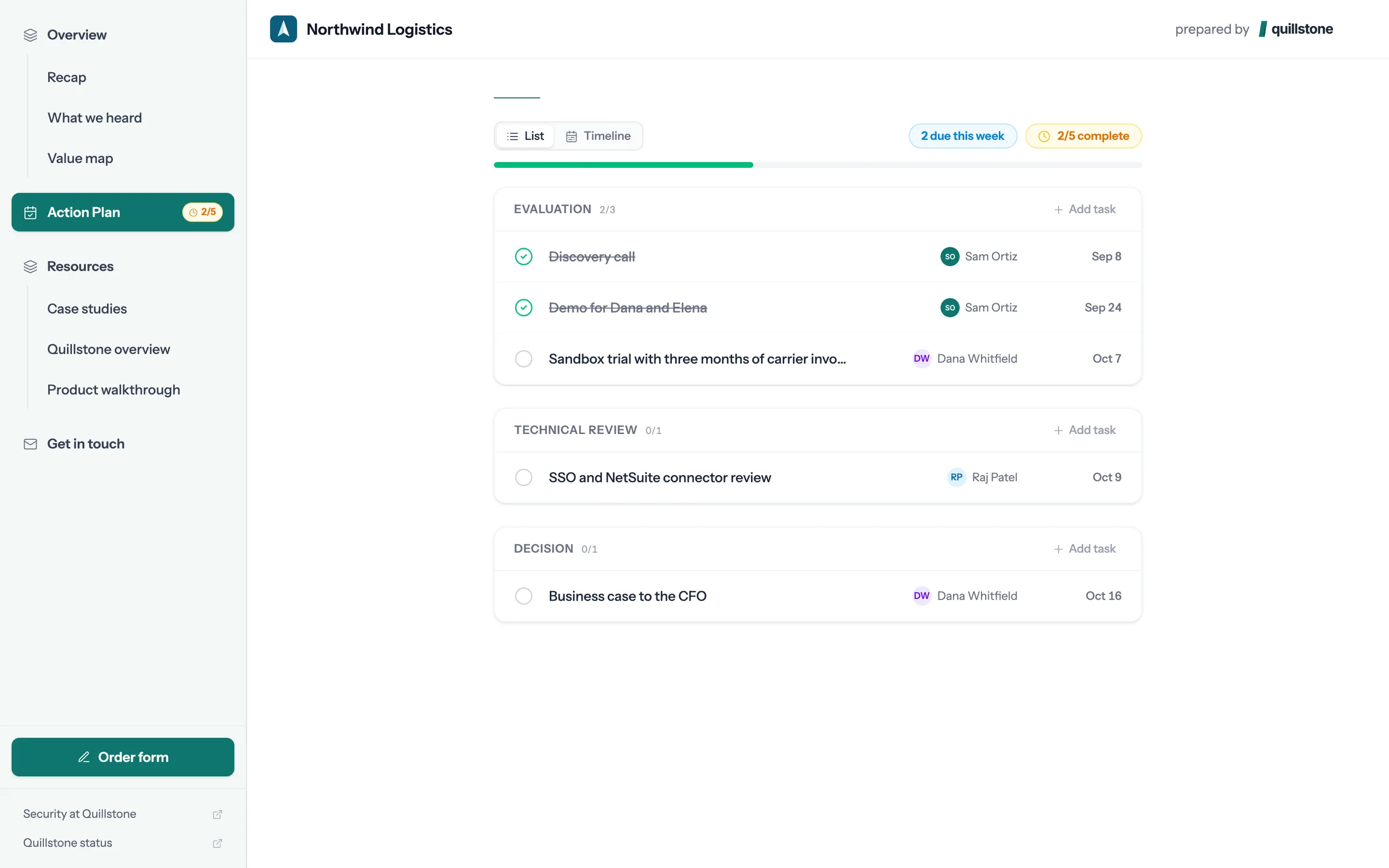
Step 6 of 8 The mutual action plan Dated steps for both sides, through to signature. The buyer can check off their own.
-
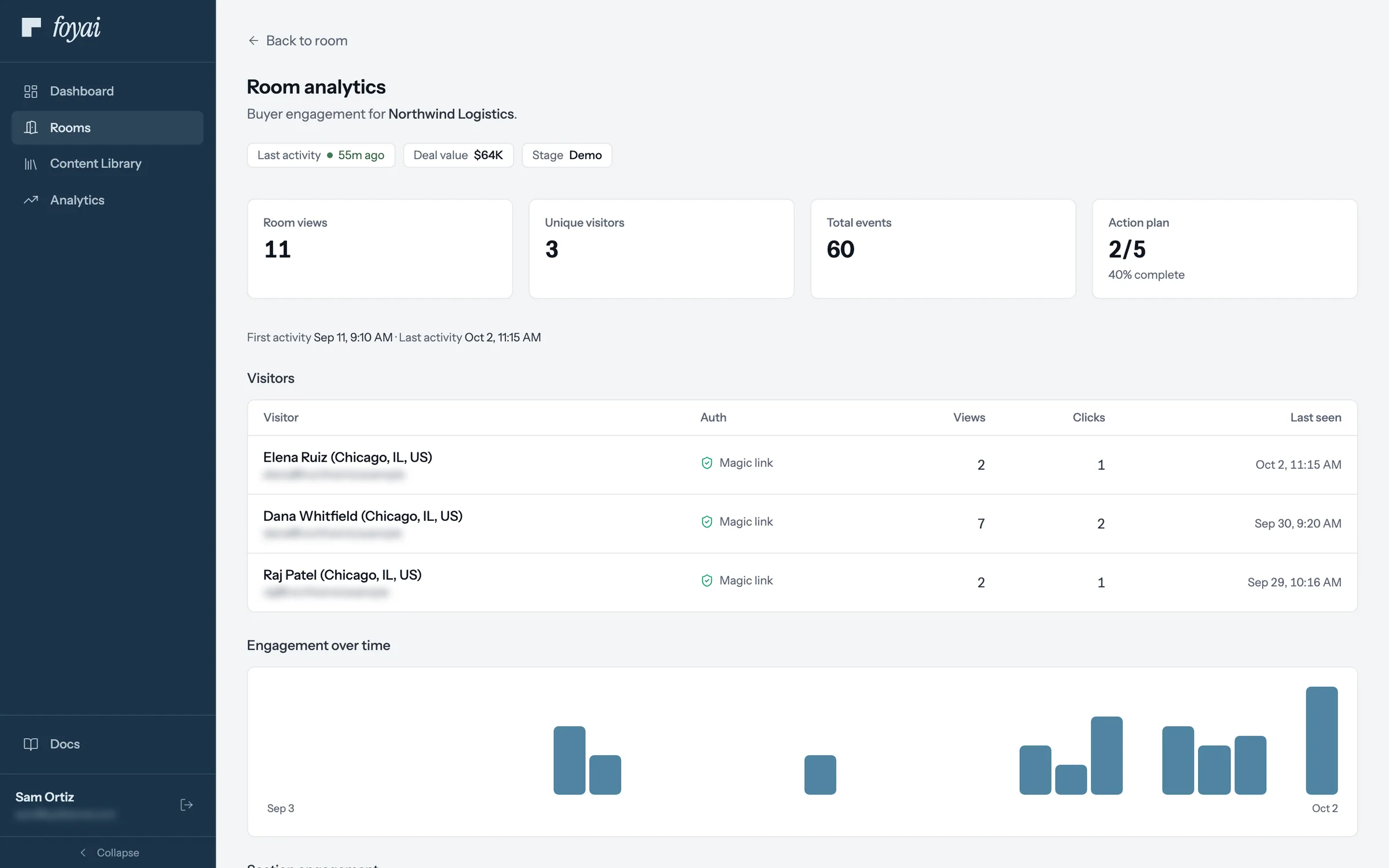
Step 7 of 8 See who opened what Room analytics show every visitor, what they viewed, and how the action plan is moving.
-
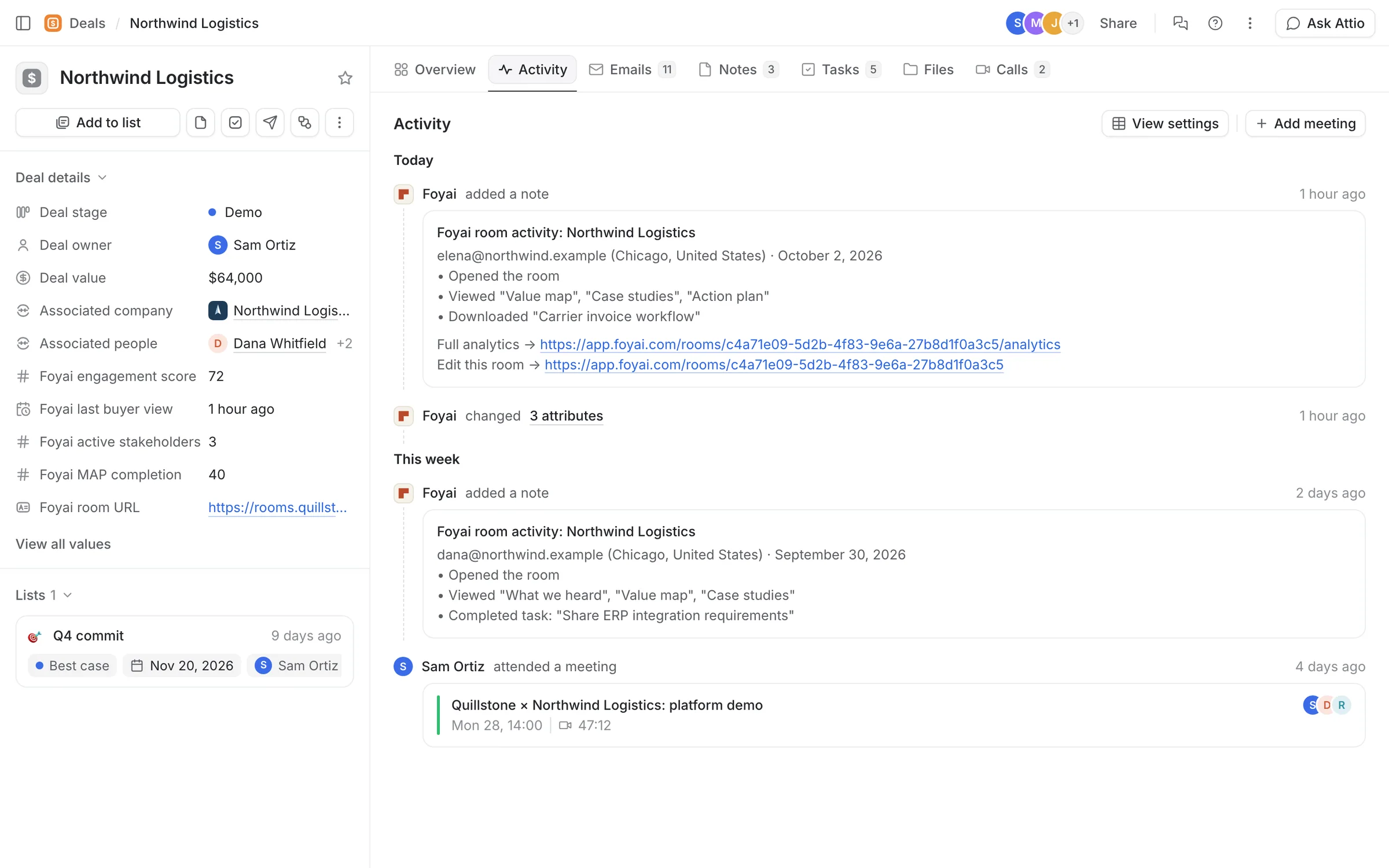
Step 8 of 8 It flows back to Attio Engagement score, last buyer view, and action plan completion land on the Attio deal.
foyai turns an Attio deal into a room, and back again.
Connect Attio, pick a deal with a recorded call, and foyai drafts the room for you to check and publish.
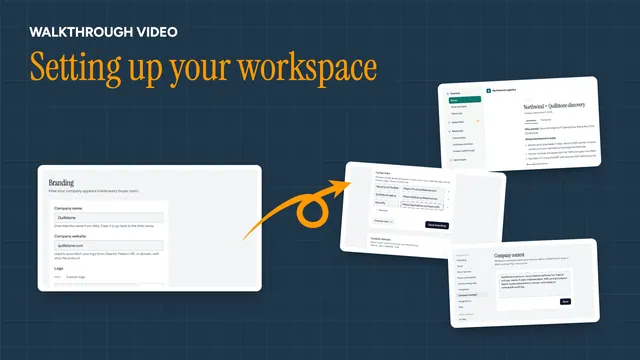 021:12
Setting up your workspace
Sign in with Attio, set your logo, colors, and footer links, and tell foyai what you sell.
Watch · 1:12Click through · 7 steps
021:12
Setting up your workspace
Sign in with Attio, set your logo, colors, and footer links, and tell foyai what you sell.
Watch · 1:12Click through · 7 steps
-
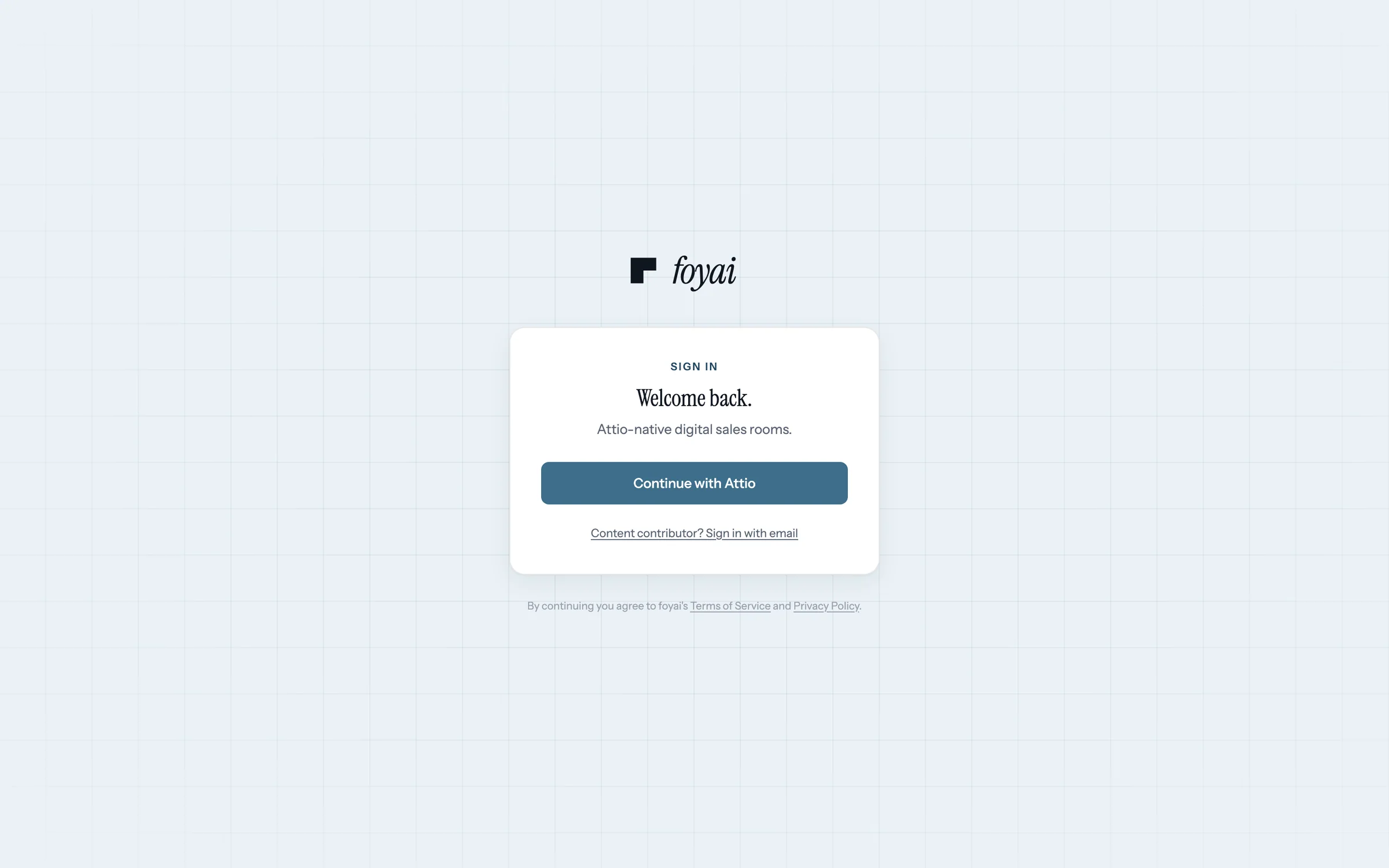
Step 1 of 7 Sign in with Attio Sign in to foyai with your Attio account. There's nothing separate to set up.
-
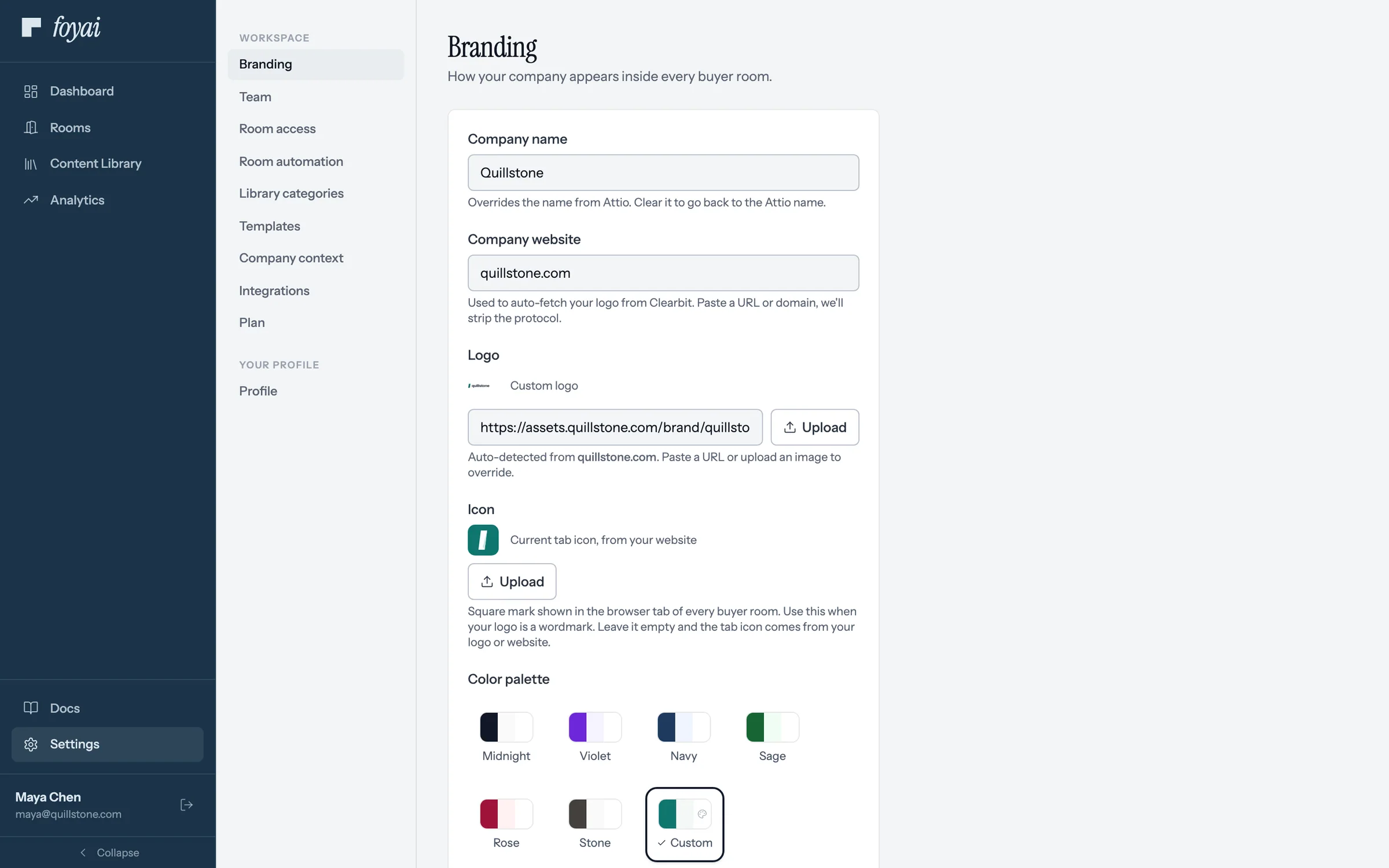
Step 2 of 7 Company name and logo foyai pulls your company name from Attio and your logo from your website. Override either one anytime.
-
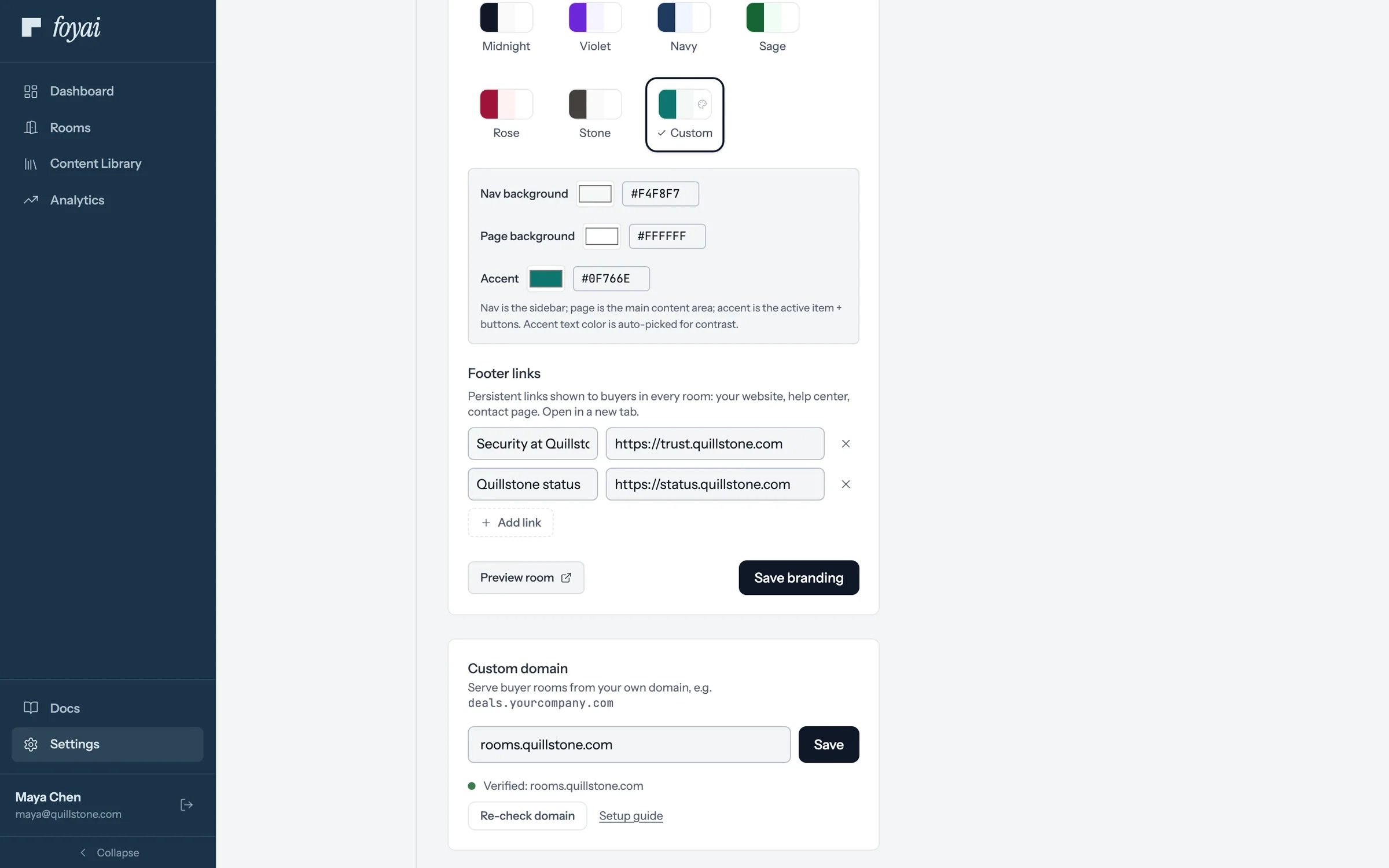
Step 3 of 7 Pick a palette Pick one of the built-in palettes, or Custom to set your own colors.
-
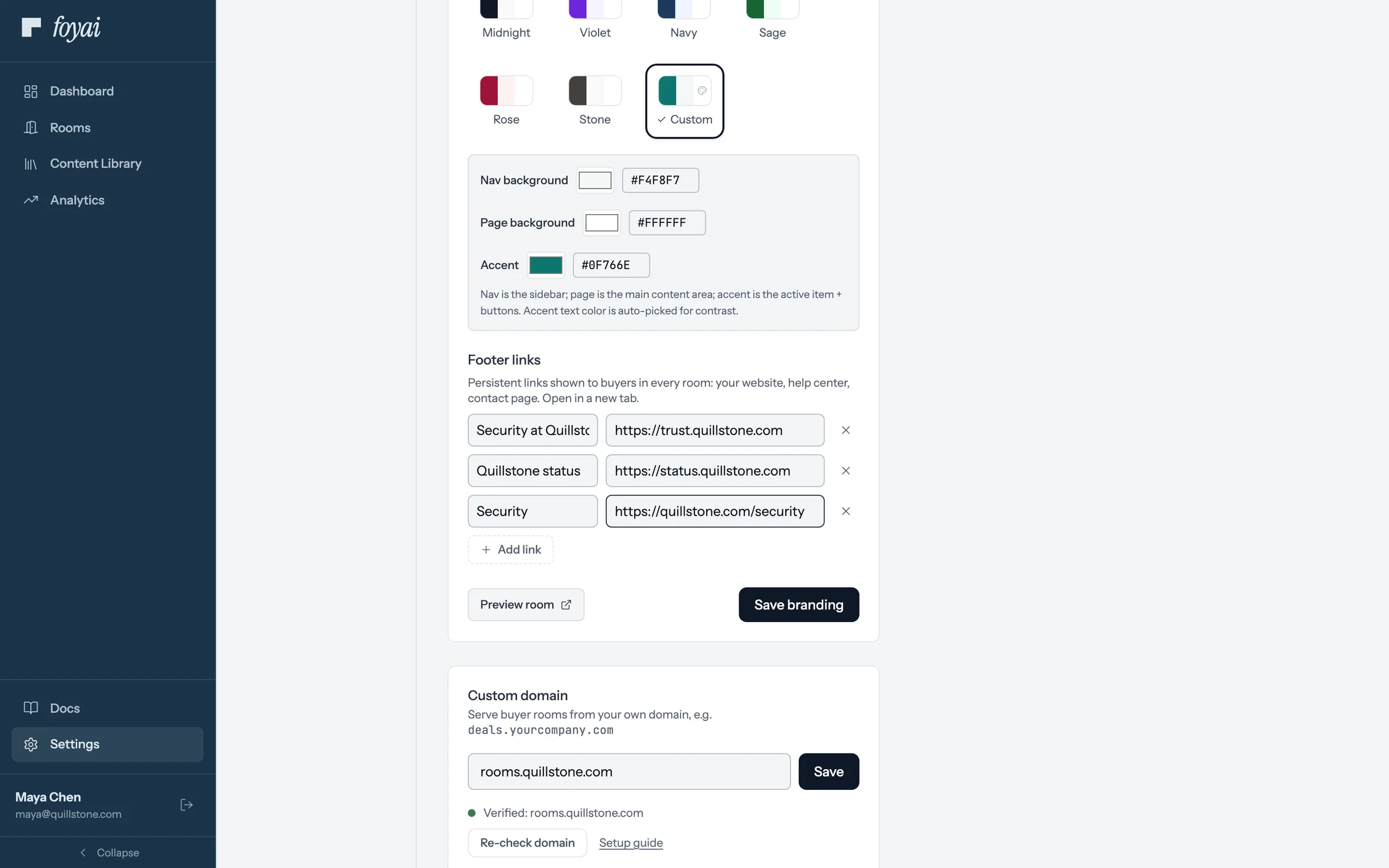
Step 4 of 7 Add a footer link Footer links sit at the bottom of every room. Add your security page, help center, or status page.
-
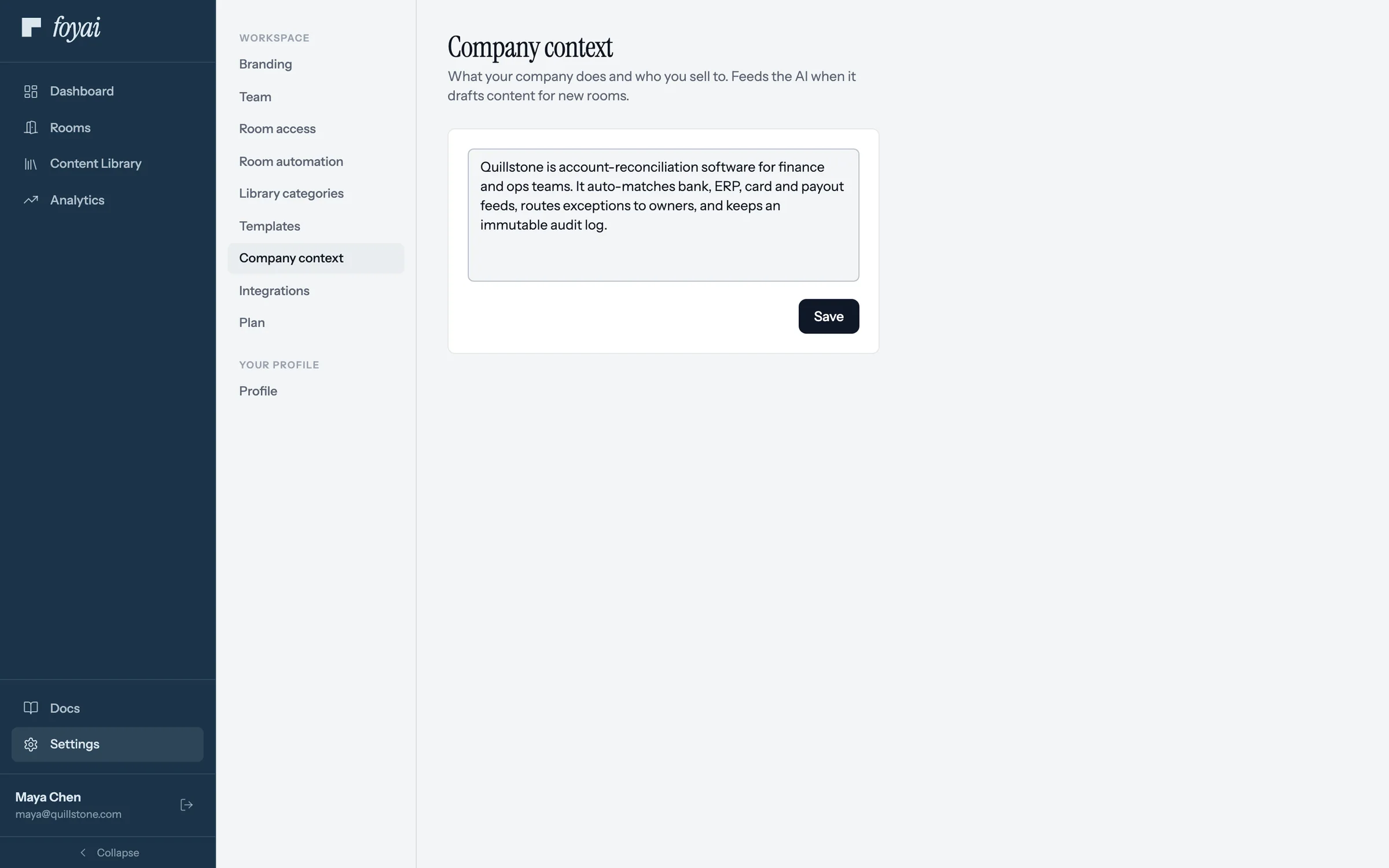
Step 5 of 7 Tell foyai what you sell What you sell and who buys it. foyai uses this when it drafts new rooms.
-
Step 6 of 7 Preview your branding Preview room shows a sample room with your branding before anyone publishes.
-
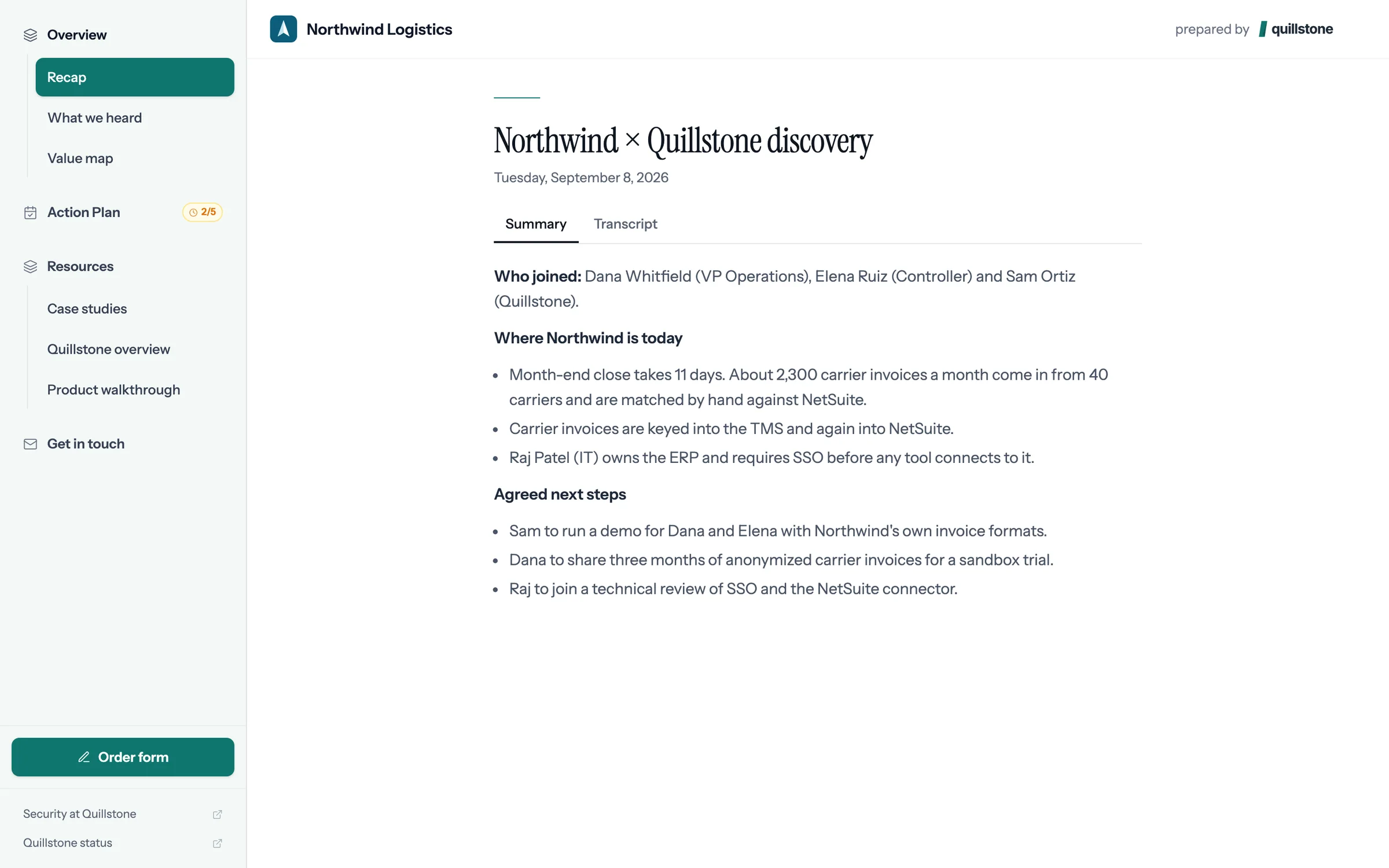
Step 7 of 7 What buyers see Every room you publish uses your name, logo, colors, and footer links.
Every room now carries your brand.
Every room your team publishes now carries this name, logo, palette, and footer.
 031:12
Connecting Google Drive
Connect your Google account so the Drive files you add to rooms open for the right buyers.
Watch · 1:12Click through · 6 steps
031:12
Connecting Google Drive
Connect your Google account so the Drive files you add to rooms open for the right buyers.
Watch · 1:12Click through · 6 steps
-
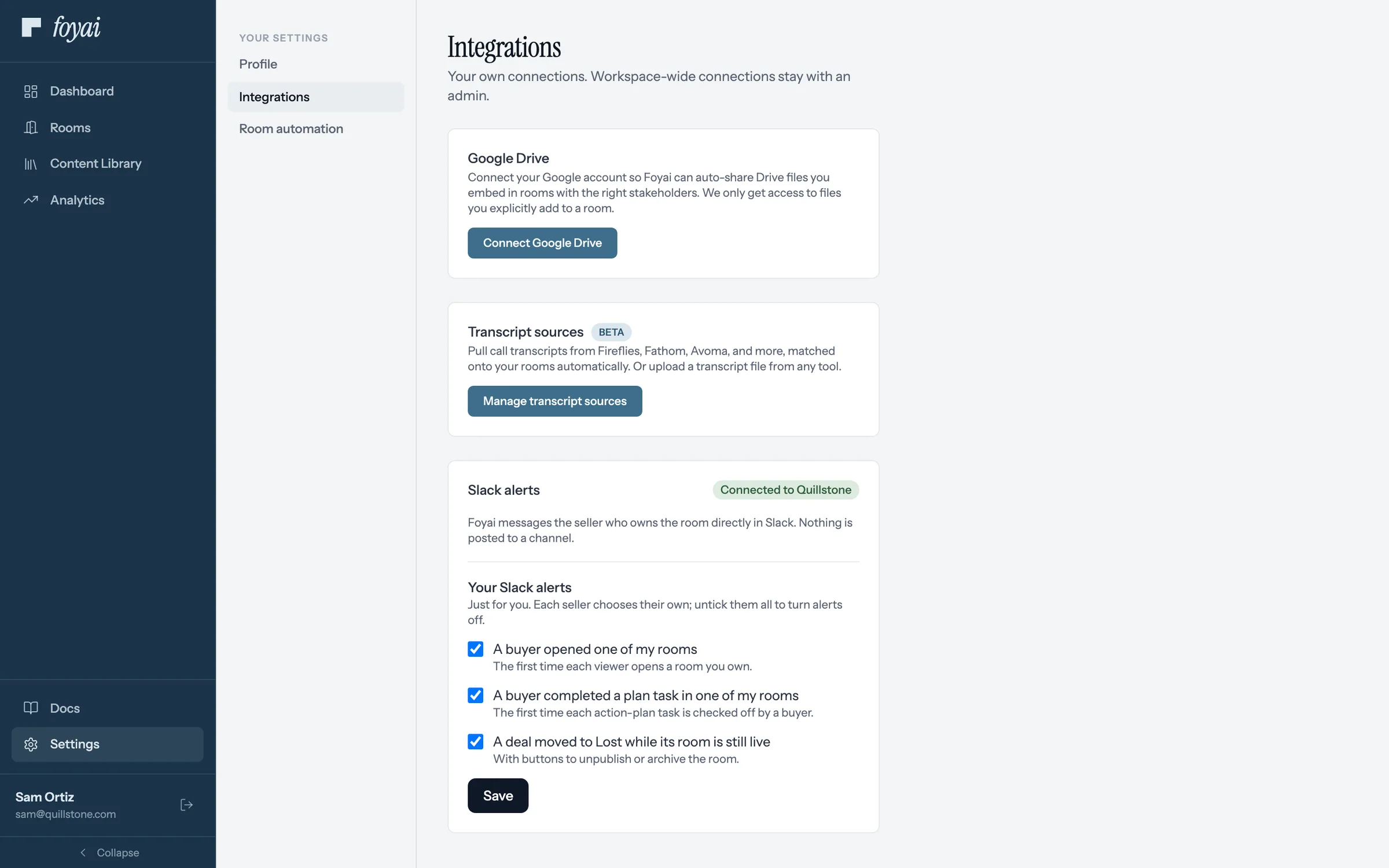
Step 1 of 6 Connect Google Drive In Settings, Integrations, click Connect Google Drive on the Google Drive card.
-
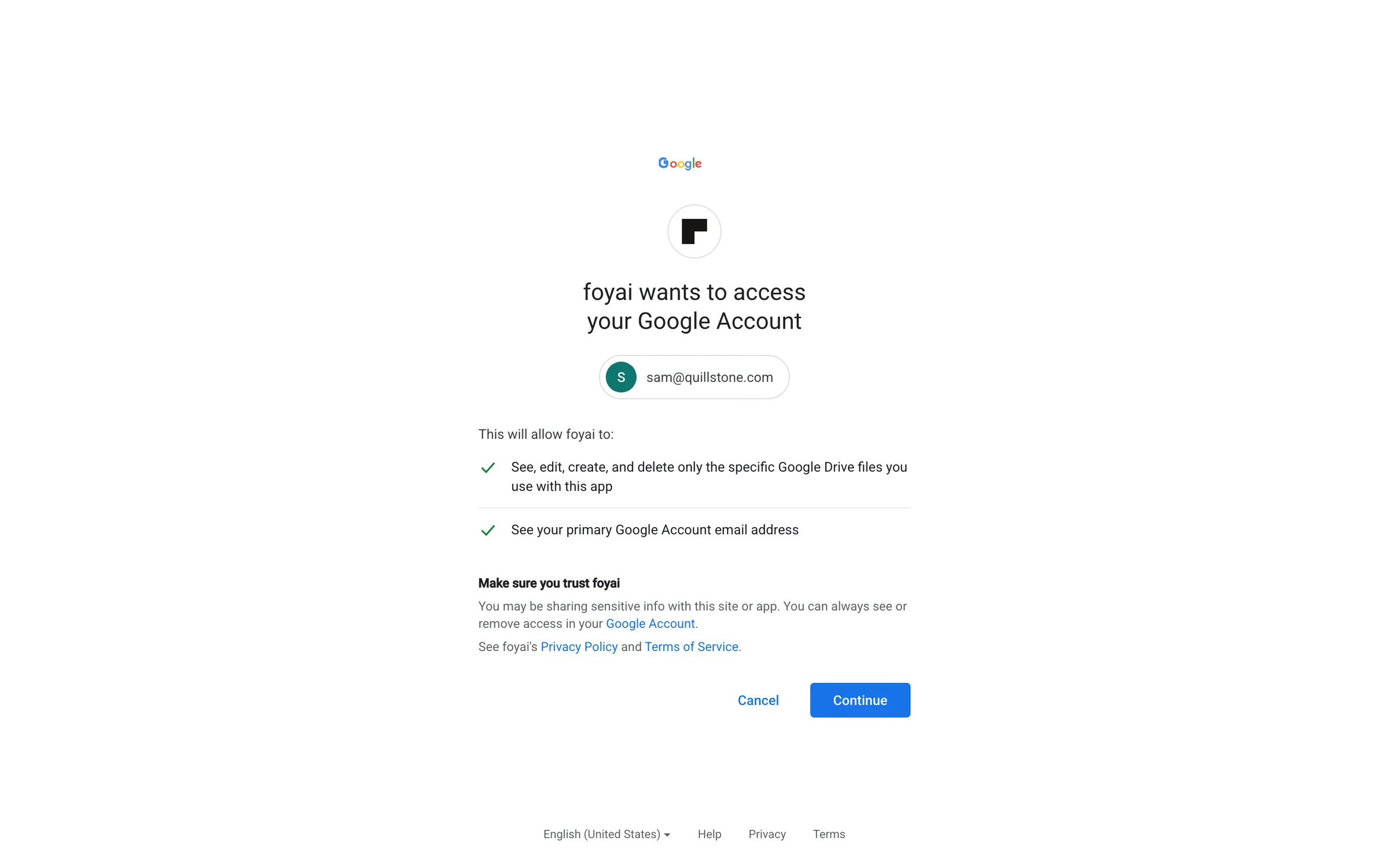
Step 2 of 6 Grant Drive access Google lists what foyai asks for: only the files you pick, and your email address.
-
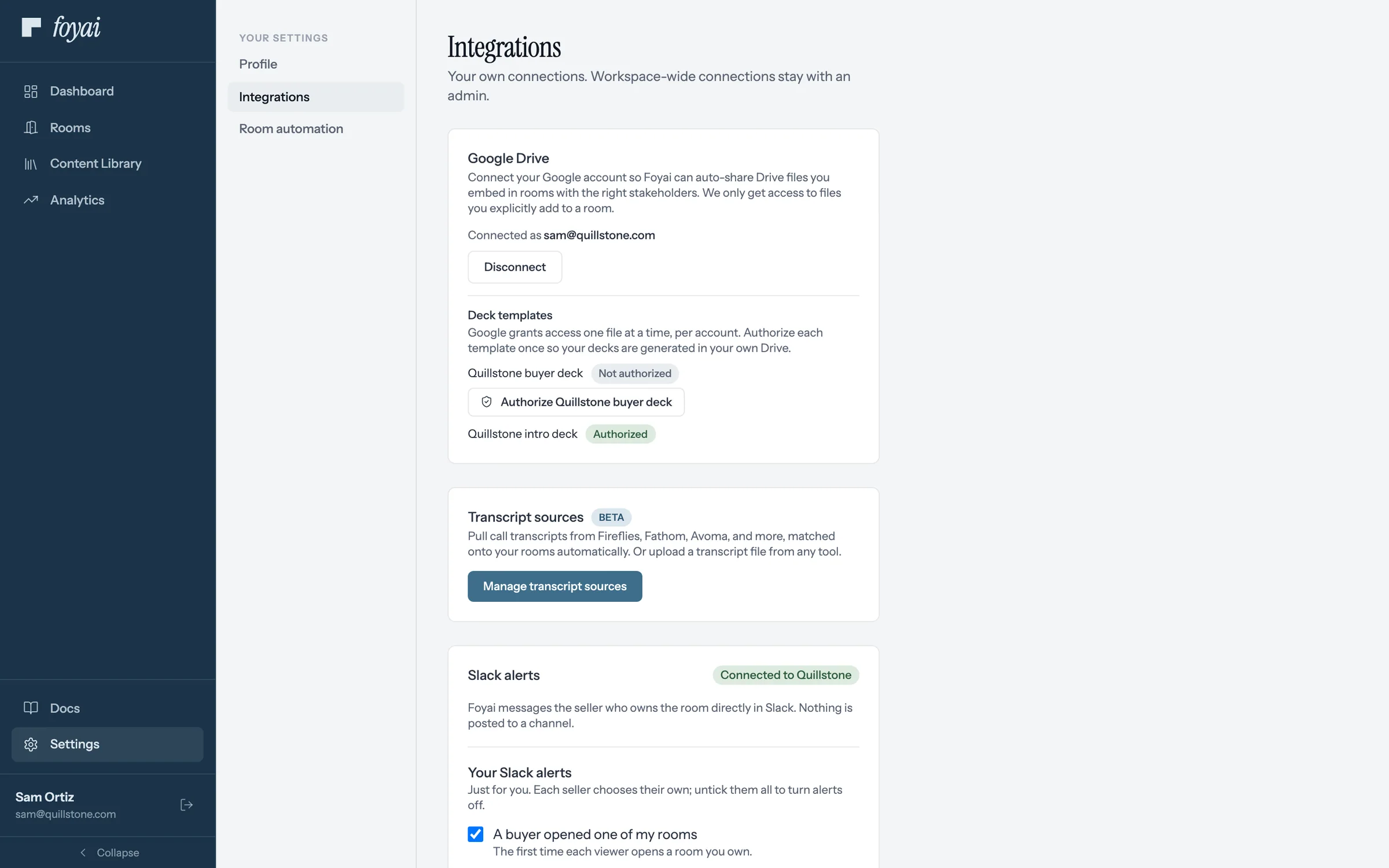
Step 3 of 6 Connected The card shows the Google account you connected. It's yours alone.
-
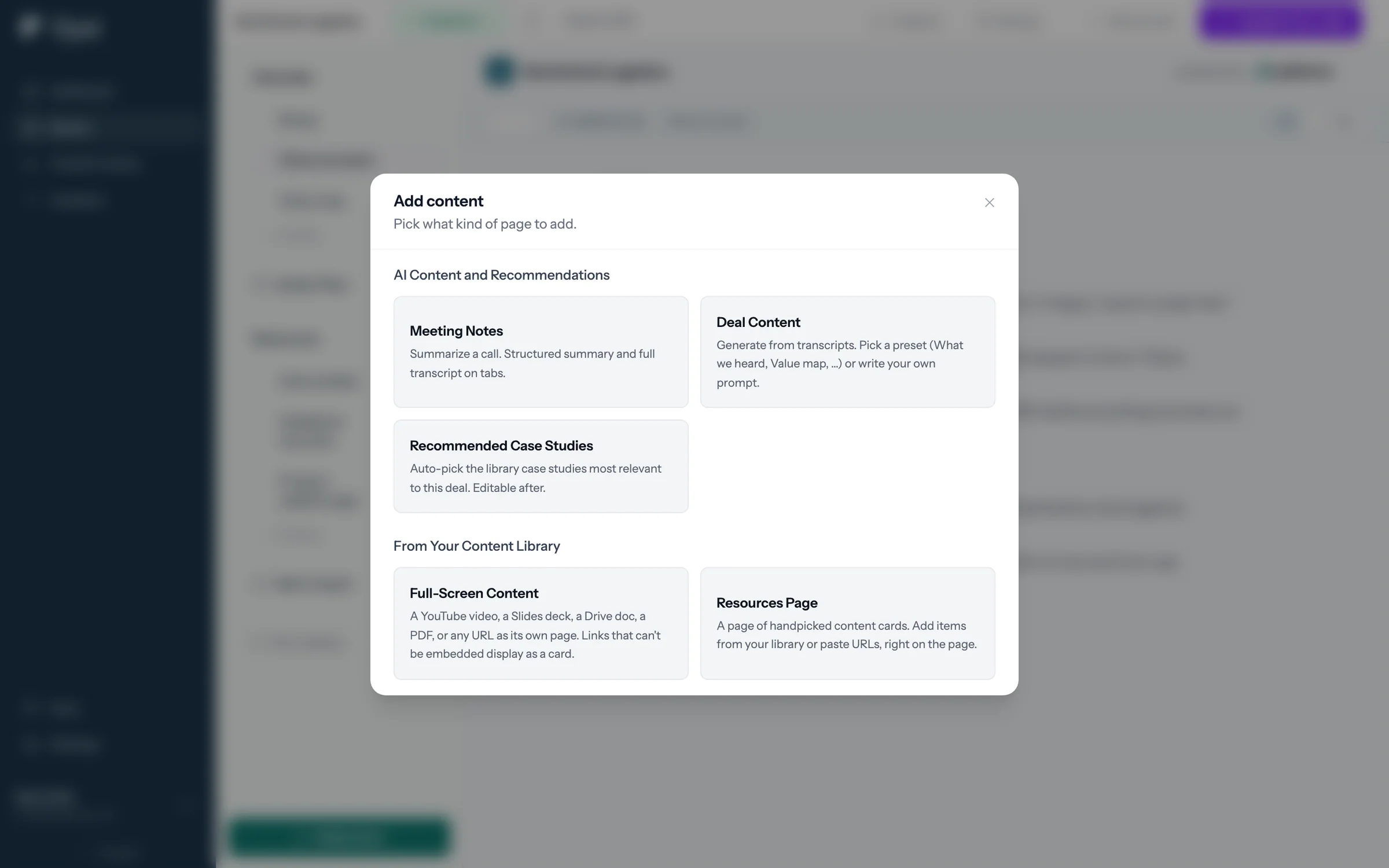
Step 4 of 6 Full-Screen Content In a room, click Add content, then Full-Screen Content to give a file its own page.
-
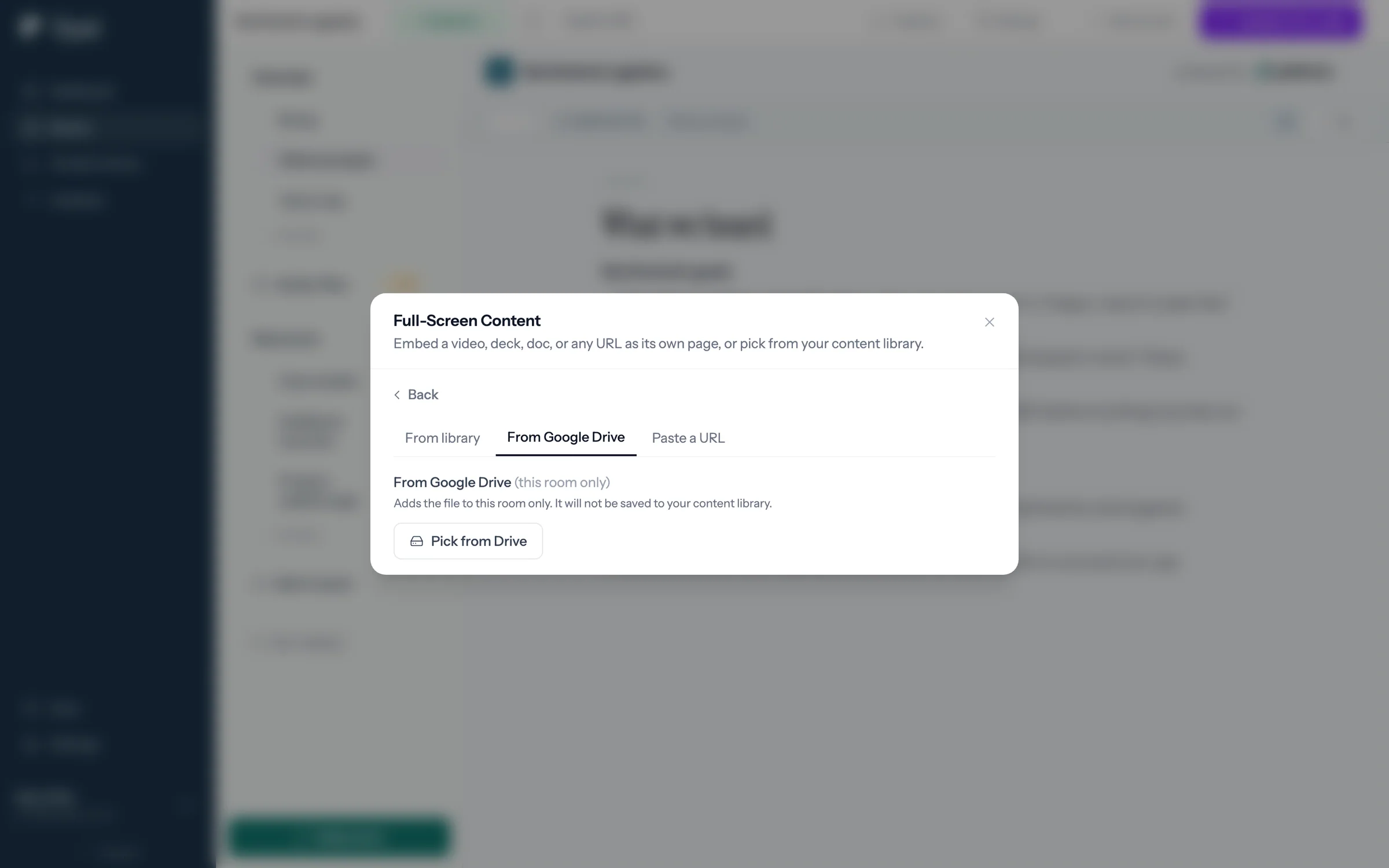
Step 5 of 6 Pick from Drive On the From Google Drive tab, click Pick from Drive.
-
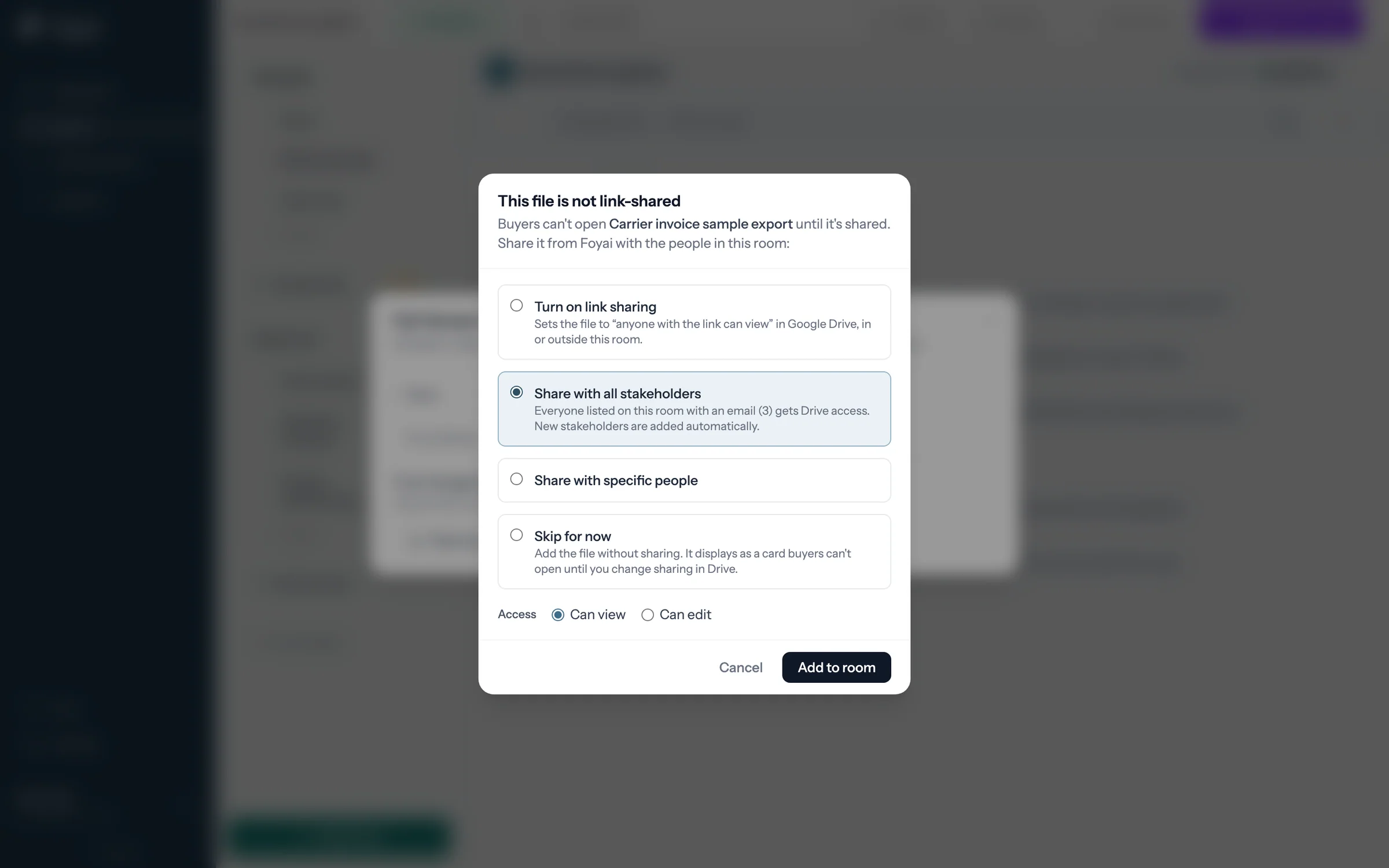
Step 6 of 6 Share with all stakeholders Share with all stakeholders gives everyone on the room access, including people added later.
Drive files you add now open for the right buyers.
Each teammate connects their own Google account under Settings, Integrations.
 041:34
Building your Content Library
Add the case studies, decks, and videos your sellers reach for, and invite a contributor to help keep it stocked.
Watch · 1:34Click through · 9 steps
041:34
Building your Content Library
Add the case studies, decks, and videos your sellers reach for, and invite a contributor to help keep it stocked.
Watch · 1:34Click through · 9 steps
-
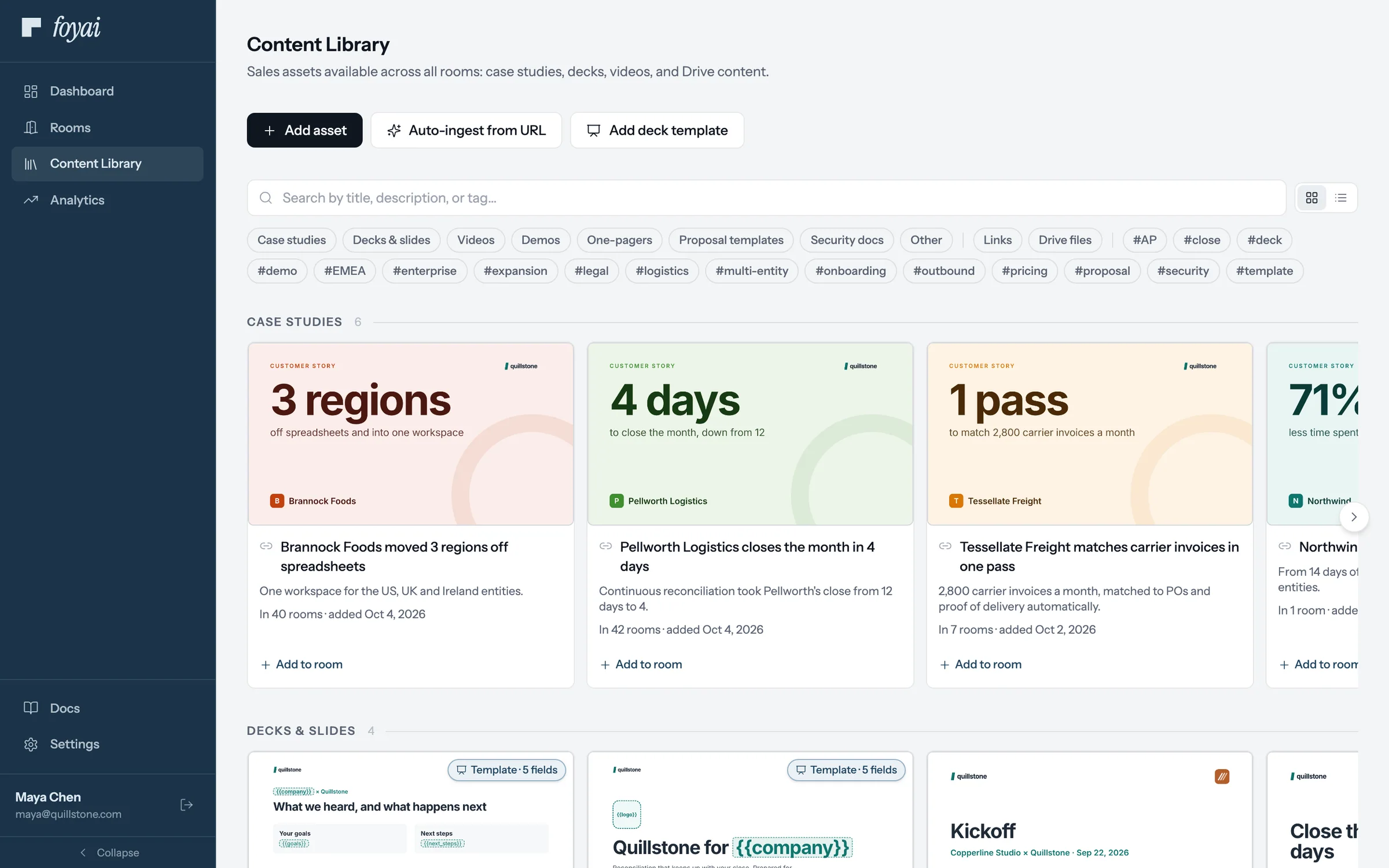
Step 1 of 9 Open Content Library Content Library sits in the main navigation. Every seller can open it.
-
Step 2 of 9 Add asset Add asset takes a link, a Google Drive file, or a PDF from your computer.
-
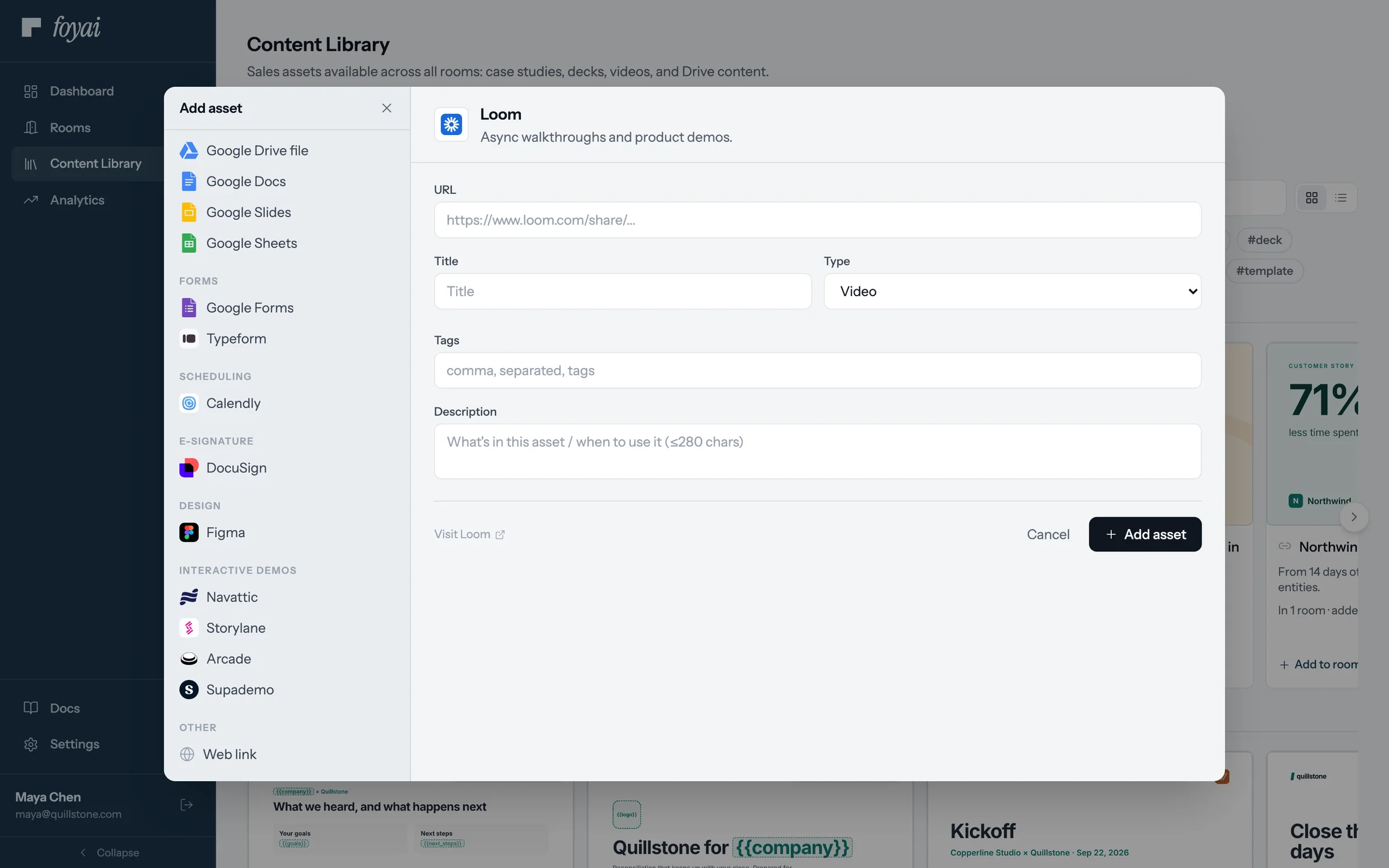
Step 3 of 9 Any web link Sources are grouped by kind, down to any Web link.
-
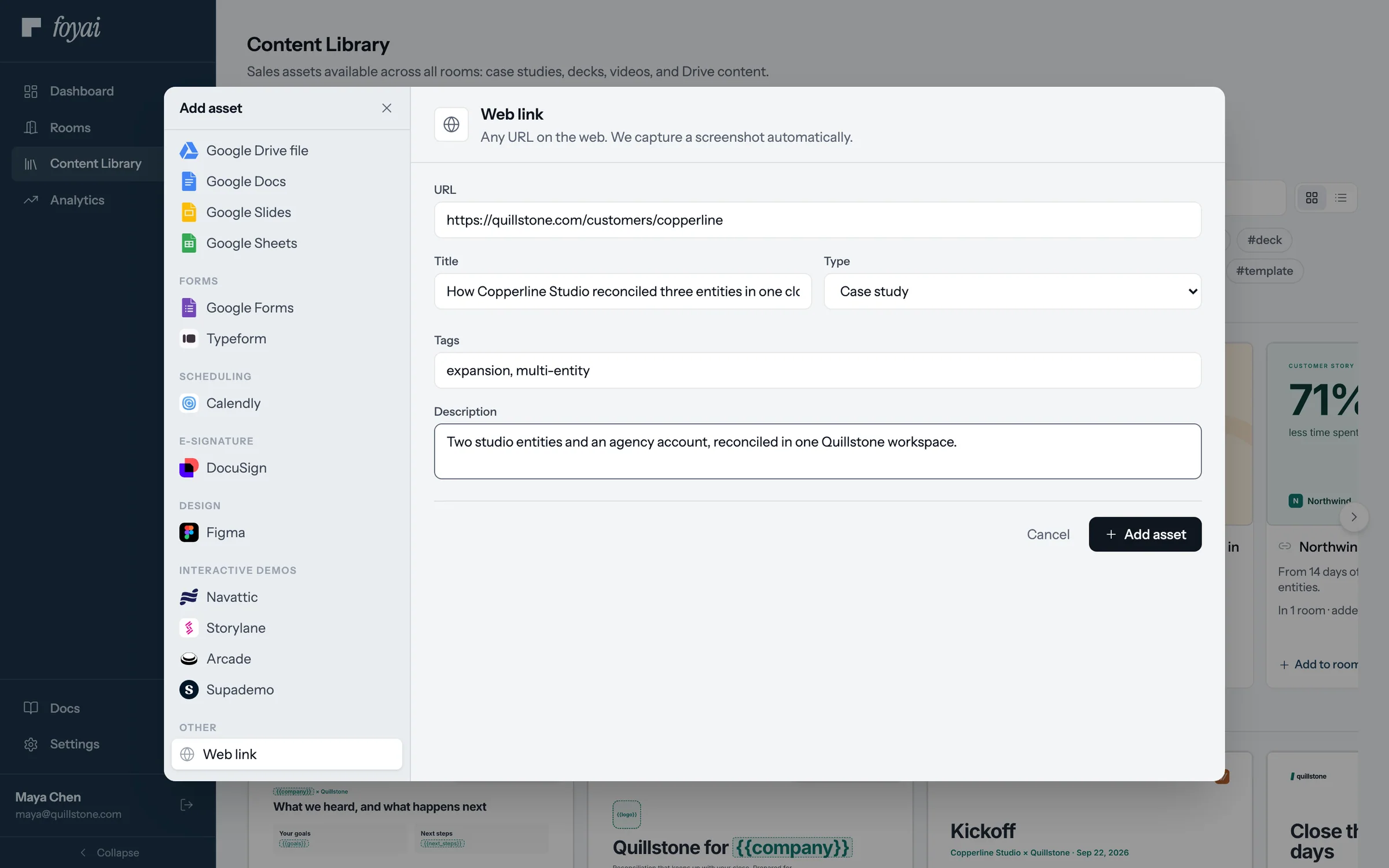
Step 4 of 9 Fill in the case study Add a title, type, tags, and a short description. foyai catches duplicates before adding.
-
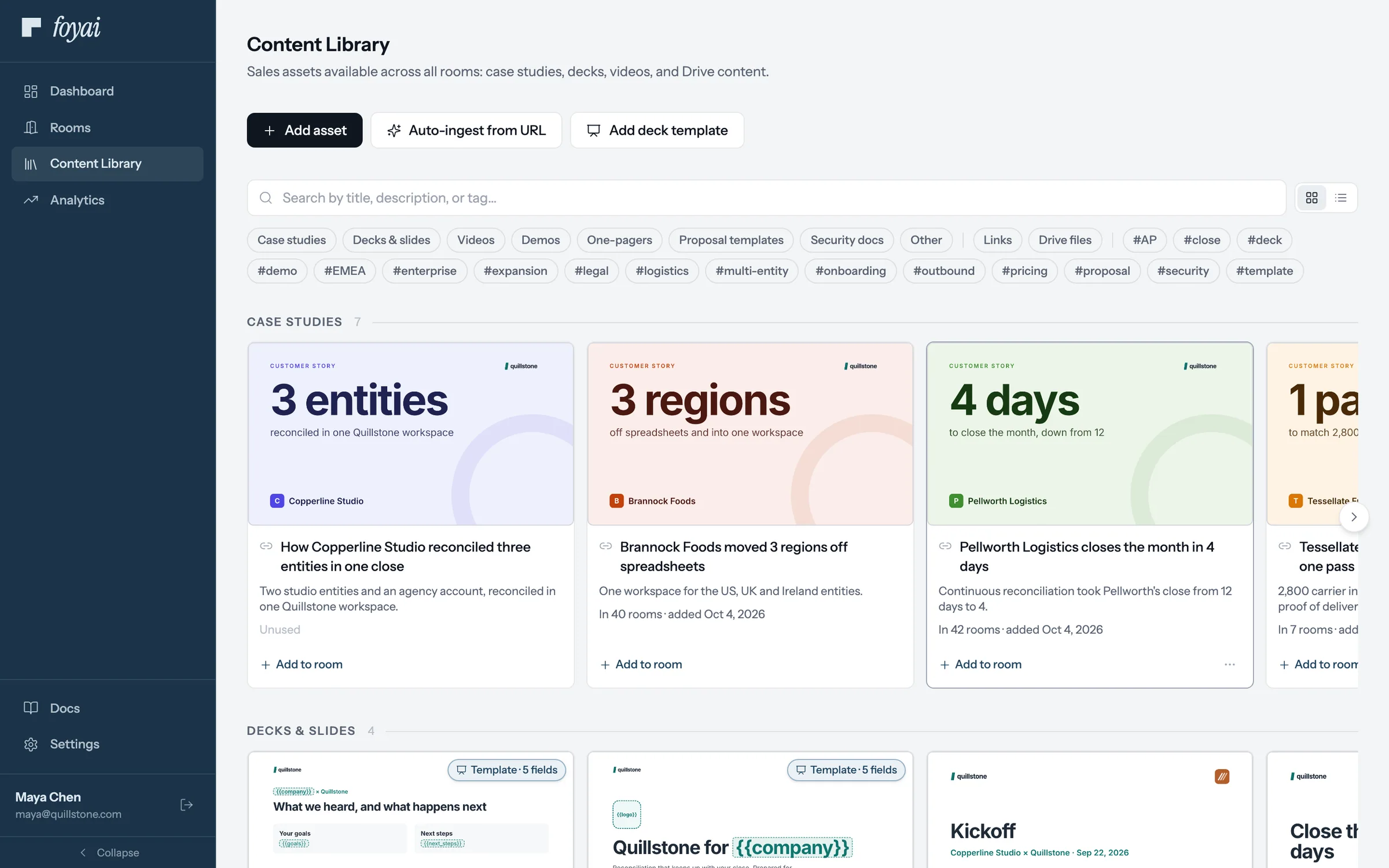
Step 5 of 9 In the library It joins the other case studies, where any seller can add it to a room.
-
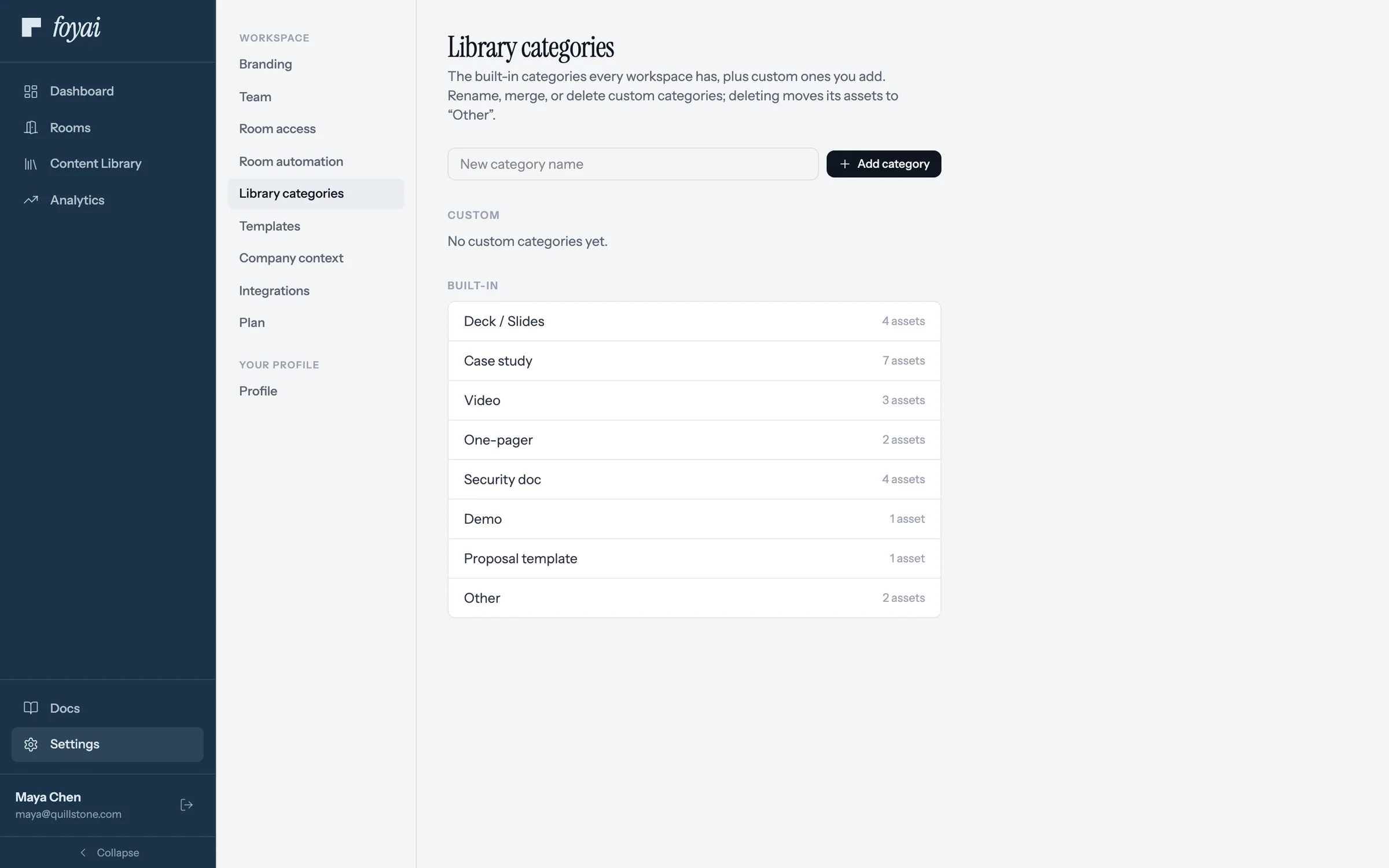
Step 6 of 9 Organize by category Built-in categories are always there. Admins add, rename, or merge custom ones here.
-
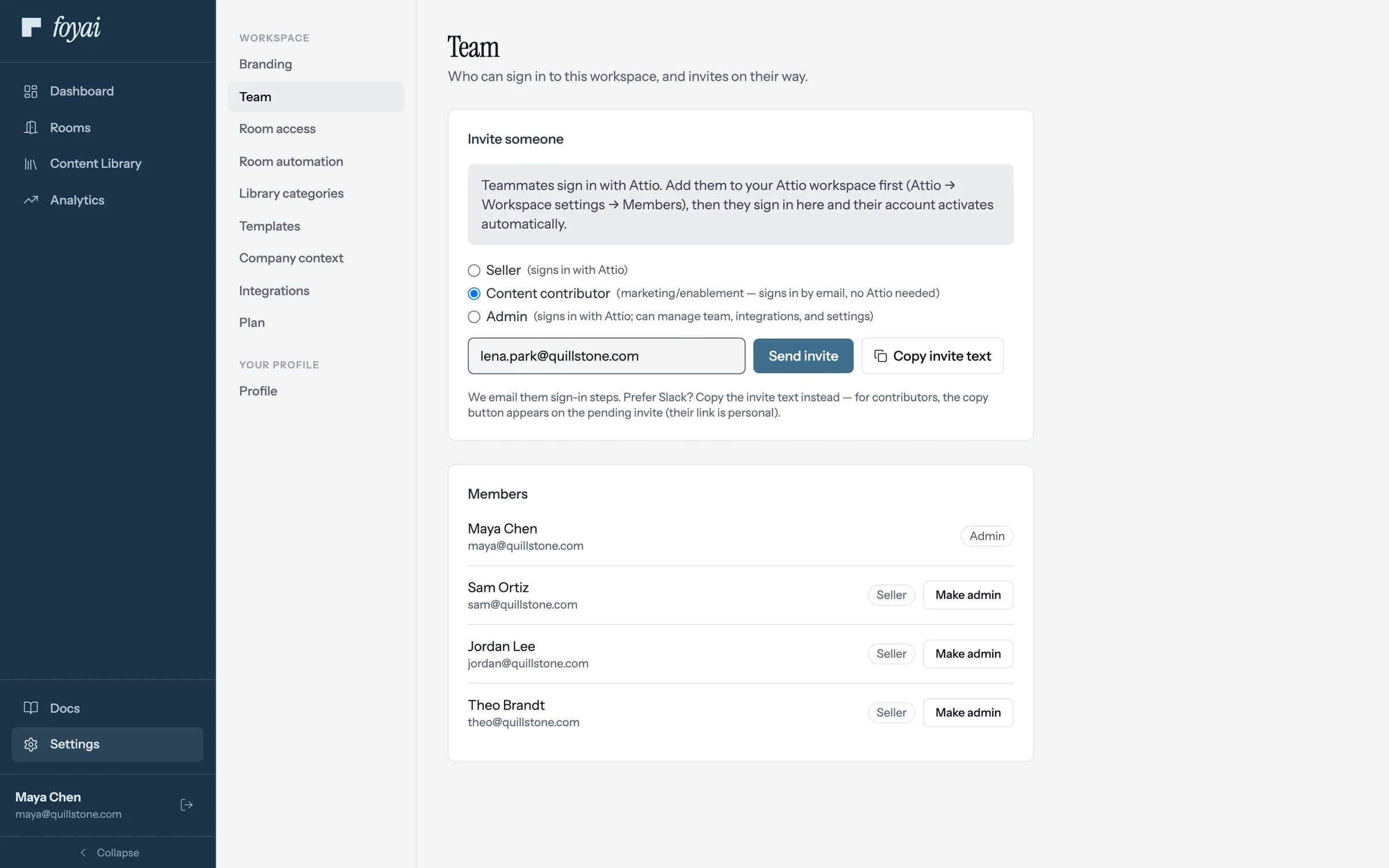
Step 7 of 9 Invite a content contributor In Settings, Team, invite marketing or enablement as a Content contributor. They sign in by email.
-
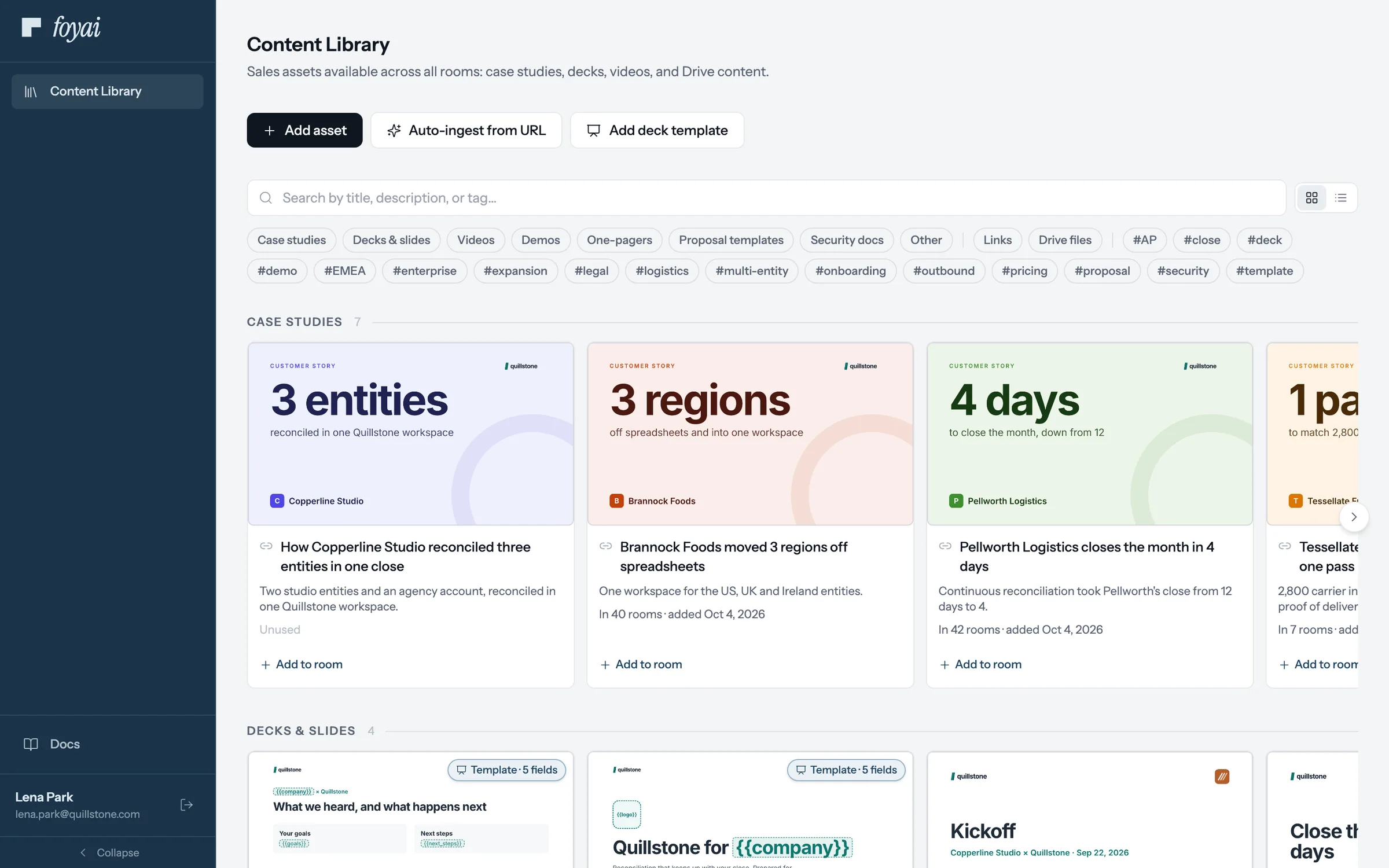
Step 8 of 9 What a contributor sees Only the Content Library and the docs. They add assets, import case studies, and add deck templates.
-
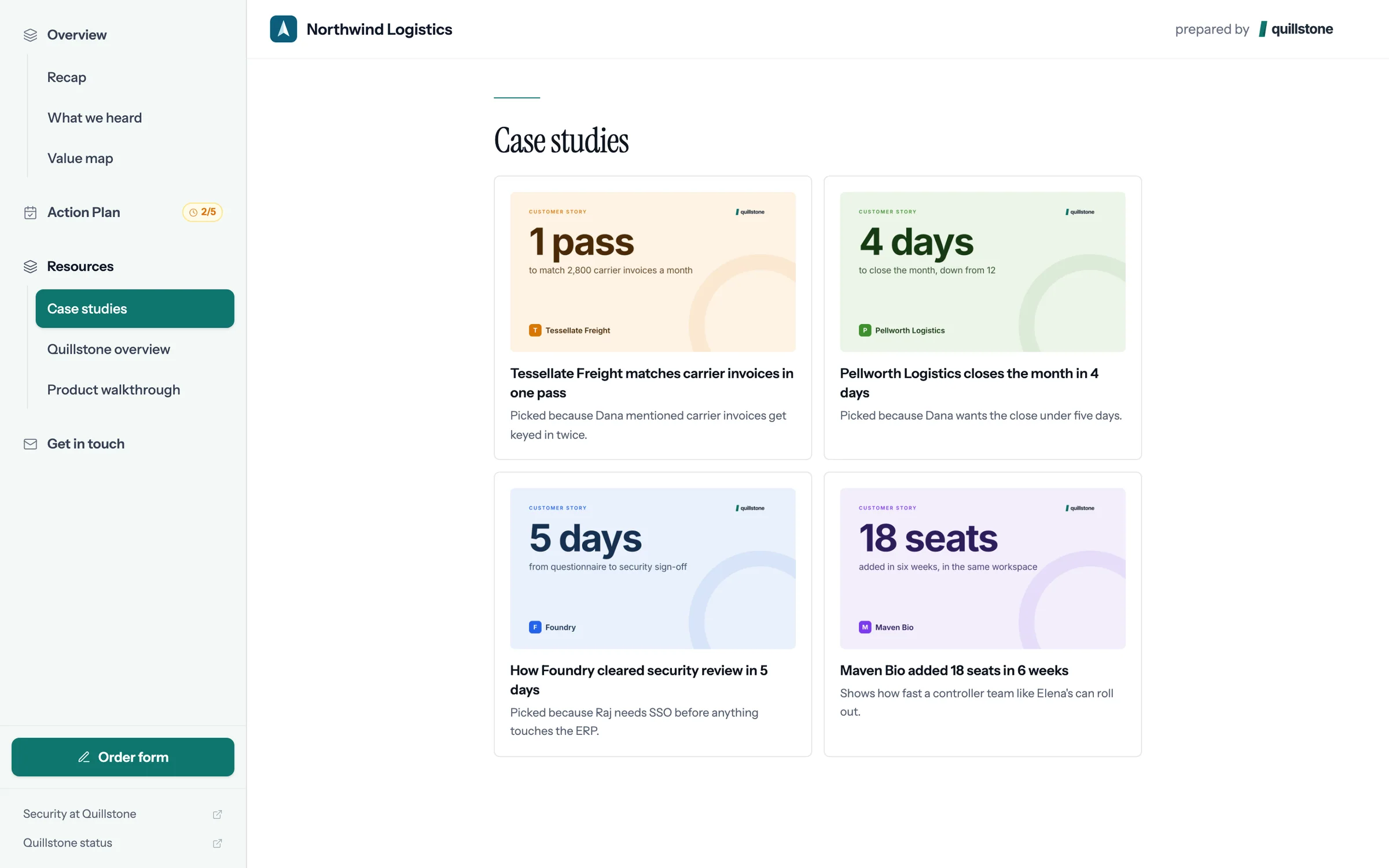
Step 9 of 9 How it reaches a room Recommended Case Studies picks from the library automatically, with a line on why each one was chosen.
Your whole team draws from one library.
Add your best case studies, decks, and documents, and any seller can bring them into a room.
 051:03
Setting default room access
Pick the access mode every new room starts with. Each room can still be changed before it's published.
Watch · 1:03Click through · 5 steps
051:03
Setting default room access
Pick the access mode every new room starts with. Each room can still be changed before it's published.
Watch · 1:03Click through · 5 steps
-
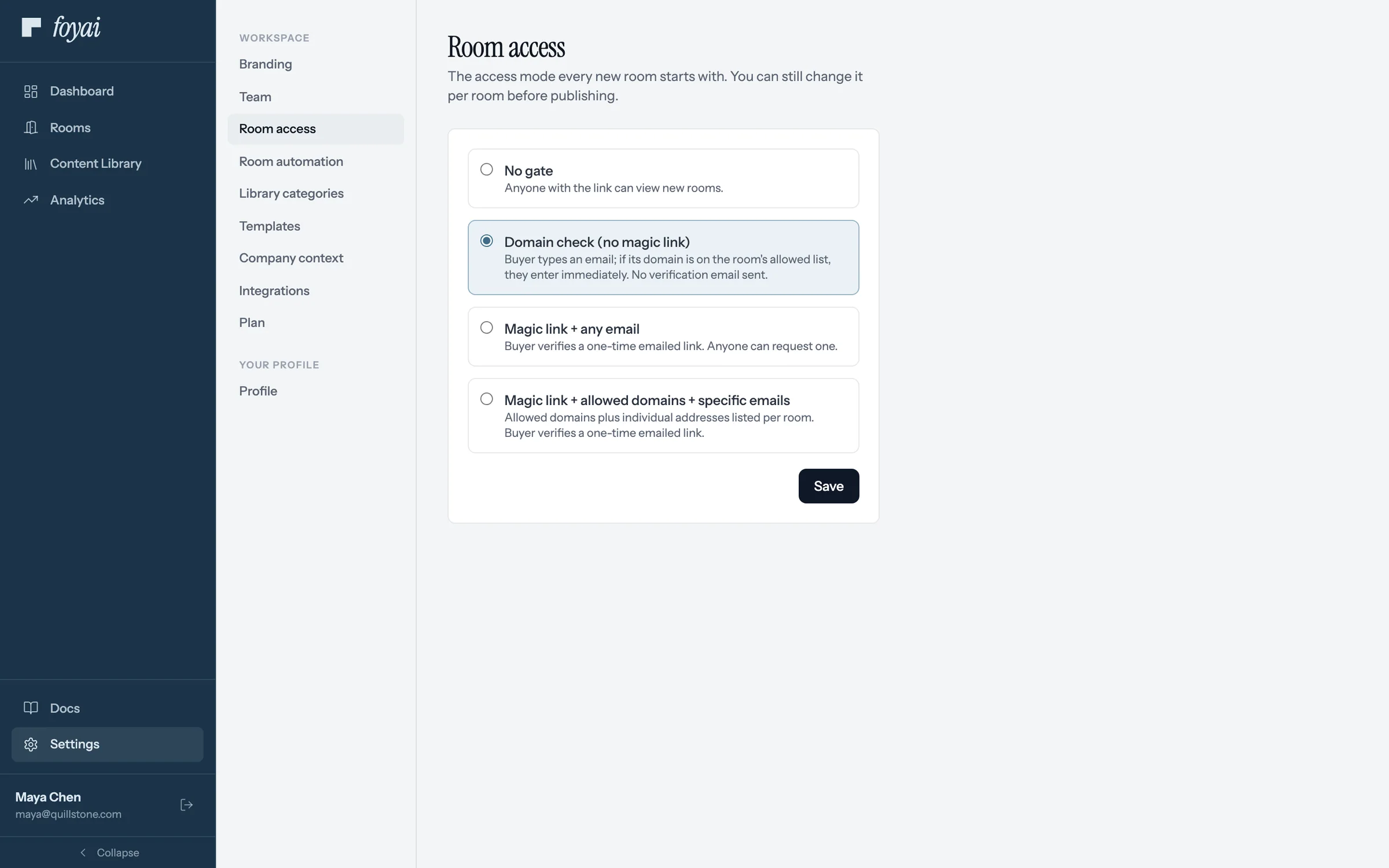
Step 1 of 5 Open Room access In Settings, Room access sets the default every new room starts with.
-
Step 2 of 5 The four access modes No gate, Domain check, magic link with any email, or magic link limited to allowed domains and emails.
-
Step 3 of 5 Domain check, selected Domain check lets a buyer in the moment their email domain matches, with no verification link.
-
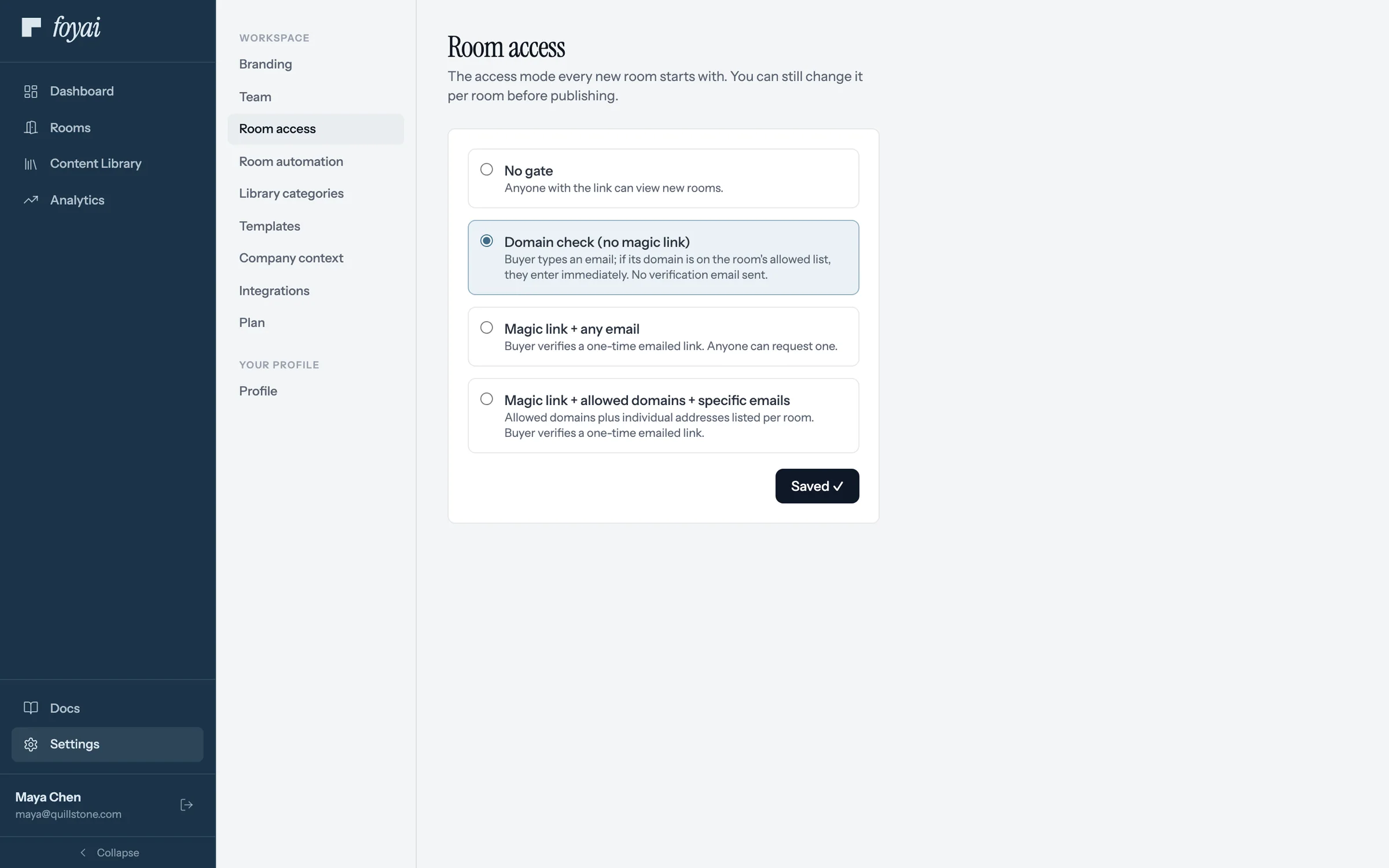
Step 4 of 5 Save the default Saved confirms it. Every room created from now on starts in Domain check.
-
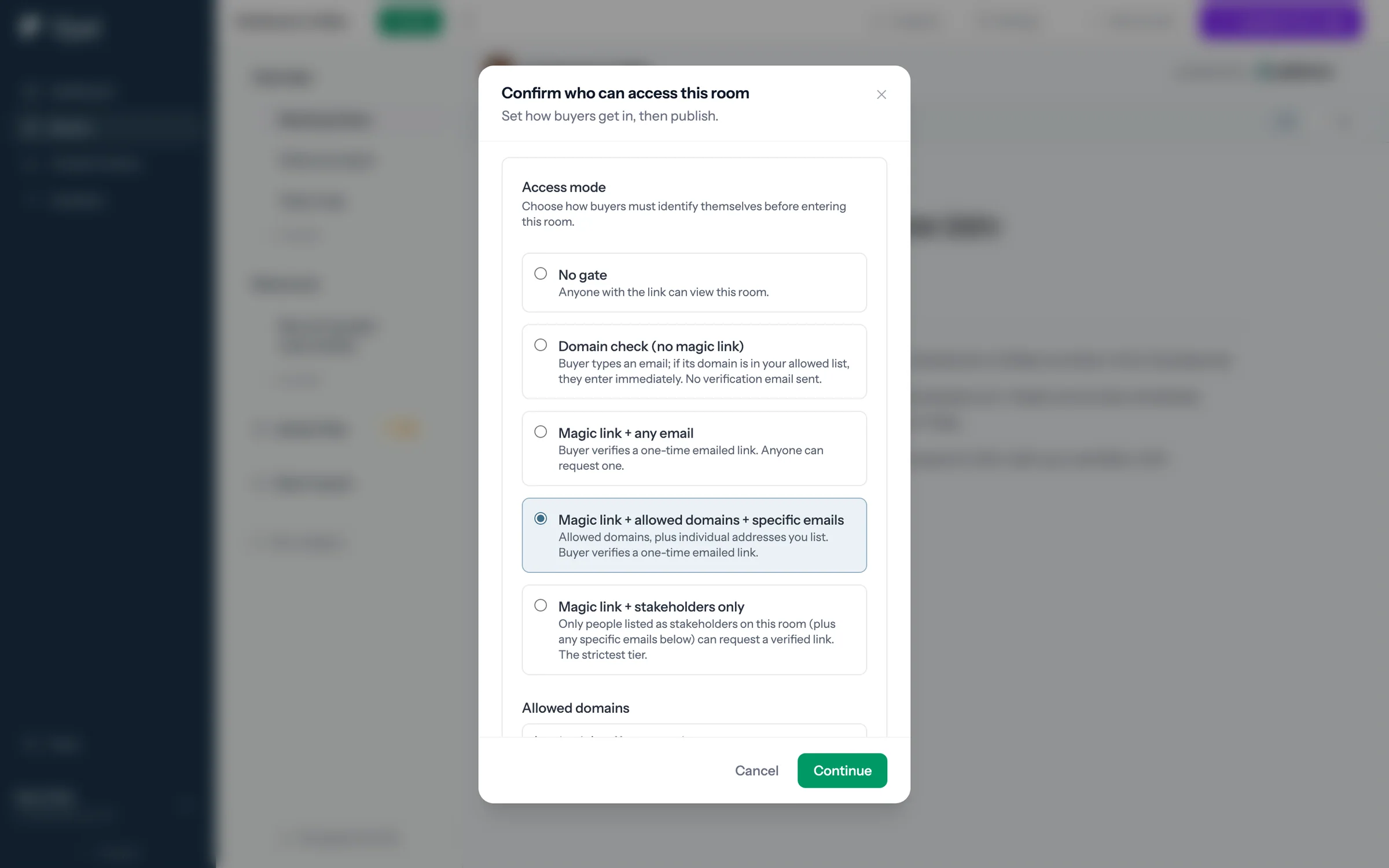
Step 5 of 5 Each room can still differ Before publishing, a seller can still pick a different mode for that room, like Kettlewick Coffee's here.
One default, per-room control
New rooms start in Domain check. Sellers can tighten or loosen access before they publish.
 060:55
Creating room templates
Turn a room that worked into the starting point for the next one.
Watch · 0:55Click through · 4 steps
060:55
Creating room templates
Turn a room that worked into the starting point for the next one.
Watch · 0:55Click through · 4 steps
-
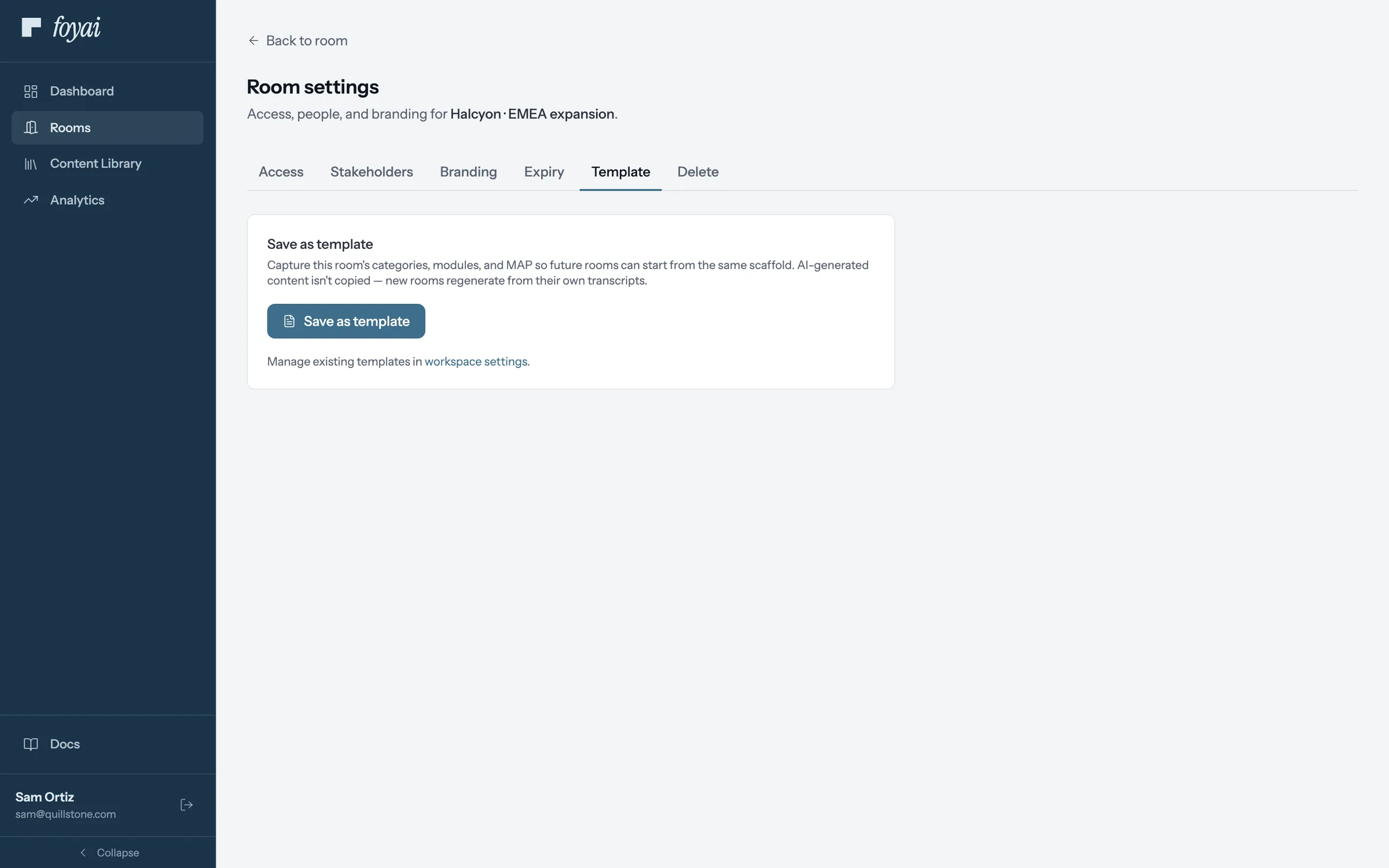
Step 1 of 4 Save a room you like When a room is worth repeating, open Room settings, then Template, and click Save as template.
-
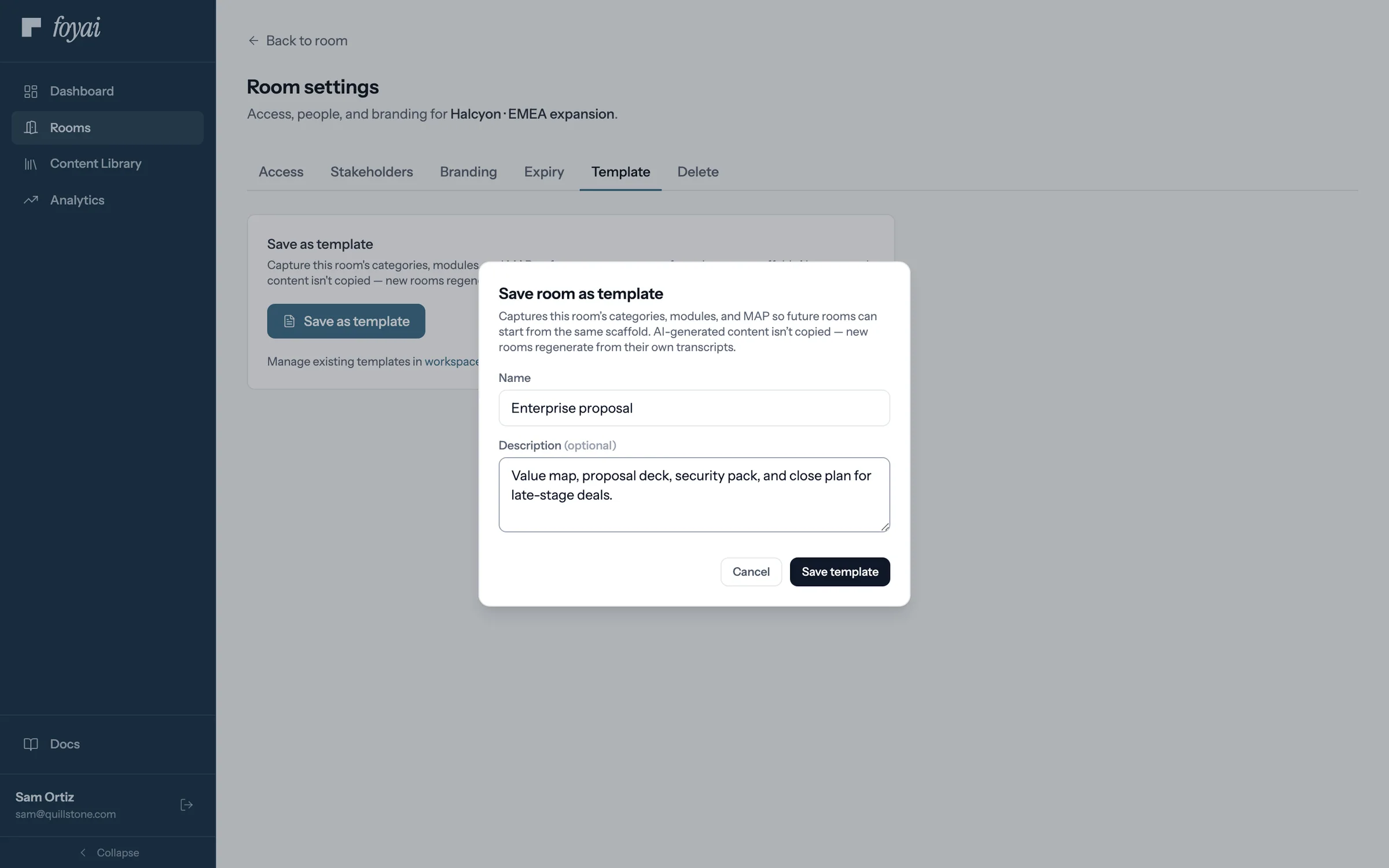
Step 2 of 4 Name it Sam calls it Enterprise proposal. It keeps the room's sections and the plan's phases, but not tasks or AI-written text.
-
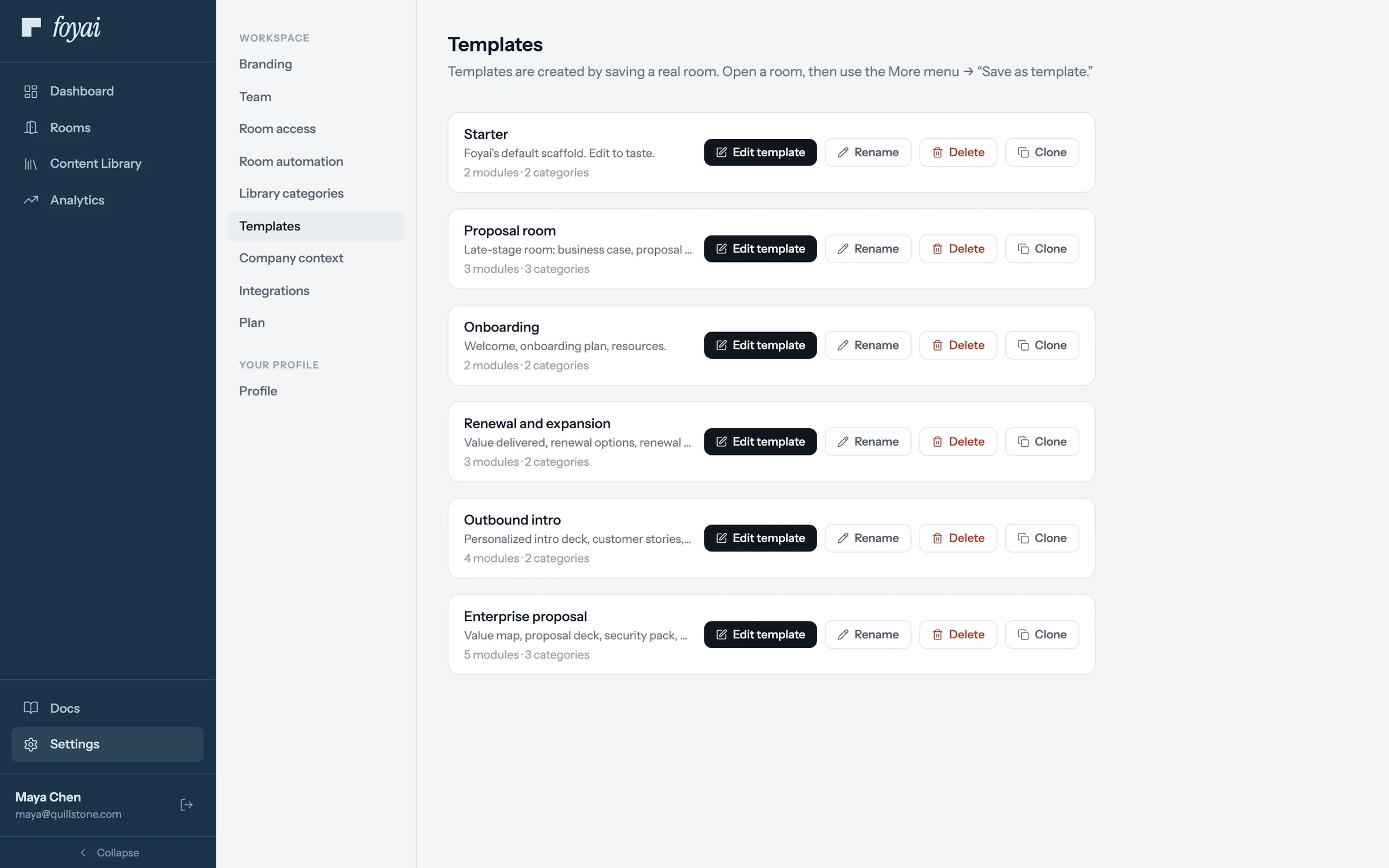
Step 3 of 4 In the workspace's templates It joins the other templates in Settings, where admins can edit, rename, or clone it.
-
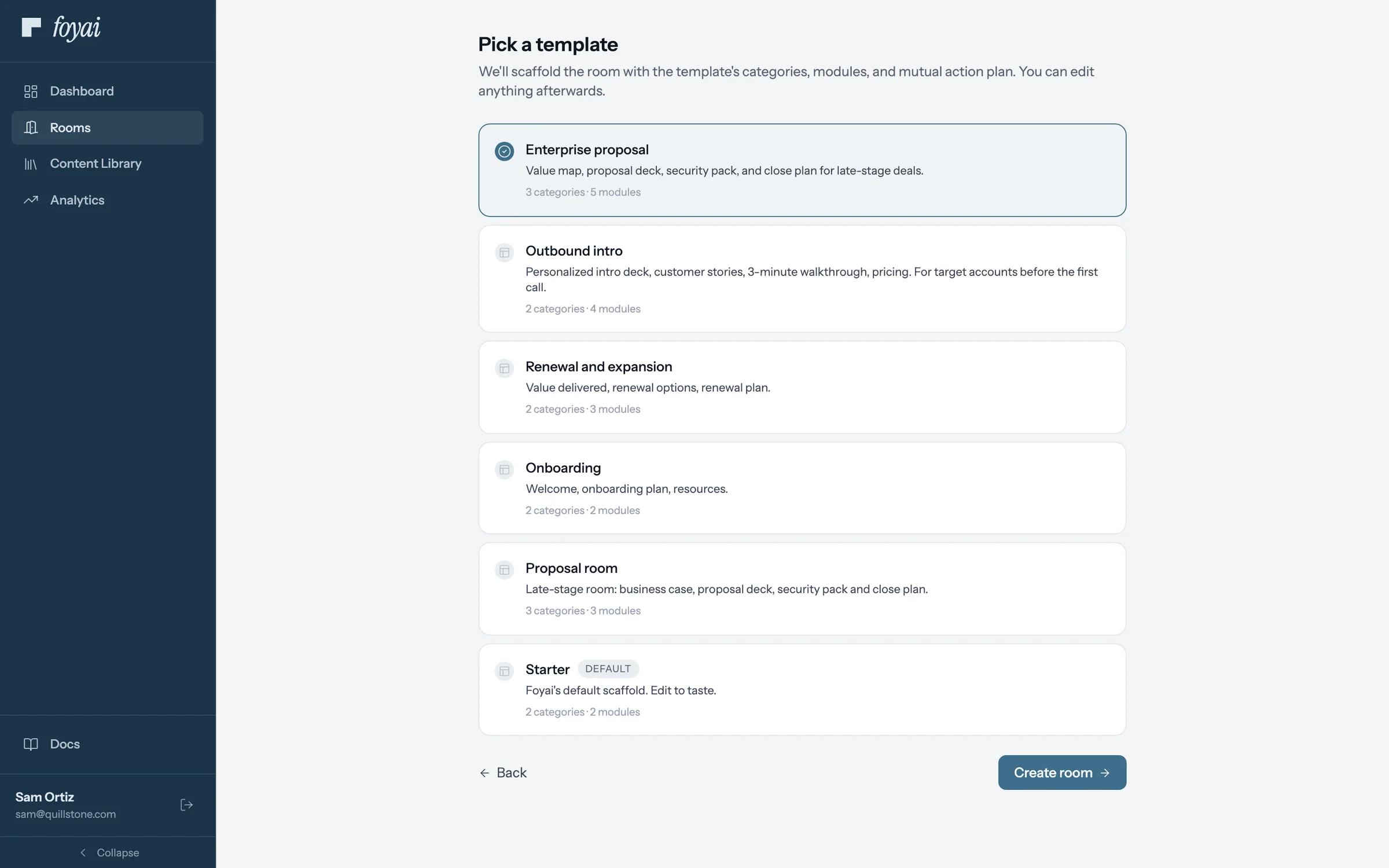
Step 4 of 4 Start the next room from it The next new room can start from Enterprise proposal, with its sections and plan phases already in place.
Reuse your best room for every deal like it.
Map the template to an Attio deal stage, and foyai drafts a room from it when a deal gets there.
 071:09
Automatic rooms at deal stages
Map an Attio stage to a template, and a draft room is waiting when a deal gets there.
Watch · 1:09Click through · 5 steps
071:09
Automatic rooms at deal stages
Map an Attio stage to a template, and a draft room is waiting when a deal gets there.
Watch · 1:09Click through · 5 steps
-
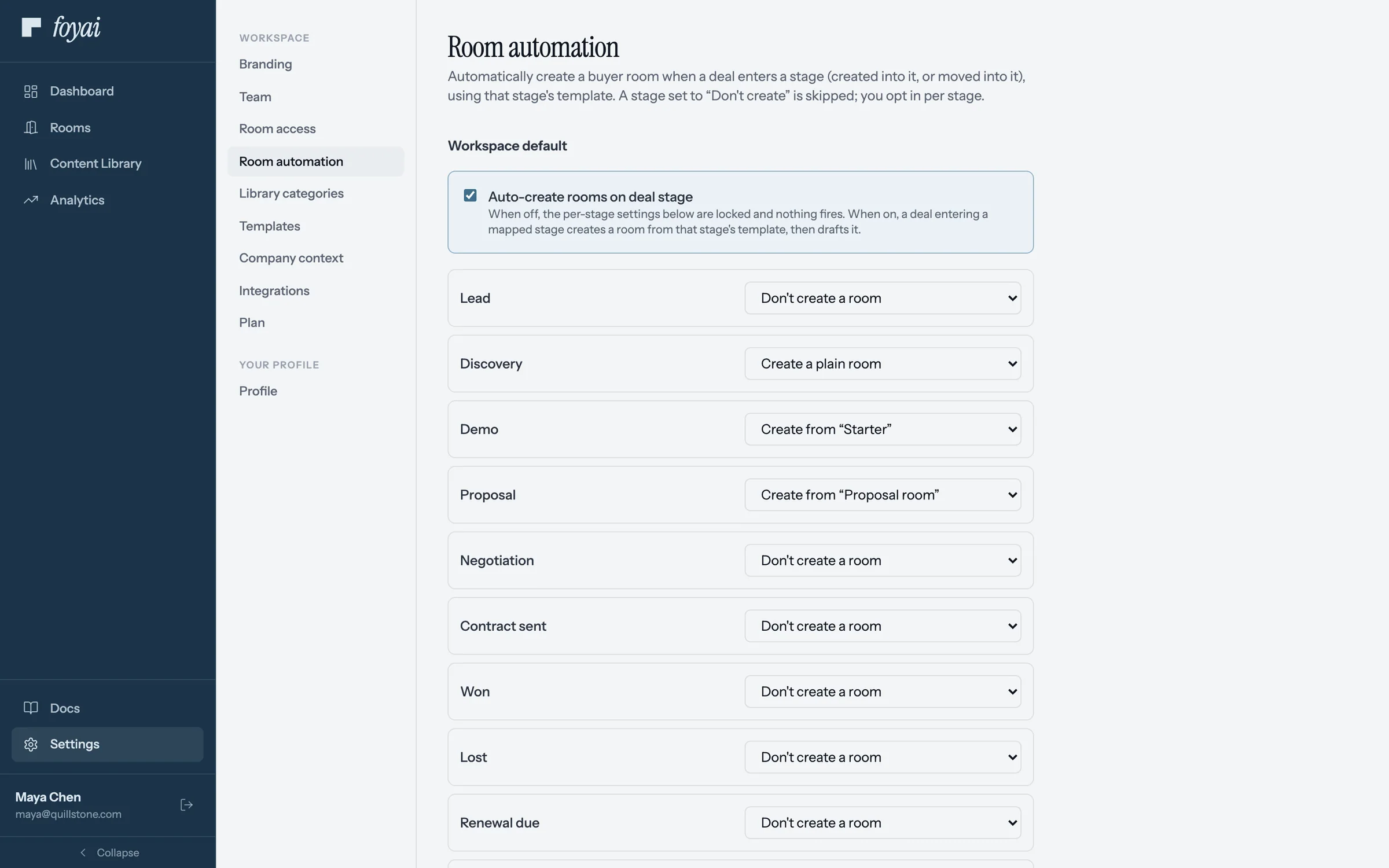
Step 1 of 5 Turn on auto-create In Settings, Room automation, Auto-create rooms on deal stage switches it on for the workspace.
-
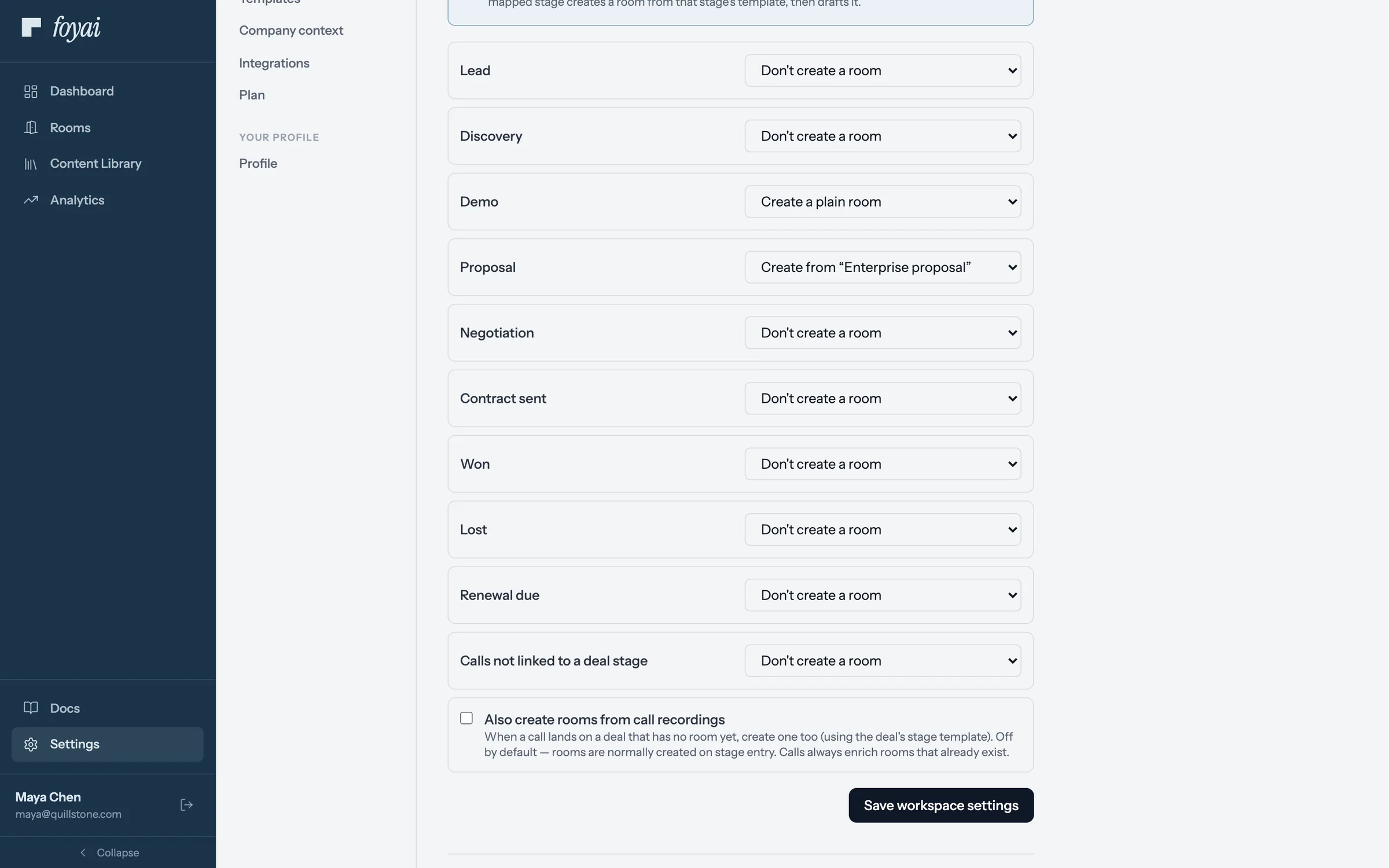
Step 2 of 5 Map a stage to a template Each Attio stage gets a choice. Maya sets Proposal to create rooms from the Enterprise proposal template.
-
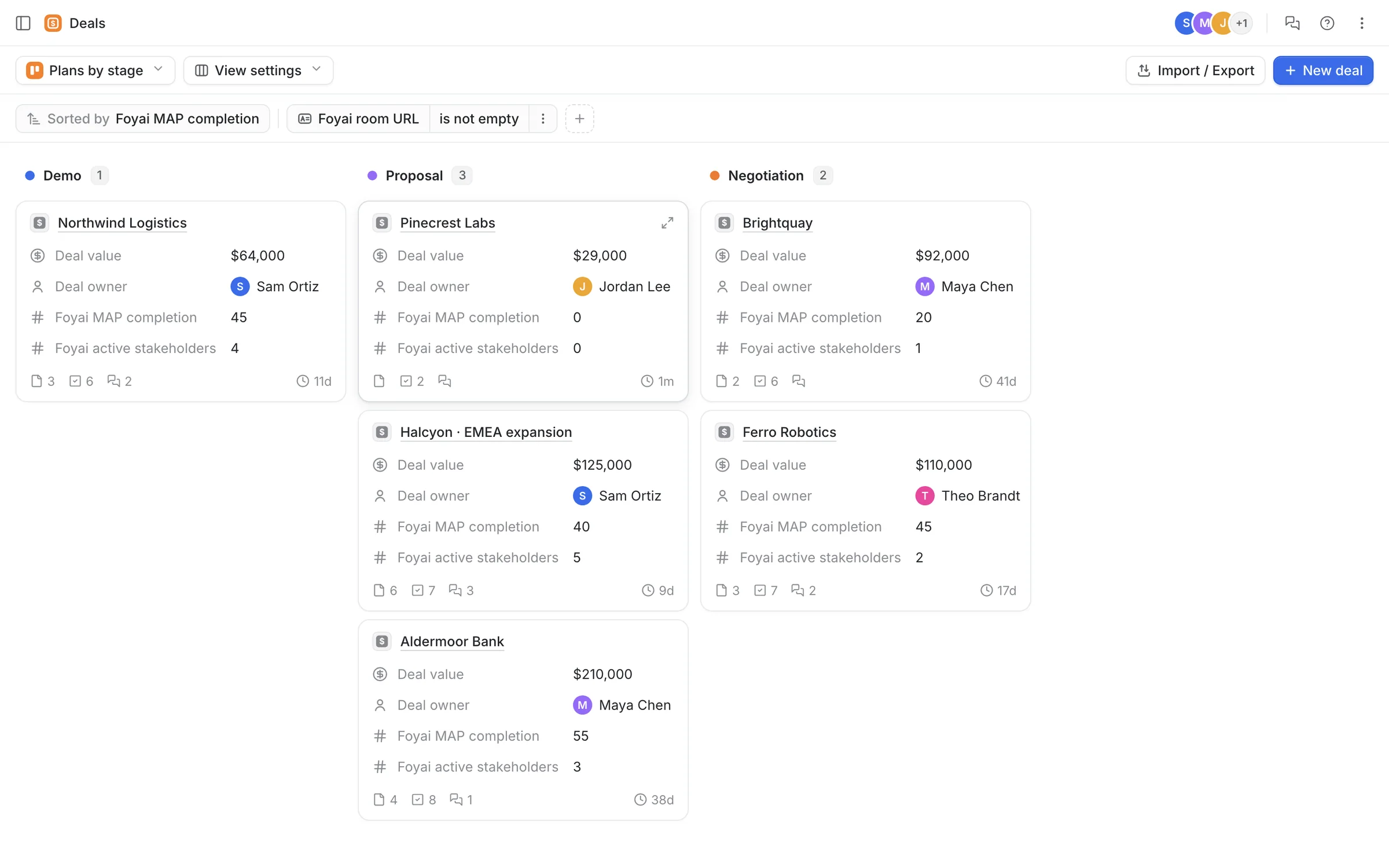
Step 3 of 5 A deal moves in Attio Jordan moves Pinecrest Labs from Demo to Proposal in Attio, like any other deal.
-
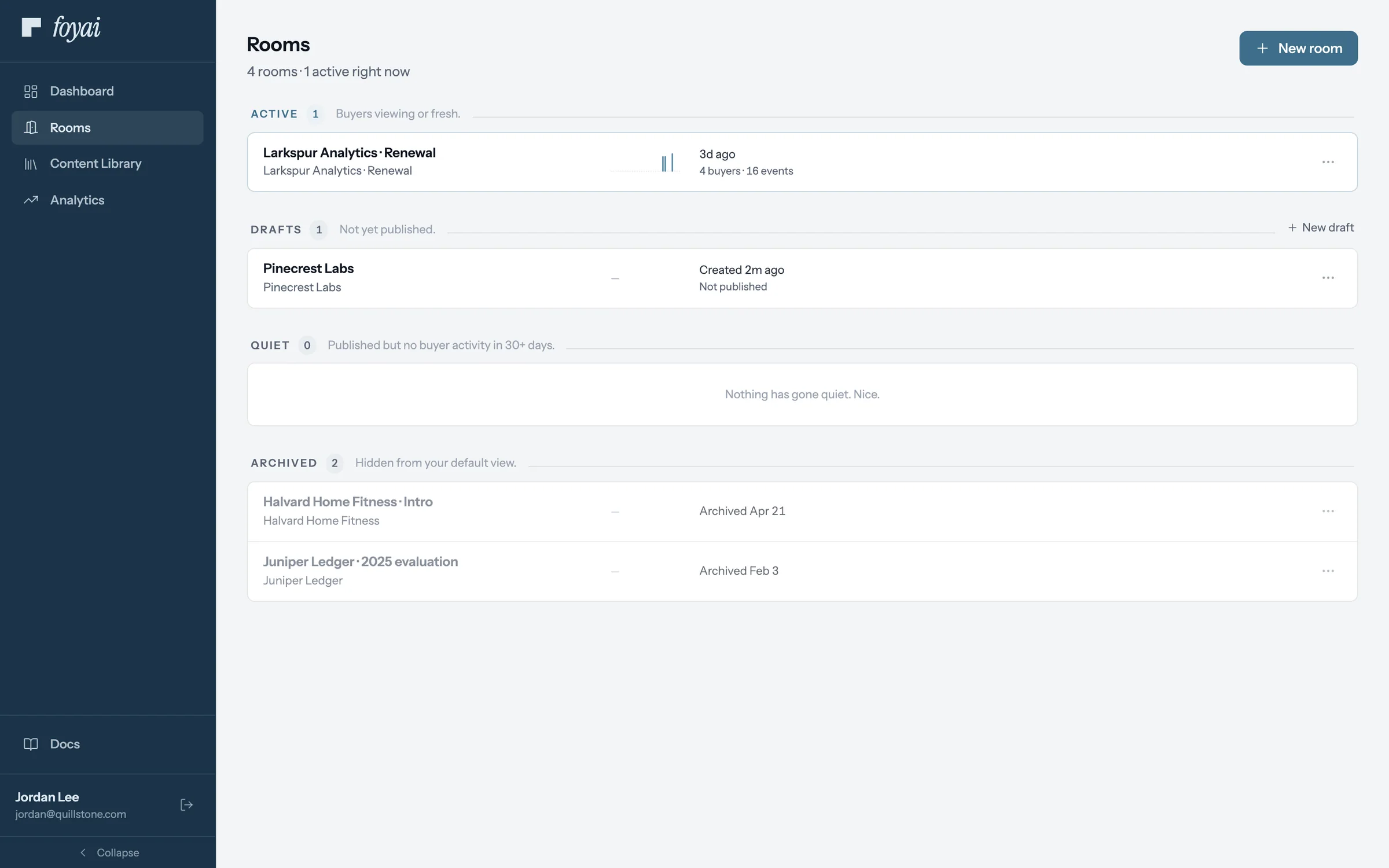
Step 4 of 5 A draft is waiting A Pinecrest Labs draft shows up in Jordan's rooms, built from the template. Nothing is published.
-
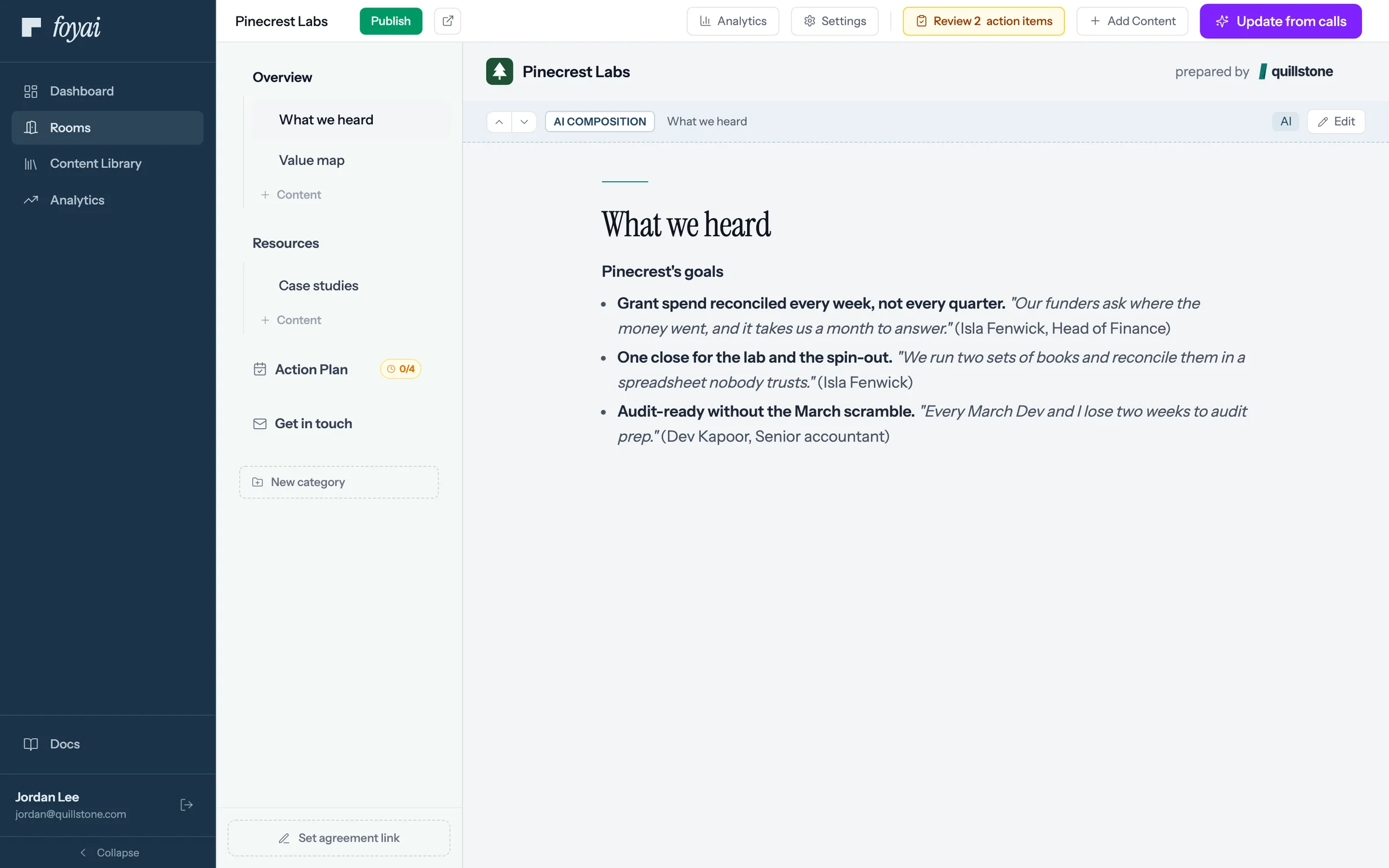
Step 5 of 5 Check it, then publish foyai drafted it from the deal's calls. Jordan reviews the 2 action items and the draft before publishing.
Get a draft room when a deal reaches the stage you pick.
Room automation is a paid feature with a monthly allowance. On Free, you create rooms by hand.
 081:13
Getting your sellers set up
See who's on your team, choose who's an admin, and know what a new seller sees first.
Watch · 1:13Click through · 6 steps
081:13
Getting your sellers set up
See who's on your team, choose who's an admin, and know what a new seller sees first.
Watch · 1:13Click through · 6 steps
-
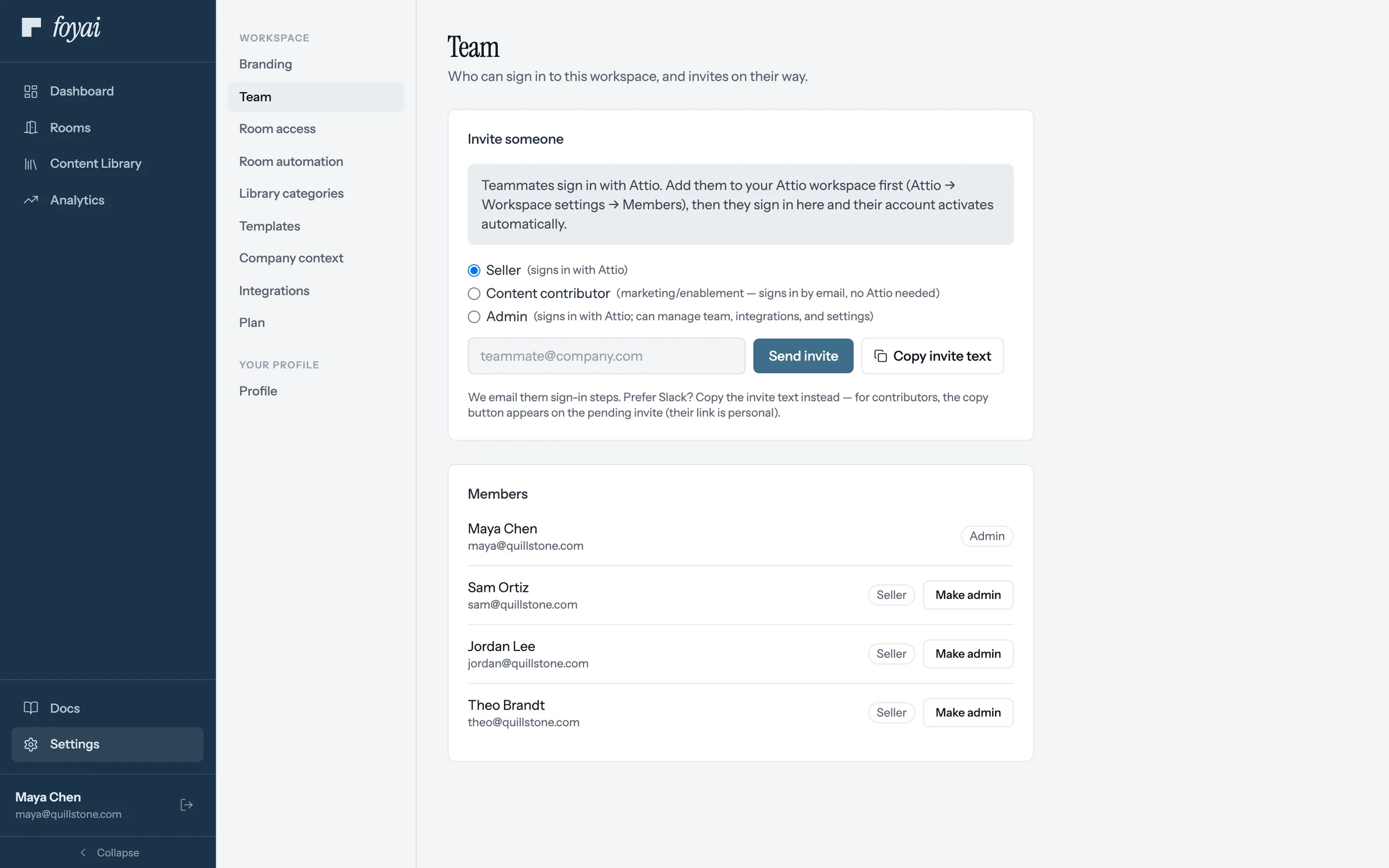
Step 1 of 6 Members and their roles Everyone who can sign in, with their role: Maya is Admin; Sam, Jordan, and Theo are Sellers.
-
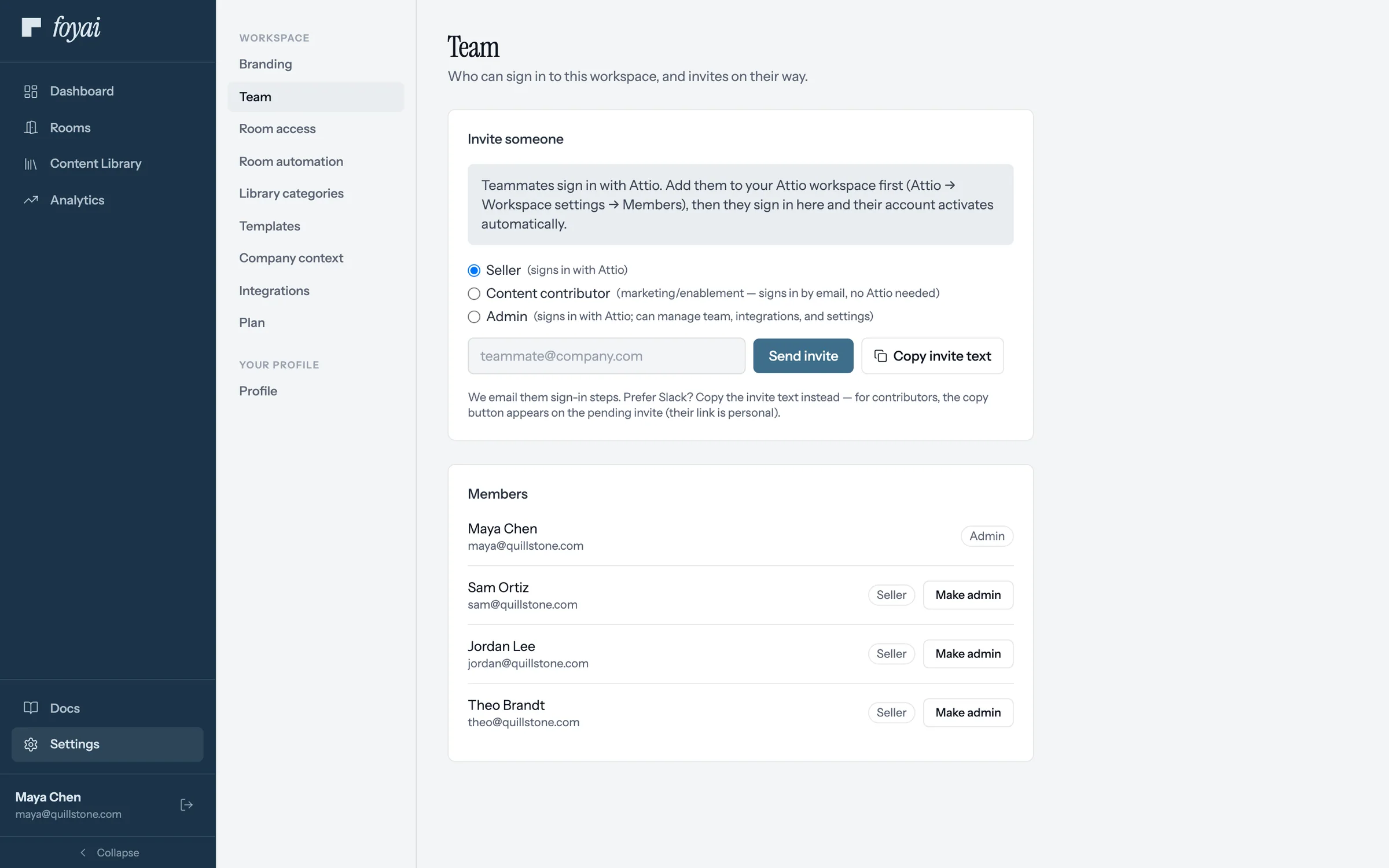
Step 2 of 6 Add them to Attio first A teammate has to be in your Attio workspace before they can sign in to foyai.
-
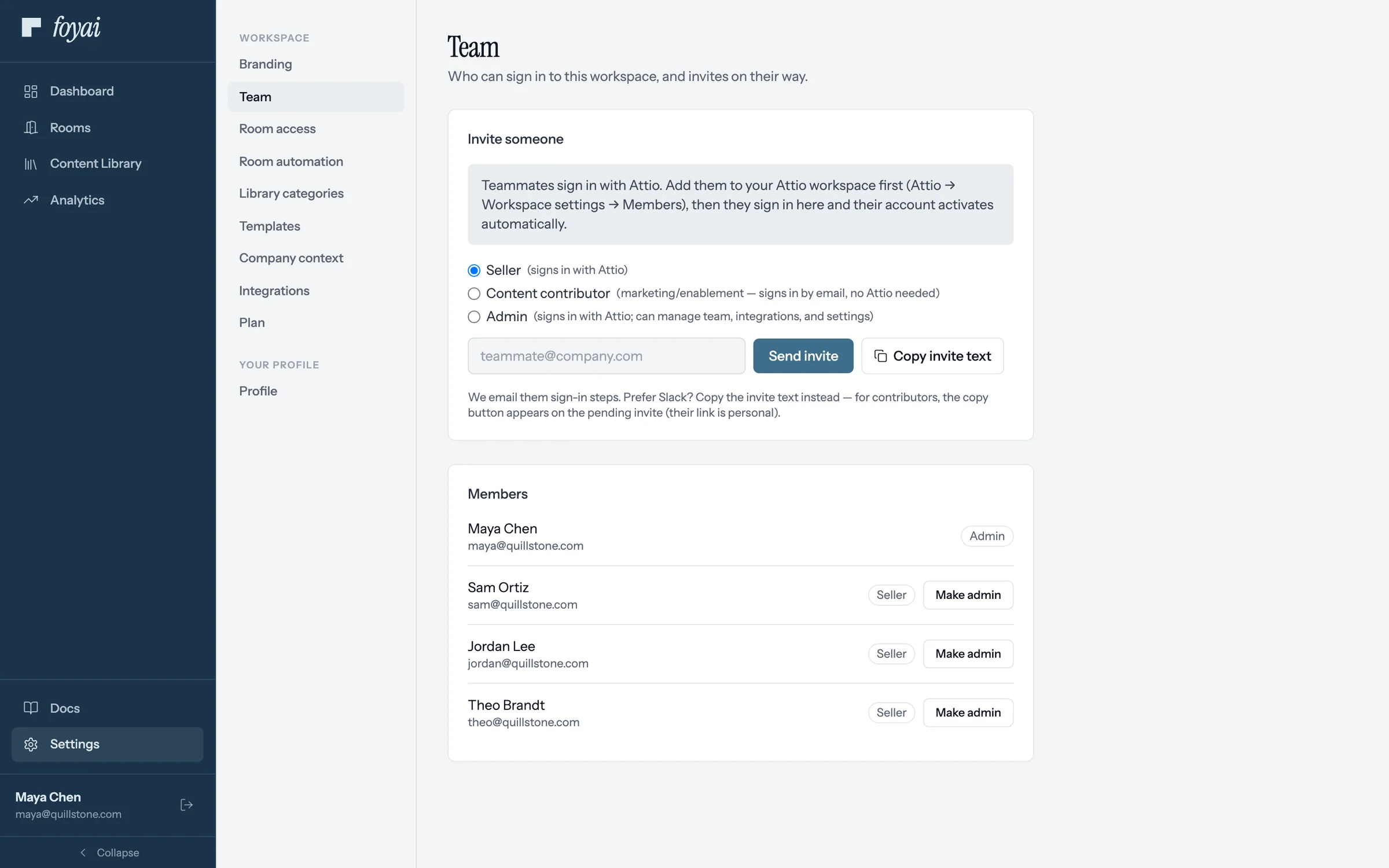
Step 3 of 6 Seller, contributor, or admin A seller builds rooms, a contributor curates content by email, and an admin also manages settings.
-
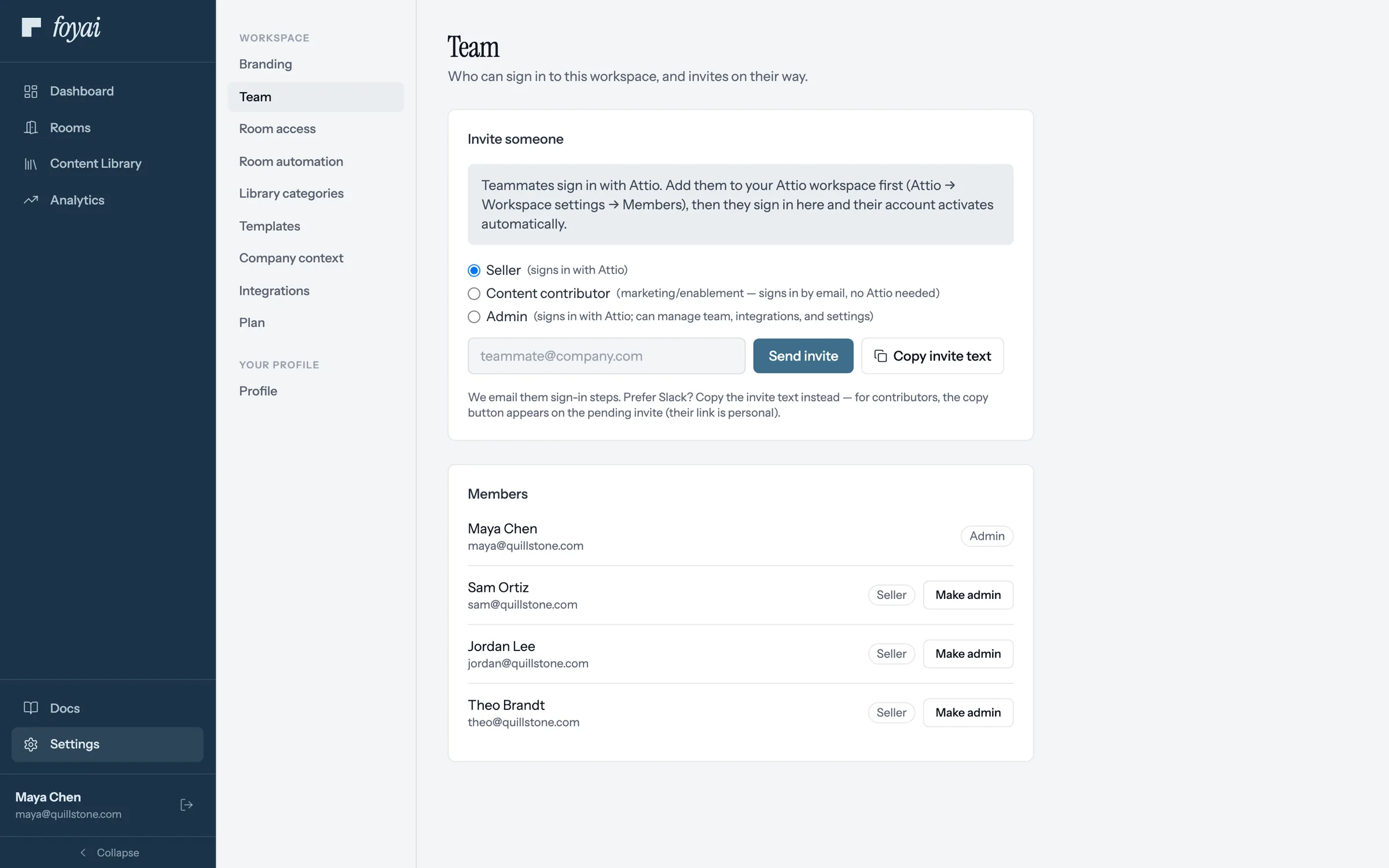
Step 4 of 6 Change a role Make admin gives someone the workspace settings too. A workspace can never lose its last admin.
-
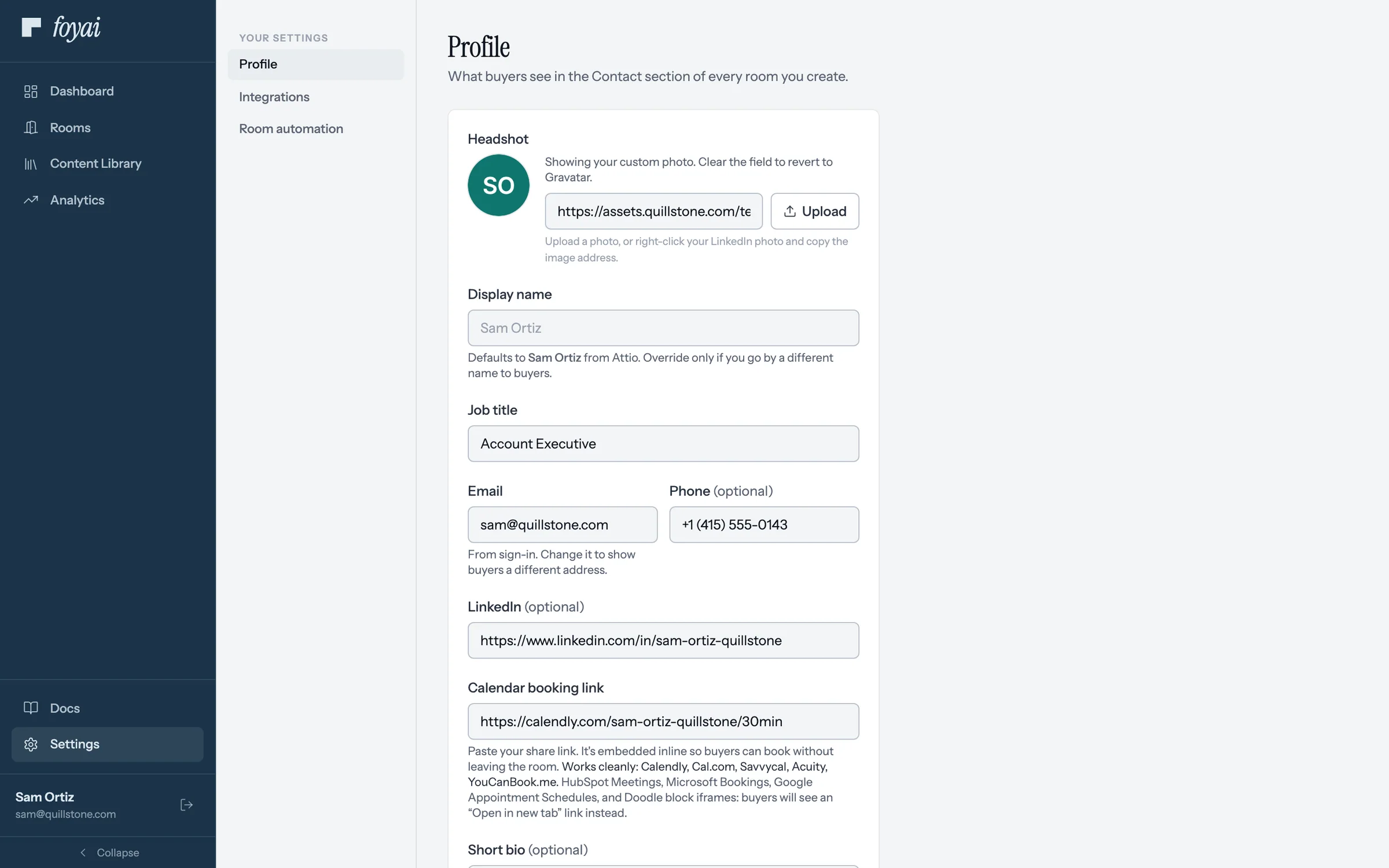
Step 5 of 6 What a seller sees Sellers get their own short Settings: Profile, Integrations, and Room automation.
-
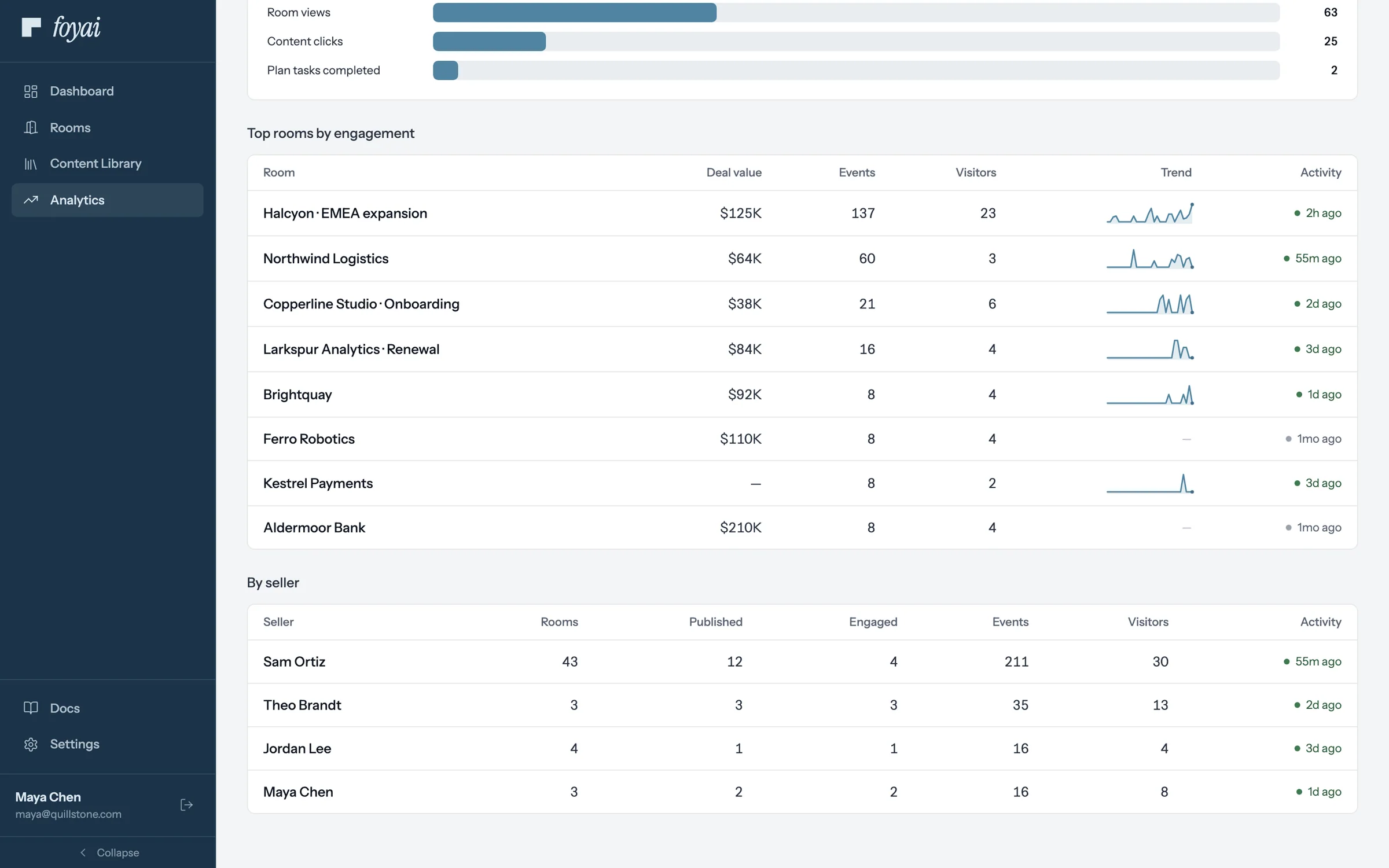
Step 6 of 6 See who hasn't started By seller shows each seller's rooms and latest activity, so you can see who hasn't started.
Your team is set
Every seller signs in with Attio and lands on their own Dashboard, ready to build rooms.
Seller onboarding
Go through these in order before your first deal: build a room, check what the AI drafted, send it, and see what the buyer does.
011:29
What is foyai?
The whole loop in one walk: a deal in Attio, a drafted room, the buyer inside it, and what comes back to you.
Watch · 1:29Click through · 8 steps
 021:06
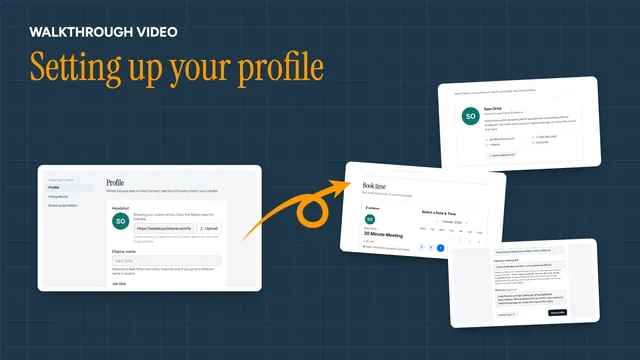
Setting up your profile
Your photo, title, contact details, and booking link: what buyers see in every room you send.
Watch · 1:06Click through · 7 steps
021:06
Setting up your profile
Your photo, title, contact details, and booking link: what buyers see in every room you send.
Watch · 1:06Click through · 7 steps
-
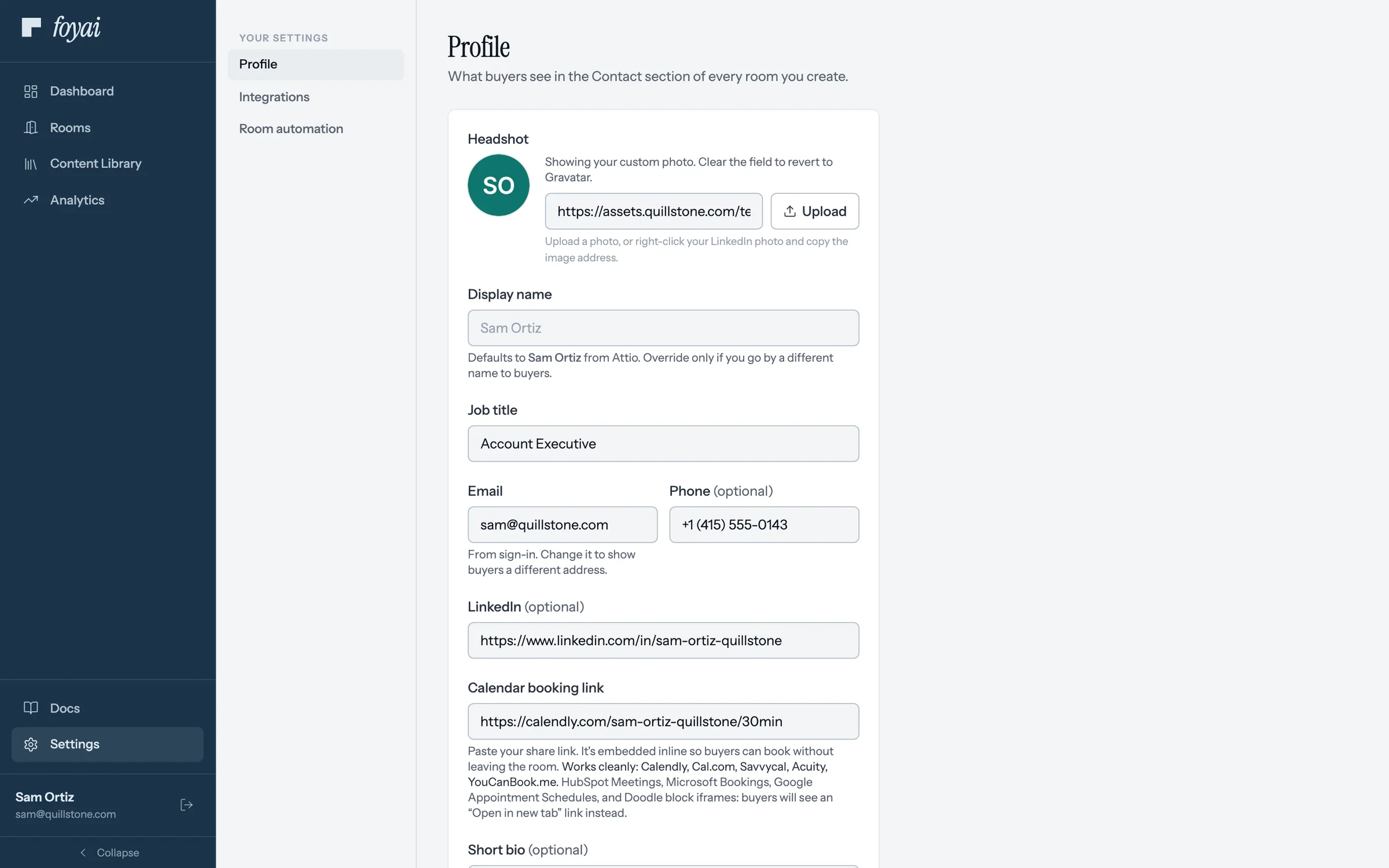
Step 1 of 7 Photo and title Your photo and job title, as buyers see them in the Contact section.
-
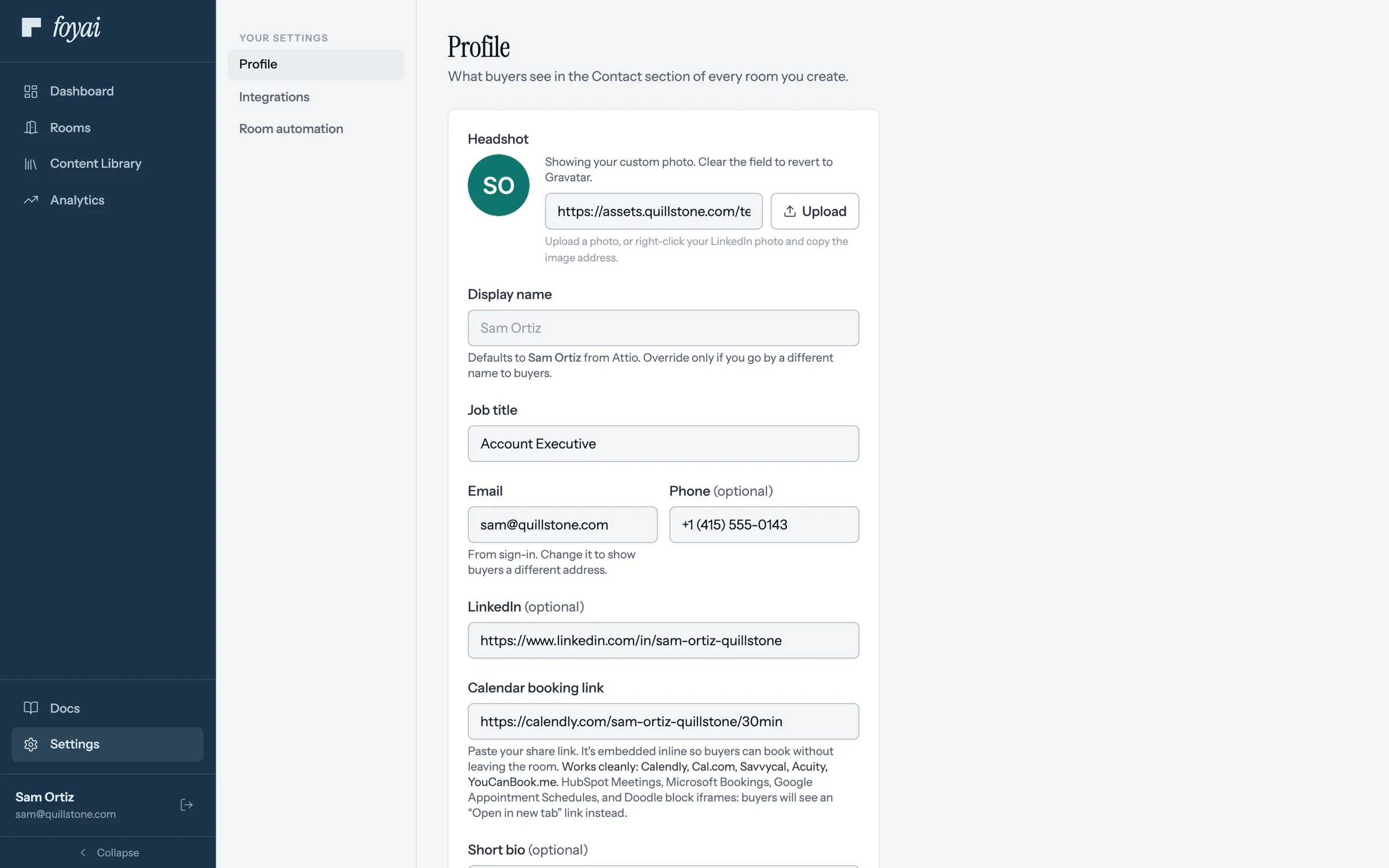
Step 2 of 7 The email buyers write to This defaults to your sign-in address. Show a different one if you like.
-
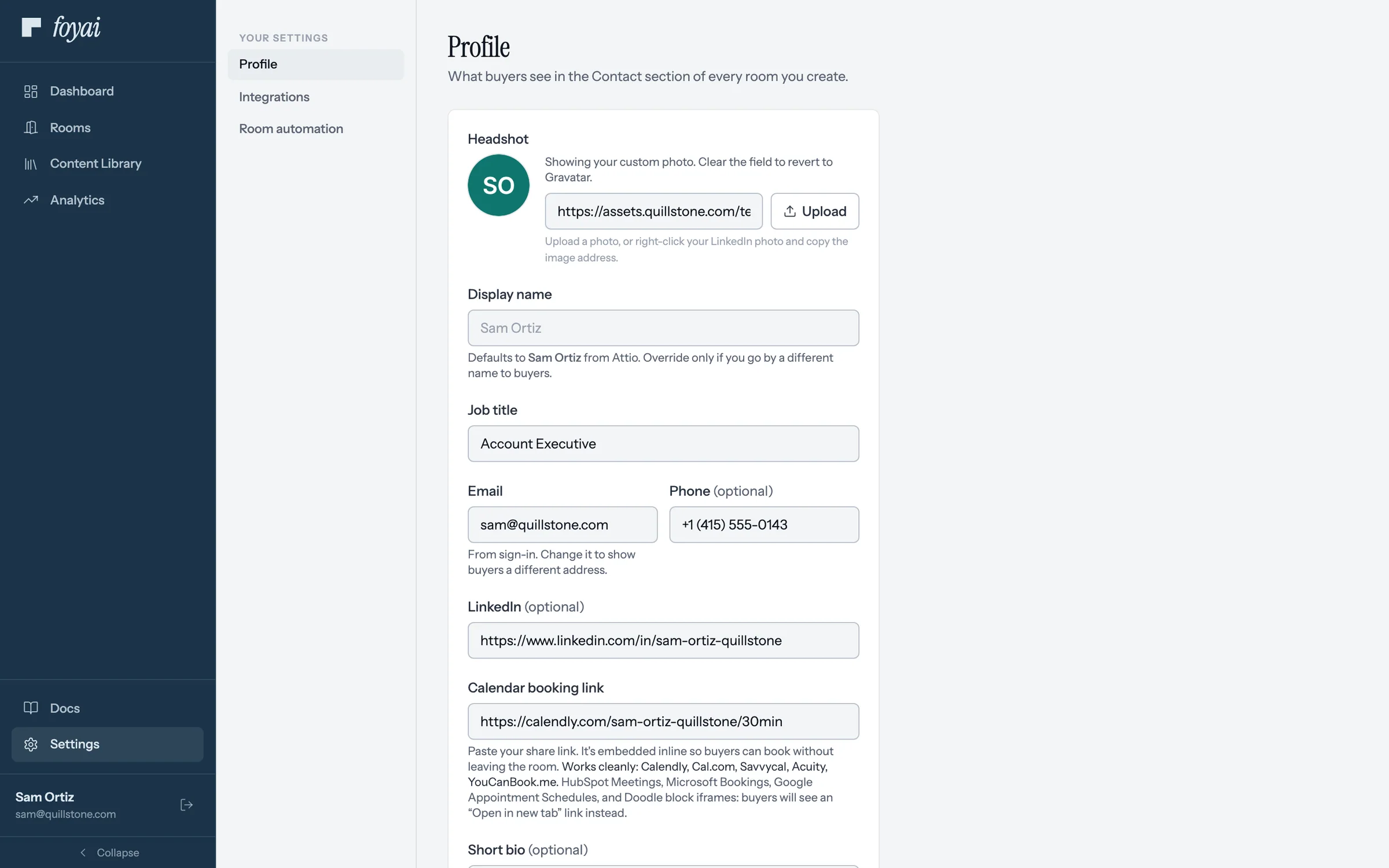
Step 3 of 7 Phone and LinkedIn Phone and LinkedIn are optional, and round out the Contact section's card.
-
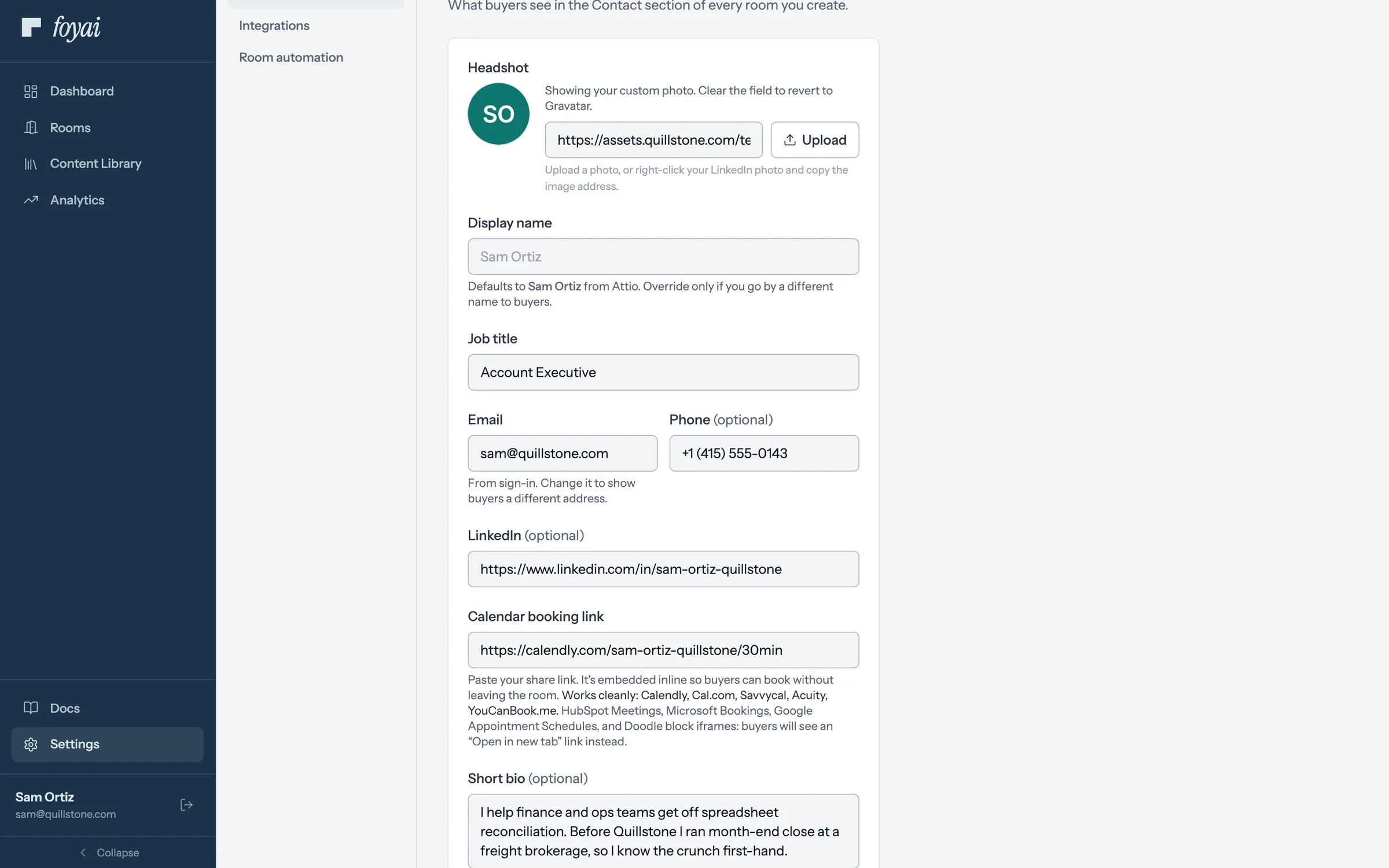
Step 4 of 7 The booking link Paste a booking link, like Calendly, then add a short bio below it.
-
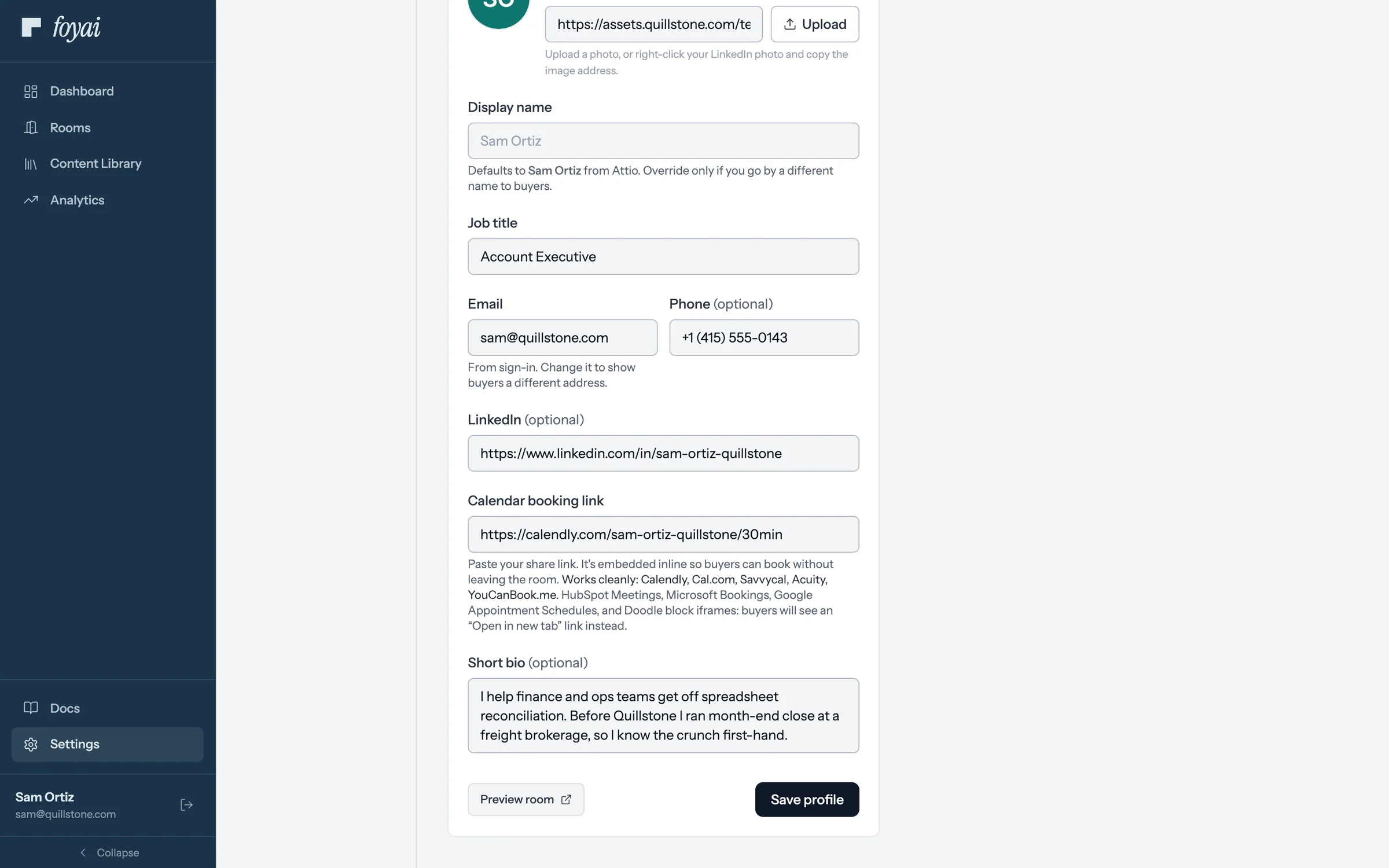
Step 5 of 7 Preview room Preview room, at the bottom of the page, shows exactly what a buyer sees.
-
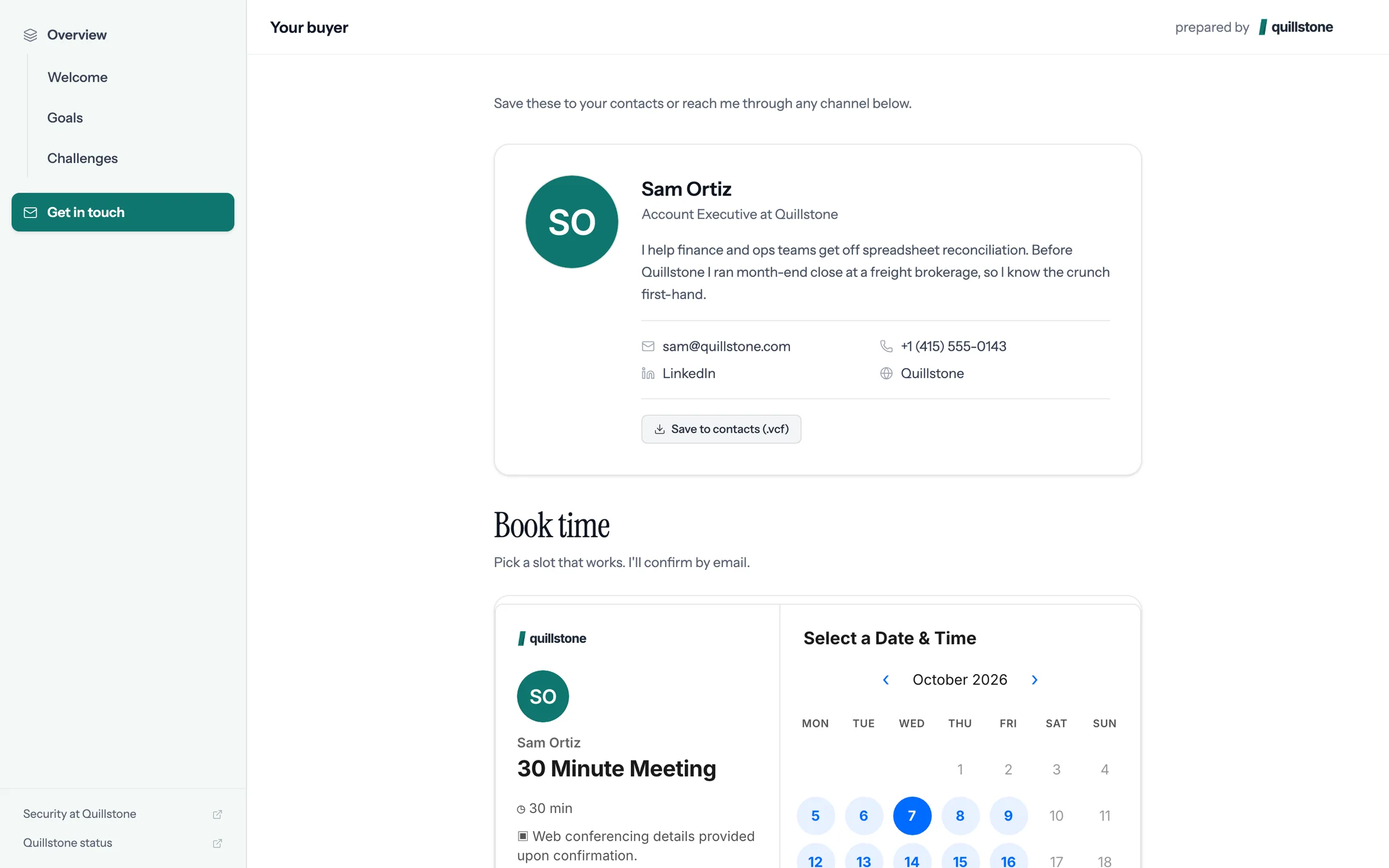
Step 6 of 7 The Contact section Your photo, title, bio, email, phone, and LinkedIn, ready for the buyer.
-
Step 7 of 7 Book time, right in the room Your calendar sits in the room, so the buyer books without leaving it.
Every room you create carries your Contact section.
Set it once, under Settings, Profile.
031:12
Connecting Google Drive
Connect your Google account so the Drive files you add to rooms open for the right buyers.
Watch · 1:12Click through · 6 steps
 041:06
Creating your first room
Start a room from a deal, a recorded call, or a blank page, then pick a template.
Watch · 1:06Click through · 7 steps
041:06
Creating your first room
Start a room from a deal, a recorded call, or a blank page, then pick a template.
Watch · 1:06Click through · 7 steps
-
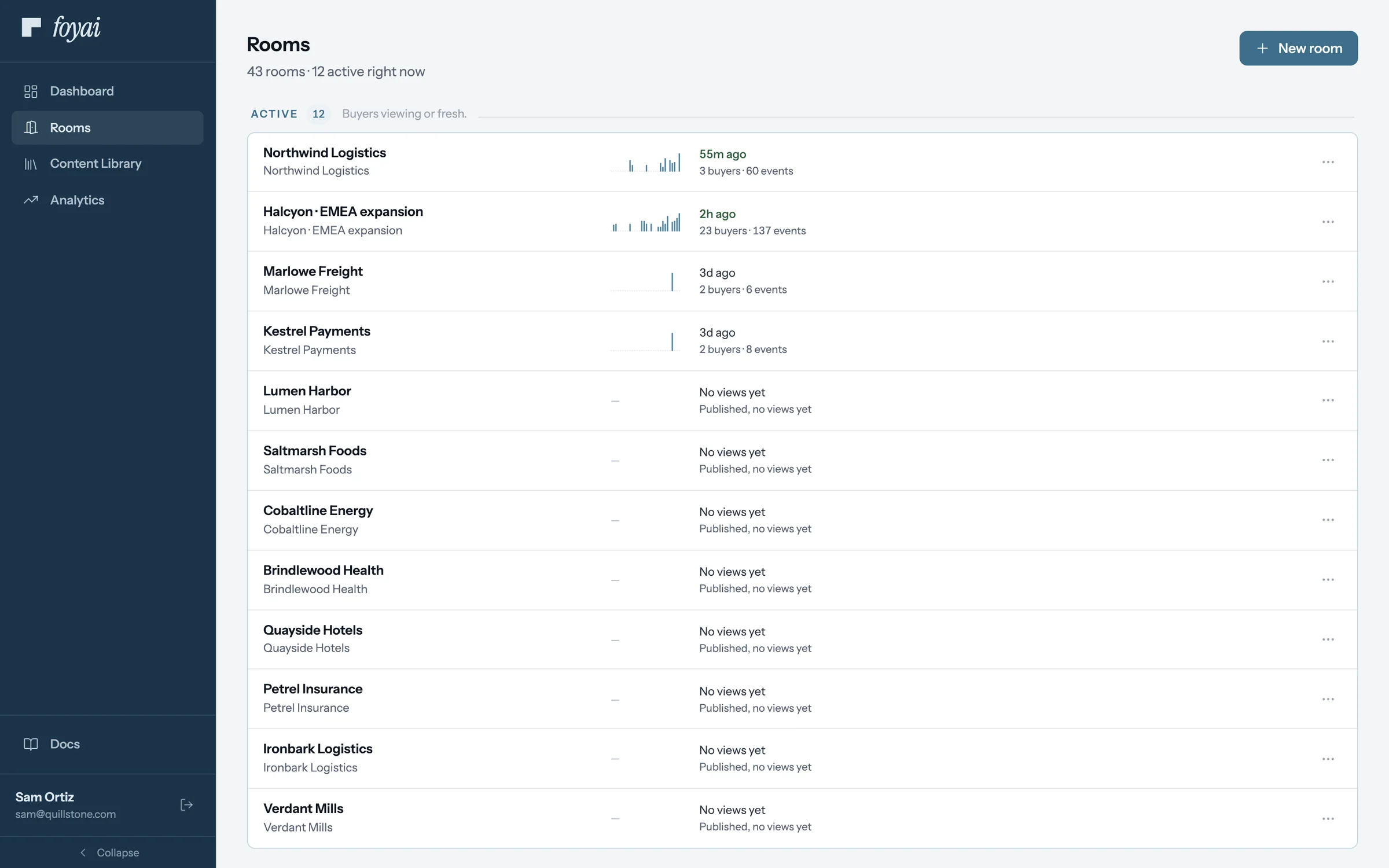
Step 1 of 7 Open New room From Rooms, click New room to start one for a deal.
-
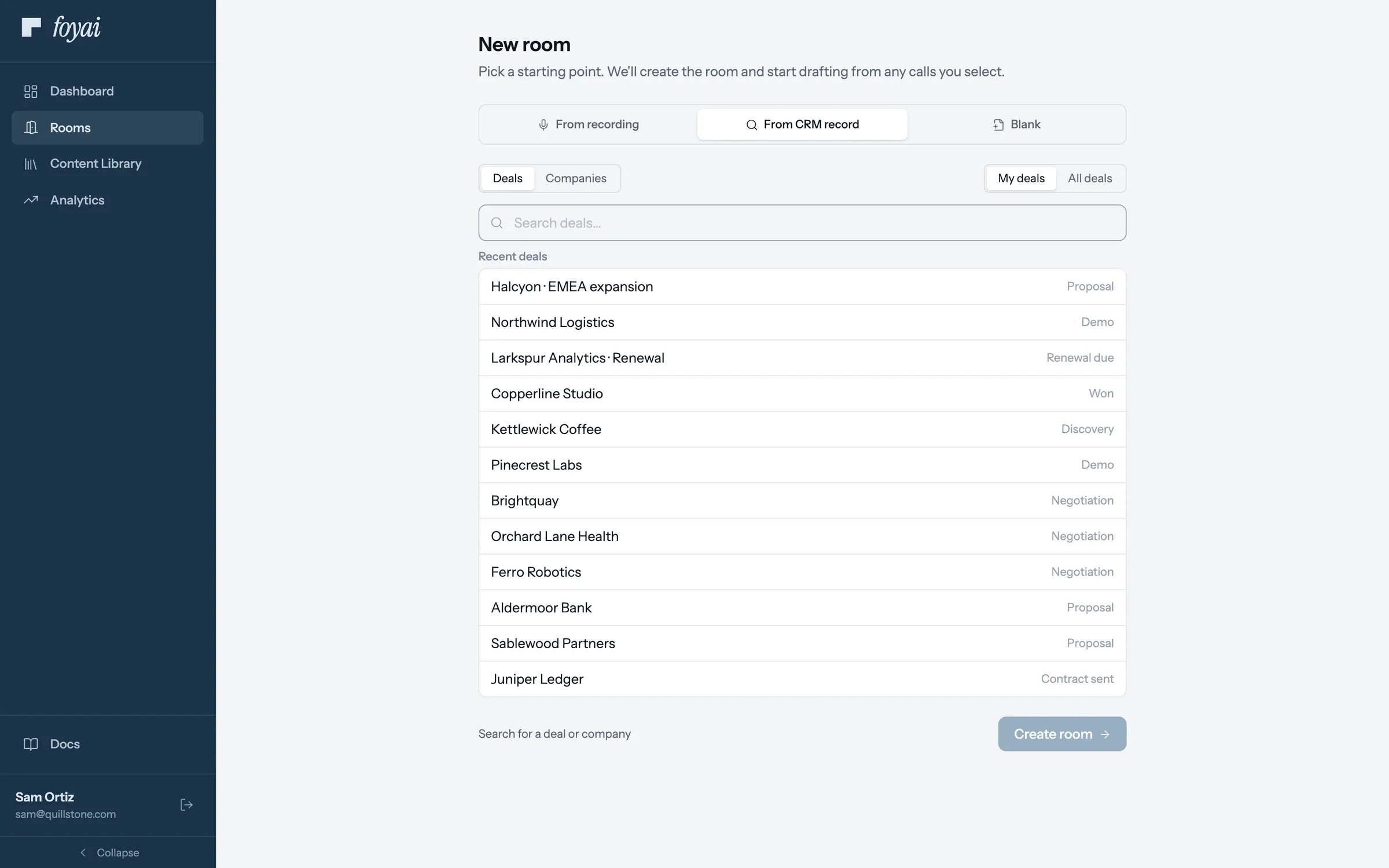
Step 2 of 7 Pick a starting point New room offers three starting points. Click From CRM record to start from a deal.
-
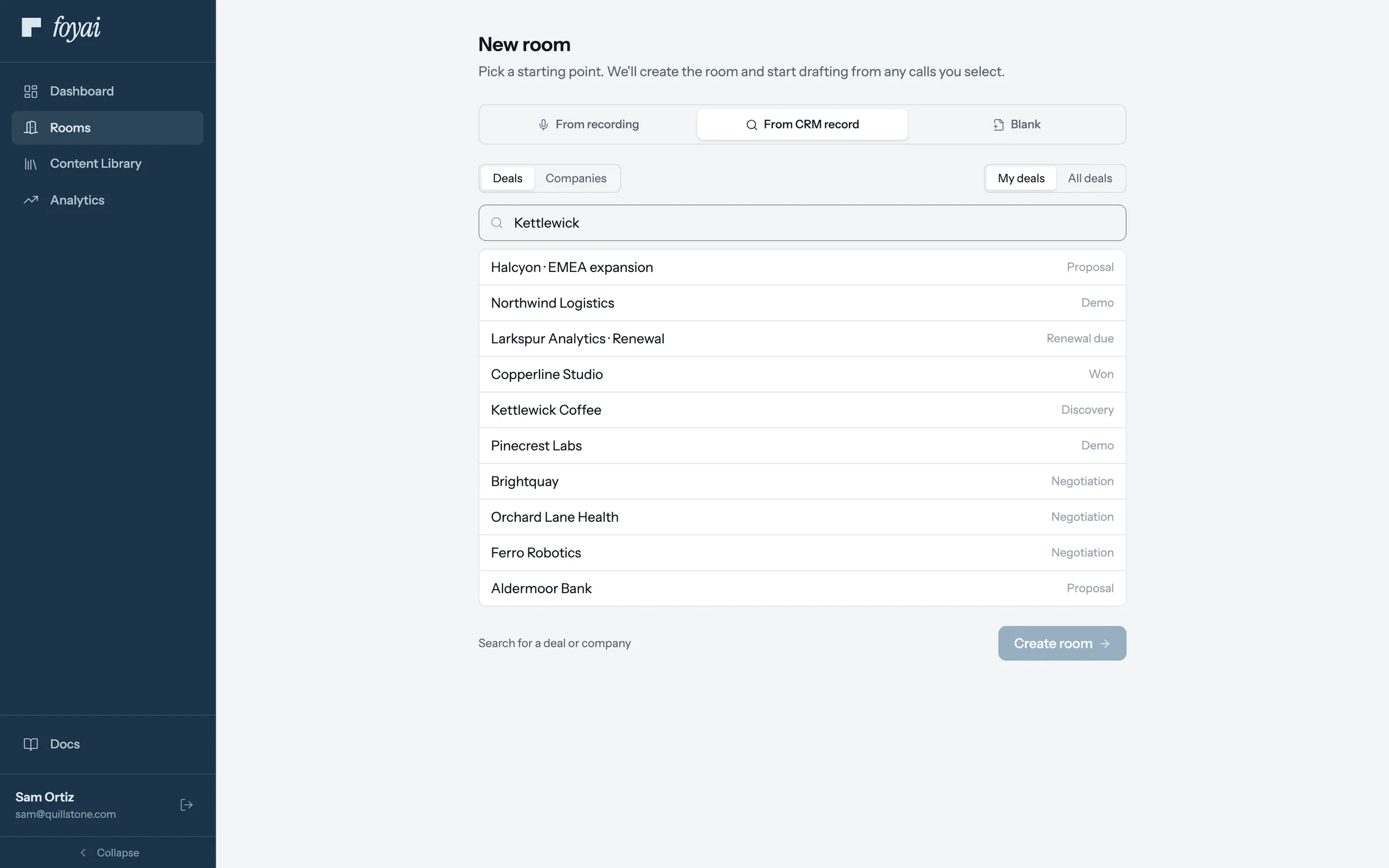
Step 3 of 7 Find the deal Search Attio deals and pick Kettlewick Coffee from the results.
-
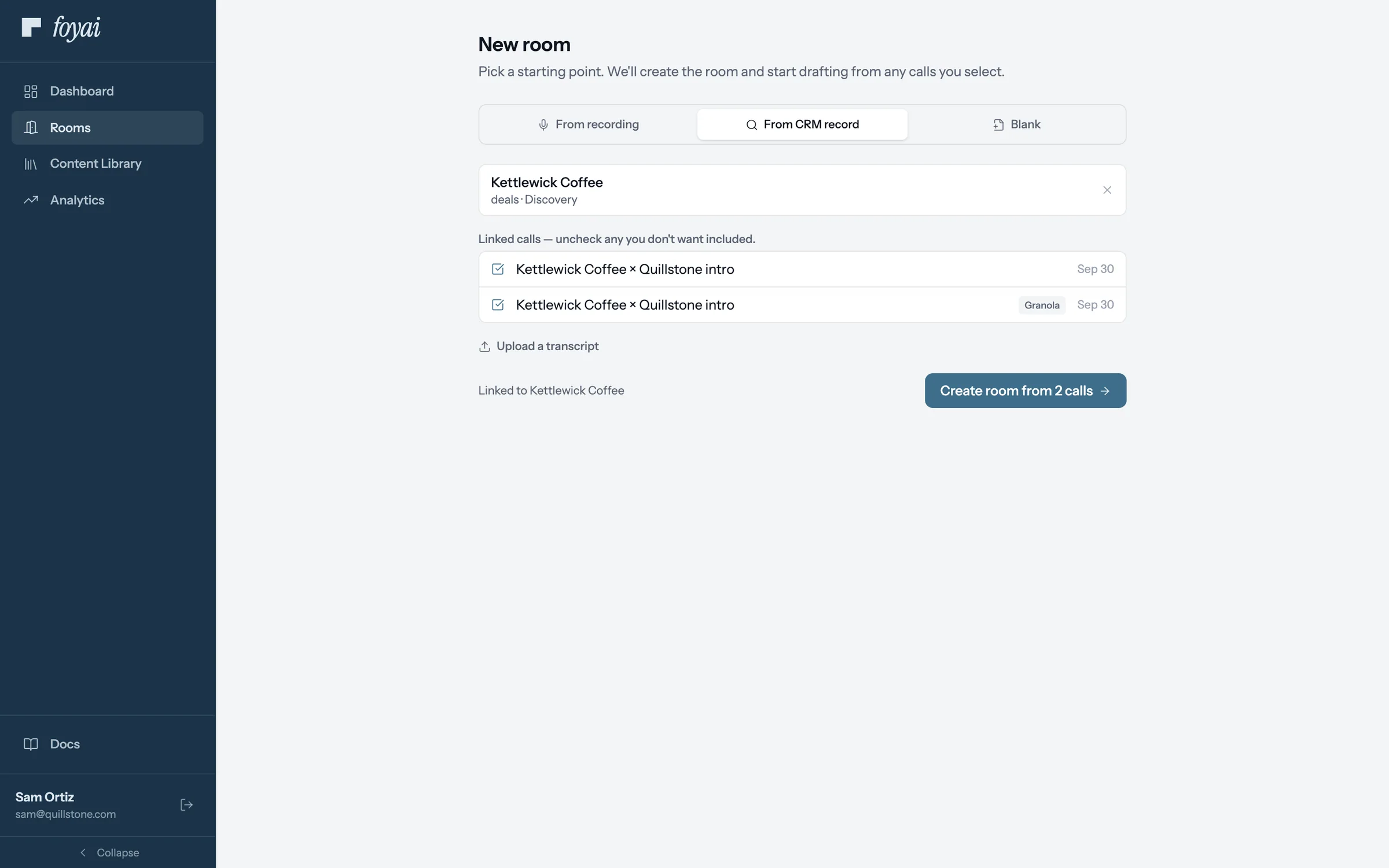
Step 4 of 7 Its calls come along The deal's calls come pre-selected. Uncheck any you don't want foyai to draft from.
-
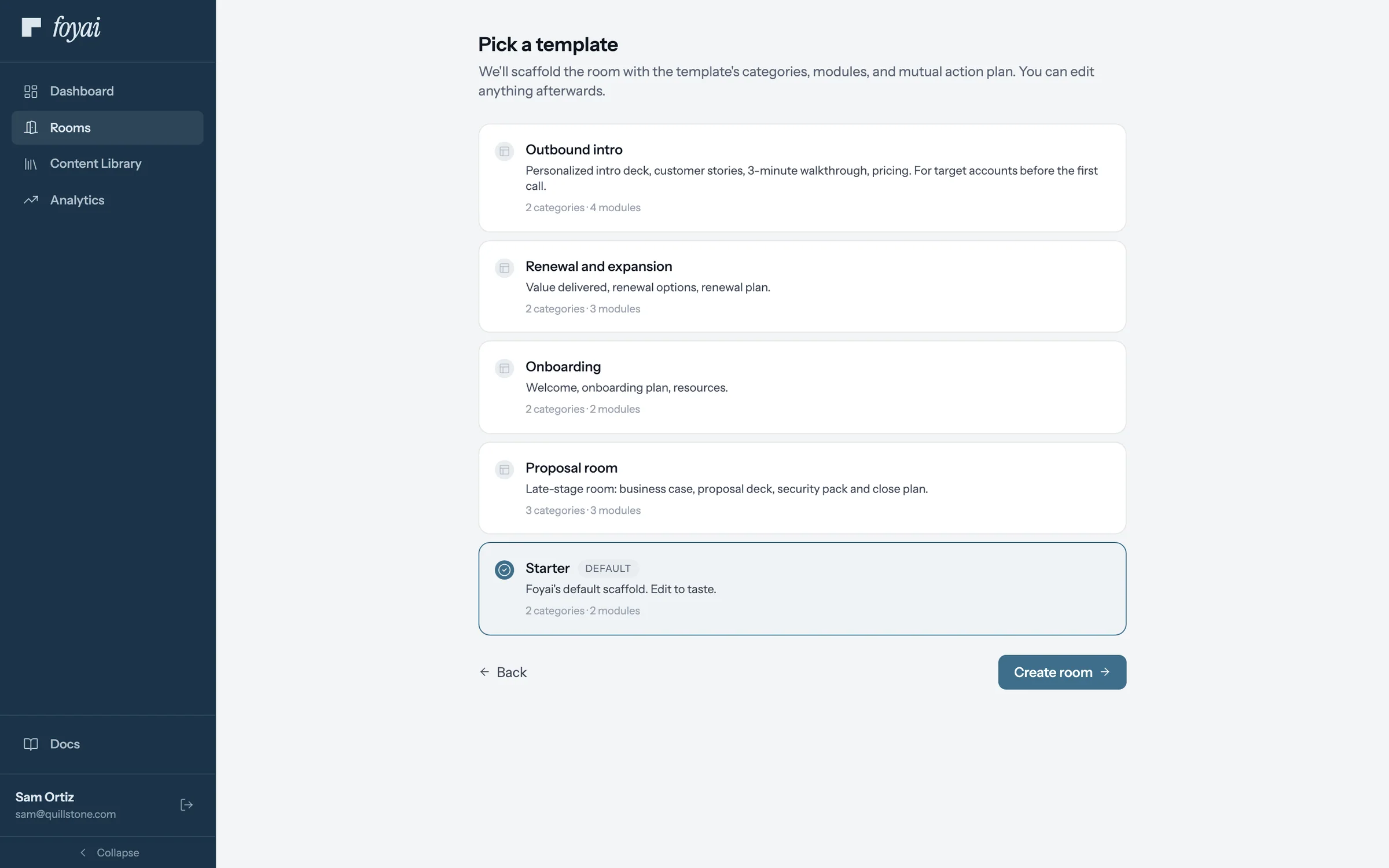
Step 5 of 7 Pick a template Every workspace starts with the Starter template. You can save your own later.
-
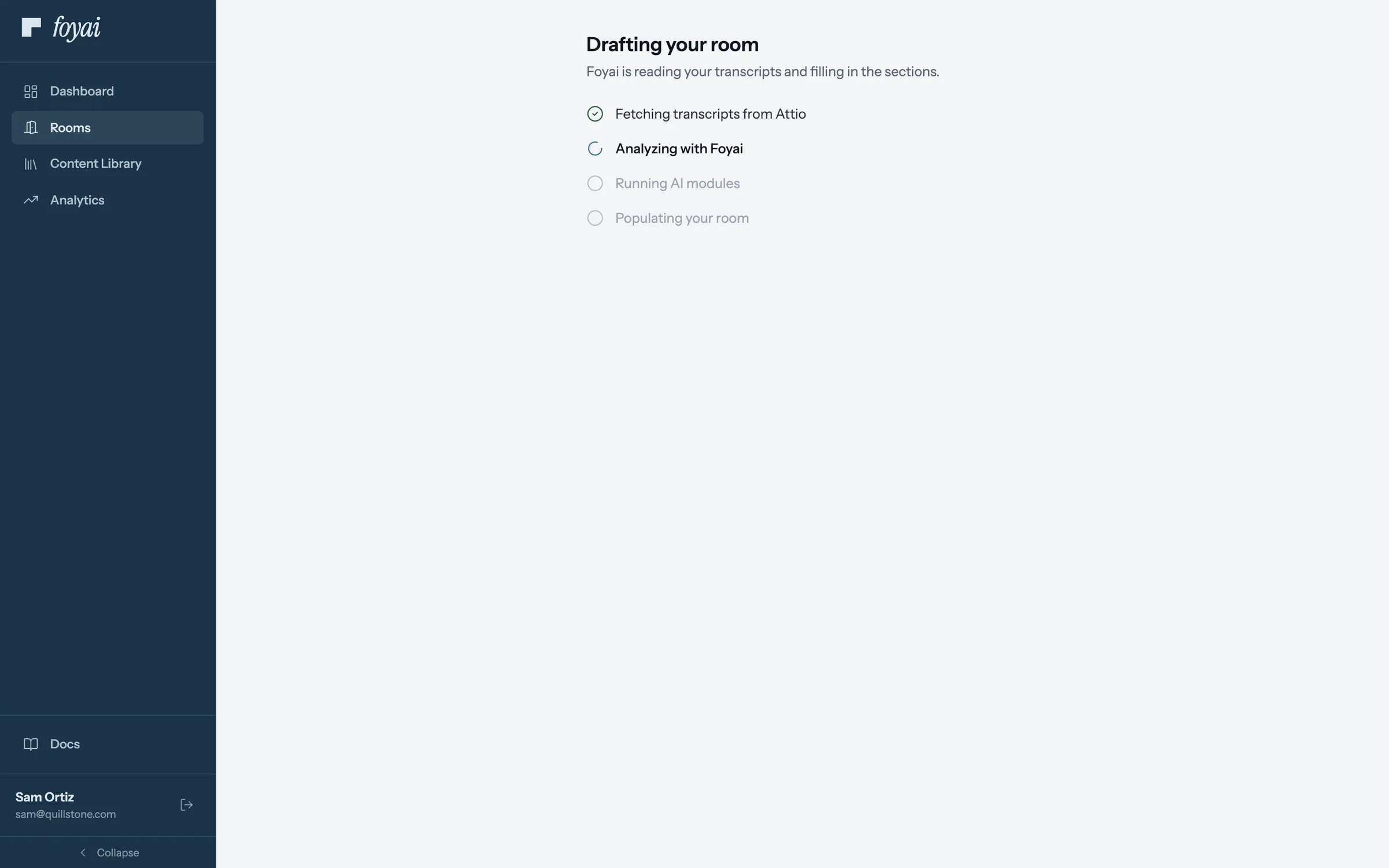
Step 6 of 7 foyai drafts the room foyai fetches the call transcripts, then writes the room's sections from them.
-
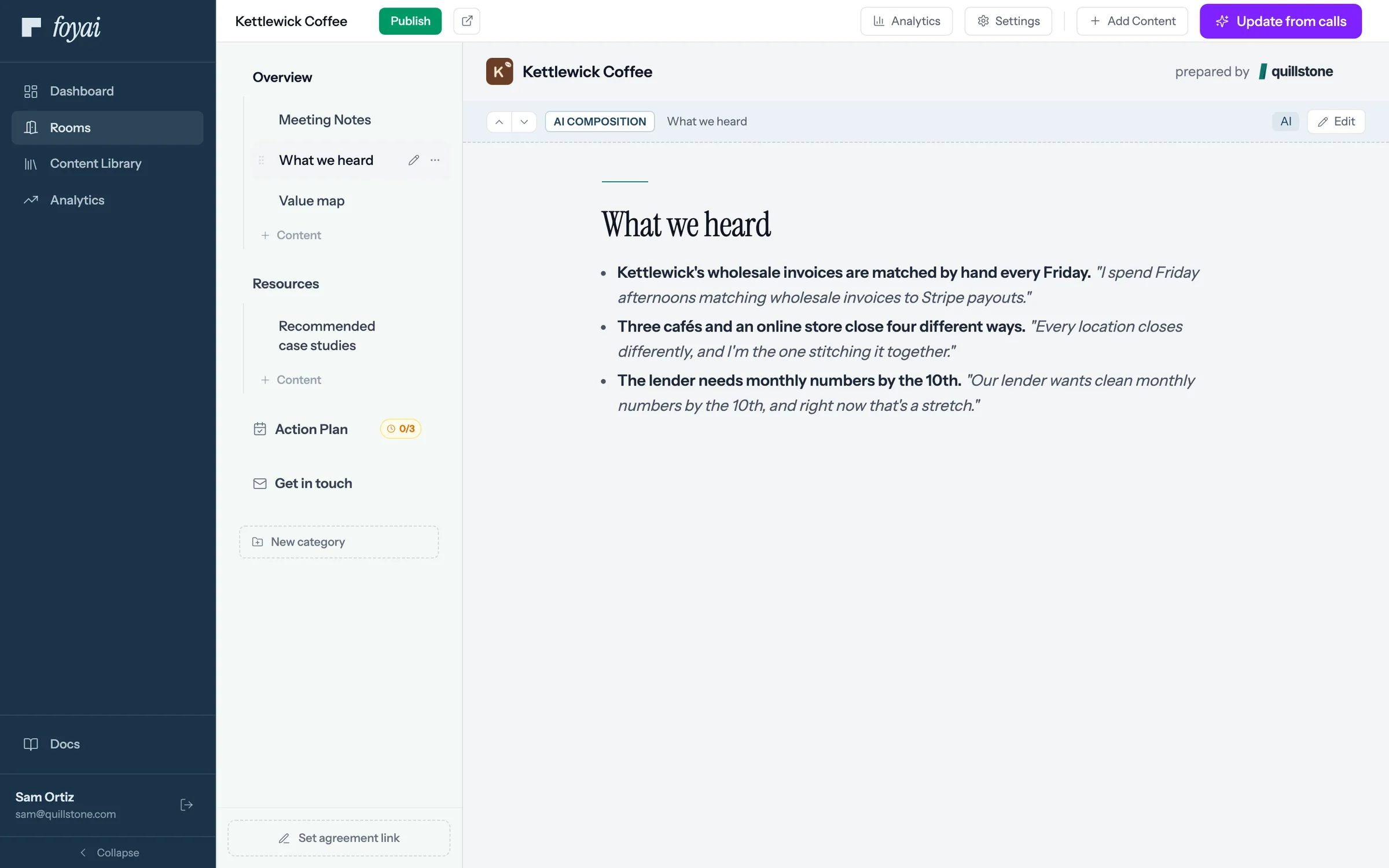
Step 7 of 7 The draft opens The room opens on What we heard, drafted from the calls and marked AI.
Start every room from a deal.
Pick a starting point, choose a template, and check the draft before you publish it.
 051:09
Reviewing the AI draft
Check the action items foyai heard, then read and edit the draft before any buyer sees it.
Watch · 1:09Click through · 7 steps
051:09
Reviewing the AI draft
Check the action items foyai heard, then read and edit the draft before any buyer sees it.
Watch · 1:09Click through · 7 steps
-
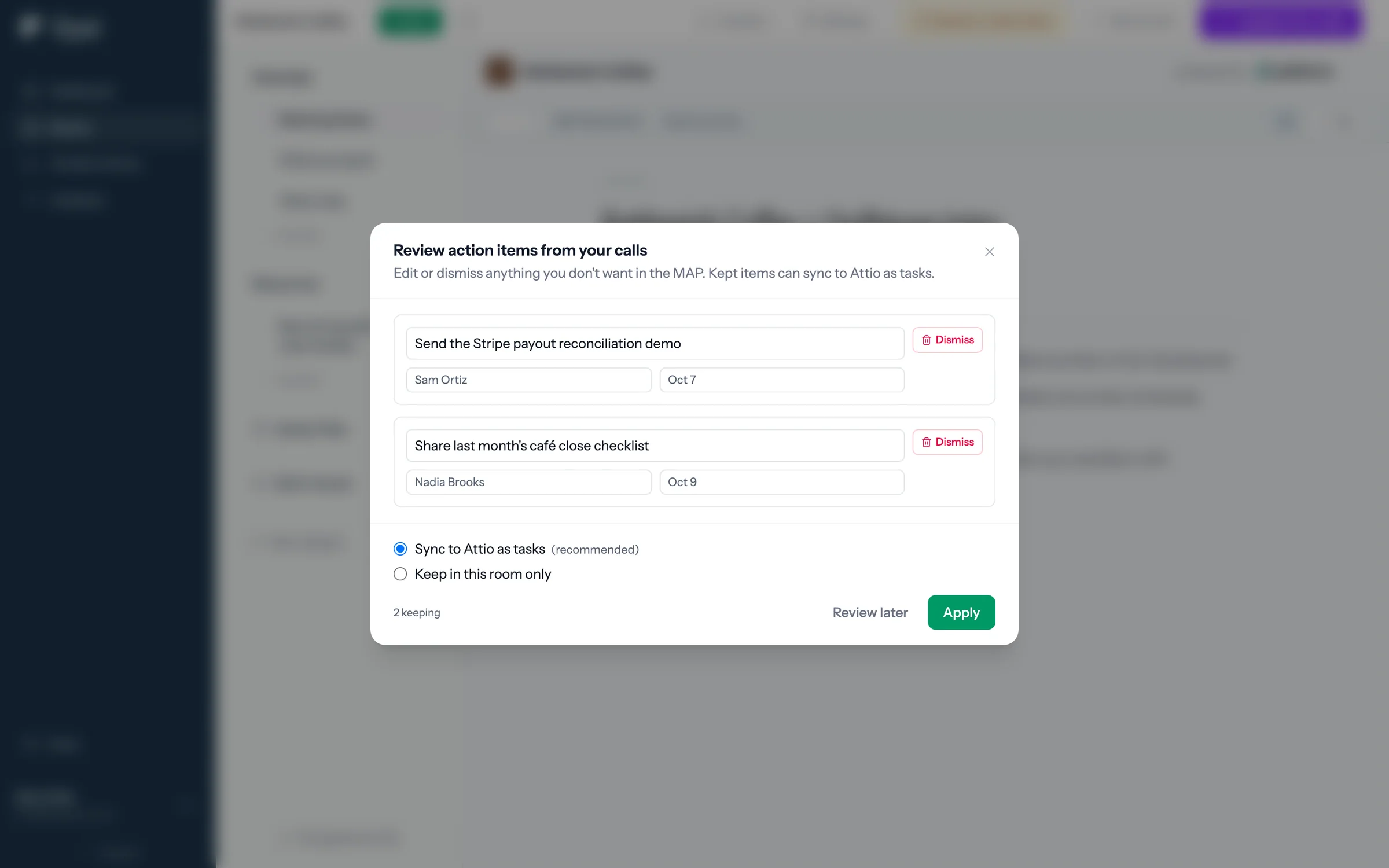
Step 1 of 7 Review the action items foyai lists the action items it heard, each with an owner and a due date. Keep, edit, or dismiss each.
-
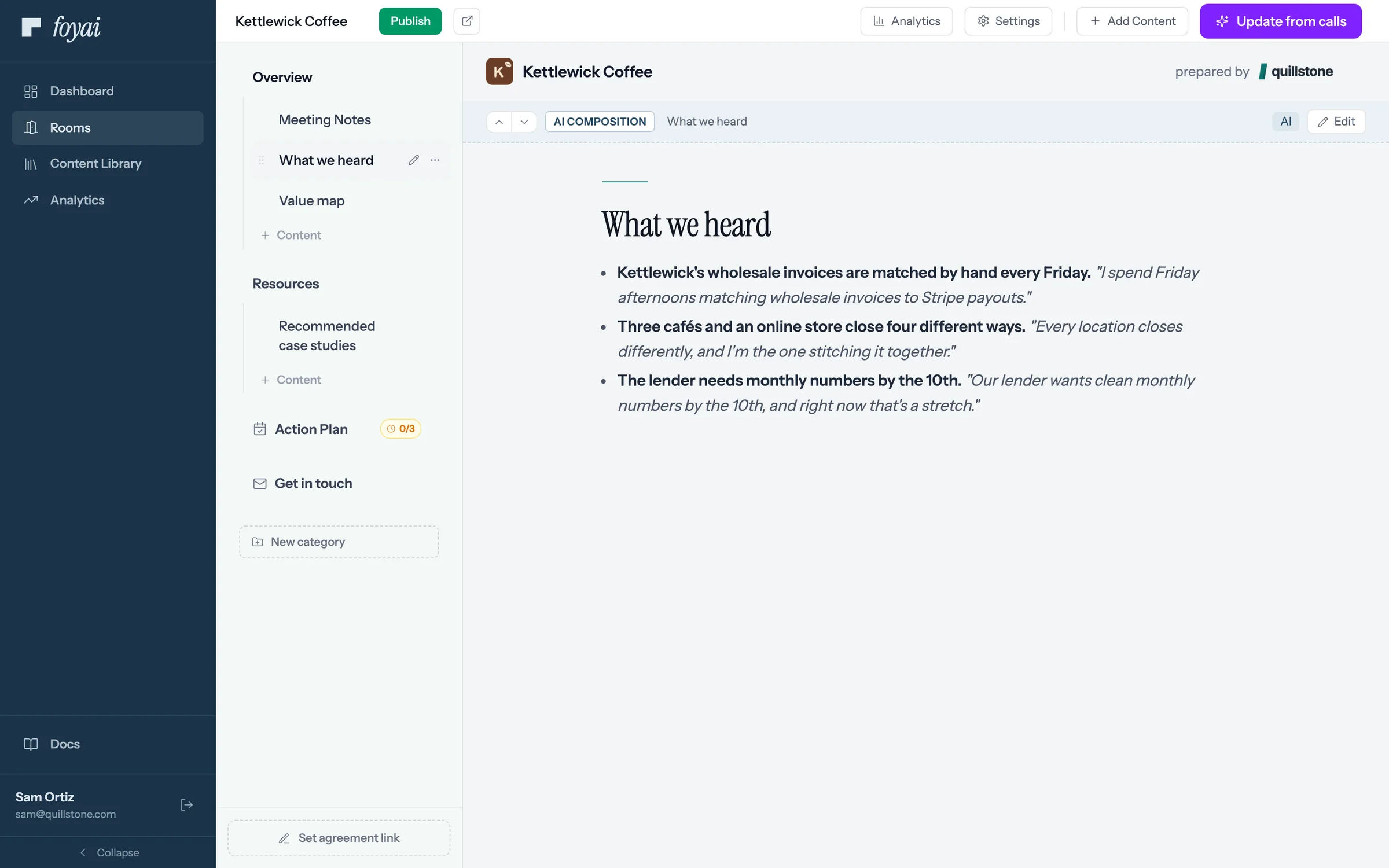
Step 2 of 7 The draft, section by section Kettlewick's drafted room opens with Meeting Notes, What we heard, and Value map, each built from the call.
-
Step 3 of 7 In the buyer's own words Each point is paired with Nadia's own words from the call. Check the quotes and numbers.
-
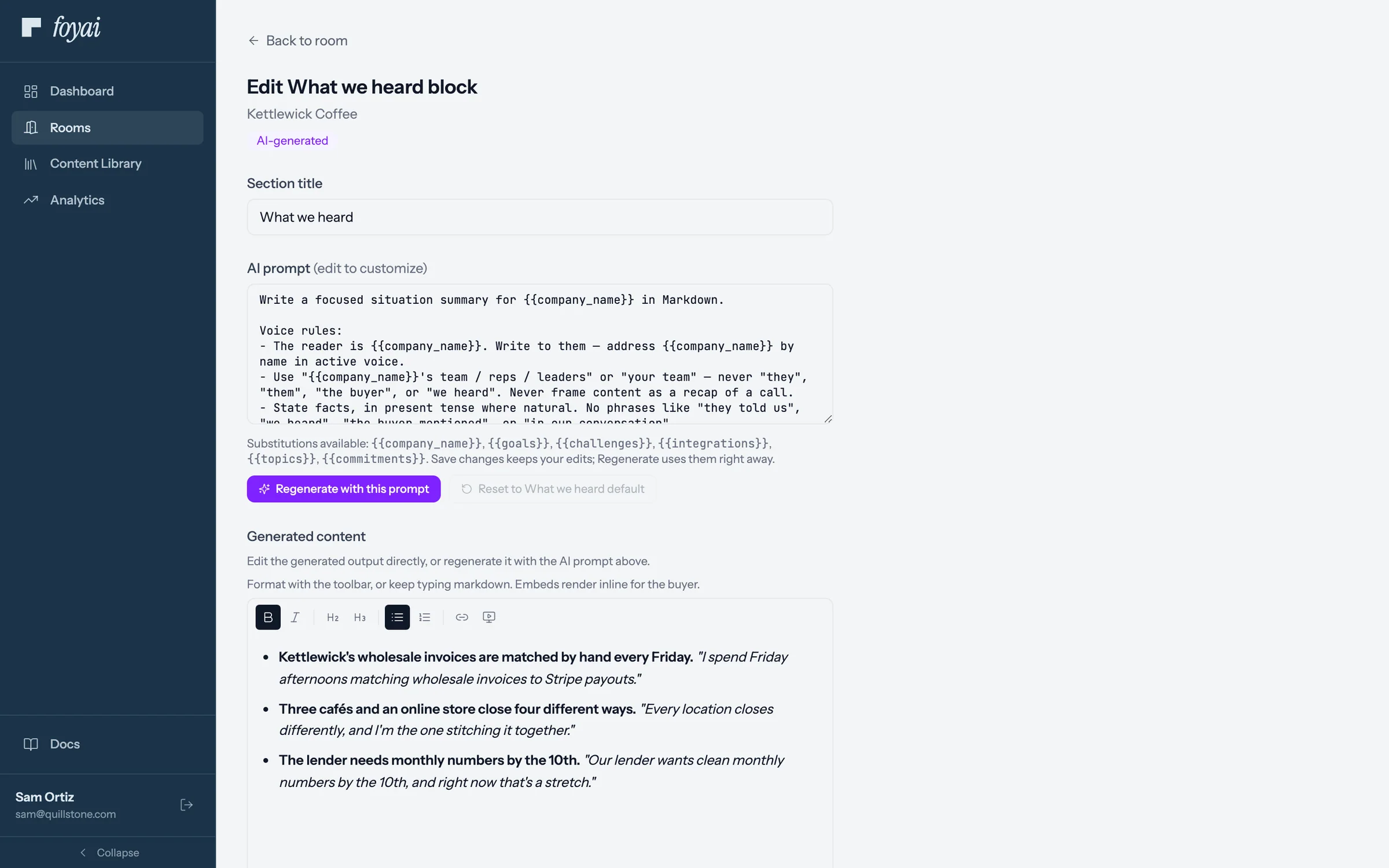
Step 4 of 7 Edit the generated text Open the section and edit the generated text directly, the same as any other document.
-
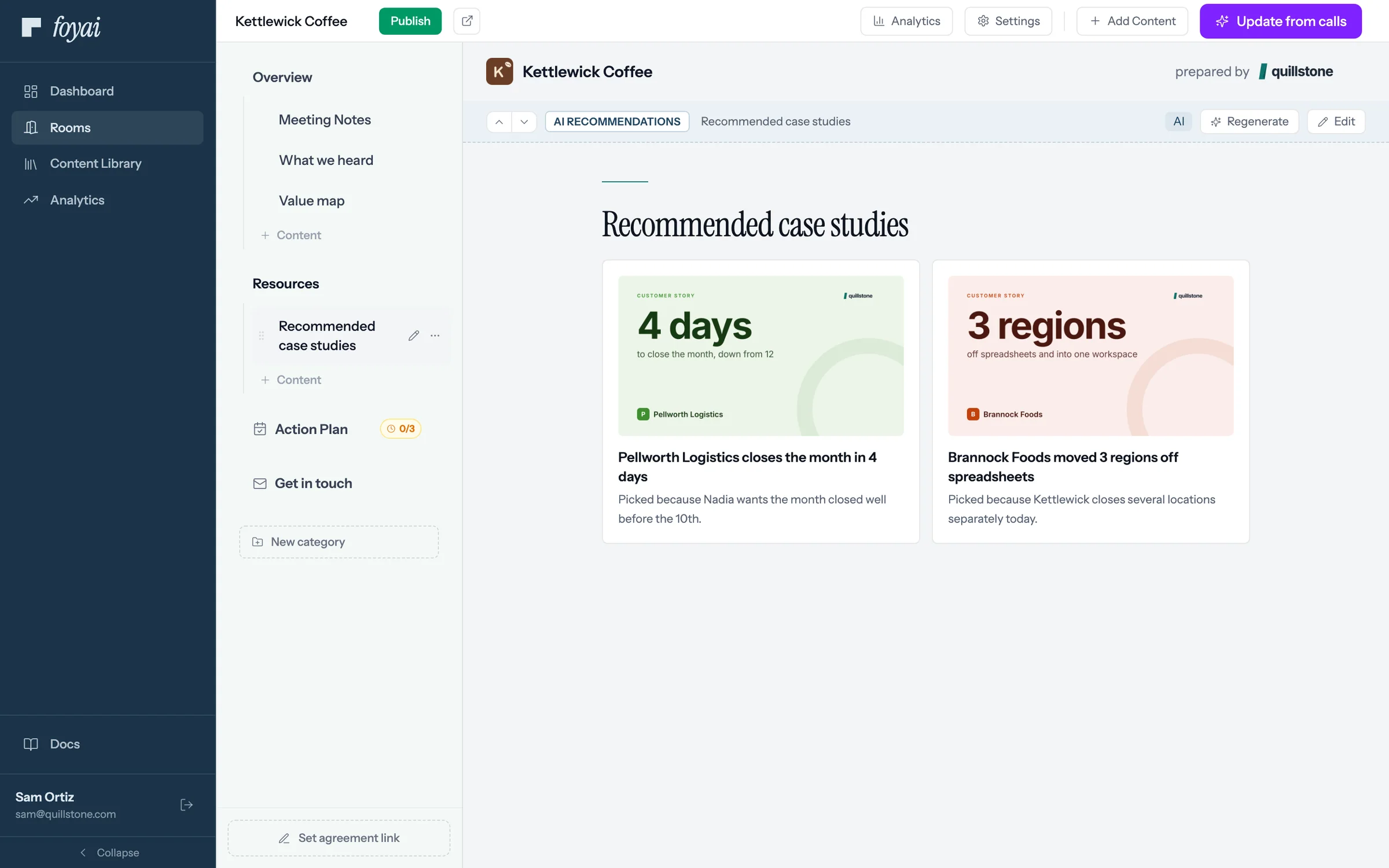
Step 5 of 7 Case studies, with a reason foyai picks case studies from the Content Library and says why each one fits.
-
Step 6 of 7 Regenerate a section Not quite right? Regenerate runs the section again.
-
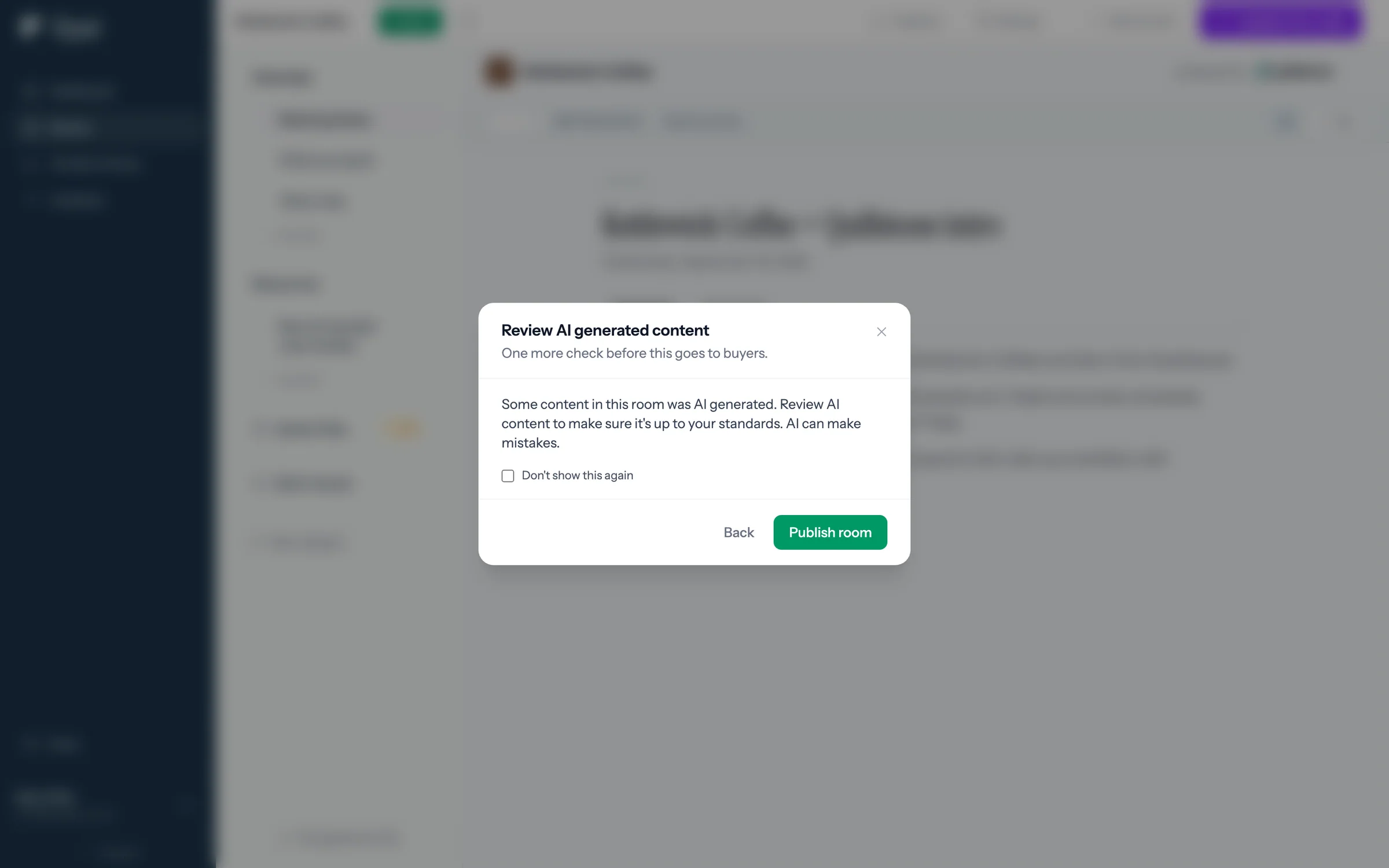
Step 7 of 7 One more check before you publish Publishing waits while any section is still generating, and reminds you to review the AI content.
Check the draft before buyers see it.
Approve the action items, read each AI section, and edit anything that needs your own voice.
 061:10
Building the mutual action plan
Lay out the steps to signature for both sides, with owners and dates, and let the buyer tick off theirs.
Watch · 1:10Click through · 6 steps
061:10
Building the mutual action plan
Lay out the steps to signature for both sides, with owners and dates, and let the buyer tick off theirs.
Watch · 1:10Click through · 6 steps
-
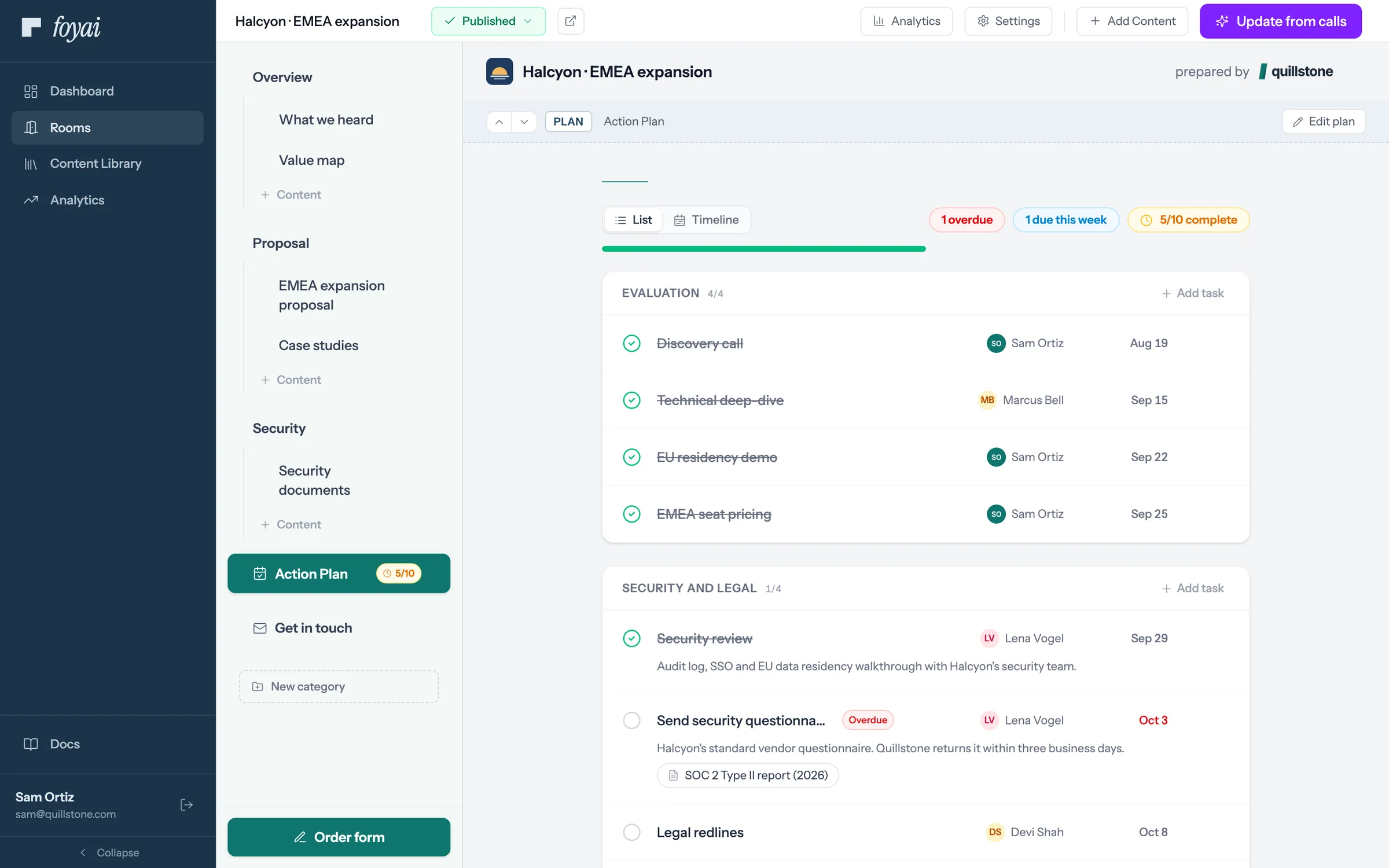
Step 1 of 6 Open the Action Plan Halcyon's close plan has tasks for both sides, in three phases. Five of ten are done.
-
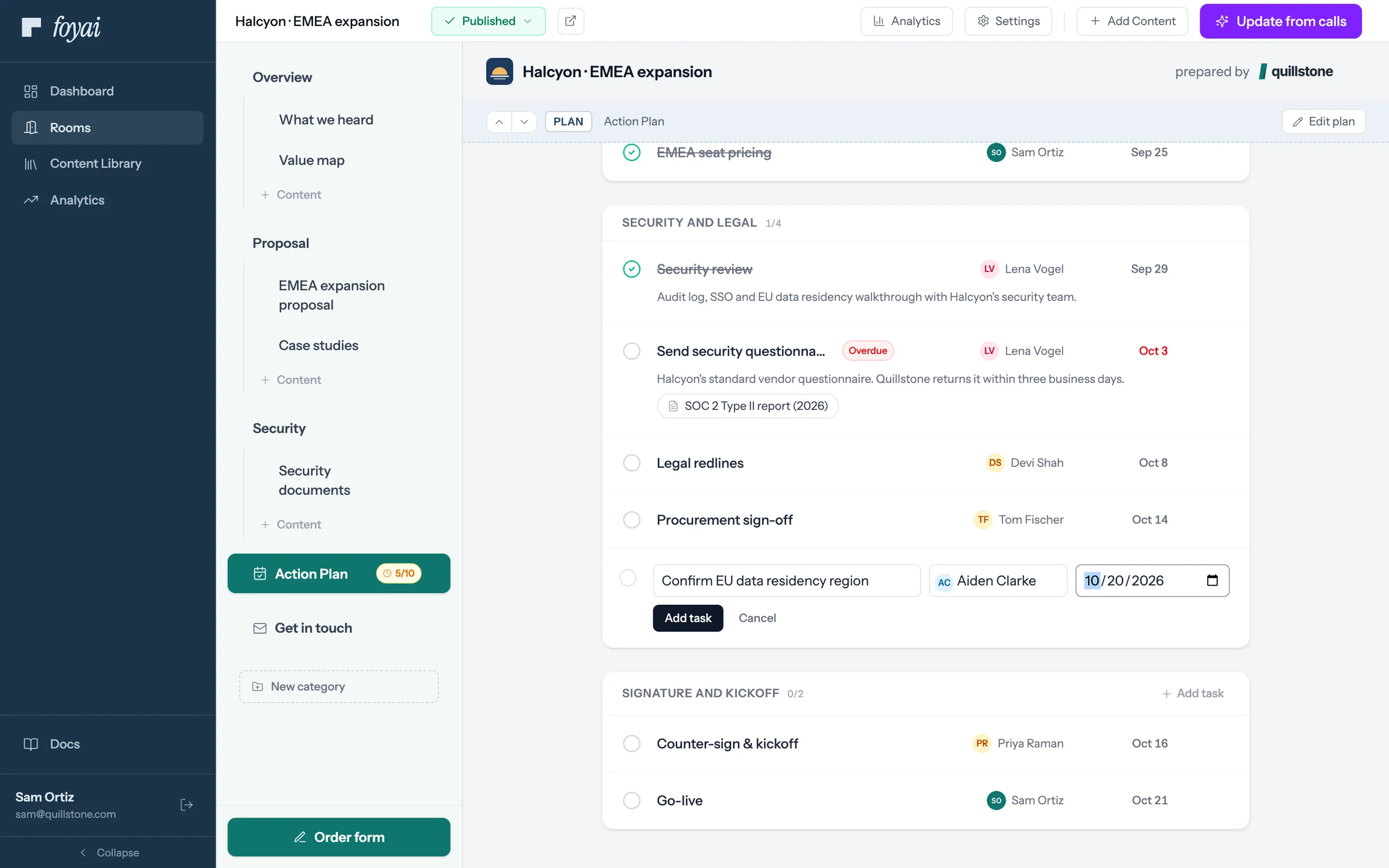
Step 2 of 6 Add a task Click Add task under a phase, then set a title, an owner from either side, and a due date.
-
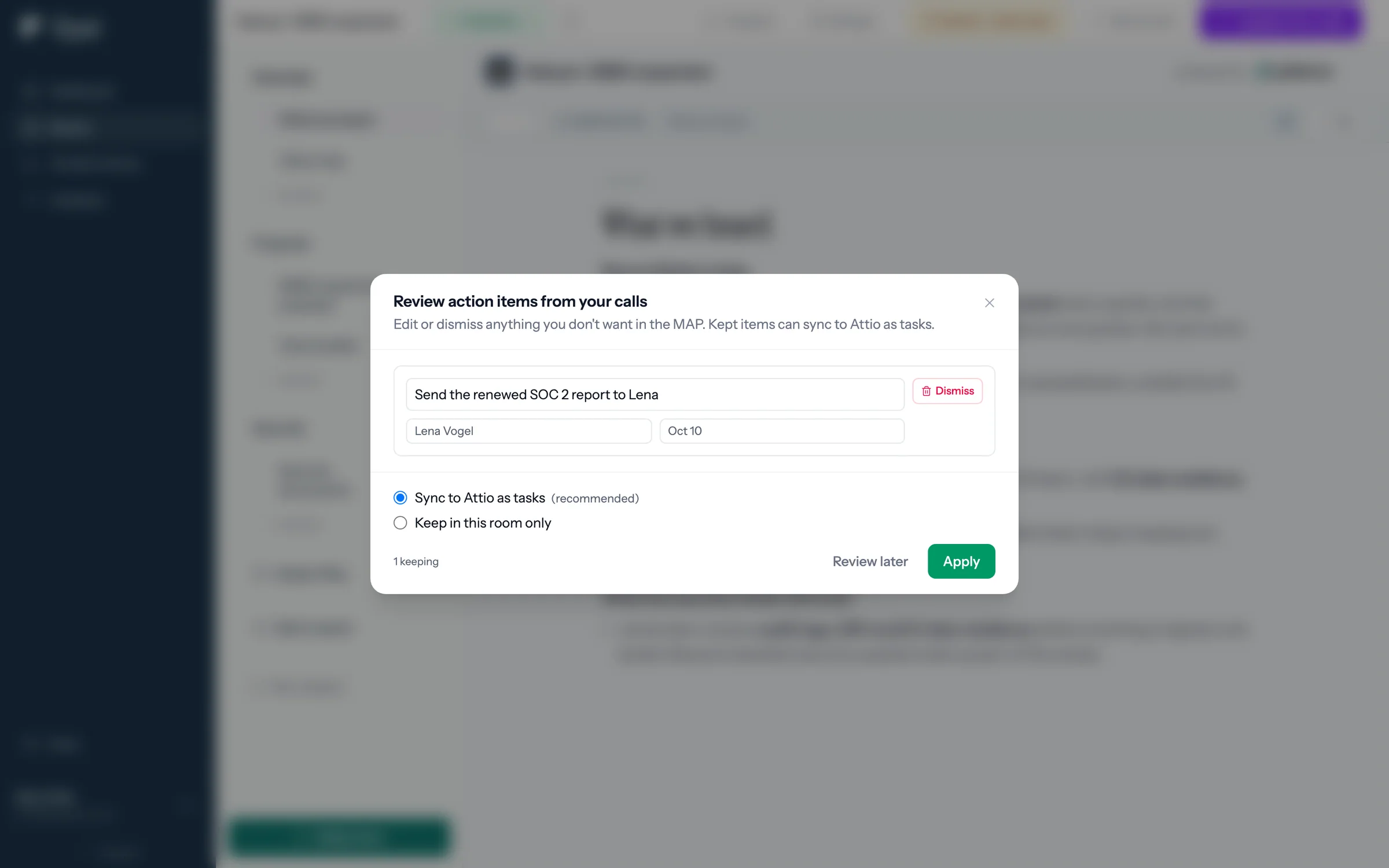
Step 3 of 6 Choose whether it syncs to Attio Action items foyai heard on a call can sync to Attio as tasks, or stay in the room only.
-
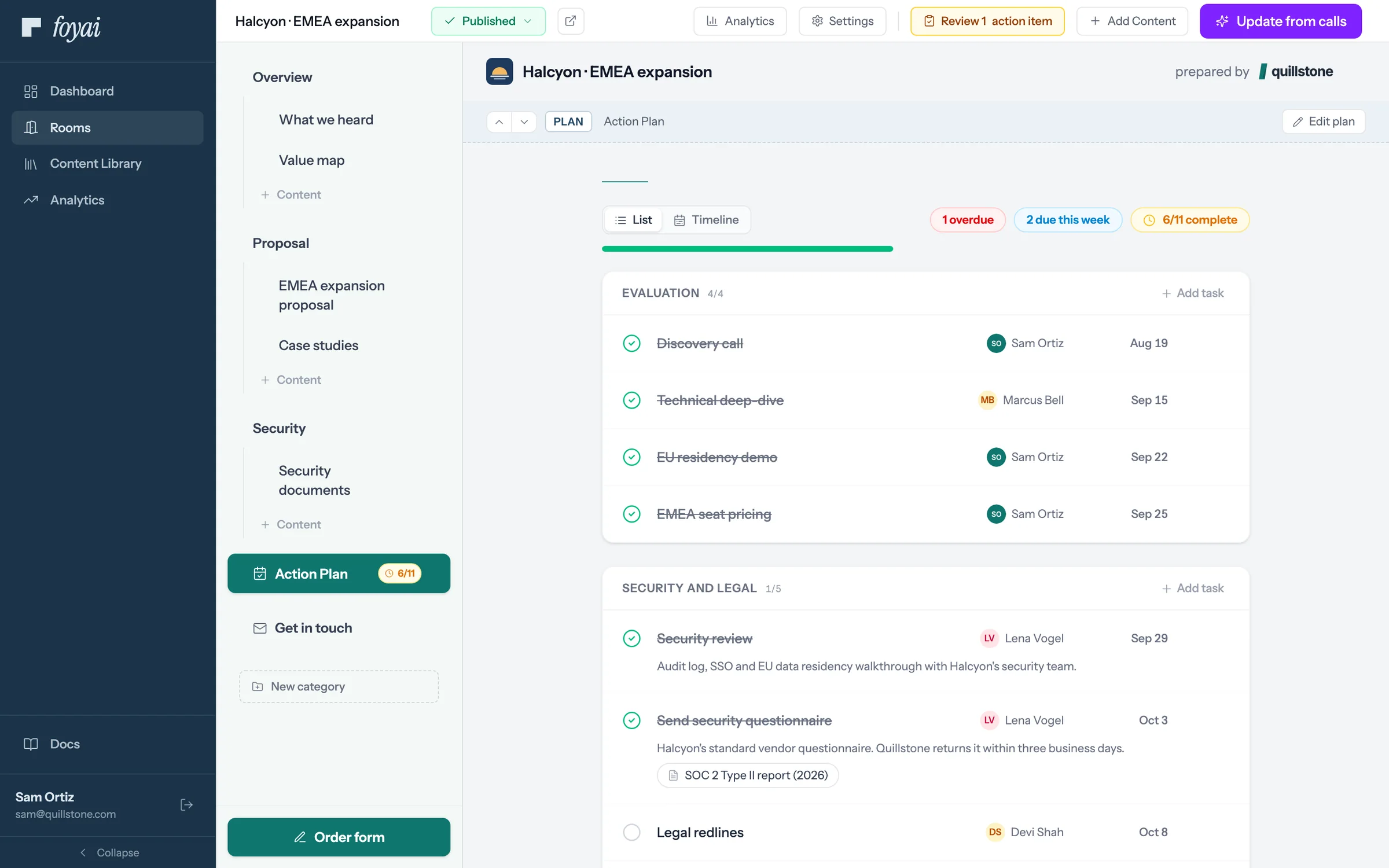
Step 4 of 6 Mark a step done You can tick off any task from the room, on either side of the deal.
-
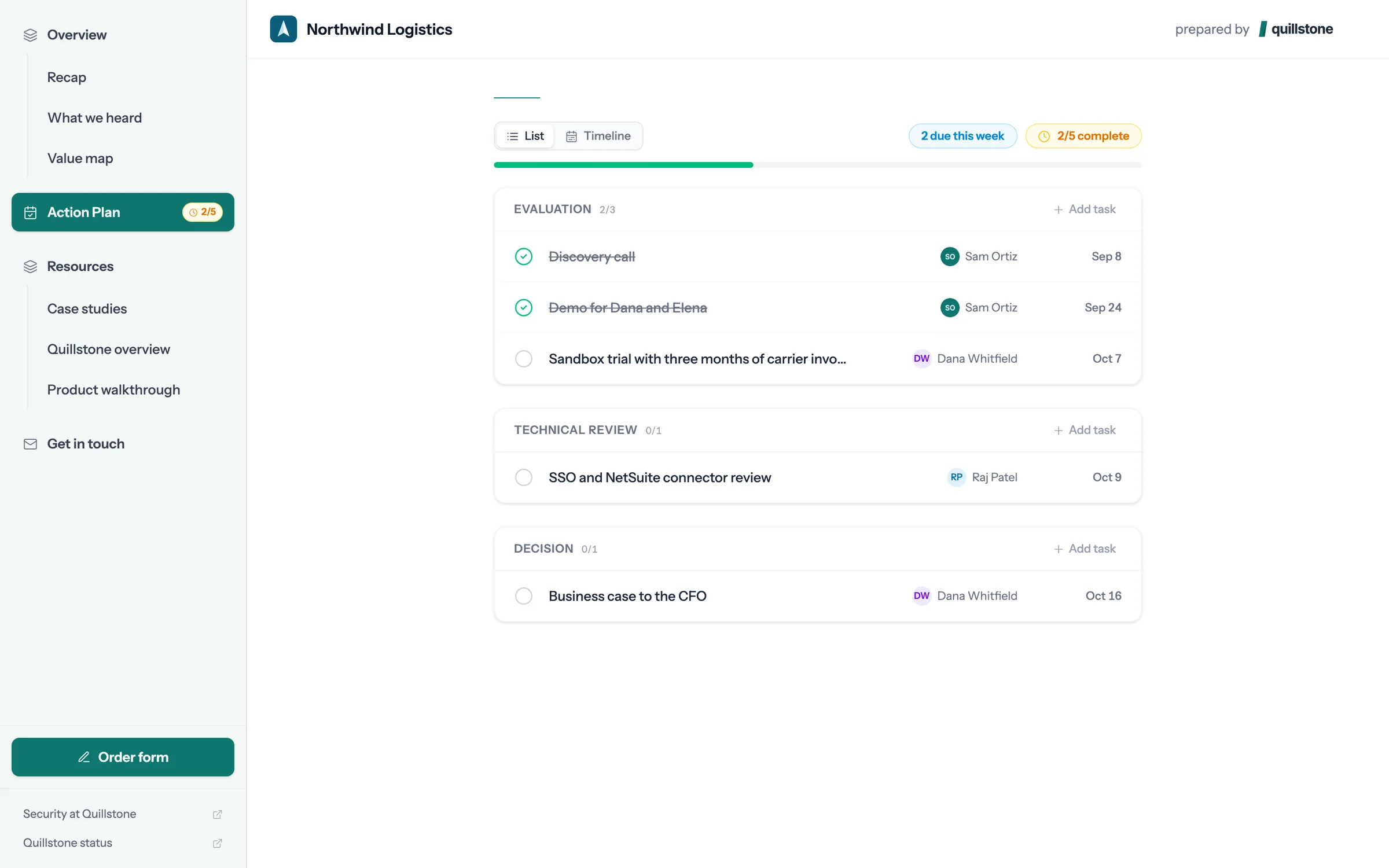
Step 5 of 6 The buyer ticks off their step In Northwind's room, Dana owns the sandbox trial and ticks it off, with no account to create.
-
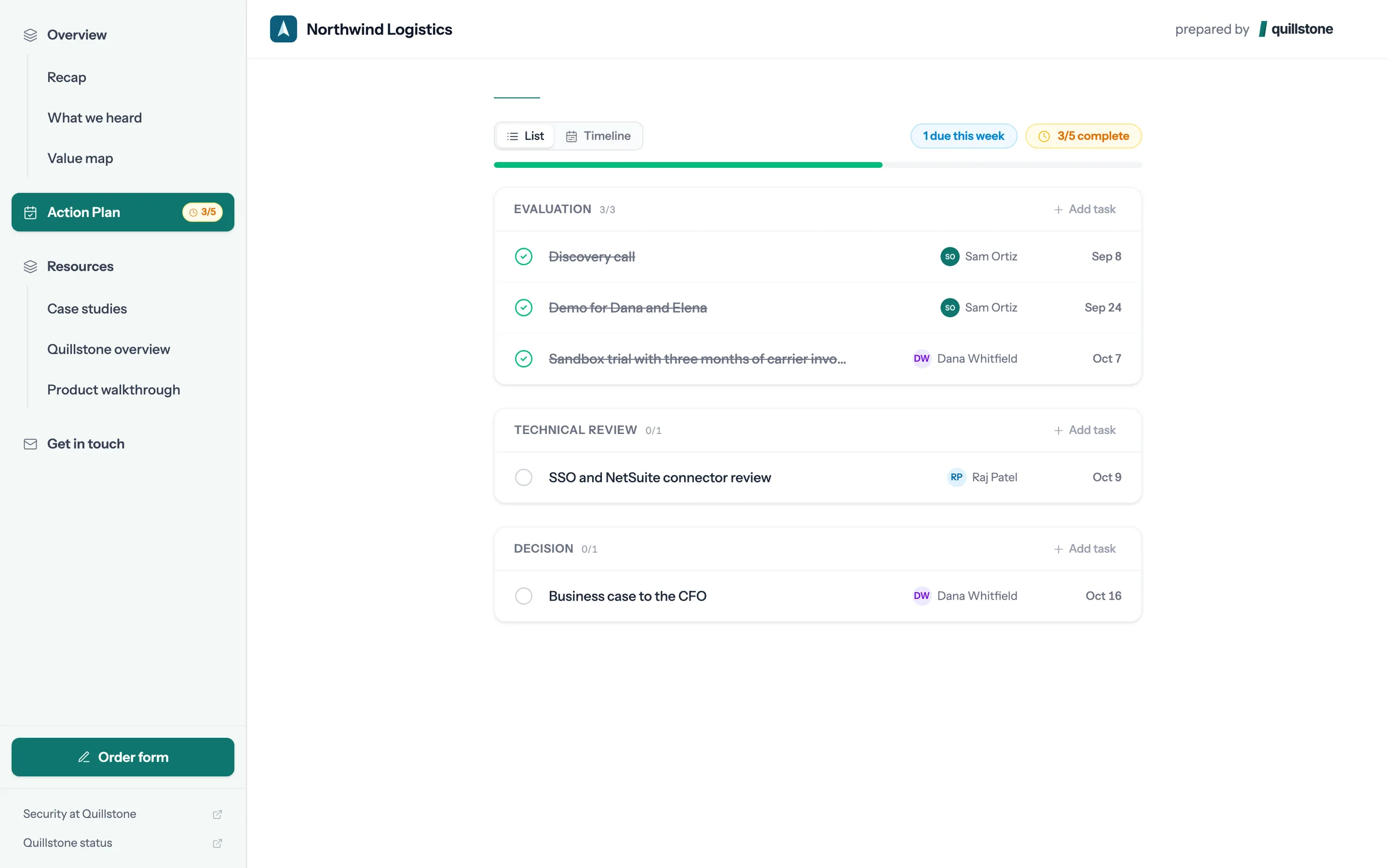
Step 6 of 6 Both sides see the same progress The step shows as done for both sides at once. There's nothing to publish.
One plan, kept current by both sides.
Add tasks, choose whether they sync to Attio, and let buyers check off their own steps.
 071:19
Publishing and sharing a room
Choose who can get in, publish, copy the link, and see what a forwarded link shows.
Watch · 1:19Click through · 7 steps
071:19
Publishing and sharing a room
Choose who can get in, publish, copy the link, and see what a forwarded link shows.
Watch · 1:19Click through · 7 steps
-
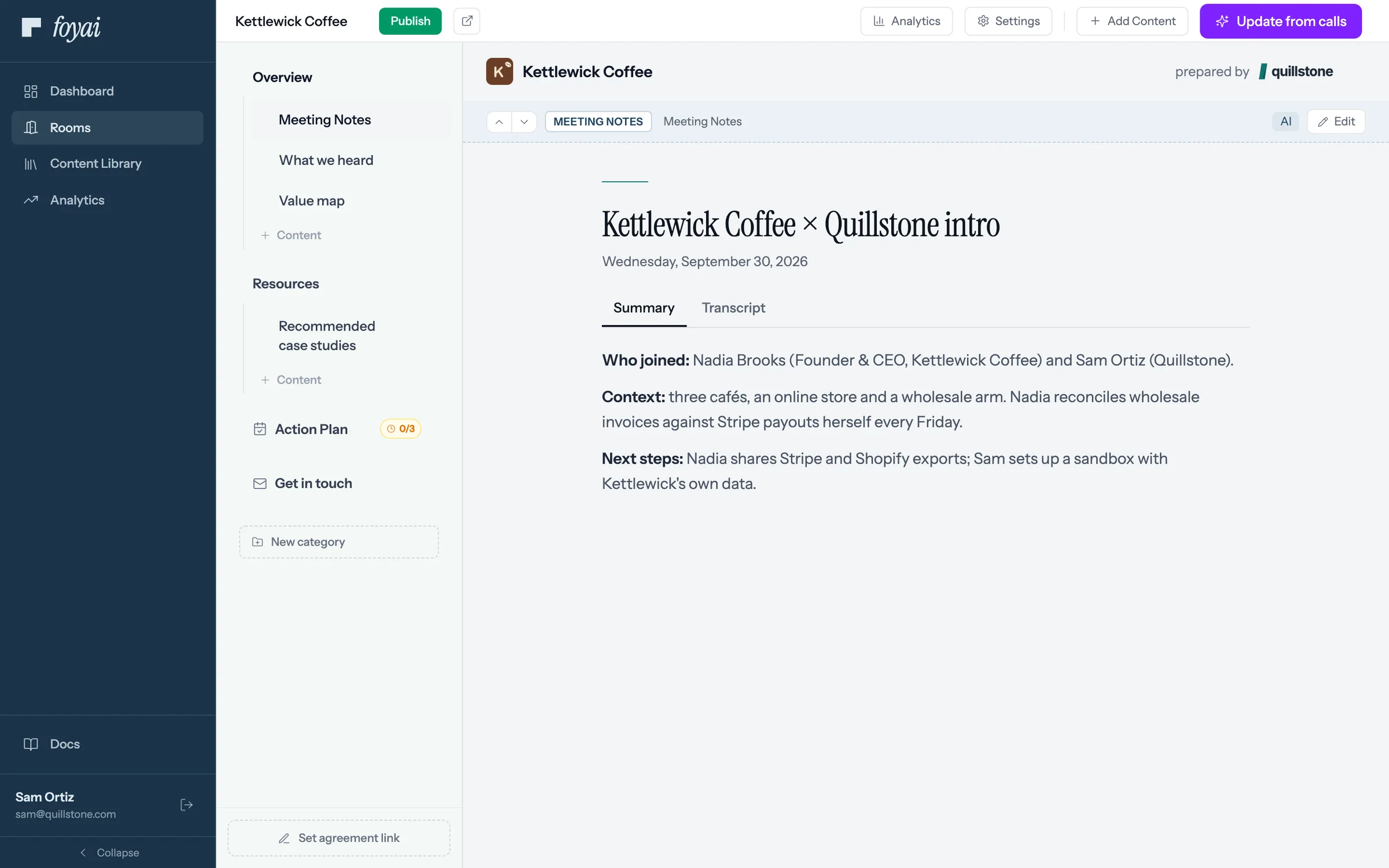
Step 1 of 7 Publish the draft Sam has checked the Kettlewick Coffee draft and clicks Publish.
-
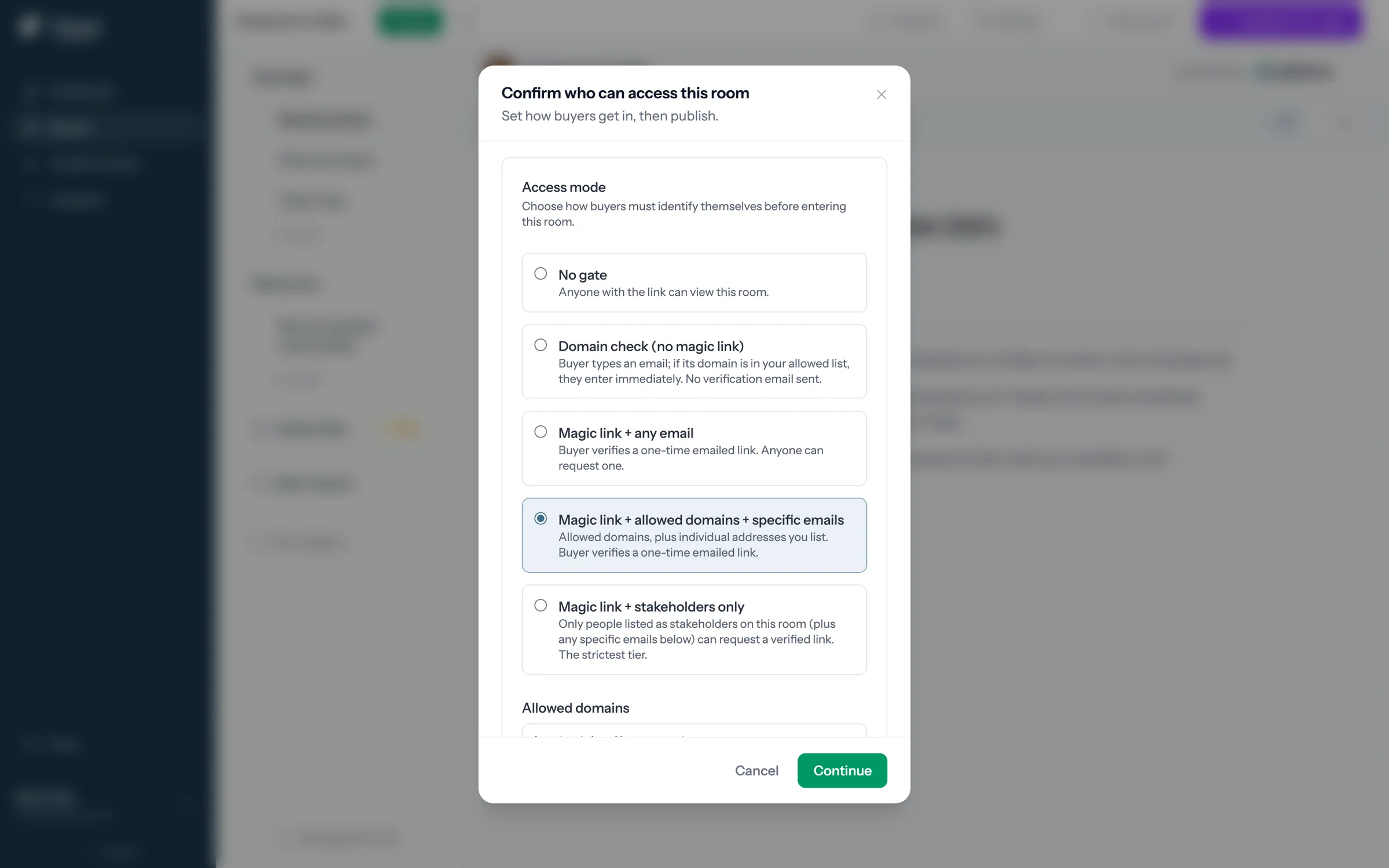
Step 2 of 7 Choose who gets in Each access mode sets how buyers prove who they are. Sam picks a one-time emailed link for allowed domains.
-
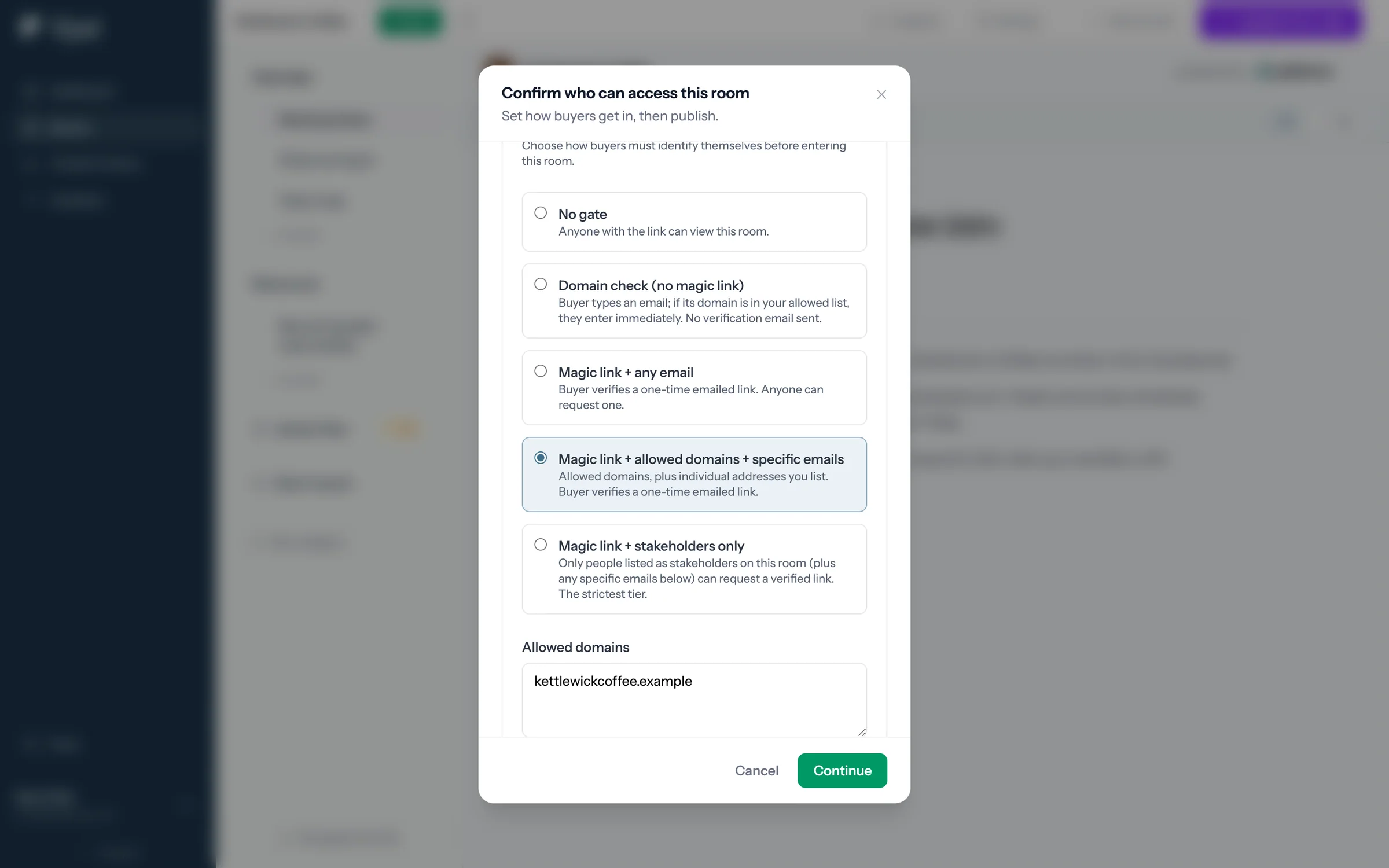
Step 3 of 7 The domain is filled in Allowed domains comes from the Kettlewick Coffee record in Attio. Sam can add more or change it.
-
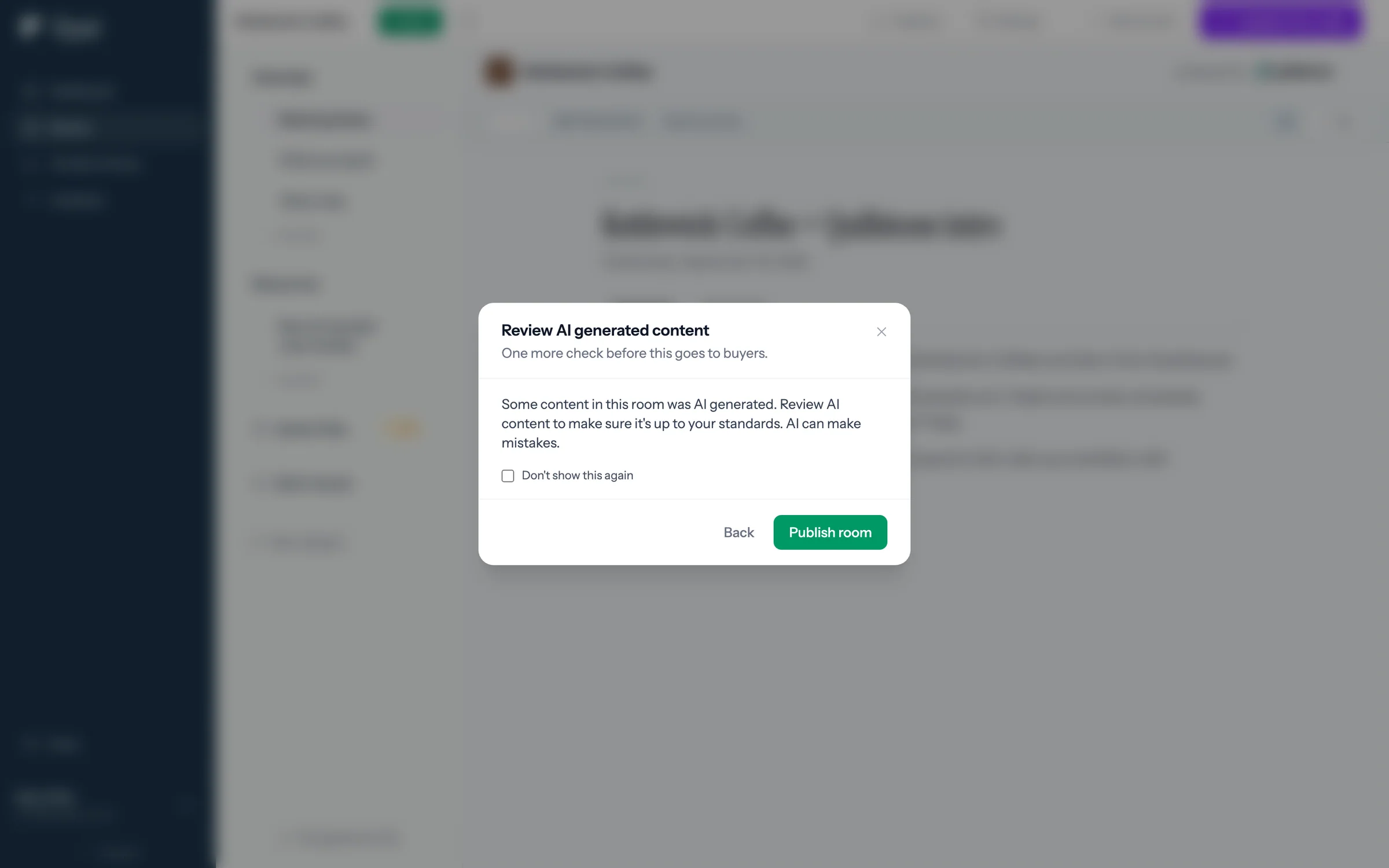
Step 4 of 7 Check the AI content A reminder to read what AI drafted before buyers see it. Then Publish room makes it live.
-
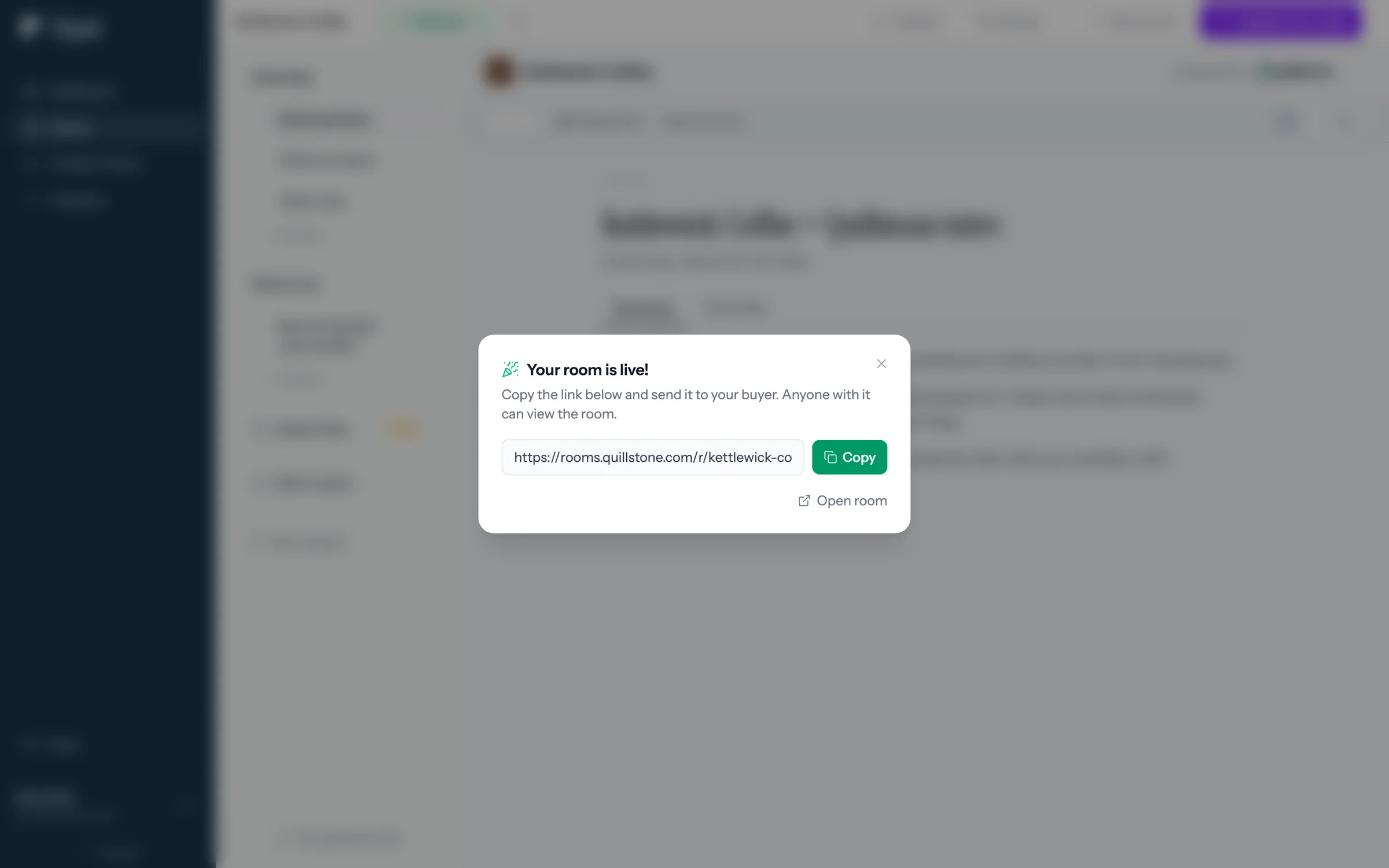
Step 5 of 7 Copy the link The room is live. Sam copies the link to send to Nadia at Kettlewick.
-
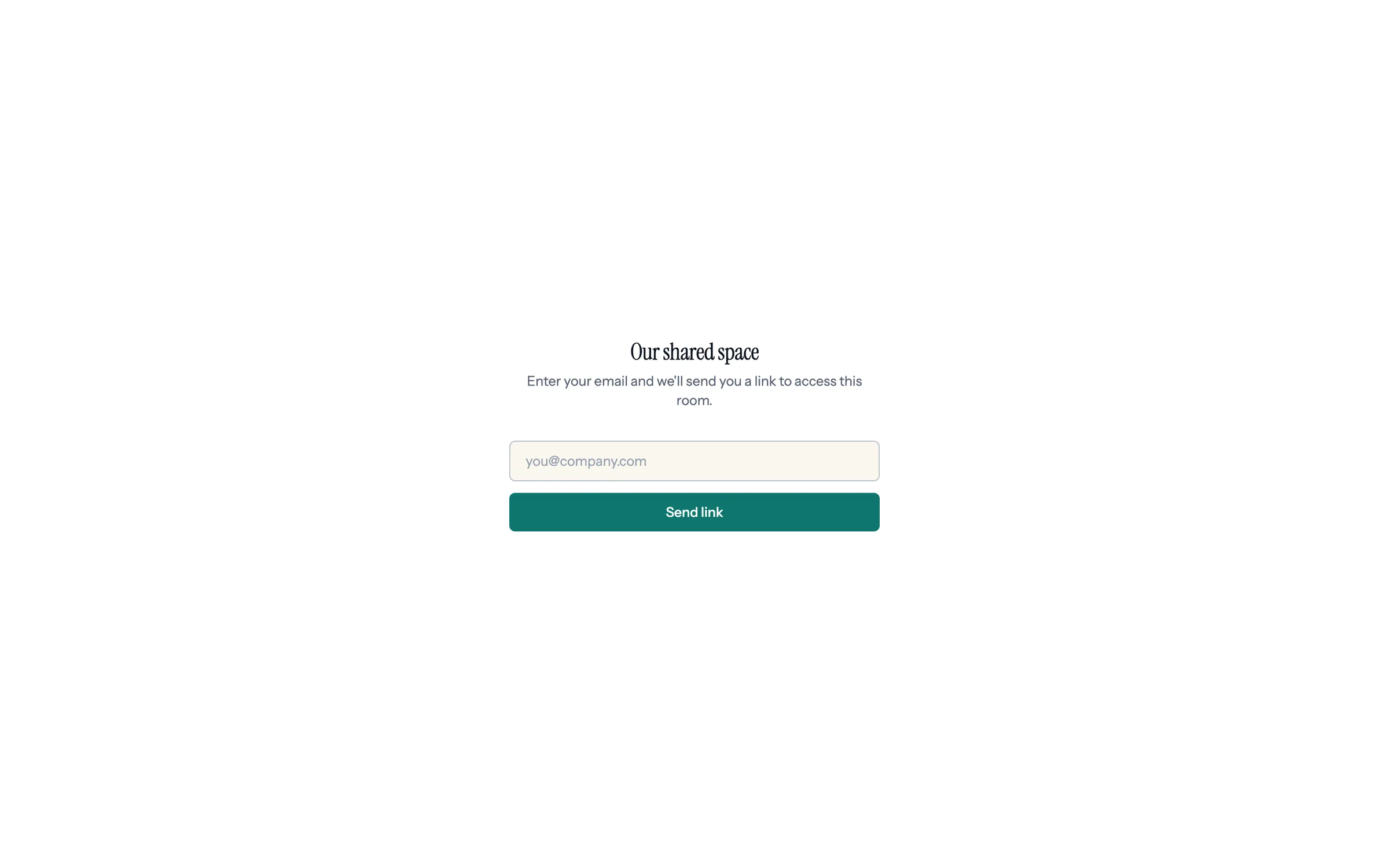
Step 6 of 7 If the link is forwarded Anyone opening it sees Our shared space, with no company names, so a forwarded link doesn't say who's talking to whom.
-
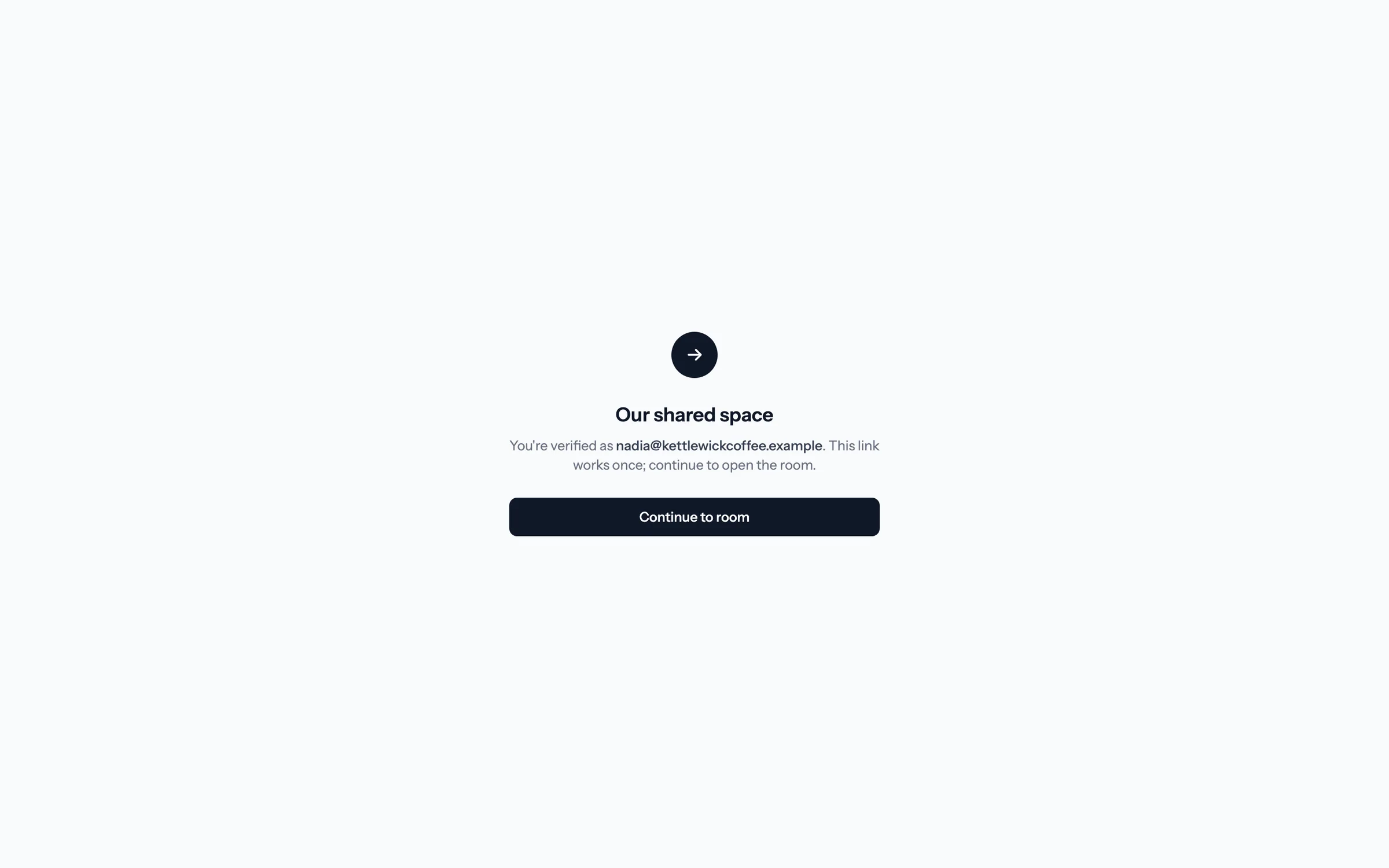
Step 7 of 7 The emailed link works once Nadia confirms on this screen. The link can't be used again, and it expires after 15 minutes.
Decide who gets into each room.
Set a default access mode in Settings, then tighten or open up any room before you publish it.
 081:07
Reading your analytics
Who opened the room, what they read, time on each slide, and rooms that have gone quiet.
Watch · 1:07Click through · 7 steps
081:07
Reading your analytics
Who opened the room, what they read, time on each slide, and rooms that have gone quiet.
Watch · 1:07Click through · 7 steps
-
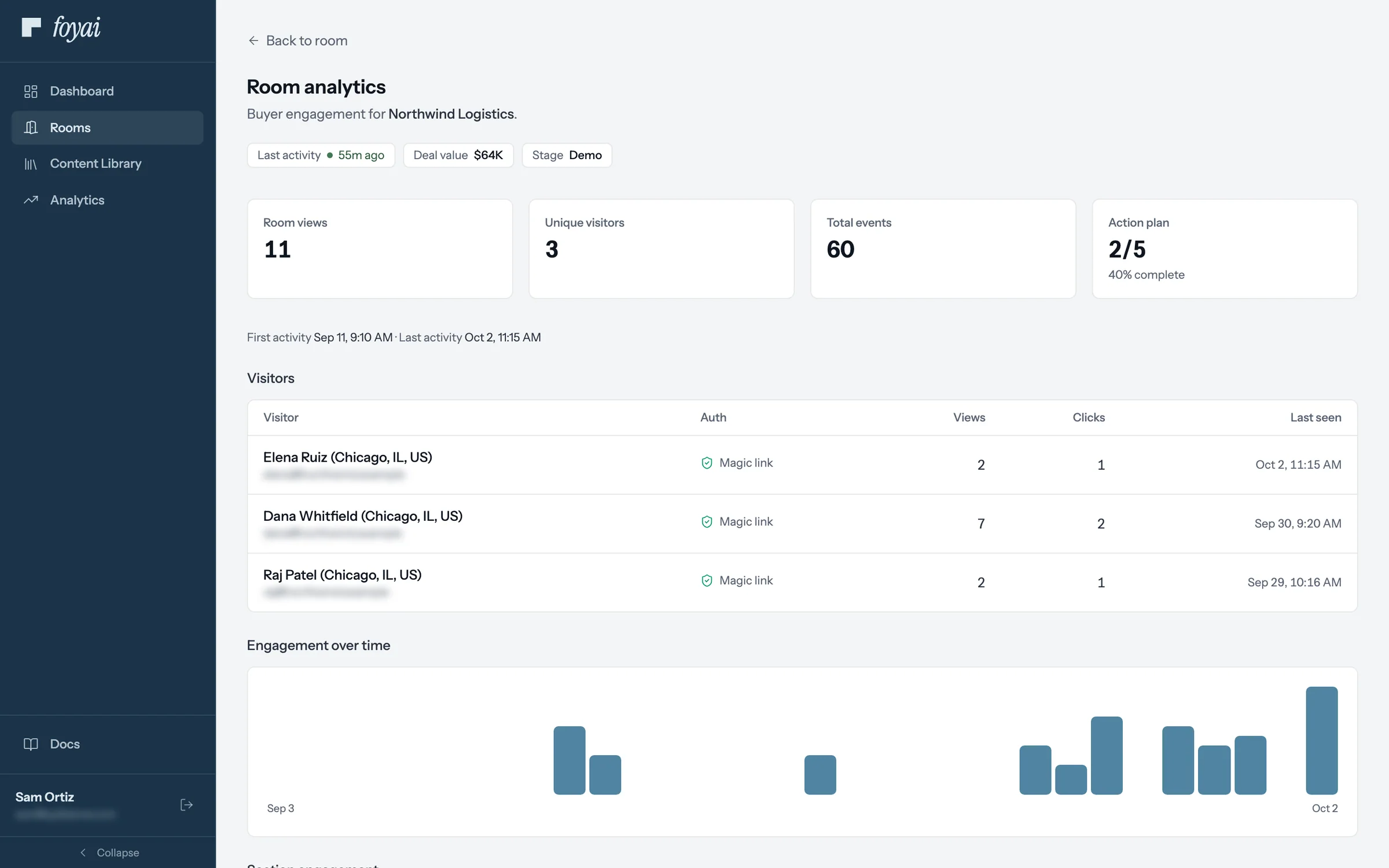
Step 1 of 7 Room analytics Sam opens the Northwind room's analytics: 11 room views from 3 visitors, and the plan at 2 of 5 steps.
-
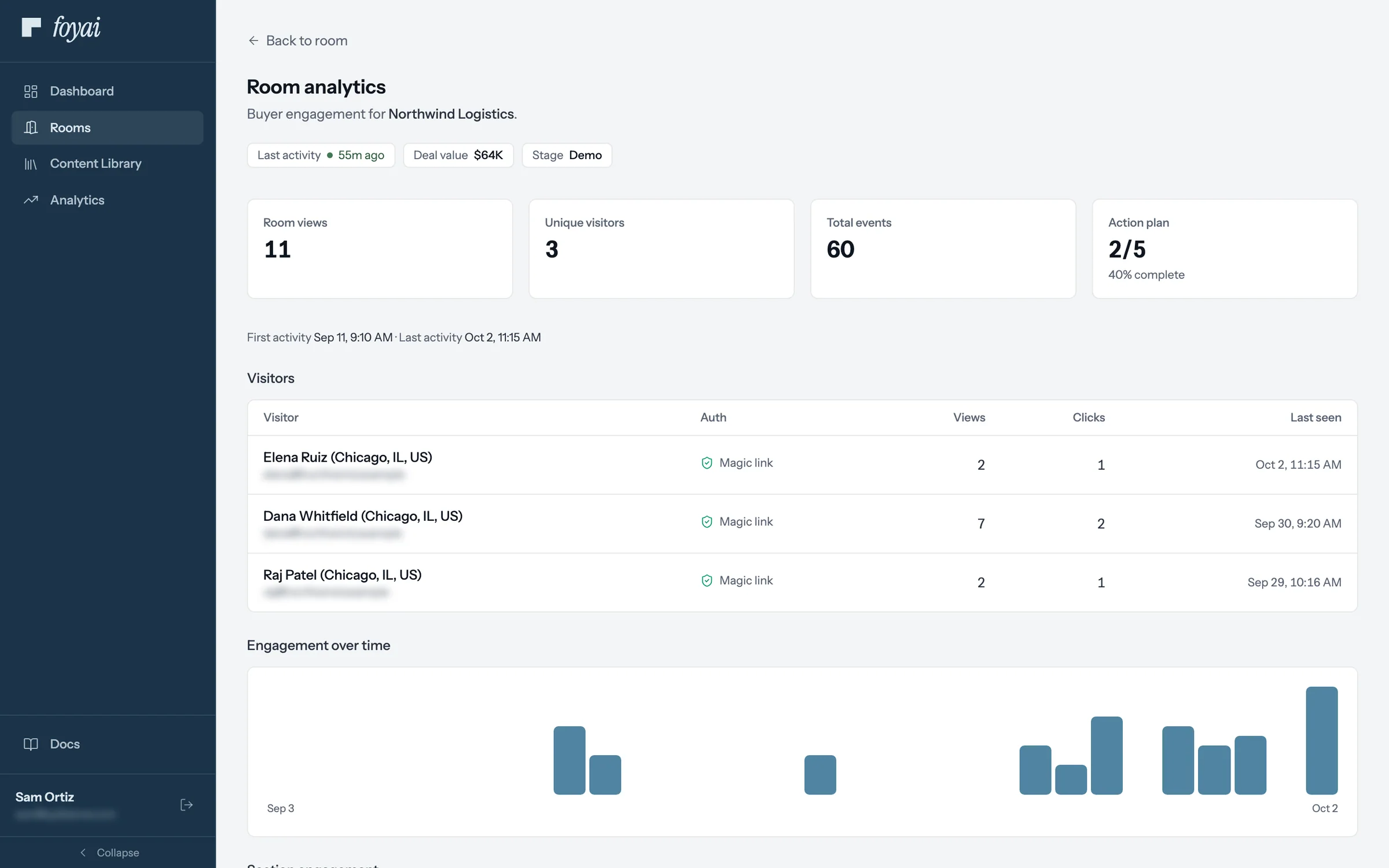
Step 2 of 7 Visitors by name Buyers who sign in with their email are listed by name, with their views, clicks, and when they were last there.
-
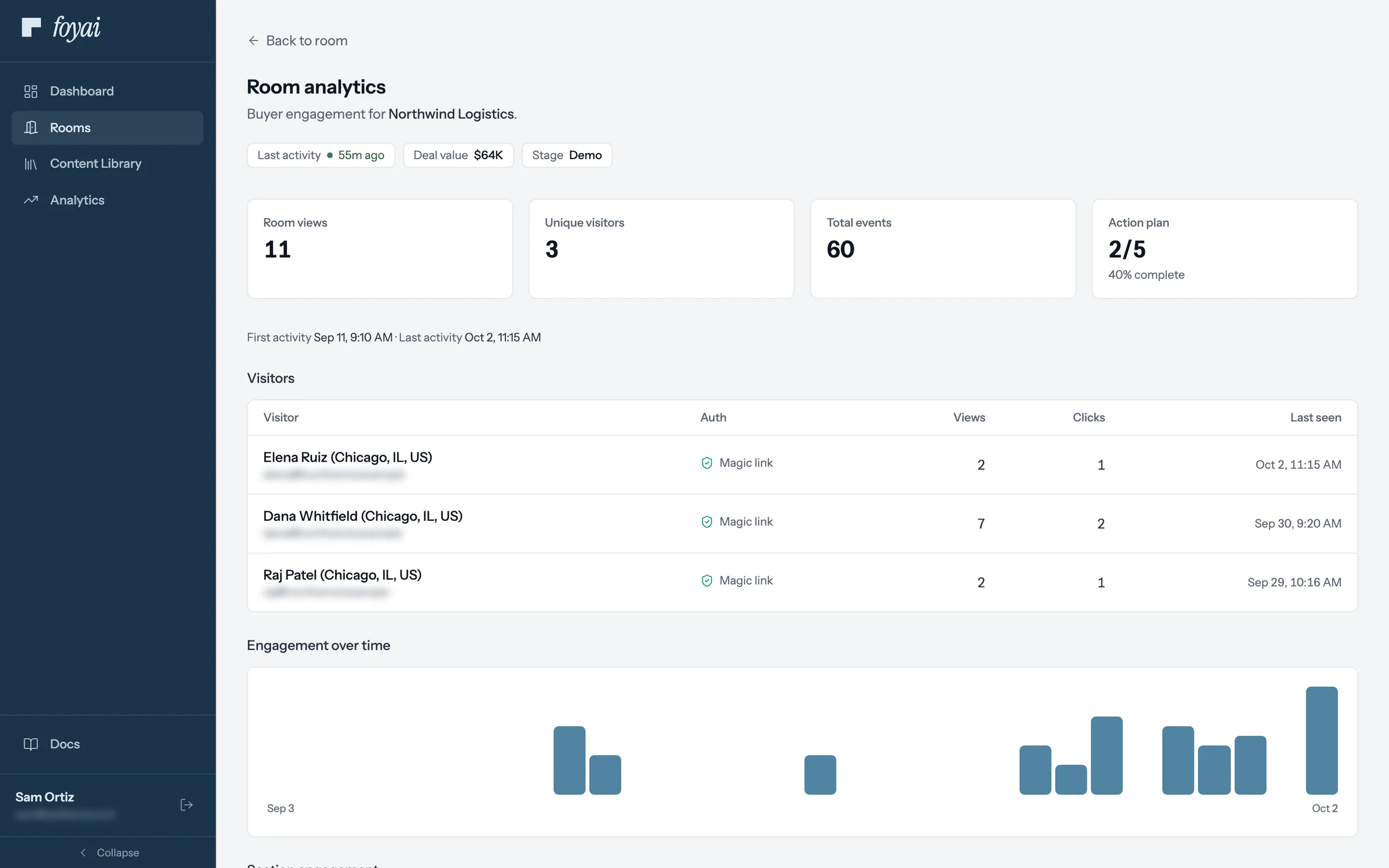
Step 3 of 7 A new name Elena Ruiz, Northwind's controller, opened the room for the first time this morning after Dana forwarded the link.
-
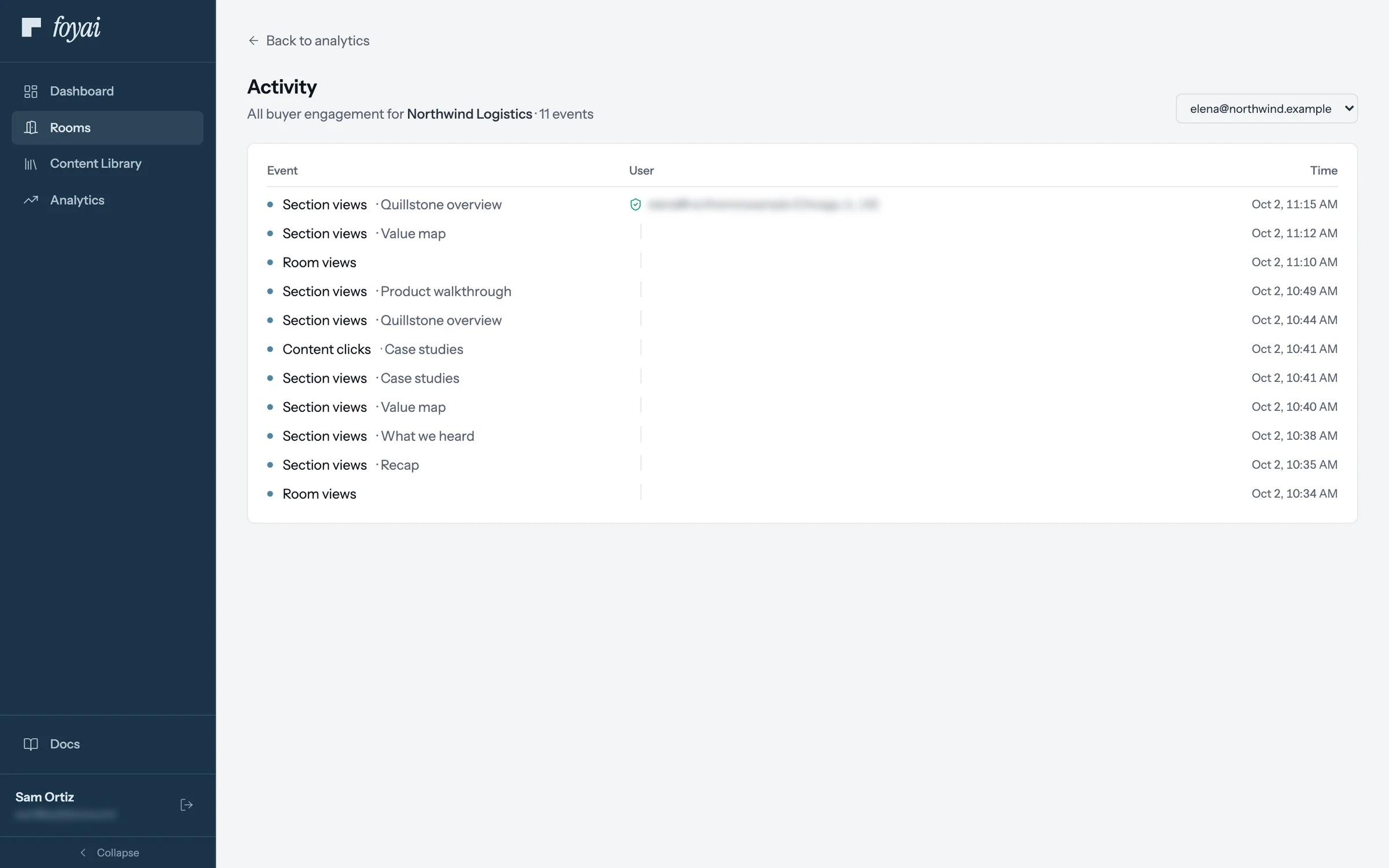
Step 4 of 7 What Elena looked at Click a visitor to see each section and link they opened, in order, with the time.
-
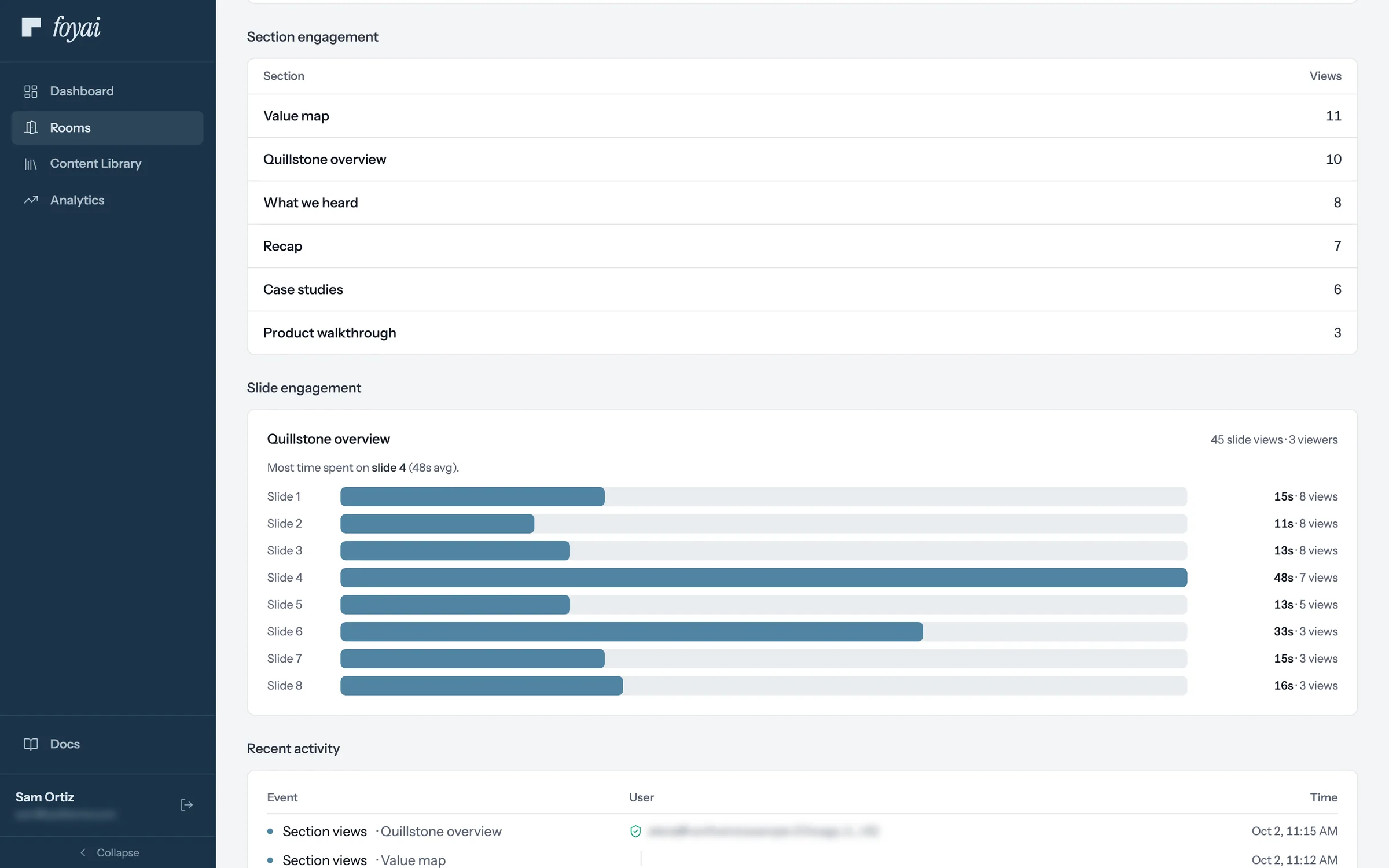
Step 5 of 7 Time on each slide For the deck, each slide shows its views and average time. Slide 4 held people longest, at 48 seconds.
-
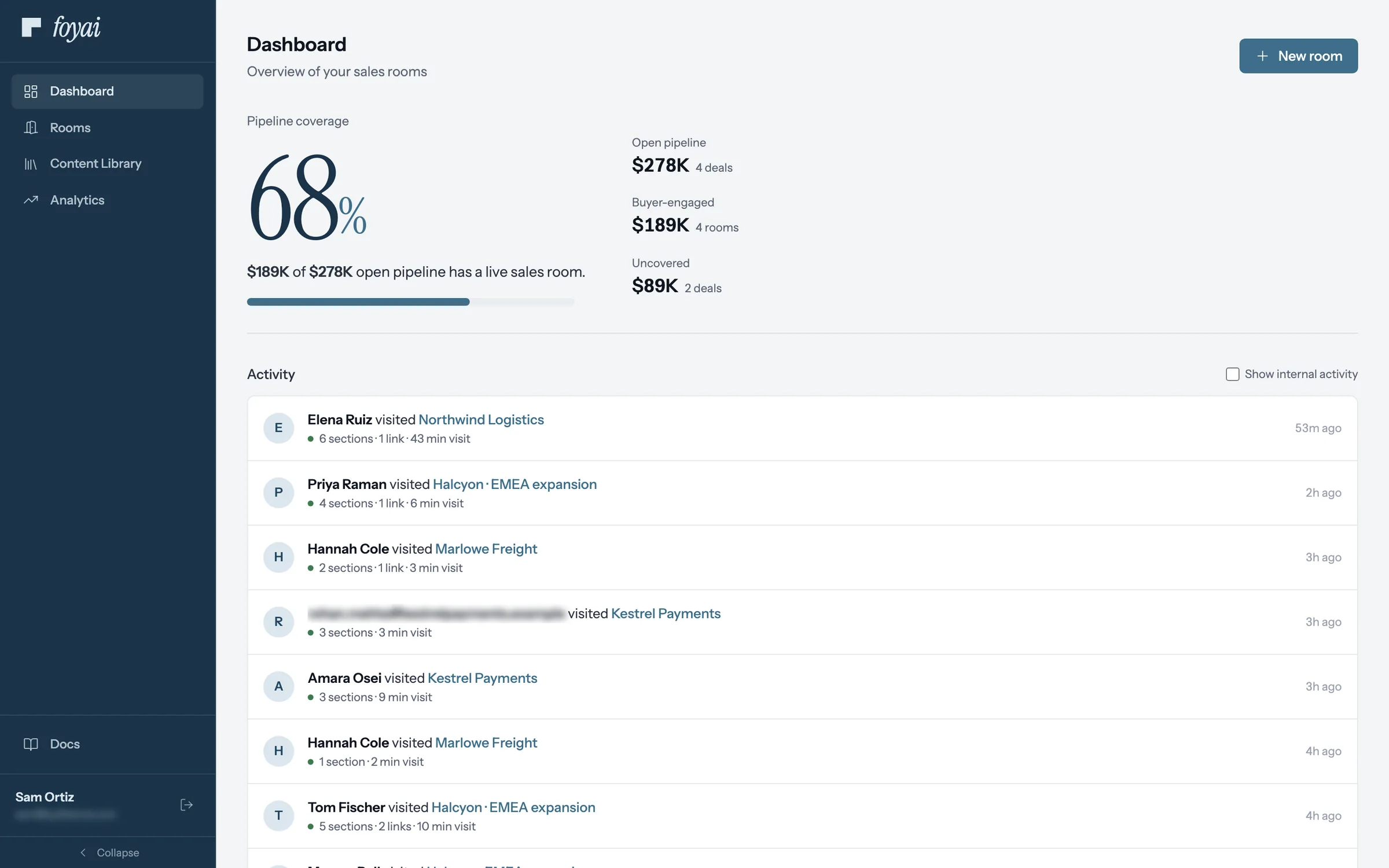
Step 6 of 7 Across all your rooms The Dashboard's activity feed lists visits to all of Sam's rooms: who came, what they opened, and for how long.
-
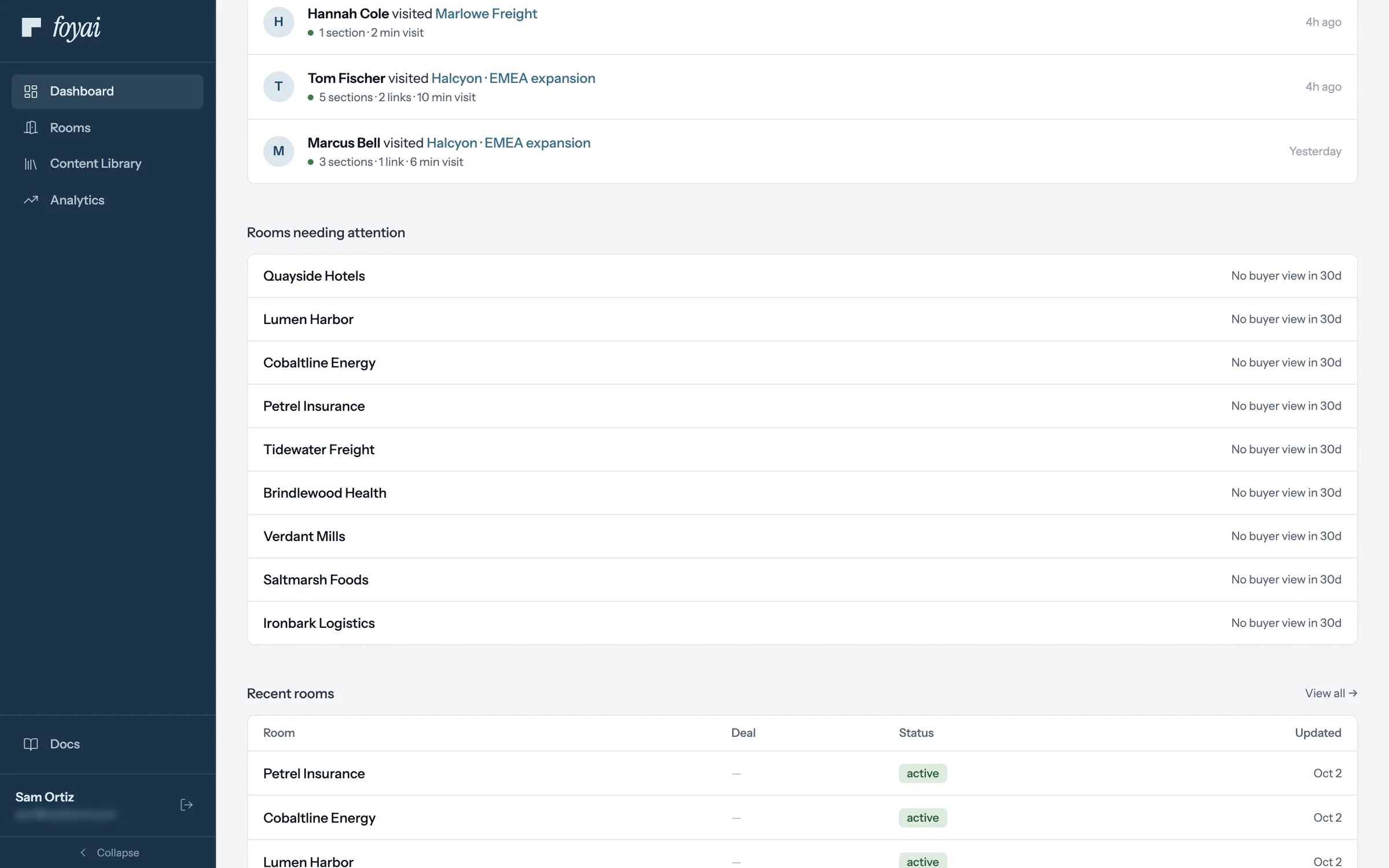
Step 7 of 7 Rooms needing attention Published rooms with no buyer view in 30 days are listed here, like Tidewater Freight.
See who opens each room, and what they look at.
Connect Attio and publish a room. Visitors who sign in with their email show up by name.
More for admins
Domains, deck templates, call recorders, Slack, Attio, billing, and your team's activity.
 0:57
Using your own domain for rooms
Serve buyer rooms from a domain of your own, with the DNS record to add.
Watch · 0:57Click through · 5 steps
0:57
Using your own domain for rooms
Serve buyer rooms from a domain of your own, with the DNS record to add.
Watch · 0:57Click through · 5 steps
-
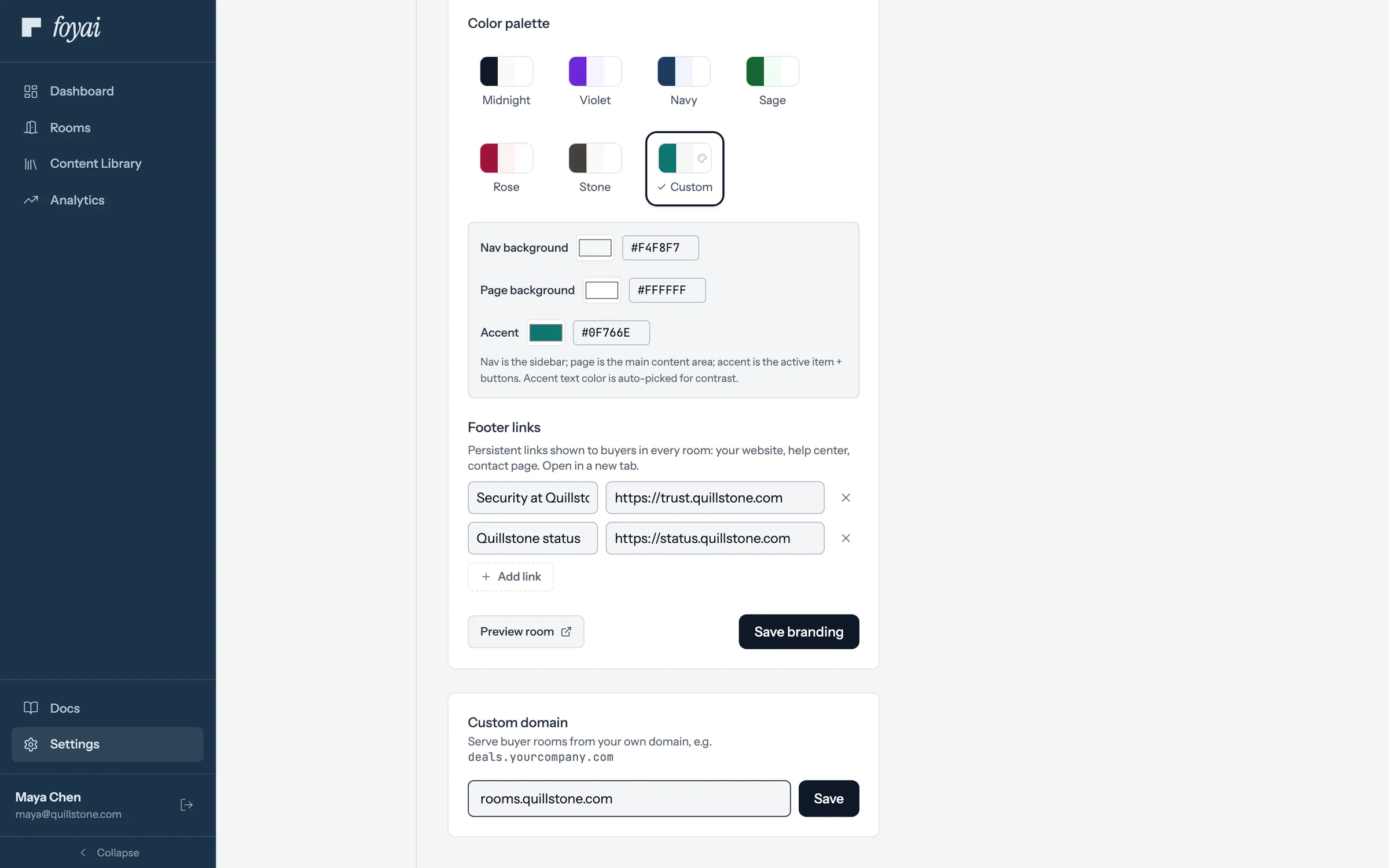
Step 1 of 5 Enter your domain Type the subdomain you want, like rooms.quillstone.com, and click Save.
-
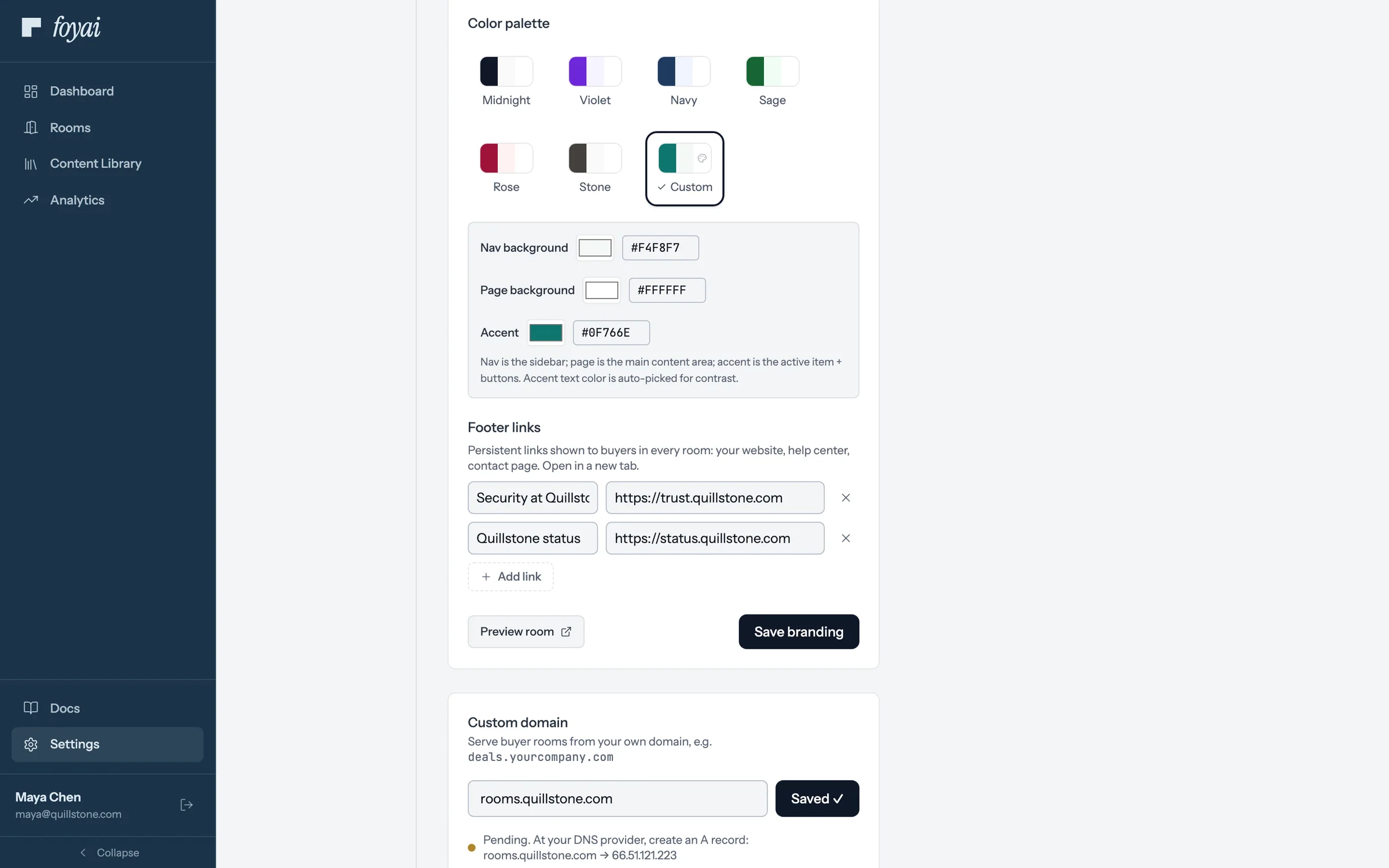
Step 2 of 5 Add the DNS record Create an A record at your DNS provider, pointing the subdomain at the address shown.
-
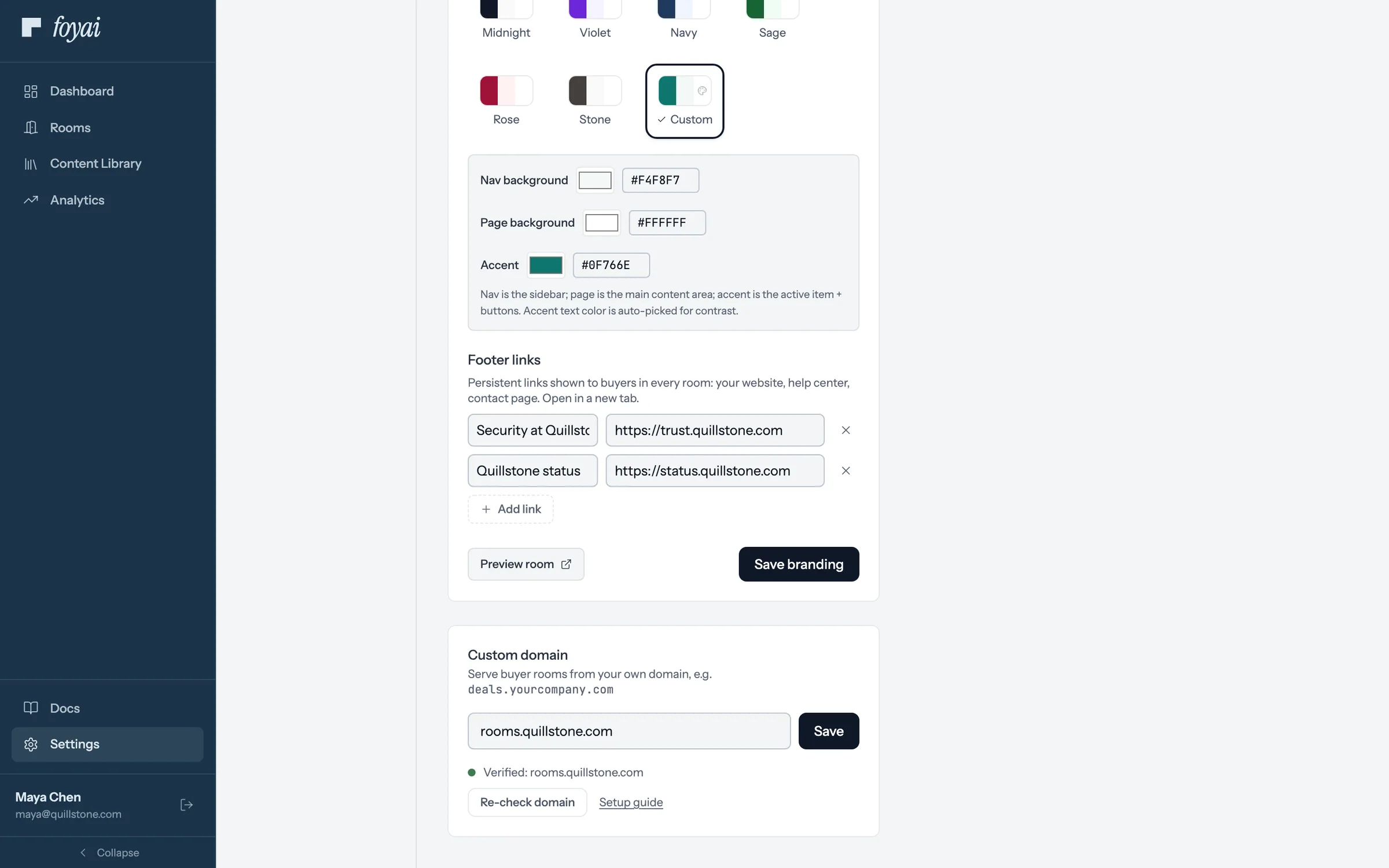
Step 3 of 5 Domain verified Once DNS resolves, the status turns to Verified, and foyai issues the HTTPS certificate on its own.
-
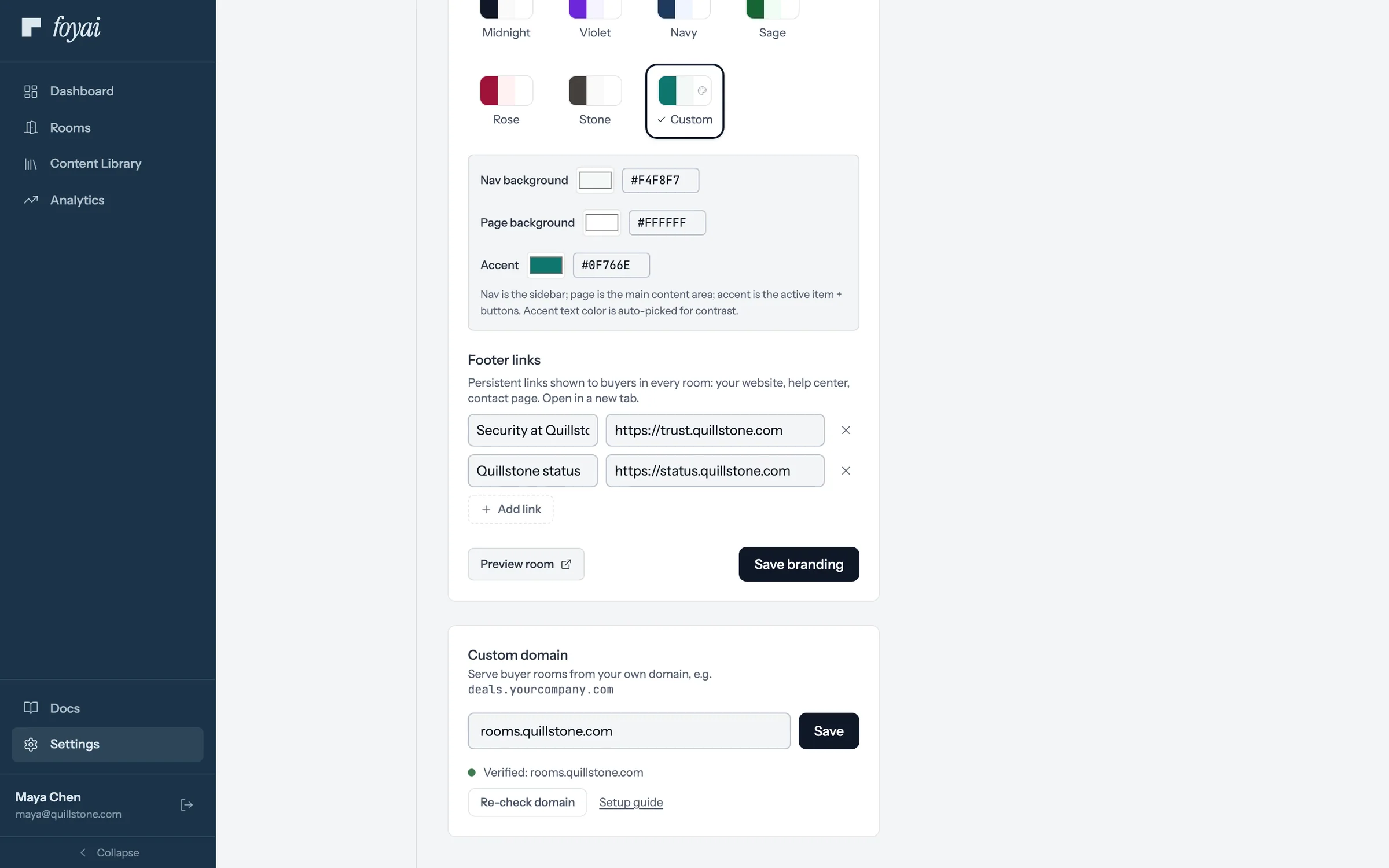
Step 4 of 5 Re-check keeps it healthy Re-check domain stays on the card afterward, in case DNS or the certificate ever needs a nudge.
-
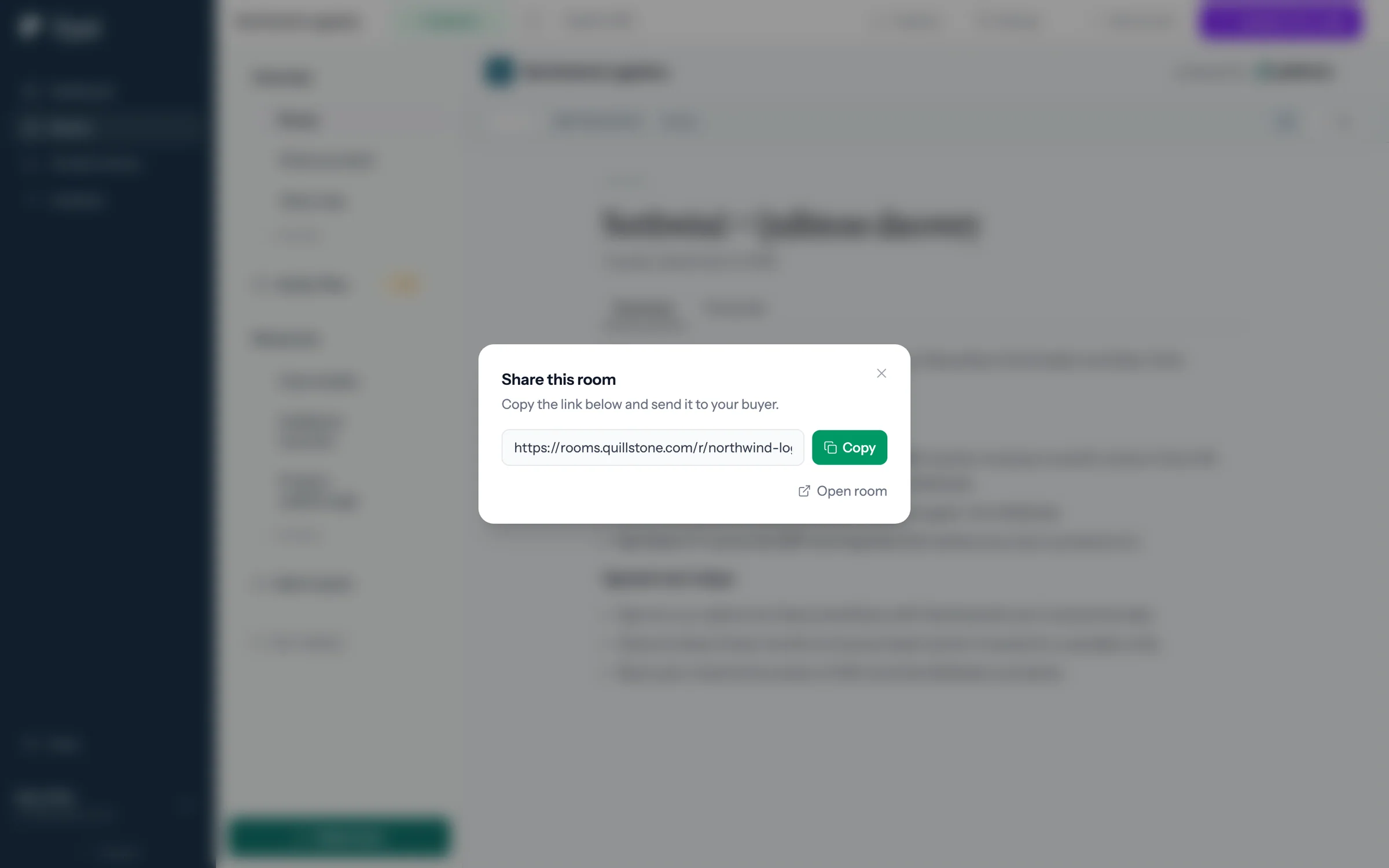
Step 5 of 5 The share link follows Every link the team shares now uses rooms.quillstone.com, not foyai's domain.
One domain, every room
Custom domains are available on Pro and Platform, including the Pro trial.
 1:16
Making a personalized deck template
Put tokens in a Google Slides deck and register it, so foyai fills it in for every buyer.
Watch · 1:16Click through · 7 steps
1:16
Making a personalized deck template
Put tokens in a Google Slides deck and register it, so foyai fills it in for every buyer.
Watch · 1:16Click through · 7 steps
-
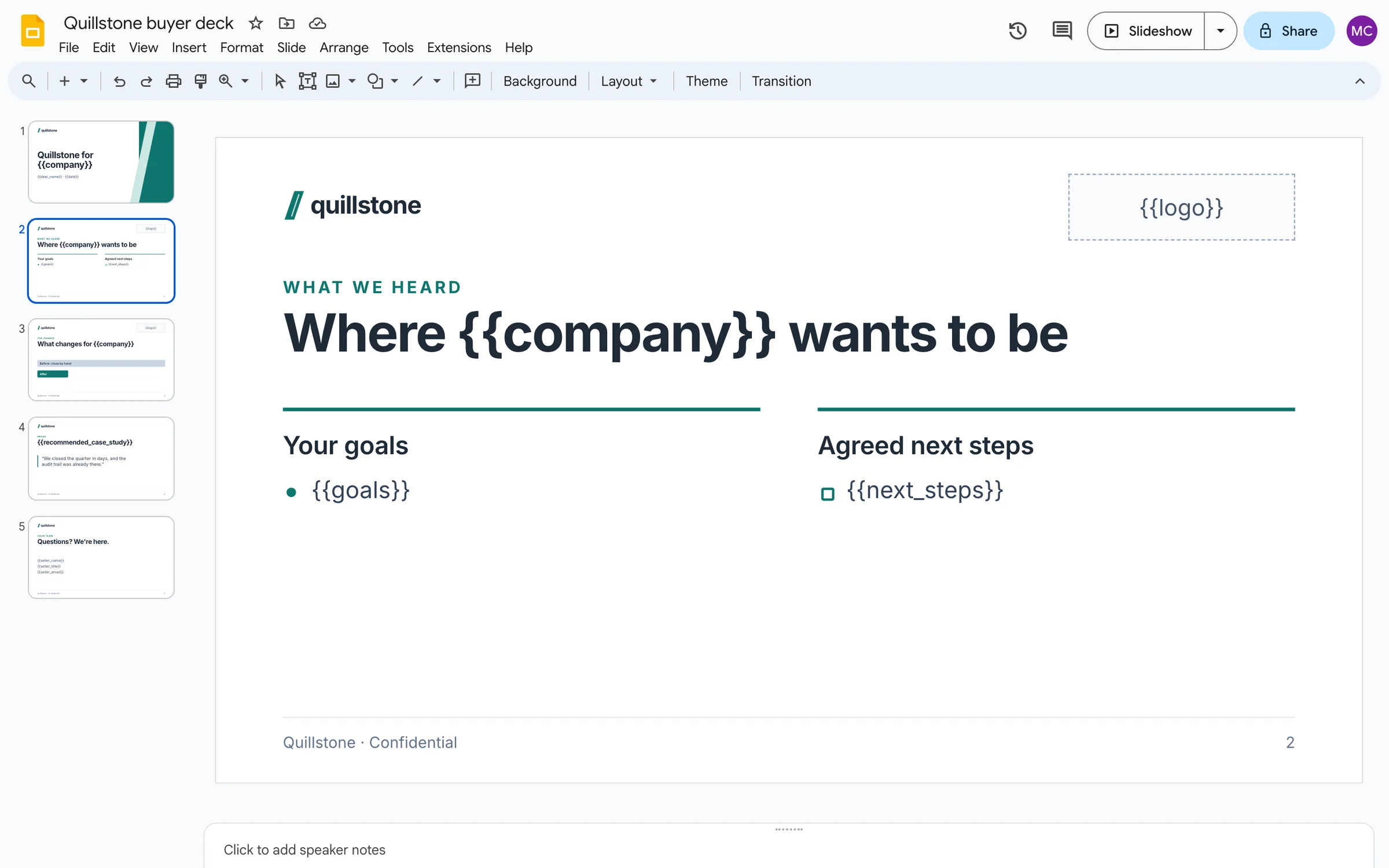
Step 1 of 7 Logo, alone in its own shape Put {{logo}} alone in its own shape. foyai swaps it for the buyer's logo as an image, never as text.
-
Step 2 of 7 One token, one bullet Put a multi-line field like {{next_steps}} inside a bulleted paragraph. Each line foyai fills in becomes its own bullet.
-
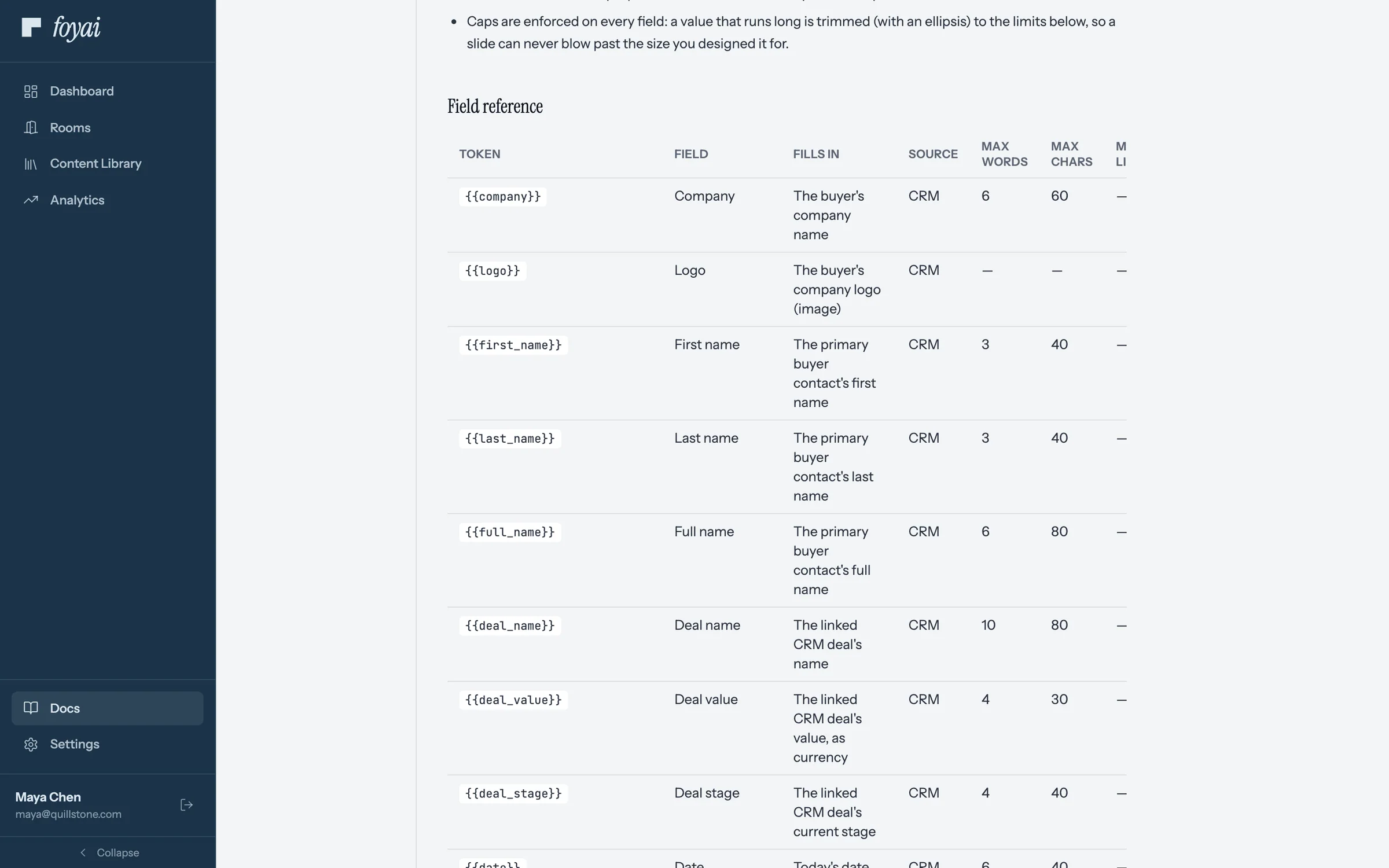
Step 3 of 7 Every field, in the docs Every field you can use is listed in Docs under Personalized decks, with what each one fills in and where it comes from.
-
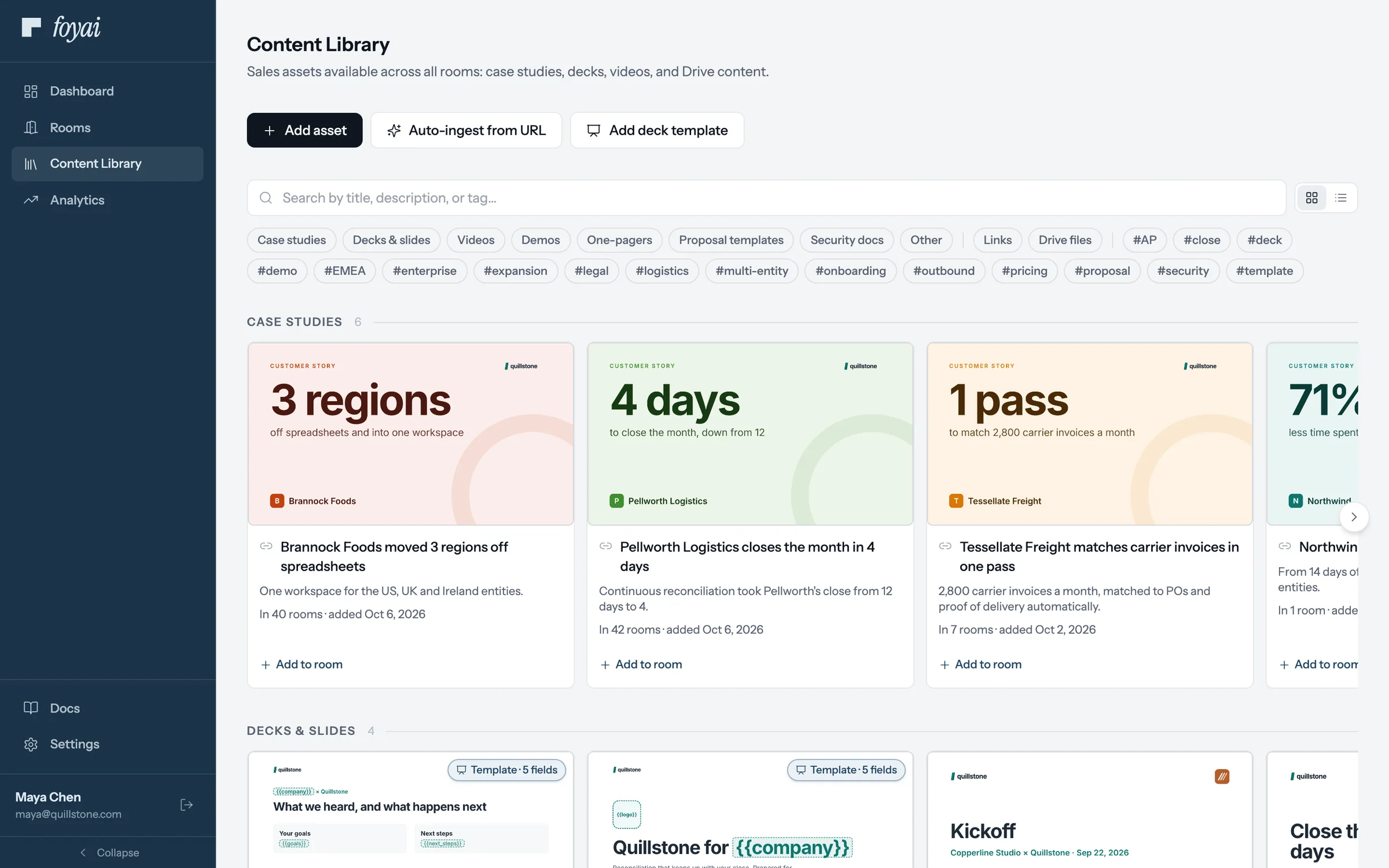
Step 4 of 7 Add deck template In Content Library, click Add deck template and pick the file from Google Drive.
-
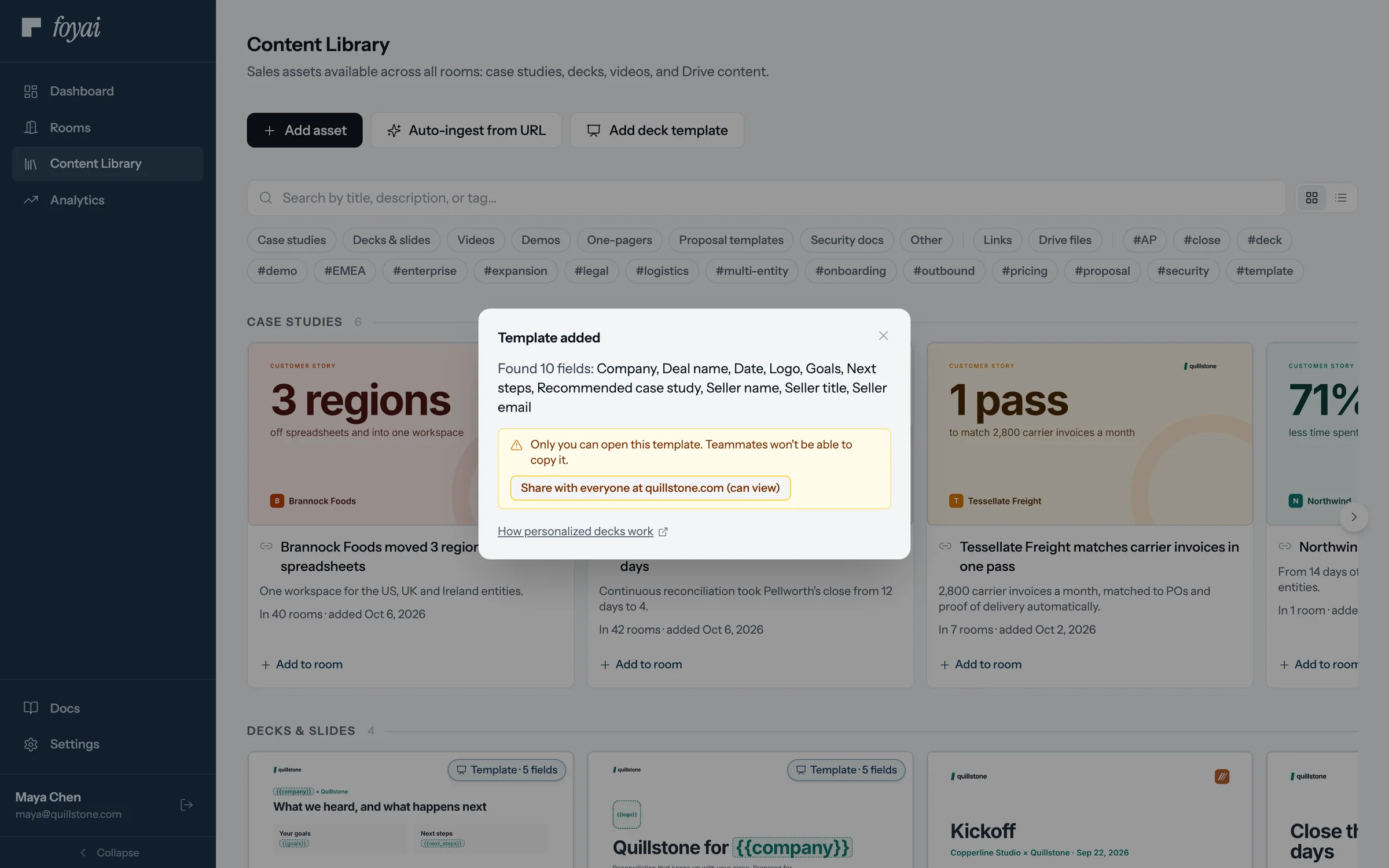
Step 5 of 7 What foyai found foyai scanned the deck and found 10 fields, including Logo, Goals, and Next steps from the slide above.
-
Step 6 of 7 Share it with your team Only you can open the template so far. Share it with everyone at quillstone.com so any teammate can use it.
-
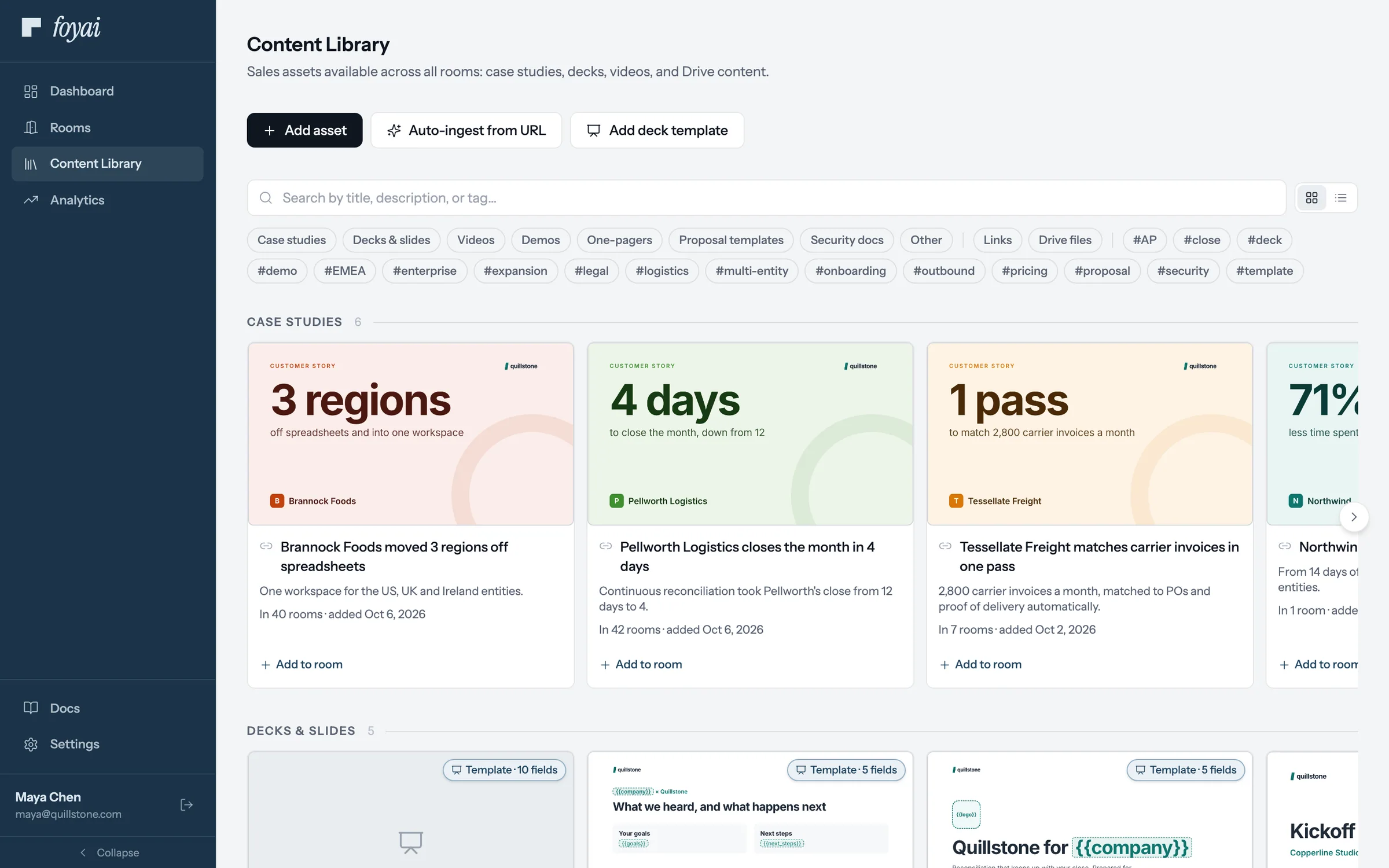
Step 7 of 7 In the library now The template joins Decks & slides in the library, ready to add to any room from Add Content.
One template, personalized for every room.
Put tokens in a Google Slides deck, then register it from Content Library as a deck template.
 1:04
Connecting a call recorder
Bring call transcripts in from a recorder like Fathom. The other recorders connect the same way.
Watch · 1:04Click through · 7 steps
1:04
Connecting a call recorder
Bring call transcripts in from a recorder like Fathom. The other recorders connect the same way.
Watch · 1:04Click through · 7 steps
-
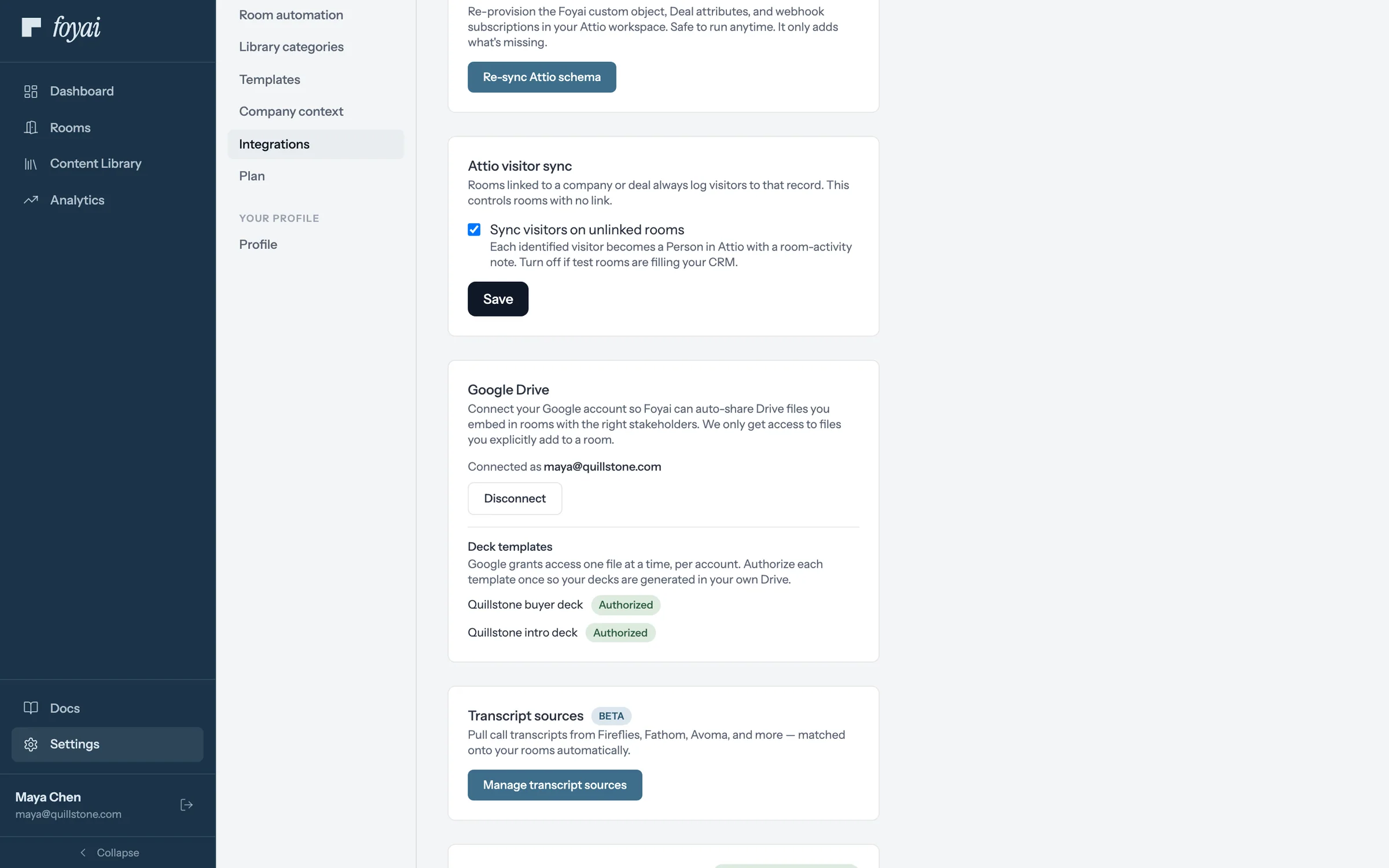
Step 1 of 7 Open transcript sources In foyai's Settings, under Integrations, click Manage transcript sources.
-
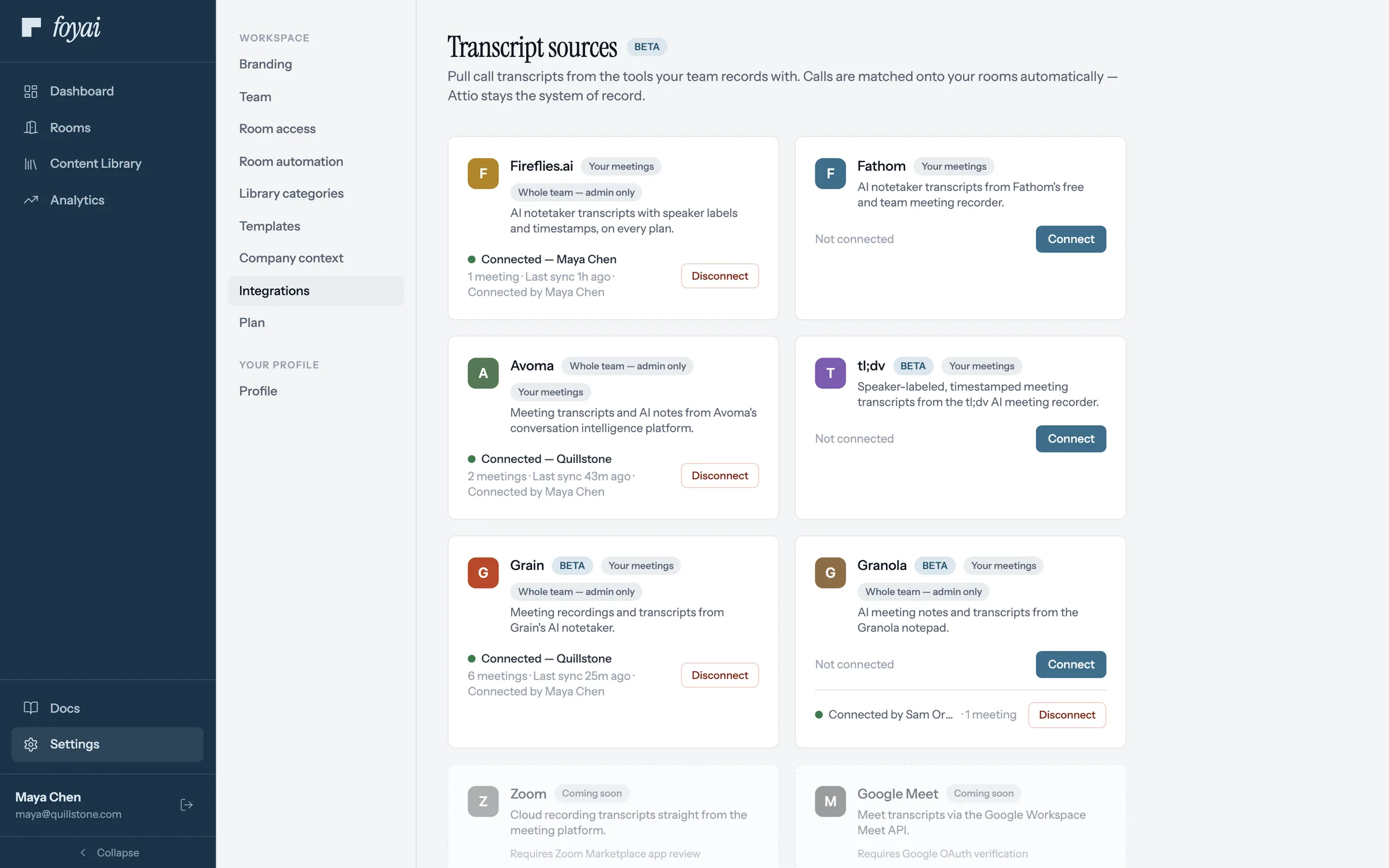
Step 2 of 7 Connect Fathom Fathom sits with the other call recorders. Click Connect on its card.
-
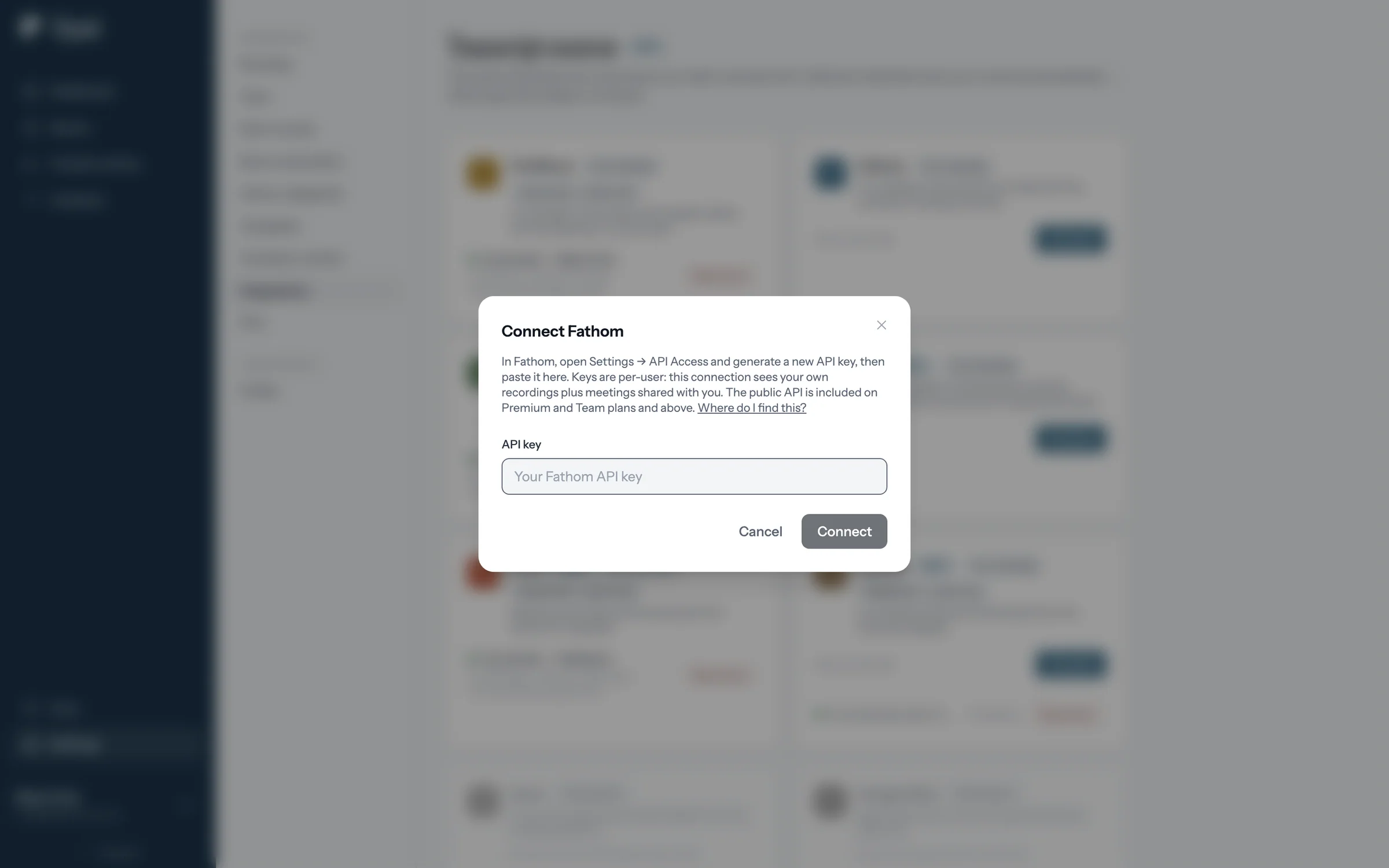
Step 3 of 7 Find the API key The window says where to create the key in Fathom, and links to Fathom's guide.
-
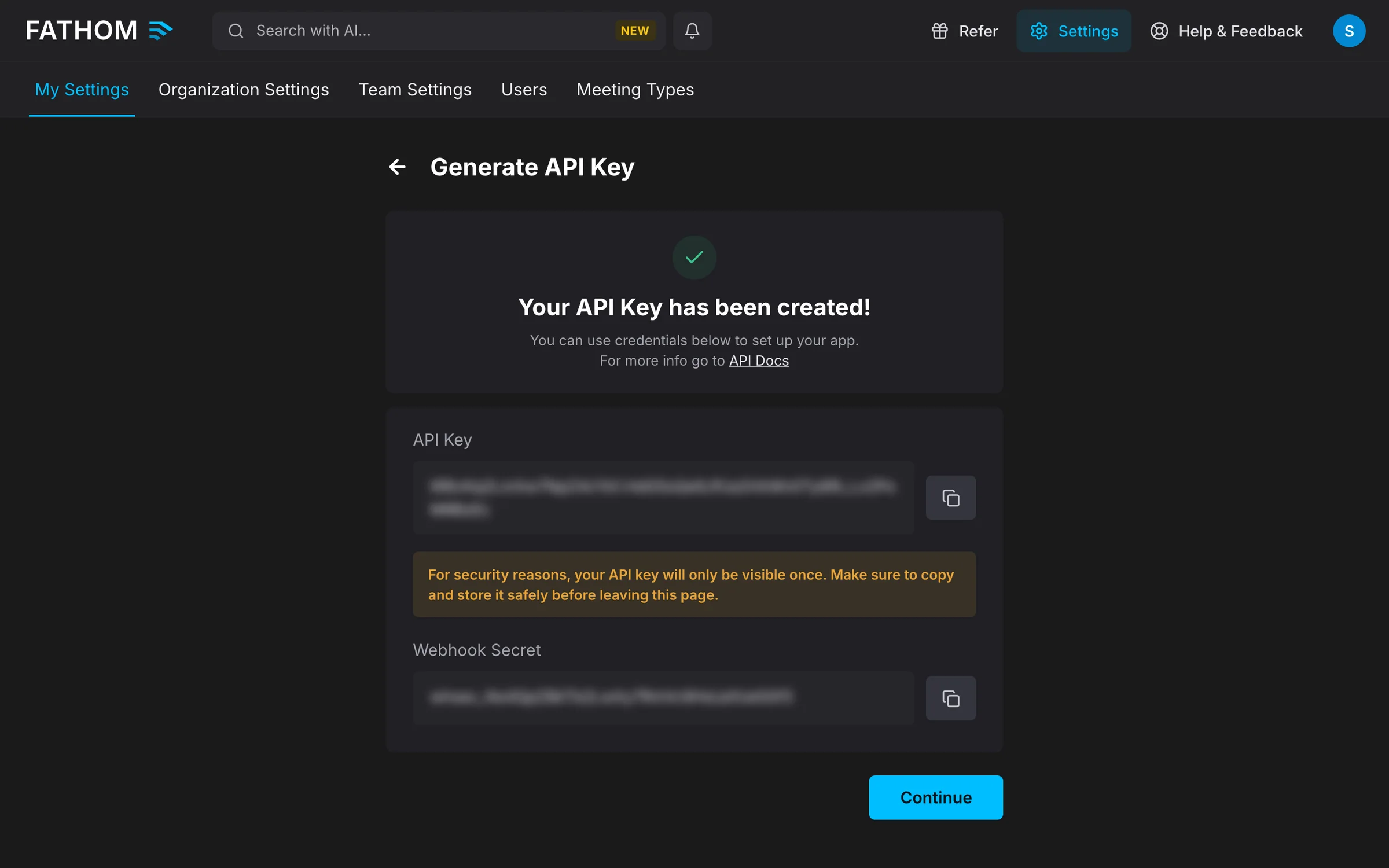
Step 4 of 7 Copy your Fathom key In Fathom's API Access settings, generate a key and copy it. Fathom shows it only once.
-
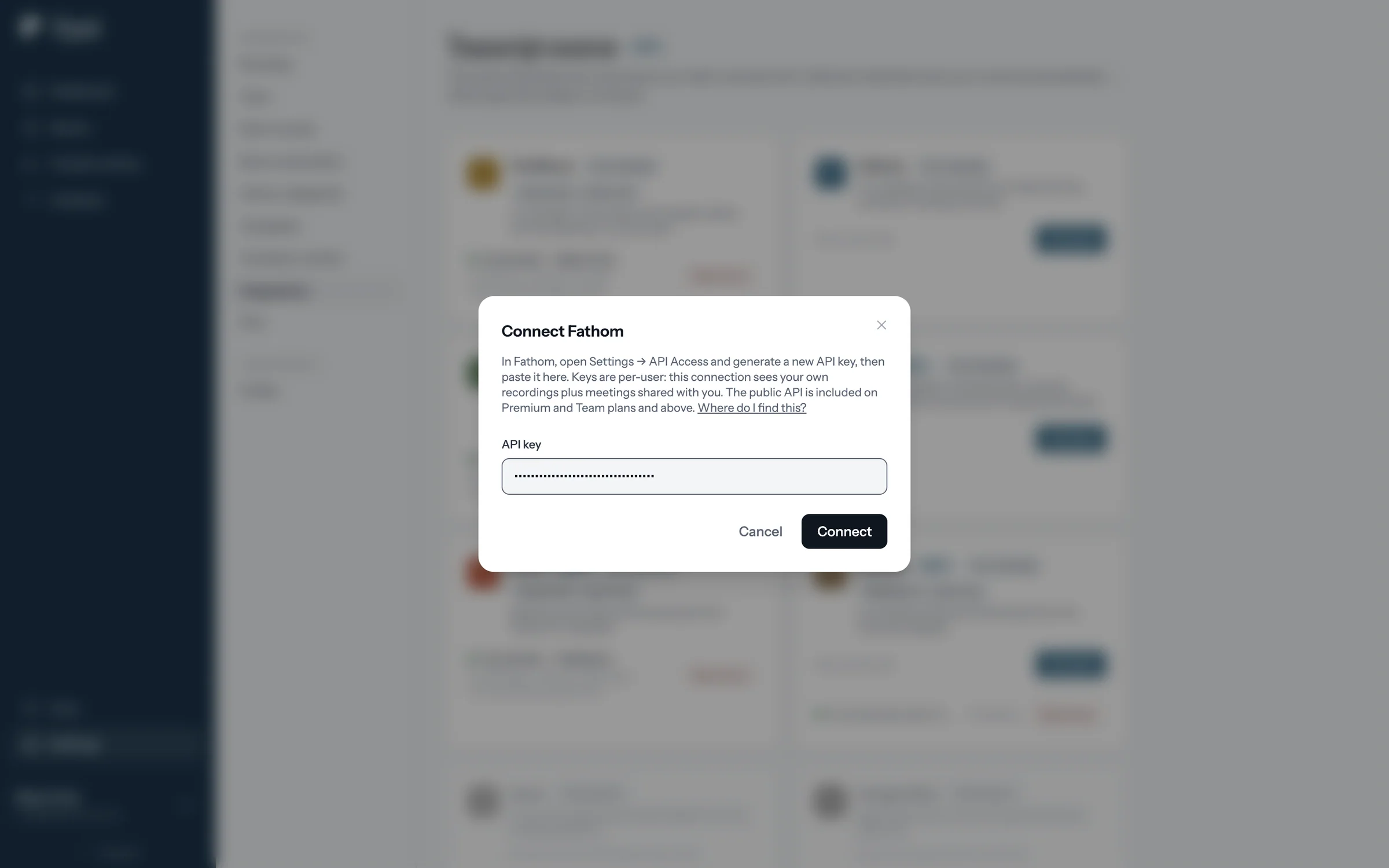
Step 5 of 7 Paste the key A Fathom key is personal: it covers your own recordings and meetings shared with you.
-
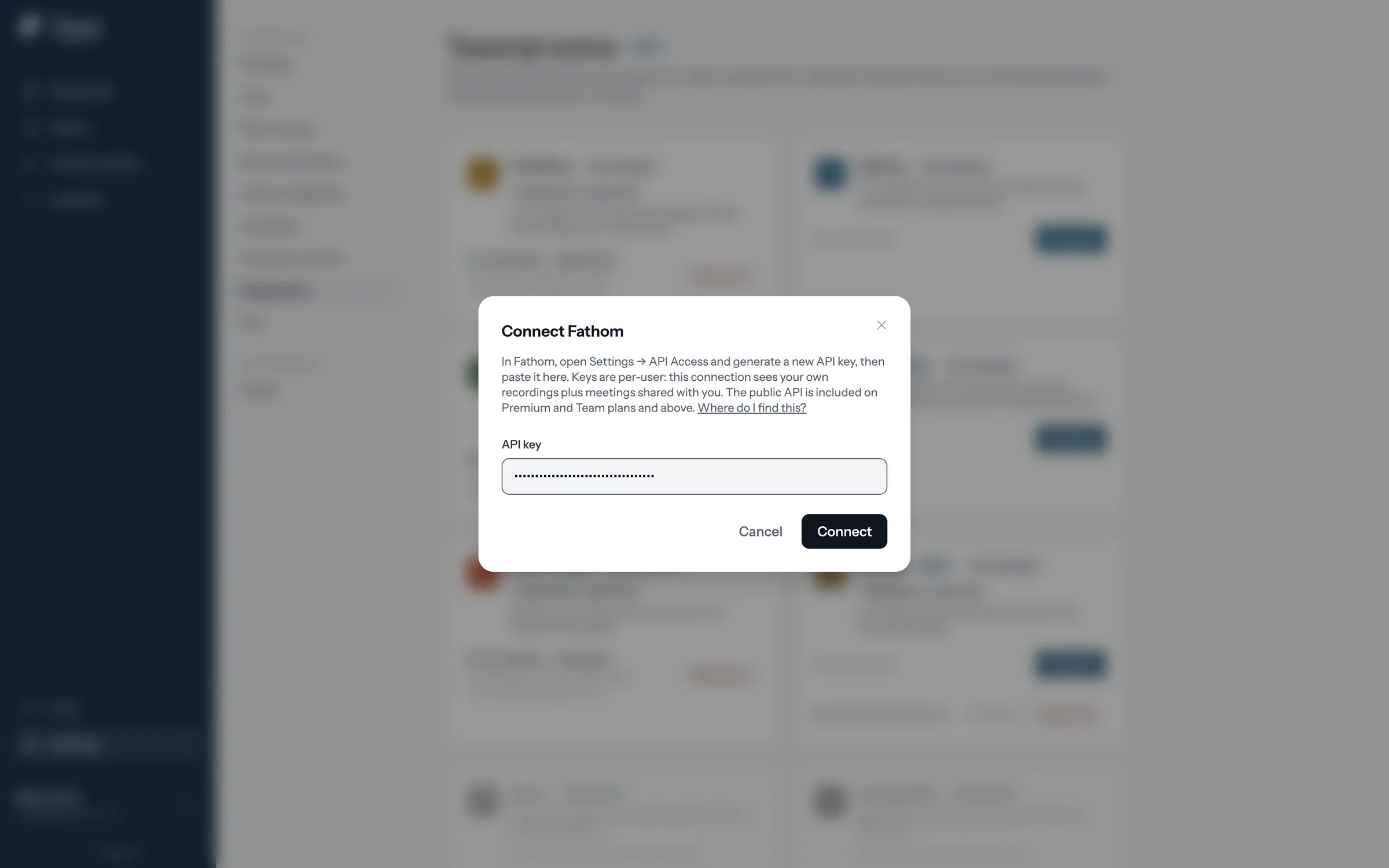
Step 6 of 7 Connect foyai checks the key and sets up the link with Fathom itself, so there's nothing to paste back.
-
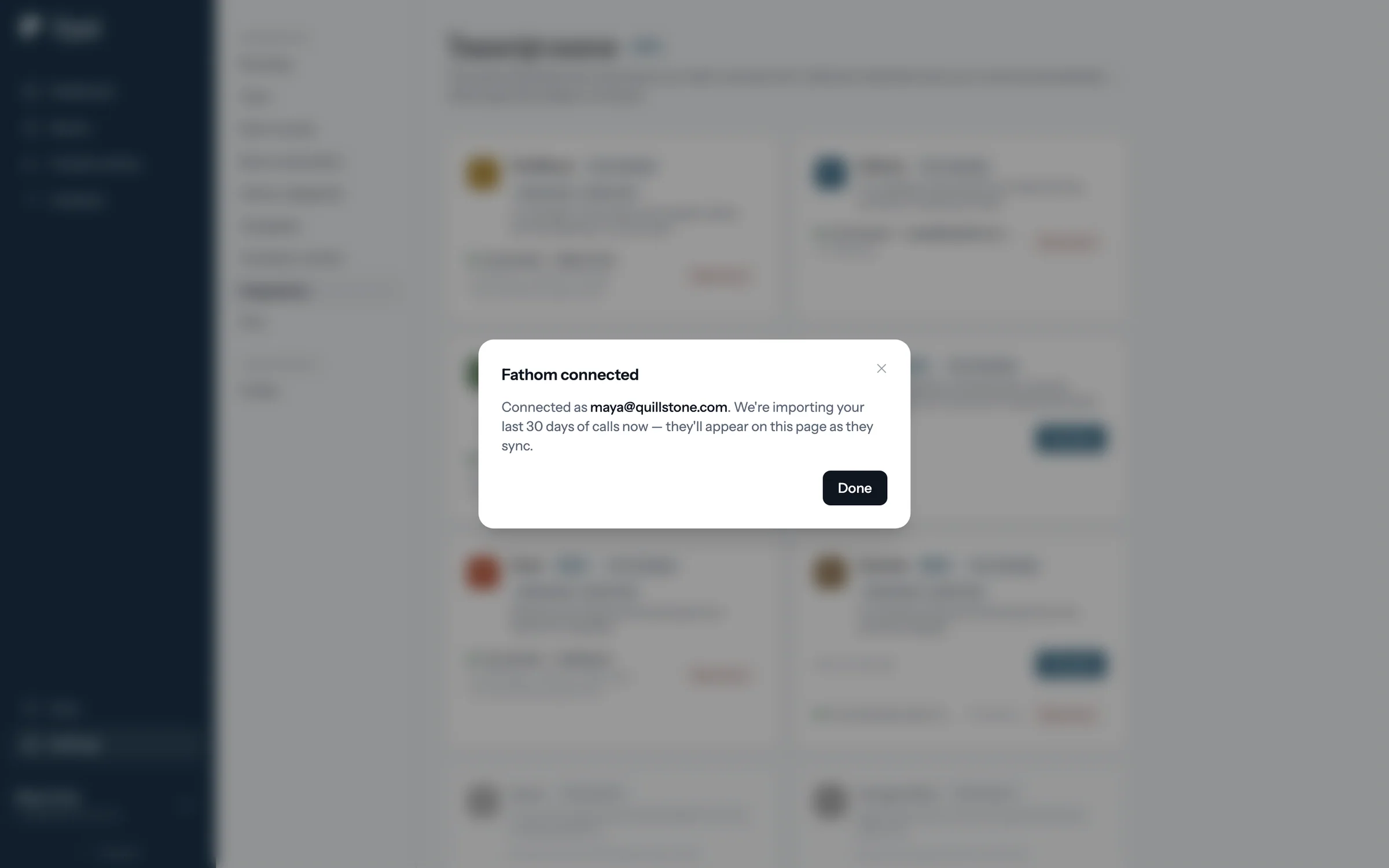
Step 7 of 7 Calls start importing foyai imports your last 30 days of calls, and new ones arrive as Fathom finishes them.
Draft your next room from a Fathom call.
Connect Attio and Fathom, and foyai drafts rooms from your recorded calls for you to review.
 1:22
Slack alerts
A direct message when a buyer opens a room or finishes a step, and a prompt when a deal is lost.
Watch · 1:22Click through · 8 steps
1:22
Slack alerts
A direct message when a buyer opens a room or finishes a step, and a prompt when a deal is lost.
Watch · 1:22Click through · 8 steps
-
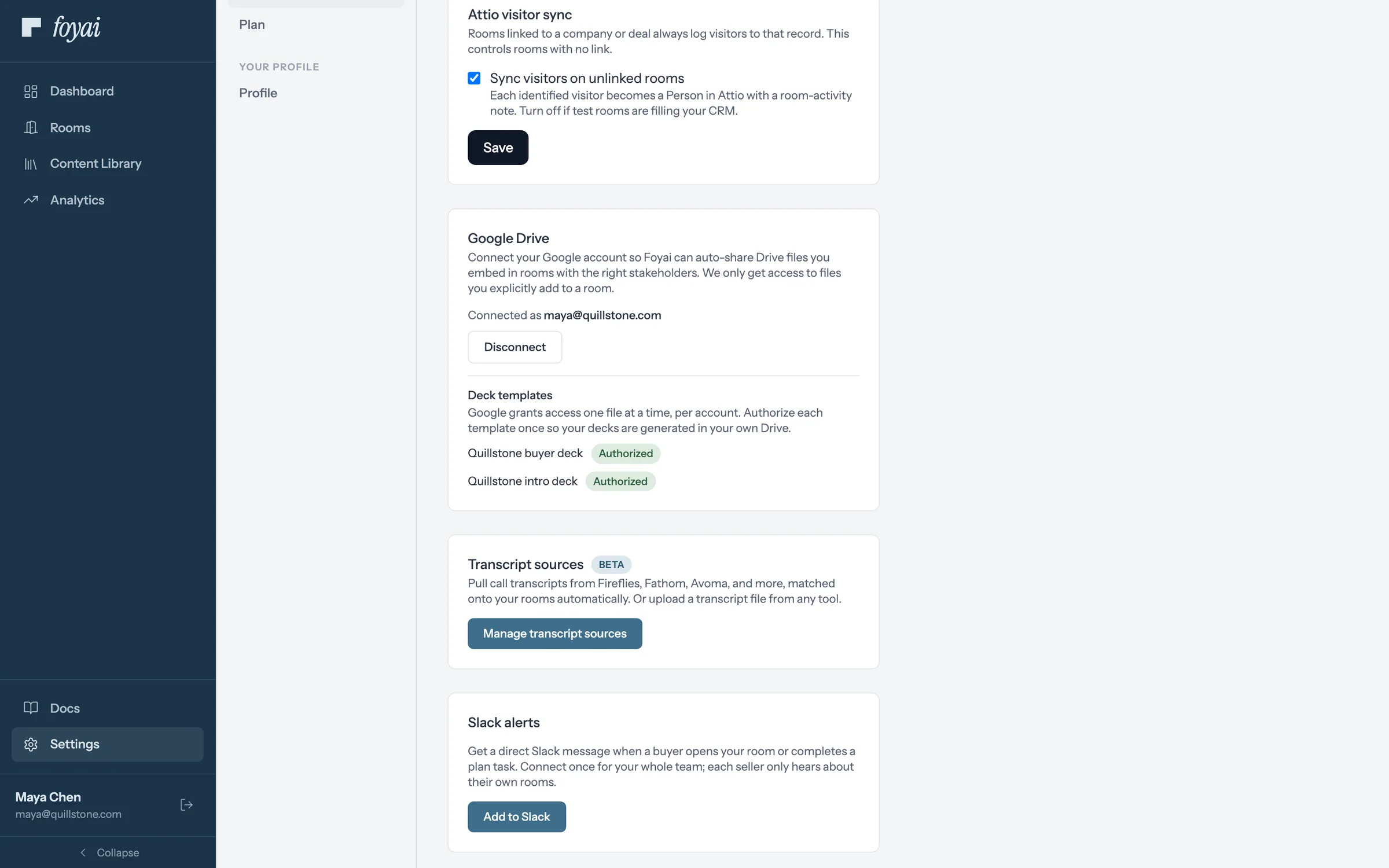
Step 1 of 8 Add to Slack Maya, the admin, clicks Add to Slack in Settings. One connection covers the whole team.
-
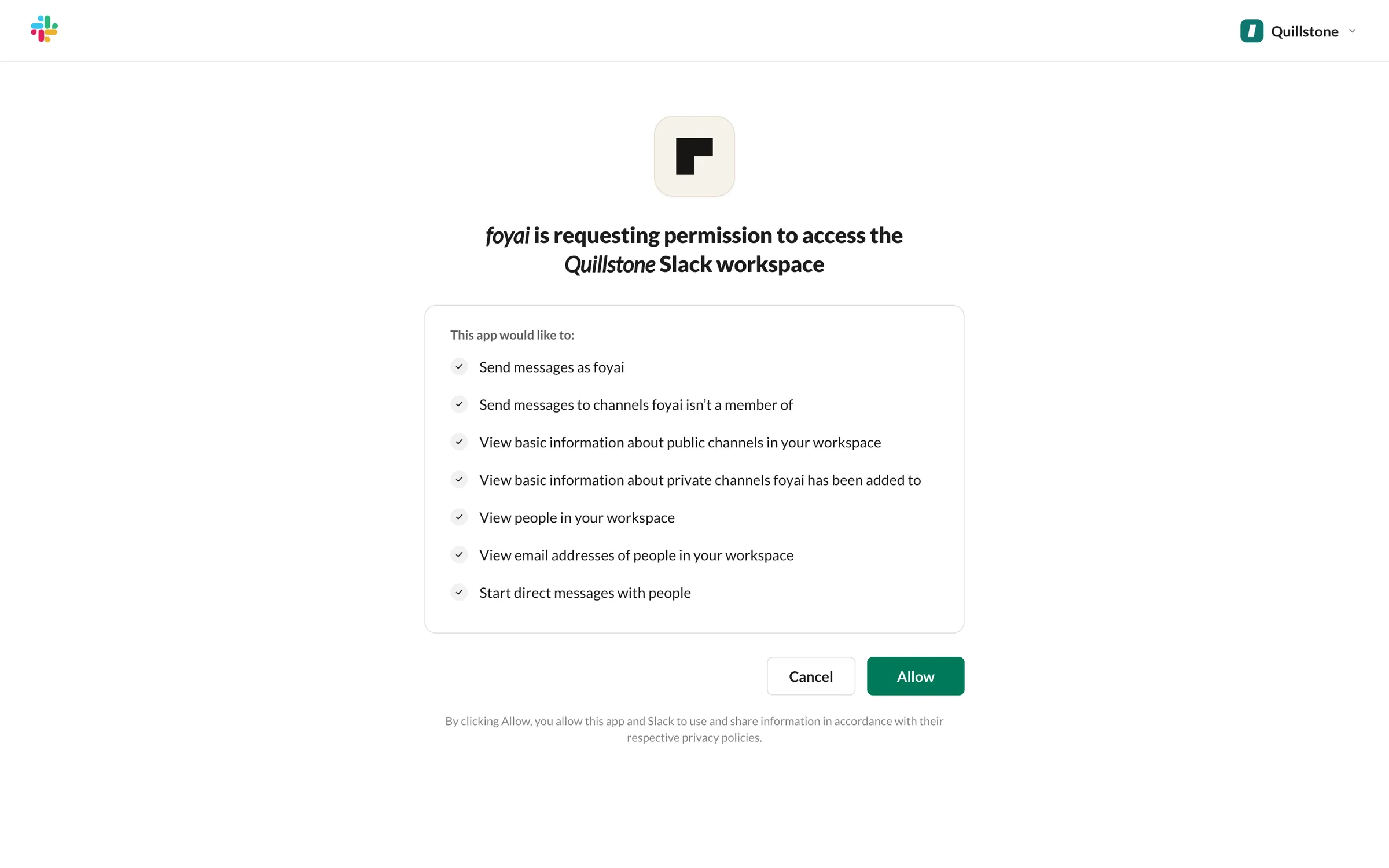
Step 2 of 8 Allow foyai Slack asks Maya to confirm the workspace and what foyai can do, like send messages and find teammates by email.
-
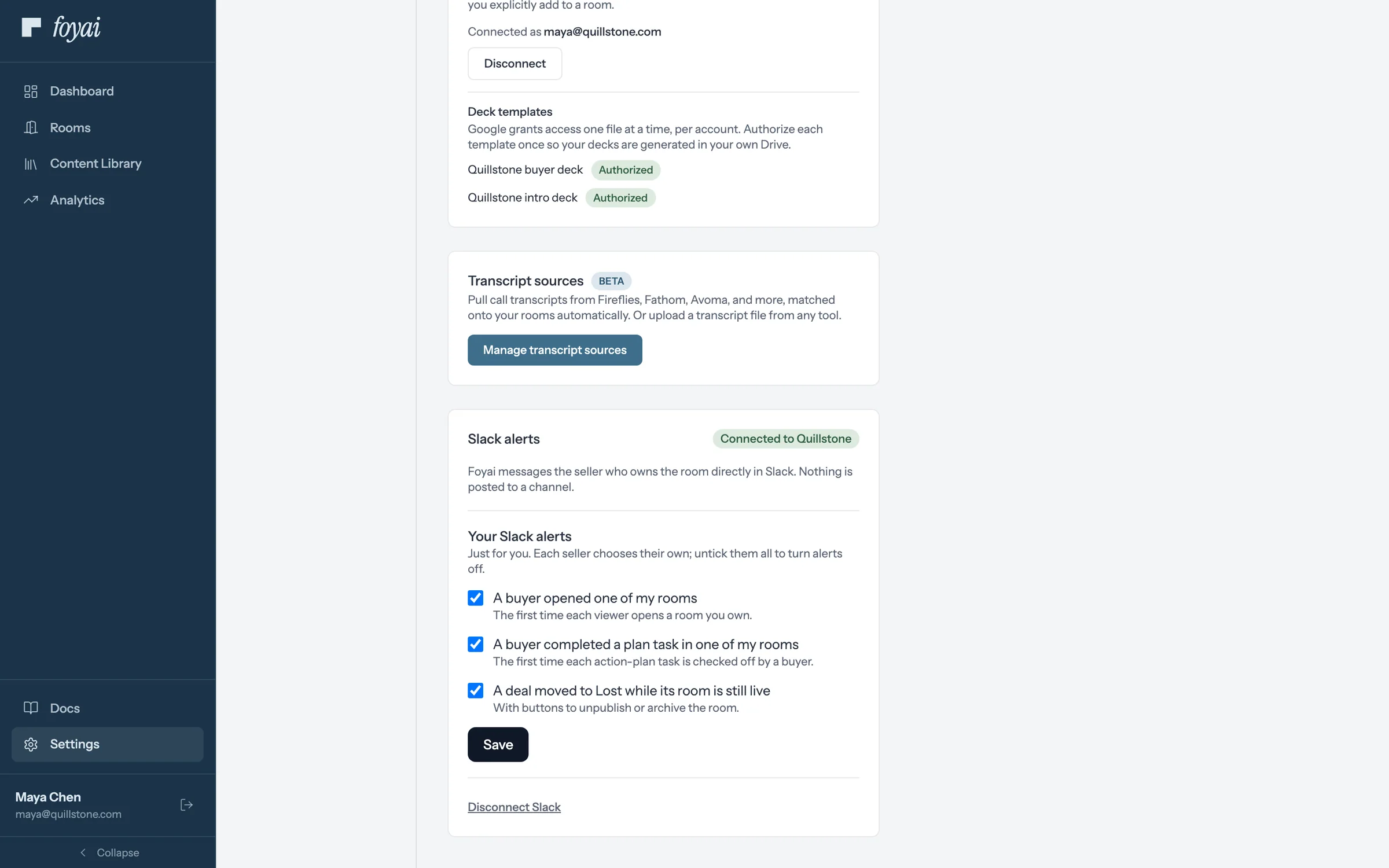
Step 3 of 8 Three alerts, all on The card now reads Connected to Quillstone. Each alert goes to the seller who owns the room, as a direct message.
-
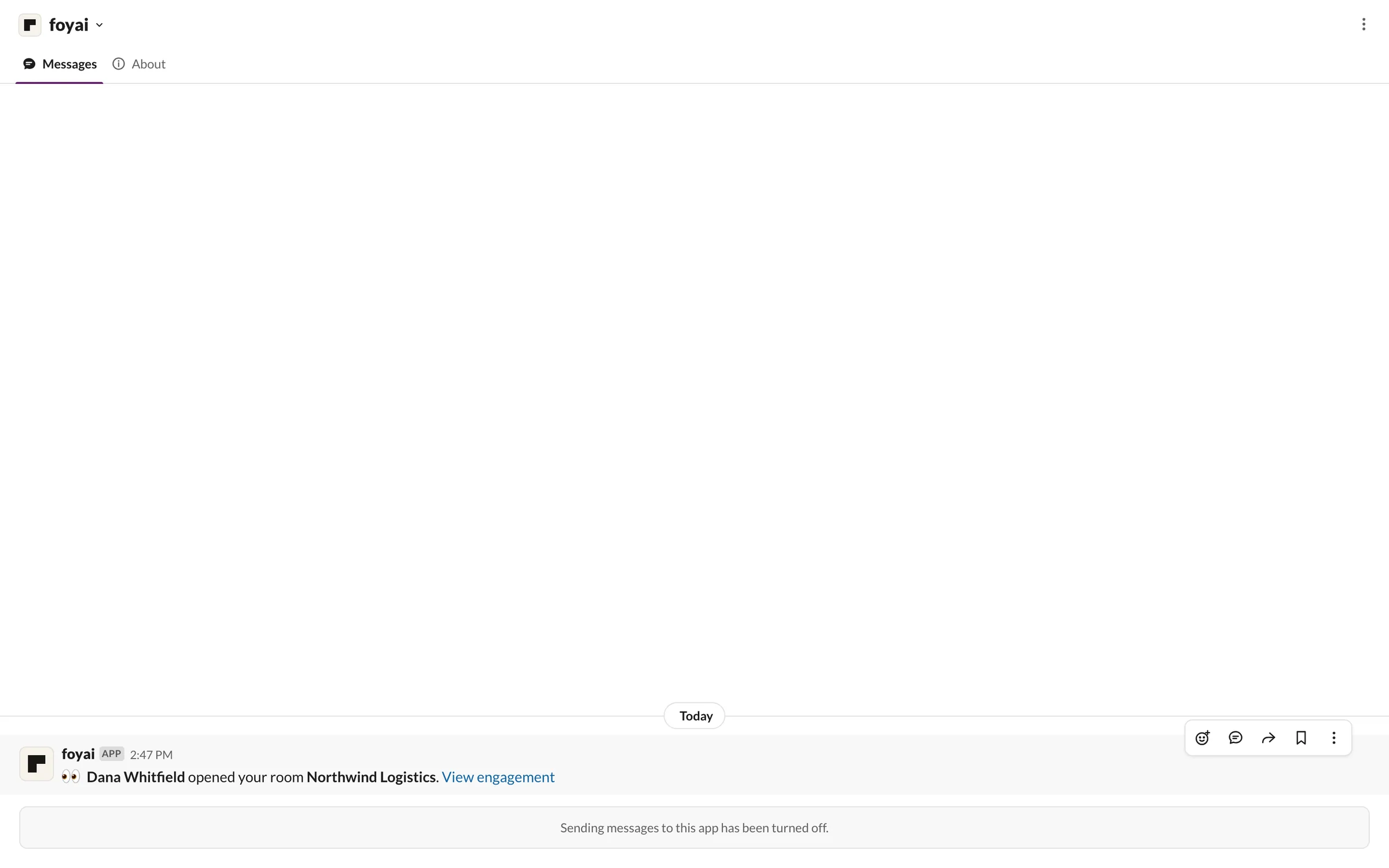
Step 4 of 8 A buyer opens the room The first time Dana opens Northwind Logistics, Sam gets a message with a link to the room's engagement.
-
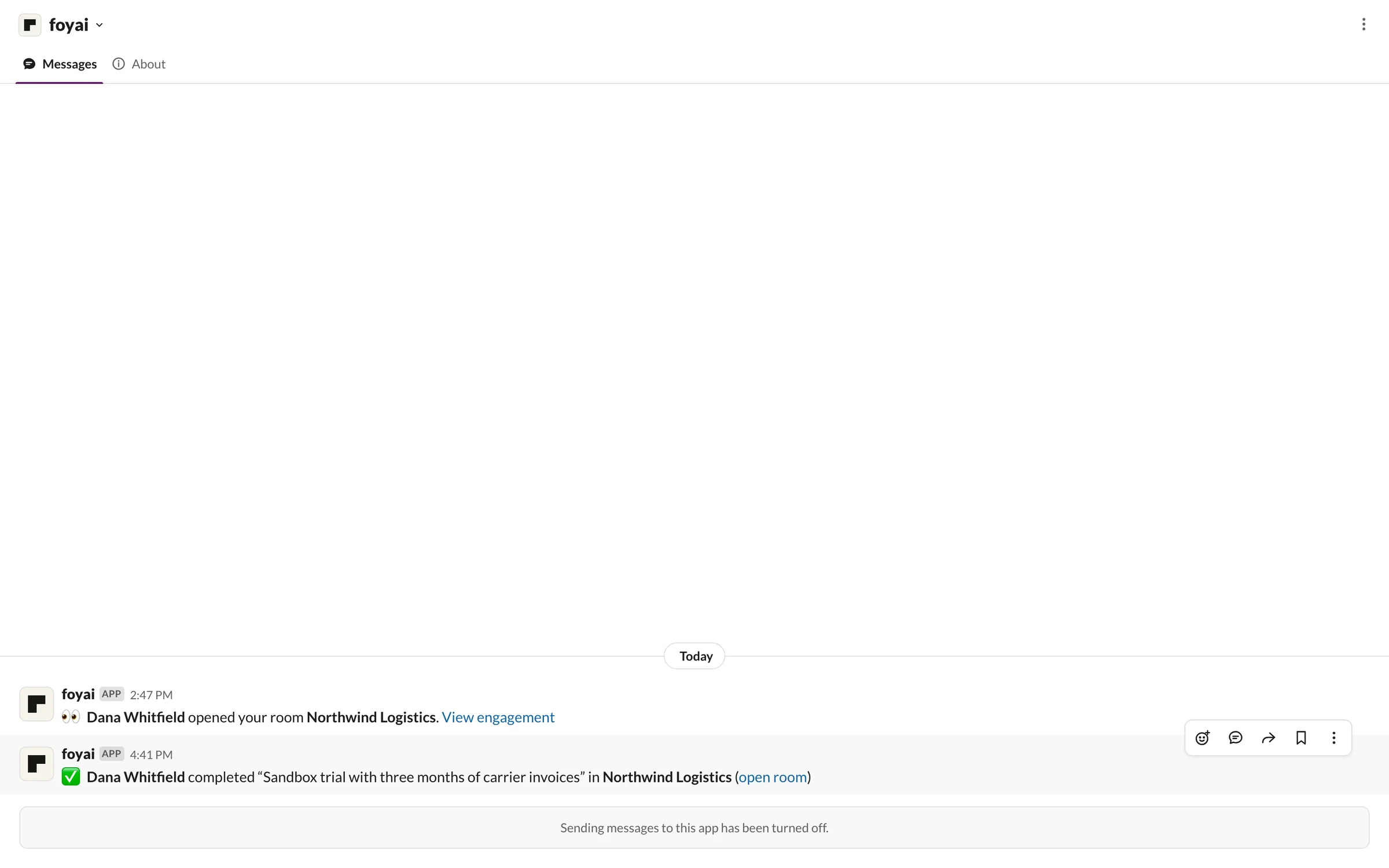
Step 5 of 8 A step gets ticked off Later, Dana completes the sandbox trial step, and Sam hears which step, in which room.
-
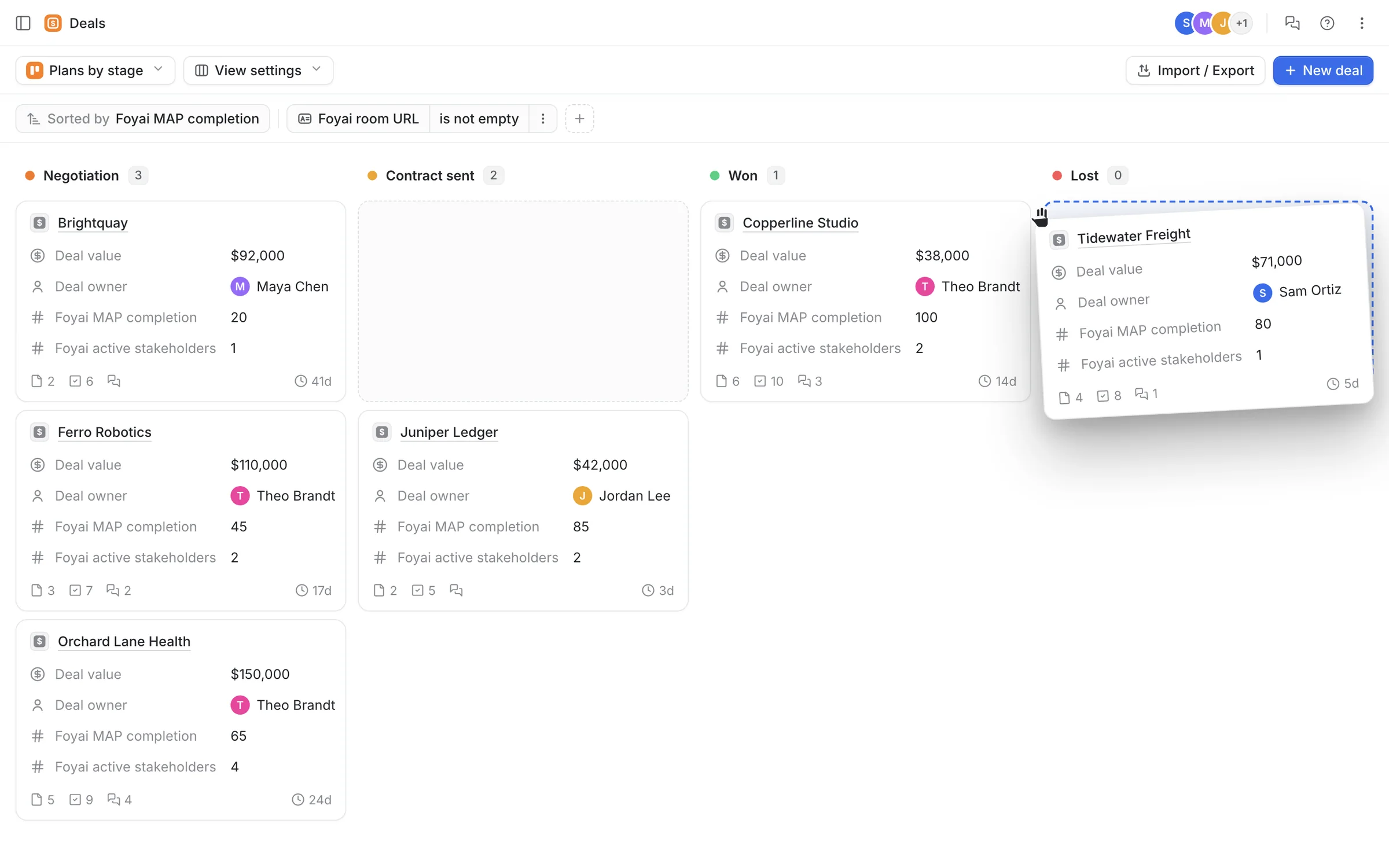
Step 6 of 8 The deal is lost in Attio Sam drags Tidewater Freight to Lost on the Attio deals board while its room is still live.
-
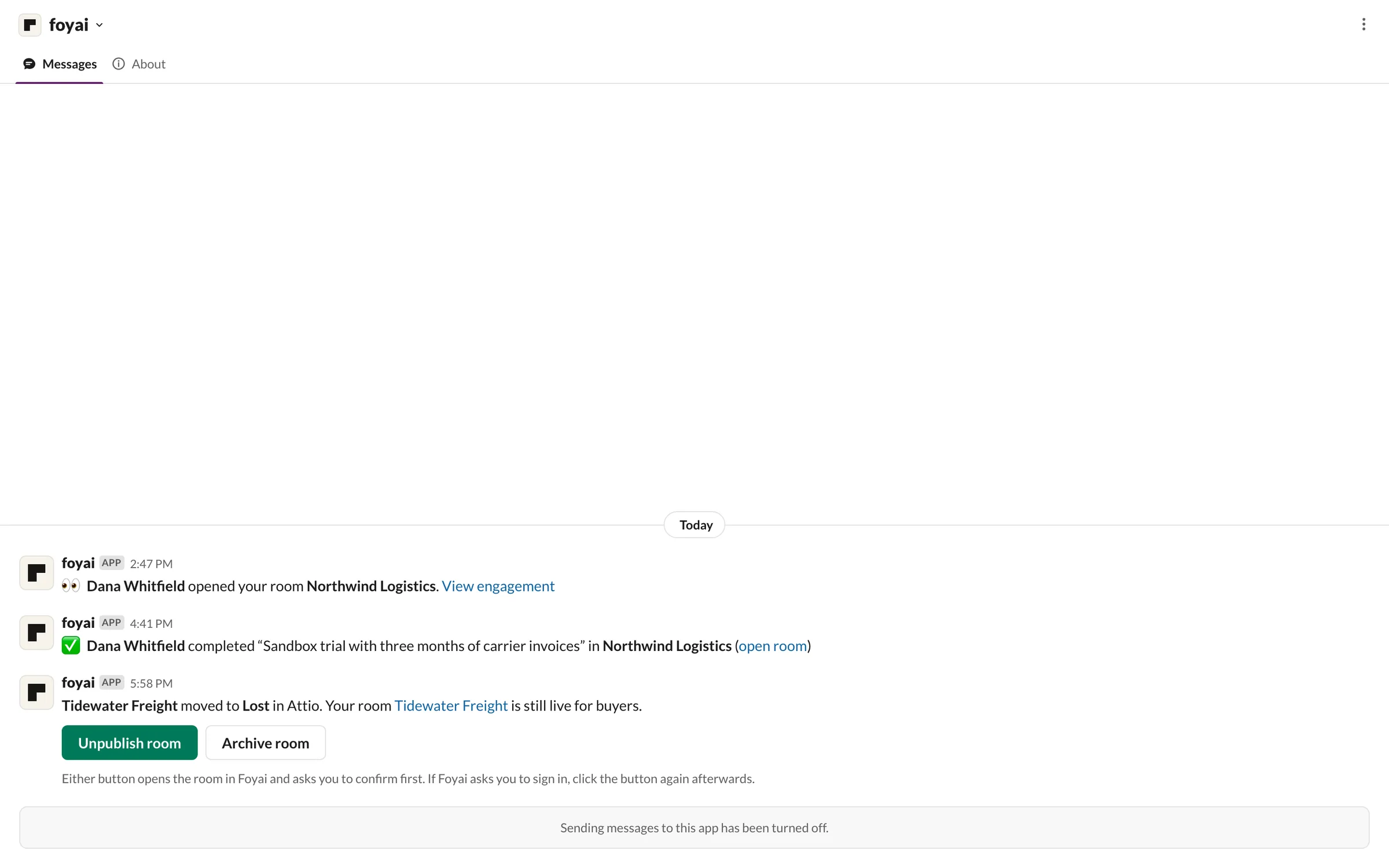
Step 7 of 8 Take the room offline foyai tells Sam the deal is lost and the room is still live, with Unpublish room and Archive room buttons.
-
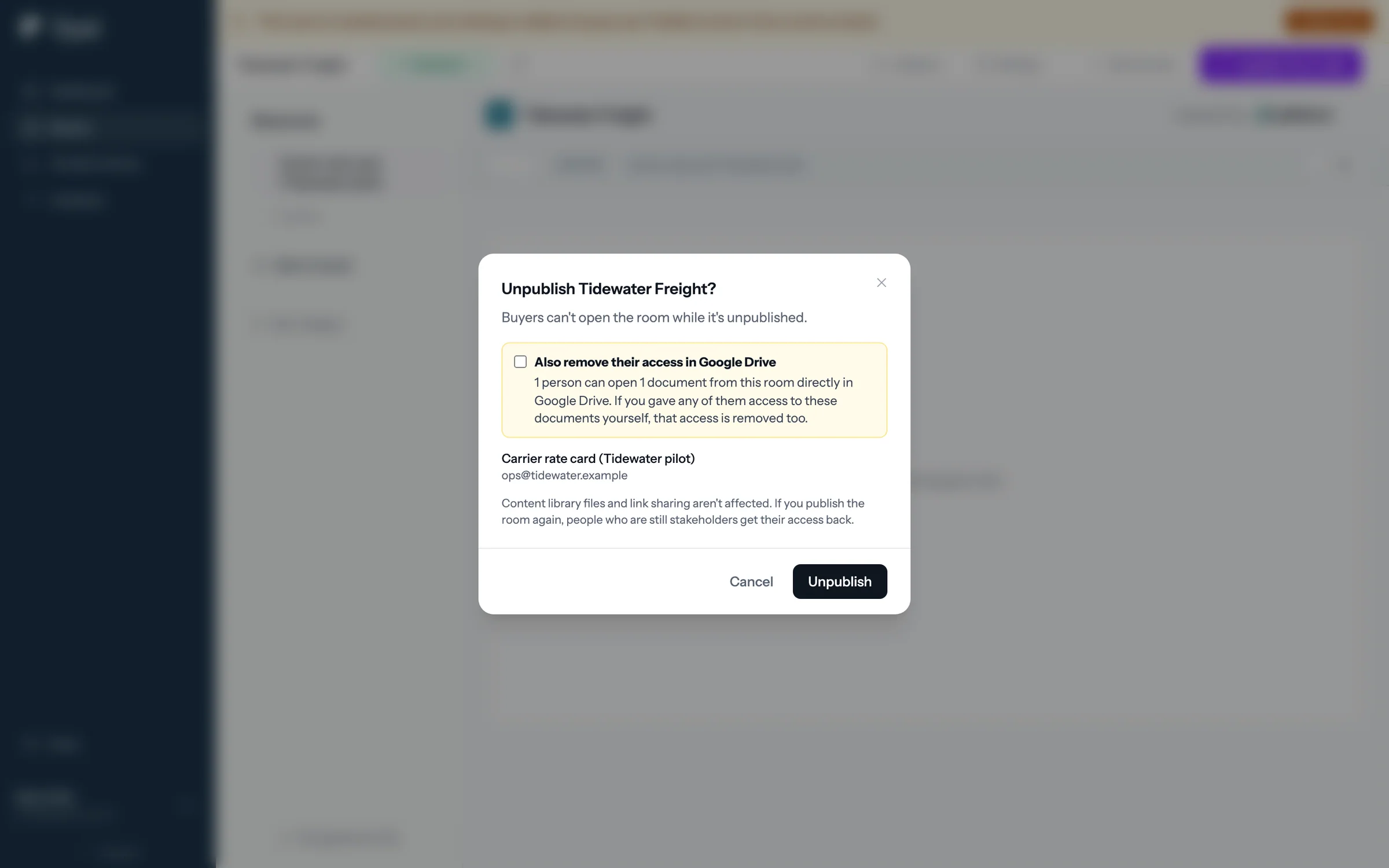
Step 8 of 8 Confirm in foyai Either button opens the room and asks first, including whether to remove buyers' Google Drive access too.
Hear about buyer activity where you already work.
Slack alerts come with Pro and Platform, including the Pro trial.
 1:00
foyai inside Attio
The Foyai rooms object, the Foyai fields on each deal, and a note for every buyer visit.
Watch · 1:00Click through · 5 steps
1:00
foyai inside Attio
The Foyai rooms object, the Foyai fields on each deal, and a note for every buyer visit.
Watch · 1:00Click through · 5 steps
-
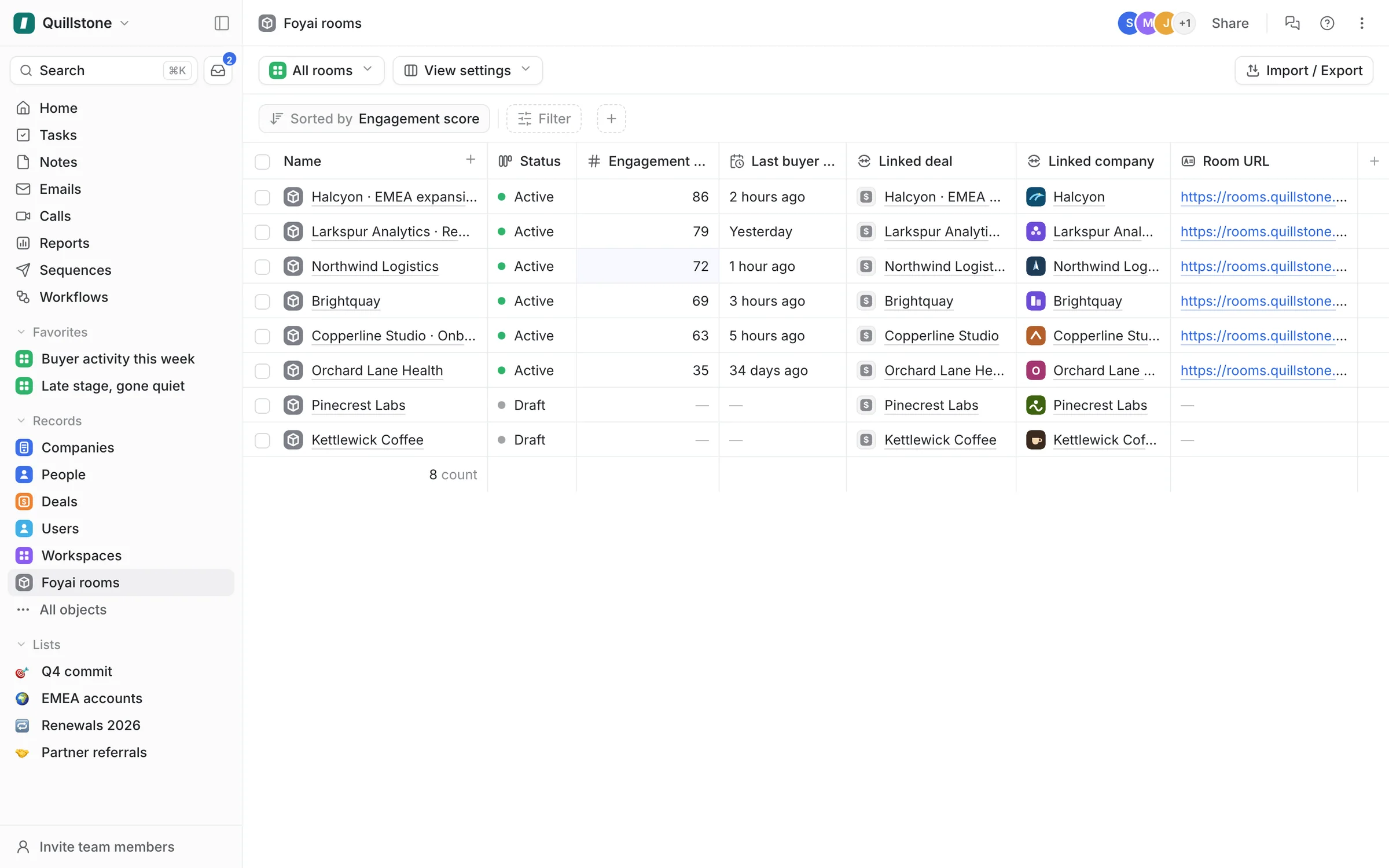
Step 1 of 5 Your rooms, in Attio foyai adds a Foyai rooms object to Attio, so the team can see every room without leaving the CRM.
-
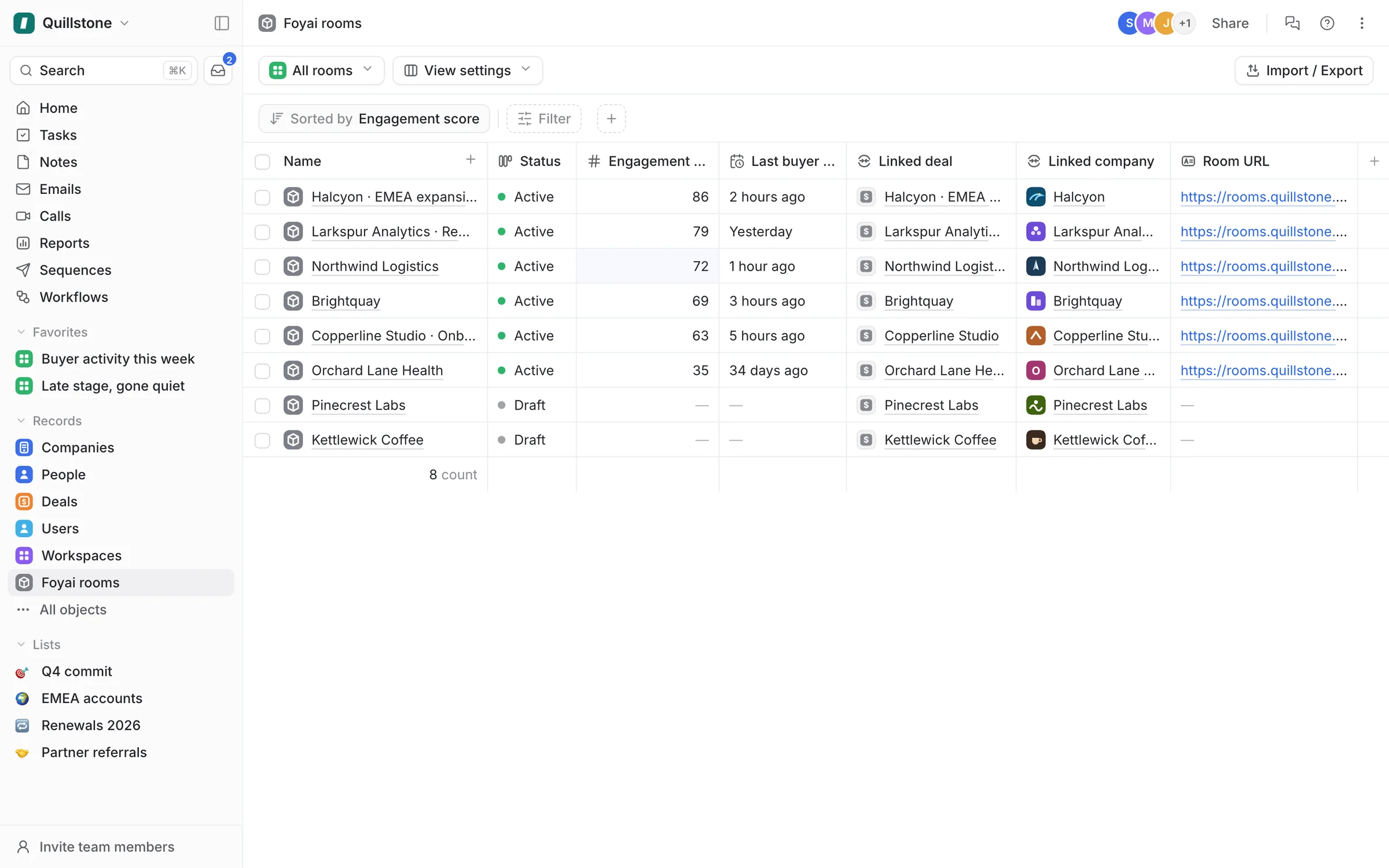
Step 2 of 5 Sort by engagement Each room has its status, engagement score, last buyer view, and linked deal, so you can sort and filter it like any Attio table.
-
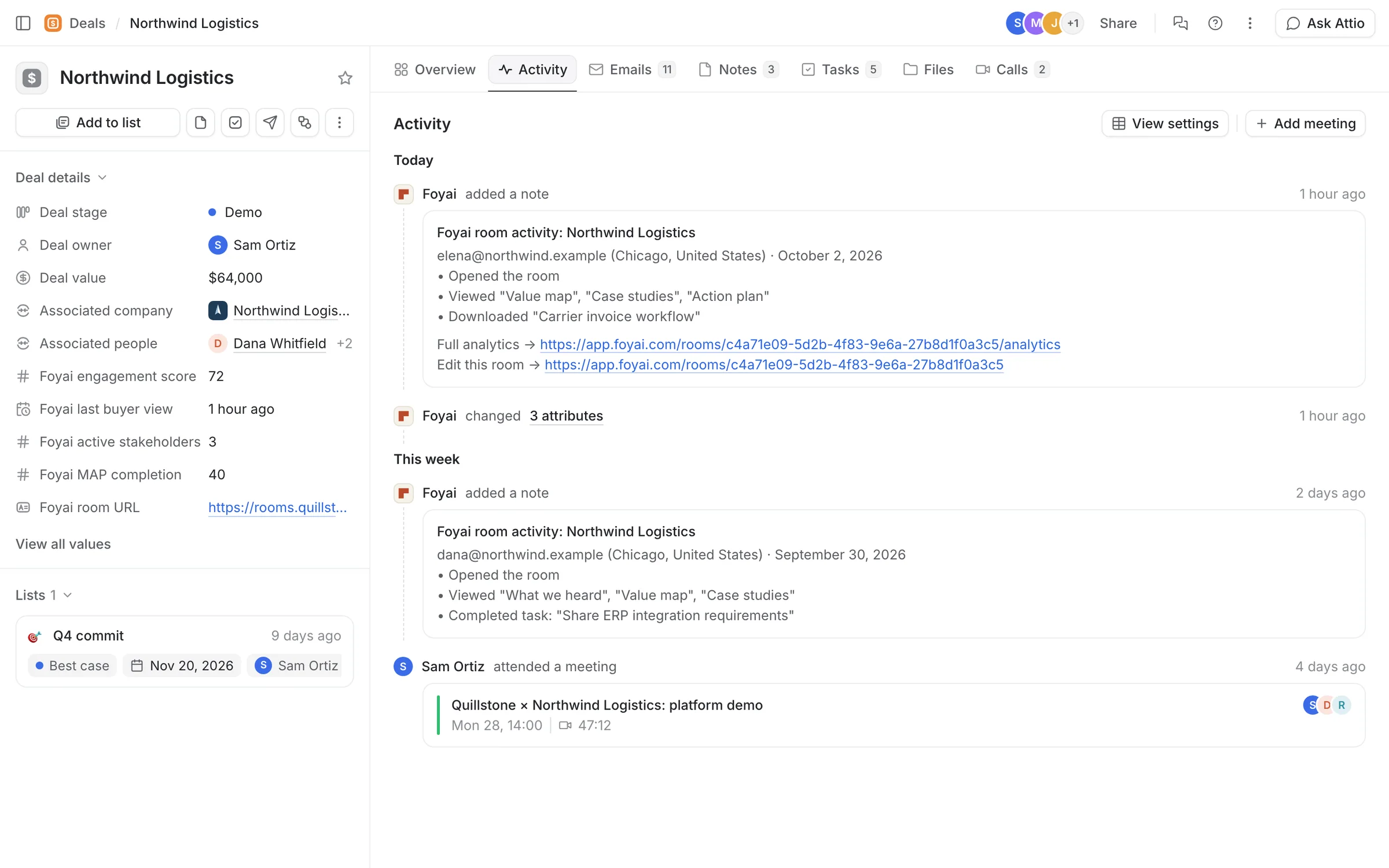
Step 3 of 5 Fields on the deal Deals get Foyai fields too: engagement score, last buyer view, active stakeholders, MAP completion, and the room's link.
-
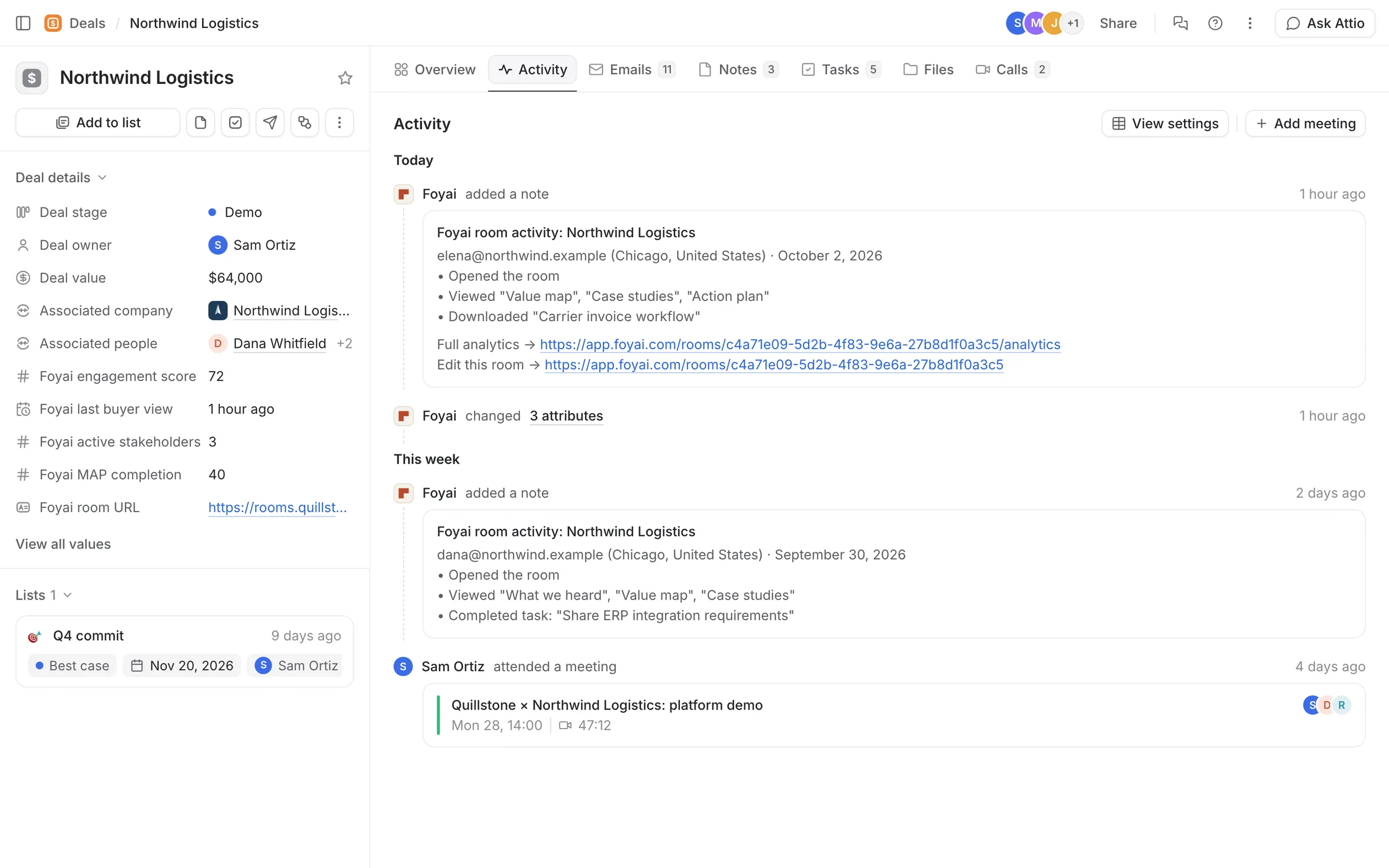
Step 4 of 5 A note for each visit Each buyer visit adds a Foyai room activity note to the deal: who it was, and what they opened and downloaded.
-
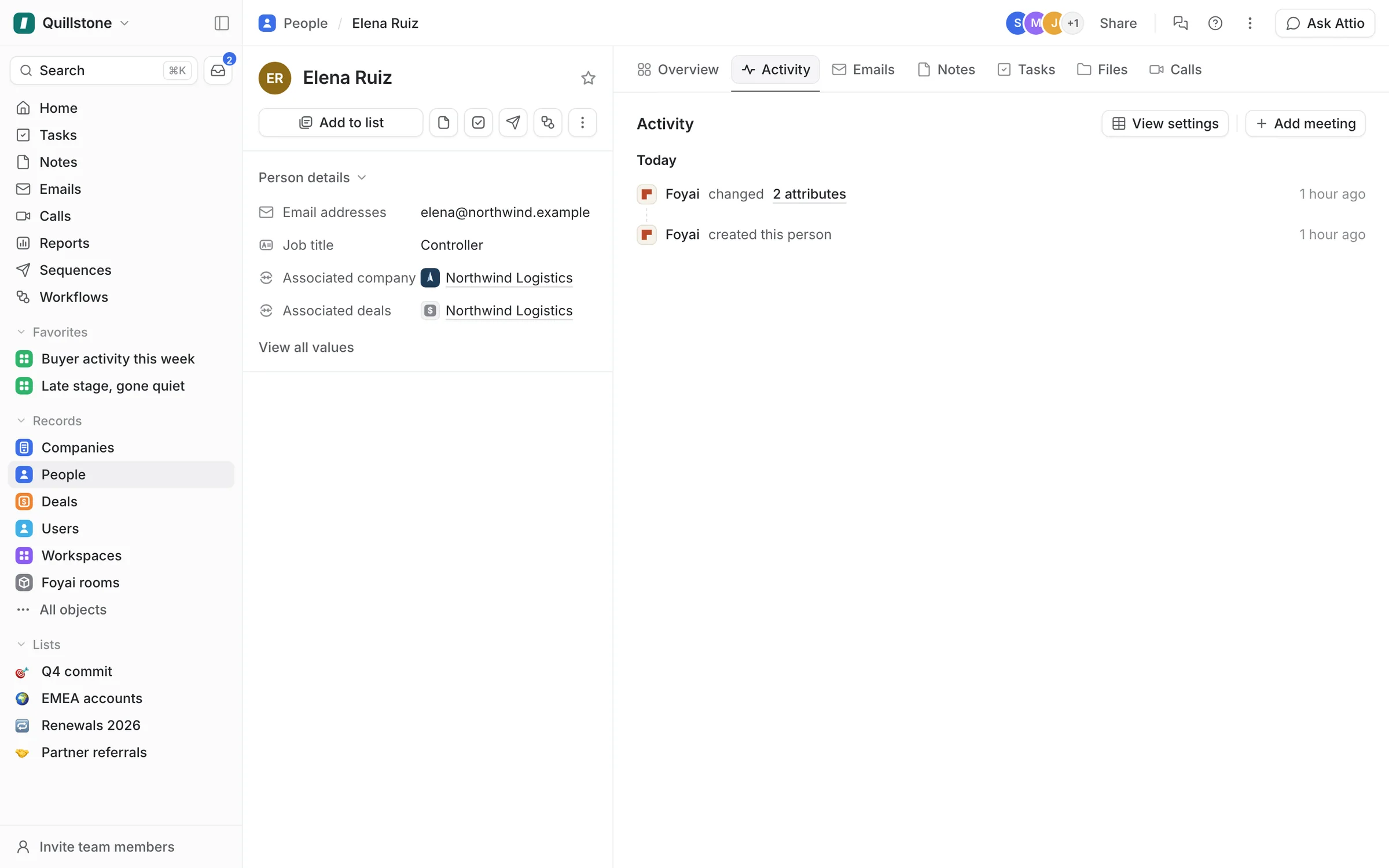
Step 5 of 5 Visitors become People Elena signed in with a Northwind email, so foyai added Elena as a Person, linked to the Northwind company and deal.
See every room from inside Attio.
Connect Attio, and foyai sets up the Foyai rooms object and the deal fields for you.
 1:06
Bulk-creating rooms from Attio
Select a list of deals in Attio and create a draft room for every one of them.
Watch · 1:06Click through · 7 steps
1:06
Bulk-creating rooms from Attio
Select a list of deals in Attio and create a draft room for every one of them.
Watch · 1:06Click through · 7 steps
-
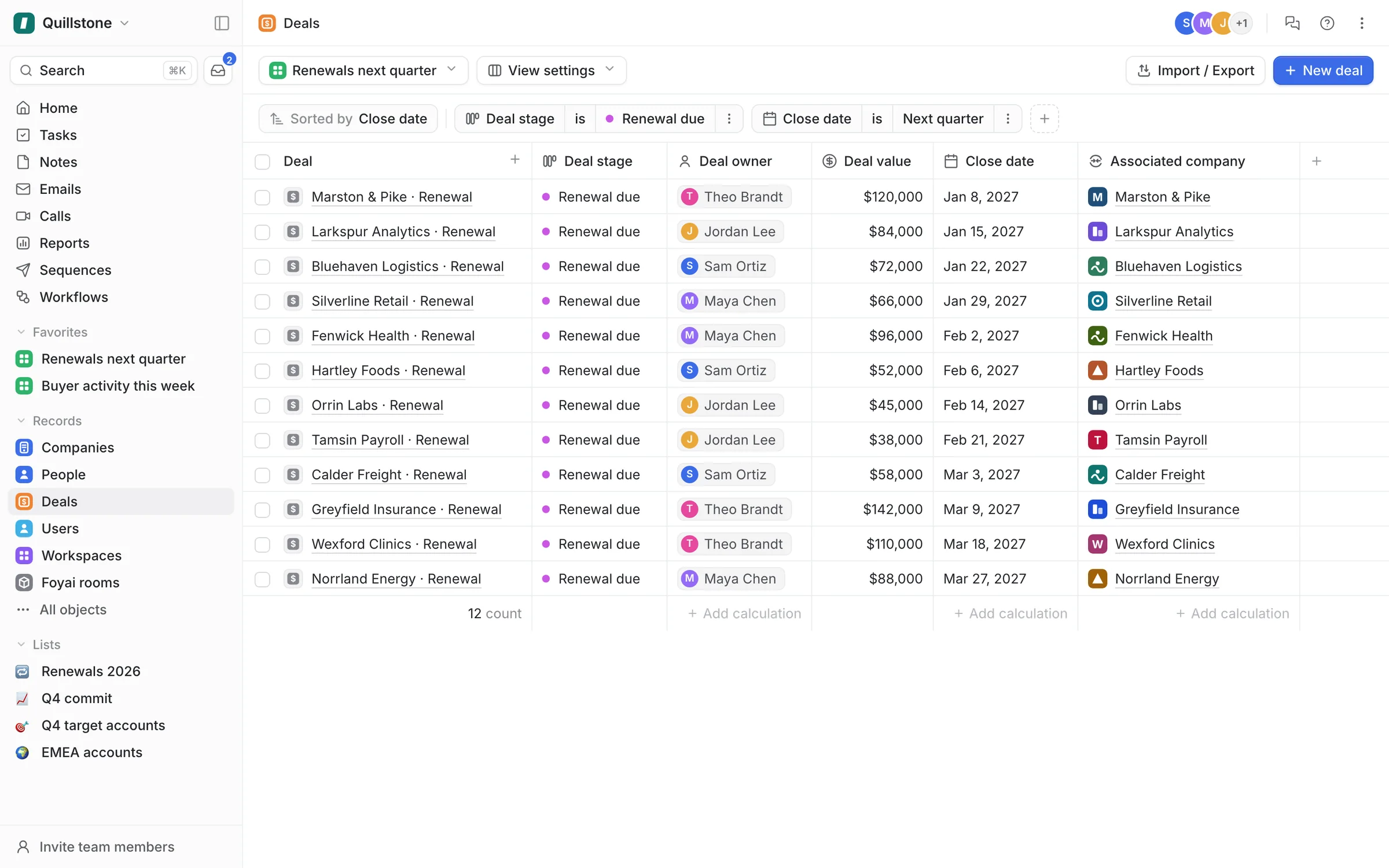
Step 1 of 7 Open next quarter's renewals Start from any Attio view. This one lists the 12 deals in Renewal due that close next quarter.
-
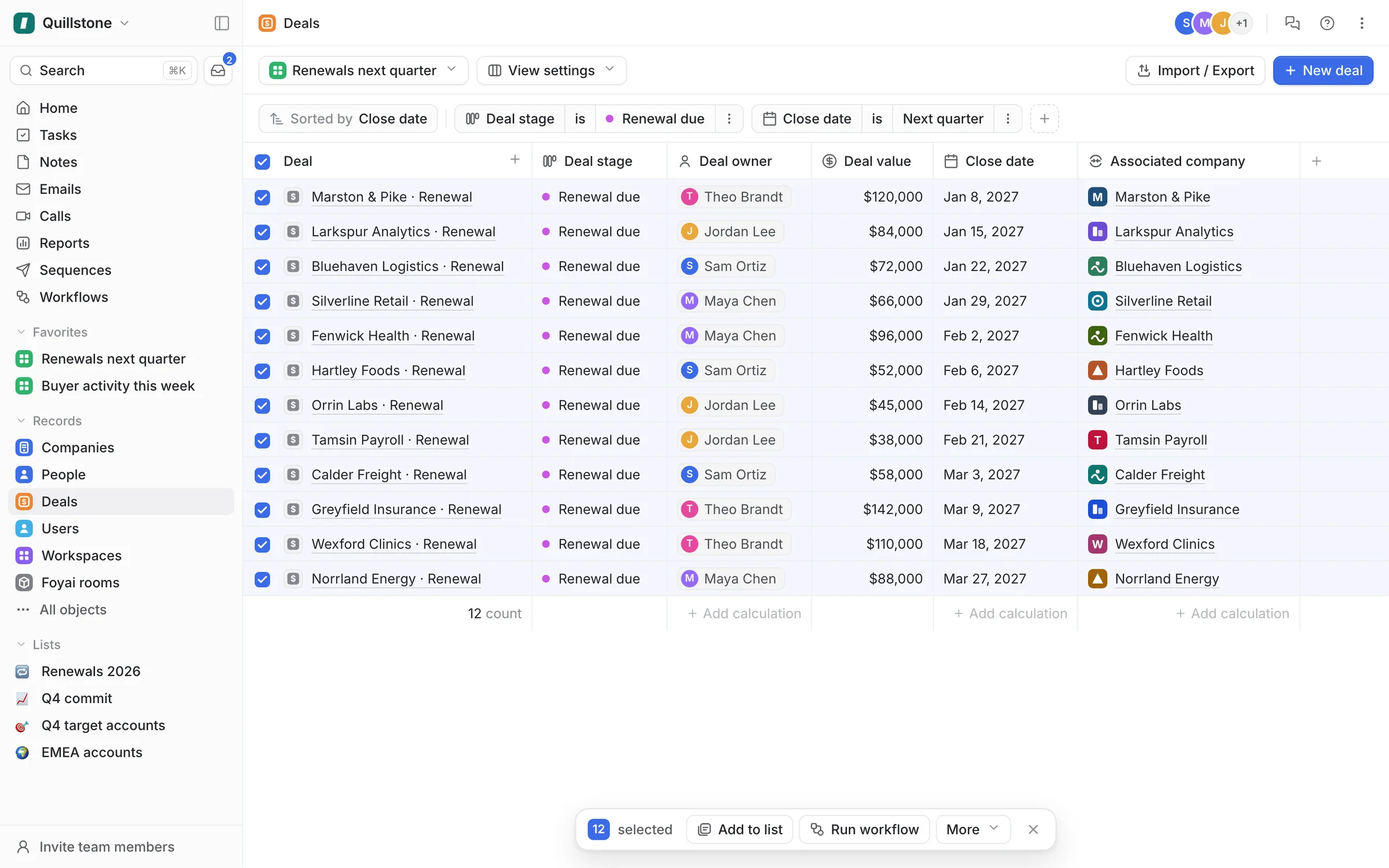
Step 2 of 7 Select all 12 deals Tick the header checkbox, and Attio selects every deal in the view.
-
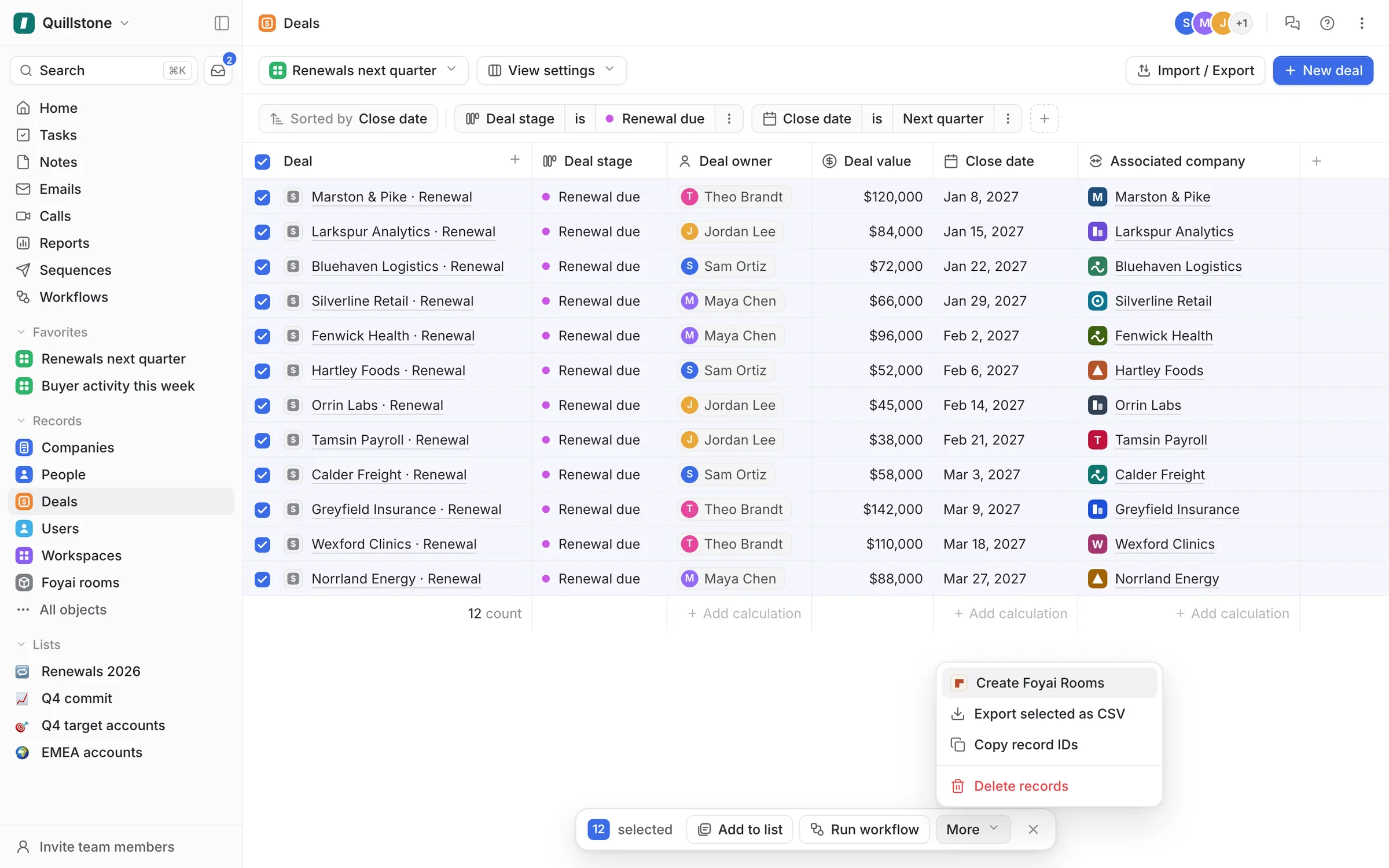
Step 3 of 7 Choose Create Foyai Rooms On the Platform plan, Create Foyai Rooms sits under More in Attio's bulk actions.
-
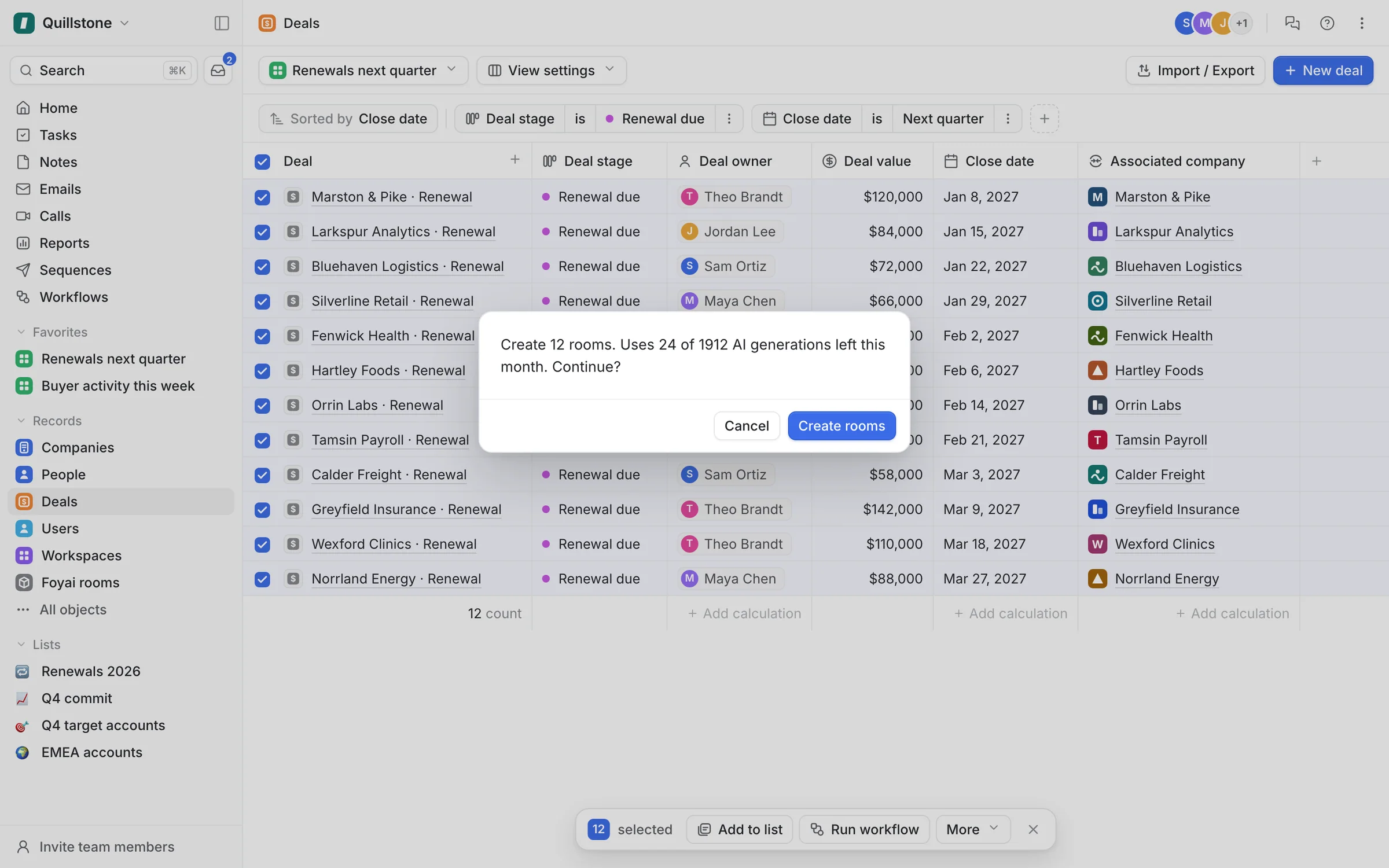
Step 4 of 7 Confirm the run Before anything starts, Attio shows the run's cost: 12 new rooms and 24 of this month's AI generations.
-
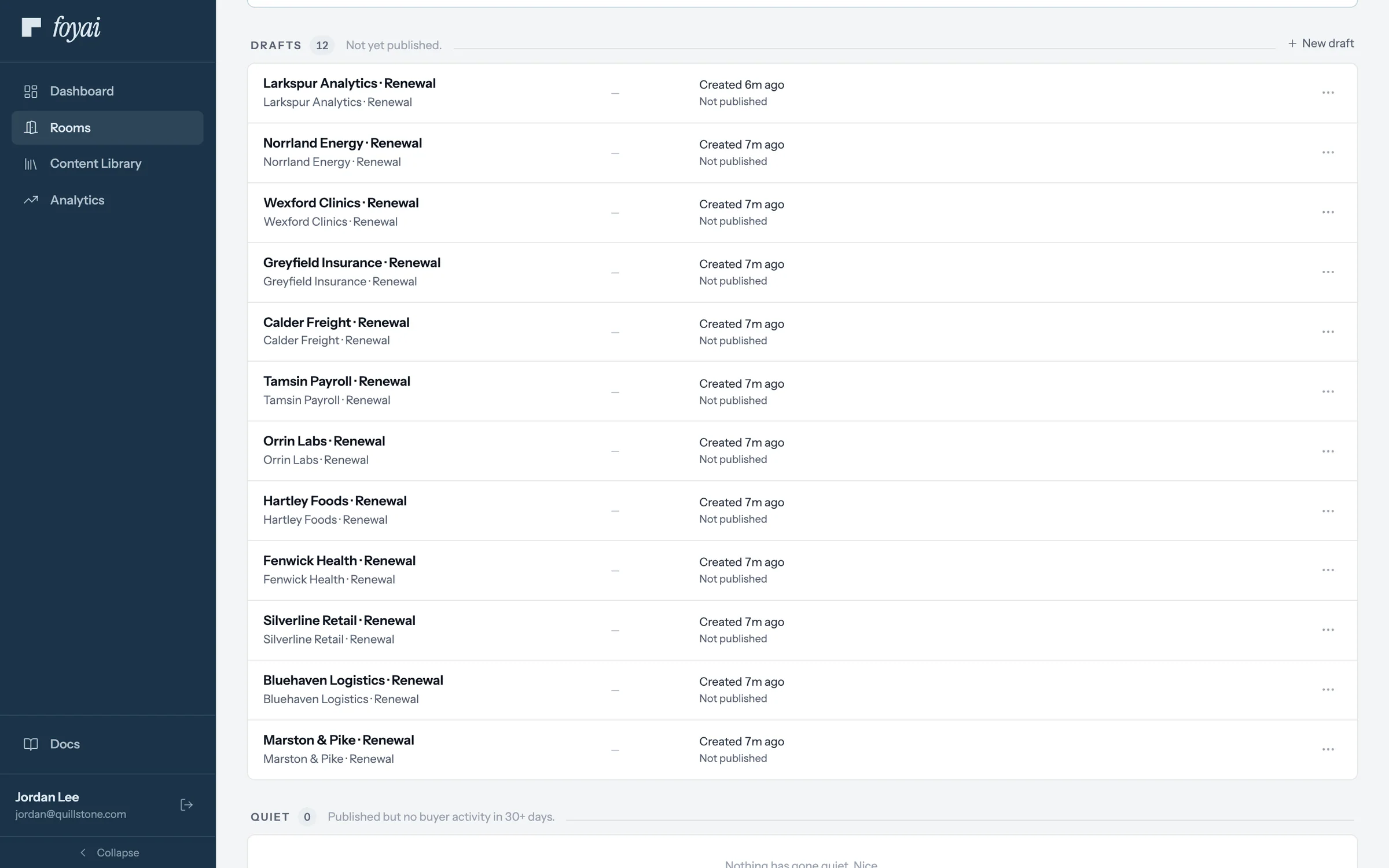
Step 5 of 7 Twelve drafts to review Each renewal now has a draft on the rooms board. Nothing reaches a customer until someone publishes it.
-
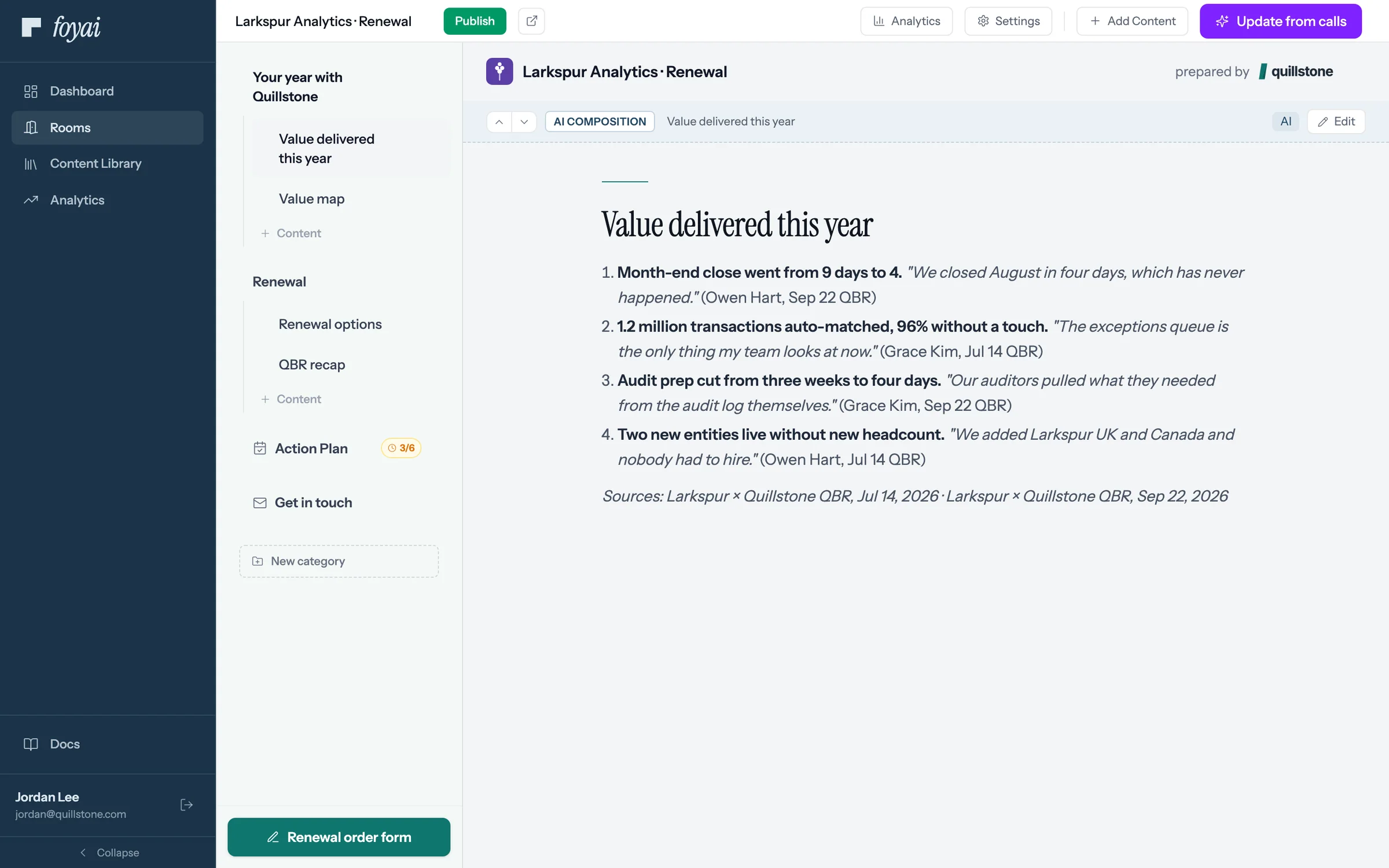
Step 6 of 7 Value delivered, drafted foyai drafted Larkspur's year from its July and September QBR calls, with quotes. Jordan checks them before publishing.
-
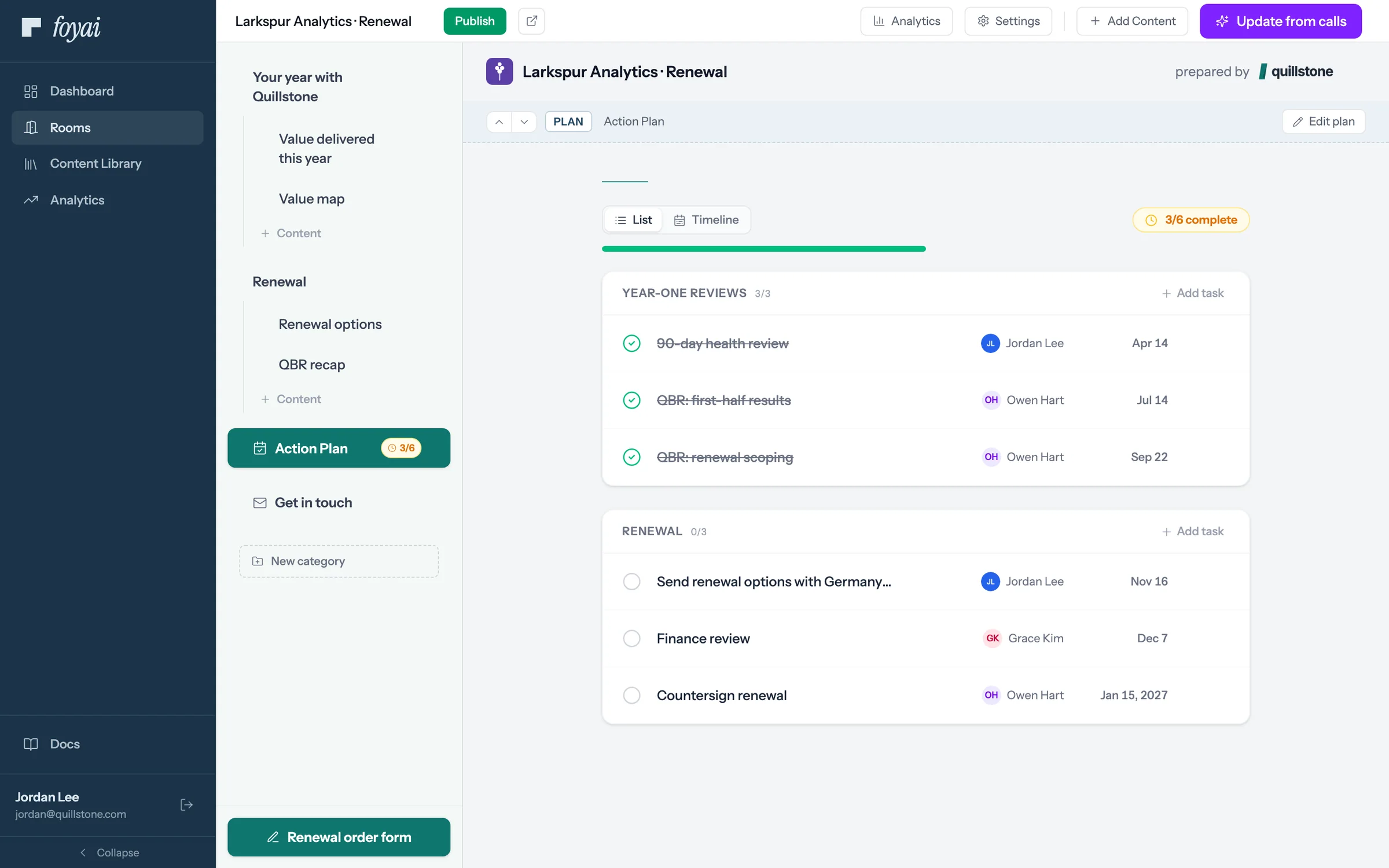
Step 7 of 7 The renewal plan The plan lays out the year's reviews and the steps to signature, with owners on both sides.
Draft rooms for your whole renewal list.
Bulk room creation from any Attio list is part of the Platform plan.
 1:22
Seeing your team's activity
Workspace analytics and the By seller table: who's sending rooms, and whose buyers are engaging.
Watch · 1:22Click through · 8 steps
1:22
Seeing your team's activity
Workspace analytics and the By seller table: who's sending rooms, and whose buyers are engaging.
Watch · 1:22Click through · 8 steps
-
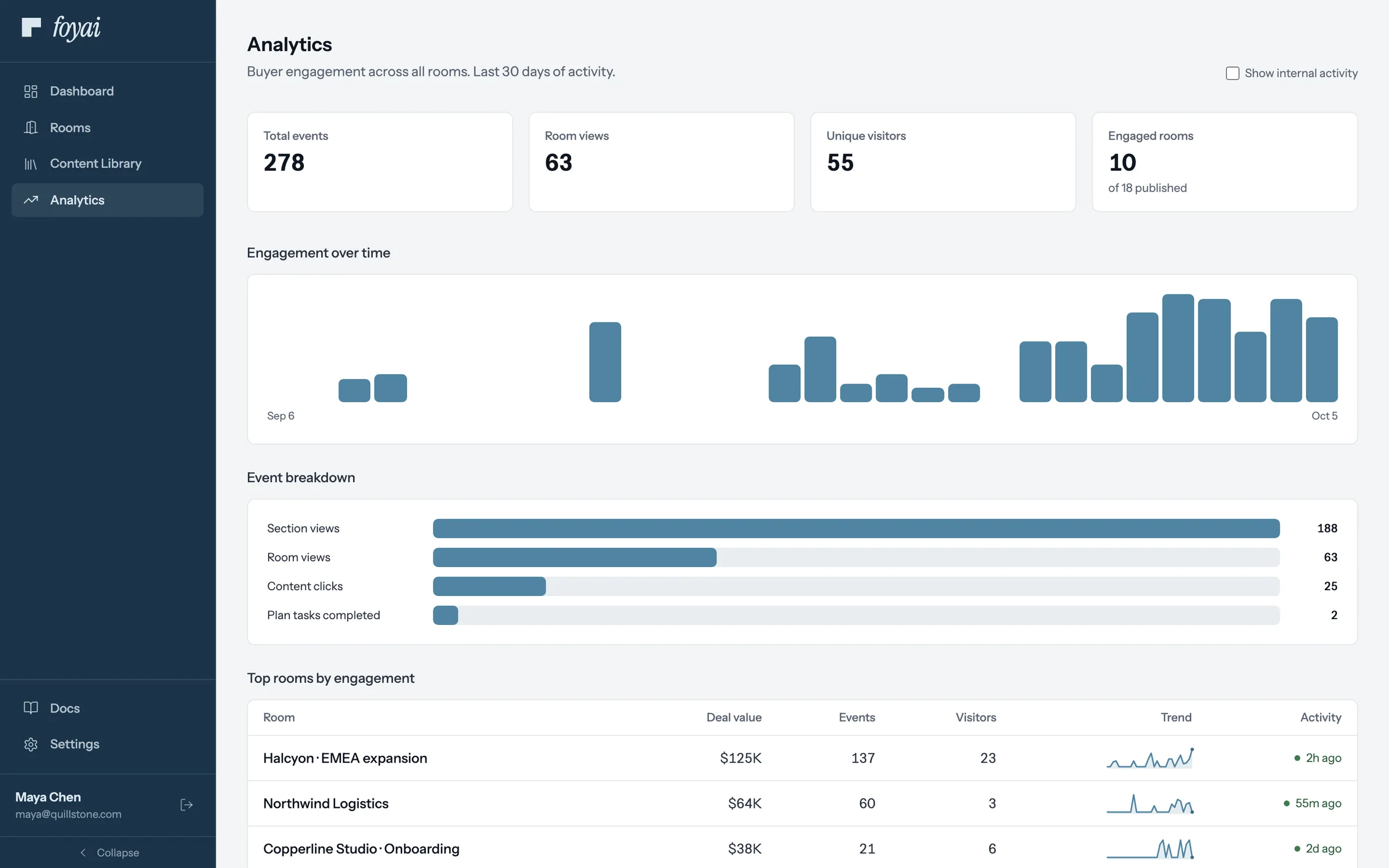
Step 1 of 8 Headline stats Analytics opens with four workspace-wide numbers: Total events, Room views, Unique visitors, and Engaged rooms.
-
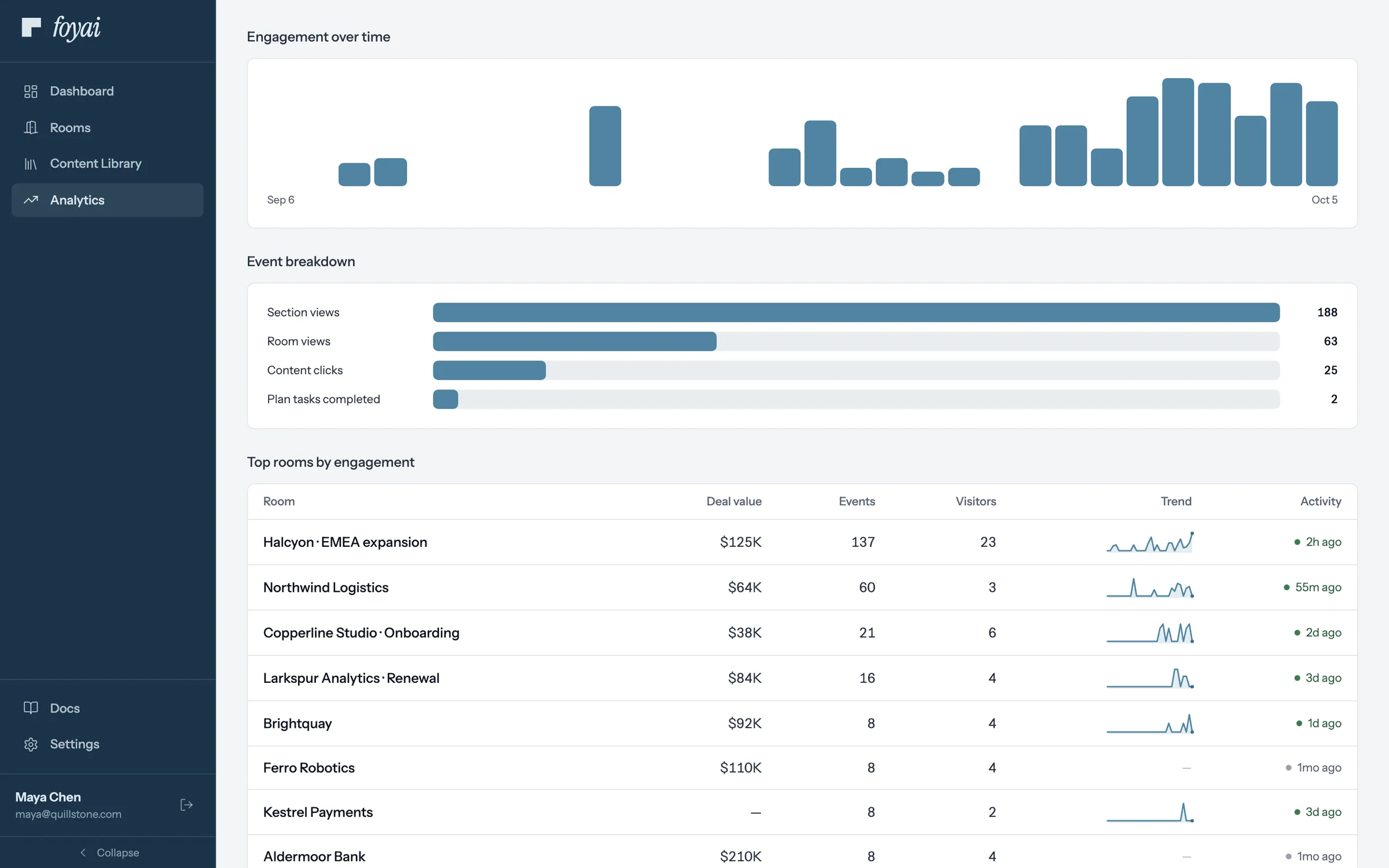
Step 2 of 8 Engagement over time Below the stats, a chart plots that same buyer activity day by day for the last 30 days.
-
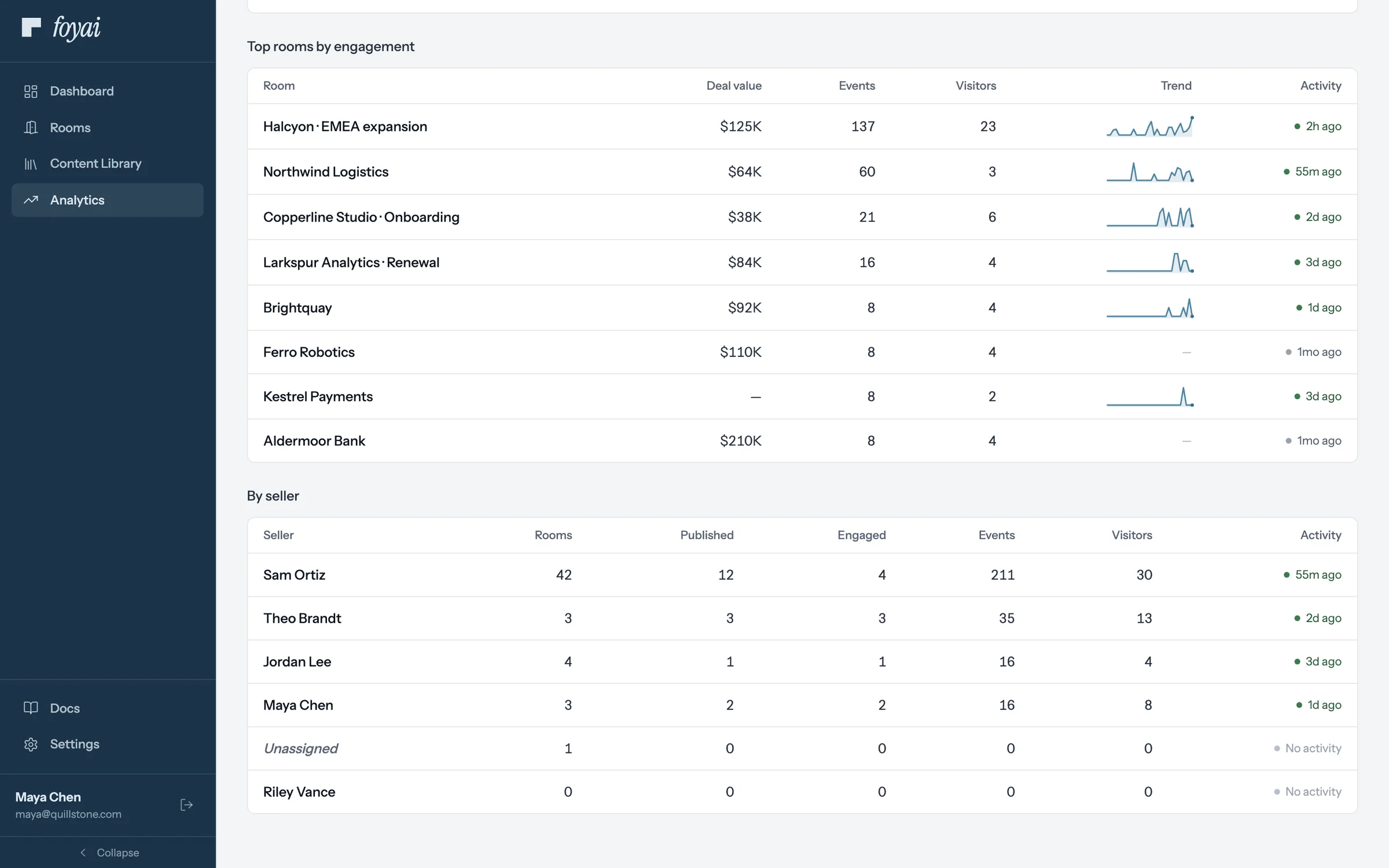
Step 3 of 8 Top rooms by engagement Each room here lists deal value, visitors, and a recency badge, plus a 30-day trend sparkline.
-
Step 4 of 8 The By seller table Admins also see a By seller table, with columns for Rooms, Published, Engaged, Events, Visitors, and Activity.
-
Step 5 of 8 Sellers with no rooms A seller with no rooms yet still shows up, so you can see who hasn't started.
-
Step 6 of 8 The Unassigned row Rooms whose owner is no longer an active seller are grouped in an Unassigned row.
-
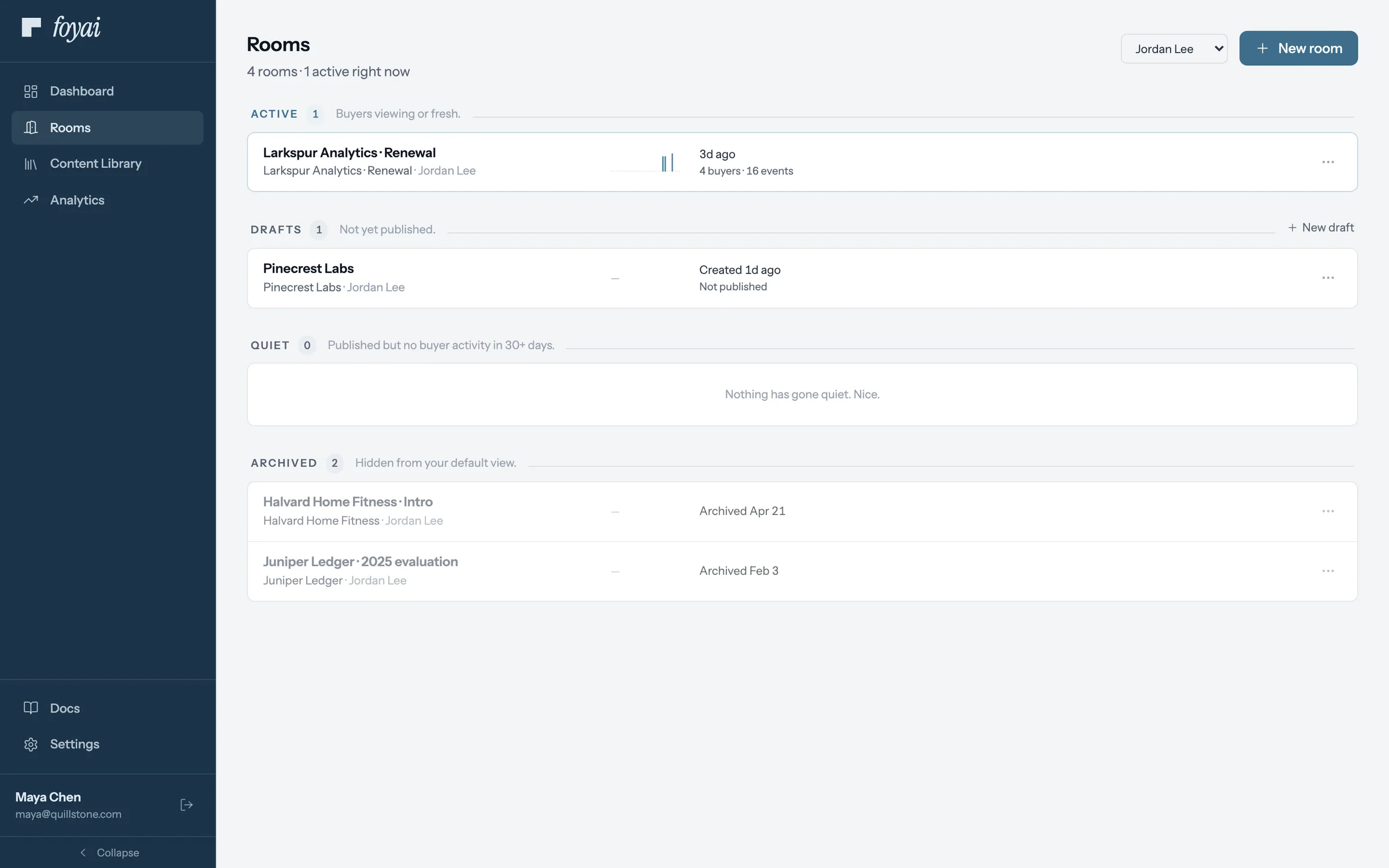
Step 7 of 8 Filter by seller Clicking a seller's name opens the rooms list filtered to that seller's own rooms.
-
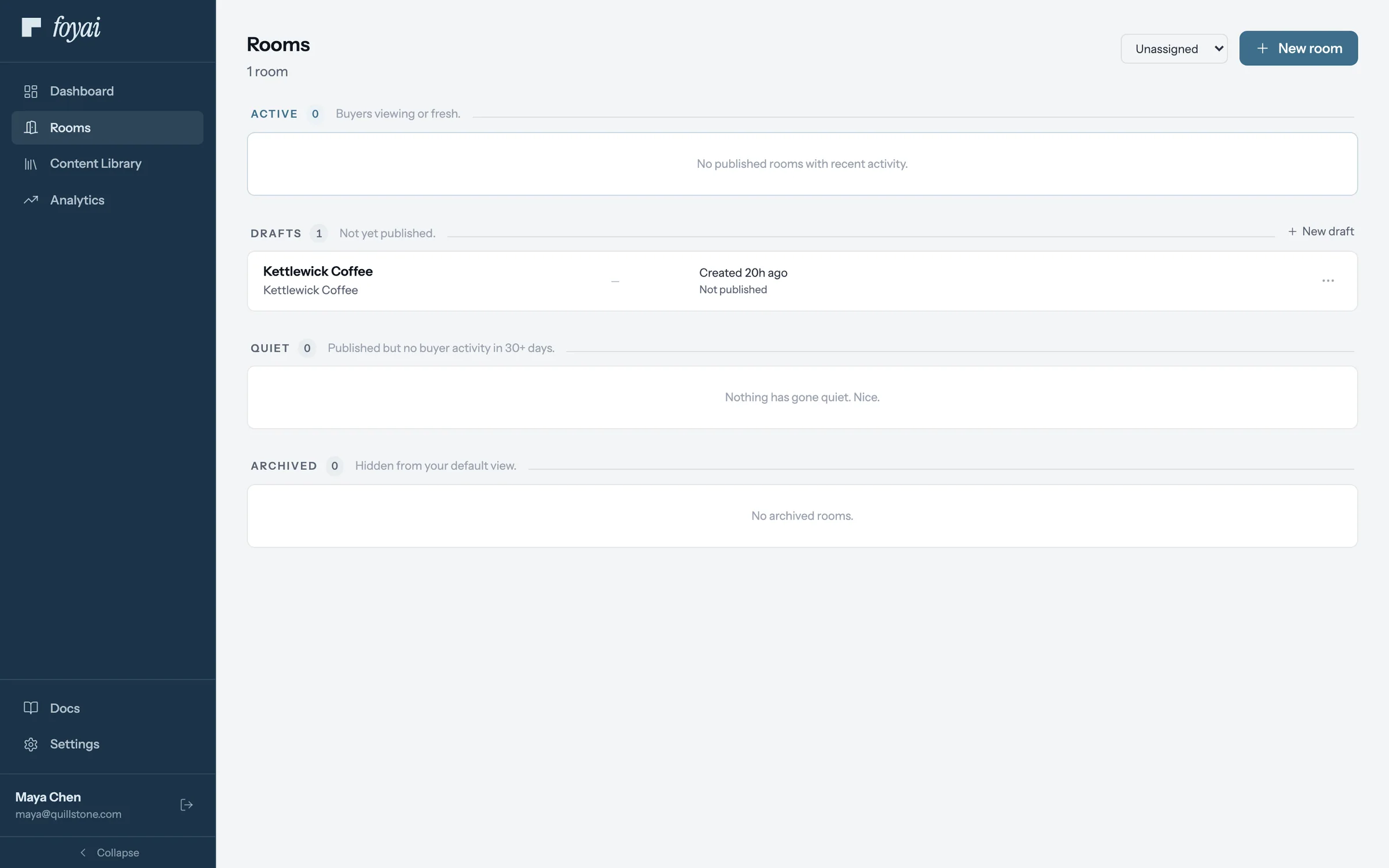
Step 8 of 8 Find unassigned rooms Unassigned filters the list to rooms with no active owner, like Kettlewick Coffee here.
Know who's active
Check Analytics any time to see which sellers and rooms need attention.
 1:00
Plans, billing, and AI generations
What your plan includes, how the shared AI generations allowance works, and where limits show up.
Watch · 1:00Click through · 5 steps
1:00
Plans, billing, and AI generations
What your plan includes, how the shared AI generations allowance works, and where limits show up.
Watch · 1:00Click through · 5 steps
-
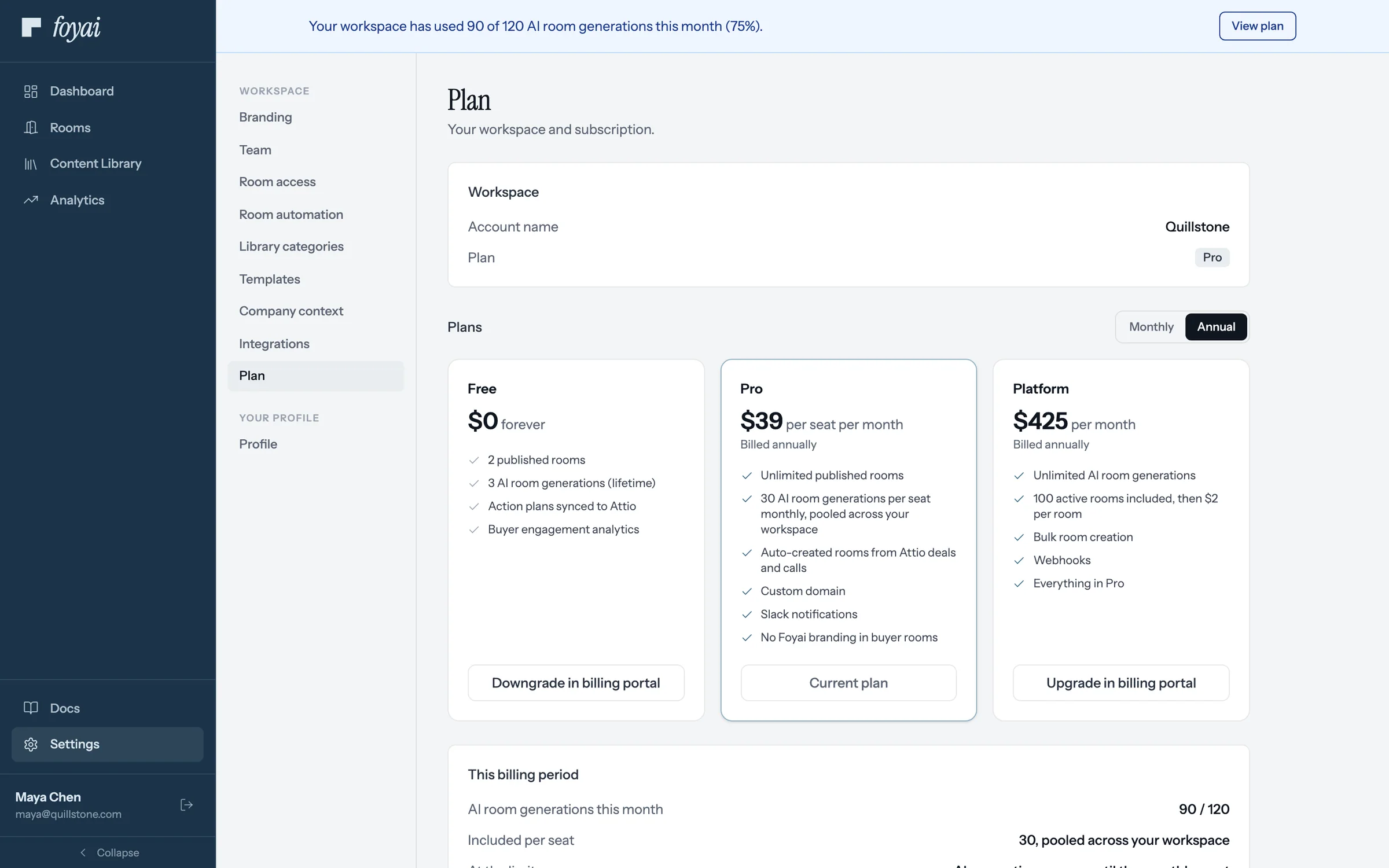
Step 1 of 5 Your current plan Settings, Plan shows your workspace's plan and how it's billed.
-
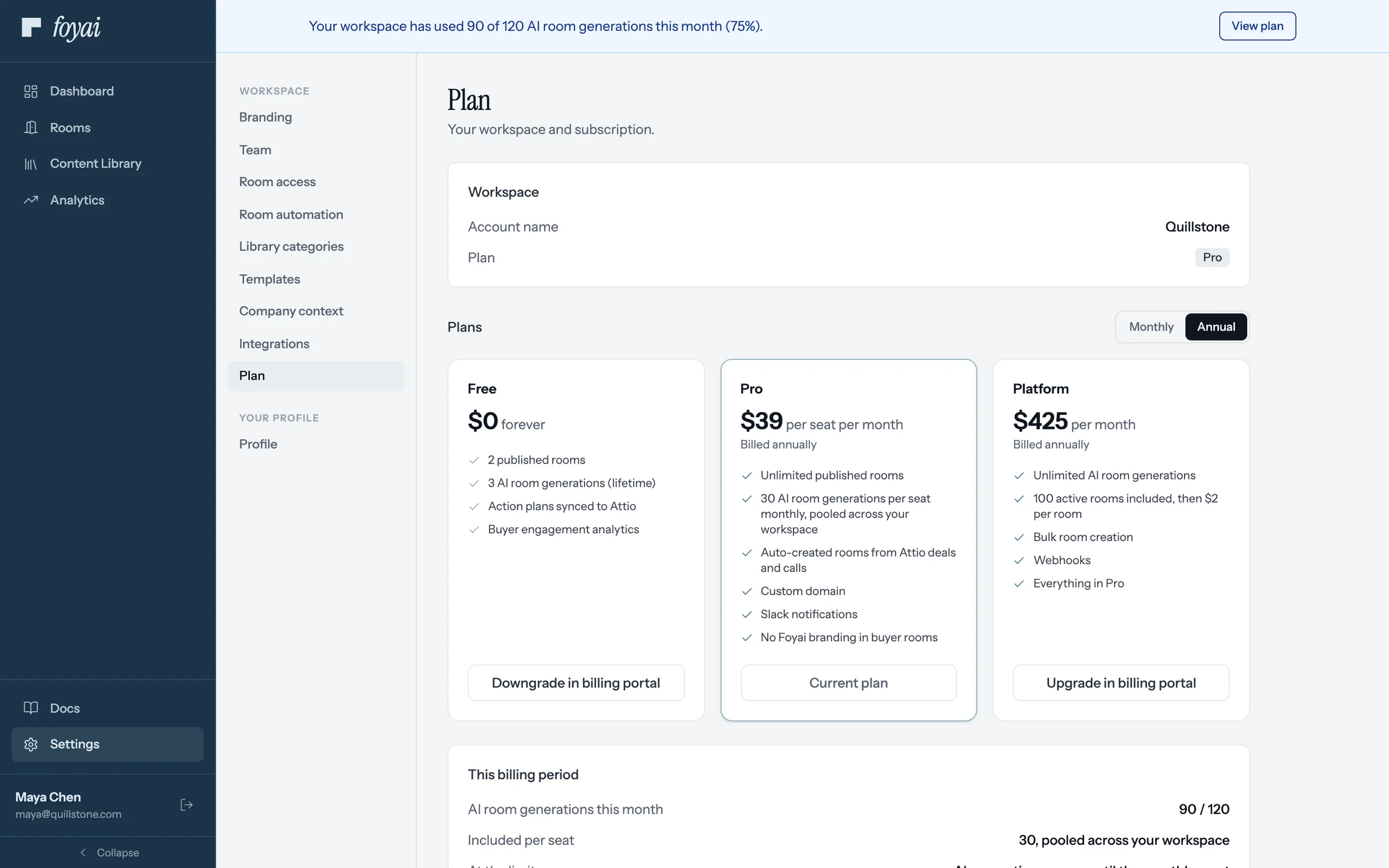
Step 2 of 5 What your plan includes Each plan card lists what it includes. Yours is marked Current plan.
-
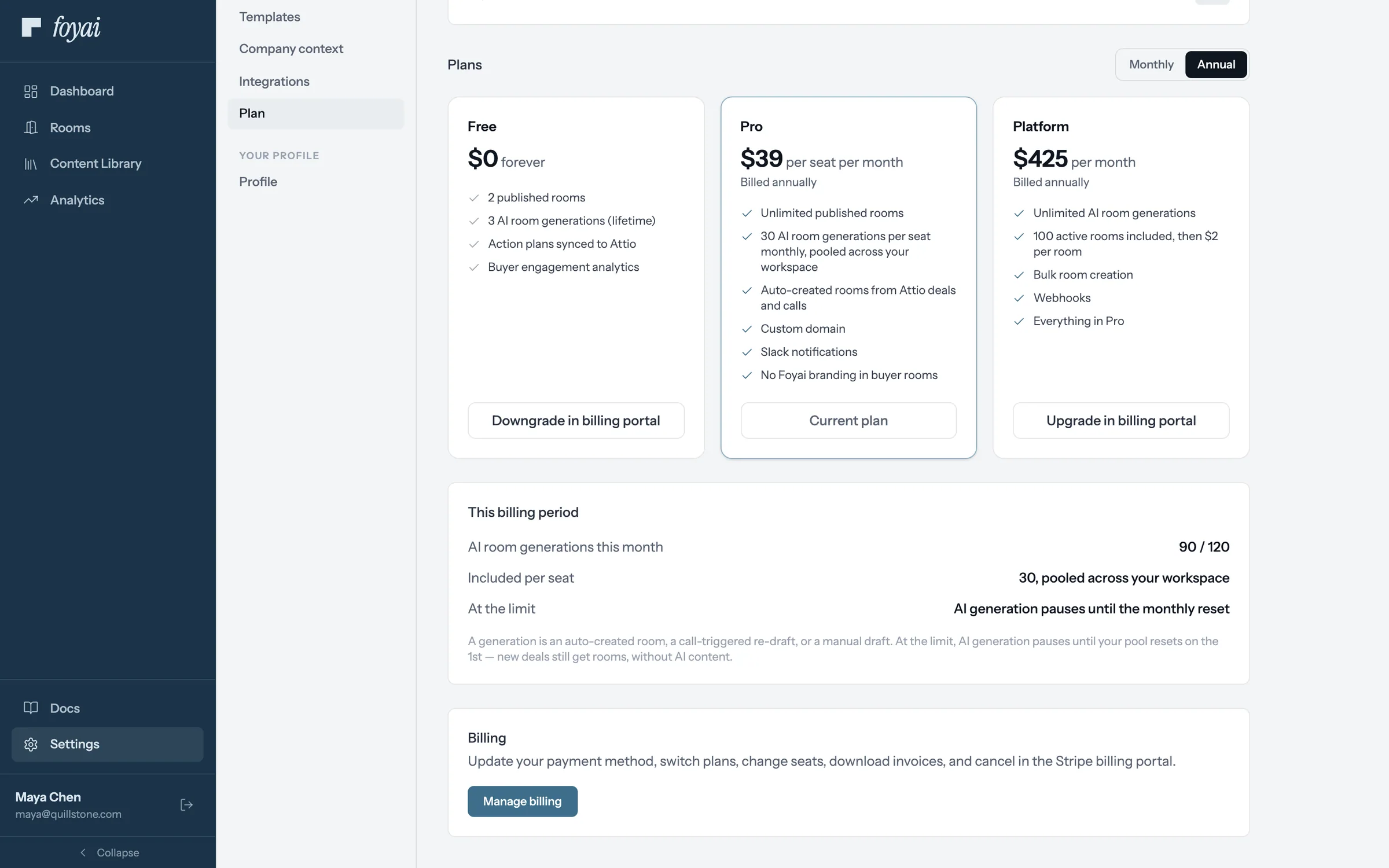
Step 3 of 5 AI generations, pooled Each seat adds 30 a month to one pool the whole team shares.
-
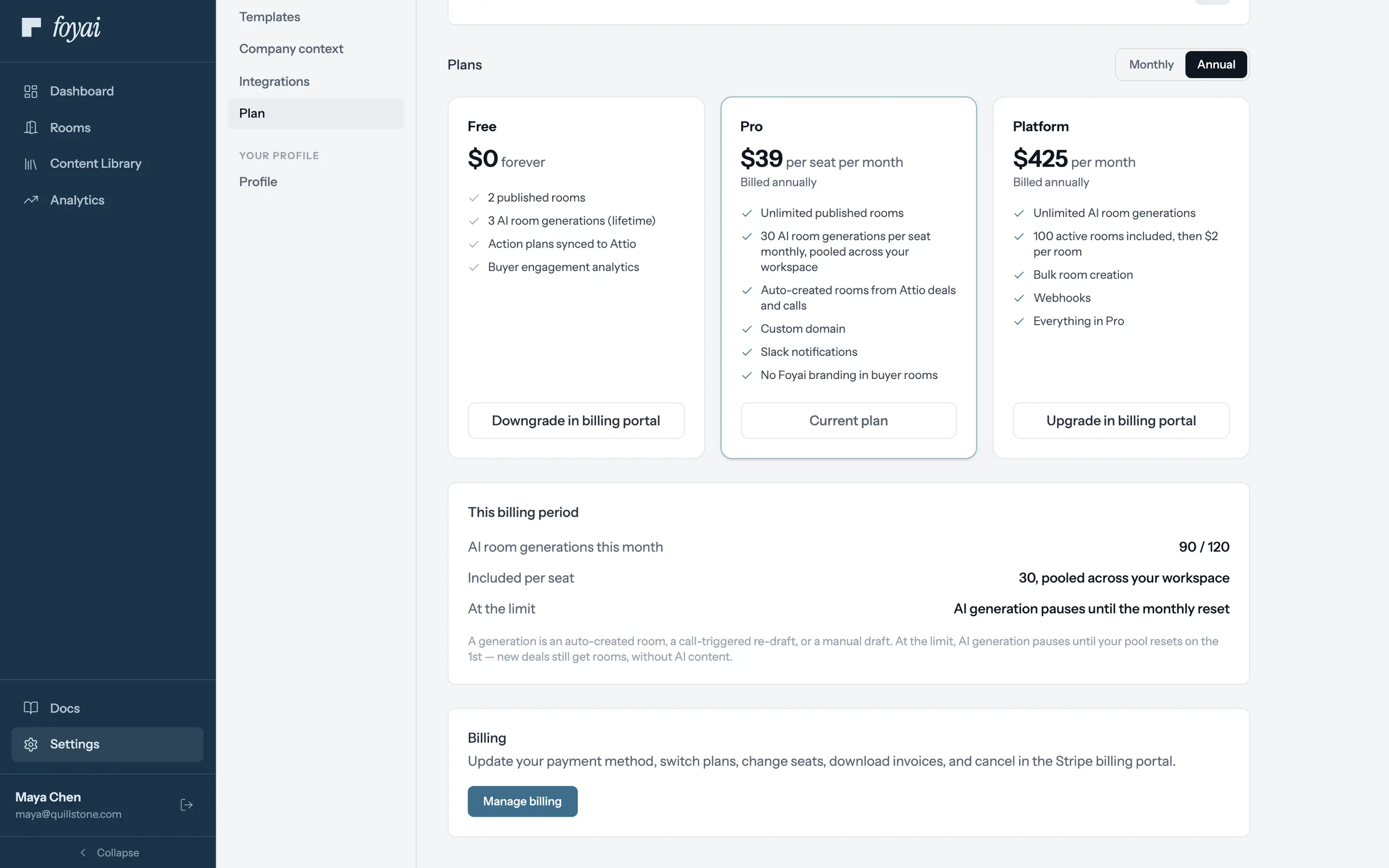
Step 4 of 5 Manage billing Opens Stripe's portal to change seats or plans, update the card, or download invoices.
-
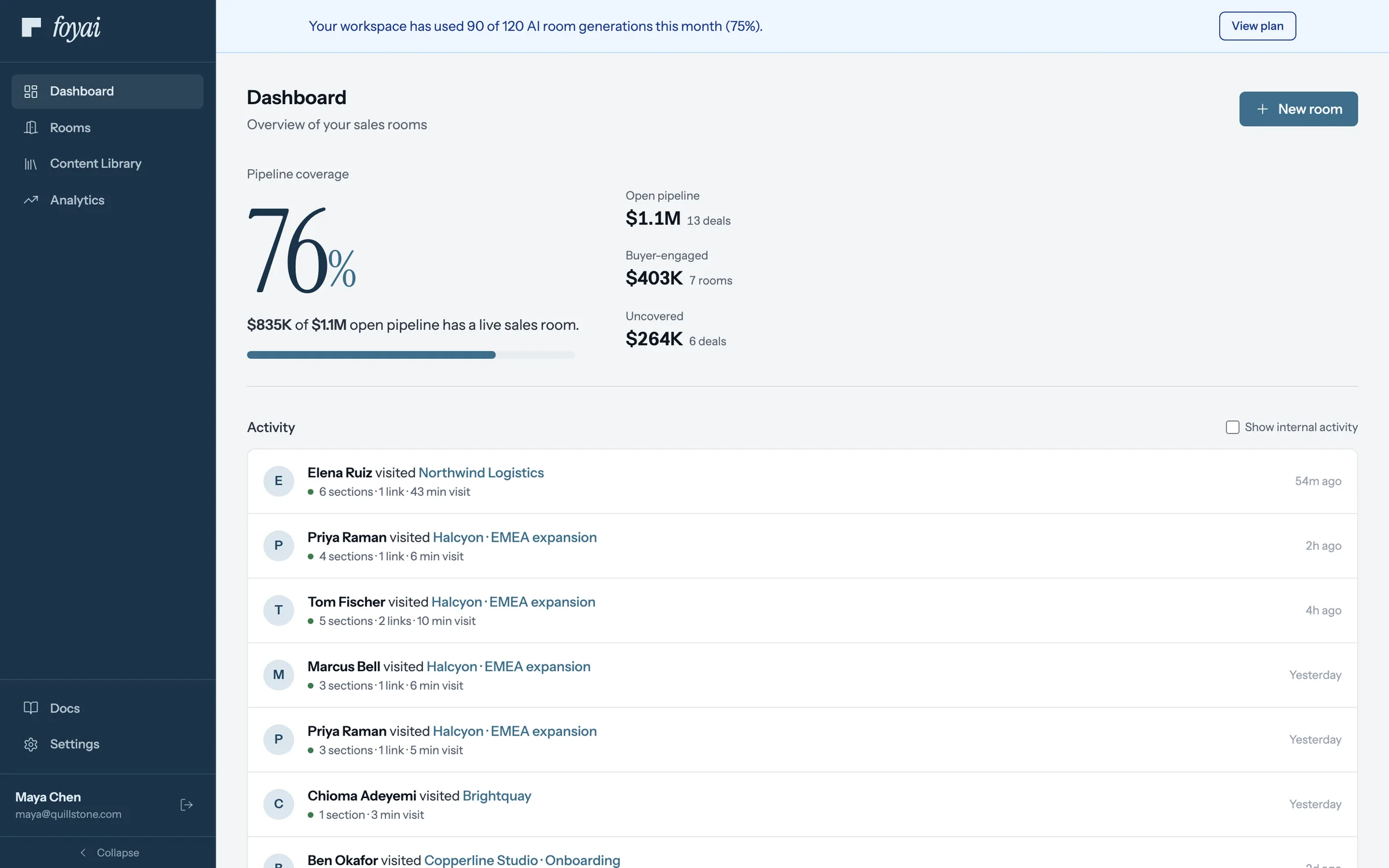
Step 5 of 5 The meter, elsewhere Once most of the pool is used, the count shows up as a banner across the app.
One plan, one shared allowance.
Current prices and the full plan comparison live on foyai.com/pricing.
 0:42
Fixing the Attio connection
What to do when deal stages or records stop coming through from Attio.
Watch · 0:42Click through · 3 steps
0:42
Fixing the Attio connection
What to do when deal stages or records stop coming through from Attio.
Watch · 0:42Click through · 3 steps
-
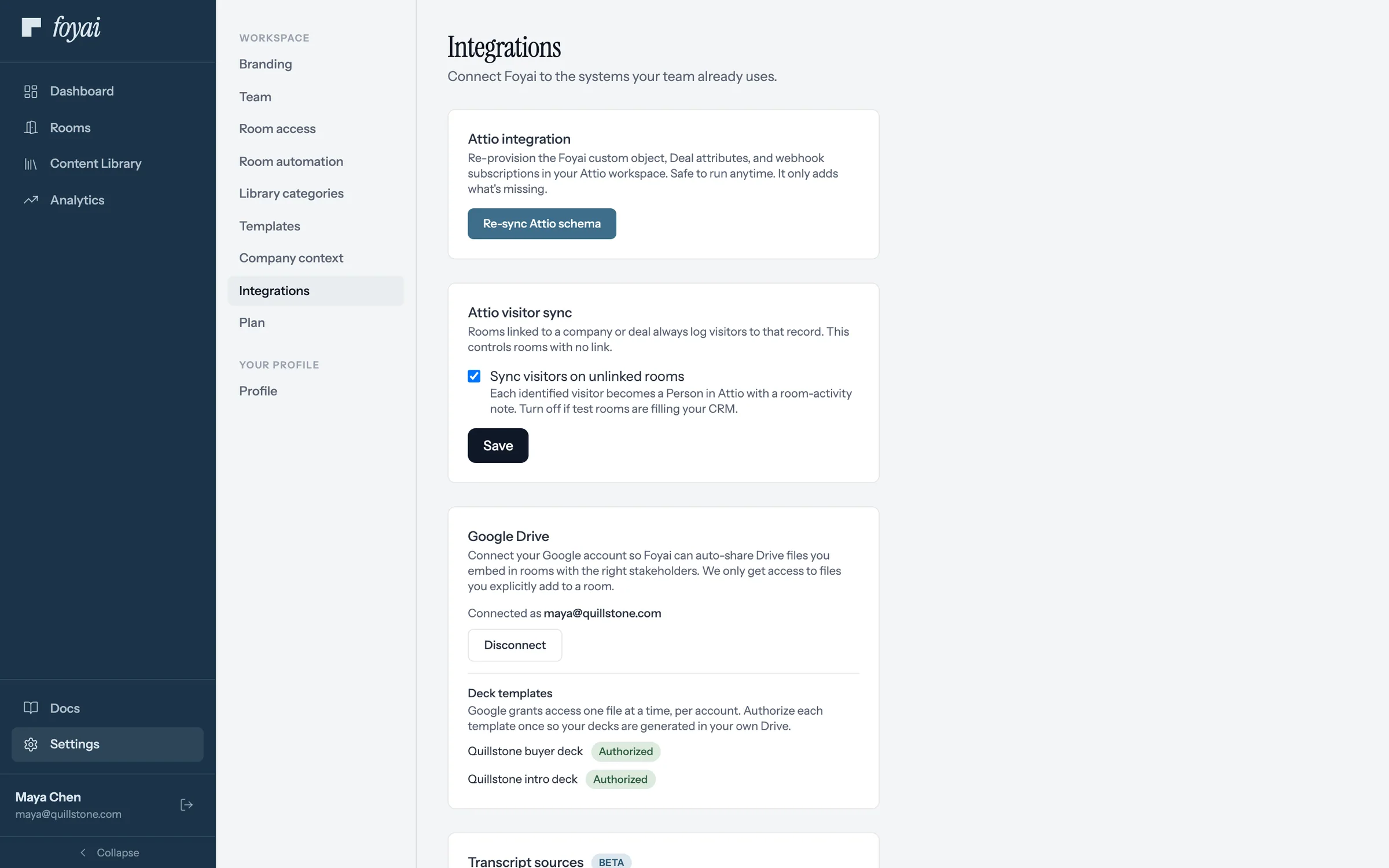
Step 1 of 3 The Attio integration card In Settings, Integrations, the Attio integration card has a Re-sync Attio schema button.
-
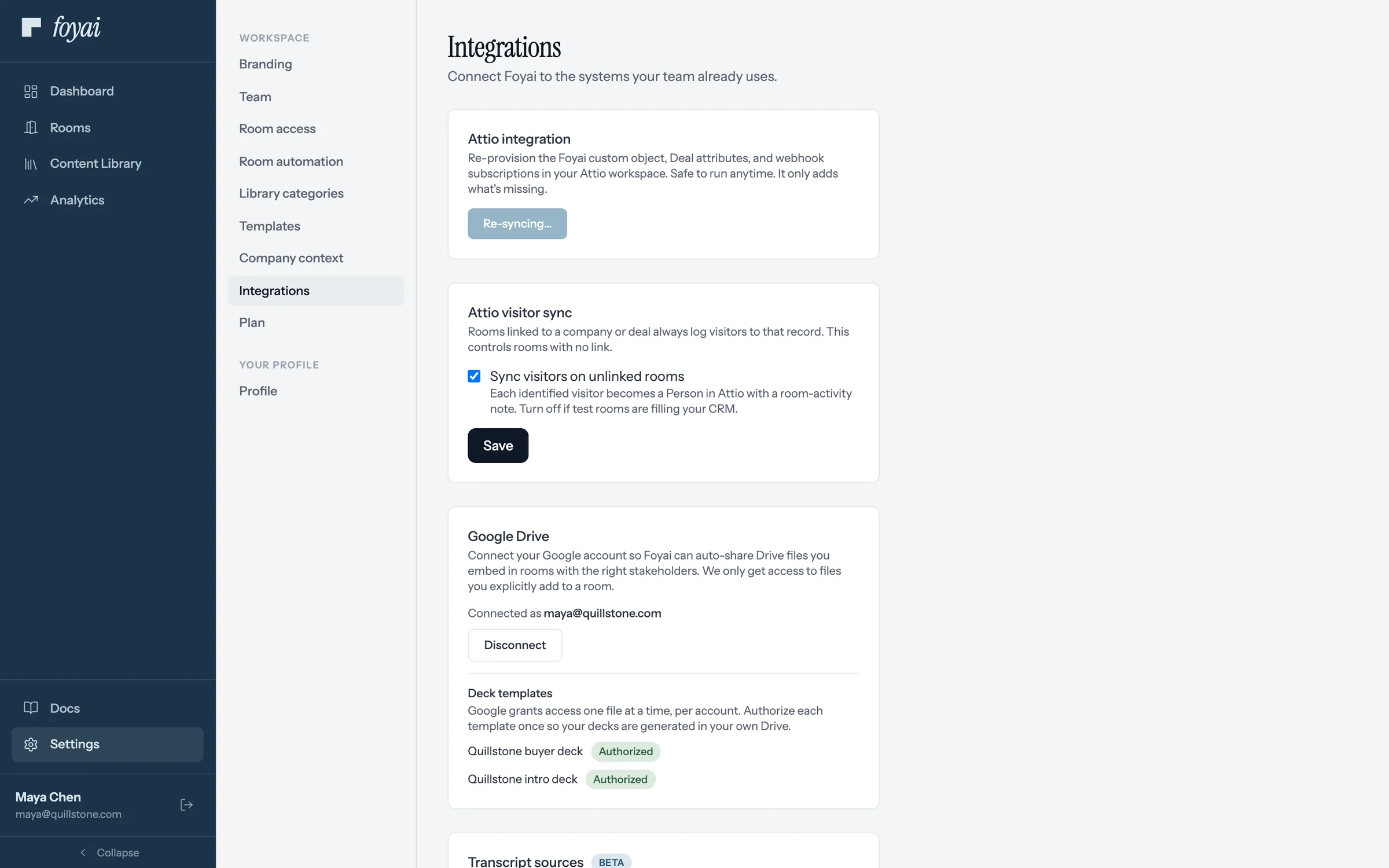
Step 2 of 3 Click Re-sync Click Re-sync Attio schema. It's safe to run anytime and only adds what's missing.
-
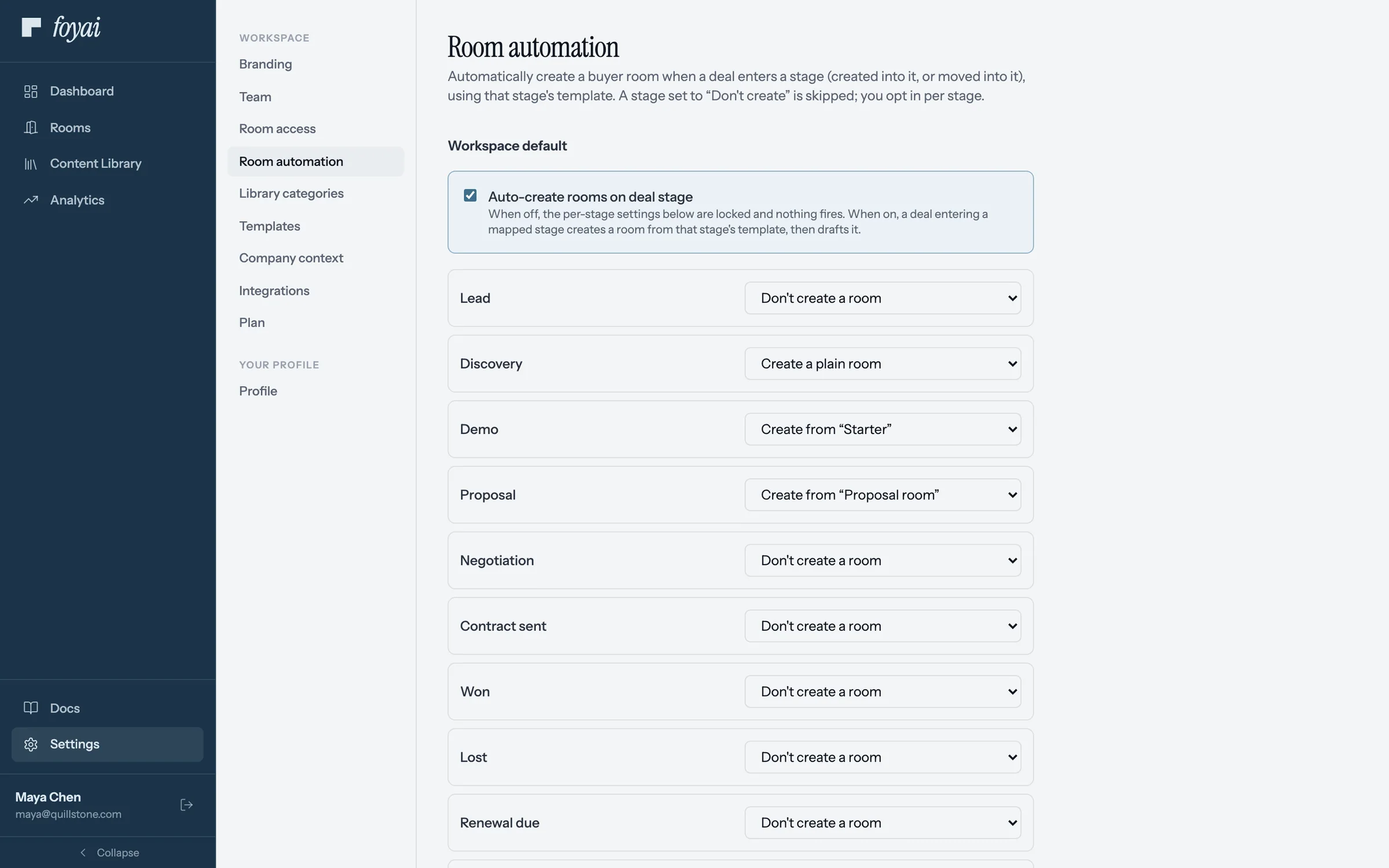
Step 3 of 3 Deal stages, loaded from Attio Room automation reads every deal stage straight from Attio. If it can't, re-sync first.
Re-sync adds back what's missing in Attio.
Run it from Settings, Integrations whenever something in Attio looks out of date.
 1:13
See what your buyer sees
From the emailed sign-in link to ticking off a step and booking a call, as your buyer sees it.
Watch · 1:13Click through · 9 steps
1:13
See what your buyer sees
From the emailed sign-in link to ticking off a step and booking a call, as your buyer sees it.
Watch · 1:13Click through · 9 steps
-
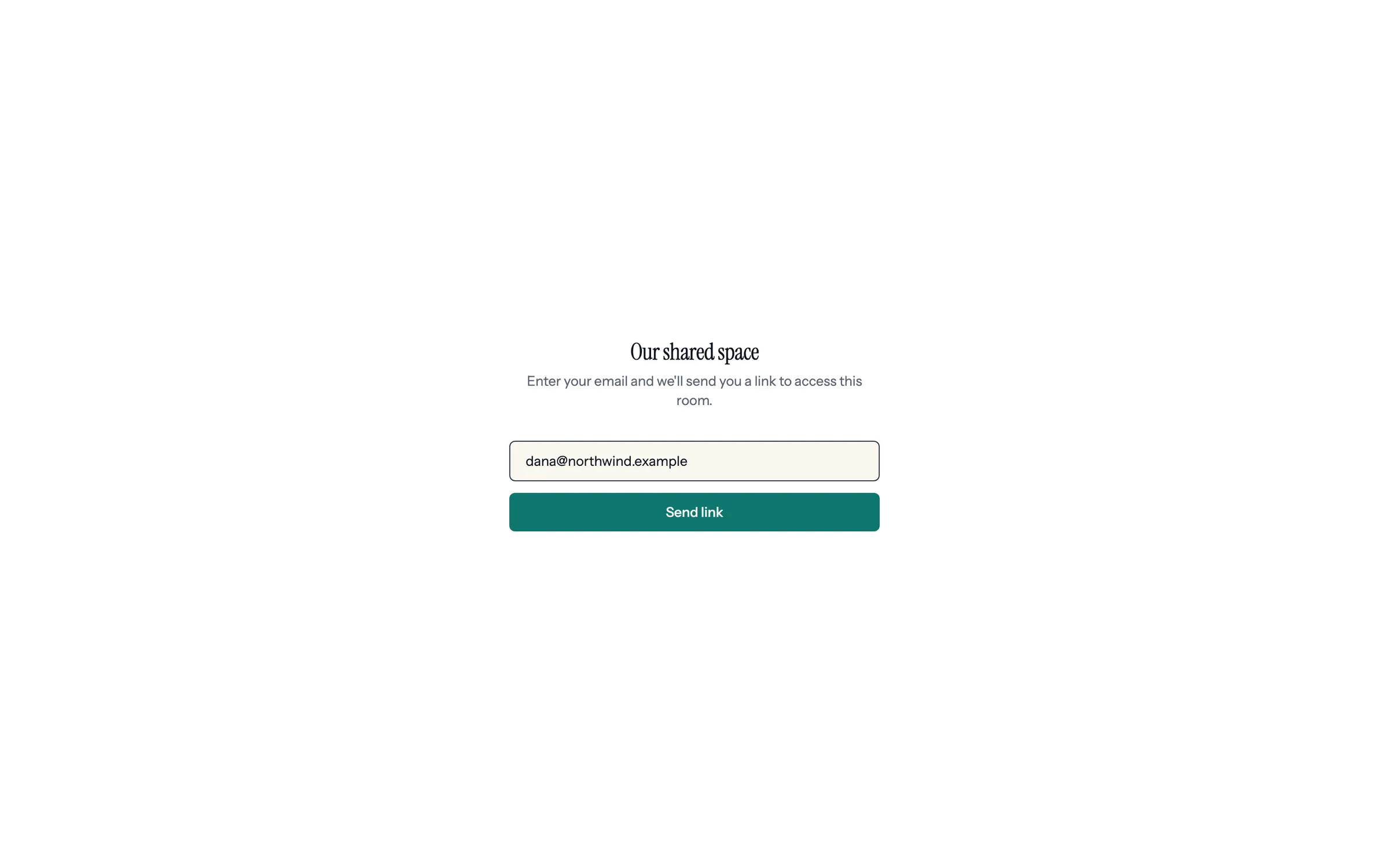
Step 1 of 9 Dana enters her email The room link opens on a plain screen with no company names. Dana types her work email and clicks Send link.
-
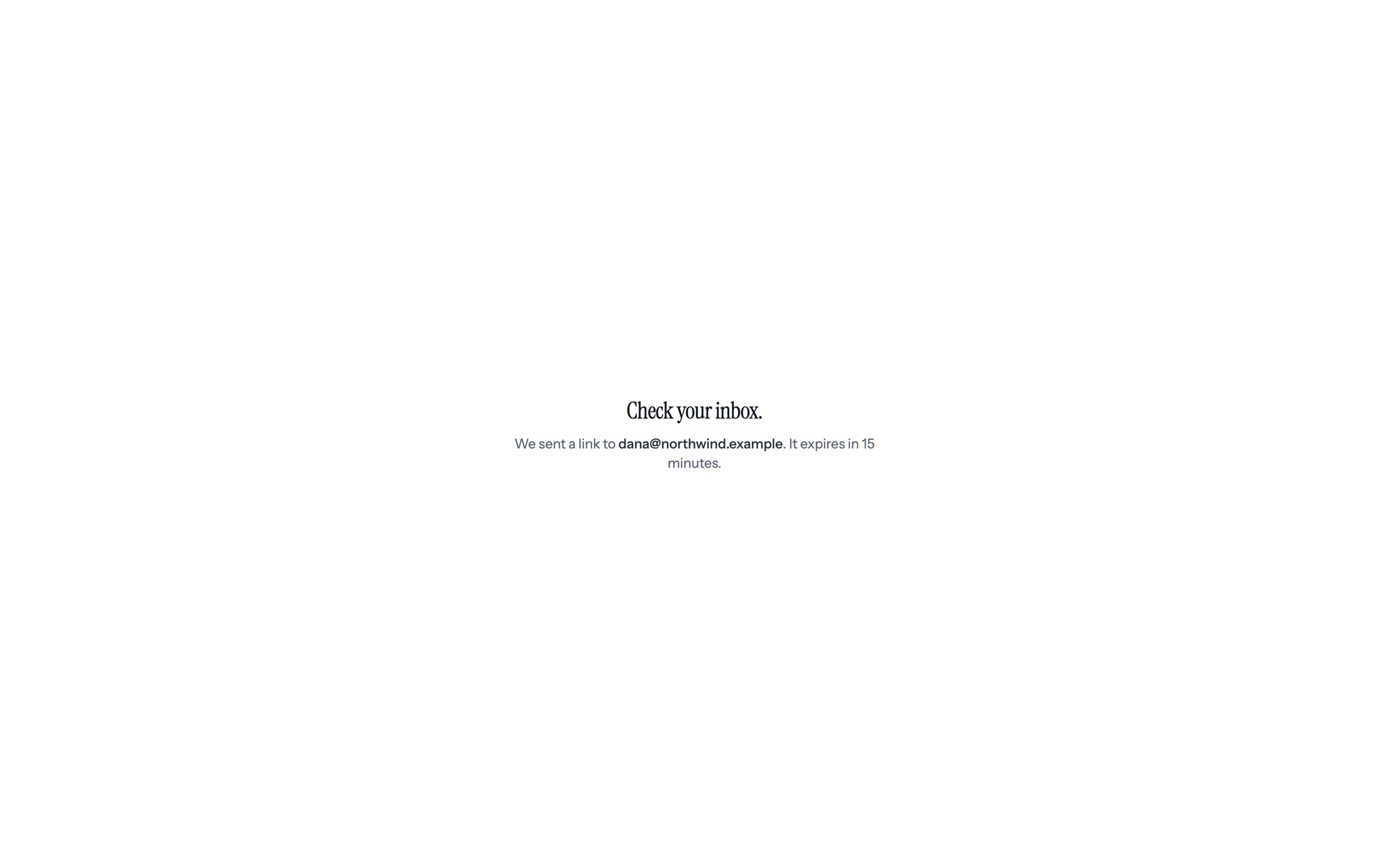
Step 2 of 9 Check your inbox A sign-in link goes to that address. It expires in 15 minutes.
-
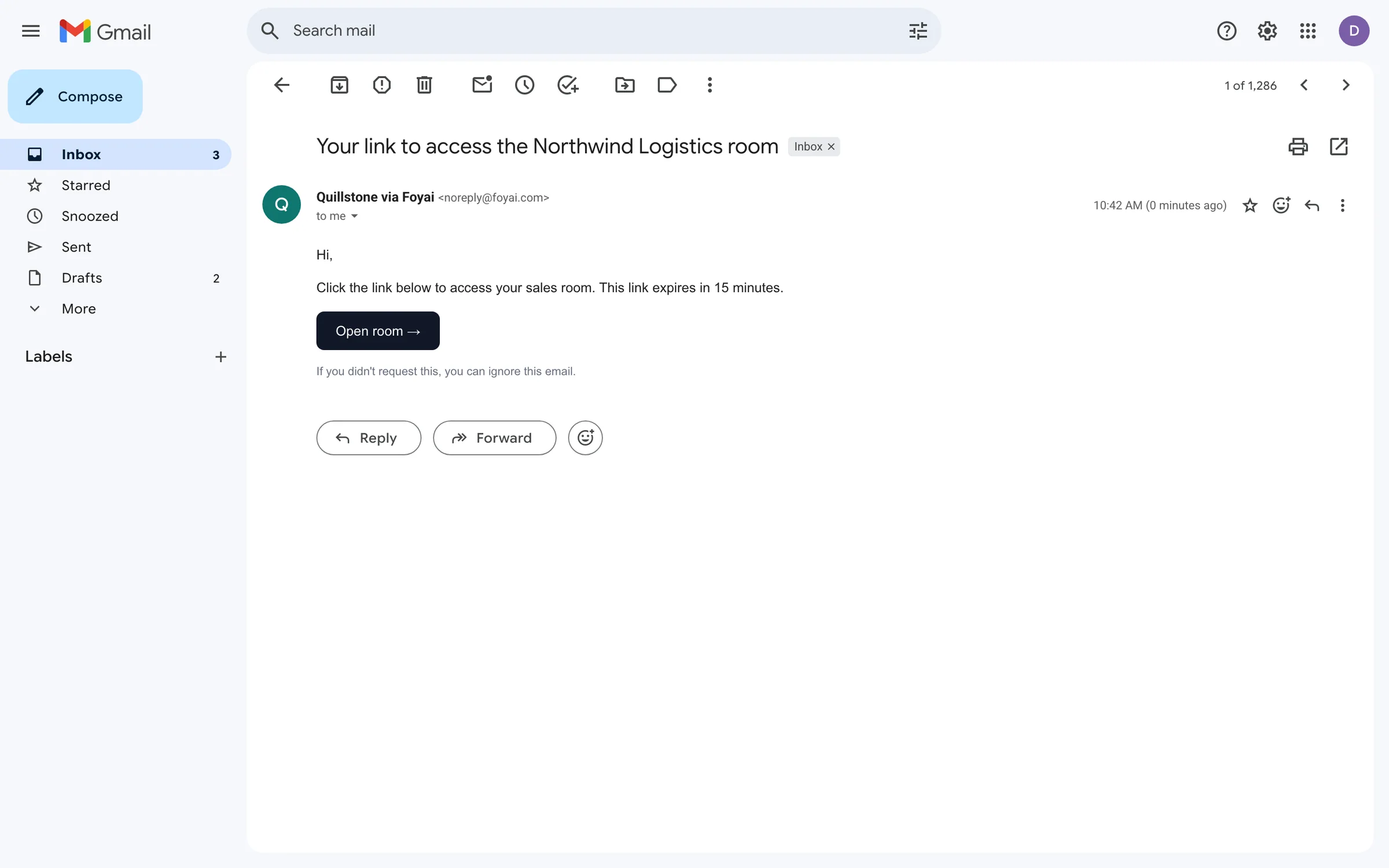
Step 3 of 9 Open the email The email comes from Quillstone via Foyai. Open room takes Dana back to the room.
-
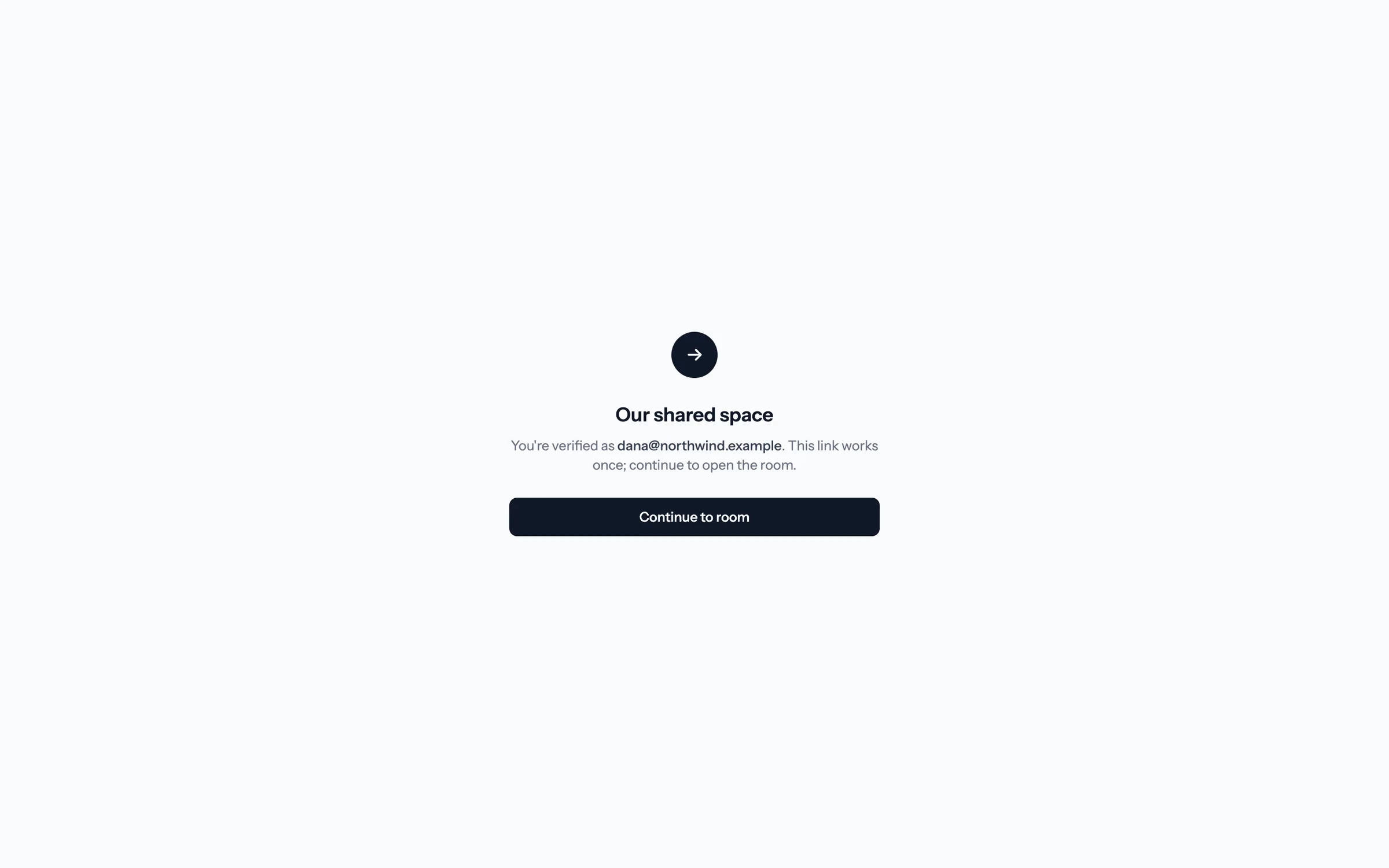
Step 4 of 9 Continue to the room The link works once. This extra click keeps email security scanners from using it up before Dana gets there.
-
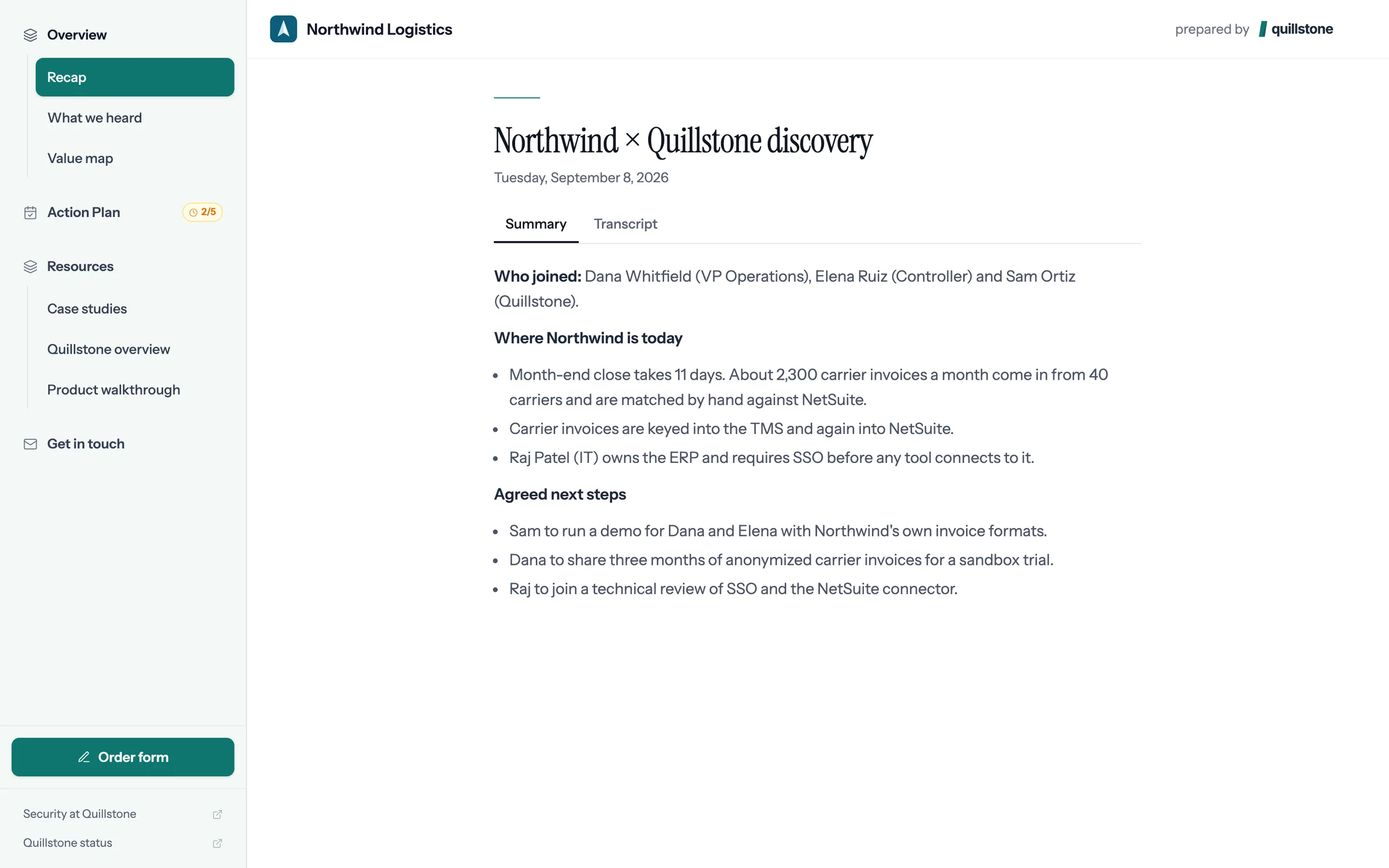
Step 5 of 9 Dana is in The room Quillstone made for Northwind Logistics opens on the discovery call recap.
-
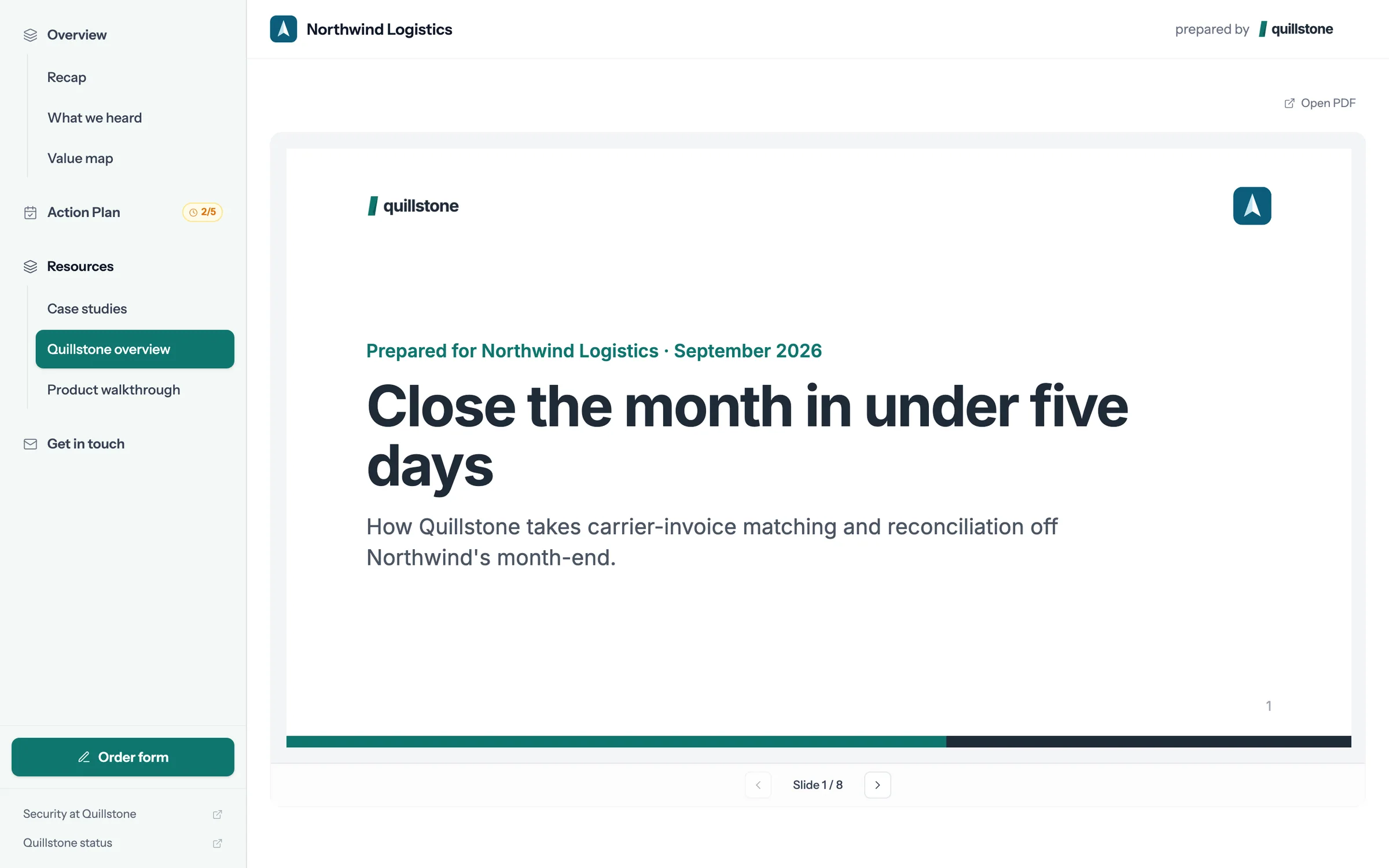
Step 6 of 9 Read the deck The deck opens inside the room, slide by slide, with nothing to download.
-
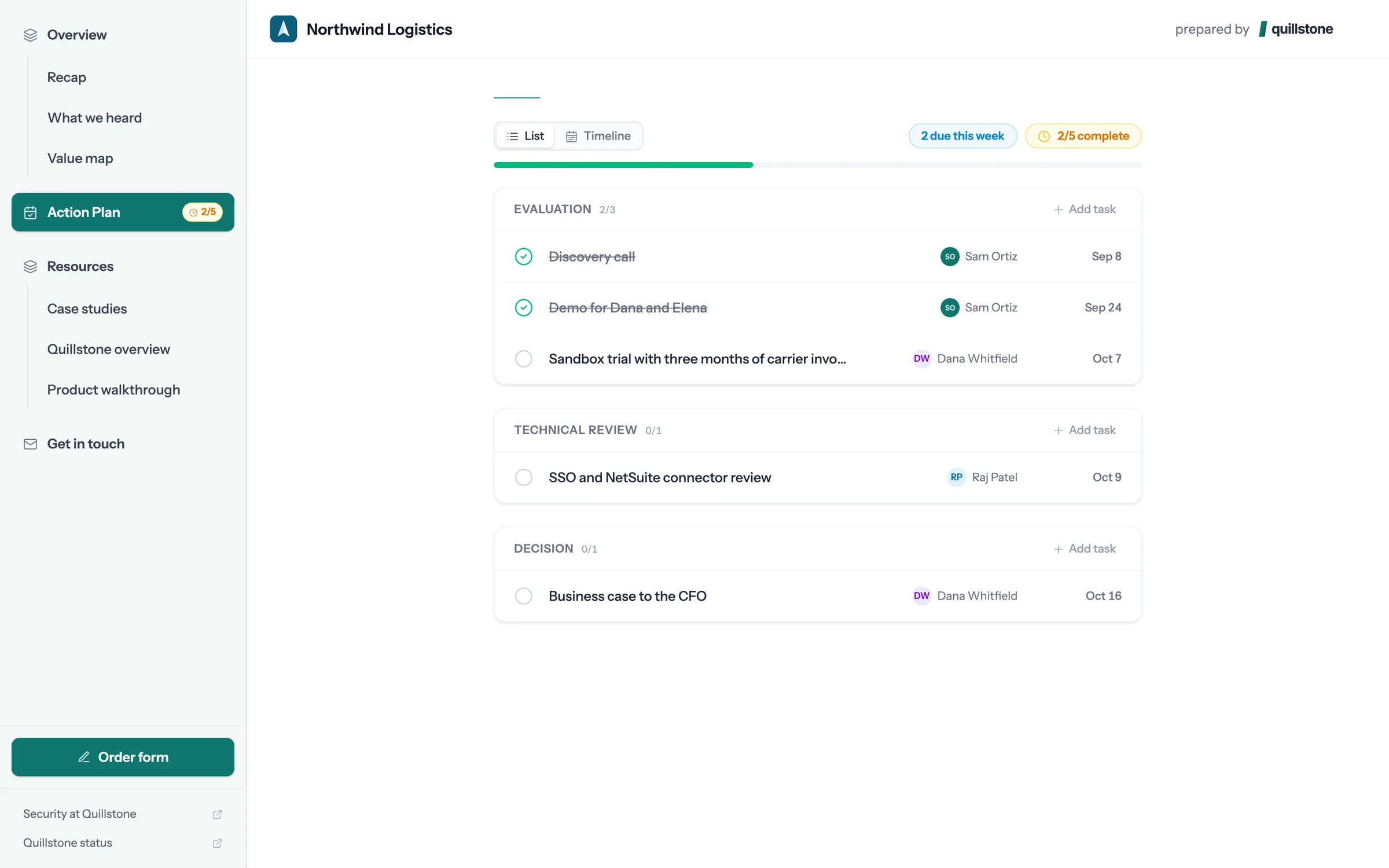
Step 7 of 9 Tick off a step Dana owns the sandbox trial in the action plan, so Dana can mark it done.
-
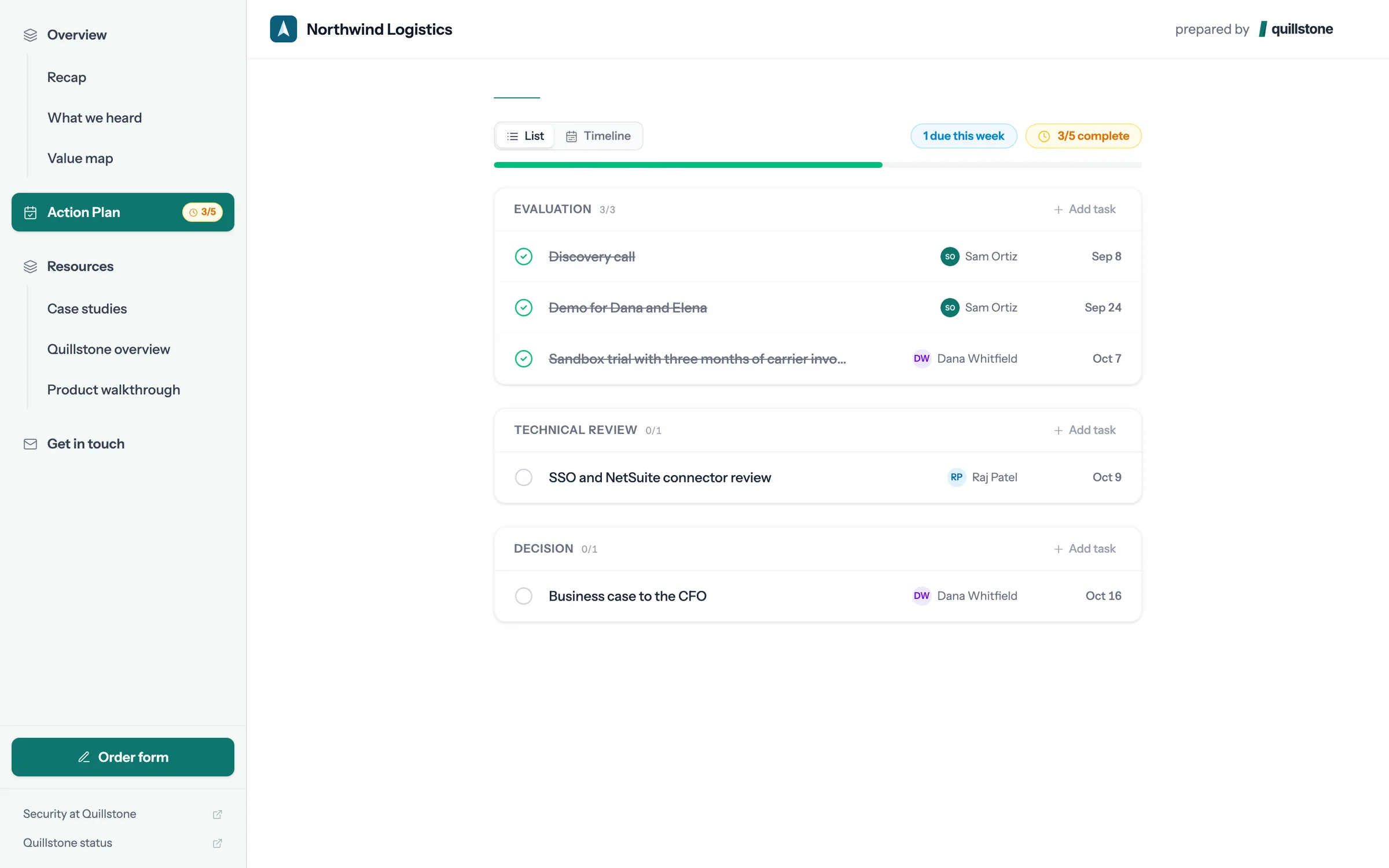
Step 8 of 9 Both sides see it The step shows as done and the plan moves to 3 of 5. Sam sees the same change.
-
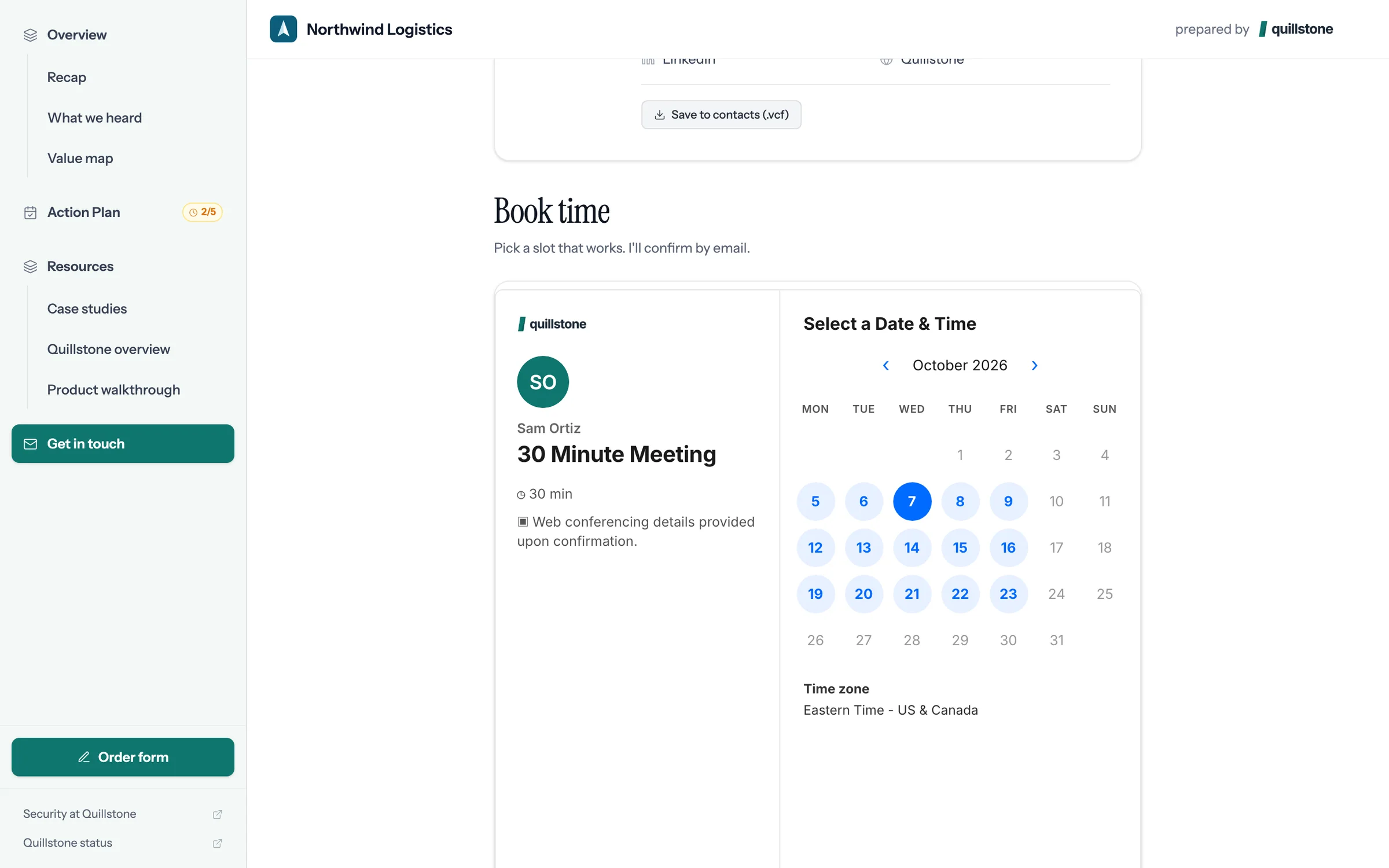
Step 9 of 9 Book the next call Sam's calendar is in the room, so Dana picks a time without the email back and forth.
Give your next buyer a room like this.
Connect Attio, pick a deal with a recorded call, and foyai drafts the room. You check it, then publish.
More for sellers
Everything else you'll do in a room, once you've made your first one.
1:04
Connecting a call recorder
Bring call transcripts in from a recorder like Fathom. The other recorders connect the same way.
Watch · 1:04Click through · 7 steps
1:22
Slack alerts
A direct message when a buyer opens a room or finishes a step, and a prompt when a deal is lost.
Watch · 1:22Click through · 8 steps
1:13
See what your buyer sees
From the emailed sign-in link to ticking off a step and booking a call, as your buyer sees it.
Watch · 1:13Click through · 9 steps
 1:15
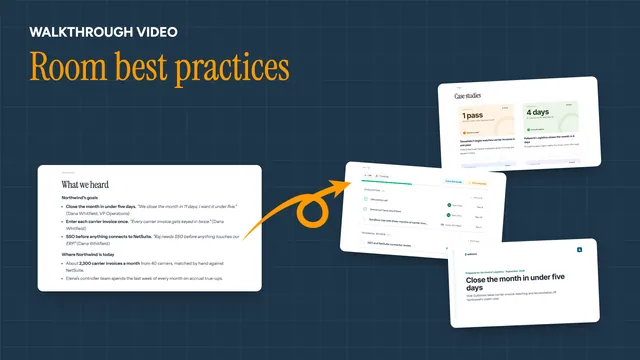
Room best practices
What the rooms buyers come back to have in common, shown in a real room.
Watch · 1:15Click through · 8 steps
1:15
Room best practices
What the rooms buyers come back to have in common, shown in a real room.
Watch · 1:15Click through · 8 steps
-
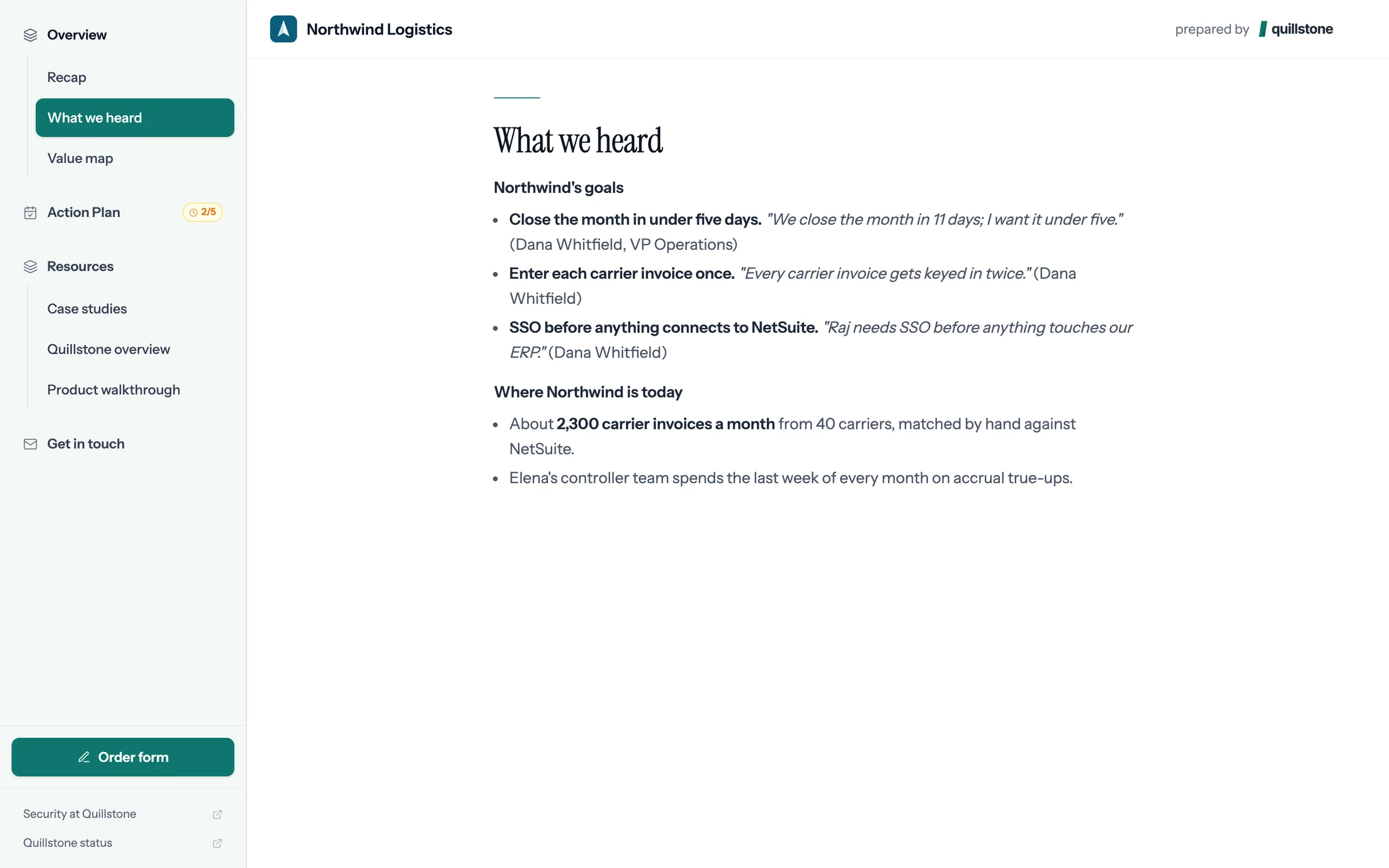
Step 1 of 8 Lead with their words Open with What we heard: the buyer's own goals, quoted from the call, not paraphrased.
-
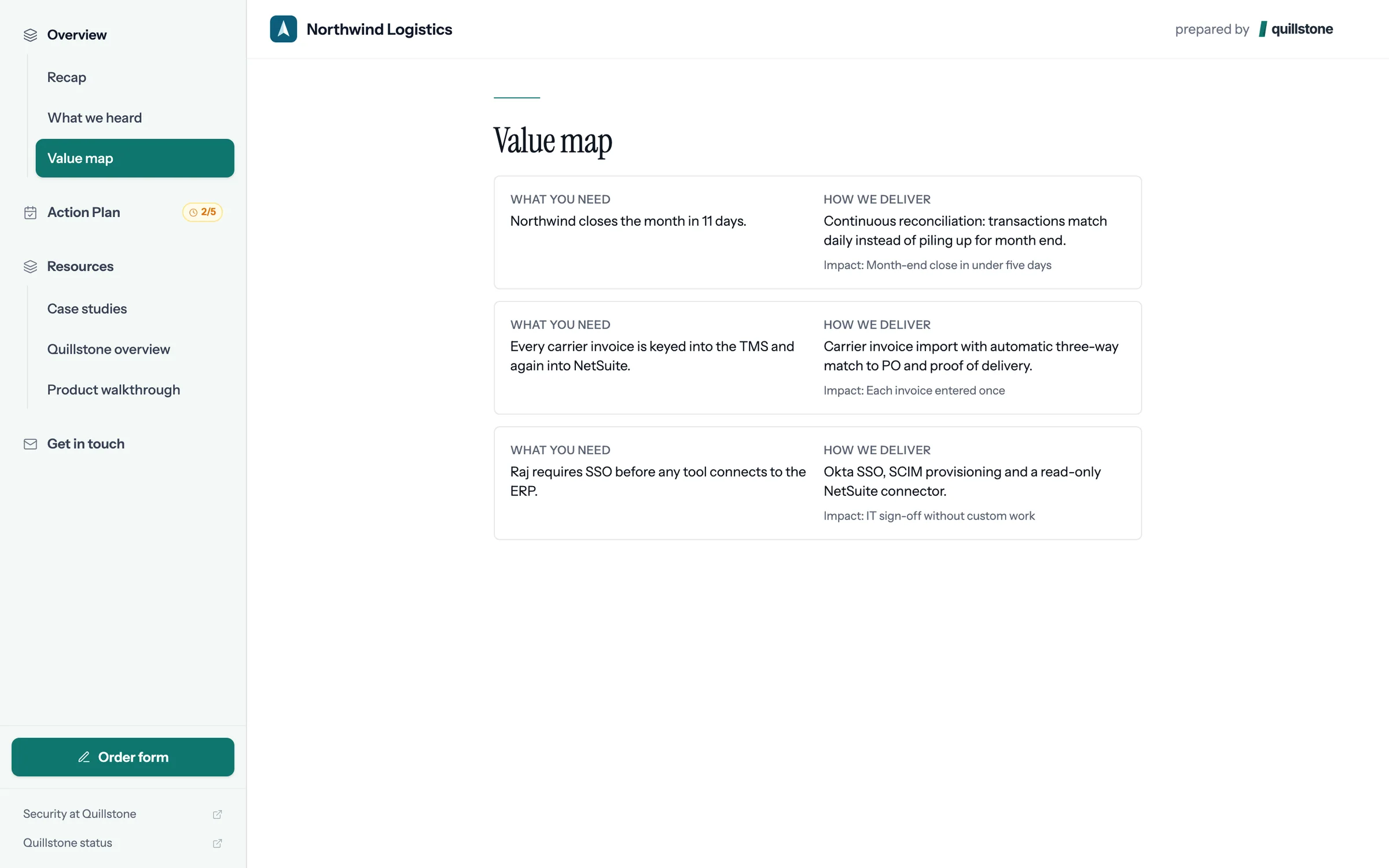
Step 2 of 8 Tie problems to outcomes Each value map row pairs what the buyer needs with how you deliver it, and the impact.
-
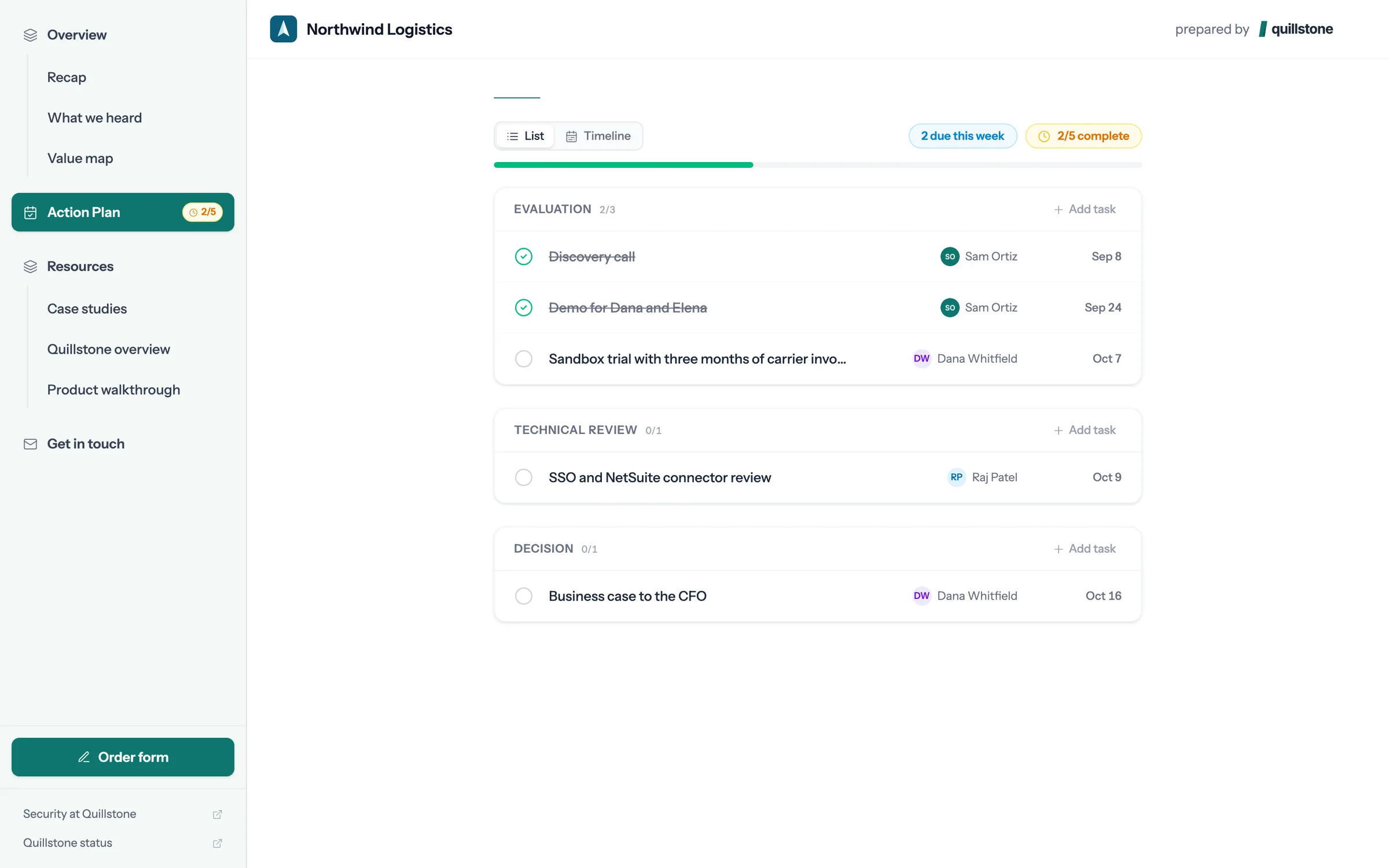
Step 3 of 8 Make the plan mutual Give the buyer their own dated steps in the action plan, like the sandbox trial here, due October 7.
-
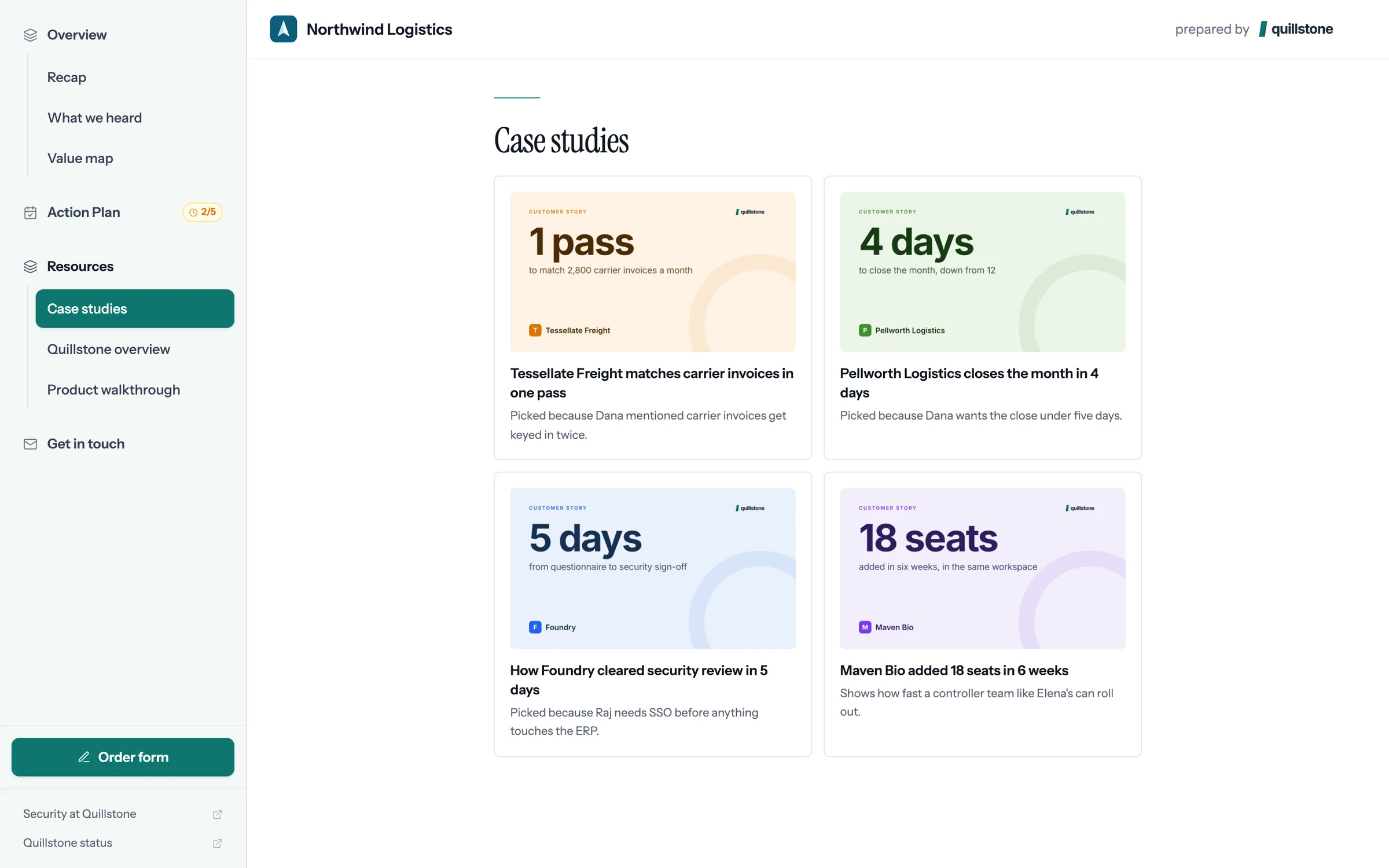
Step 4 of 8 Pick proof that fits Recommended Case Studies picks stories for this buyer and says why each was chosen. Keep the reasons in.
-
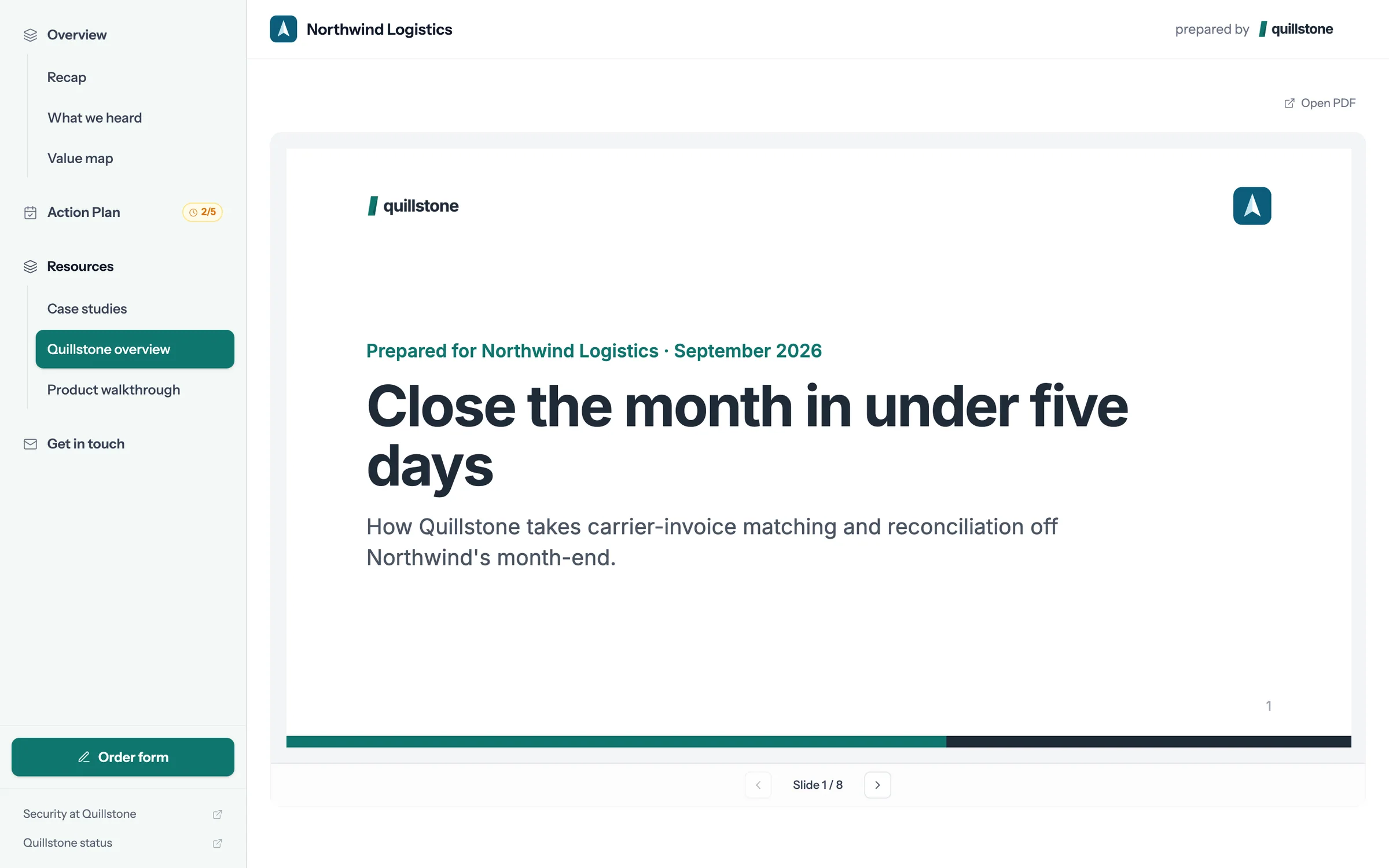
Step 5 of 8 Embed, don't attach The deck opens inside the room, with nothing to download, so you can see which slides held attention.
-
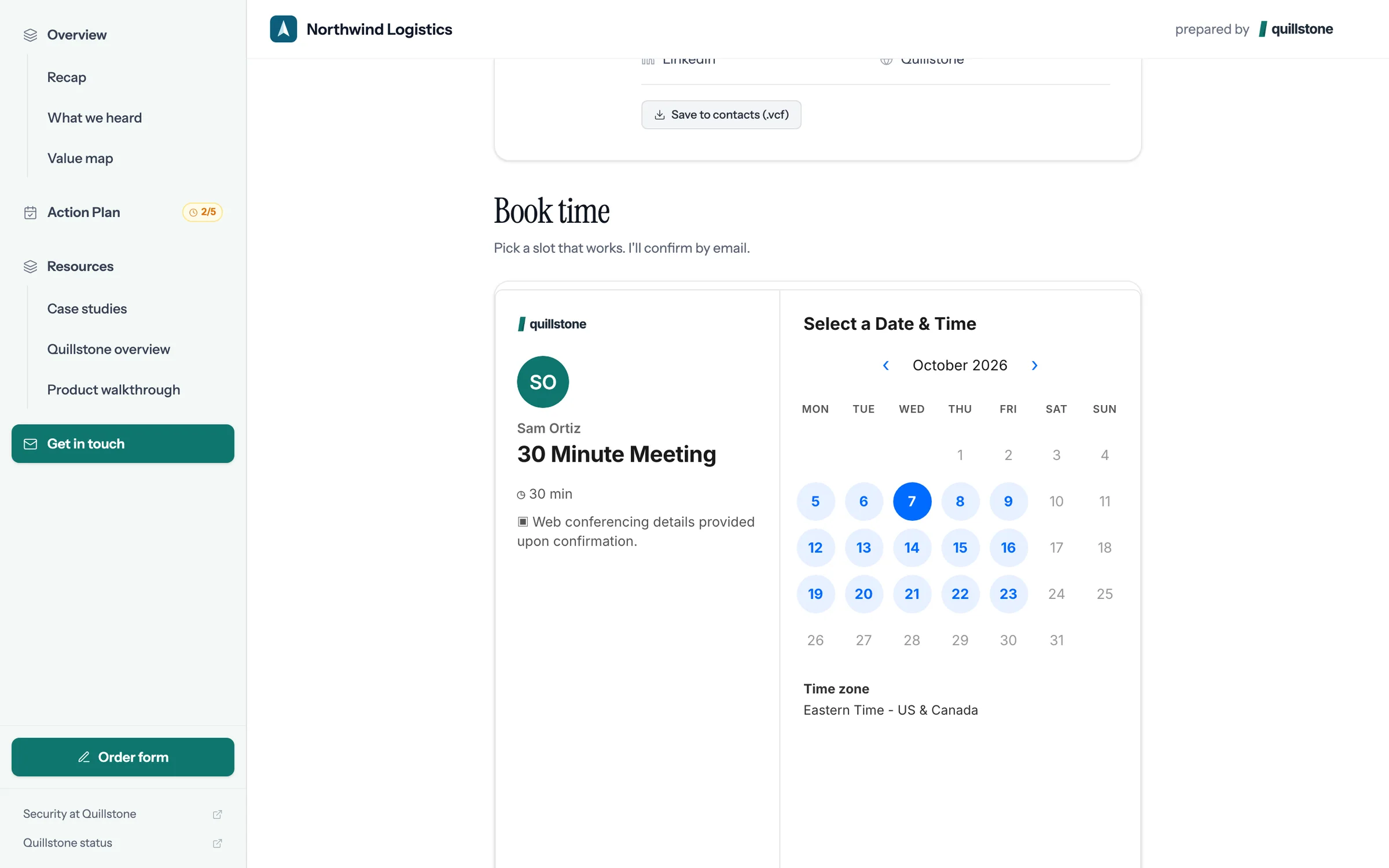
Step 6 of 8 Next step, one click away Put your calendar in the room so the buyer can book the next call without an email.
-
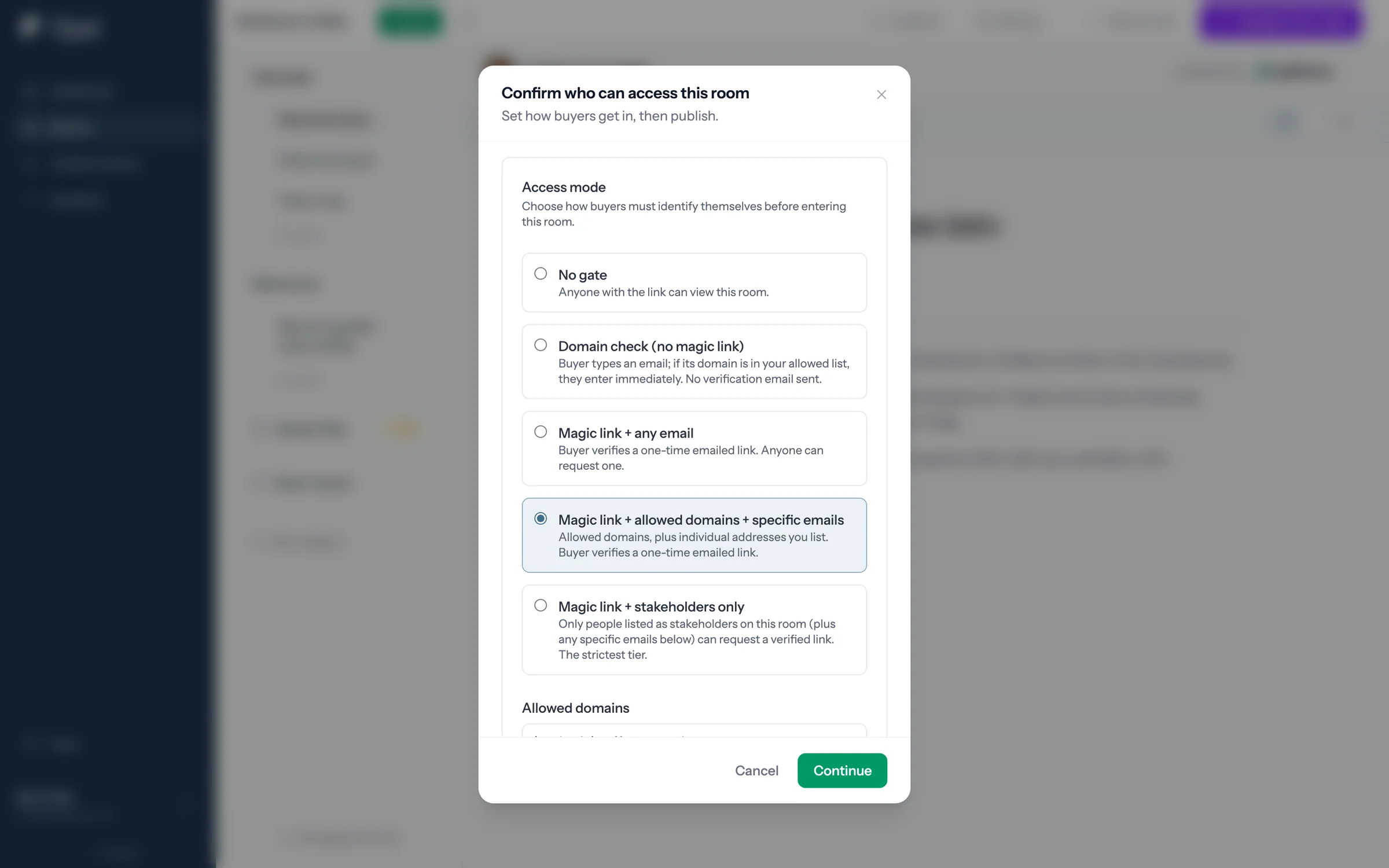
Step 7 of 8 Choose access that fits Pick the access mode this deal needs, from open link to magic link with allowed domains.
-
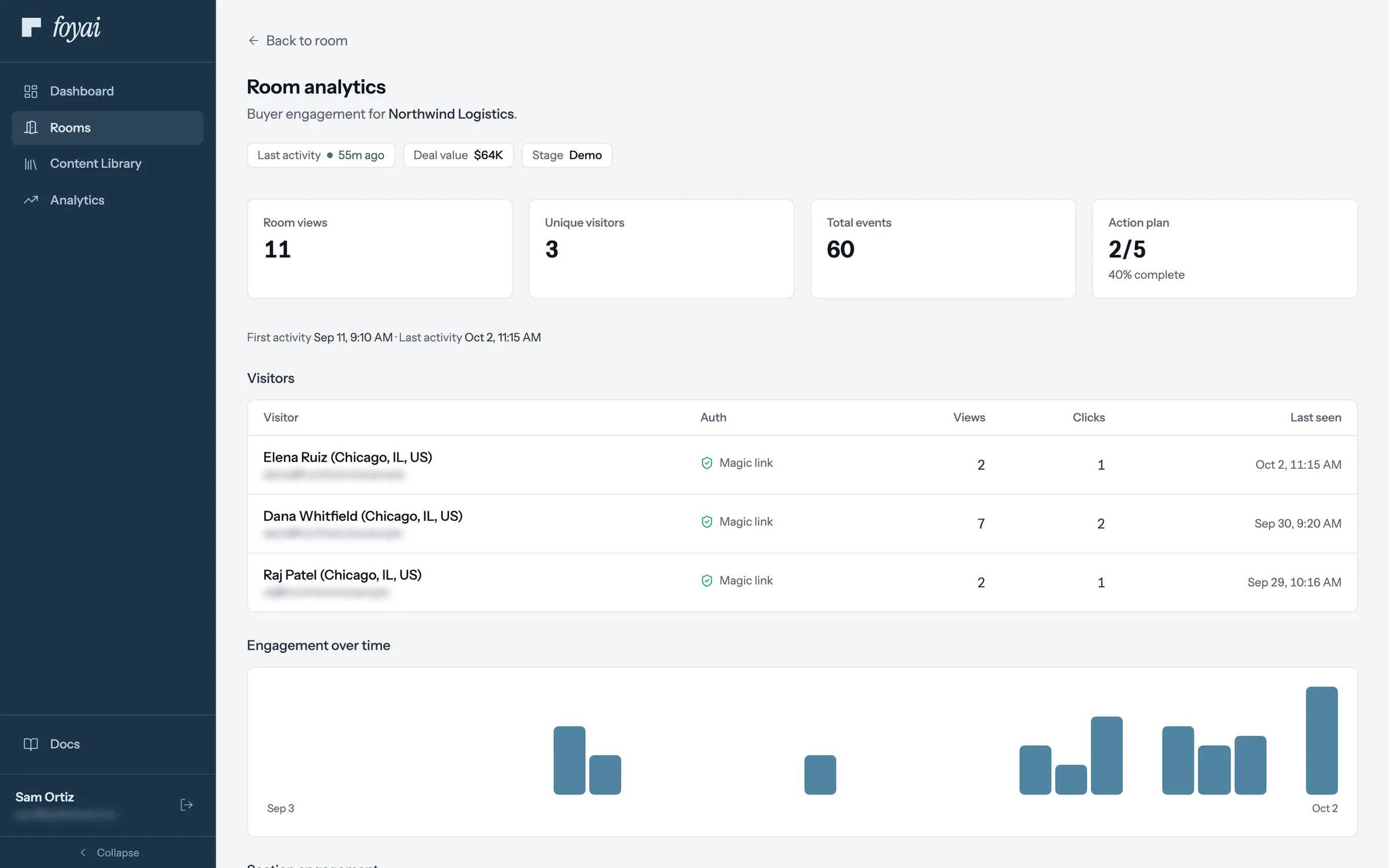
Step 8 of 8 Watch for new names A new name in Visitors is often someone your contact forwarded the room to. Follow up with them.
Good rooms follow the same few habits.
Lead with what you heard, make the plan mutual, and watch for new names after you publish.
 1:15
Adding your own deal content
Add videos, Drive docs, a resources page, and an agreement button to a room.
Watch · 1:15Click through · 7 steps
1:15
Adding your own deal content
Add videos, Drive docs, a resources page, and an agreement button to a room.
Watch · 1:15Click through · 7 steps
-
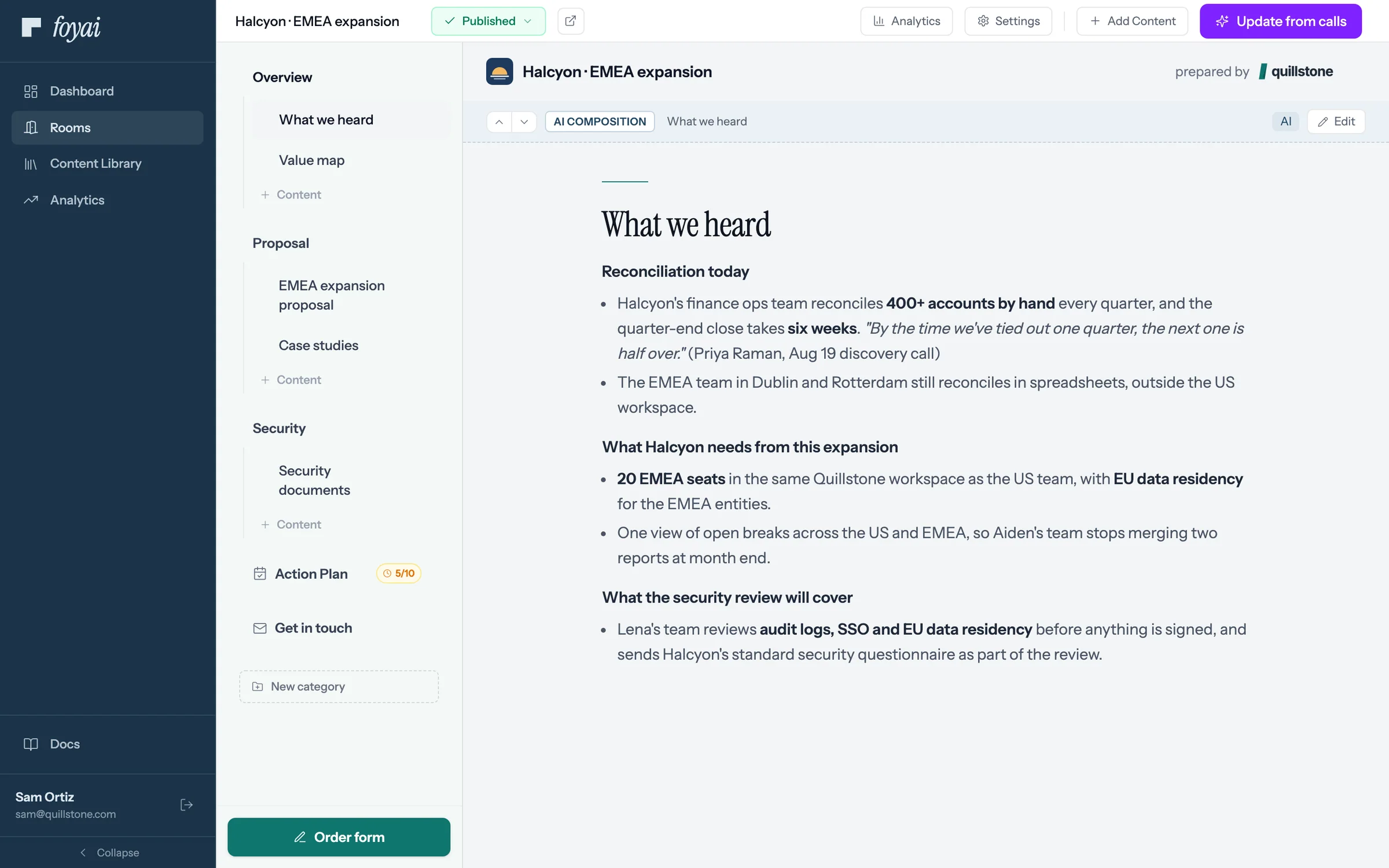
Step 1 of 7 Open Add Content Add Content, top right, lists every kind of page you can add to the room.
-
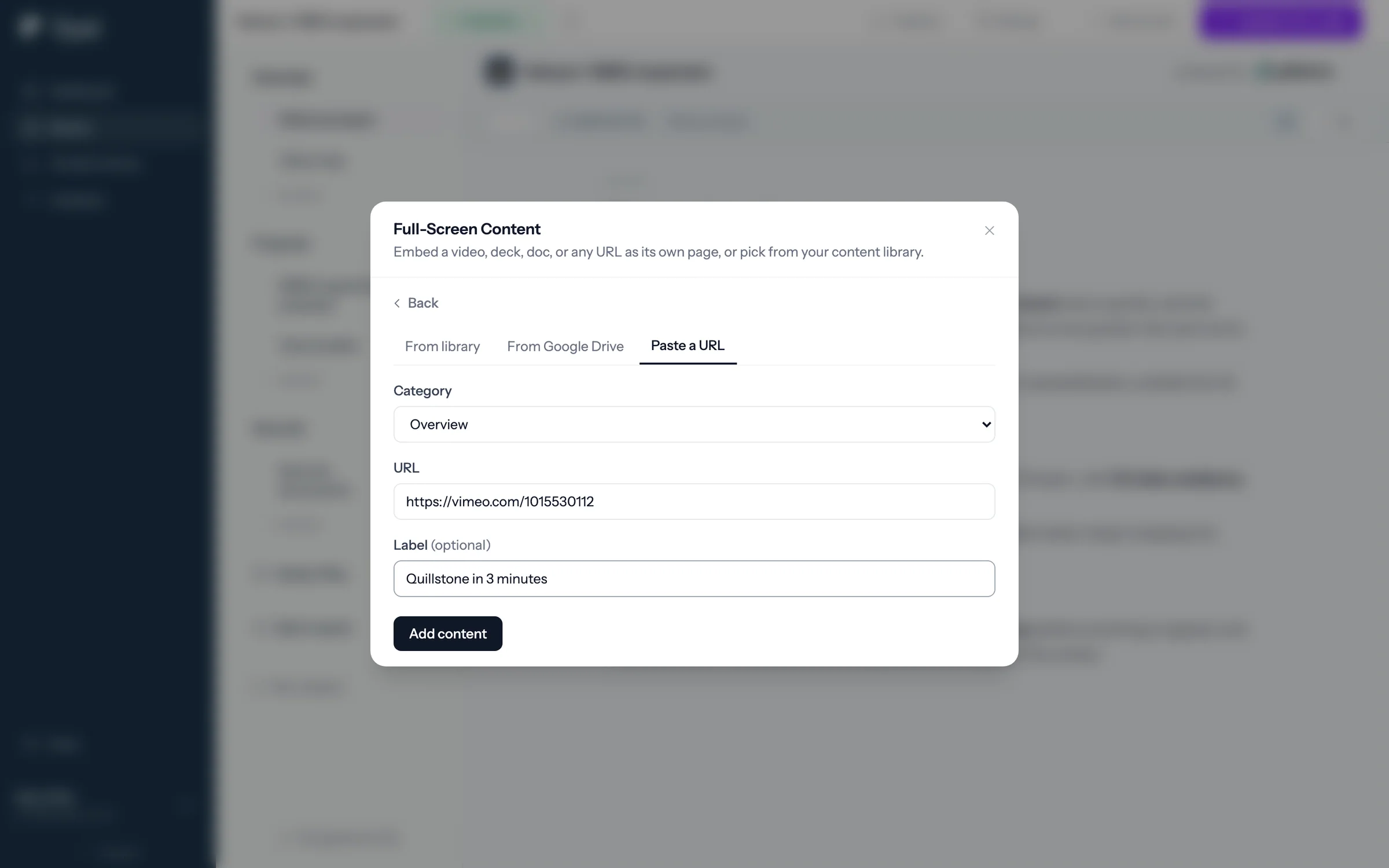
Step 2 of 7 Add a video as its own page Paste a video link under Full-Screen Content, give it a label, and click Add content.
-
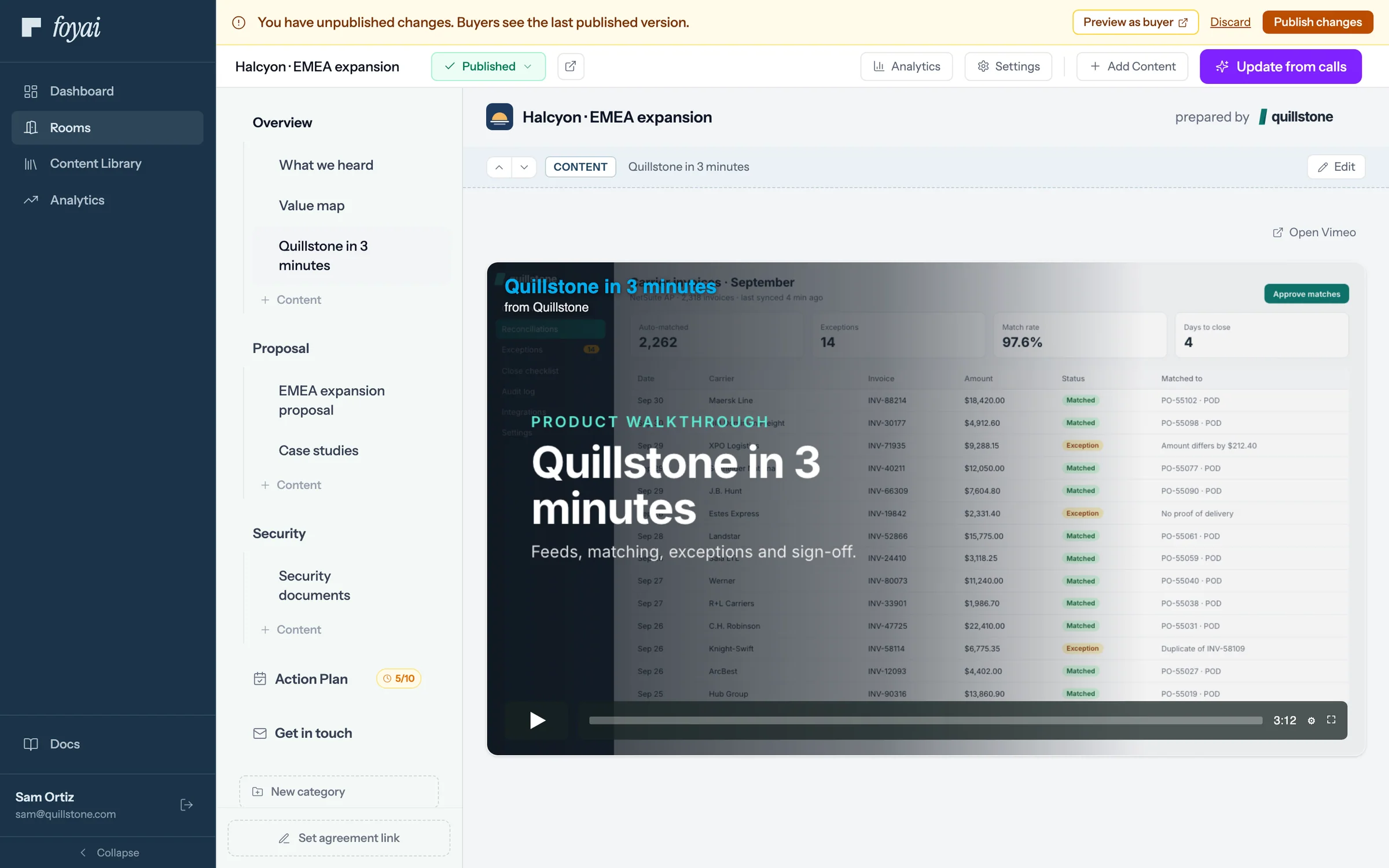
Step 3 of 7 It plays inside the room The video plays inside the room, not as a link that sends buyers away.
-
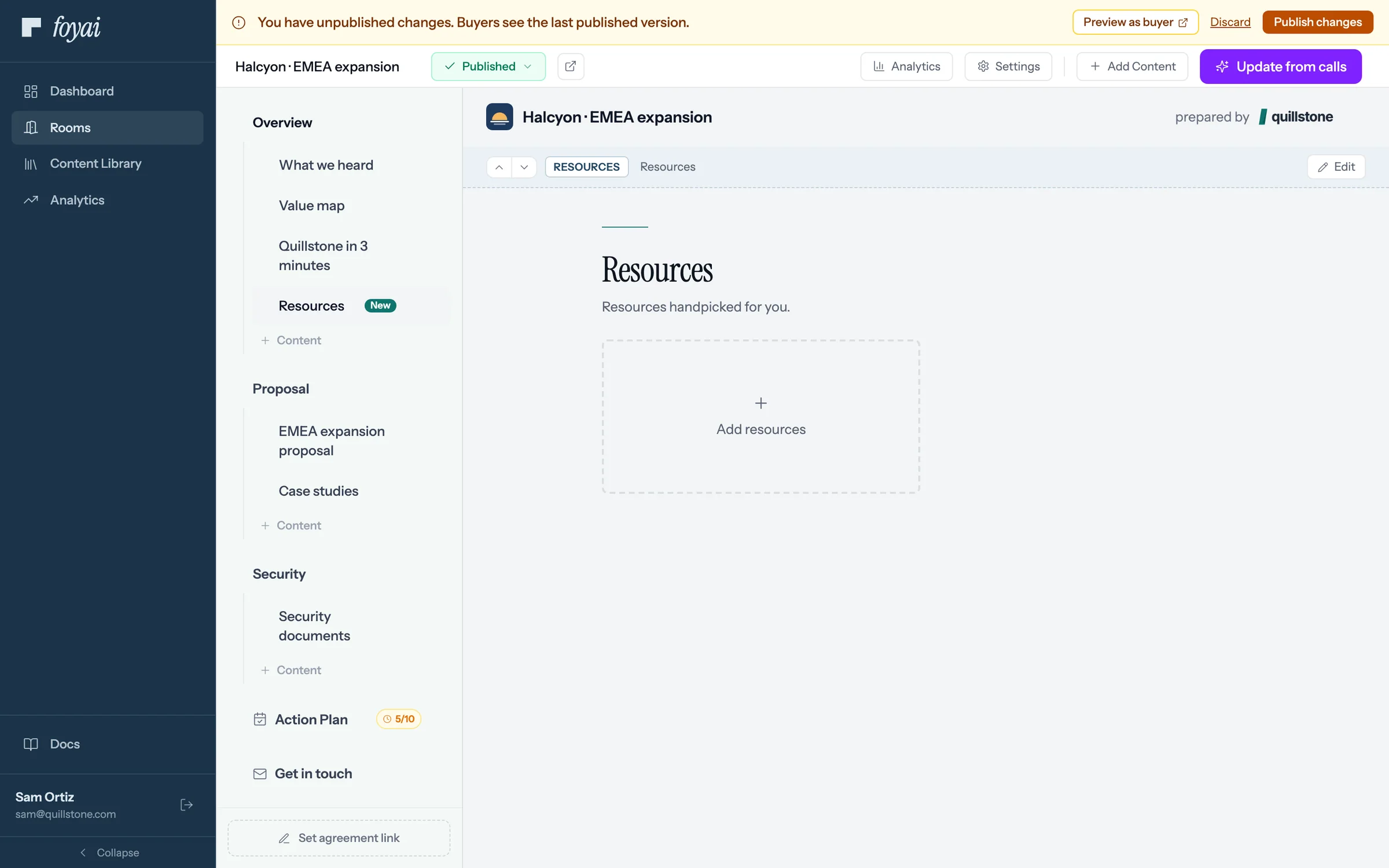
Step 4 of 7 A page of handpicked cards A Resources Page starts with one tile: Add resources, from your library or a link.
-
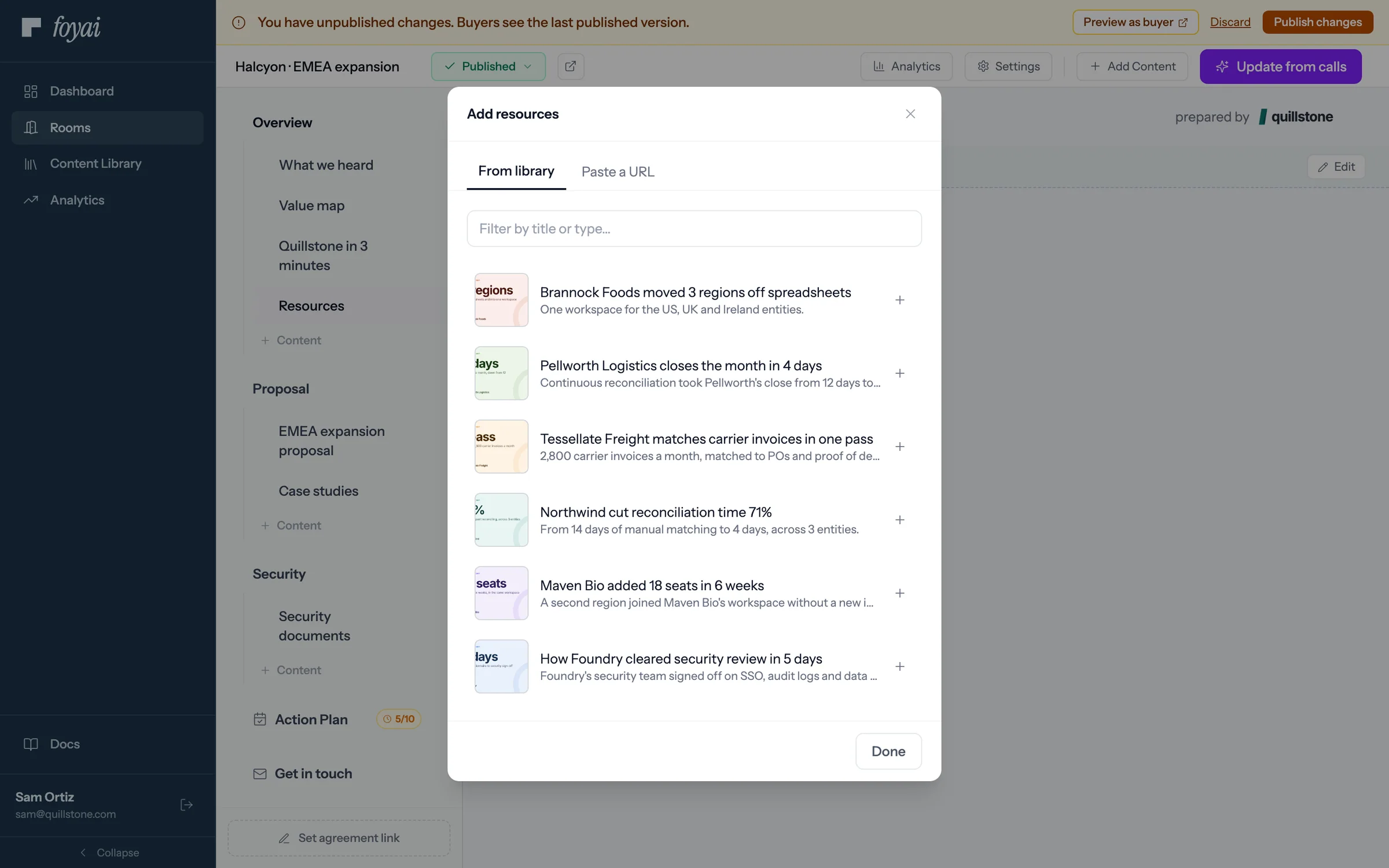
Step 5 of 7 Add a card from the library From library lists your Content Library; click a card and it's added to the page right away.
-
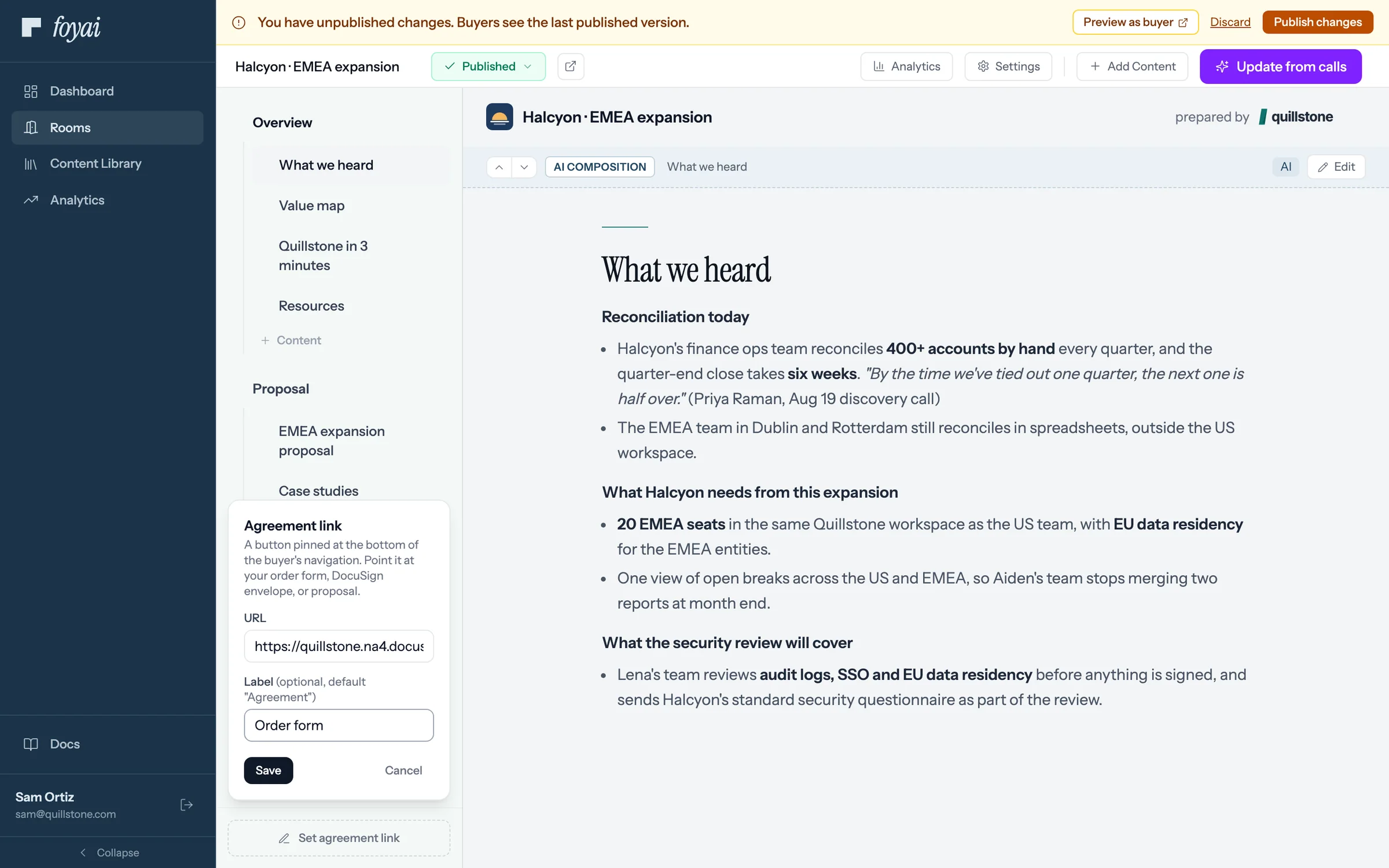
Step 6 of 7 Pin the order form Agreement link pins a button to the buyer's nav, pointed at your order form. It's live right away.
-
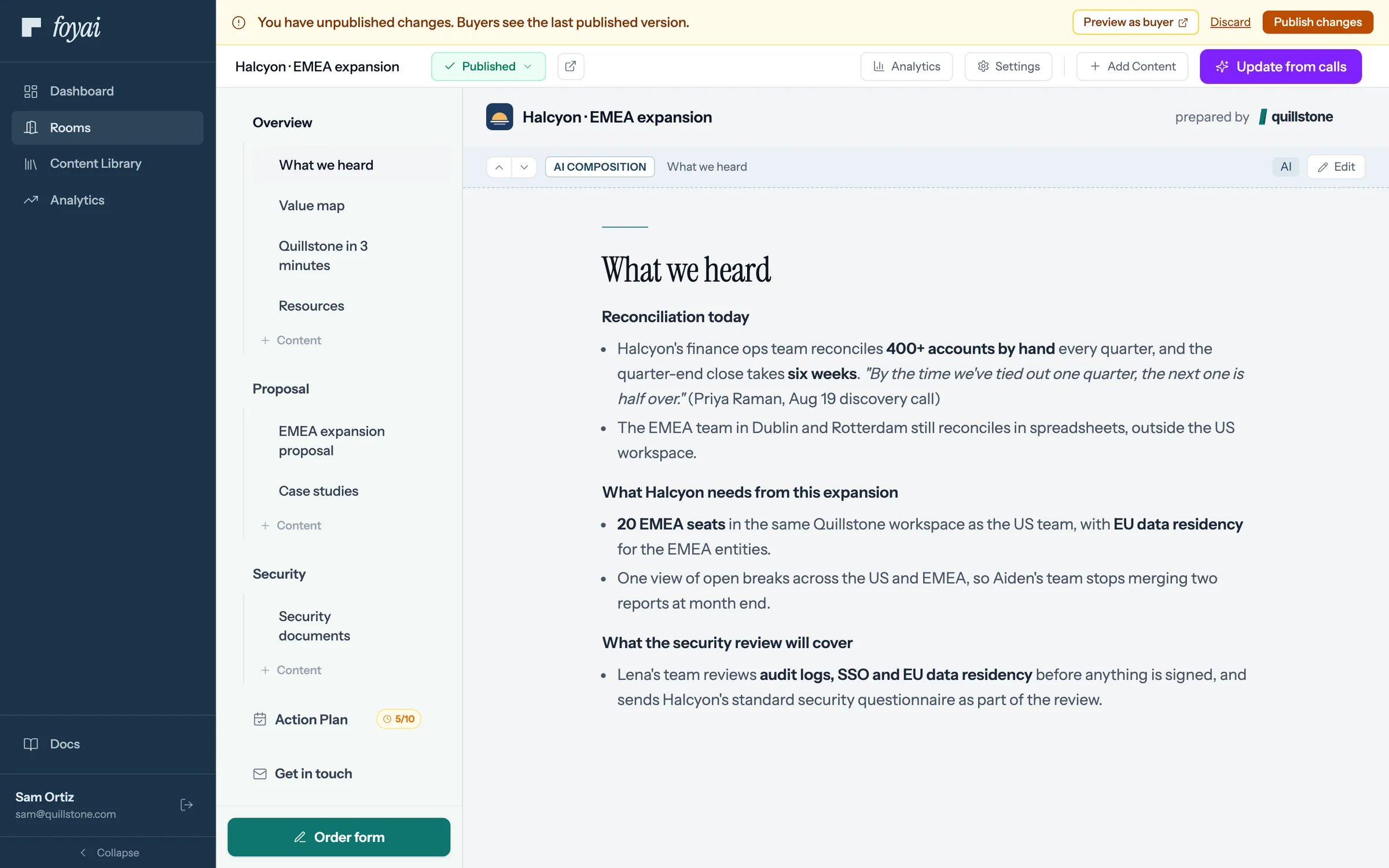
Step 7 of 7 Publish the changes The video and Resources pages reach buyers when you click Publish changes.
Every block, in one room.
Full-Screen Content, a Resources page, and the Agreement button all build out what buyers see.
 1:07
AI sections from your calls
Generate a section from your calls with a preset like What we heard, or a prompt of your own.
Watch · 1:07Click through · 6 steps
1:07
AI sections from your calls
Generate a section from your calls with a preset like What we heard, or a prompt of your own.
Watch · 1:07Click through · 6 steps
-
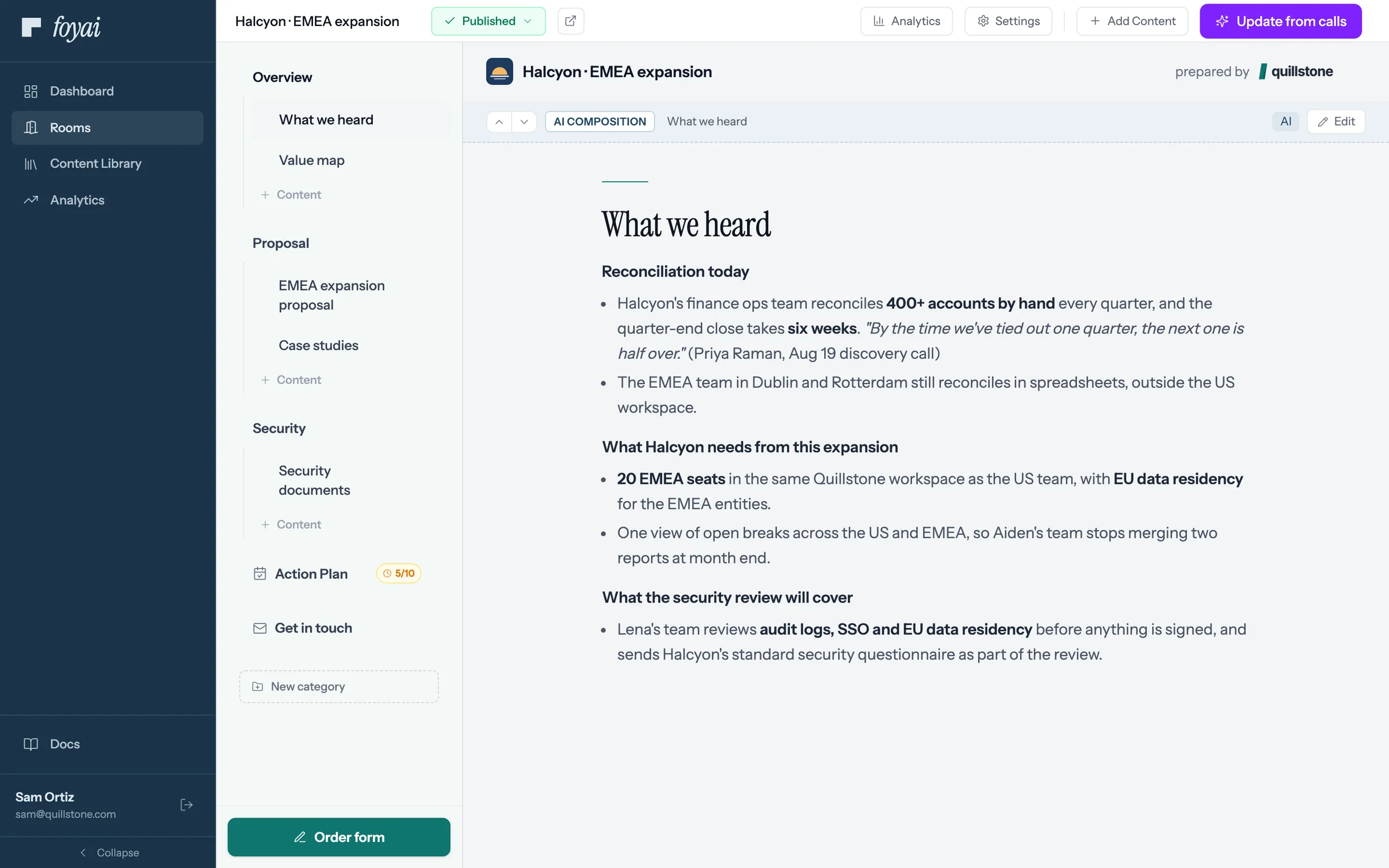
Step 1 of 6 Open Add Content In the room, Add Content lists every kind of section foyai can add.
-
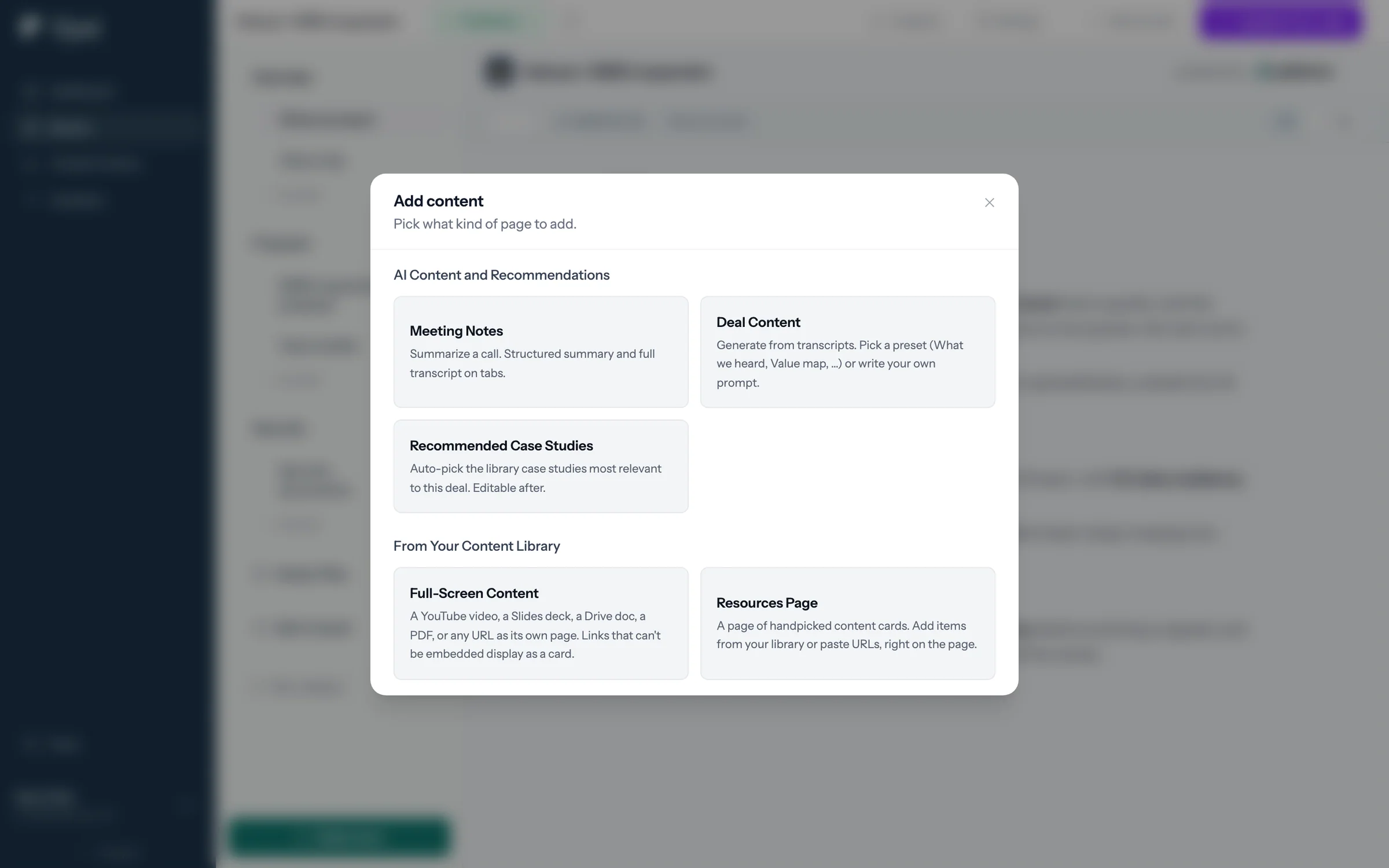
Step 2 of 6 Choose Deal Content Deal Content generates from your call transcripts: pick a preset, like What we heard or Value map, or write your own prompt.
-
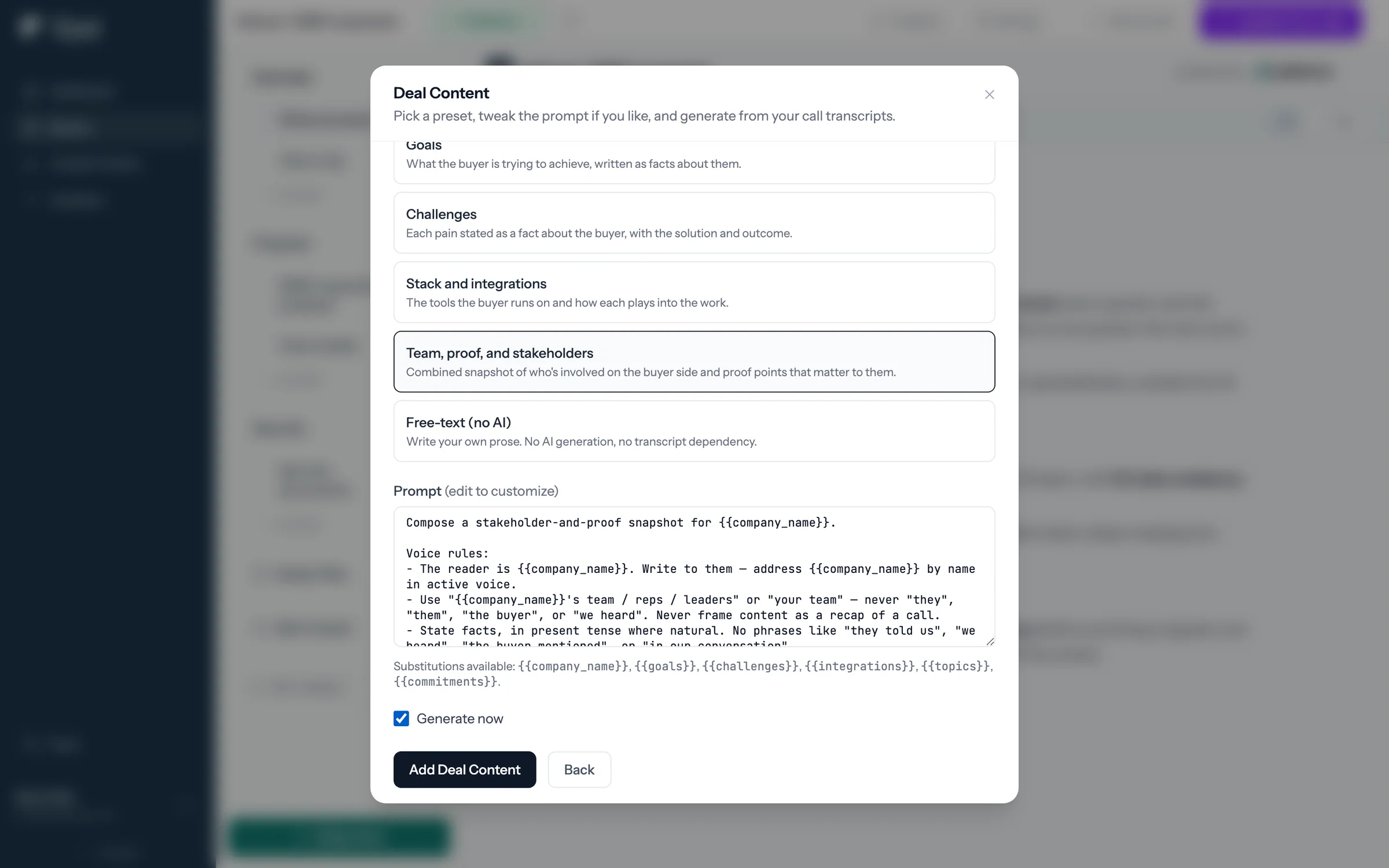
Step 3 of 6 Pick a preset and generate Pick a preset, like Team, proof, and stakeholders, and leave Generate now checked to run it right away.
-
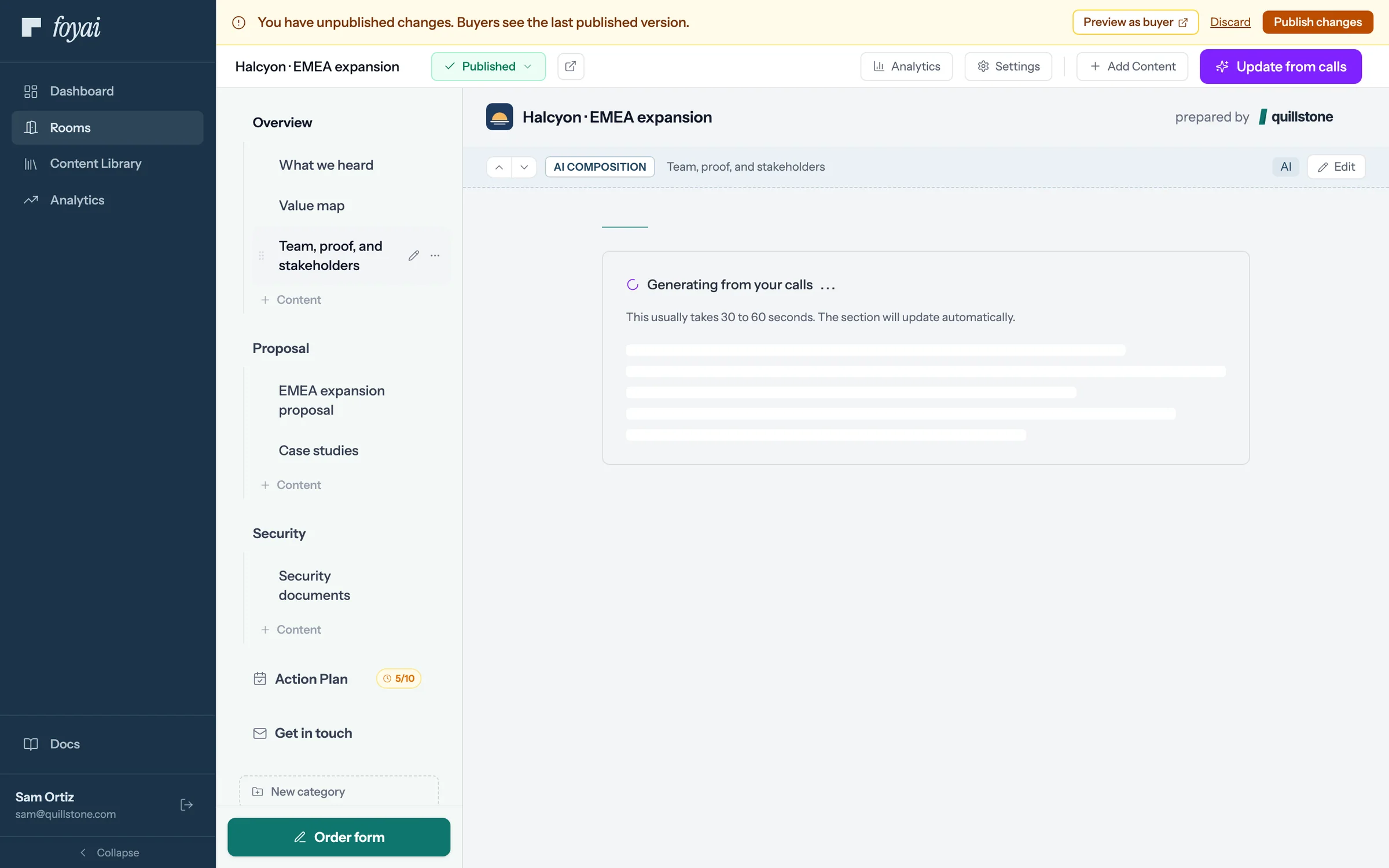
Step 4 of 6 Generating from the calls While it runs, the section shows a generating placeholder. It usually takes 30 to 60 seconds.
-
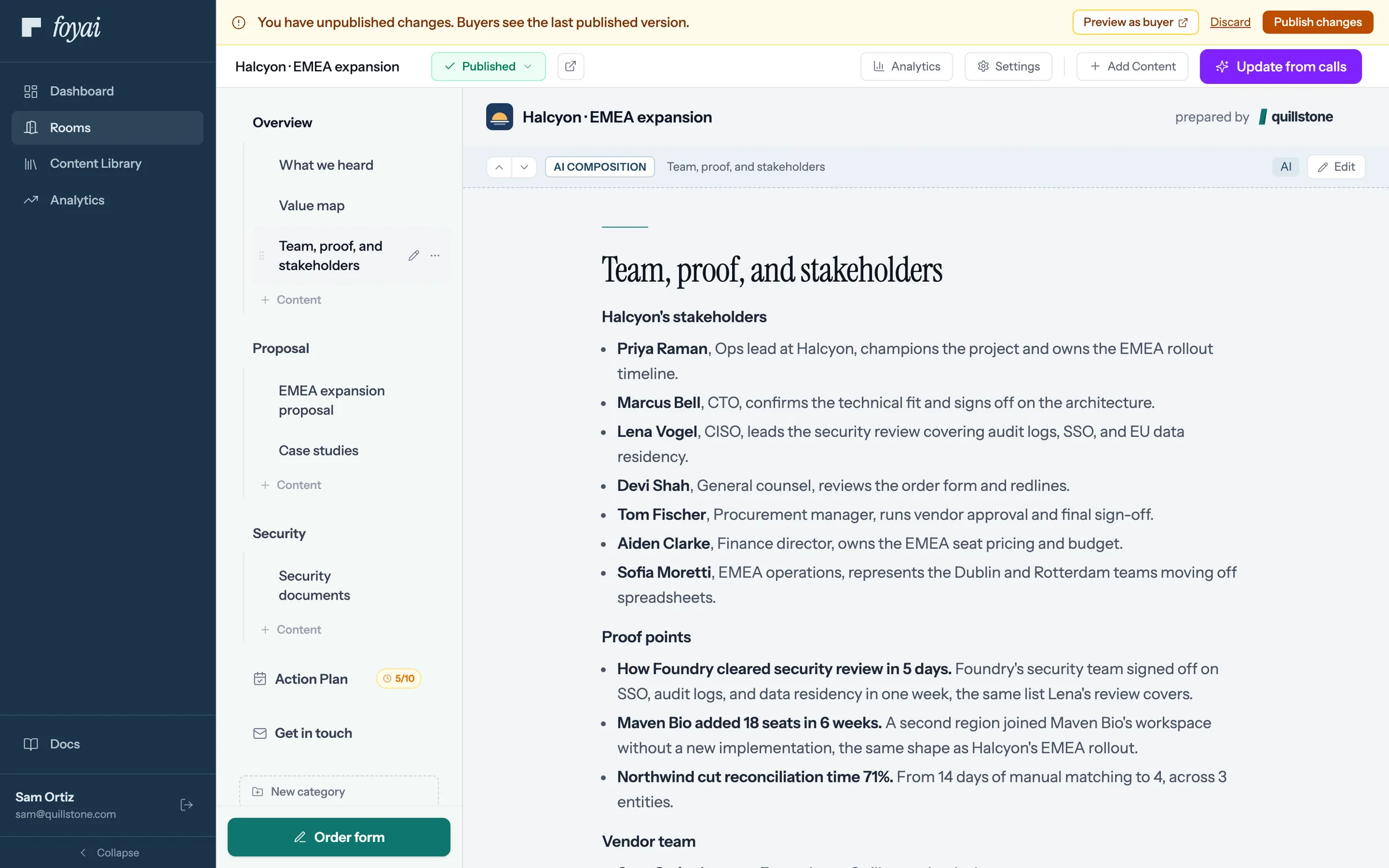
Step 5 of 6 The generated section Team, proof, and stakeholders comes back as three parts: Halcyon's stakeholders, proof points, and the vendor team.
-
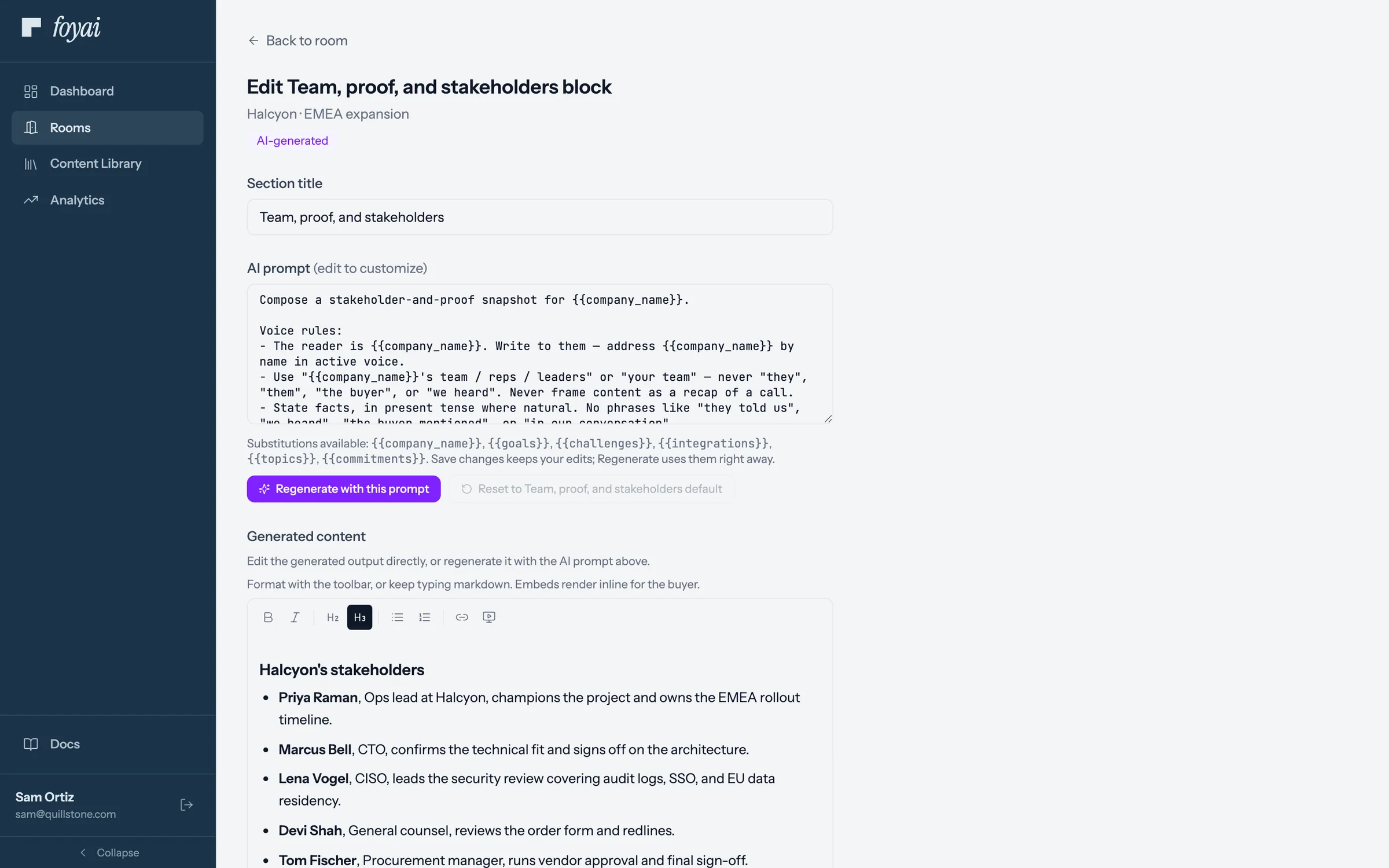
Step 6 of 6 Edit it by hand The generated text opens in the editor, ready to rewrite like any document.
Add a Deal Content section anytime.
Pick a preset or write your own prompt, and generate it from the room's calls.
 1:11
Stakeholders and Drive sharing
Keep the buyer's people on the room, and share Drive files with all of them at once.
Watch · 1:11Click through · 6 steps
1:11
Stakeholders and Drive sharing
Keep the buyer's people on the room, and share Drive files with all of them at once.
Watch · 1:11Click through · 6 steps
-
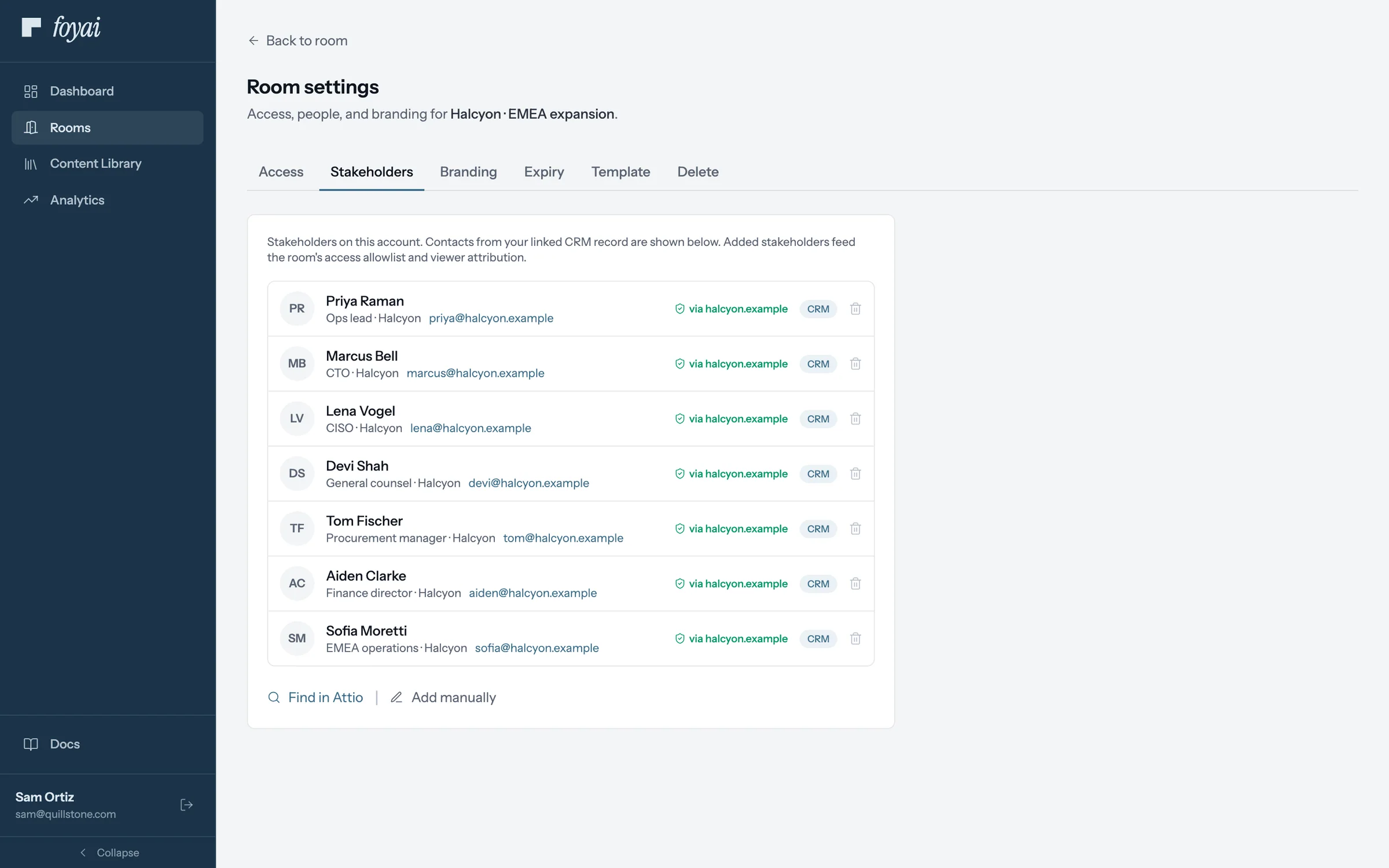
Step 1 of 6 Open Stakeholders In Room settings, the Stakeholders tab lists everyone on the deal, with their title and company.
-
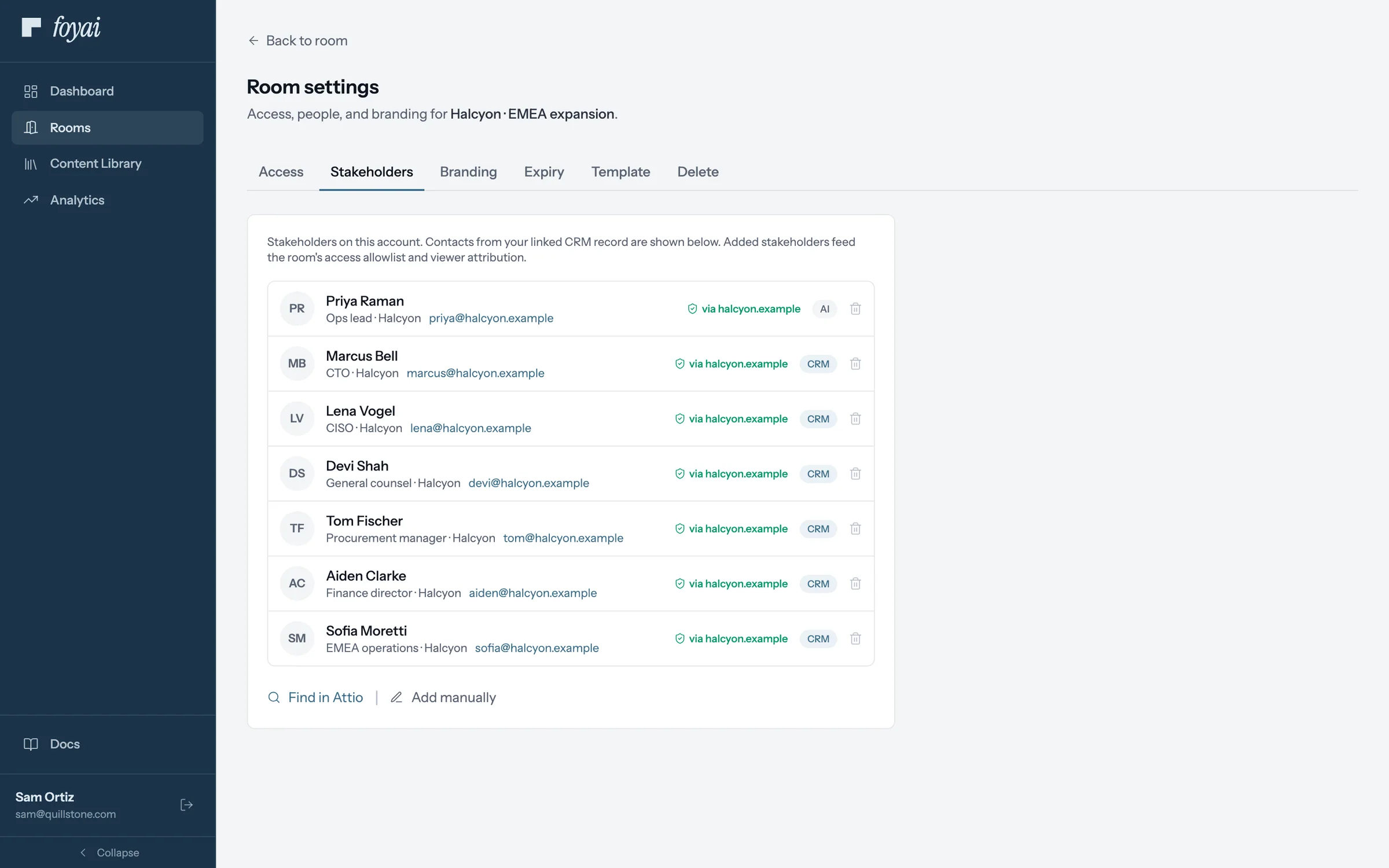
Step 2 of 6 See who the AI found on a call Priya's badge reads AI: foyai found Priya on a call, not in the CRM record.
-
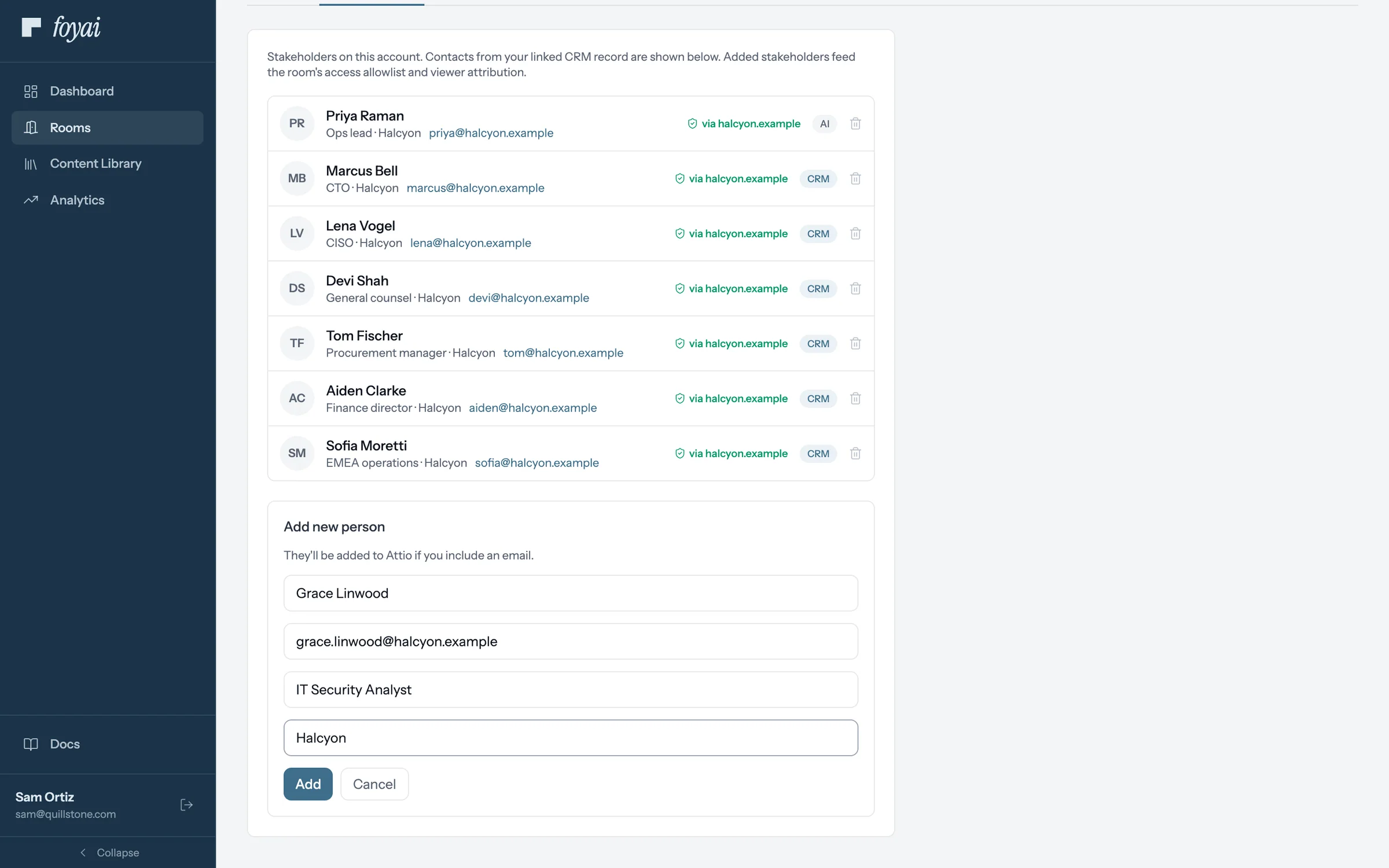
Step 3 of 6 Add a stakeholder Enter a name, email, title, and company. With an email, they're added to Attio too.
-
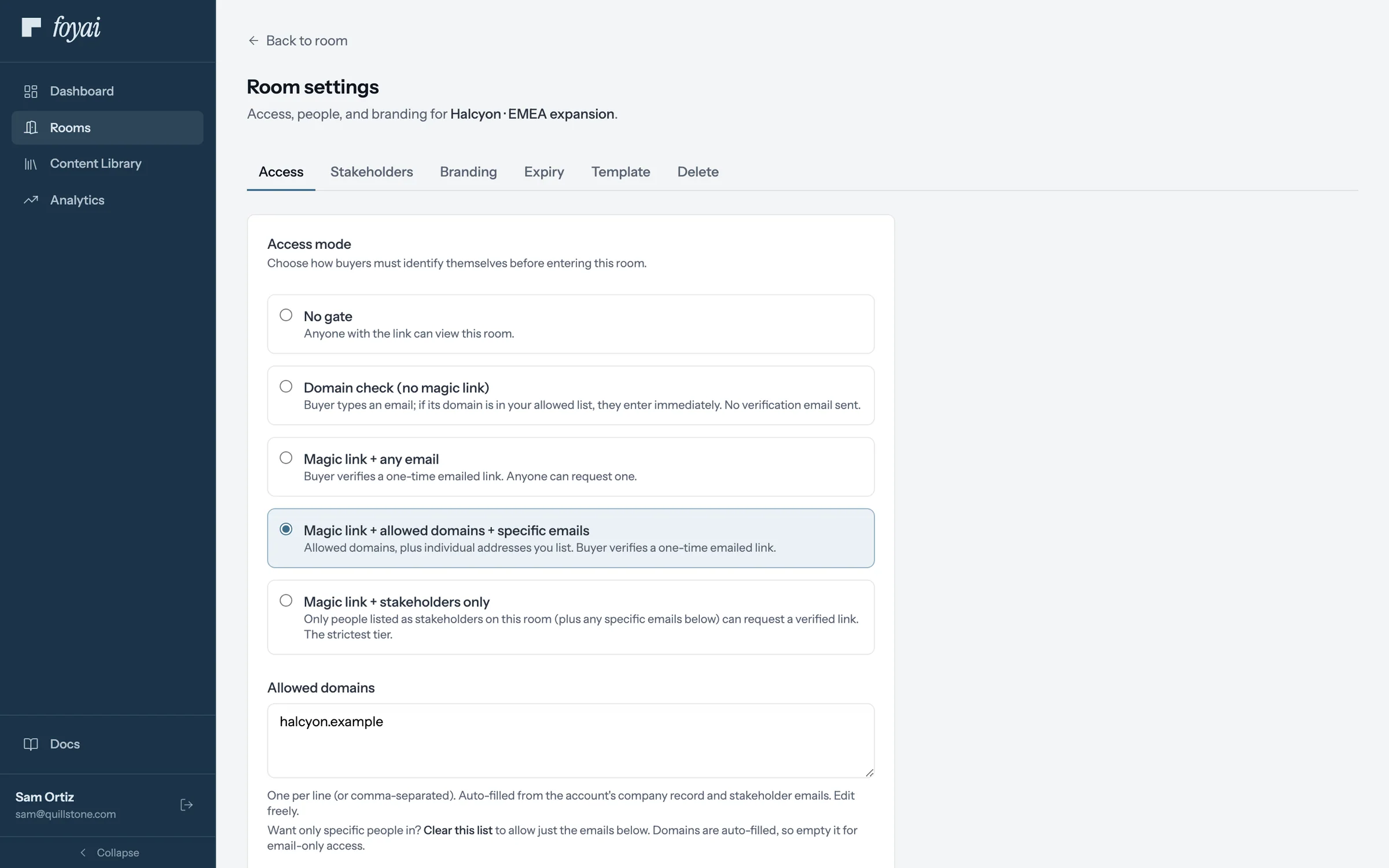
Step 4 of 6 Stakeholder emails feed Allowed domains Allowed domains is auto-filled from the CRM record and from stakeholder emails, and stays editable.
-
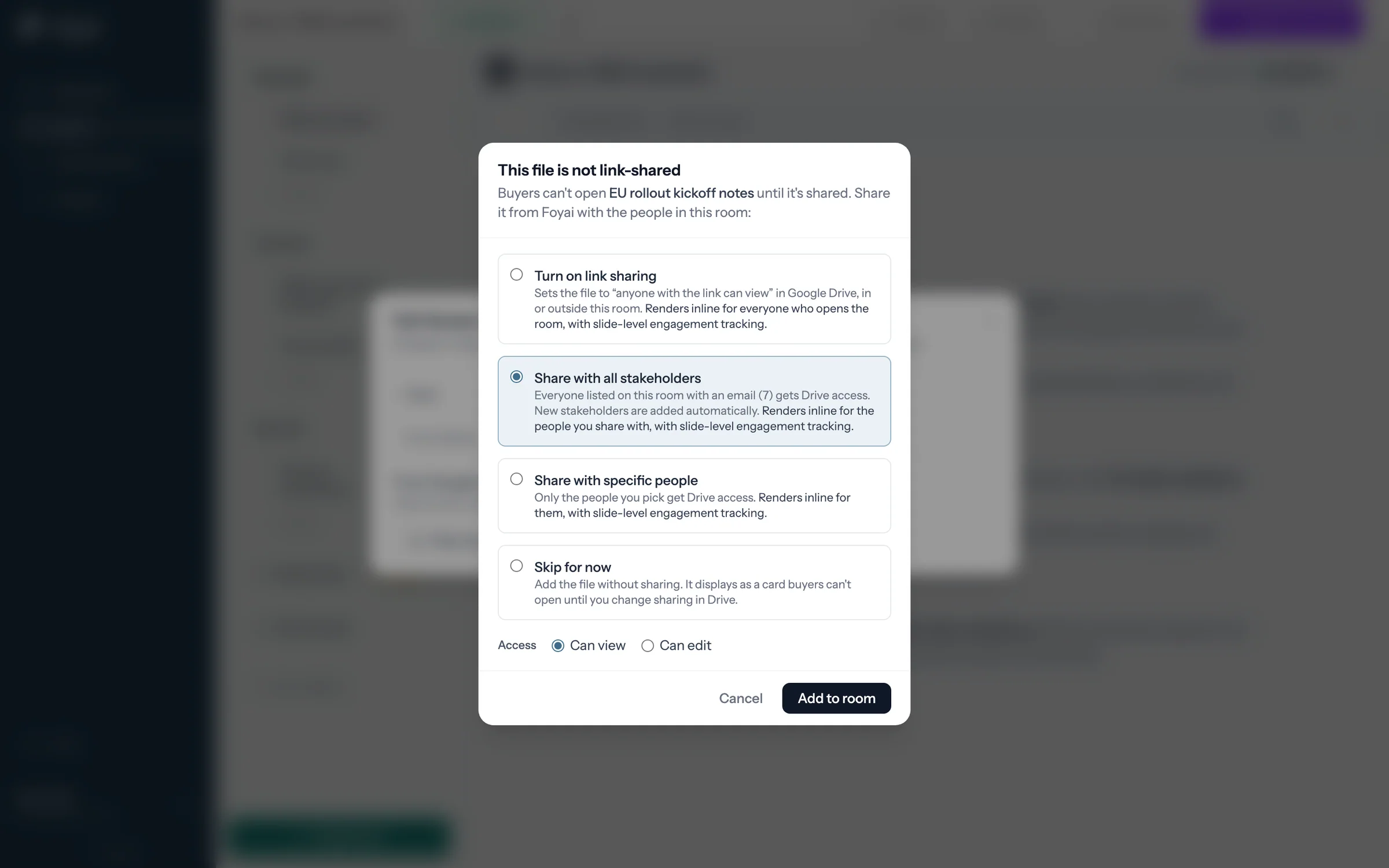
Step 5 of 6 Share a Drive document with everyone on the deal Share with all stakeholders gives Drive access to everyone on the room with an email.
-
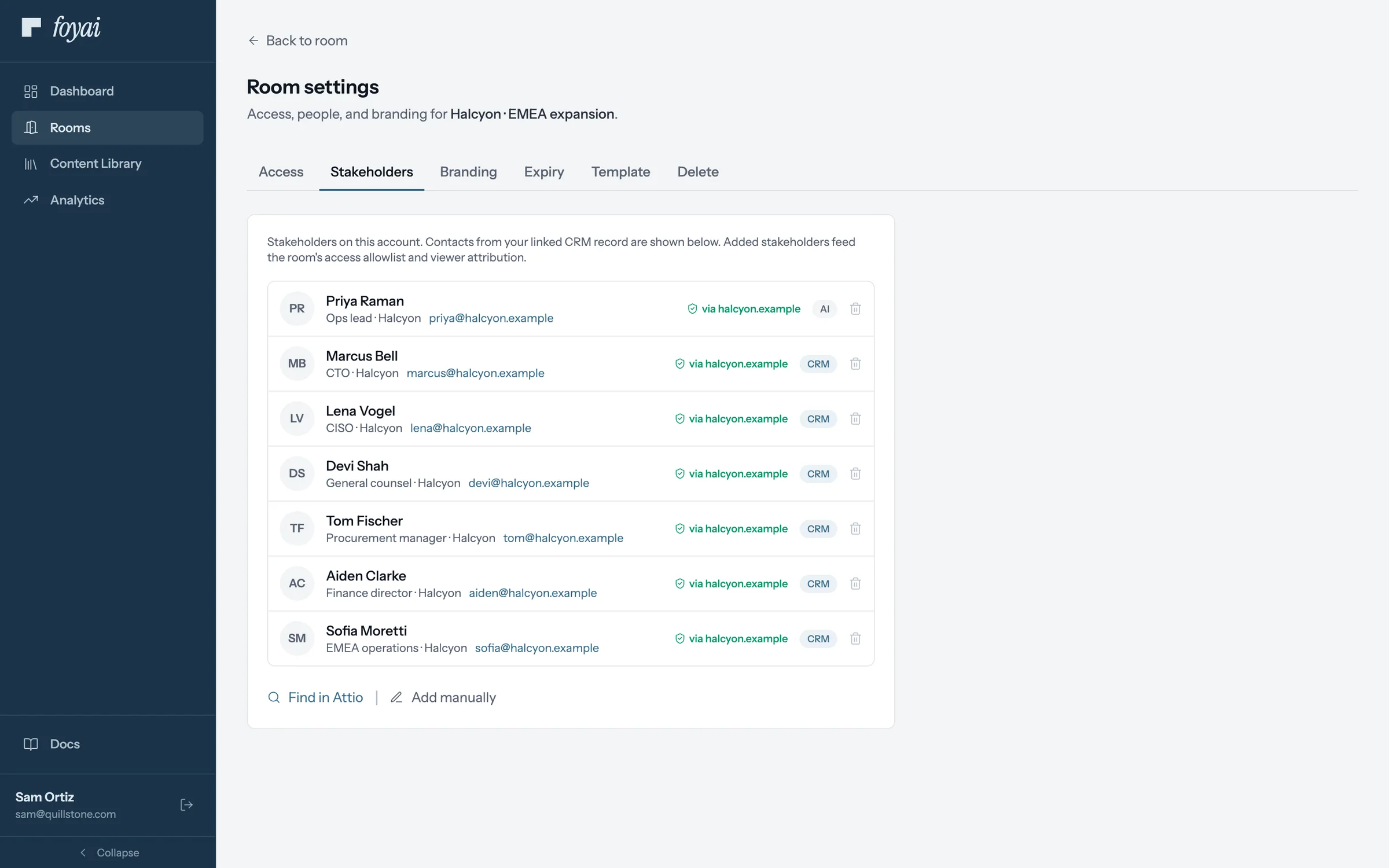
Step 6 of 6 Removing someone removes their access Removing a stakeholder also removes any Drive access foyai granted them through this room.
Stakeholders are the room's people, and its access list.
Add the people on the deal, share Drive files with them, and remove them when access should go too.
 1:09
Adding a personalized deck to a room
Add a deck template to a room, and foyai fills it in with this buyer's details.
Watch · 1:09Click through · 6 steps
1:09
Adding a personalized deck to a room
Add a deck template to a room, and foyai fills it in with this buyer's details.
Watch · 1:09Click through · 6 steps
-
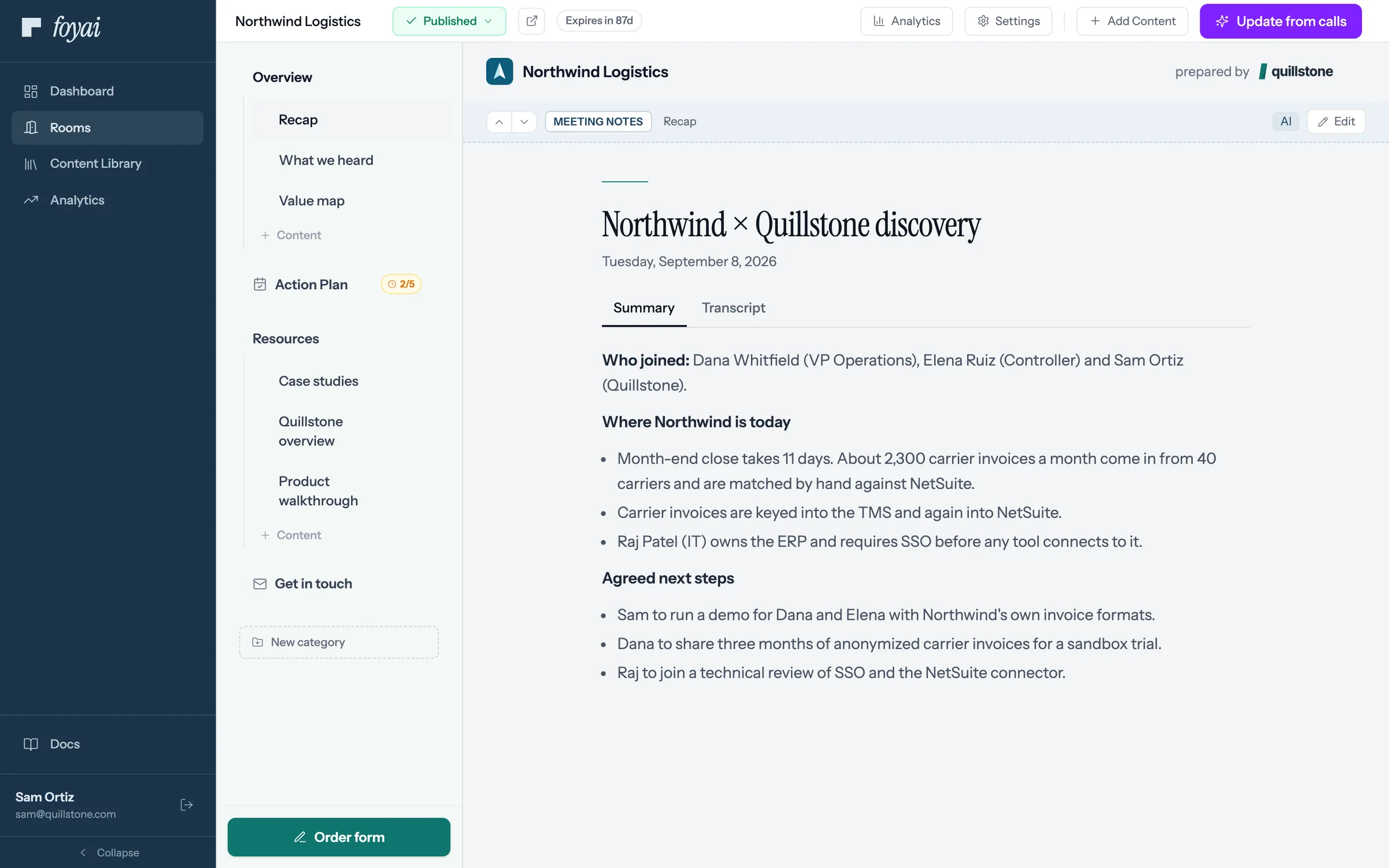
Step 1 of 6 Open Add Content Click Add Content, then Full-Screen Content.
-
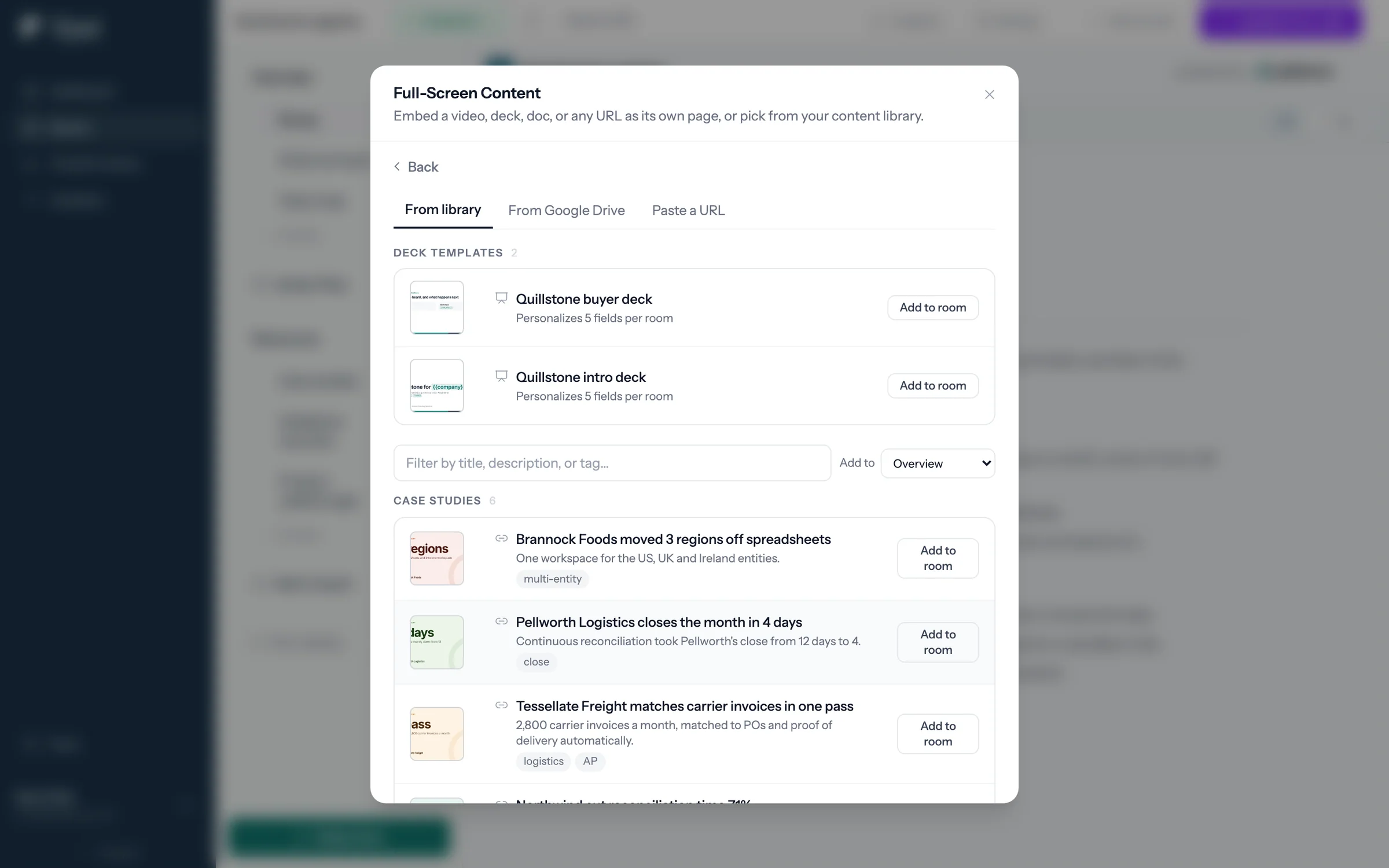
Step 2 of 6 Pick the deck template Deck templates sit in their own group at the top of the library tab, apart from plain assets.
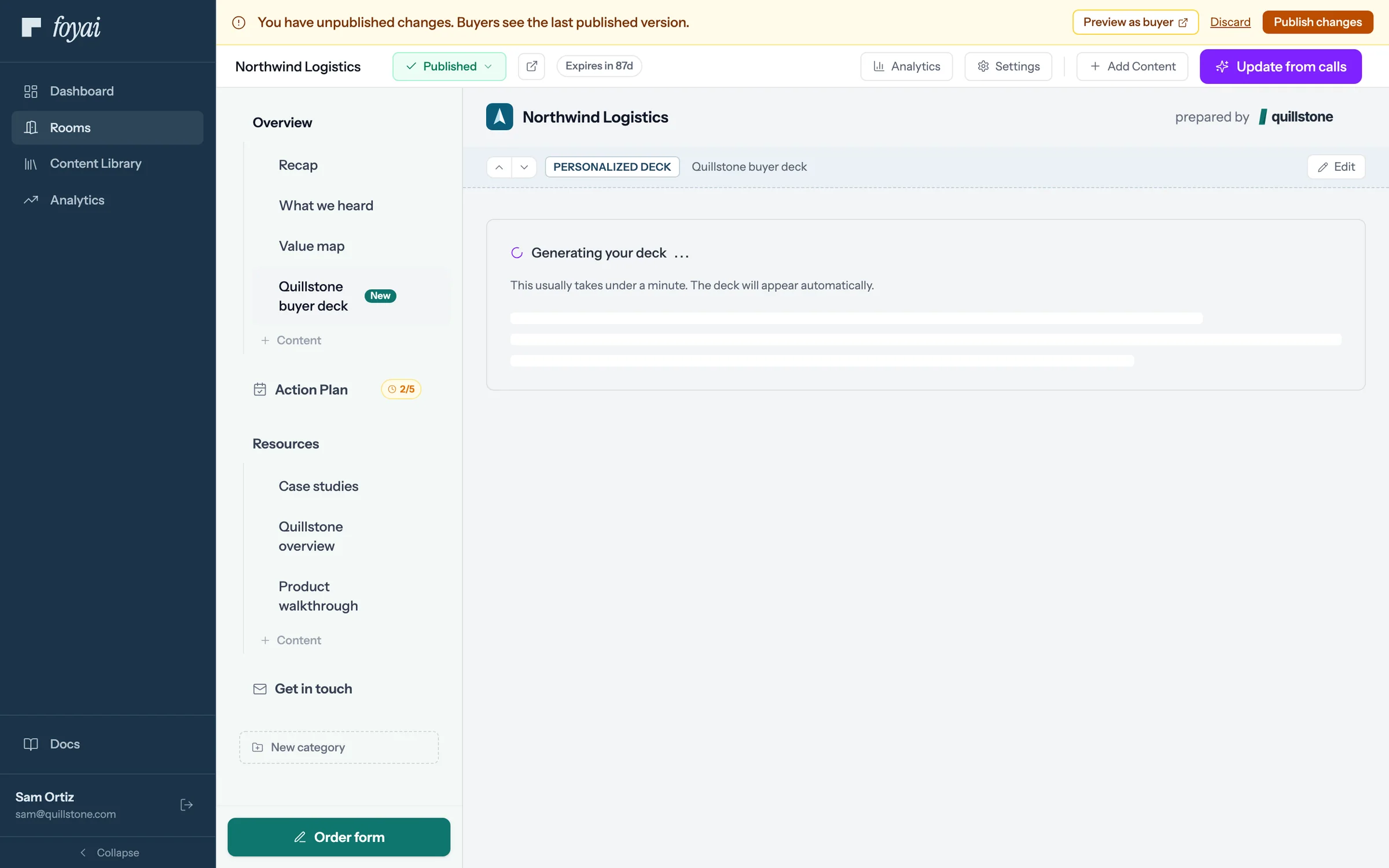
-
Step 3 of 6 Generating in the background foyai copies the template and fills every field in the background.
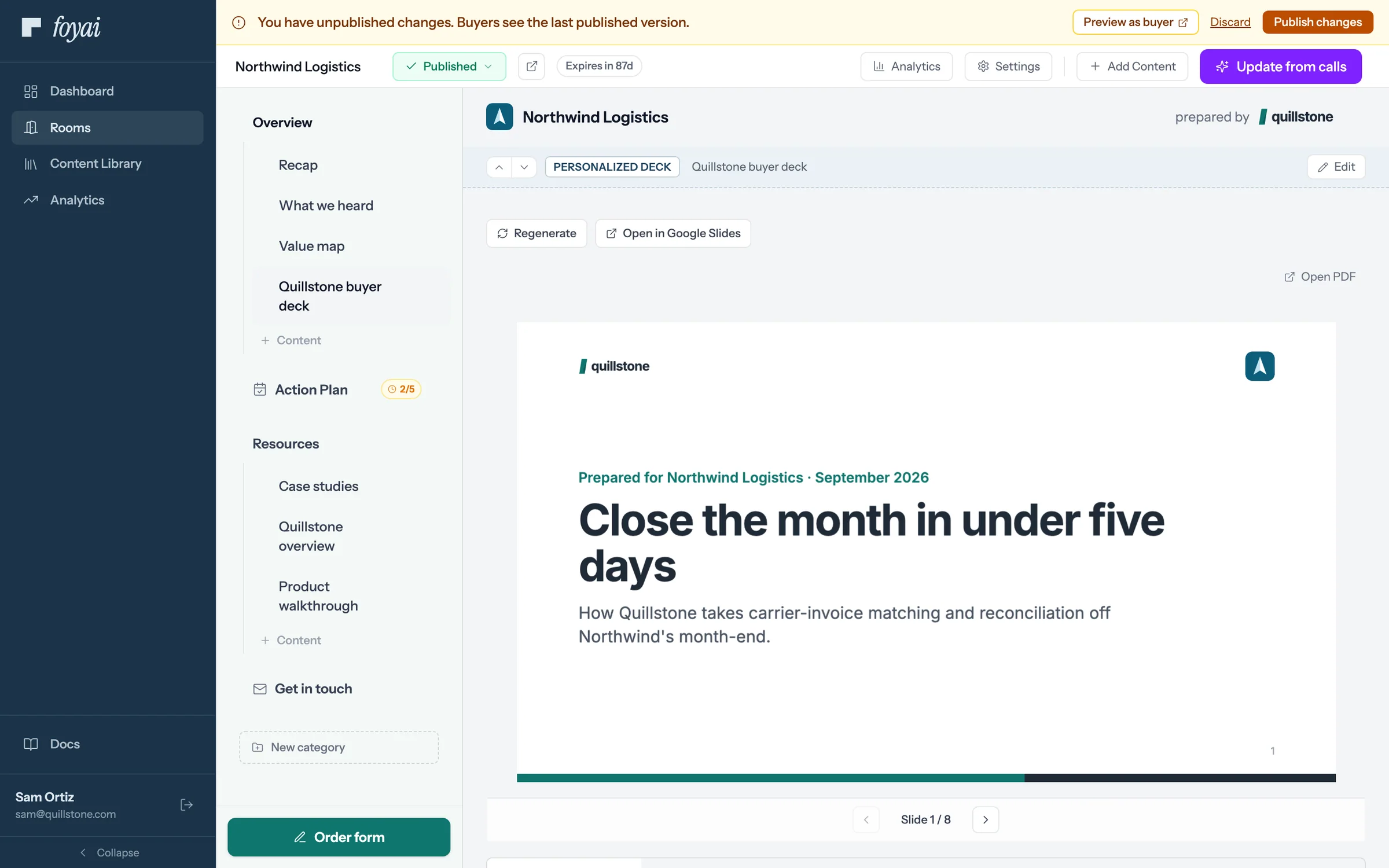
-
Step 4 of 6 The filled deck, in the room The deck lands under Overview, filled with Northwind's company name, goals, and next steps.
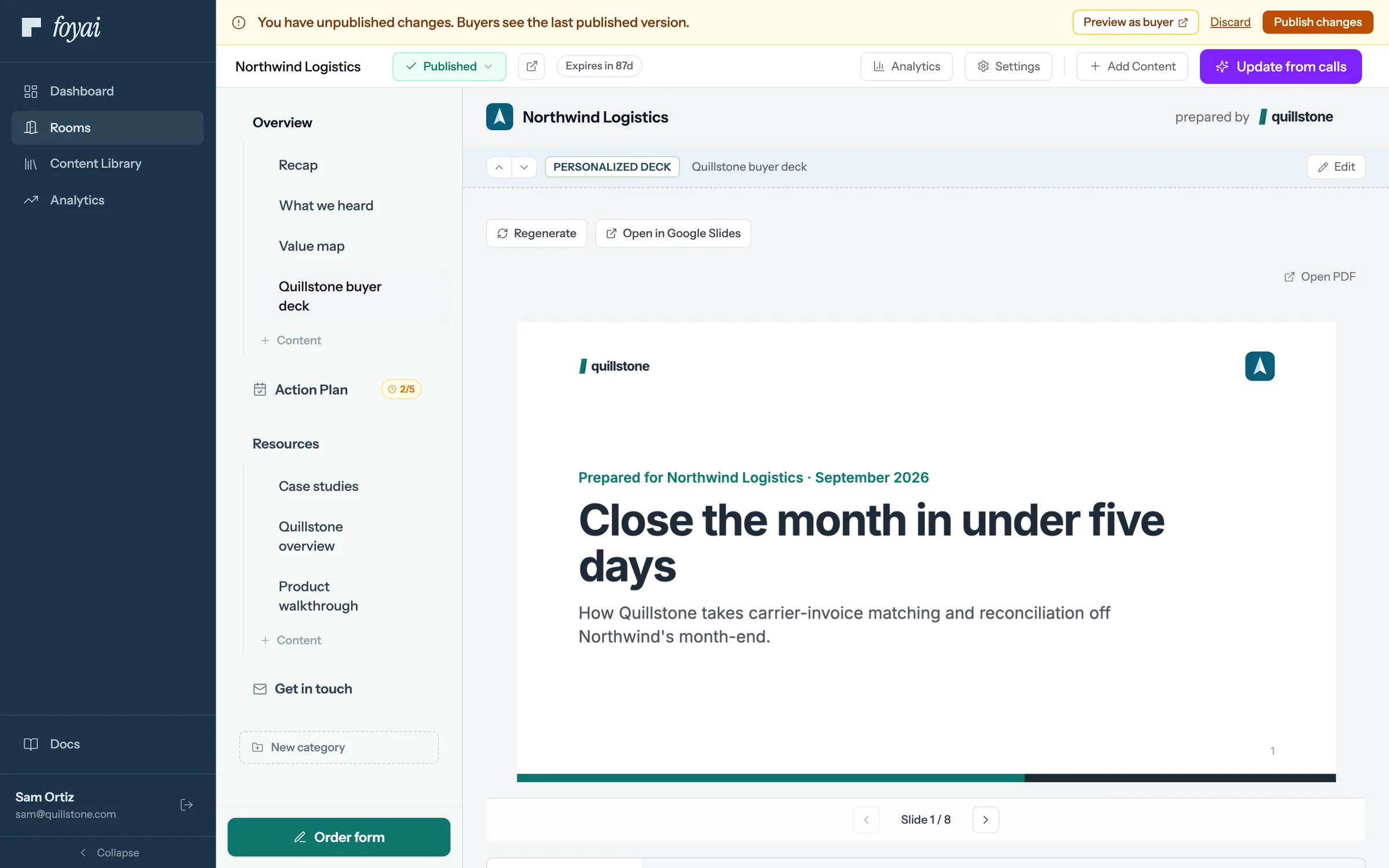
-
Step 5 of 6 Open in Google Slides The copy is a real Slides file in your own Drive, in a Foyai decks folder.
-
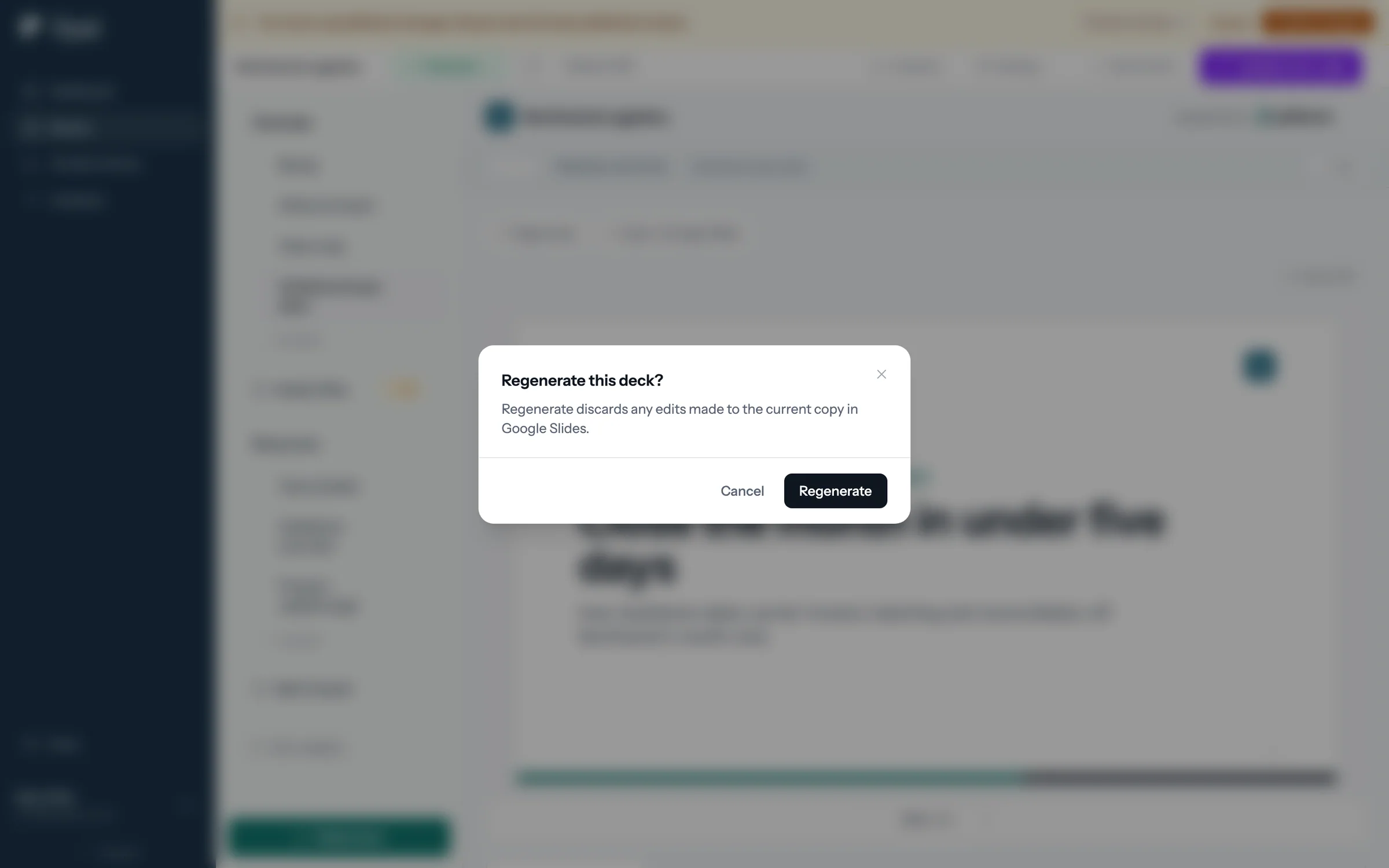
Step 6 of 6 Regenerate overwrites hand edits Regenerate re-copies the template and refills every field, discarding any edits made in Google Slides.
One template, filled for every room.
Add a deck template from Content Library, then let foyai fill it in for each room you add it to.
 0:45
Creating a room from Attio
Create a room from a deal without leaving Attio, with the template for its stage already picked.
Watch · 0:45Click through · 4 steps
0:45
Creating a room from Attio
Create a room from a deal without leaving Attio, with the template for its stage already picked.
Watch · 0:45Click through · 4 steps
-
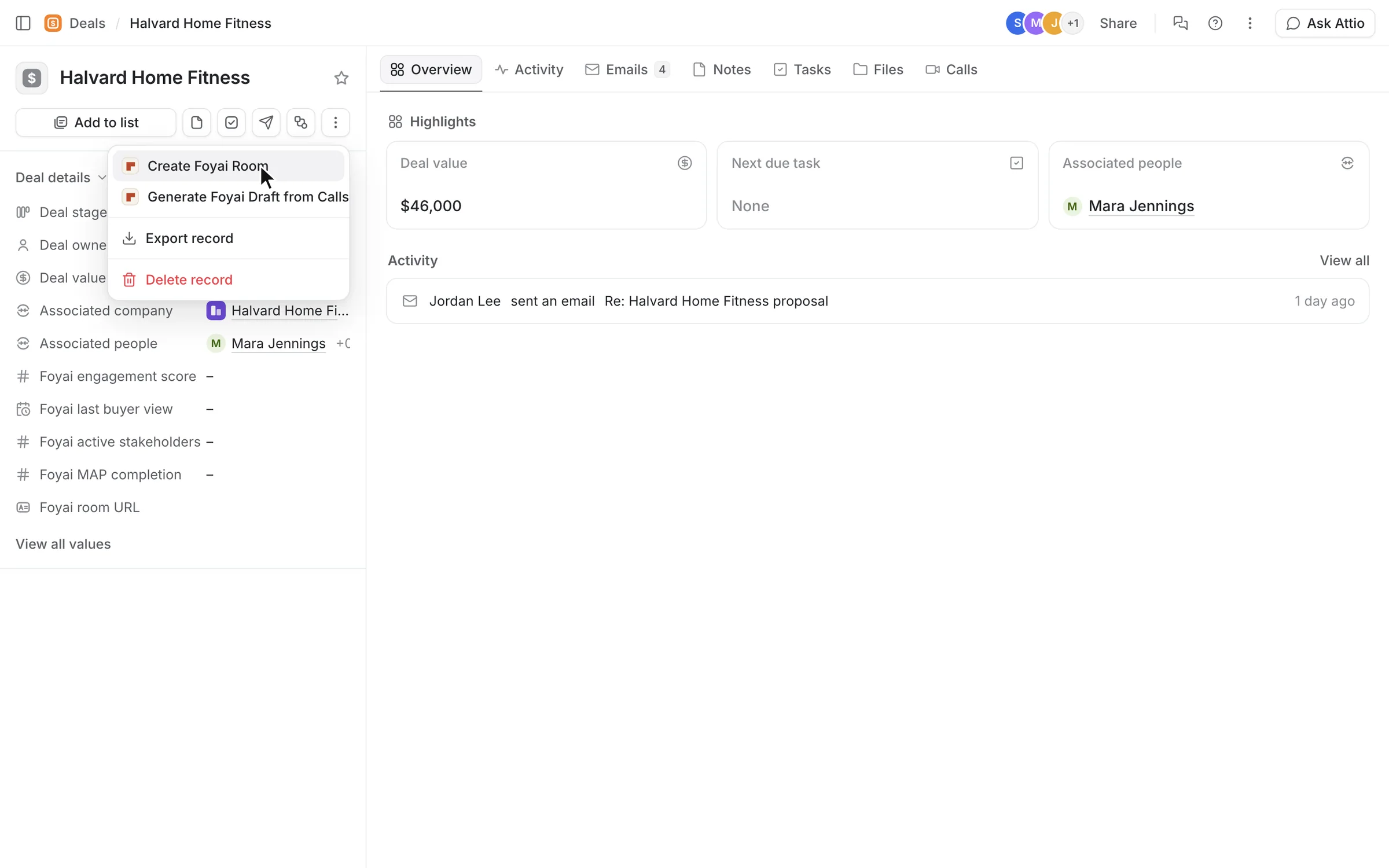
Step 1 of 4 Create a room from Attio On the Halvard Home Fitness deal, open the record menu, then click Create Foyai Room.
-
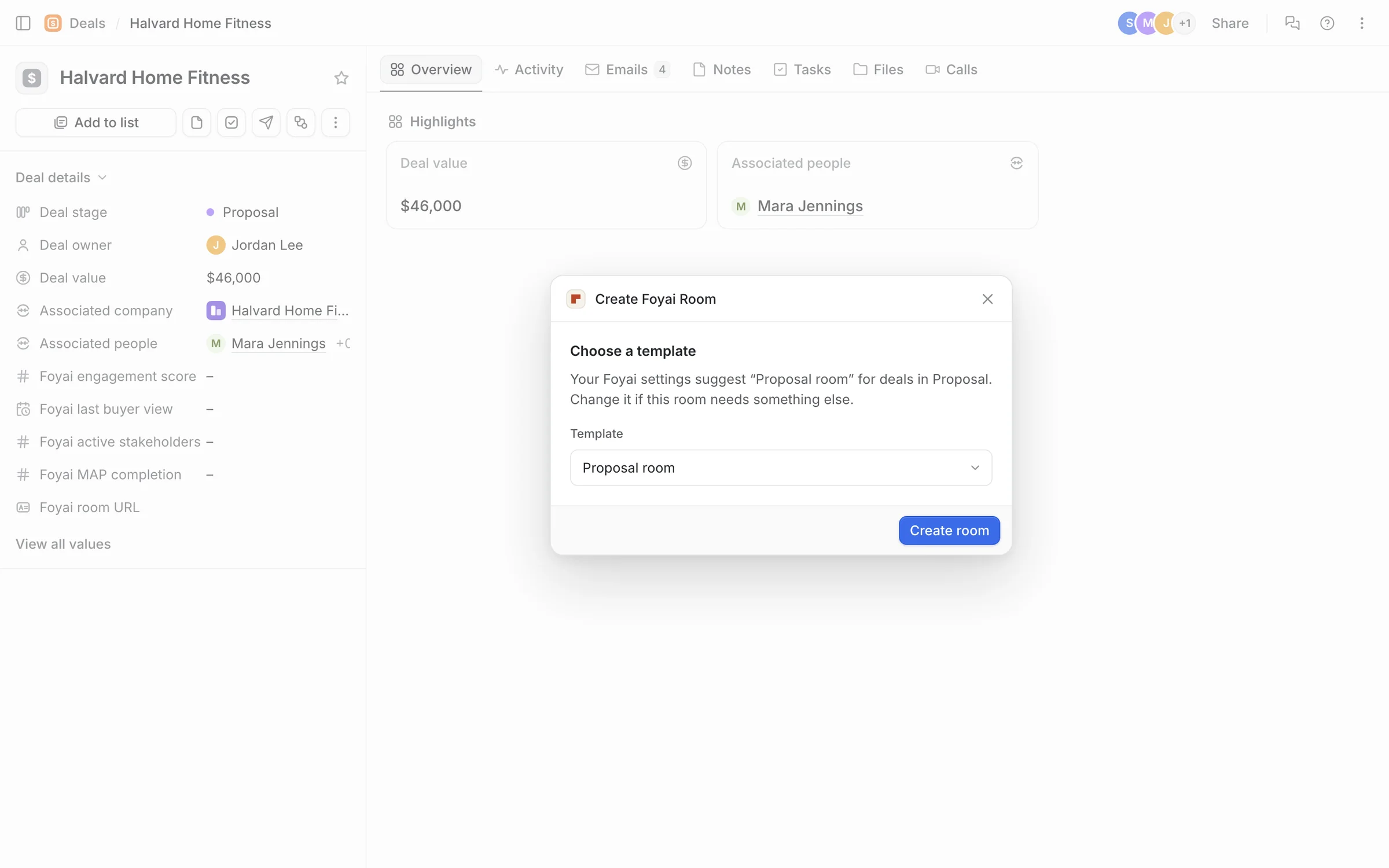
Step 2 of 4 Confirm the template foyai suggests a template from the deal's stage. Check it, then click Create room.
-
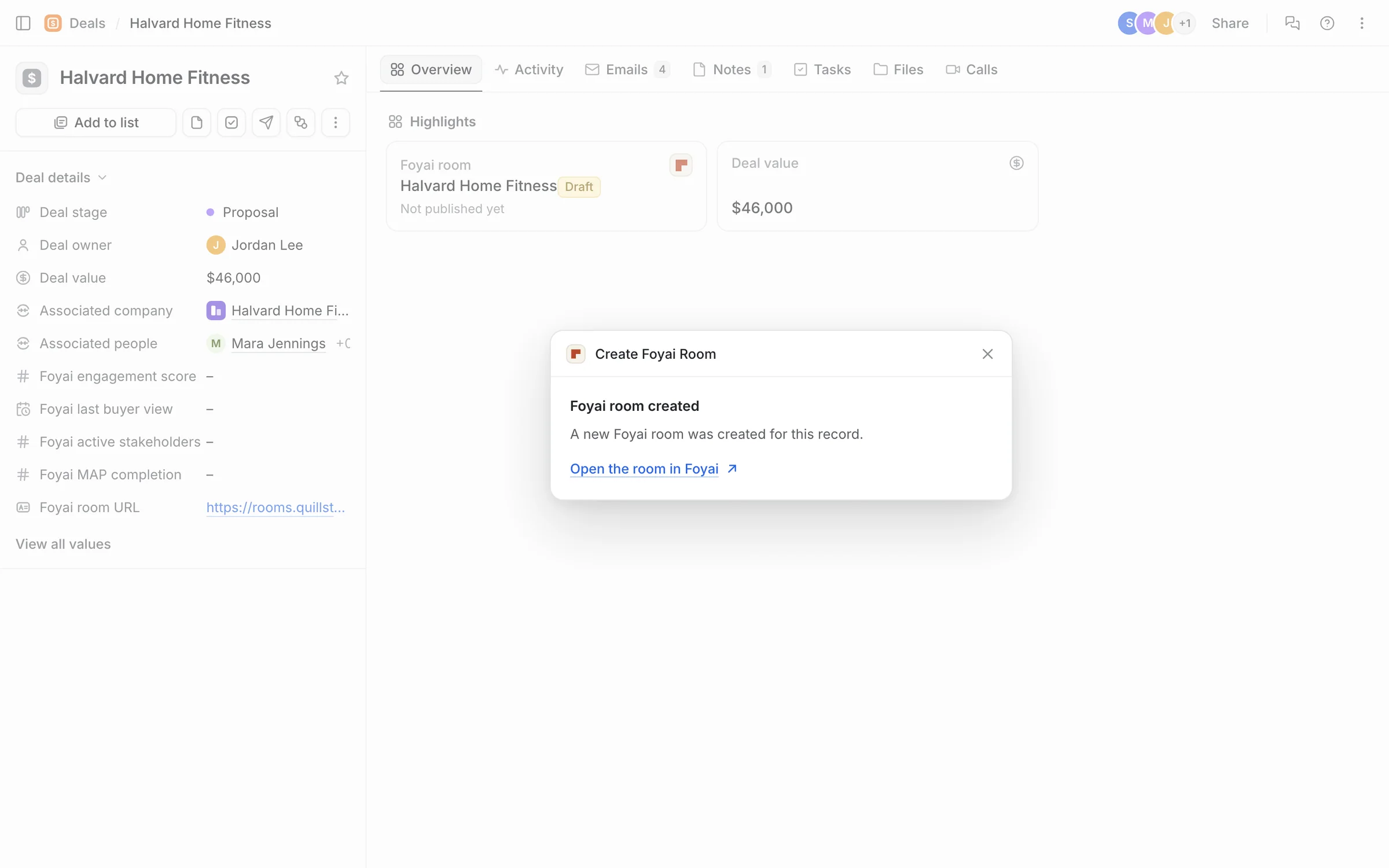
Step 3 of 4 The room is created foyai confirms the room was created, with a link straight back to it.
-
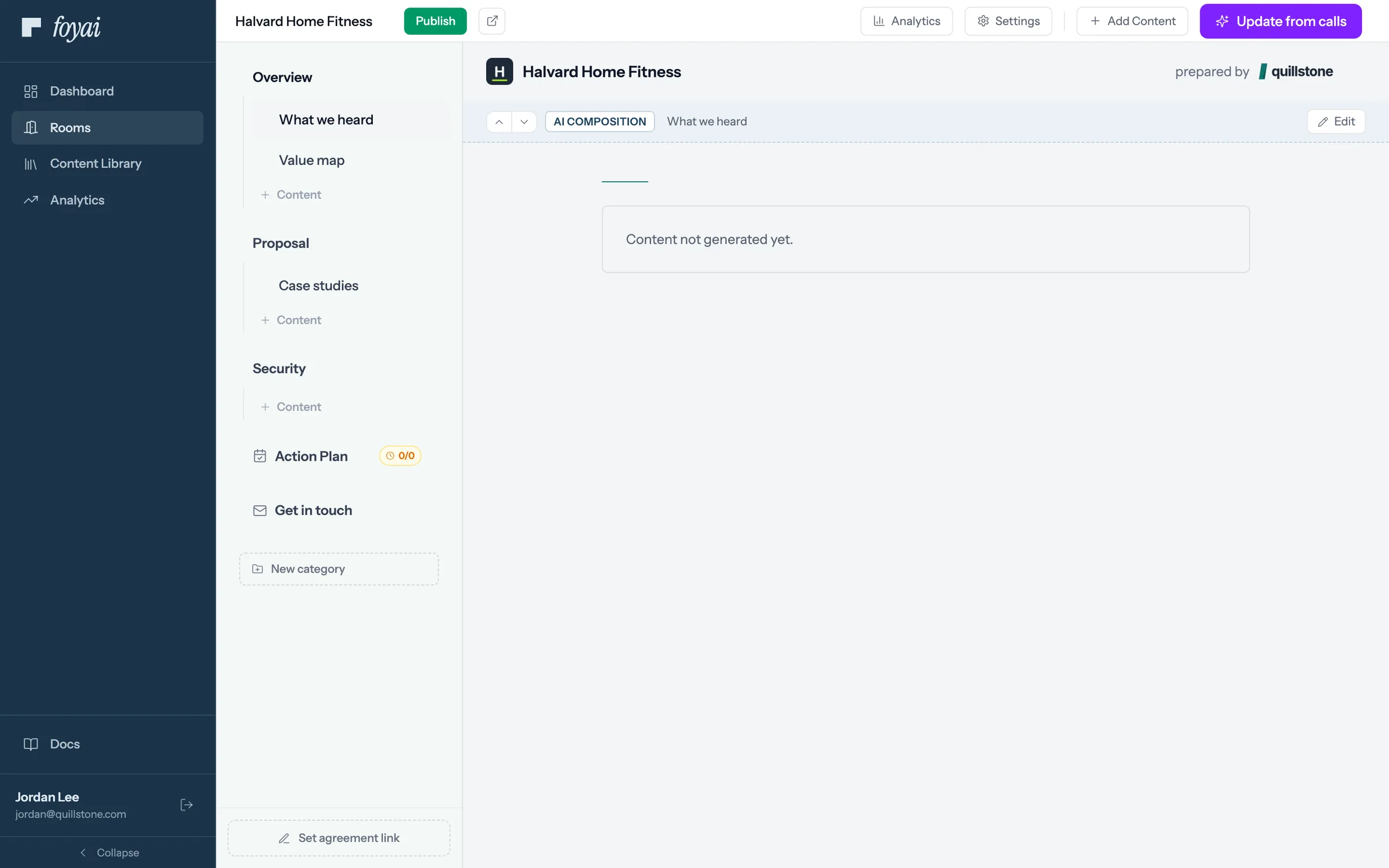
Step 4 of 4 The new draft room The room opens in foyai as a draft, built from the stage's template.
A room, without leaving Attio
Open the room in foyai to review the draft, add your own content, and publish when it's ready.
 1:05
Your action plan in Attio
Action items from your calls become plan steps and Attio tasks, and a buyer's tick updates both.
Watch · 1:05Click through · 7 steps
1:05
Your action plan in Attio
Action items from your calls become plan steps and Attio tasks, and a buyer's tick updates both.
Watch · 1:05Click through · 7 steps
-
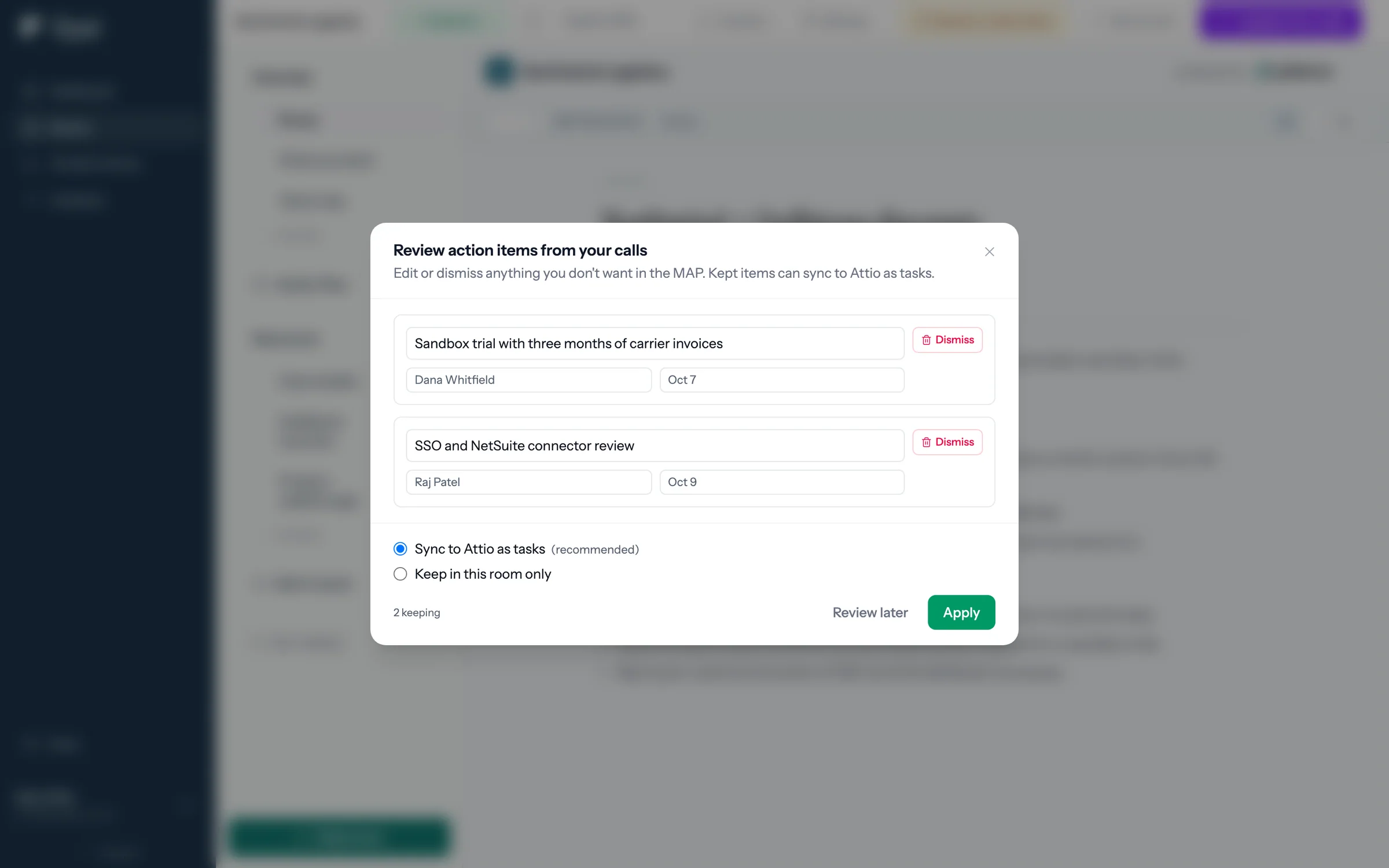
Step 1 of 7 Check what foyai heard After drafting, foyai lists the action items from the calls. Sam keeps both, with Sync to Attio as tasks on, and clicks Apply.
-
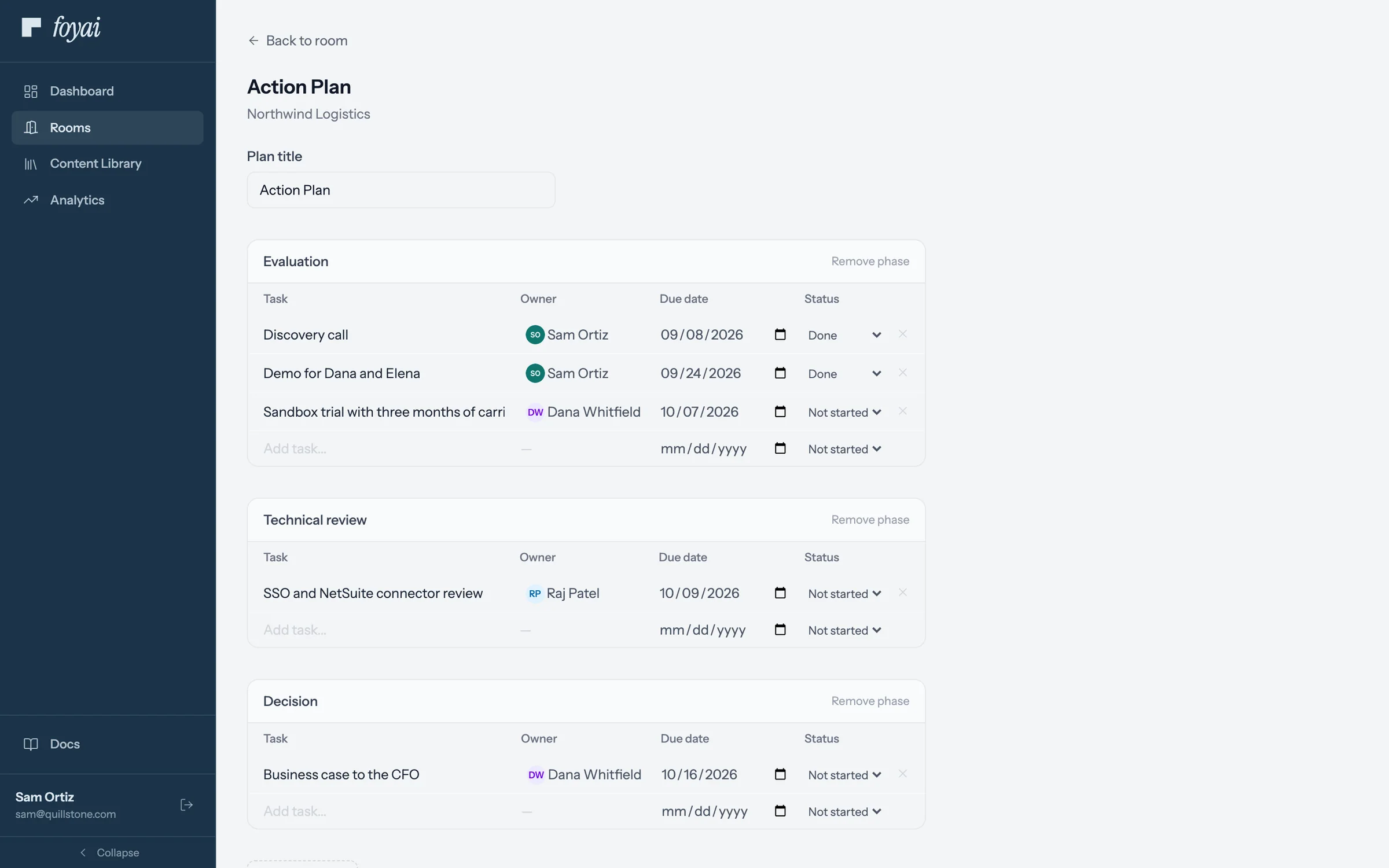
Step 2 of 7 Now a step in the plan The sandbox trial joins Northwind's action plan, owned by Dana and due October 7.
-
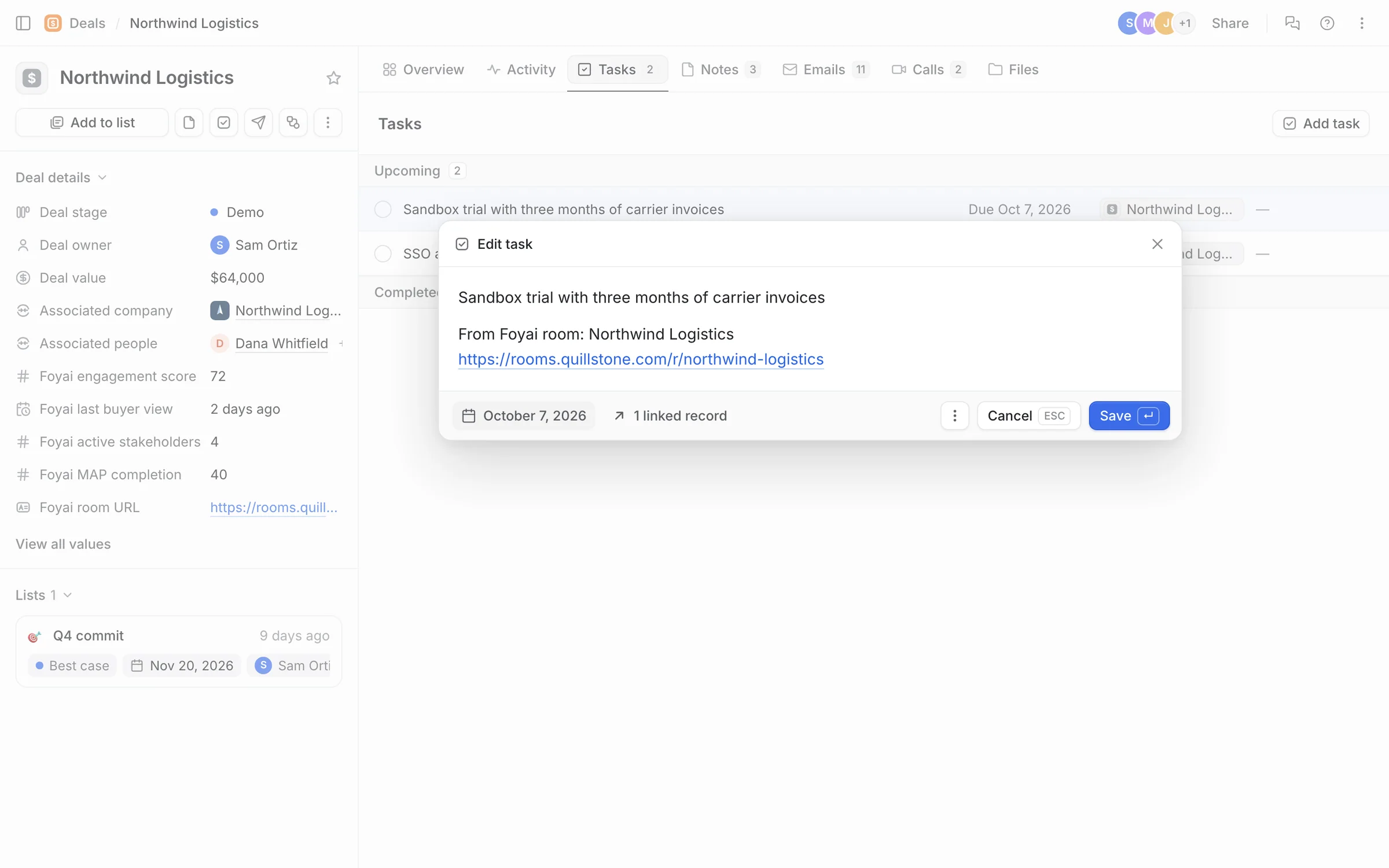
Step 3 of 7 And a task in Attio foyai adds the same step to the Northwind deal as an Attio task, with a link back to the room.
-
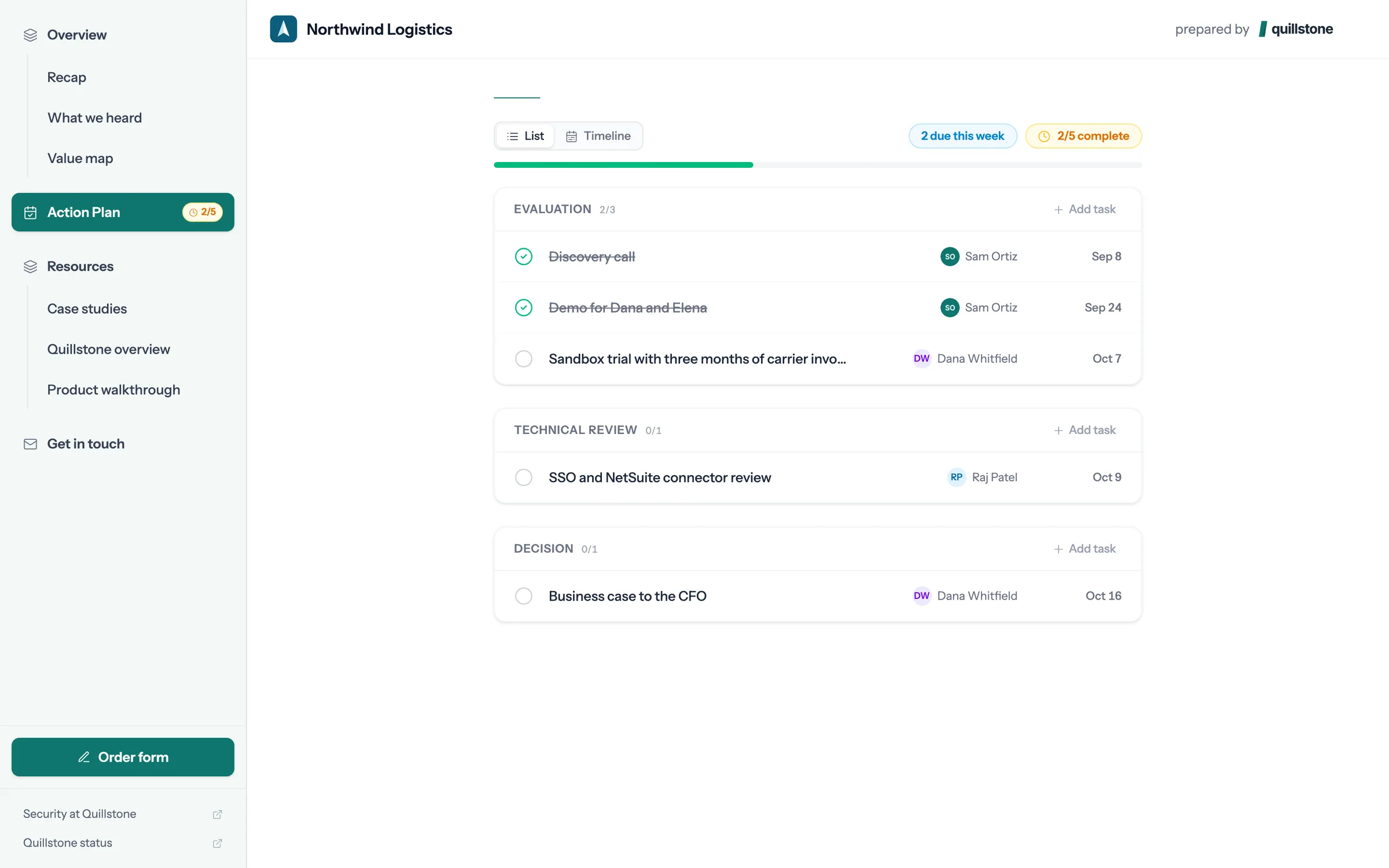
Step 4 of 7 Dana ticks it off When Northwind finishes the trial, Dana marks the step done in the room.
-
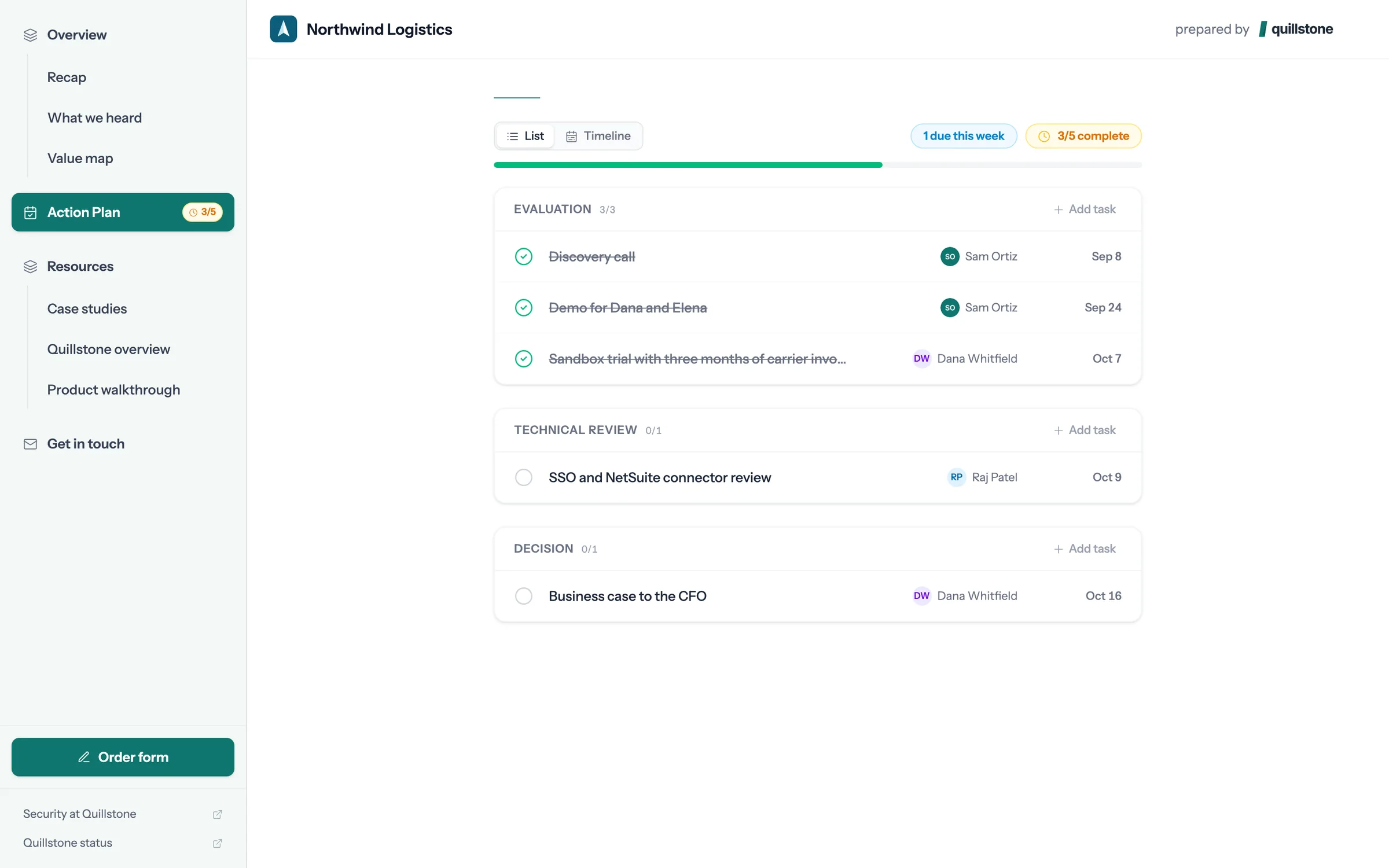
Step 5 of 7 The plan moves The step shows as done for both sides, and the plan reads 3 of 5 complete.
-
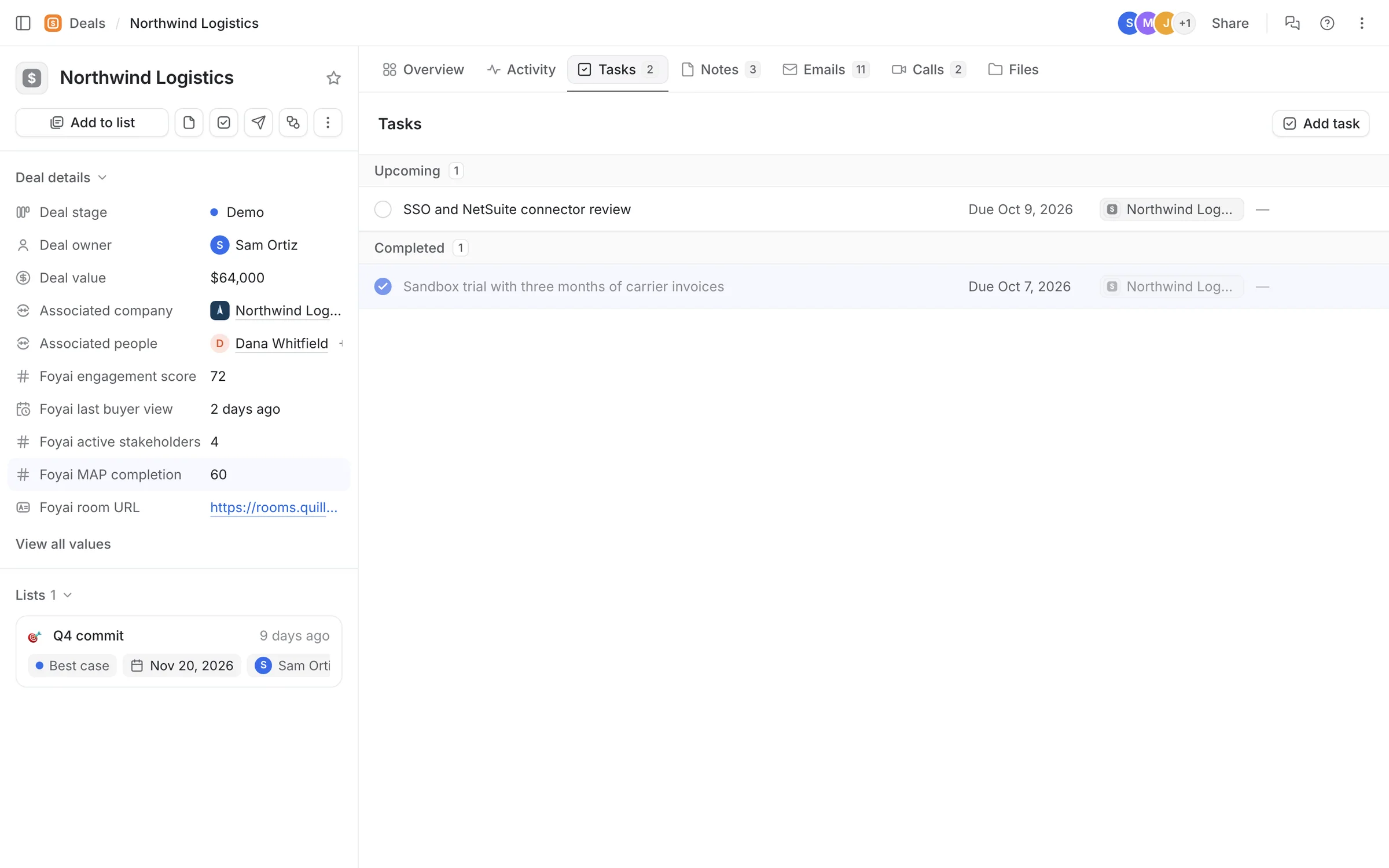
Step 6 of 7 Attio updates too On the deal, the task is now complete and Foyai MAP completion has gone from 40 to 60.
-
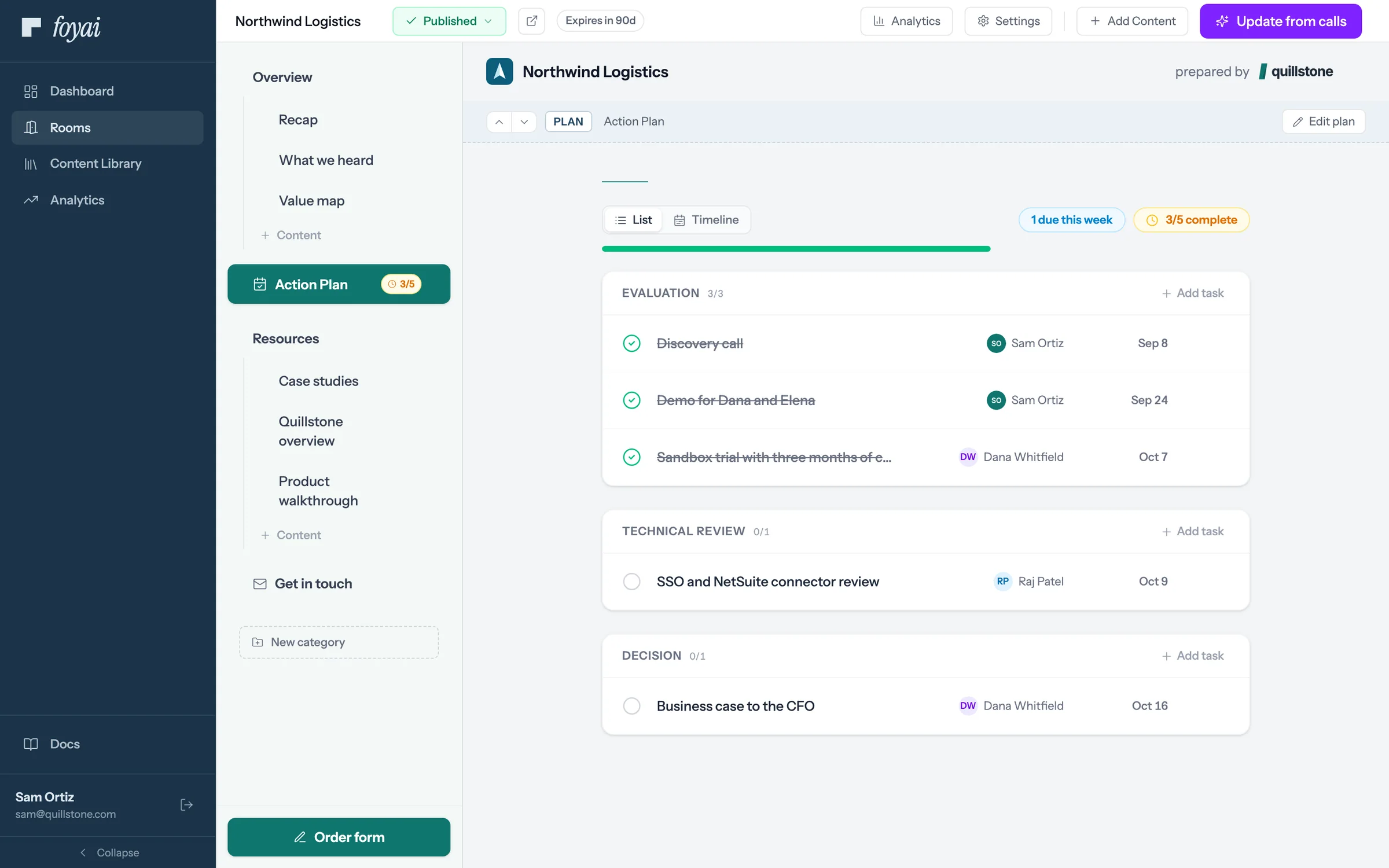
Step 7 of 7 Sam sees the same plan Sam's view of the room shows the same tick, without anyone sending an update.
Keep one plan with your buyer, and keep Attio current.
Action items from your calls become steps in the room and tasks in Attio once you've checked them.
 1:18
Taking a room offline
Unpublish, archive, or delete a room, and decide whether buyers keep their Drive access.
Watch · 1:18Click through · 8 steps
1:18
Taking a room offline
Unpublish, archive, or delete a room, and decide whether buyers keep their Drive access.
Watch · 1:18Click through · 8 steps
-
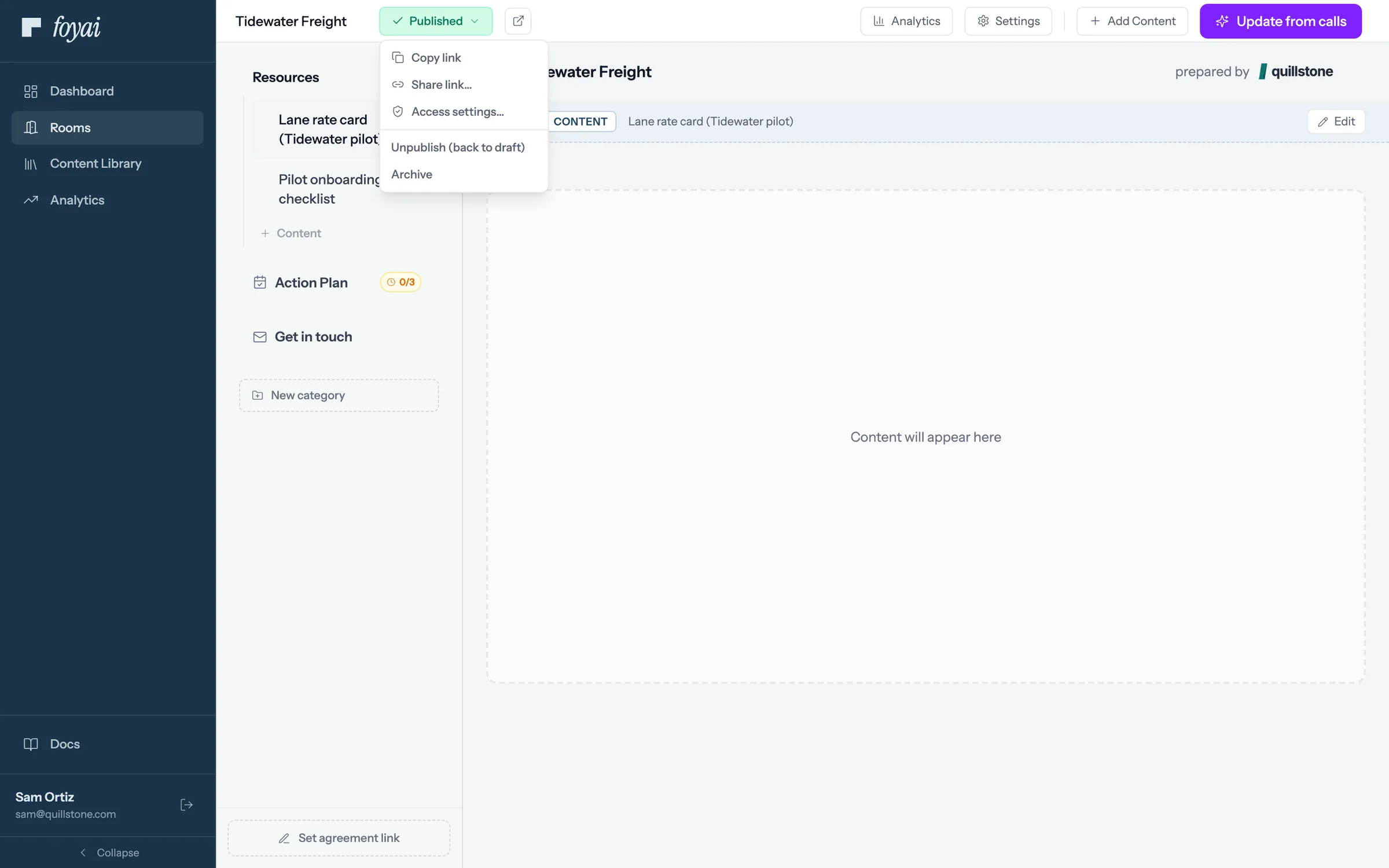
Step 1 of 8 Open the Published menu On a published room, click Published, then Unpublish to send it back to draft.
-
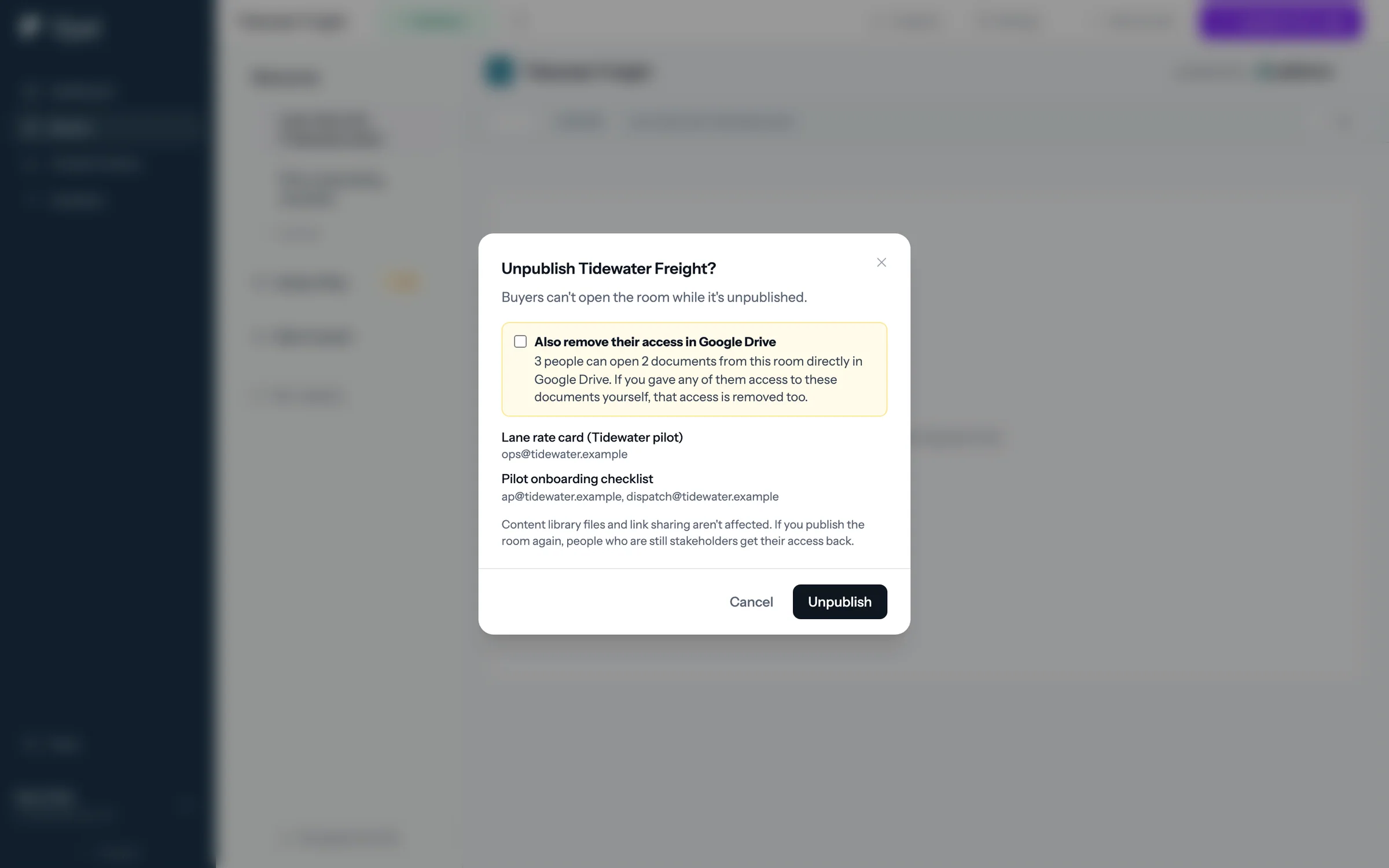
Step 2 of 8 Choose Drive access Unpublishing leaves stakeholders' Google Drive access as it is, unless you tick the box.
-
Step 3 of 8 Or archive instead Archive sits in the same Published menu, right below Unpublish.
-
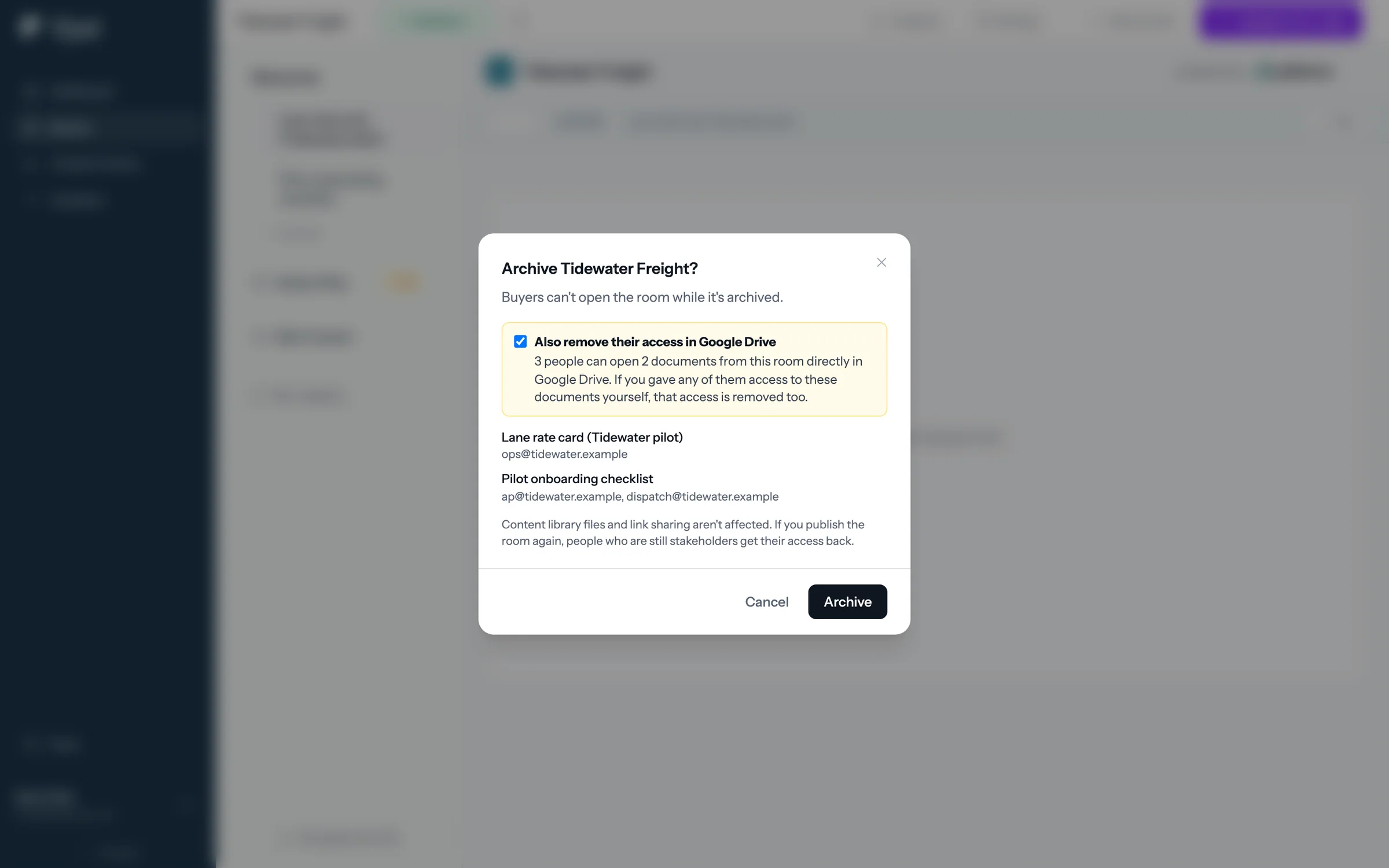
Step 4 of 8 Archive ticks the box Archive asks the same question, but the Google Drive box starts ticked.
-
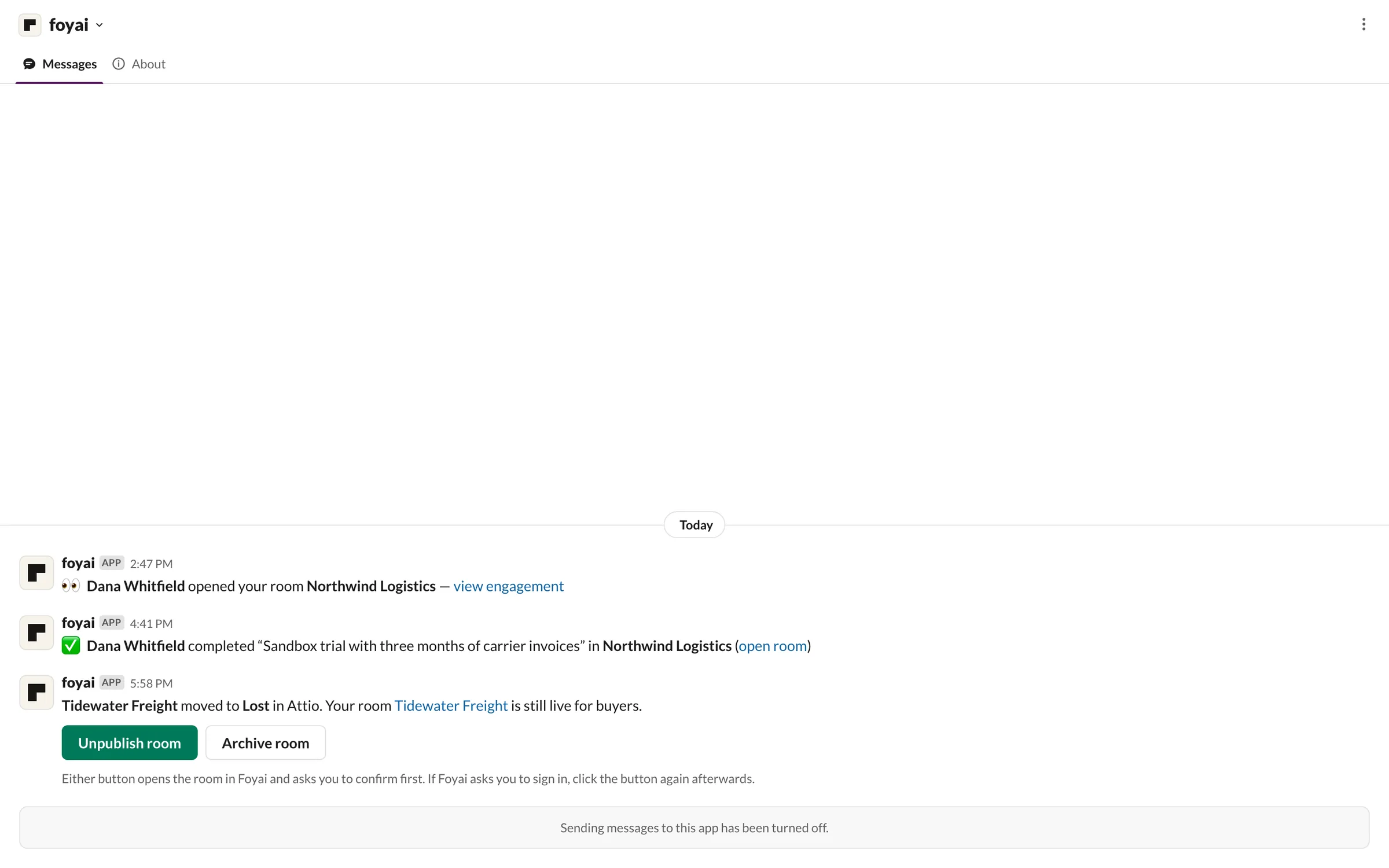
Step 5 of 8 Also from Slack When a deal moves to Lost in Attio, its owner can unpublish or archive the room right from Slack.
-
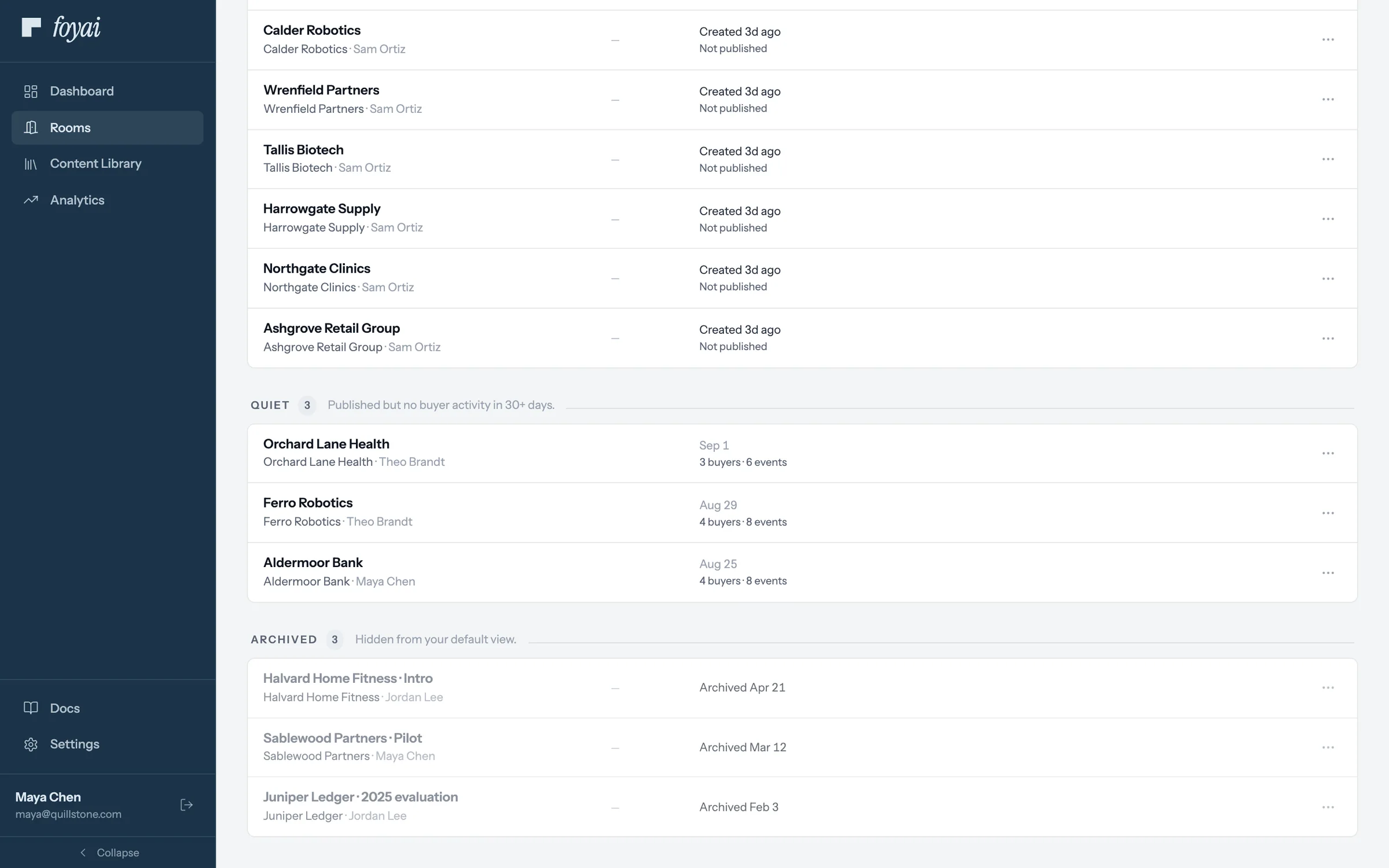
Step 6 of 8 The Archived lane Archived rooms sit in their own lane on Rooms, hidden from your default view.
-
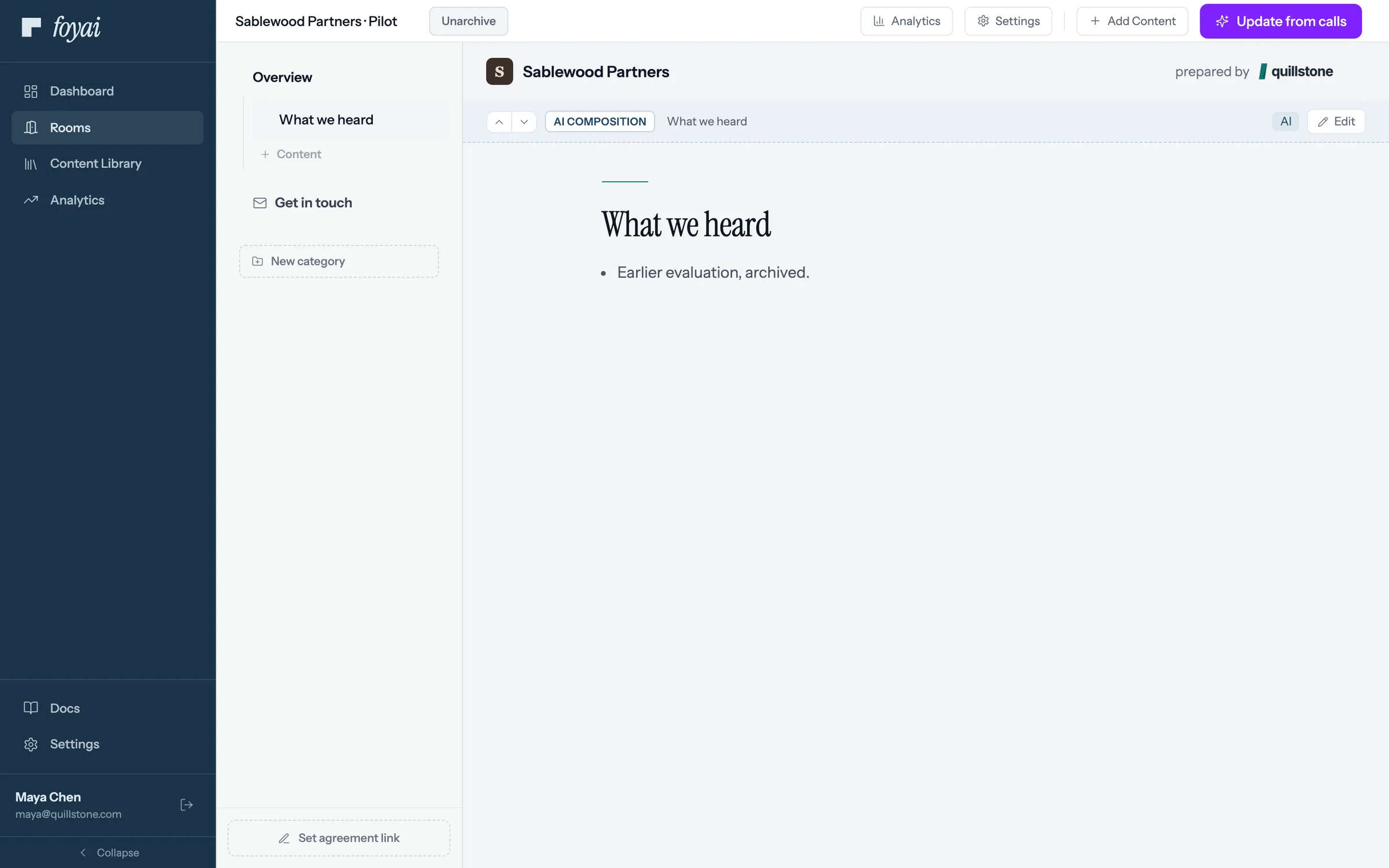
Step 7 of 8 Bring it back Click Unarchive to bring an archived room back, with nothing lost.
-
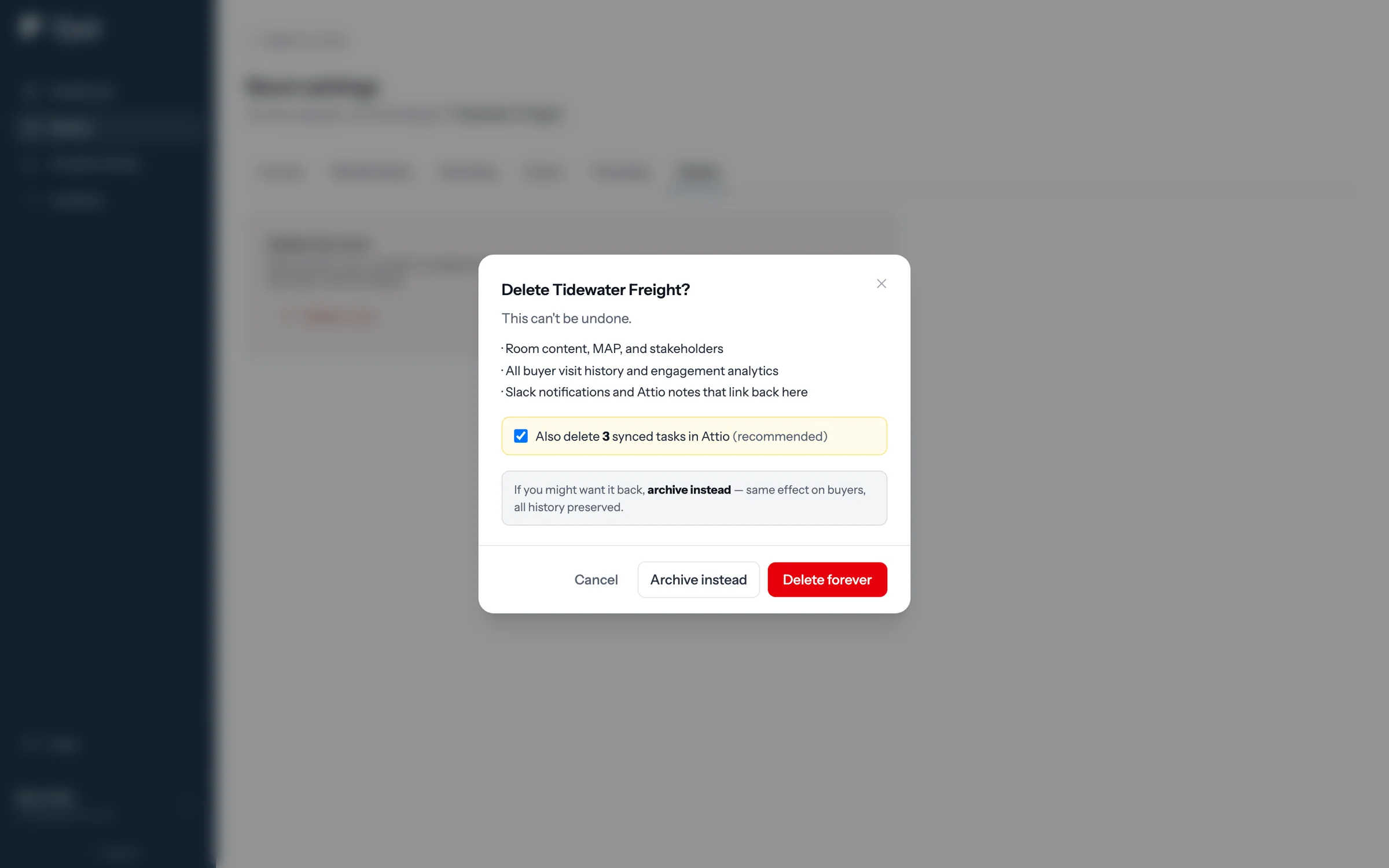
Step 8 of 8 Delete, or archive instead Deleting removes the room for good, but offers to archive instead or delete its three synced Attio tasks too.
Archive when in doubt
Unpublish to pause a room, archive when the deal is done, and save delete for when you're certain.