Newfoyai now builds each buyer their own deck from your Google Slides template.A deck for every buyer.

See how it worksSee how
foyai logo+Avoma logo
Call recorder · Beta

Draft rooms from your Avoma calls and review each update before buyers see it.

Connect Avoma to foyai and each recorded sales call is matched to its Attio deal. foyai drafts the buyer room from the first call, compares each later call against the room, and suggests updates for you to approve. Setup is one API key, for your whole workspace or just you. The integration is in Beta.

Updated
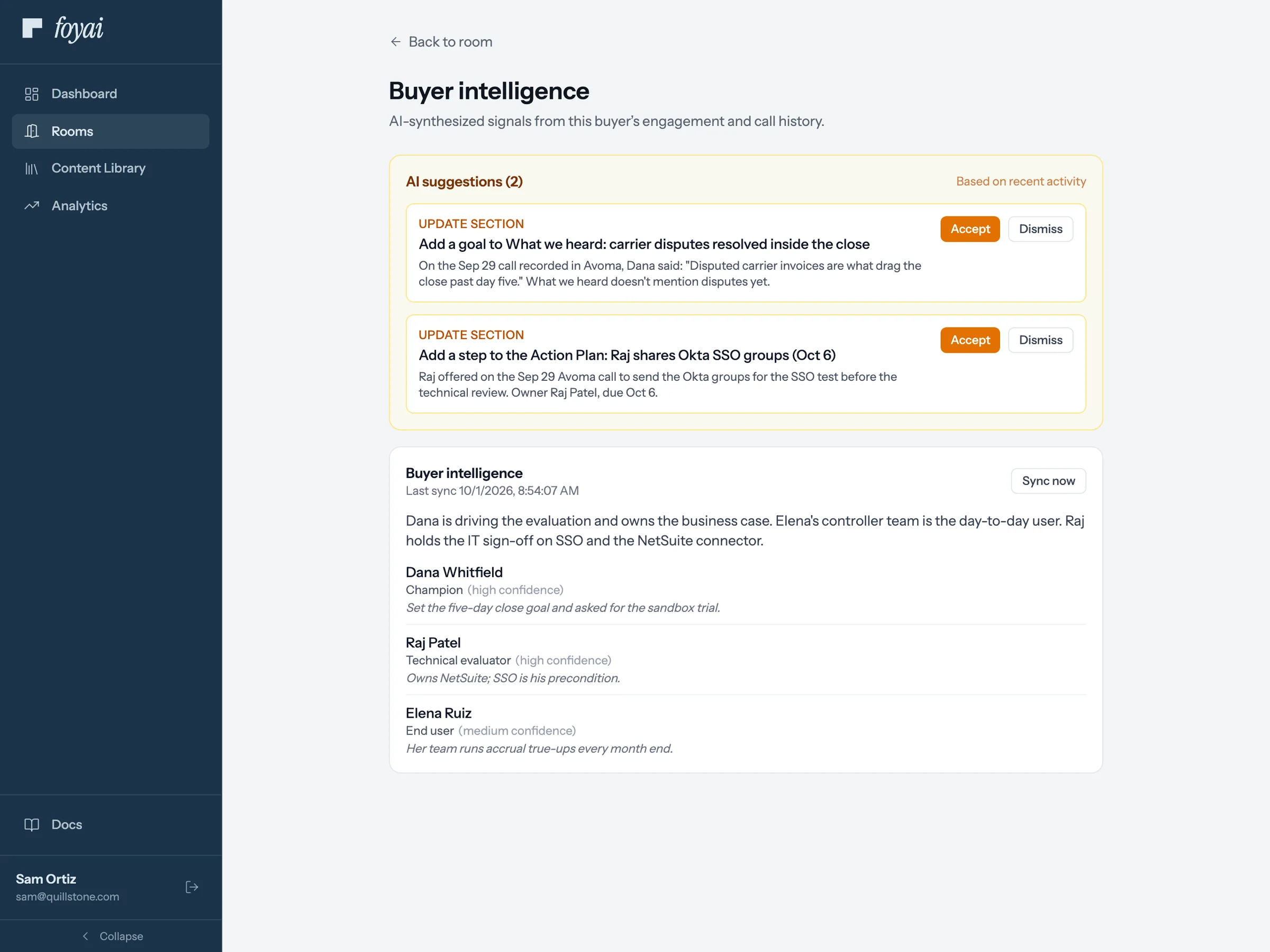
Suggested updates after a new Avoma call
What it powers

foyai drafts the room from the first call and suggests changes after each one that follows.

A first draft from the transcript
"What we heard", a value map, goals, challenges, their stack and who's involved, or your own prompt. You edit, then publish.
Case studies for this buyer
Up to four case studies from your library, each with the reason foyai picked it.
The steps both sides agreed
Action items from the call, suggested for the room's plan. Nothing joins the plan until you approve it.
Updates after every call
Each new call is checked against what the room already says. You approve the changes; buyers see them when you publish.
Who it covers

Connect Avoma for the whole team or just for yourself.

Whole workspace
Admins
A workspace admin connects once and the team's Avoma calls come in under that one connection. Best when the whole team records in Avoma.
Just me
Anyone
Imports only your own calls. Useful when you're trying it out, or only some sellers use Avoma.

Either way, once a call is matched to a deal, every teammate working that deal can use it, the same as a call recorded in Attio.

Setup

Connect Avoma in three steps.

Click through the whole setup below, from foyai's settings to the key in Avoma and back.

  1. Open transcript sources

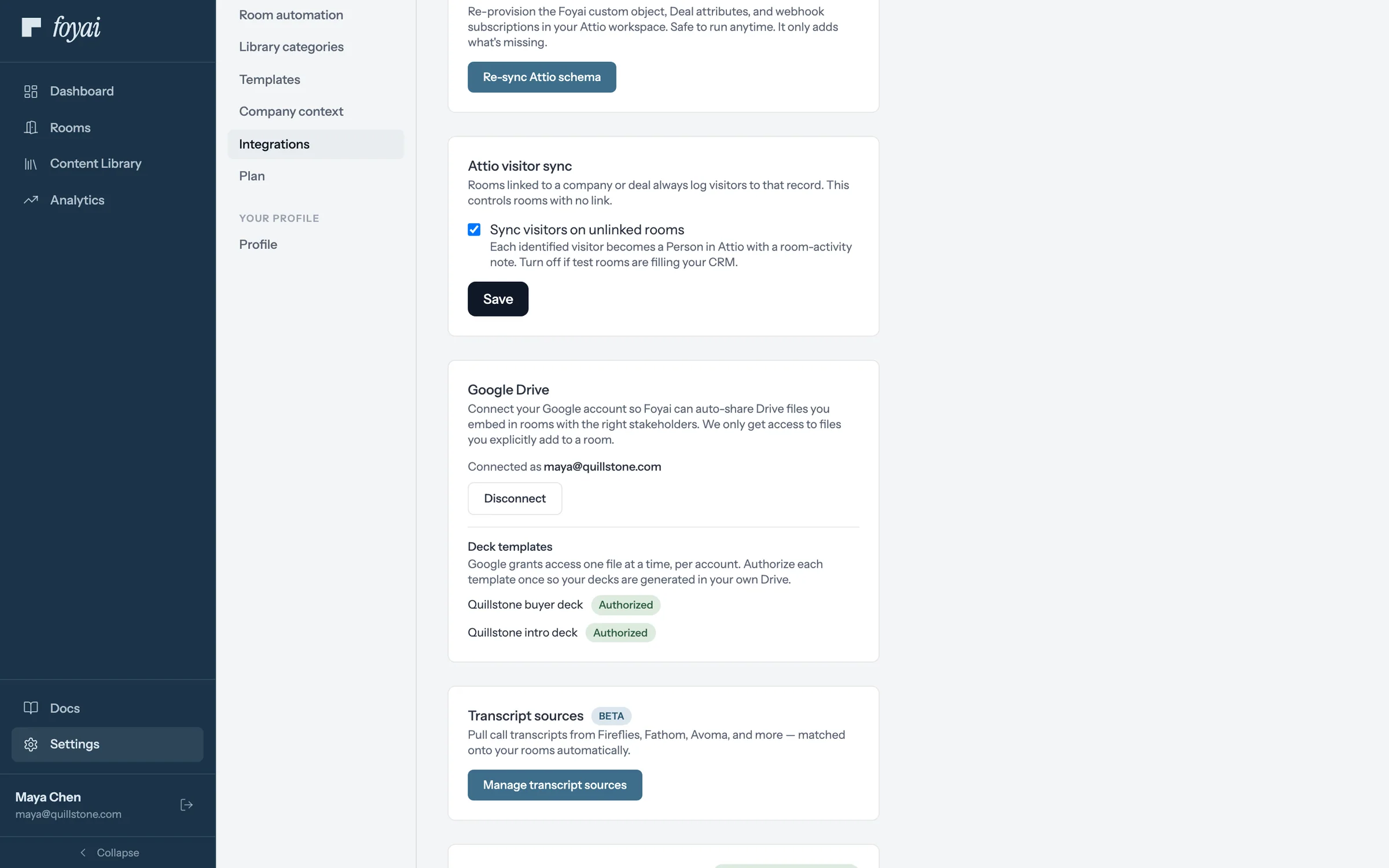
    In foyai, go to Settings → Integrations → Manage transcript sources, and click Connect on Avoma.

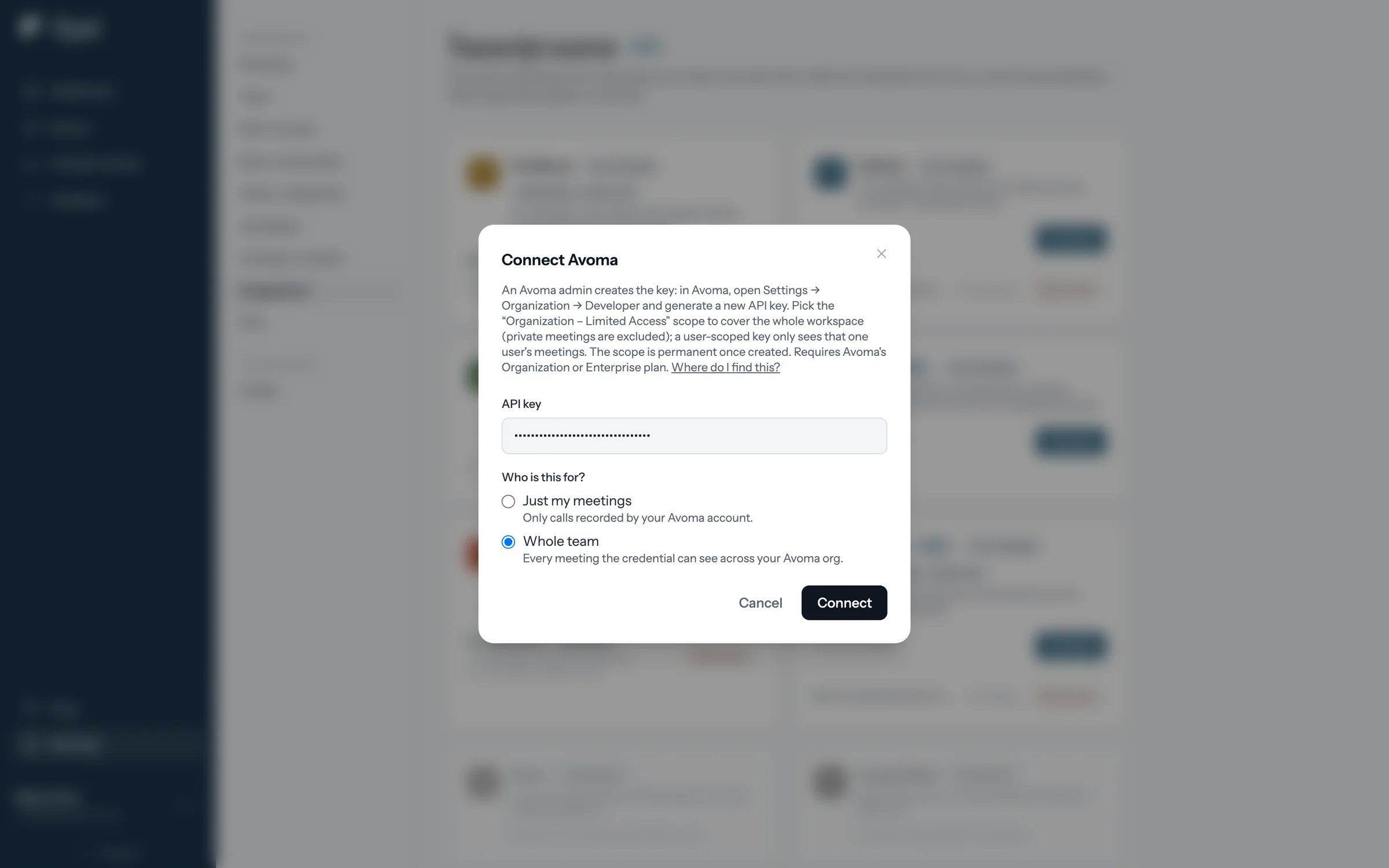
  2. Paste your Avoma API key

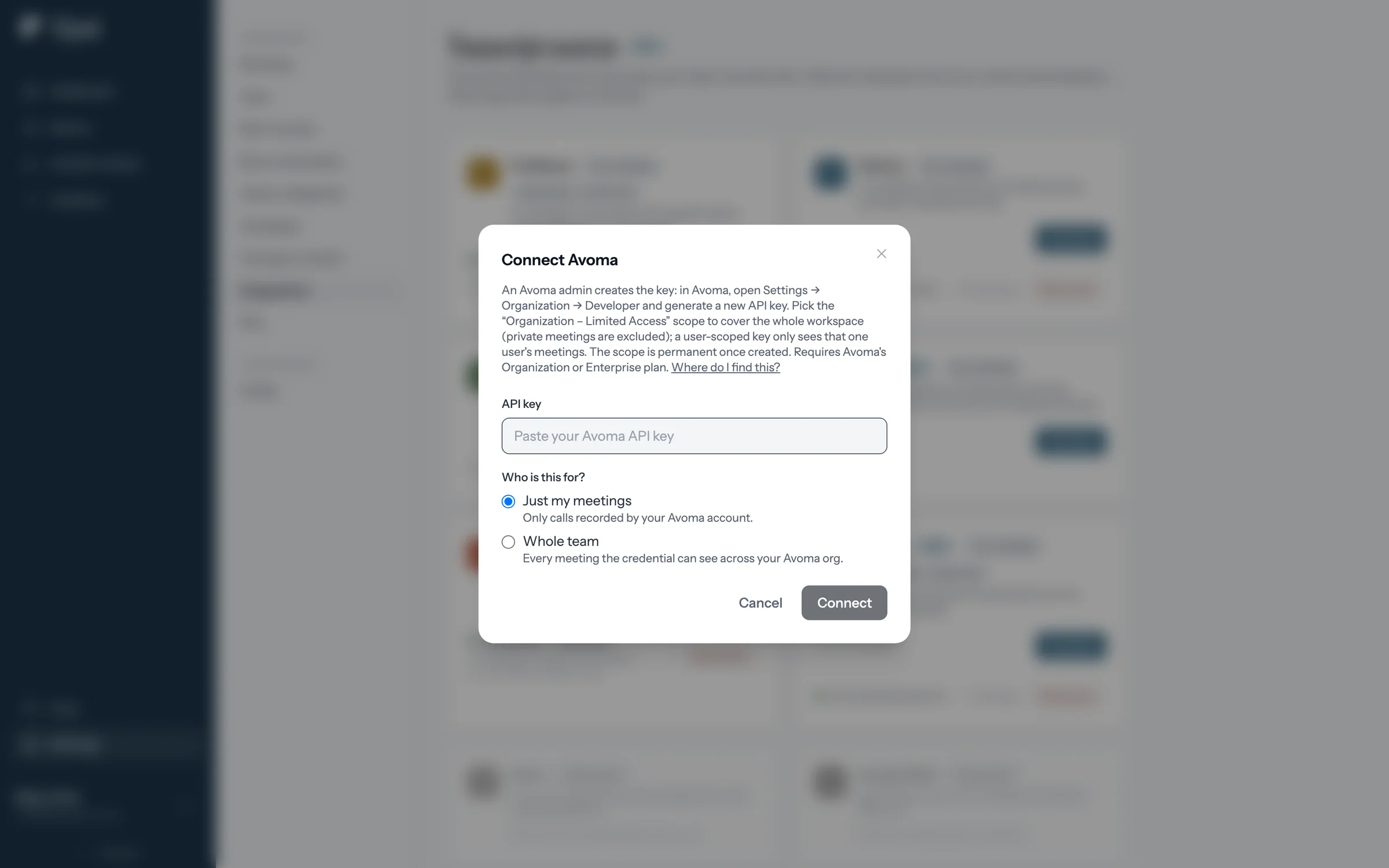
    The connect window links to the right page in Avoma's settings. Paste the key and choose Whole team or Just my meetings.

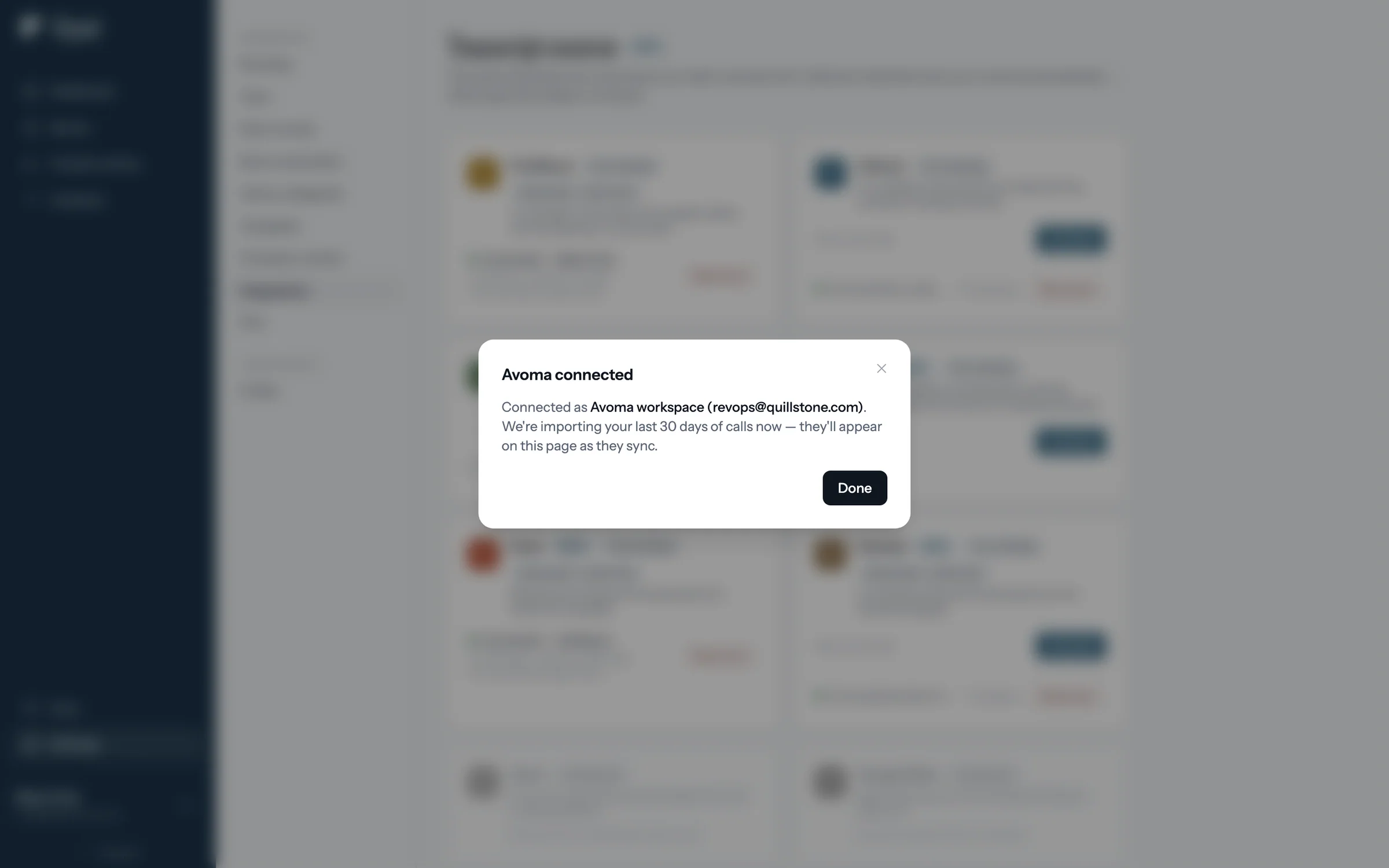
  3. Done

    foyai sets up the link with Avoma itself, so there's nothing to paste back. New calls arrive when Avoma finishes processing them.

  1. foyai integration settings with the Manage transcript sources button

    Step 1 of 7 Open transcript sources In foyai's Settings, under Integrations, click Manage transcript sources.

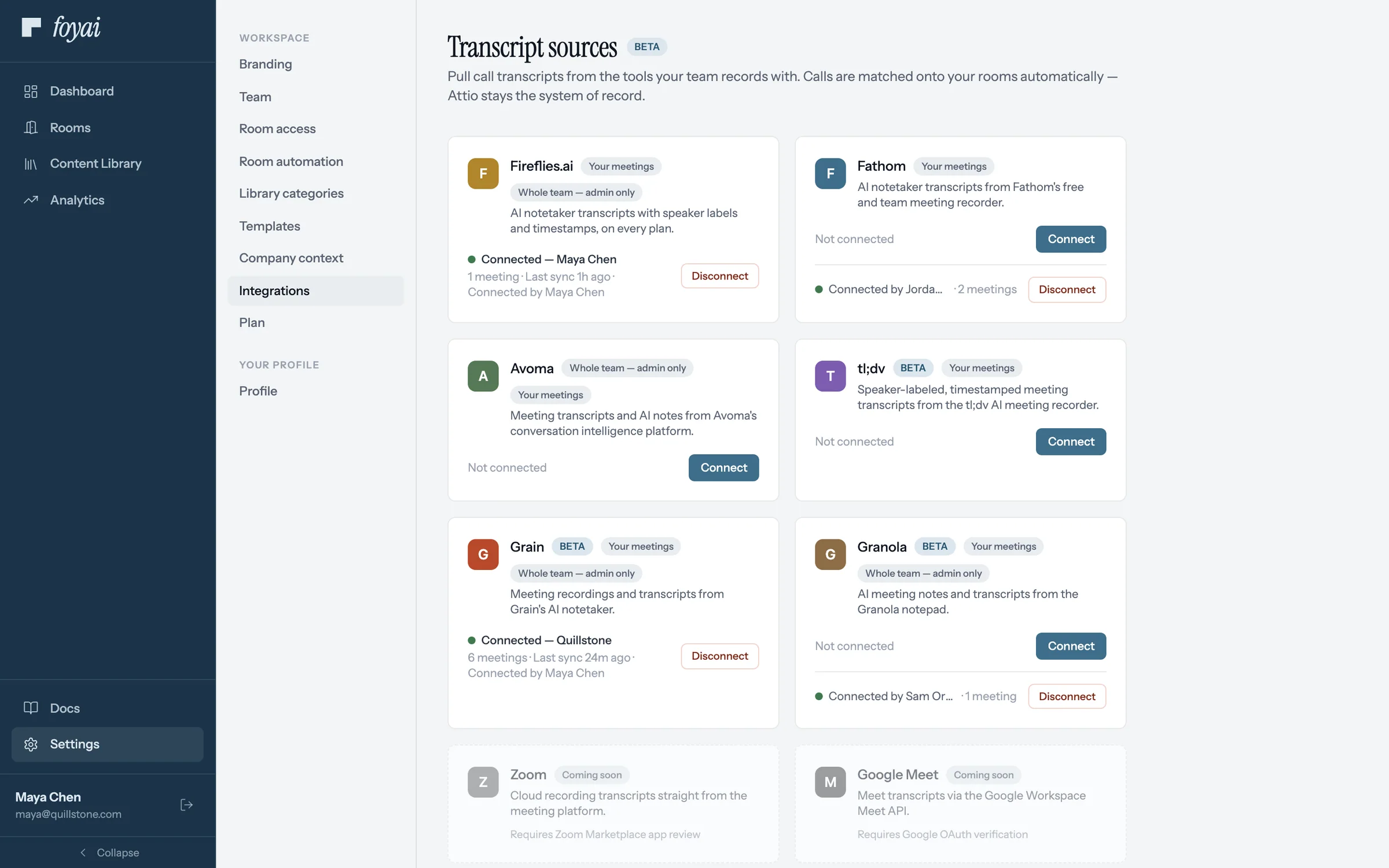
  2. Transcript sources page listing Fireflies, Fathom, Avoma, tl;dv, Grain, and Granola

    Step 2 of 7 Connect Avoma Avoma sits with the other call recorders. Click Connect on its card.

  3. The Connect Avoma window with instructions and a link to find the API key

    Step 3 of 7 Find the API key The window says where an Avoma admin creates the key, and links to Avoma's help page.

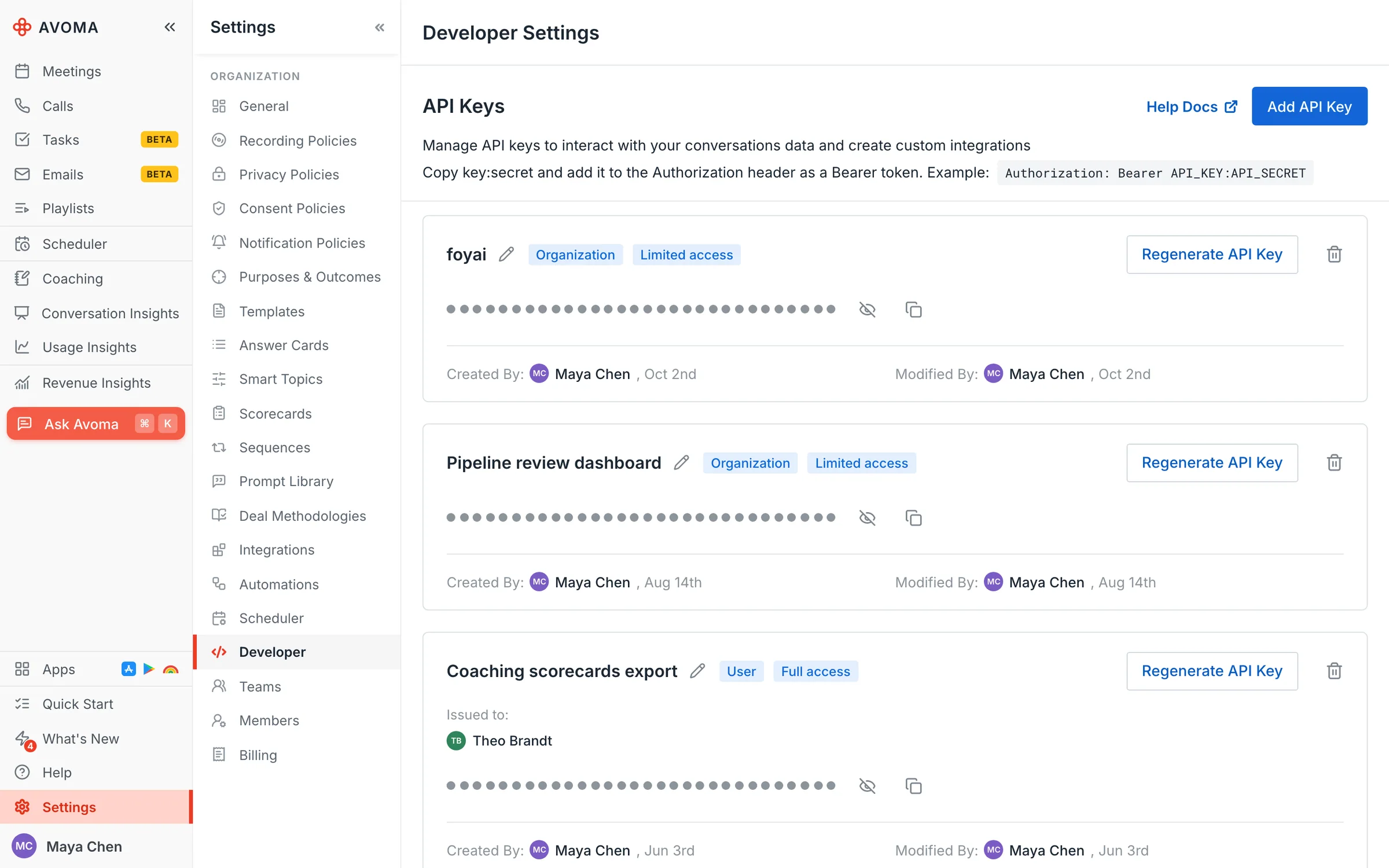
  4. Avoma developer settings with a new foyai API key, masked, and its copy button

    Step 4 of 7 Copy the key in Avoma In Avoma's developer settings, an admin creates a key with the Organization, Limited Access scope, then copies it.

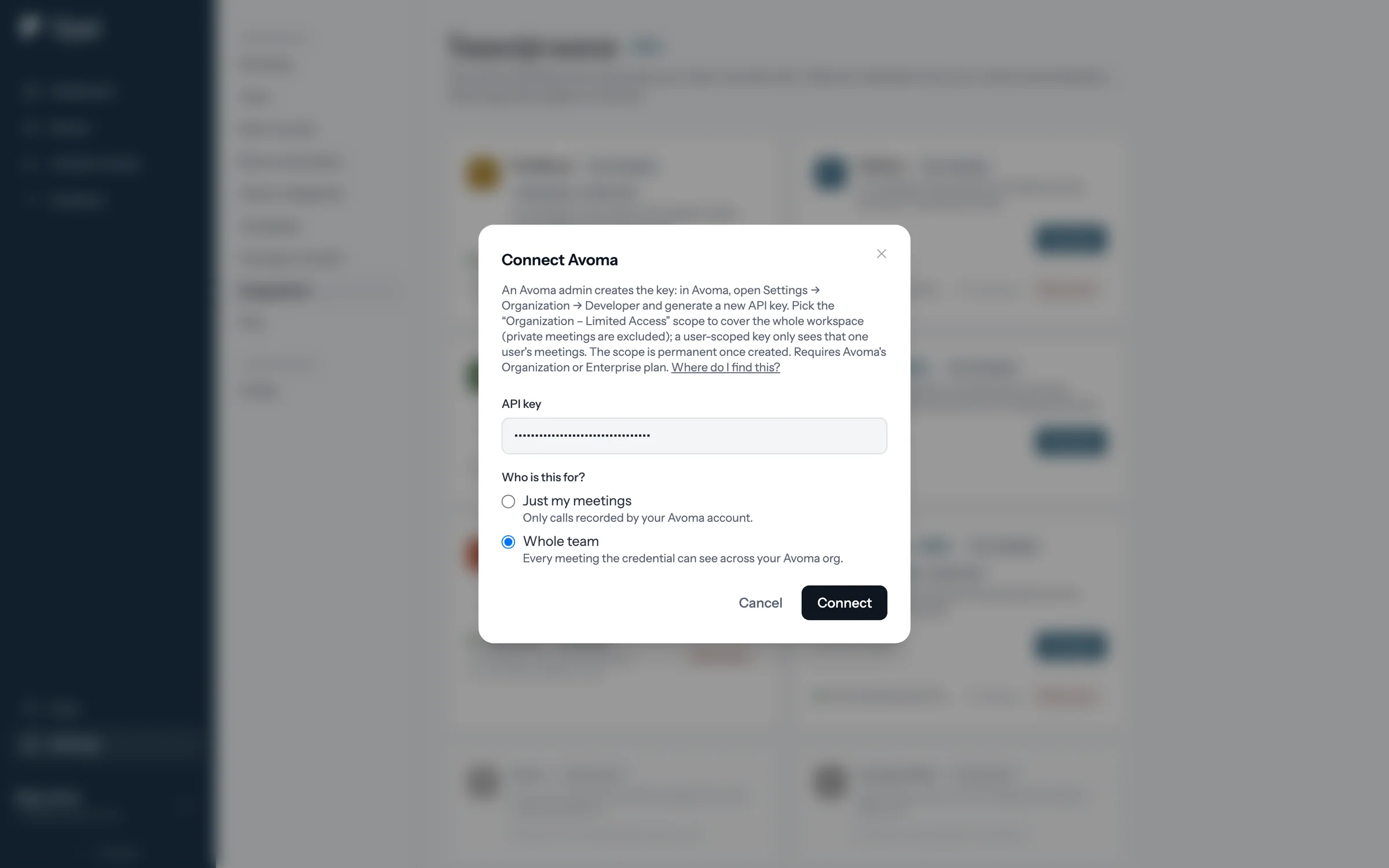
  5. The Connect Avoma window with the key pasted and Whole team selected

    Step 5 of 7 Paste it and pick Whole team Whole team lets foyai match every rep's Avoma calls to their rooms. Just my meetings covers only yours.

  6. The Connect button in the Connect Avoma window

    Step 6 of 7 Connect foyai checks the key with Avoma before it saves the connection.

  7. Avoma connected: importing the last 30 days of calls

    Step 7 of 7 Calls start importing foyai imports the last 30 days of calls, and new ones arrive as Avoma finishes processing them.

Matching

How an Avoma call finds its deal.

foyai looks at who was on the call. If the answer isn't clear, it asks you rather than guessing.

First check
  • Is a participant a stakeholder in one of your rooms?
  • Yes: the call attaches to that room
→
Then
  • Does a participant's company email domain match an Attio company?
  • Yes: the call attaches to that company
→
Otherwise
  • Only your team on it: ignored
  • Could fit more than one deal: Unmatched calls, with a suggested match

The same meeting recorded in Avoma and Attio is spotted as a duplicate, so drafts don't count it twice.

Connects with
Avoma, using an API key from your Avoma settings.
Setup time
About 2 minutes.
Connection
Whole workspace (created by a workspace admin) or just you.
New calls arrive
When Avoma finishes processing the recording, plus a regular catch-up sync.
What gets stored
Each call's title, date, and participants. The transcript is read from Avoma when foyai drafts, and kept only if you add a Meeting Notes section to a room.
Status
Beta Working today; matching and sync are still being refined.
Questions

About Avoma and foyai

Does foyai change the room automatically after each Avoma call?
No. foyai compares the new call with the room and suggests updates. You accept or dismiss each one, and buyers only see changes after you publish. Buyers always see the last published version.
Can a new Avoma call create a room on its own?
If you turn it on. In room automation, the option to also create rooms from call recordings creates and drafts a room when a call under 48 hours old is added to a deal that has no room yet. It's off by default, and rooms are never published automatically. Room automation.
Who can set up a whole-workspace Avoma connection?
Workspace admins. Anyone can connect their own Avoma calls with a just-me connection instead.
Does foyai store my Avoma recordings or transcripts?
No recordings. foyai stores each call's title, date and participants, and reads the transcript from Avoma when drafting. Your API key is encrypted at rest, and your content is not used to train AI models.
What does Beta mean here?
The Avoma connection works and you can use it today. Like every call recorder connection, it's in Beta while we refine matching and sync. Tell us at support@foyai.com if a call is matched to the wrong deal.