Room access
Rooms can be wide open or locked down to specific people. This page sets the default access mode that every new room starts with; you can still change it per room before publishing.
Where to find it: Settings → Room access. Per-room allowed domains and emails are set on each room.
Video
 Setting default room accessVideo · 1:03 · Click through
The four access modes
| Mode | What buyers experience | Best for |
|---|---|---|
| No gate | Anyone with the link can view | Low-friction sharing, early conversations |
| Domain check | Buyer types their email; if its domain is on the room's allowed list, they're in immediately. No verification email. | Known accounts, minimal friction |
| Magic link + any email | Buyer enters any email and clicks a verification link sent to it (works once, expires in 15 minutes) | Knowing exactly who viewed, without restricting to a company |
| Magic link + allowed domains + specific emails | Only allowed domains or individually listed addresses can request the emailed verification link | Confidential deals, tight control |
On each room there is one further option, Magic link + stakeholders only: the strictest mode, limited to the room's stakeholders plus any specifically listed emails.
The domain-restricted modes need at least one allowed domain (or, for the domains + specific emails mode, at least one specific email). Saving with an empty list is blocked so a room can't be accidentally locked or left open.
Two ideas combine here:
- Verification (the magic link) proves the viewer really owns the email they entered, which makes your analytics trustworthy. It is also what lets Foyai attach the visitor to the company or deal in Attio; a visitor who only typed an email at a domain check gets a Person record and an activity note, but is not attached until they verify. See Integrations.
- Restriction (domains and emails) limits who can get in at all. The allowed lists live on each room, so one deal can be locked to
acme.comwhile another stays open.
Invited colleagues
Signed-in buyers can invite a colleague from inside the room (see The buyer experience). An invite never widens who can get in. The colleague always verifies their email through a single-use link, even in a Domain check room, and only becomes a stakeholder after that.
| Mode | What an invite does |
|---|---|
| No gate | Not offered; the link already lets anyone in |
| Domain check | Sent only if the colleague's email is on one of the room's allowed domains |
| Magic link + any email | Sent to any address |
| Magic link + allowed domains + specific emails | Sent only to an allowed domain or a listed email |
| Magic link + stakeholders only | Becomes a request you approve or decline by email; listed emails and existing stakeholders are sent straight away |
The rules are checked again when the colleague opens the link, so if you tighten the room in the meantime (or remove a domain), an earlier invite stops working. Invites are rate limited per buyer and per room.
Turning invites off. "Let buyers invite colleagues" on this page (admins only) is on by default and applies to every room. Each room's Access settings can use the workspace setting or turn invites on or off for that room; the room's choice wins. When invites are off for a room, buyers don't see the button, new invites are refused, links already sent no longer let anyone in, and pending requests can't be approved (you can still decline them).
Company names in room links. "Show the company name in room links" on this page (admins only) is on by default. New rooms then get a link like /r/acme-7kq2m9xa: the buyer's company name, then a random code that keeps the link private. Turned off, new rooms get a fully random link. Changing the setting never changes a link that already exists. See The room link.
-
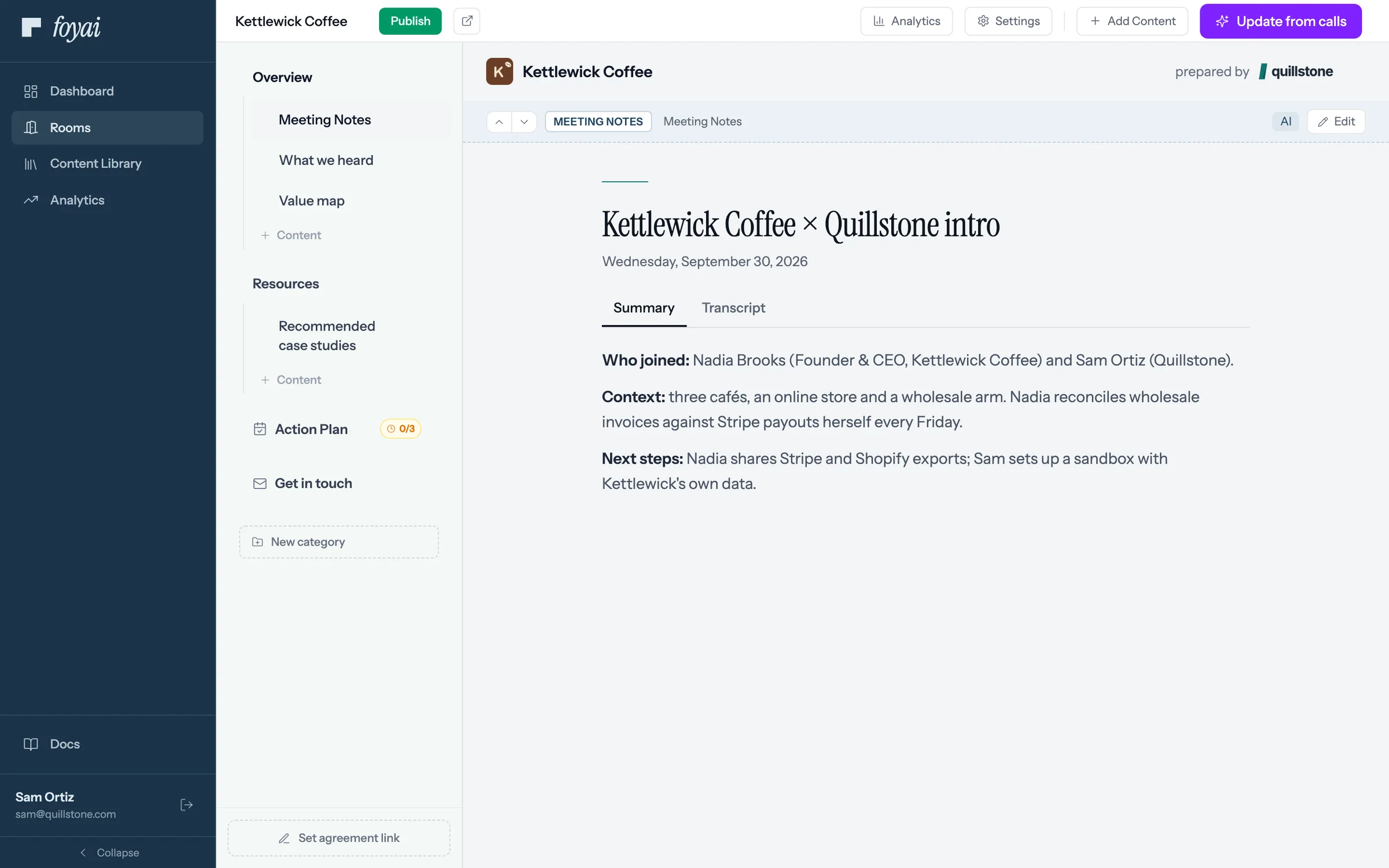
Step 1 of 7 Publish the draft Sam has checked the Kettlewick Coffee draft and clicks Publish.
-
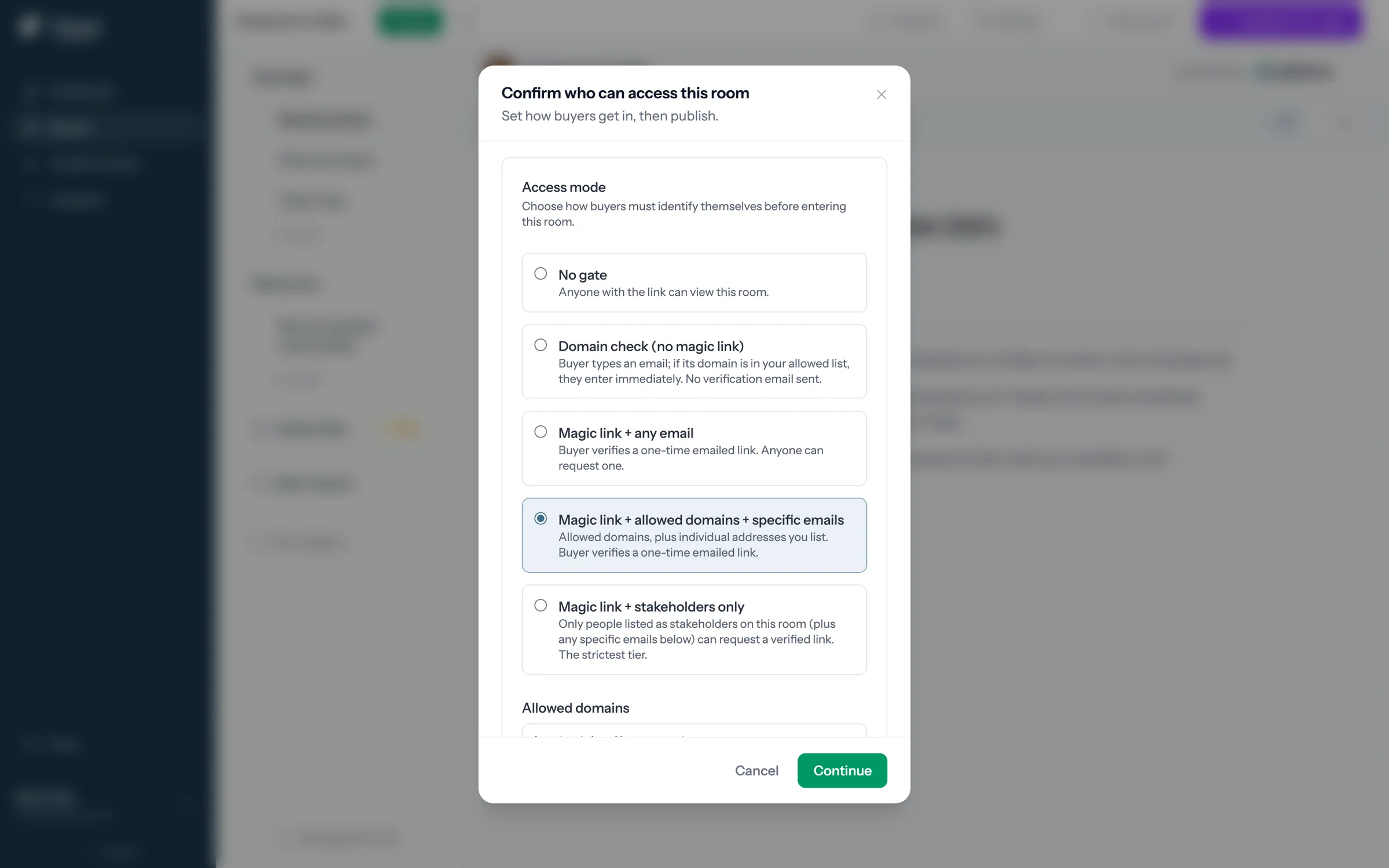
Step 2 of 7 Choose who gets in Each access mode sets how buyers prove who they are. Sam picks a one-time emailed link for allowed domains.
-
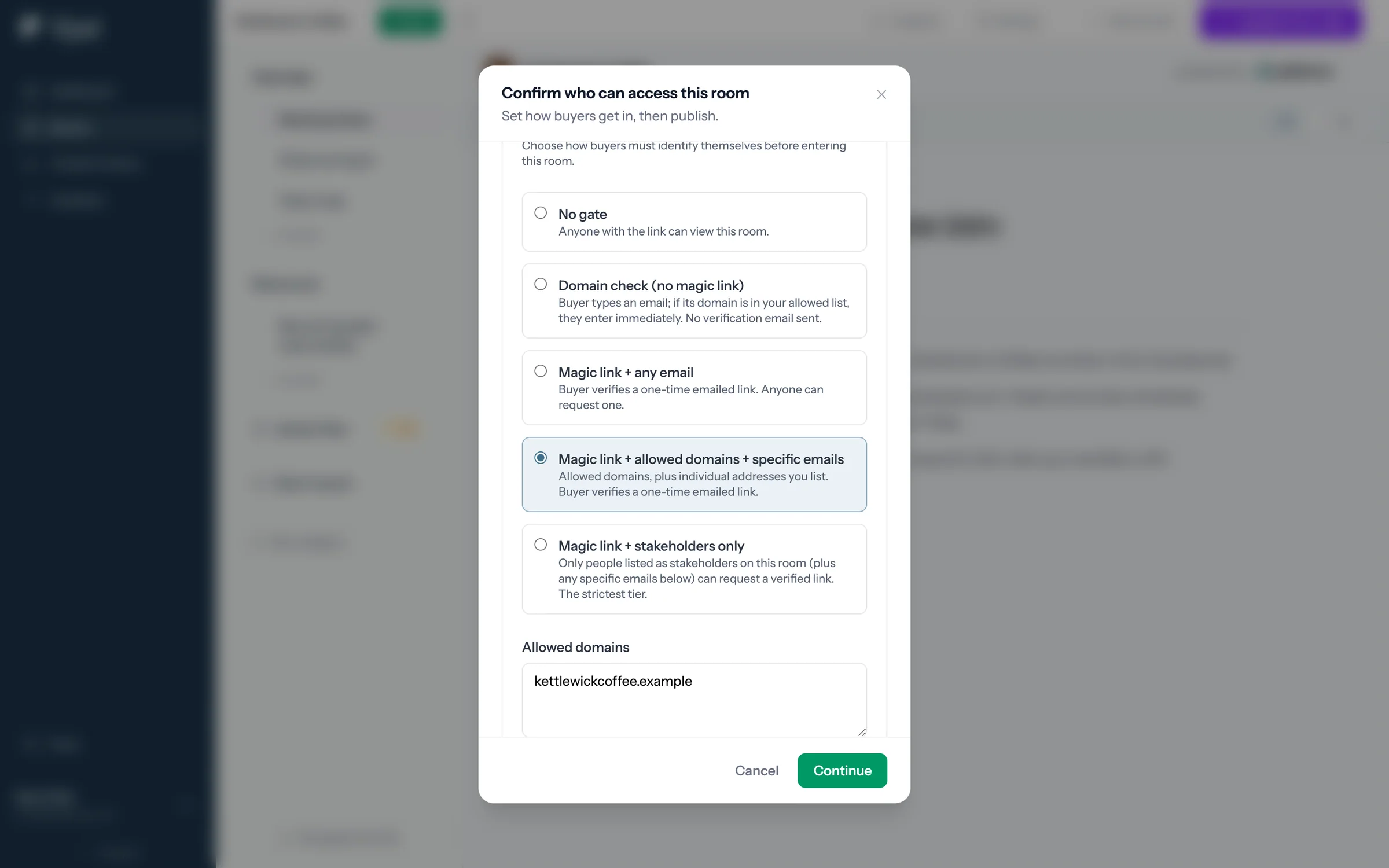
Step 3 of 7 The domain is filled in Allowed domains comes from the Kettlewick Coffee record in Attio. Sam can add more or change it.
-
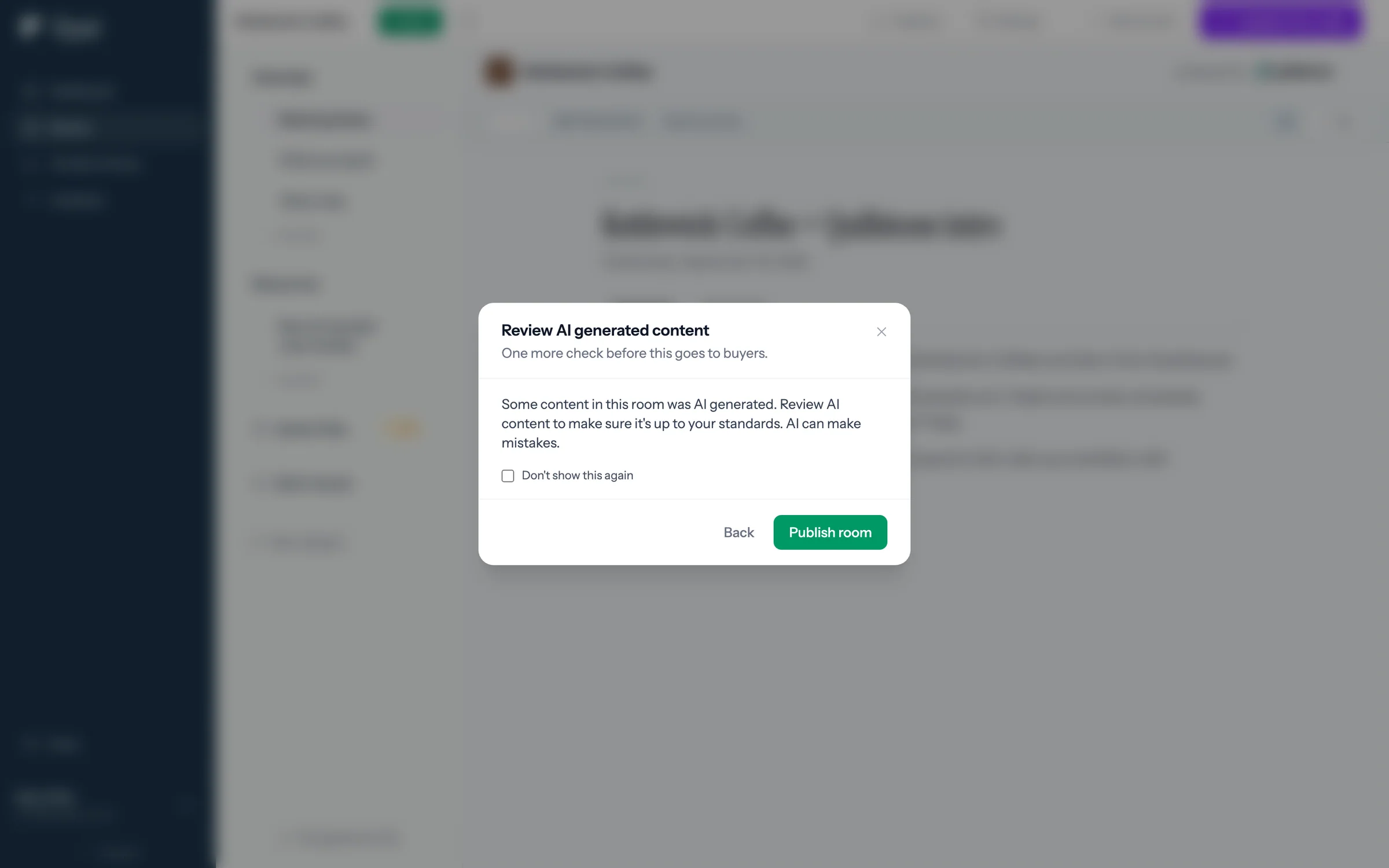
Step 4 of 7 Check the AI content A reminder to read what AI drafted before buyers see it. Then Publish room makes it live.
-
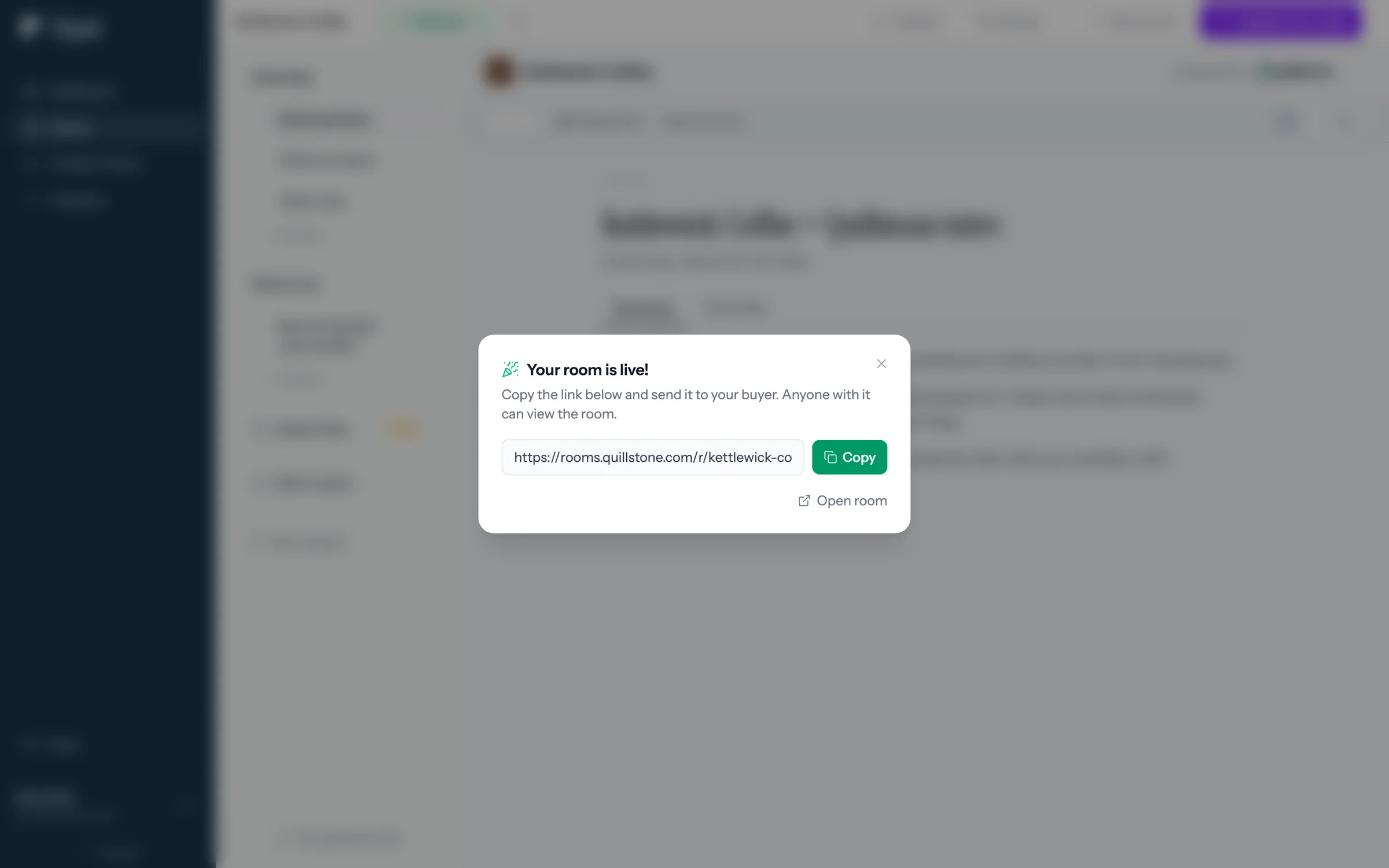
Step 5 of 7 Copy the link The room is live. Sam copies the link to send to Nadia at Kettlewick.
-
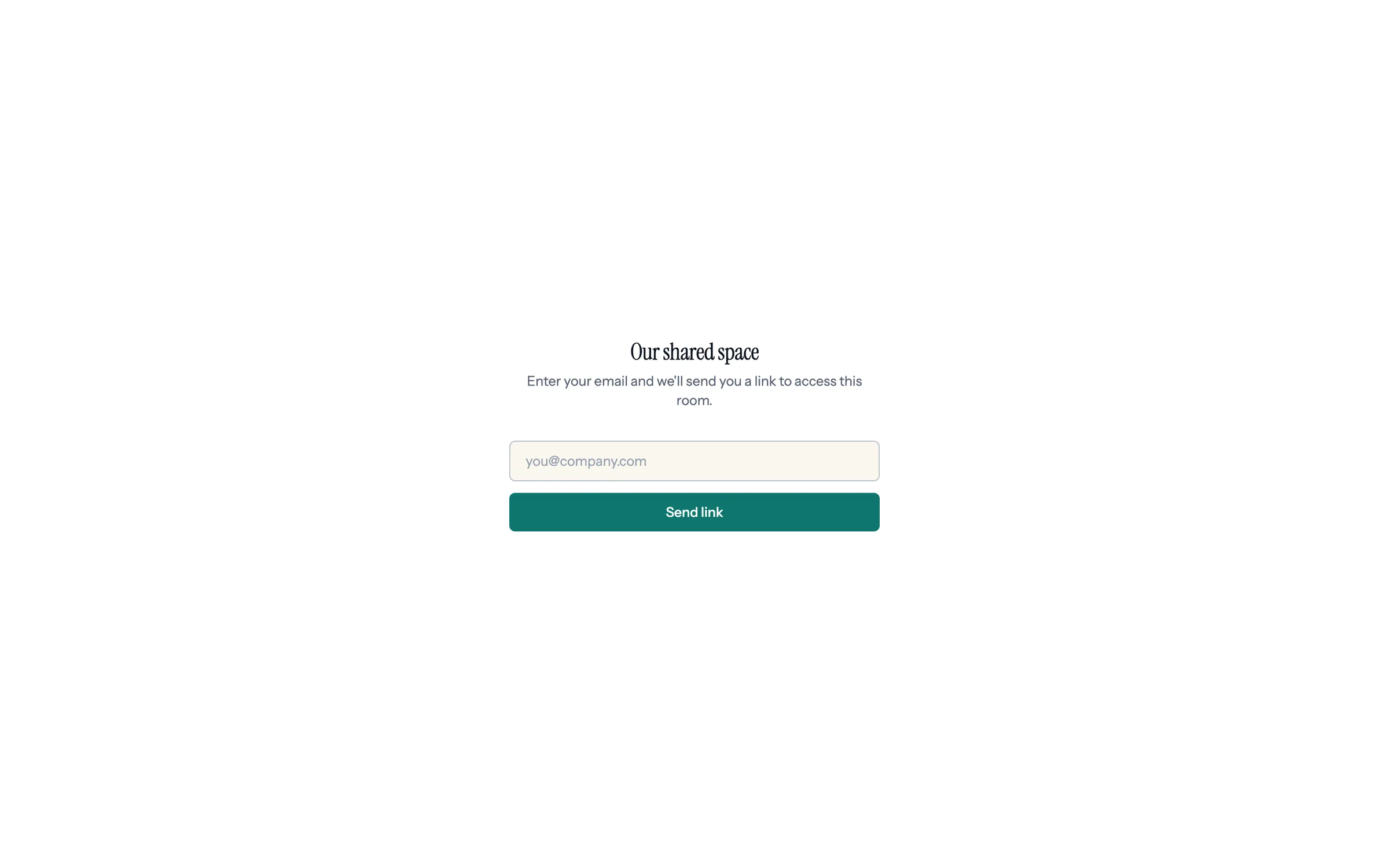
Step 6 of 7 If the link is forwarded Anyone opening it sees Our shared space, with no company names, so a forwarded link doesn't say who's talking to whom.
-
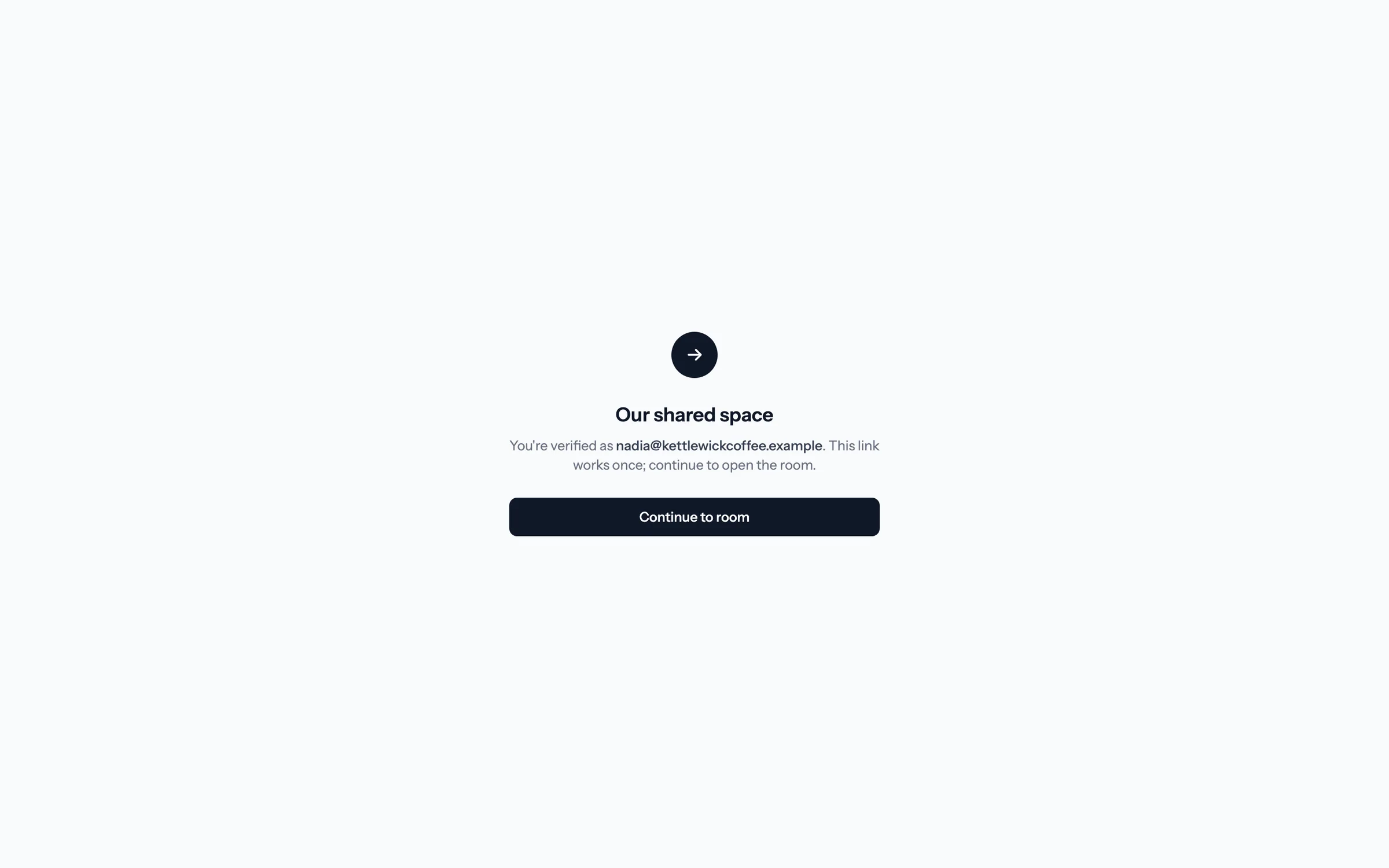
Step 7 of 7 The emailed link works once Nadia confirms on this screen. The link can't be used again, and it expires after 15 minutes.
Decide who gets into each room.
Set a default access mode in Settings, then tighten or open up any room before you publish it.
Choosing a default
Pick the mode most of your deals need; publishers can still tighten or loosen individual rooms before sharing. A common setup is Domain check as the default (buyers enter instantly, you still learn who they are) and the strictest mode reserved for sensitive rooms.
Troubleshooting
A buyer says they can't get in. Check the room's access mode and its allowed list. With domain-restricted modes, a buyer using a personal email (gmail.com) won't pass a corporate-domain check; add their address to the room's specific emails instead.
A buyer didn't receive the magic link. Have them check spam, and confirm the email was typed correctly. Links work once and expire after 15 minutes, so a used or old link needs to be requested again from the room's entry screen.
The emailed link opens a screen with a Continue button. Why the extra click? That's deliberate. Corporate email security tools open links automatically to scan them; the confirmation click ensures a scanner can't use up the buyer's single-use link before they do.
What do buyers see before they're let in? A neutral "Our shared space" screen with no company branding. The room URL itself is the secret, so the gate never reveals who the room is for. More in The buyer experience.
Questions? Email support@foyai.com, or use the in-app chat.