Getting started
Foyai turns your Attio deals into buyer rooms: branded, shareable spaces where your buyer sees everything about the deal in one place, and you see everything they do with it. This guide takes you from a fresh workspace to your first published room.
Videos
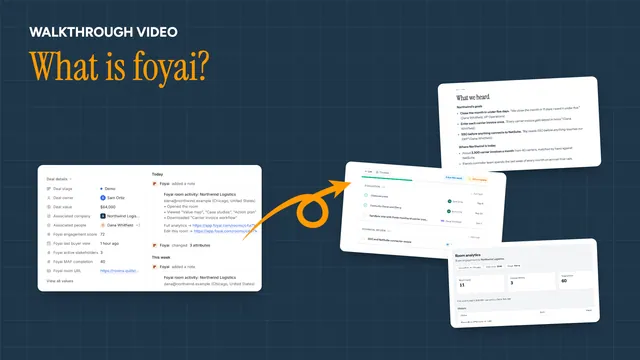 What is foyai?Video · 1:29 · Click through
 Getting your sellers set upVideo · 1:13 · Click through
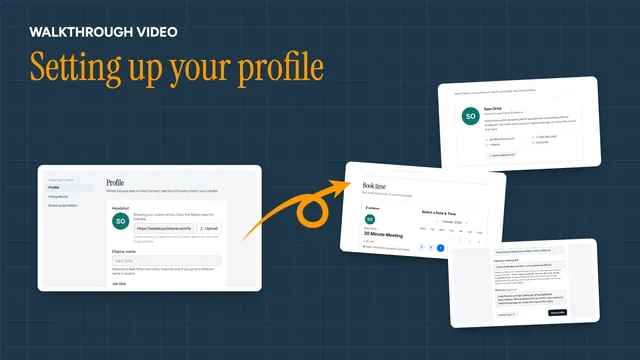 Setting up your profileVideo · 1:06 · Click through
Your Getting started page
Getting started, in the menu above Docs, sets you up the way you want to work.
Admins choose how to get set up. Pick With our team to book a 30-minute video session right there, and we'll get your brand, content and first room ready with you. Pick On my own to answer four quick questions:
- What rooms do you want to send? (new business, expansion, renewal, pilot, security review, partnership, or just a simple one to start)
- What content do you have? (case studies, a pitch deck, demo videos, Drive docs)
- When should rooms be created? (when you choose, automatically when a deal reaches a stage in Attio, or in bulk from an Attio list)
- Who's on the team? (just you for now, or sellers to invite)
Your answers build a short path of three to five milestones: Make it yours, Add your content, Send your first room, then Put rooms on autopilot if rooms should be created automatically or in bulk, and Invite your sellers last if you have a team. Change your answers any time, and you can still book a session from the page whenever you like.
Sellers get three milestones: Set up your profile, Create your first room, and Publish and share it.
Each milestone has short narrated videos of the real product (the same ones on foyai.com/learn) and a button to where it's done. Milestones check themselves off when Foyai sees them happen: your logo is in, your library has content, your first room is published. Skip any milestone you don't need, and Undo puts it back. The same videos also appear as Watch how buttons on the pages they explain.
Until you're done, the Dashboard shows what's next. Minimize it to one line or hide it with the ×; the Getting started page stays in the menu, and once everything is done it's renamed Learn. Links in our setup emails open the videos in the app, and if you're signed out, signing in takes you straight back to the video.
-
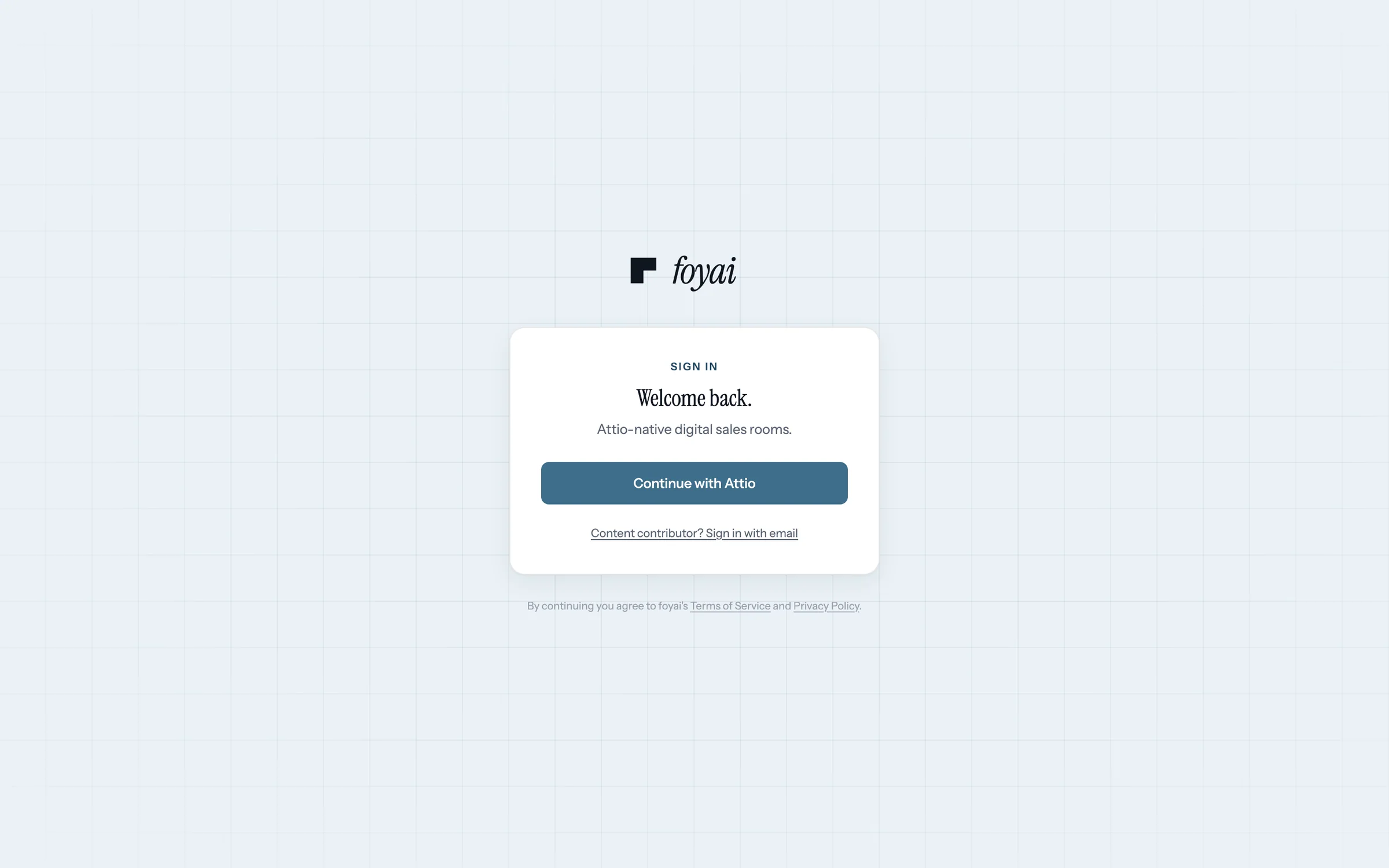
Step 1 of 6 Sign in with Attio foyai runs on your Attio workspace. Continue with Attio connects it, so your deals and calls come across.
-
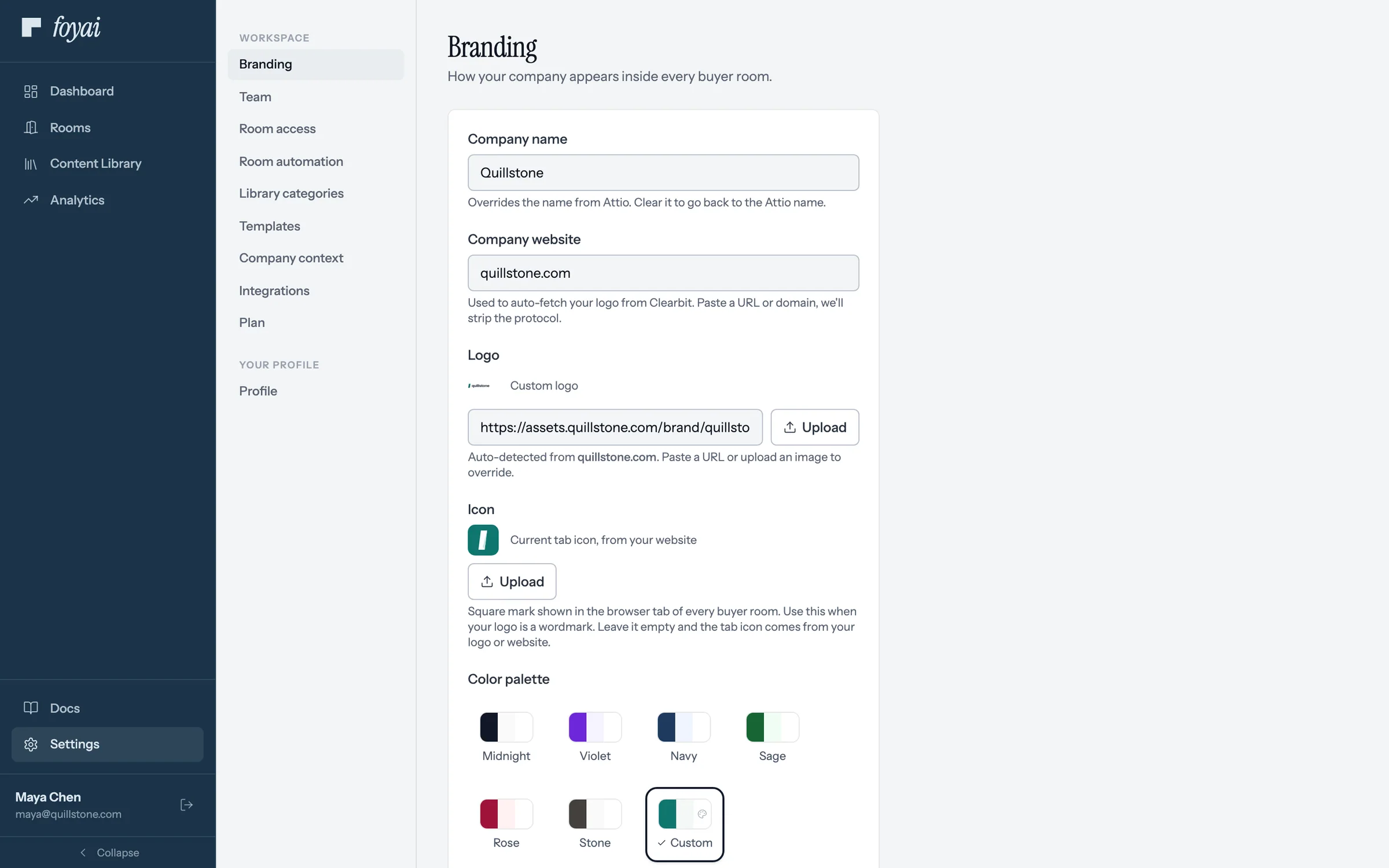
Step 2 of 6 Pick your colors Your name and logo come from Attio and your website. Choose a palette, and buyer rooms use it.
-
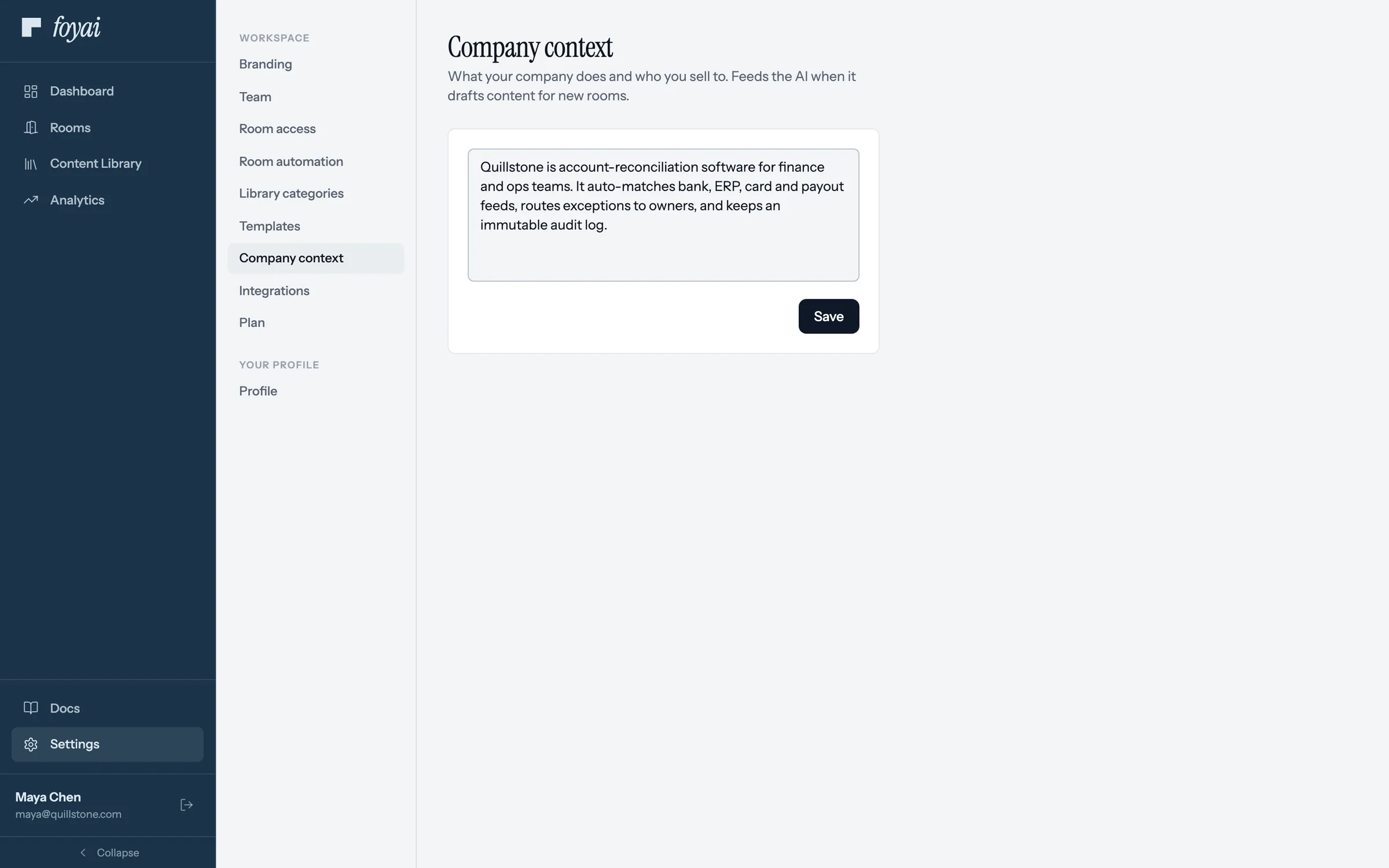
Step 3 of 6 Say what you sell A few lines on what your company does and who you sell to. foyai uses them when it drafts rooms.
-
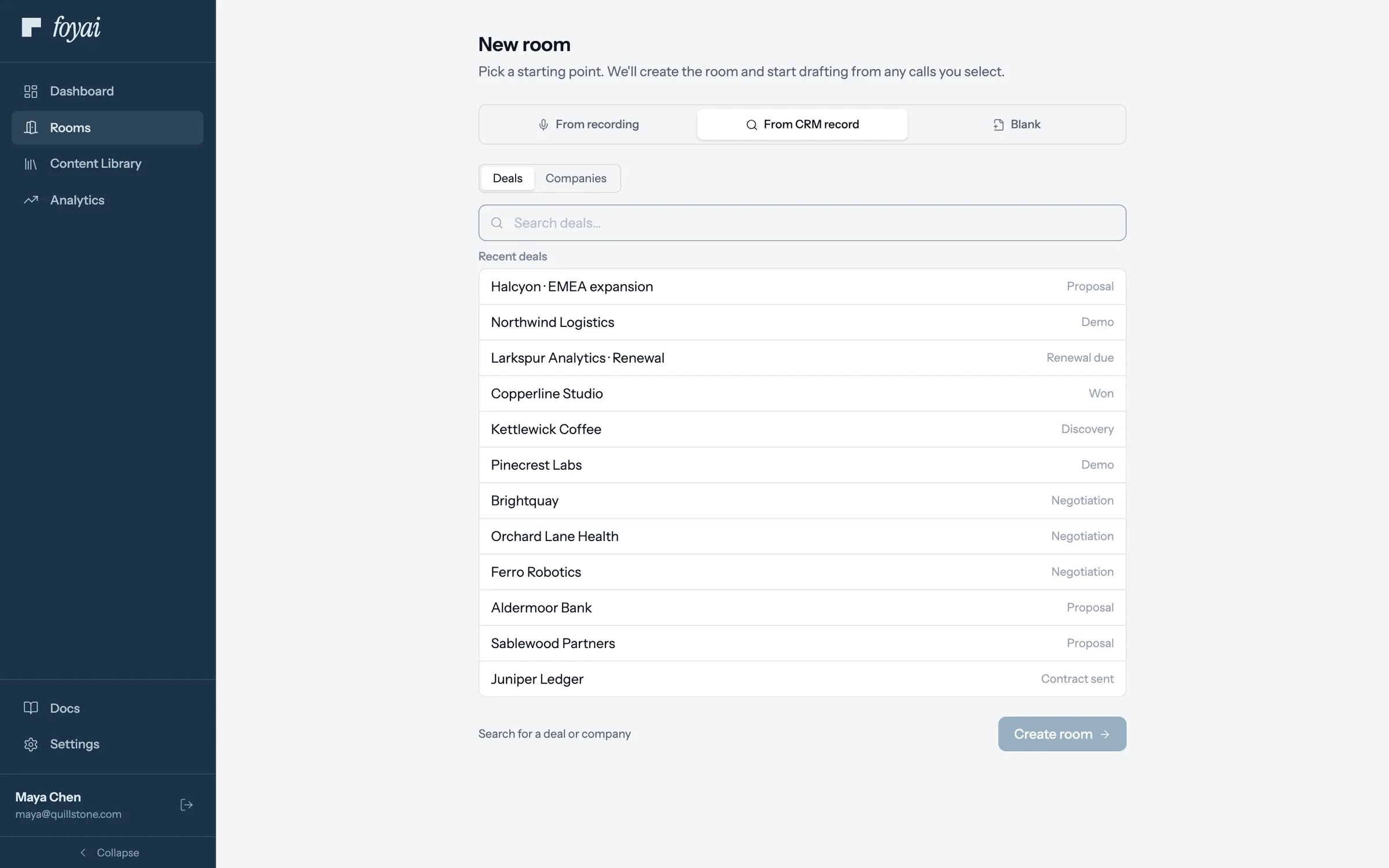
Step 4 of 6 Start from a deal Click New room and choose From CRM record. Pick a deal from Attio, and its recorded calls come along.
-
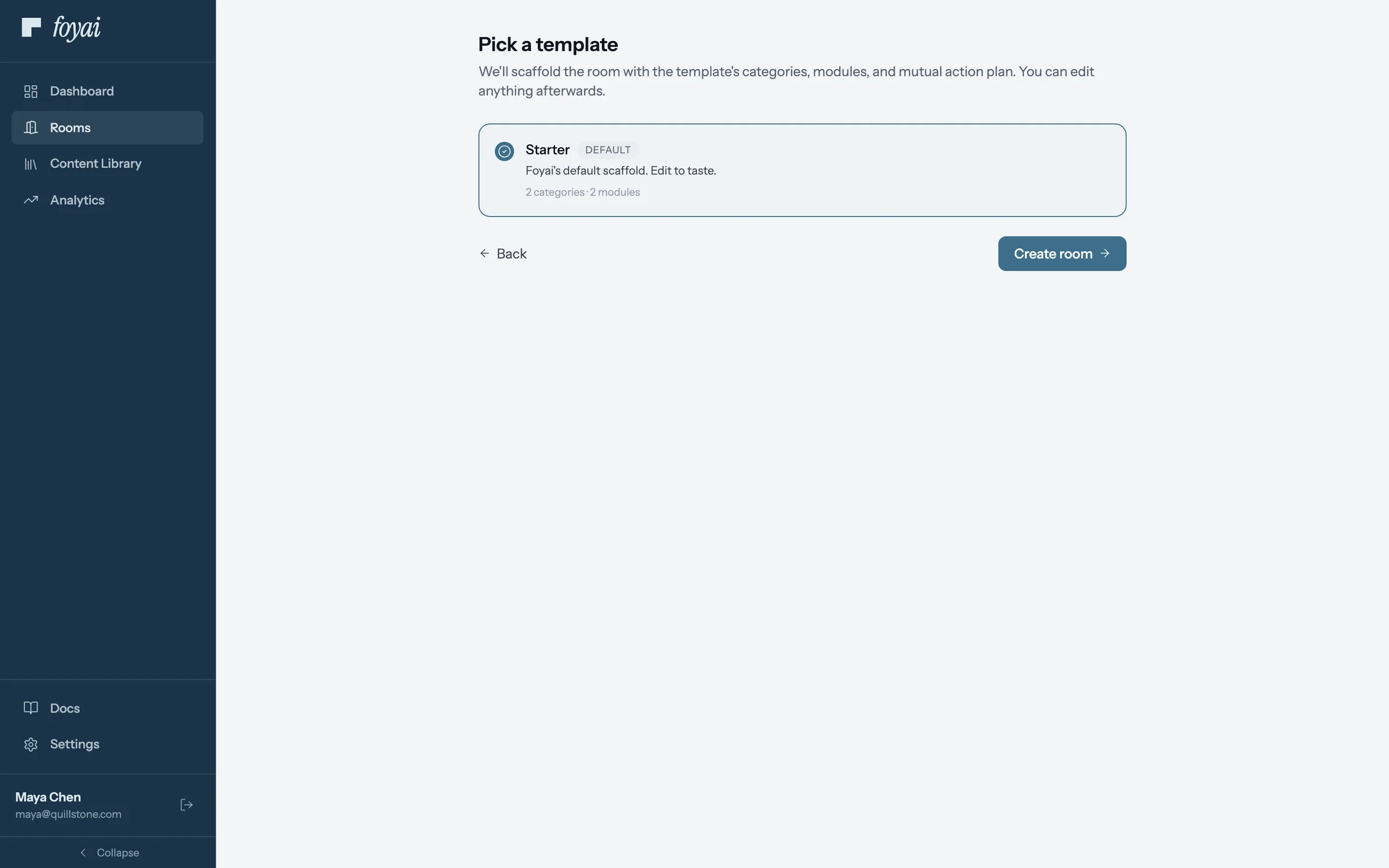
Step 5 of 6 Pick a template Every workspace starts with Starter. You can save your own later from any room you like.
-
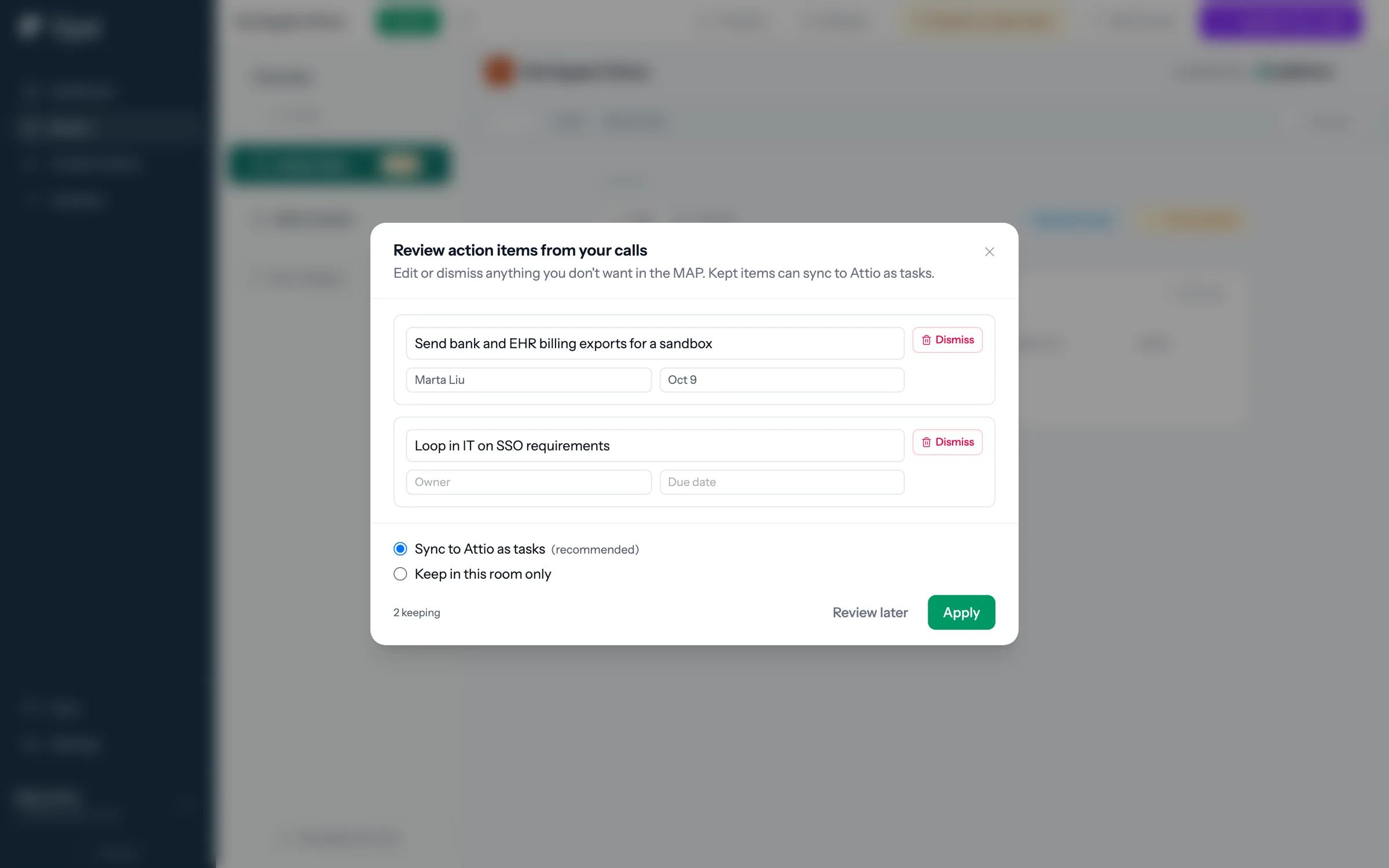
Step 6 of 6 Check the action items foyai drafts the room from the calls, then asks you to check the action items it heard before anything goes to Attio.
Draft your first room from an Attio deal.
Connect Attio, pick a deal with a recorded call, and check the draft before you publish it.
1. Sign in with Attio
Foyai runs on your Attio workspace. Sign in with your Attio account at app.foyai.com; the connection carries your deals, companies, and call recordings into Foyai automatically. There is nothing to import.
The connection is made once per workspace, by an Attio admin. If you're the first admin from your team to sign in, Foyai takes you to a Connect your Attio workspace step that lists what Foyai will be allowed to do before Attio asks you to approve it. After that, every teammate signs in with their own Attio account, whether they're an Attio admin or not.
If you're not an Attio admin and your workspace isn't connected yet, Foyai gives you a short message to send one of your admins, with a link to the connect step.
2. Make it yours
Two quick setup stops before your first room:
- Settings → Branding (admin): your company name and logo come from Attio and your website automatically; pick a color palette (or build a custom one) and add footer links. See Branding.
- Settings → Profile (everyone): what buyers see in the Contact section of every room you create: your photo, title, the email buyers write to (defaults to your sign-in address; change it to show a different one), phone, LinkedIn, a short bio, and a calendar booking link buyers can book you through without leaving the room.
Use Preview room on either page to see the result as a buyer would.
Every seller, not just admins, can also set up their own integrations from Settings → Integrations: email alerts (on by default), Slack alerts, a Google Drive connection, and (if you record calls with Fathom or tl;dv) your own transcript source. Workspace-wide connections, like the Attio sync and the Slack install, stay with an admin.
3. Create your first room
Click New room. You'll pick a starting point:
- From recording: choose one or more recorded calls, and Foyai drafts the room from what was said.
- From CRM record: pick a Deal or Company from Attio; its linked calls come along, and you can uncheck any you don't want included.
- Blank: just a title, for when you want to build by hand. You can link a CRM record later.
Next you'll pick a template (every workspace starts with a Starter template; you can save your own later, see Templates). If your room has calls attached, Foyai then drafts it: goals, challenges, next steps, and suggested content, extracted from the conversations. More on what the AI writes in AI drafts.
4. Review what the AI found
After drafting, Foyai asks you to review action items it heard on your calls before anything syncs anywhere. Approve the real ones, dismiss the rest. The room editor is yours from here: add content, reorder the navigation, adjust sections. See Creating and managing rooms.
5. Publish and share
Click Publish. You'll confirm who can access the room (from open-link to verified-email, see Room access), review any AI-generated content, and then the room is live with a share link ready to copy. Buyers see a snapshot of what you published; your later edits stay invisible until you publish again.
6. Watch it work
- The Dashboard shows your pipeline coverage (how much of your open pipeline has a live room), a live activity feed of buyer visits, rooms needing attention, and Attio deals that don't have rooms yet.
- Analytics shows who opened what, for how long, down to individual slides. See Analytics.
Where to go next
| I want to... | Read |
|---|---|
| Understand everything the room editor can do | Creating and managing rooms |
| Get more out of AI drafting | AI drafts |
| See what my buyer sees | The buyer experience |
| Auto-create rooms when deals hit a stage | Room automation |
| Pull transcripts from Fathom, Fireflies, and more | Transcript sources |
Questions? Email support@foyai.com, or use the in-app chat.