The buyer experience
What you build in the editor is not quite what buyers see; they get the published snapshot, your branding, and only the access you've granted. This page walks the room from their side.
-
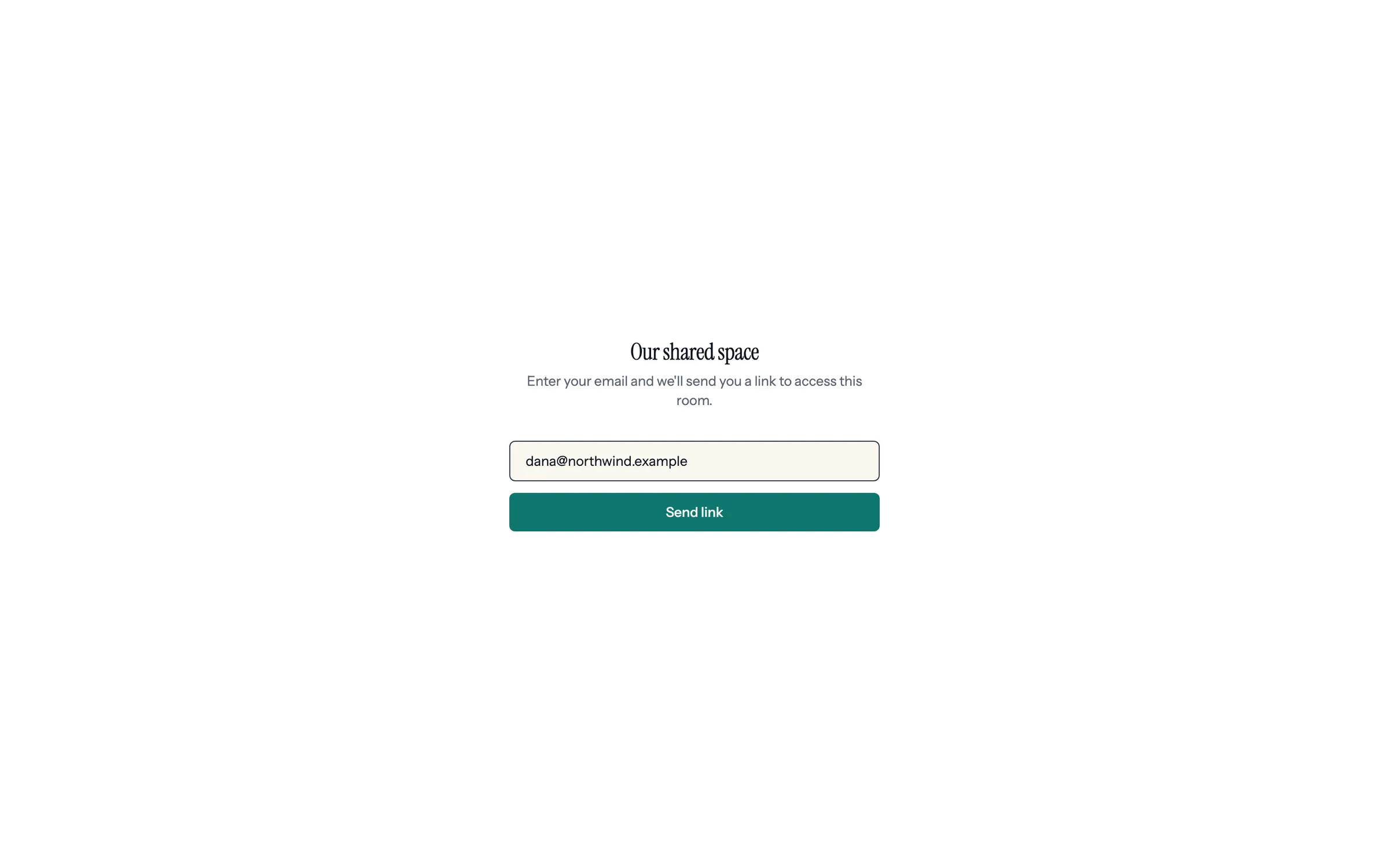
Step 1 of 9 Dana enters her email The room link opens on a plain screen with no company names. Dana types her work email and clicks Send link.
-
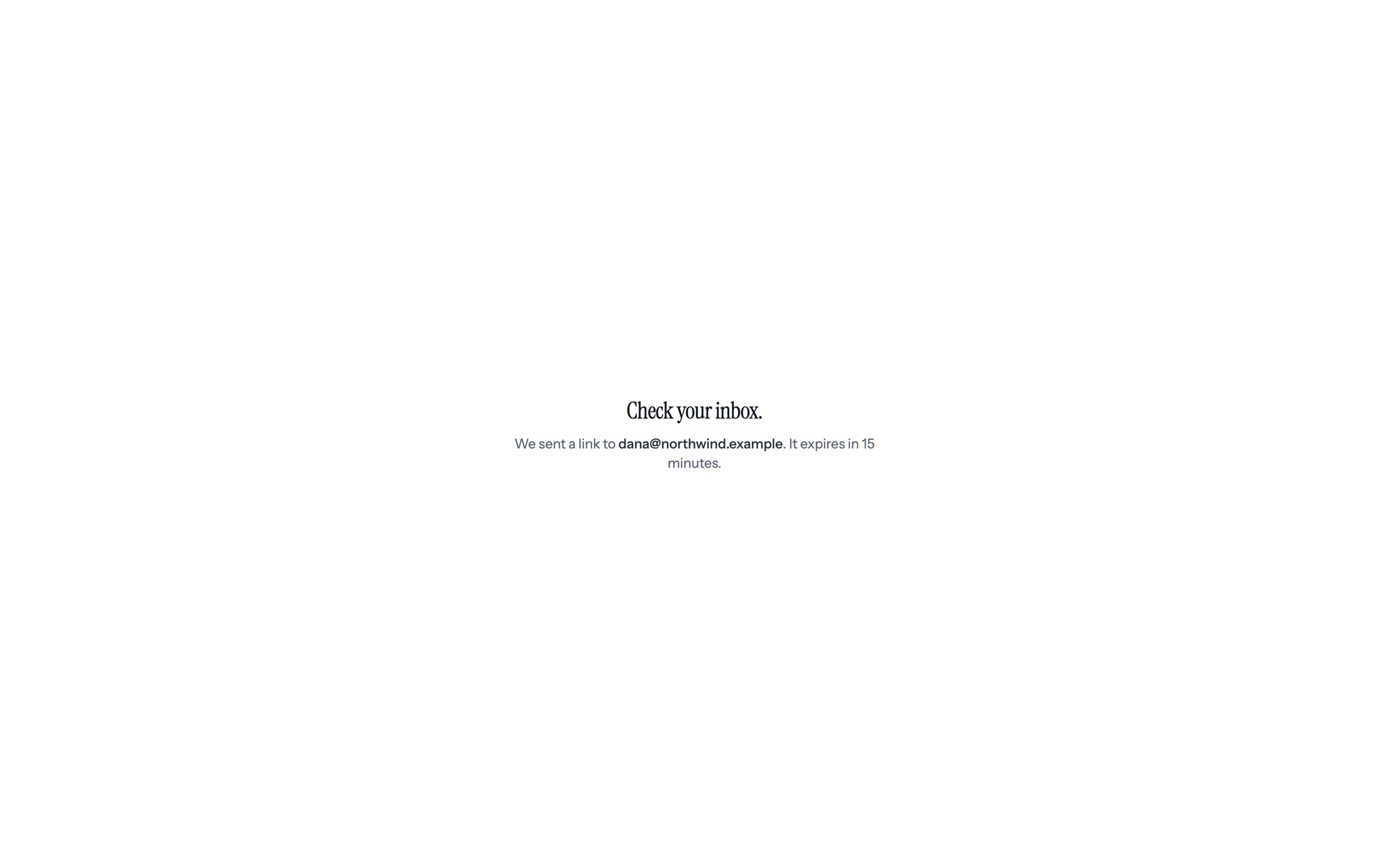
Step 2 of 9 Check your inbox A sign-in link goes to that address. It expires in 15 minutes.
-
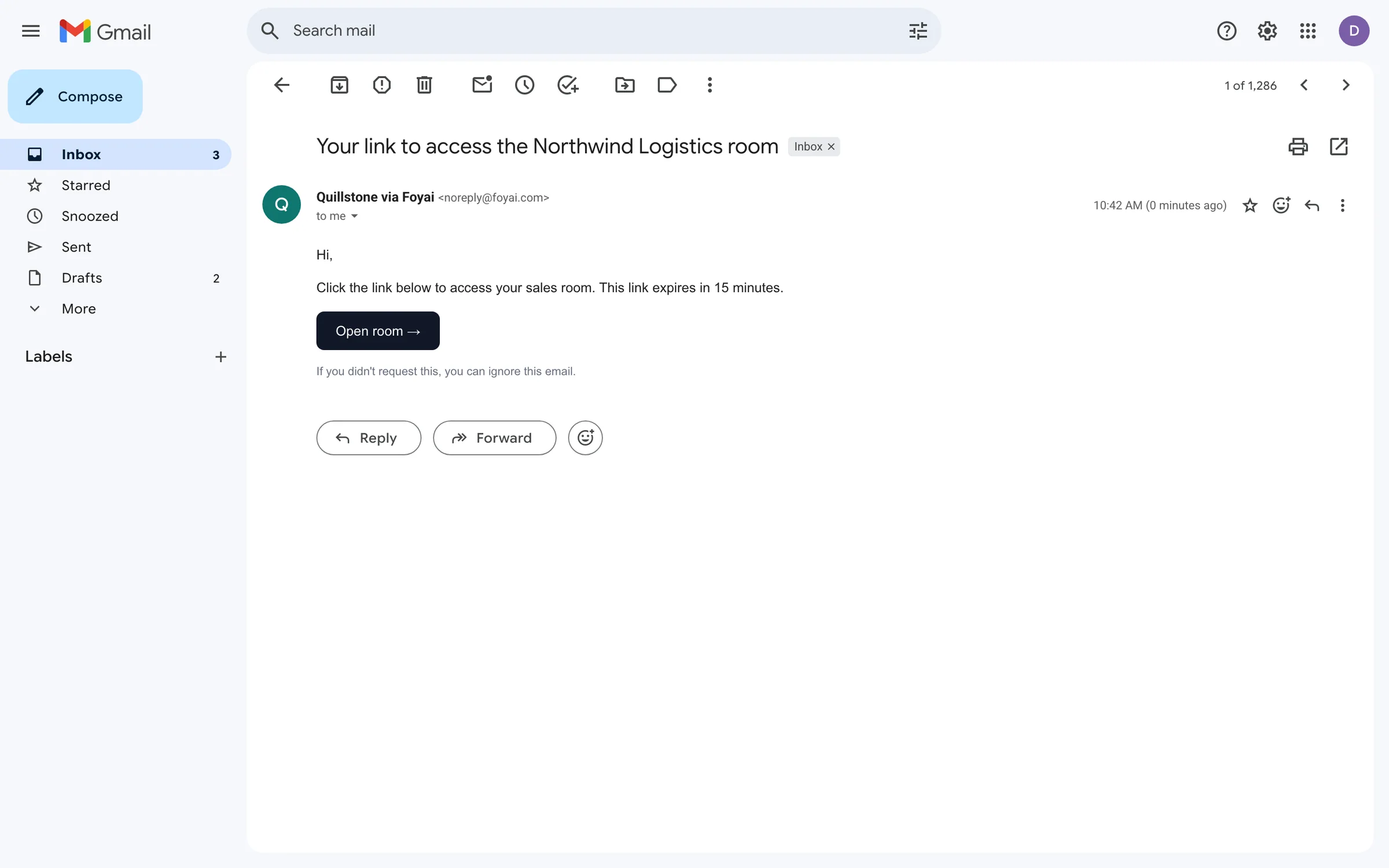
Step 3 of 9 Open the email The email comes from Quillstone via Foyai. Open room takes Dana back to the room.
-
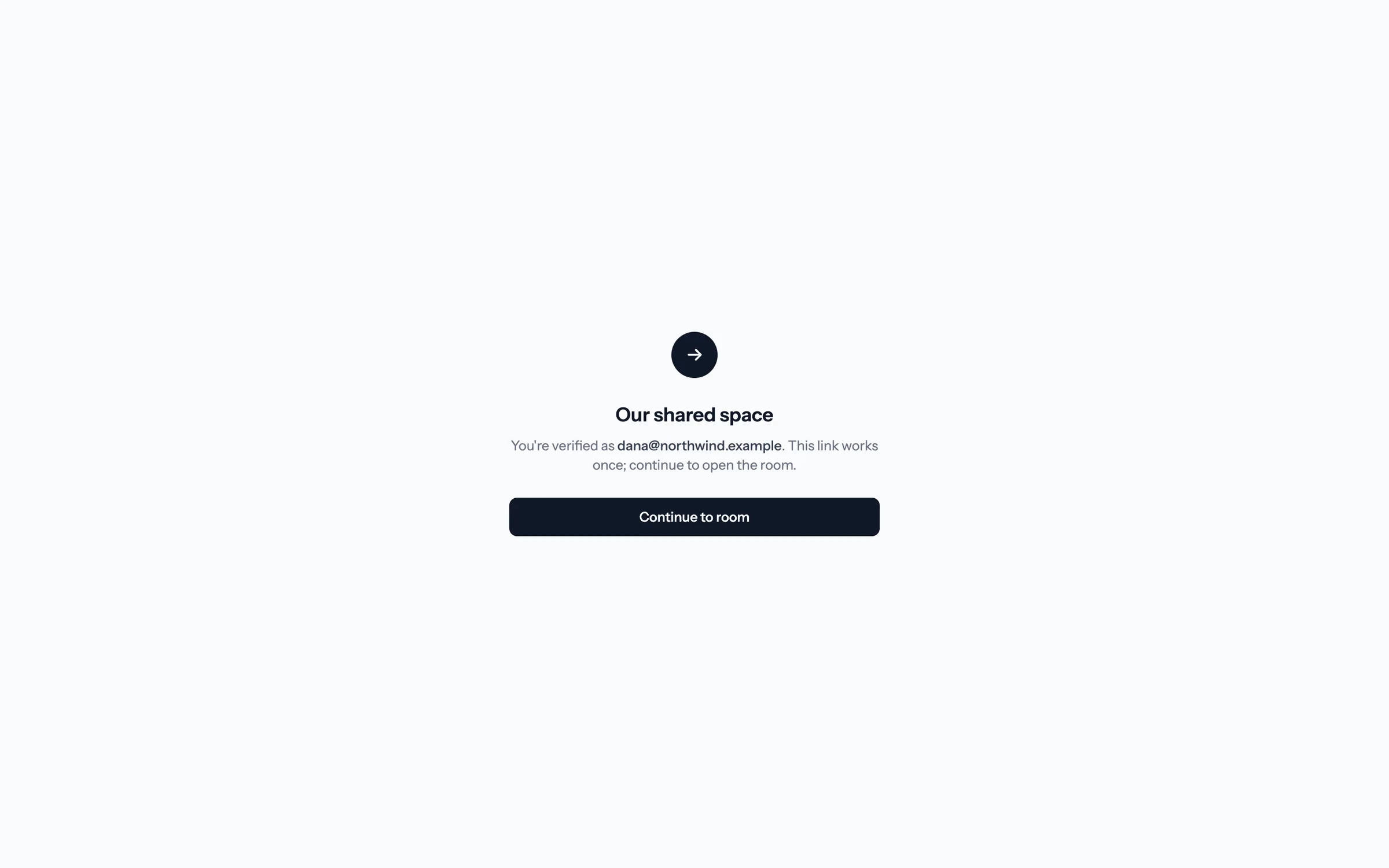
Step 4 of 9 Continue to the room The link works once. This extra click keeps email security scanners from using it up before Dana gets there.
-
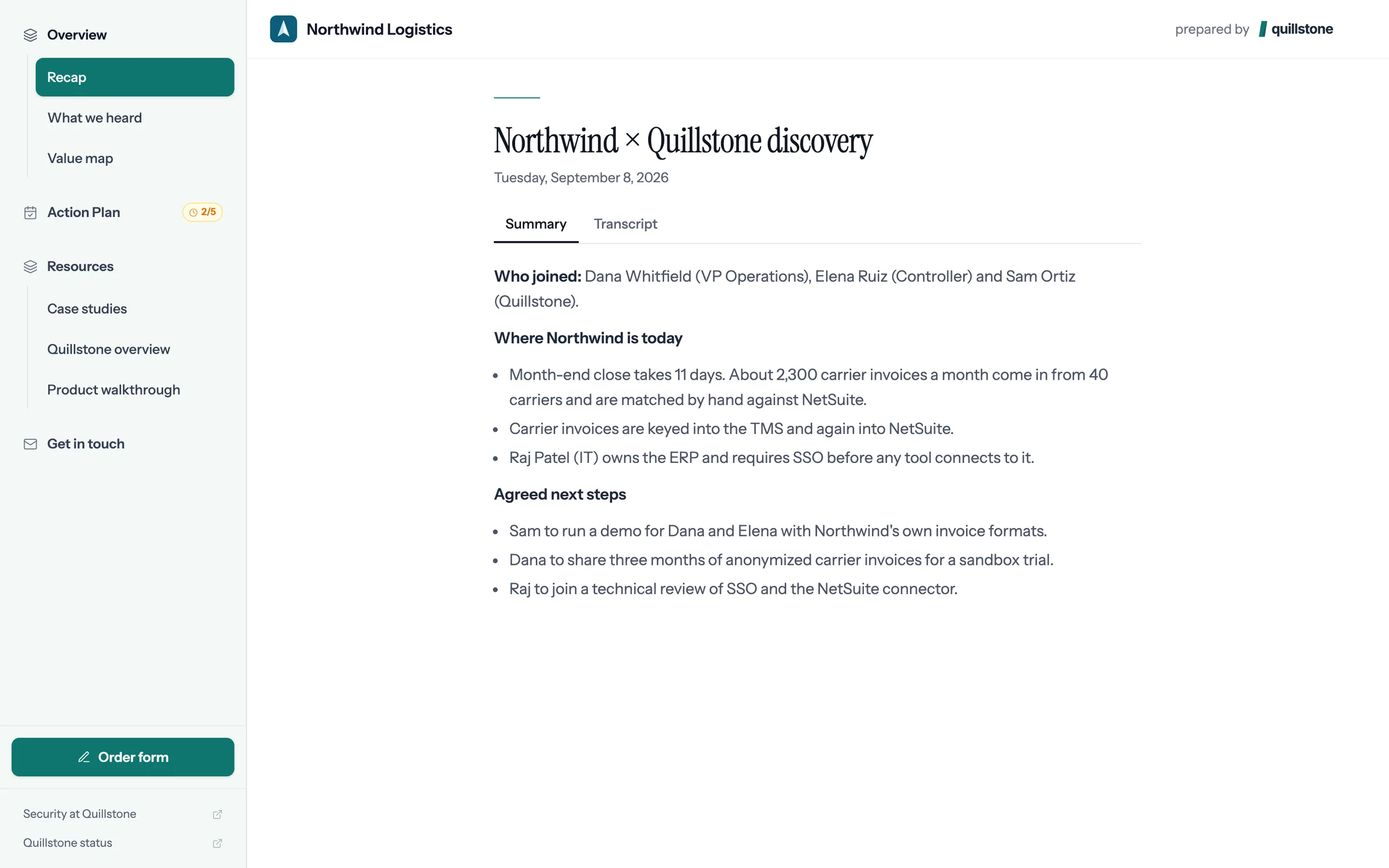
Step 5 of 9 Dana is in The room Quillstone made for Northwind Logistics opens on the discovery call recap.
-
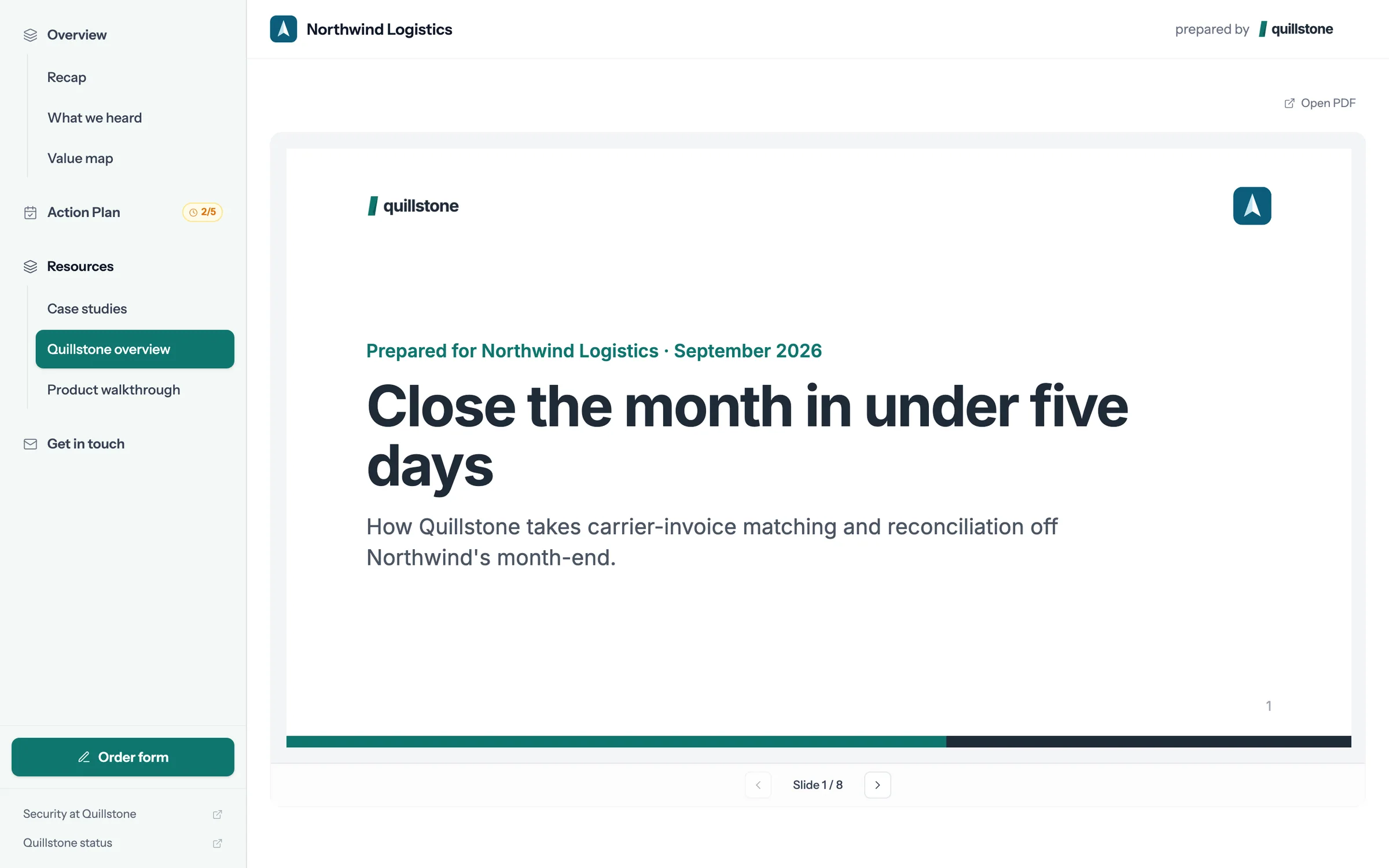
Step 6 of 9 Read the deck The deck opens inside the room, slide by slide, with nothing to download.
-
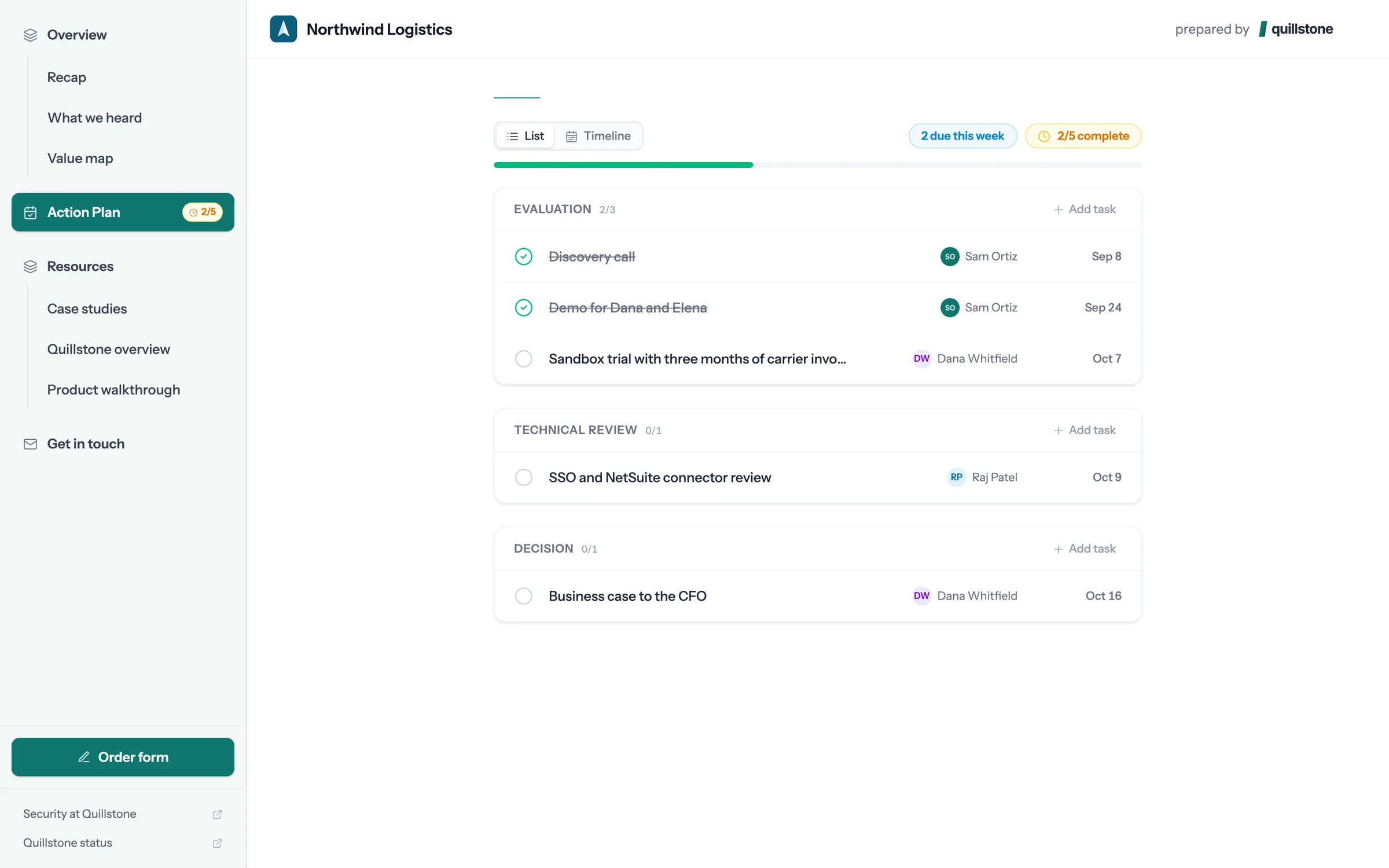
Step 7 of 9 Tick off a step Dana owns the sandbox trial in the action plan, so Dana can mark it done.
-
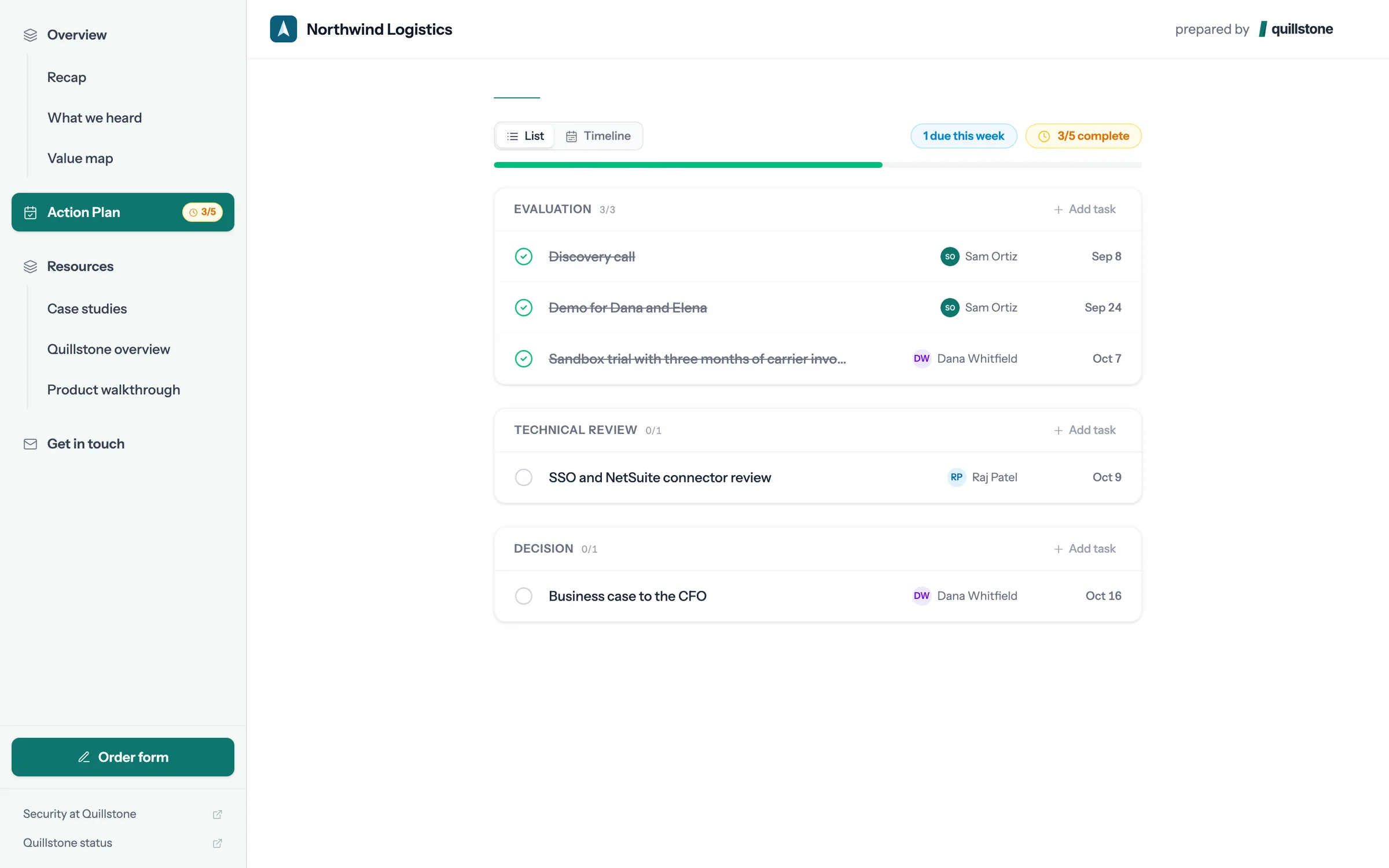
Step 8 of 9 Both sides see it The step shows as done and the plan moves to 3 of 5. Sam sees the same change.
-
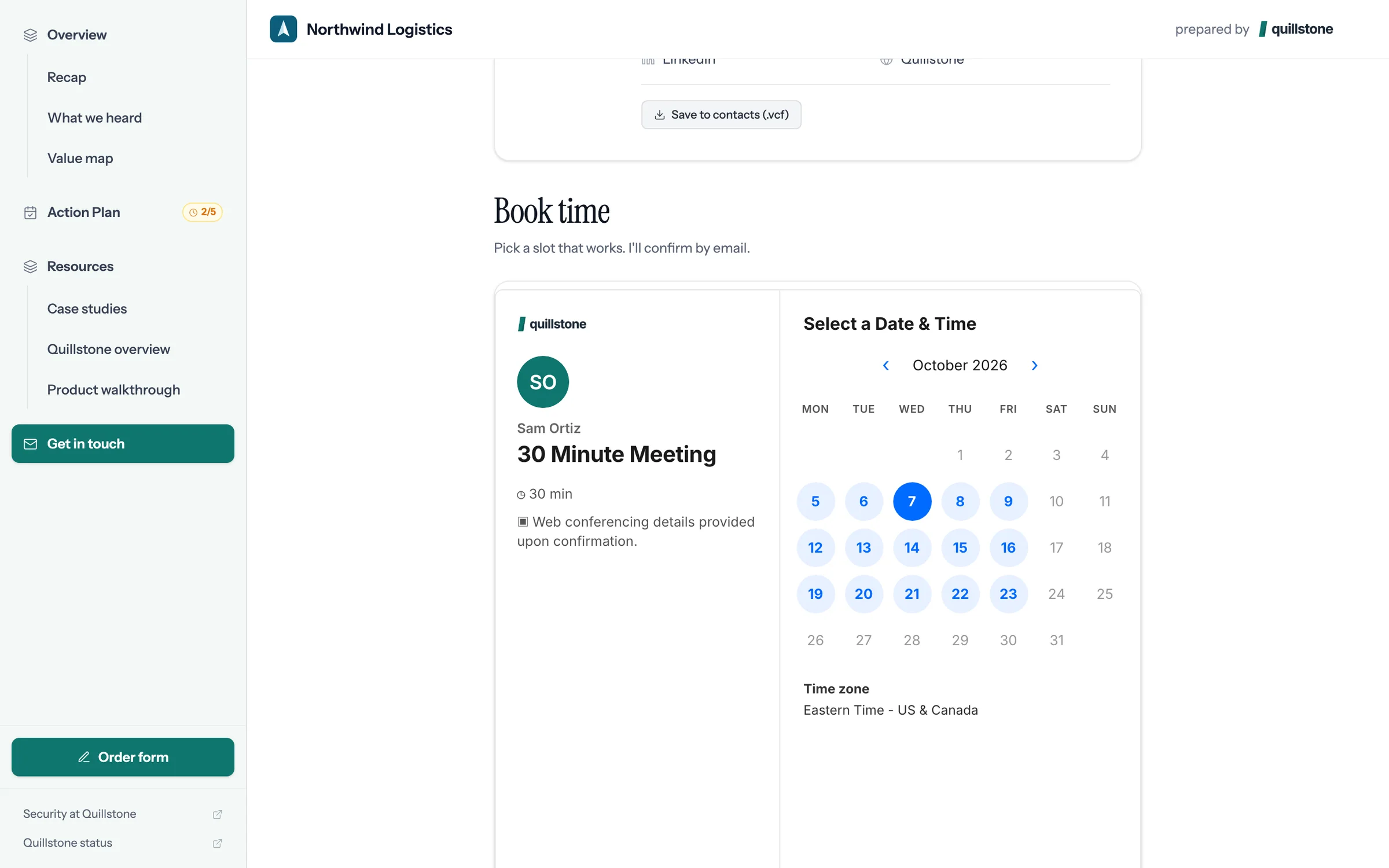
Step 9 of 9 Book the next call Sam's calendar is in the room, so Dana picks a time without the email back and forth.
Give your next buyer a room like this.
Connect Attio, pick a deal with a recorded call, and foyai drafts the room. You check it, then publish.
Opening the link
Buyer rooms live on Foyai's rooms domain, or your own custom domain on paid plans. The link is unique and unguessable, and it is the secret: before access is granted, visitors see a neutral "Our shared space" screen with no company names on it, so a forwarded link never leaks who's talking to whom. Even the browser tab reads "Digital Sales Room".
Depending on the room's access mode, the buyer either walks straight in, types an email for an instant domain check, or verifies an emailed link (from "your company via Foyai"): the link opens a neutral confirmation screen with a Continue to room button, works once, and expires in 15 minutes. Buyers who identify themselves are recognized on return visits and written to Attio as a Person with a room-activity note, whether or not the room is linked to a deal yet; verified buyers from the room's allowed domains are also attached to the company or deal (details in Integrations).
Inside the room
The room carries your branding: logo (it doubles as the browser-tab icon), palette, footer links. The header pairs the buyer's logo (auto-detected, or one you uploaded for the room) with the room's title as you published it. Buyers navigate the sections you built:
- Content: videos, decks, docs, PDFs, and resource pages, viewable inline
- Meeting notes: your call summaries, with a transcript tab
- Case studies: the recommended picks with your one-line rationale
- Contact: your card, with a vCard download and, if you set a booking link, your calendar embedded so they can book time without leaving
- Agreement: if set, a pinned button to the contract or order form
The action plan is mutual
Video
 Building the mutual action planVideo · 1:10 · Click through
Buyers don't just read the Action Plan; they can complete tasks assigned to their side and add tasks of their own. A completed task updates the plan for everyone, and if you chose to sync that task, it updates in Attio too. This is the part of the room buyers come back for: one live view of "where are we and what's next" that both sides maintain.
Rooms gated as fully open ("No gate") have no buyer identity, so task completion is disabled there; use any email-based mode to unlock it.
Task emails to buyers
When a task's owner is set to one of the room's stakeholders (picked from the people list, not typed as free text), Foyai emails that person about it:
- Assigned: when you make them the owner. Each person hears about a given task once, so moving a task between people and back doesn't send it again. If the room is still a draft, the email waits and goes out when you publish; publishing again doesn't resend it.
- Due soon: two days before the due date (or sooner, if you set the date closer than that).
- Overdue: once, the day after the due date.
If you change the due date, the due-soon and overdue emails apply to the new date. The emails come from your company name ("Acme via Foyai"), replies go to the room's owner, and the button opens the room at its share link (your custom domain, if you've set one).
Foyai only sends when the room is published, the task is still open and still theirs, the person has an email address, and your room's access setting still lets that email in. Rooms gated as fully open never send task emails. Each email has an unsubscribe link that stops task emails for that person in that room. Task emails are available on every plan.
Turning task emails on or off
- For the workspace: an admin chooses which of the three emails go out under Settings > Room access > Email buyers about their action-plan tasks. Each one (assigned, due soon, overdue) has its own switch.
- For one room: open the room's settings and pick the Task emails tab. "Use the workspace setting" follows the workspace switches; On sends all three kinds from that room whatever the workspace says; Off sends none.
The action plan editors tell you what will happen: when you set a task's owner to a stakeholder, a line under the owner reads "Sarah will get an email about this task" or "Task emails are off for this room", with a link to the setting.
Workspaces created after task emails launched start with all three switched on. Workspaces that already existed start with all three off, so nothing reaches your buyers until an admin turns them on.
Buyers can invite colleagues
A signed-in buyer can bring a teammate in with Invite a colleague at the bottom of the room's sidebar (inside the menu on a phone). The colleague gets an email with a link that works once and expires in 7 days; they confirm their email on the same neutral screen, then land in the room. Once they're in, they appear in the room's People list as a stakeholder and in Attio like any other verified buyer.
The room's access mode always wins. In a domain-restricted room the colleague must use an allowed domain. In a stakeholders-only room the invite becomes a request: you get an email to approve or decline it, and nothing reaches the colleague until you approve. Rooms with no gate don't offer invites; buyers can just share the link. You're emailed whenever a buyer invites someone, with who invited whom. Your own teammates can't be invited this way, so an invited colleague is always counted as buyer activity.
Invites are on by default. An admin can turn them off for the whole workspace under Settings → Room access ("Let buyers invite colleagues"), and each room can follow that setting or turn invites on or off for itself in the room's Access settings. When invites are off, buyers don't see the button, and links already sent or requests still waiting for approval stop working.
-
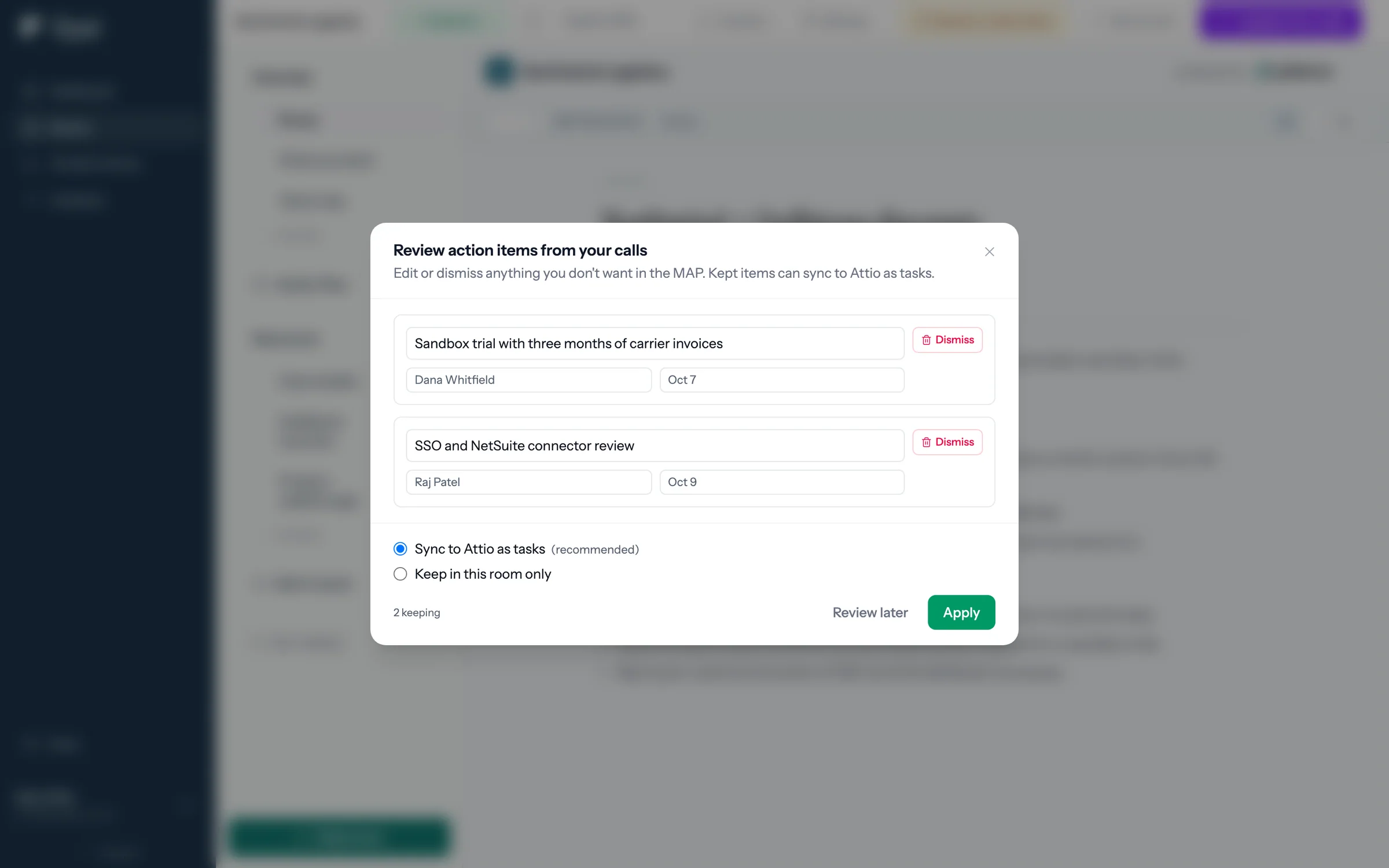
Step 1 of 7 Check what foyai heard After drafting, foyai lists the action items from the calls. Sam keeps both, with Sync to Attio as tasks on, and clicks Apply.
-
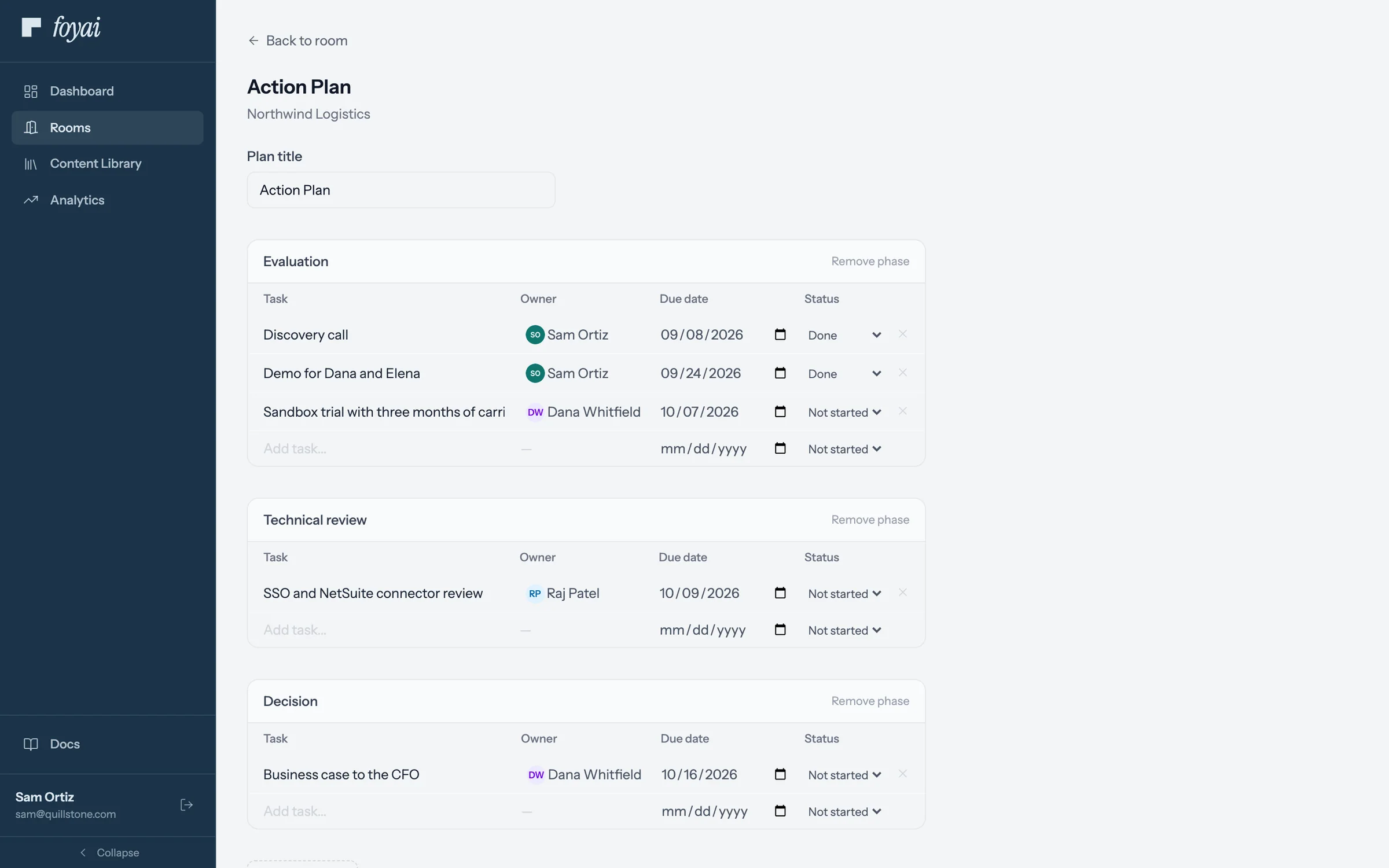
Step 2 of 7 Now a step in the plan The sandbox trial joins Northwind's action plan, owned by Dana and due October 7.
-
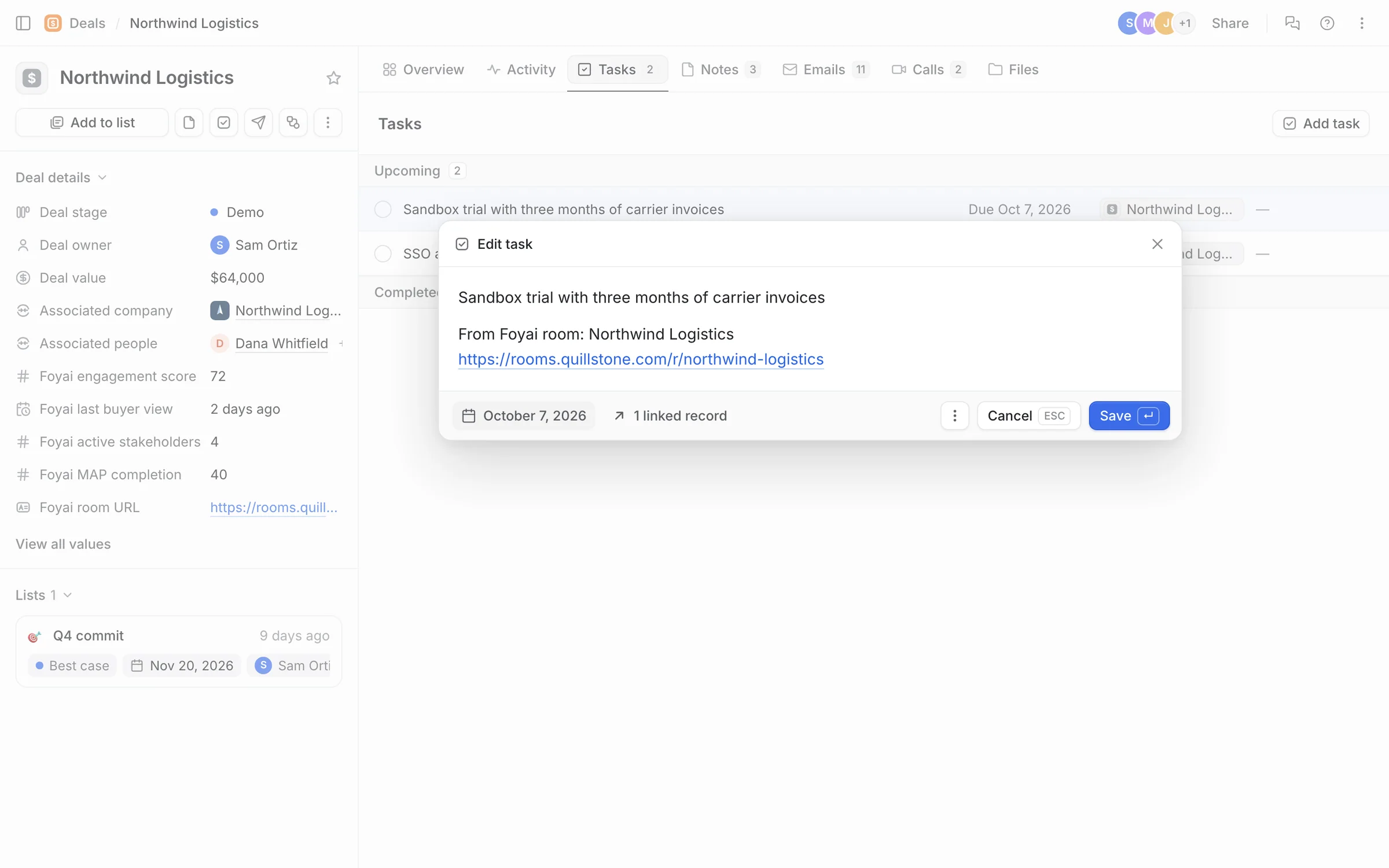
Step 3 of 7 And a task in Attio foyai adds the same step to the Northwind deal as an Attio task, with a link back to the room.
-
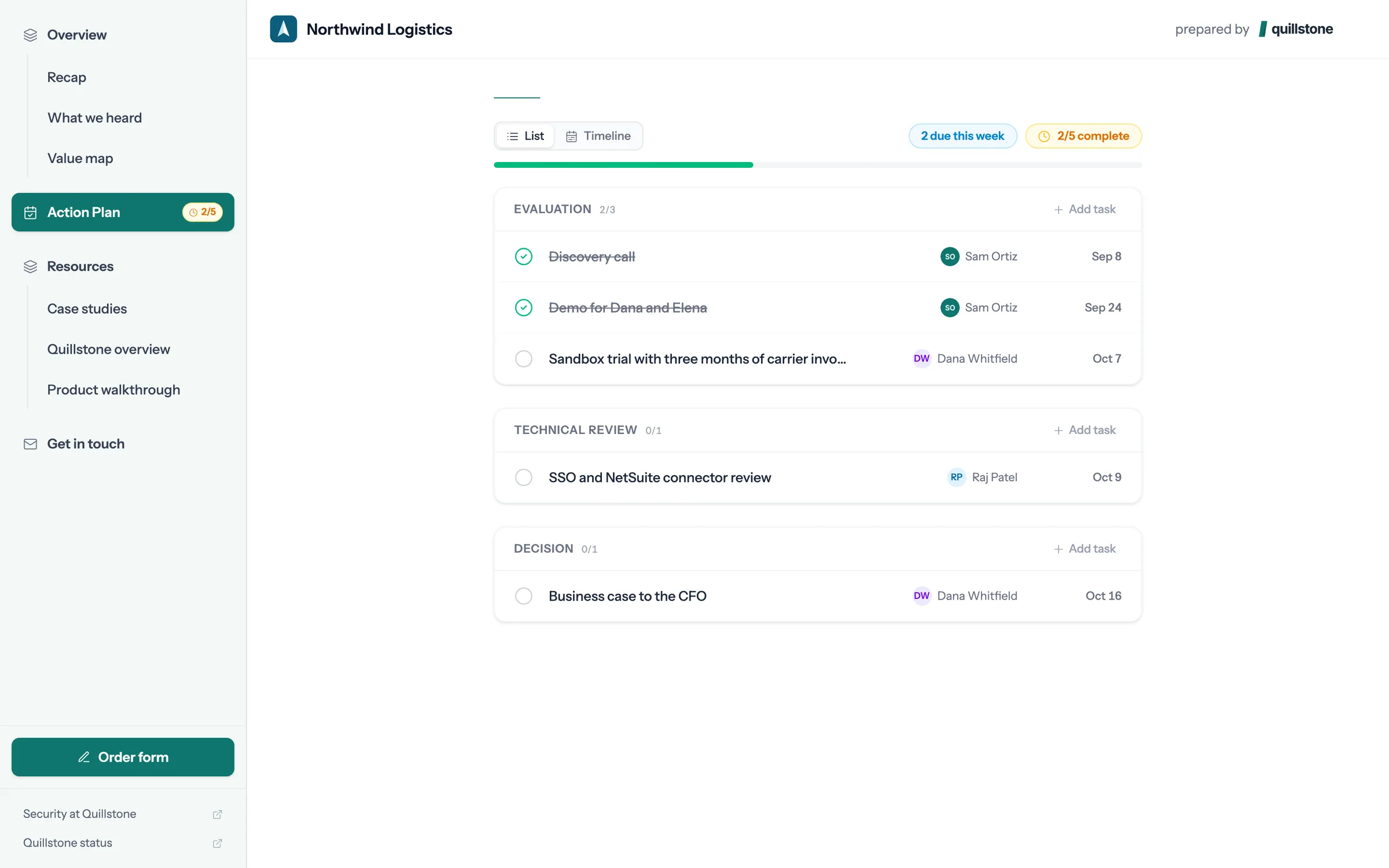
Step 4 of 7 Dana ticks it off When Northwind finishes the trial, Dana marks the step done in the room.
-
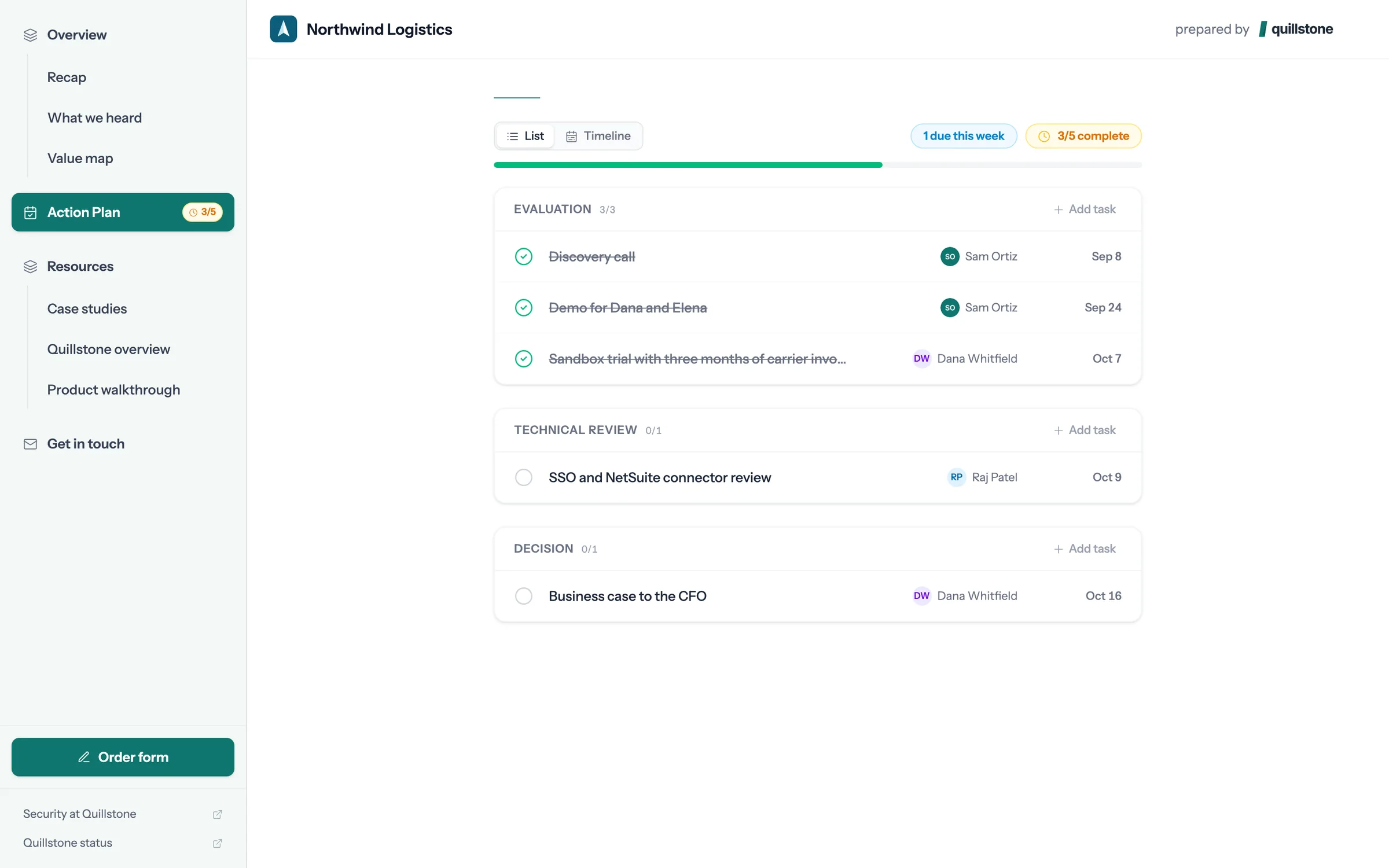
Step 5 of 7 The plan moves The step shows as done for both sides, and the plan reads 3 of 5 complete.
-
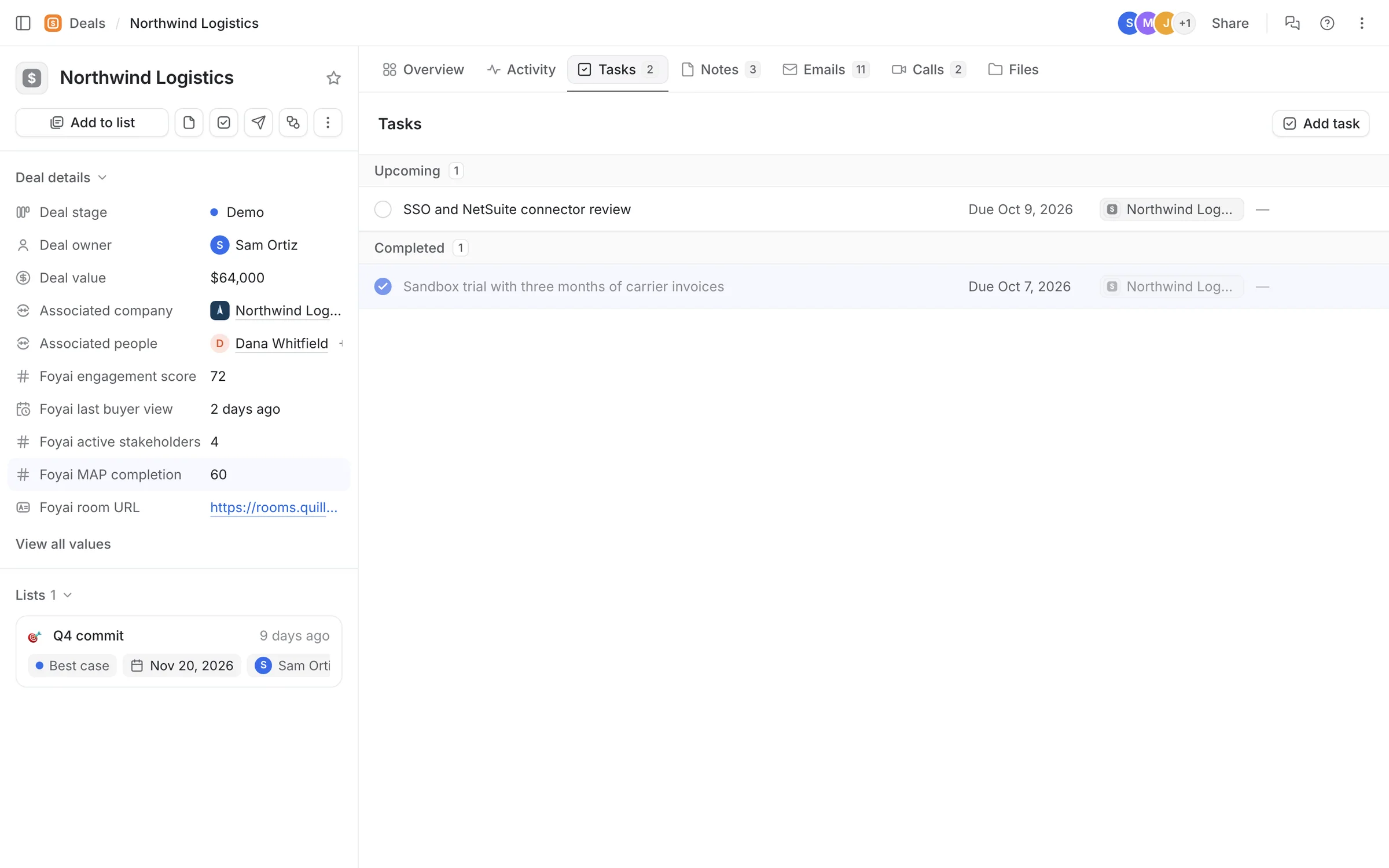
Step 6 of 7 Attio updates too On the deal, the task is now complete and Foyai MAP completion has gone from 40 to 60.
-
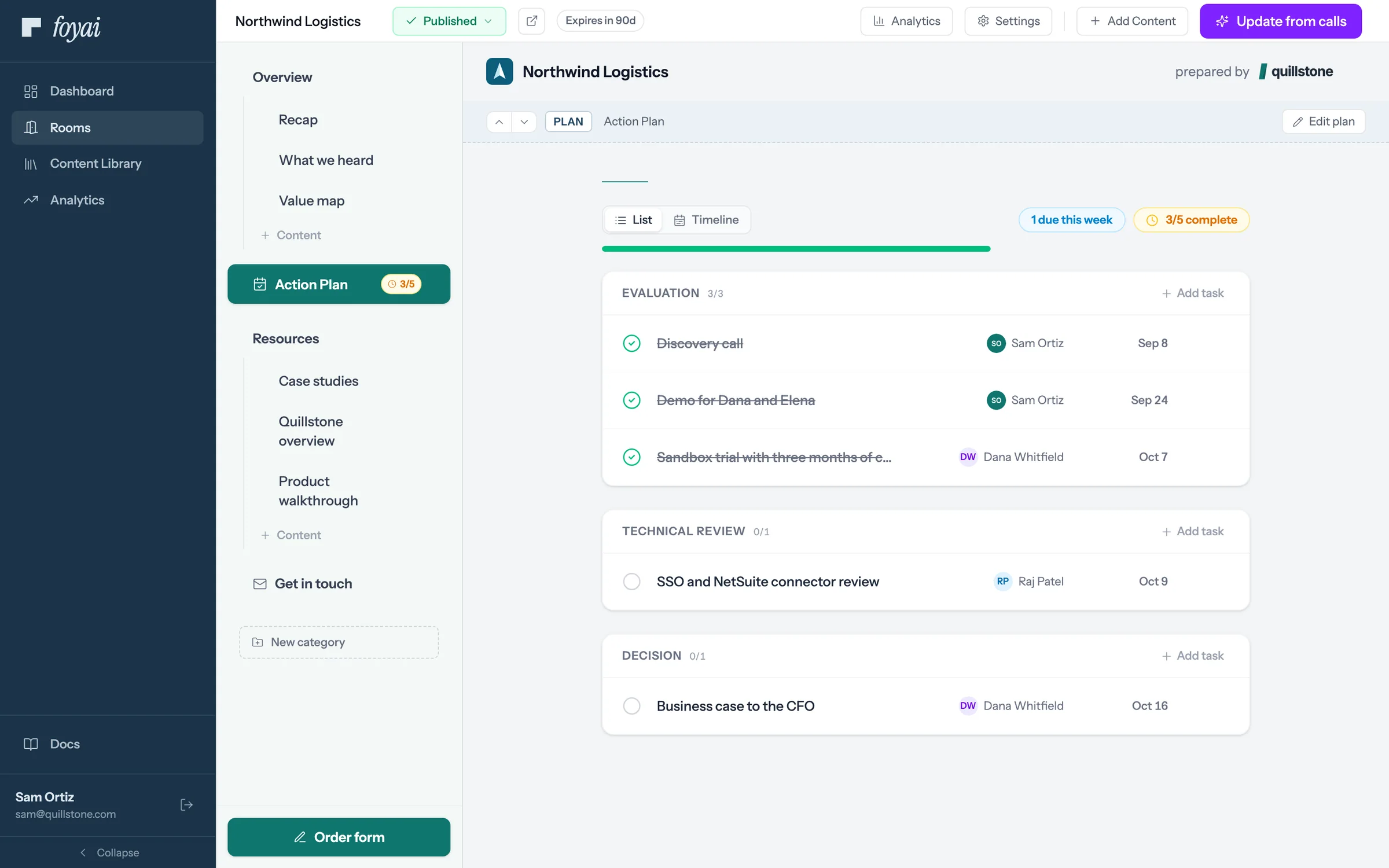
Step 7 of 7 Sam sees the same plan Sam's view of the room shows the same tick, without anyone sending an update.
Keep one plan with your buyer, and keep Attio current.
Action items from your calls become steps in the room and tasks in Attio once you've checked them.
What buyers never see
- Your drafts and unpublished edits (they see the last published snapshot only)
- Archived or expired rooms (they get a plain not-found page)
- Any Foyai seller UI, analytics, or AI suggestion machinery
- On paid plans, the "Powered by Foyai" badge (it appears on Free-plan rooms only)
What you see back
Every buyer view, click, download, and completed task feeds Analytics, identified by name and email when the buyer came through an email gate, and as an anonymous visitor otherwise. Video plays are included for YouTube and Vimeo embeds, and form submits for Typeform embeds; other embedded video and form providers don't report those two yet.
Seeing it yourself
You bypass the gate on your own rooms; opening the buyer link while signed in shows the room as buyers will see it (drafts show you an owner-only preview banner). Add yourself as a stakeholder with a personal email if you want to experience the full gate flow.
Questions? Email support@foyai.com, or use the in-app chat.