Integrations
Connect Foyai to the tools your team already uses. Integrations live in Settings → Integrations and let Foyai pull in the context it needs (your CRM, your call recordings, your files) so rooms build themselves around work you've already done.
What you can connect
| Integration | What it does | Who sets it up |
|---|---|---|
| Attio | Keeps Foyai in sync with your CRM: deals, companies, and call recordings | Admin, once per workspace |
| Google Drive | Auto-shares Drive files you embed in rooms with the right buyers | Each teammate individually |
| Transcript sources (Beta) | Imports call transcripts from tools like Fathom and Fireflies | Admin or individual teammates |
| Slack alerts | Messages the room's owner directly when a buyer first opens their room or completes a plan task, or when the room's deal is lost while it's still live | Admin connects once per workspace (paid plans); each seller picks their own alerts |
| Email alerts | Emails the room's owner when a buyer first opens their room or completes a plan task, whether or not Slack is connected | Each seller picks their own alerts; on by default |
| Foyai app for Attio | Create rooms and generate drafts from Attio records | Admin, once per Attio workspace |
| Webhooks | Sends signed events to your own tools (Zapier, Make, n8n, your code) when rooms are published, first viewed, or plan tasks are completed | Admin, Platform plan |
Attio
Attio is Foyai's system of record. When your workspace is connected, Foyai reads your deals, companies, and call recordings from Attio to build and update rooms.
Seeing your rooms inside Attio
Every room in your workspace is mirrored into a Foyai rooms object in Attio, so your team can see rooms, their status, and their engagement without leaving the CRM. Open it from Attio's left sidebar. Each record carries the room's name, buyer link, edit link, status, engagement score, last buyer view, and the linked deal and company.
Attio tables only show a couple of columns by default. To build a useful view:
- Open Foyai rooms in Attio and click + at the right end of the column headers.
- Add Linked deal, Linked company, Status, Room URL, and Engagement score.
- Optionally save it as a view so the whole team sees the same columns.
Deals and companies also get their own Foyai fields (room URL, engagement score, last buyer view, and so on), which you can add as columns on the Deals and Companies tables the same way.
Rooms appear in Attio within a minute of being created. If some rooms are missing, or you see stale records for rooms that no longer exist, run Re-sync (below): it fills in any missing rooms and removes stale records.
-
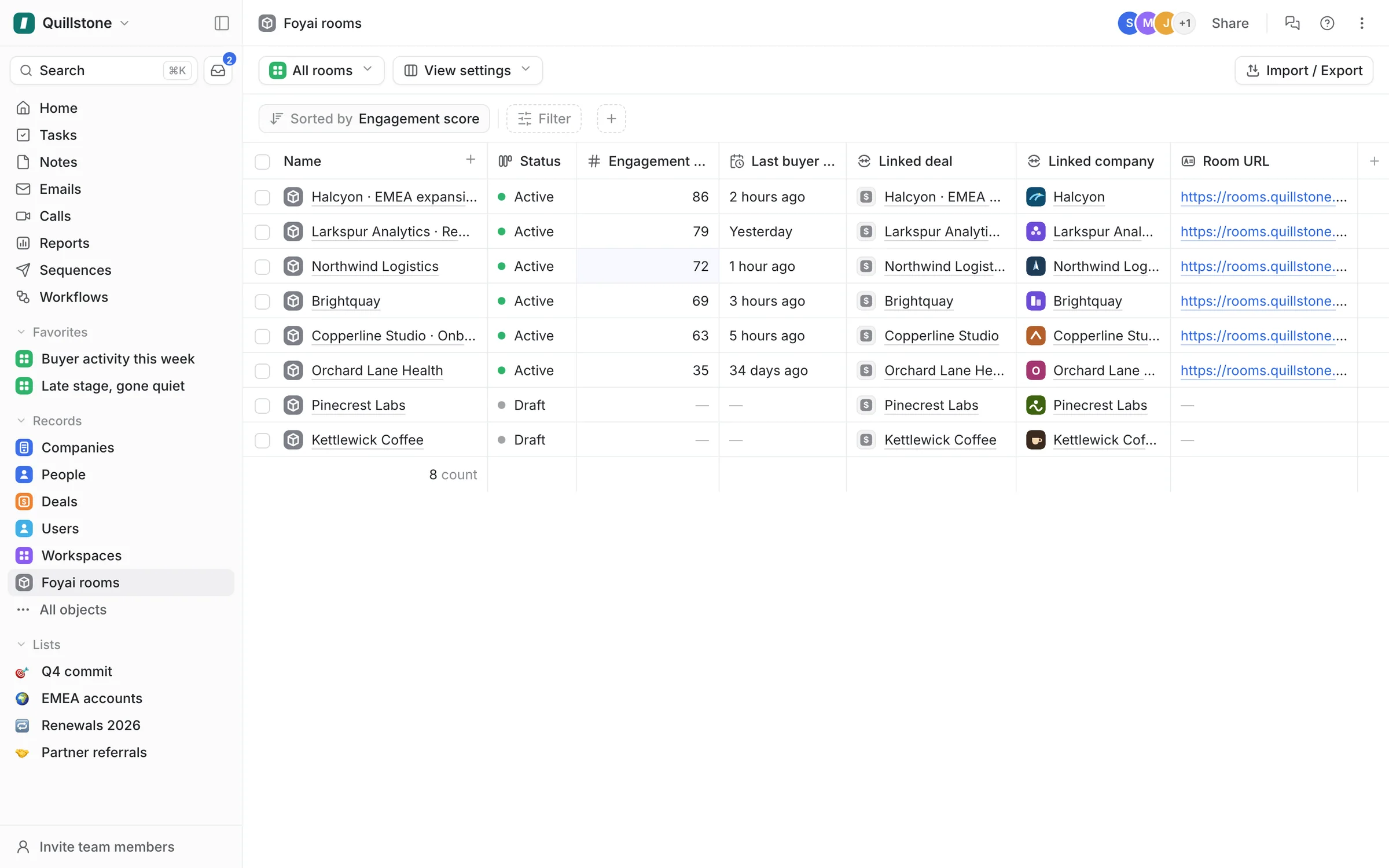
Step 1 of 5 Your rooms, in Attio foyai adds a Foyai rooms object to Attio, so the team can see every room without leaving the CRM.
-
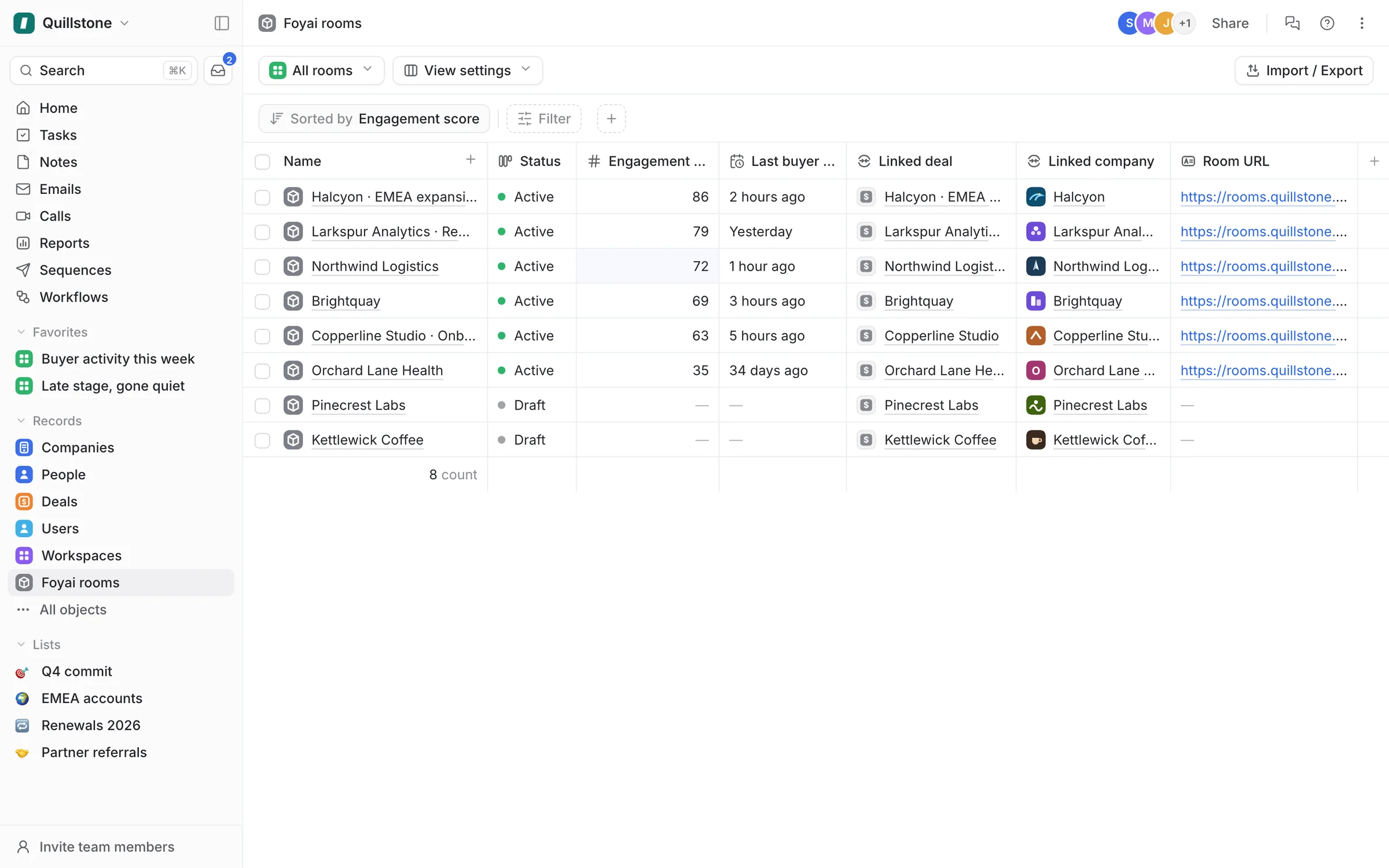
Step 2 of 5 Sort by engagement Each room has its status, engagement score, last buyer view, and linked deal, so you can sort and filter it like any Attio table.
-
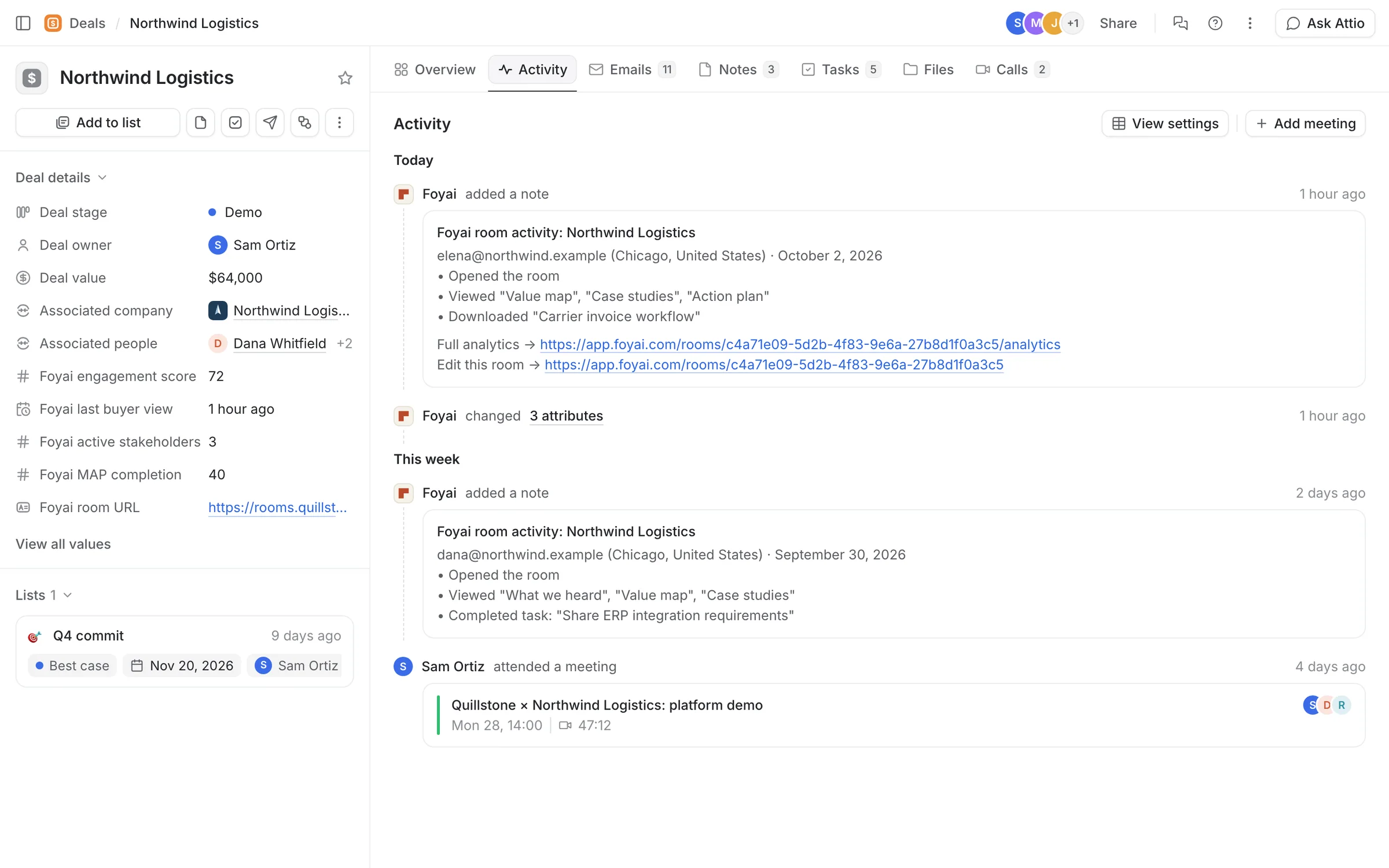
Step 3 of 5 Fields on the deal Deals get Foyai fields too: engagement score, last buyer view, active stakeholders, MAP completion, and the room's link.
-
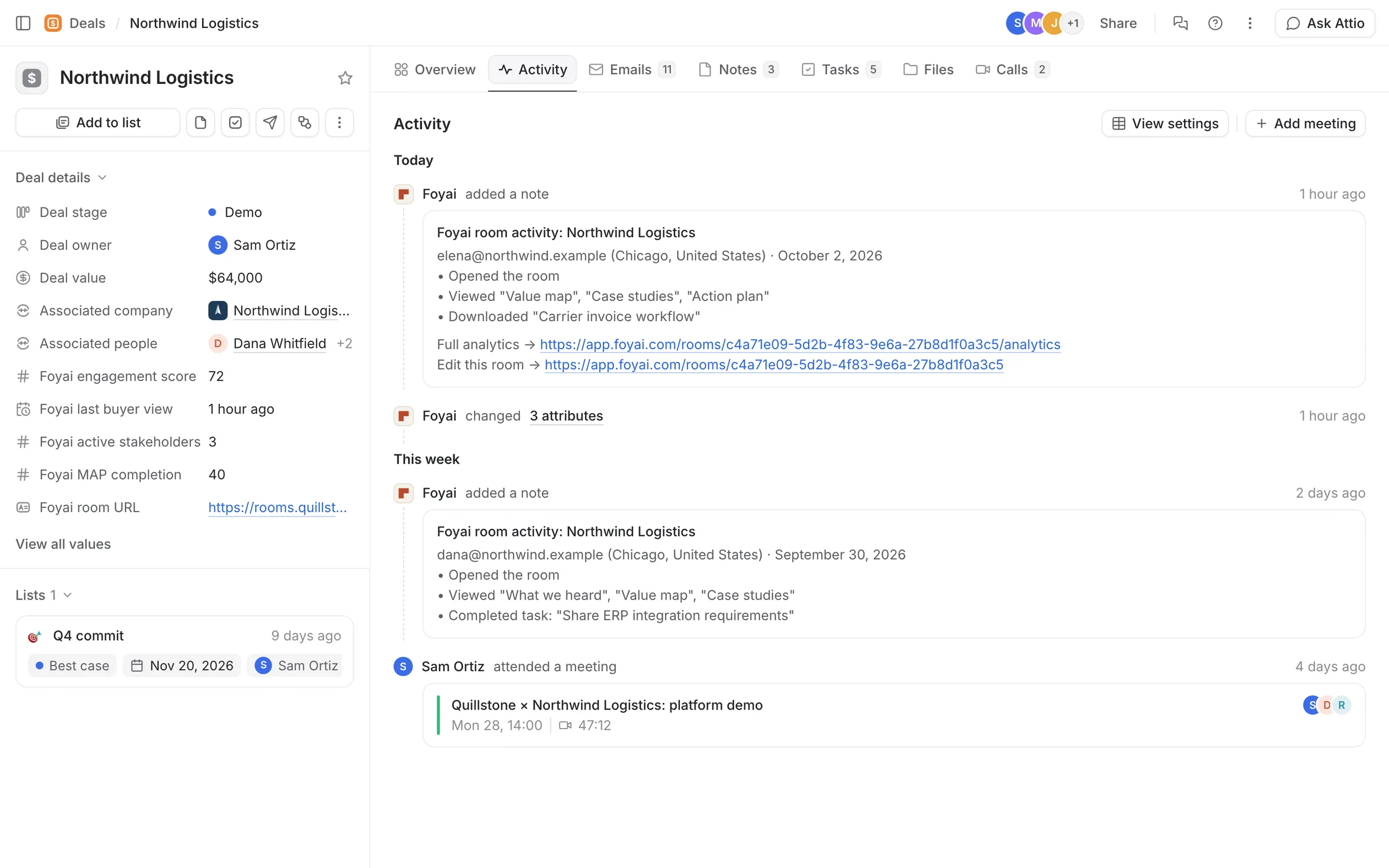
Step 4 of 5 A note for each visit Each buyer visit adds a Foyai room activity note to the deal: who it was, and what they opened and downloaded.
-
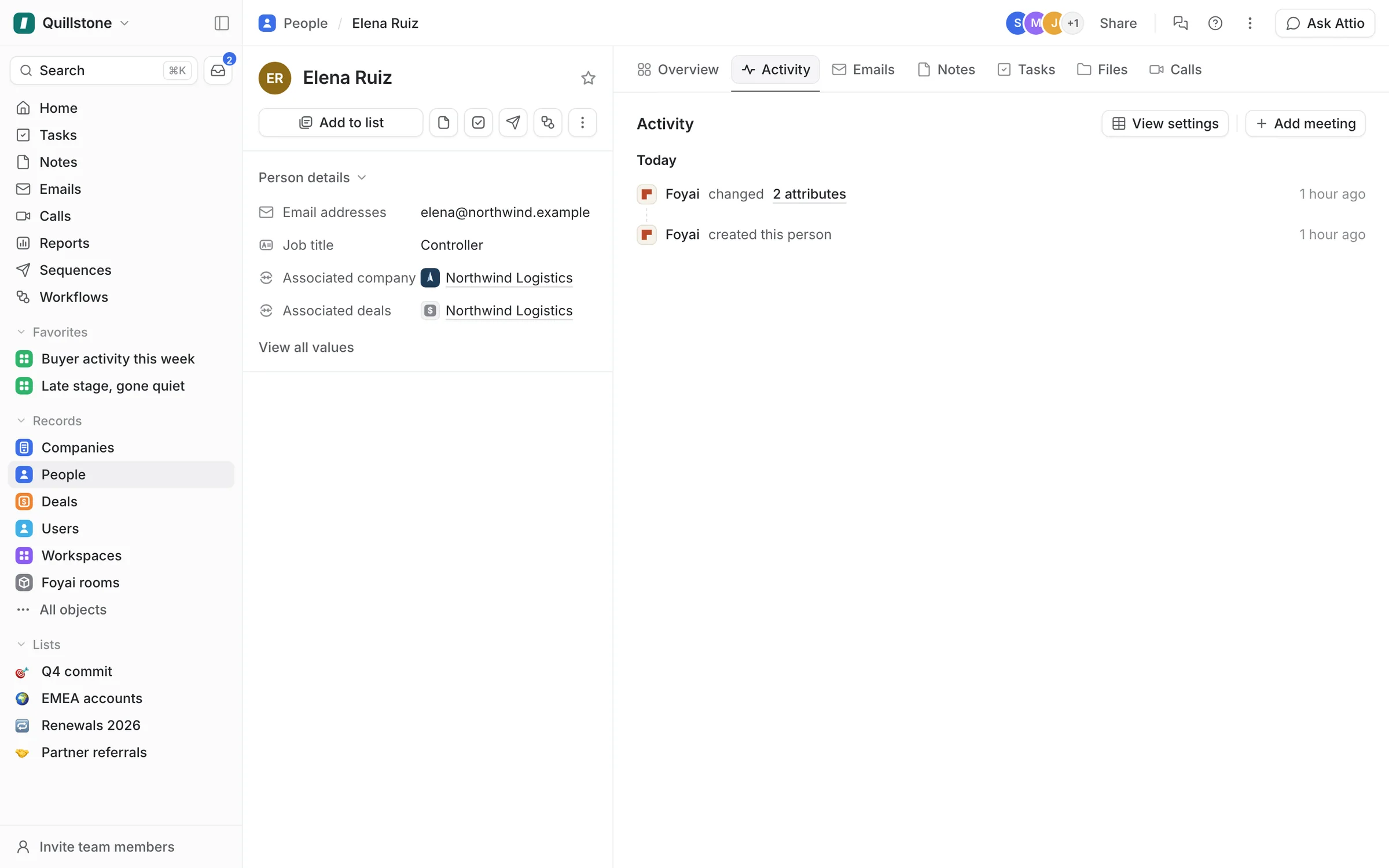
Step 5 of 5 Visitors become People Elena signed in with a Northwind email, so foyai added Elena as a Person, linked to the Northwind company and deal.
See every room from inside Attio.
Connect Attio, and foyai sets up the Foyai rooms object and the deal fields for you.
Re-syncing your Attio setup
Video
 Fixing the Attio connectionVideo · 0:42 · Click through
If something in Attio looks out of date, such as a missing Foyai field on your deals or room updates not appearing, use the Re-sync button on the Attio integration card. Admin-only; the card doesn't show for other sellers.
- Go to Settings → Integrations.
- Find the Attio integration card.
- Click Re-sync.
This is safe to run anytime. It adds anything that's missing (the Foyai custom object, deal attributes, event subscriptions, and any rooms not yet in Attio) and removes Foyai room records whose room has been deleted. It never touches your own Attio data.
Visitors on rooms that aren't linked to a deal or company
When a buyer identifies themselves in a room (by passing the email gate), Foyai writes them to Attio as a Person and keeps a room-activity note on their record. On a room linked to a company or deal, the note goes on that record and the Person is attached to it. On a room with no link, the note goes on the Person itself, so nothing gets lost while the room is unlinked; if you link the room later, the notes move to the company or deal and the People are attached to it.
A visitor is only attached to the company or deal when Foyai can vouch for them:
- Their email domain is on the room's allowed domains (Foyai seeds those from the company's domains when you link). Someone from outside those domains, such as a consultant or a personal address, still gets a Person record and a note, but isn't listed on the company or deal. A room with no allowed domains attaches everyone.
- They proved the address by clicking a magic link. On a room gated by domain only, visitors type an email and get in without a link, so those visitors get a Person and a note but are not attached until they verify with a magic link on a later visit.
- The Person isn't already a contact of another company in Attio. Foyai never reassigns an existing contact's company.
Stakeholders you add yourself are always attached.
If test rooms or open-link rooms are filling your CRM with People you don't want, turn off Sync visitors on unlinked rooms on the Attio visitor sync card (admin-only). Linked rooms keep syncing either way, and activity on unlinked rooms while the setting is off is not backfilled when you turn it back on (linking the room later still brings every visitor across). Note that Attio itself may create a Company from a new Person's email domain; that is Attio's own behaviour and can be changed in your Attio settings.
Google Drive
Video
 Connecting Google DriveVideo · 1:12 · Click through
Connect your Google account so that when you embed a Drive file in a room, Foyai can automatically share it with the buyers who need to see it. No more "requesting access" emails.
A few things to know:
- The connection is personal. Each teammate connects their own Google account, because the files being shared are theirs. Your connection doesn't give teammates access to your Drive. Every seller, admin or not, connects from their own Settings → Integrations page.
- Foyai only touches files you add to a room. Connecting does not give Foyai access to browse your Drive.
- A file is shared with the account of whoever added it. Foyai shares, previews and later removes access to an embedded Drive file using only the Google connection of the teammate who added it to the room, never a colleague's. Adding a Drive file therefore needs your own connection. If that teammate disconnects Google or leaves the workspace, new stakeholders can't be given access until they reconnect or someone re-adds the file from their own Drive.
- Access can come back off. When you unpublish or archive a room, you can remove the access Foyai gave stakeholders to that room's documents; see Google Drive access when a room goes offline.
- It has to be a Google Workspace account. Personal Google accounts (gmail.com and similar) are declined at sign-in, because the sharing controls Foyai relies on are a Workspace feature. If you connect one by mistake, Foyai revokes it straight away and asks you to use your work account.
- Personalized decks are generated with your connection and land in a "Foyai decks" folder in your own My Drive. Each template also needs a one-time authorization from you before your first deck from it.
To connect
- Go to Settings → Integrations.
- On the Google Drive card, click Connect and sign in with Google.
- Once connected, the card shows the Google account you linked.
You'll know it's working when files you embed in rooms open for buyers without an access request.
If the Drive file picker shows an error
The Google Drive file picker runs on Google's own site inside Foyai, so it needs your browser to allow Google's cookies there. When the browser blocks them, Google shows a misleading "The API developer key is invalid" error, and Foyai replaces it with a note saying the browser blocked Google Drive.
To fix it, allow third-party cookies for app.foyai.com, or pause your ad or tracker blocker on this site, then try again. Common culprits:
- Chrome: Settings → Privacy and security → Third-party cookies. Add
app.foyai.comunder "Allowed to use third-party cookies", or click the eye icon in the address bar and allow them for this site. - Safari (Mac, iPhone and iPad): Safari blocks these cookies by default, so Foyai tells you before opening the picker. Turn off "Prevent cross-site tracking" (on a Mac: Safari → Settings → Privacy; on iPhone or iPad: Settings → Apps → Safari), then reload the page. If you'd rather keep the setting on, use Copy page link and do this step in Chrome on a computer (every browser on iPhone and iPad follows Safari's setting).
- Brave: click the Brave Shields icon and allow cross-site cookies for this site.
- AdGuard, uBlock and similar: pause them on
app.foyai.com(AdGuard's Stealth Mode blocks these cookies). - Incognito or private windows block third-party cookies by default; use a normal window.
Email alerts
Get an email when a buyer opens your room for the first time, when a buyer completes a task in the room's plan, or when plan tasks in your rooms are coming due. Unlike Slack alerts, this needs no connection and no admin setup: it works whether or not your workspace has Slack connected, and it's on by default so you hear about buyer activity even if you never visit this page.
Choosing your alerts
Under Email alerts in Settings → Integrations, each seller ticks the alerts they want, sent to the email address they sign in with:
- A buyer opened one of my rooms: the first time each viewer opens a room you own. You won't get emailed on every repeat visit.
- A buyer completed a plan task in one of my rooms: the first time a buyer checks off a task in the room's action plan.
- Plan tasks in my rooms are coming due or overdue: a digest of open action plan tasks in the live rooms you own, whoever each task is assigned to. It only arrives when there's news: each task is mentioned once when it's due tomorrow or today, and once more when it goes overdue. You get at most one a day, and a task that stays overdue isn't repeated every morning. Moving a task's due date counts as news again.
All three are on by default. Untick them to stop email alerts for yourself; this is entirely independent of your Slack alert choices, so turning Slack off (or never connecting it) doesn't touch your email alerts, and vice versa.
Each digest also has an Unsubscribe link at the bottom. It turns off the digest only, the same as unticking it here, and leaves your other emails alone.
Transcript sources (Beta)
Pull call transcripts from the tools your team records with (Fathom, Fireflies.ai, Avoma, tl;dv, Grain, and Granola) and Foyai matches each call to the right room automatically. For any other tool, you can upload the transcript file and attach it to a deal or company yourself.
This one has its own page and its own guide: see Transcript sources.
Slack alerts
Get a direct Slack message when a buyer opens your room for the first time or completes a task in the room's plan, and when a room's deal is lost while the room is still live. Alerts go to the seller who owns the room, never to a channel, so each seller only hears about their own rooms. The first two alerts also have an email option (see Email alerts above) that works with or without Slack; the deal-lost alert is Slack only today.
Paid feature. Available on Pro and Platform, including the Pro trial. See Plans and billing.
To connect
- In Foyai, go to Settings → Integrations and click Add to Slack on the Slack alerts card.
- Slack asks you to confirm which Slack workspace to install Foyai into and what it may do (send messages, and look up your teammates by email so each alert reaches the right person). Click Allow.
- Back in Foyai, the card shows Connected to <your Slack workspace>. That's it: alerts start right away.
One install covers the whole team, and only a workspace admin can add, reconnect or replace it. A seller who isn't an admin still opens Settings → Integrations to choose their own alerts; if Slack isn't connected yet, the card tells them to ask an admin instead of showing the connect button. Foyai finds each seller in Slack by the email address they use in Foyai, so a seller whose Slack account uses a different address won't get alerts until the two match.
Choosing your alerts
Alerts are set per seller, not per team. Under Your Slack alerts on the Slack card, each seller ticks the alerts they want:
- A buyer opened one of my rooms: the first time each viewer opens a room you own. You won't get pinged on every repeat visit. The message names the viewer when they signed in and links to the room's engagement view.
- A buyer completed a plan task in one of my rooms: the first time a buyer checks off a task in the room's action plan. The message names who did it, the task, and the room.
- A deal moved to Lost while its room is still live: when the deal linked to one of your published rooms moves in Attio to a stage whose name includes Lost (for example "Lost" or "Closed Lost"). The message has Unpublish room and Archive room buttons. Each opens the room and asks you to confirm first, including whether to also remove stakeholders' Google Drive access (see Google Drive access when a room goes offline). If Foyai asks you to sign in first, click the button again afterwards. A deal that is reopened and lost again alerts again.
All three are on by default. Untick them all to stop Slack alerts for yourself; teammates keep their own choices, including sellers who aren't admins. Foyai no longer sends an alert when a room is published.
-
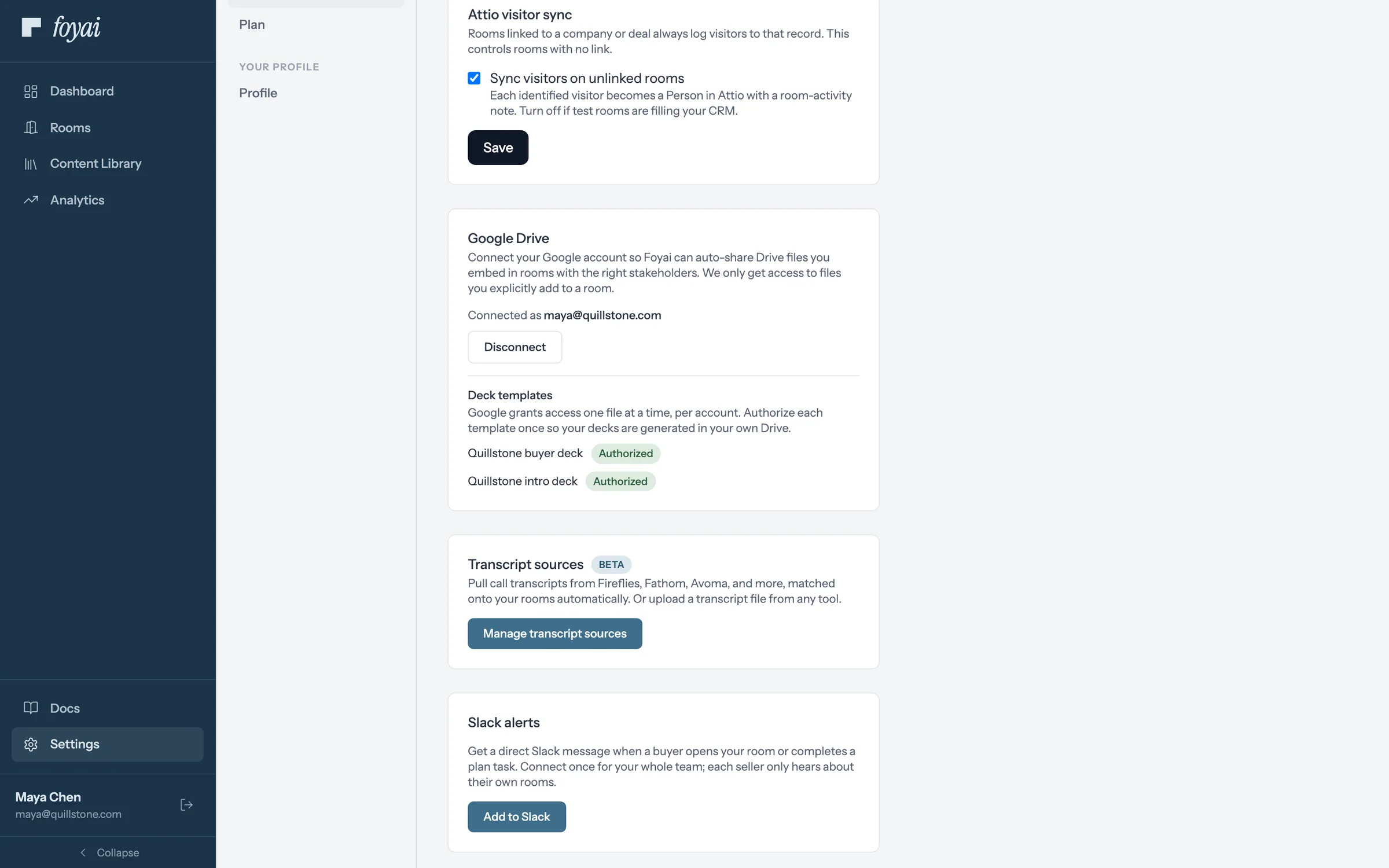
Step 1 of 8 Add to Slack Maya, the admin, clicks Add to Slack in Settings. One connection covers the whole team.
-
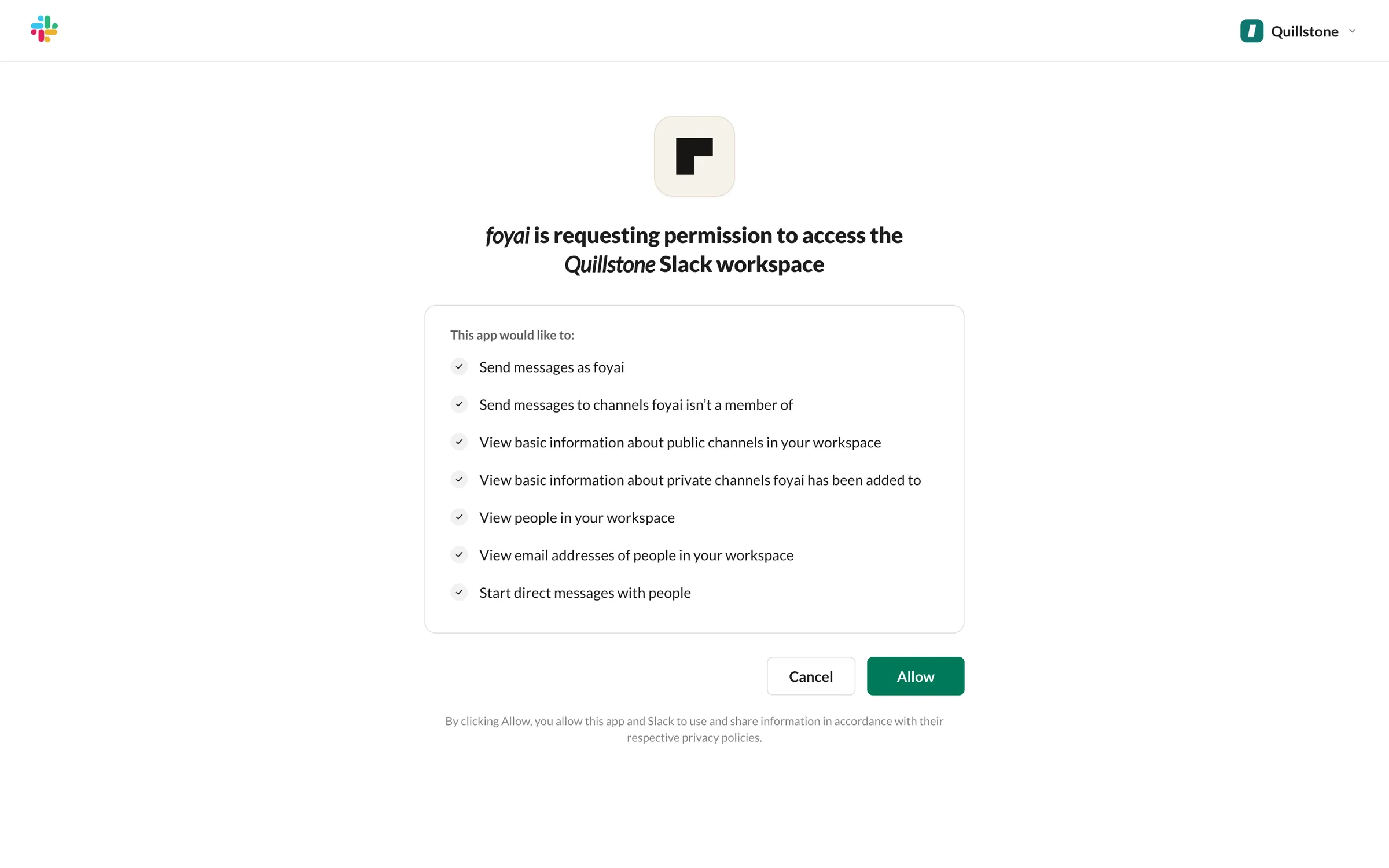
Step 2 of 8 Allow foyai Slack asks Maya to confirm the workspace and what foyai can do, like send messages and find teammates by email.
-
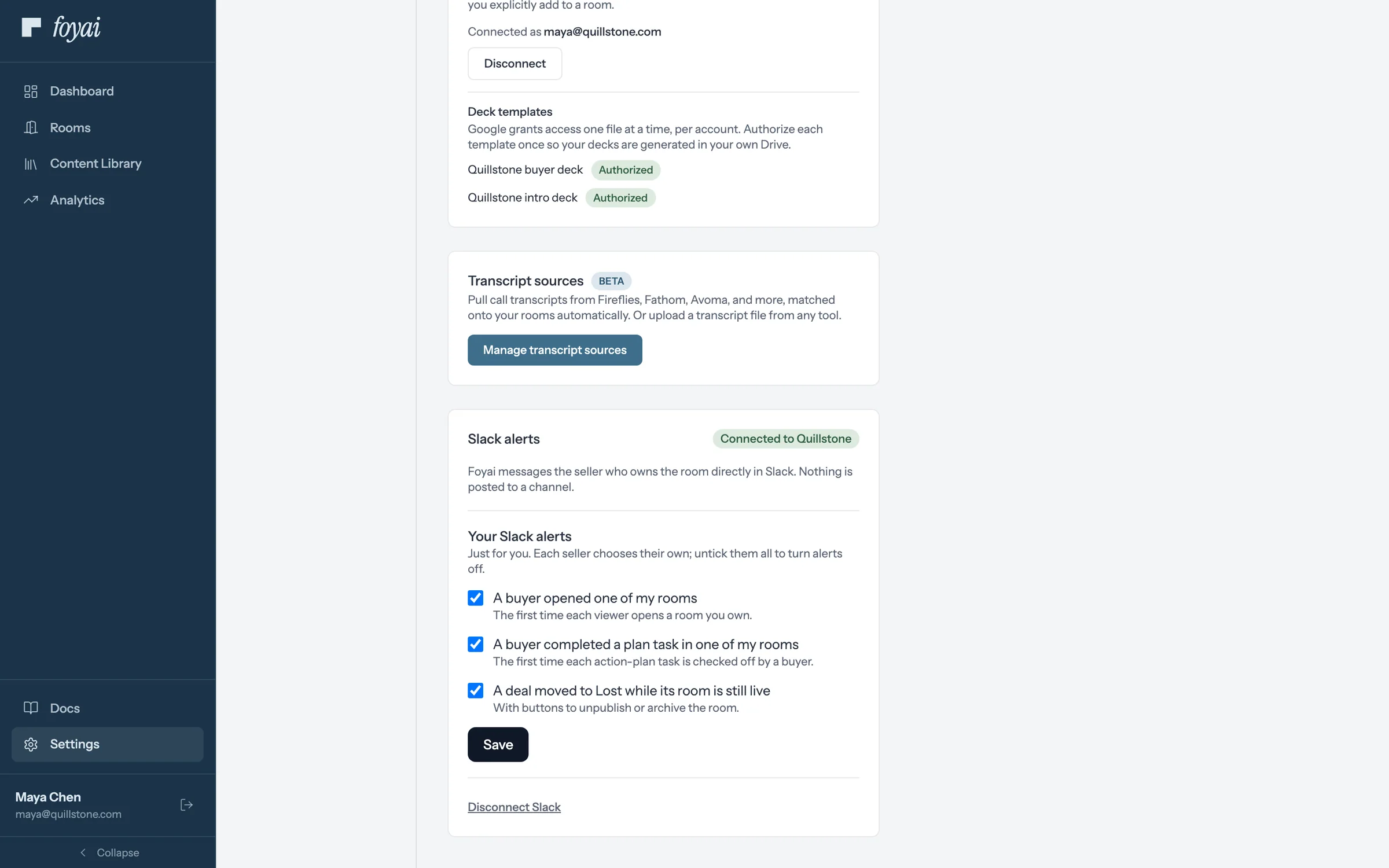
Step 3 of 8 Three alerts, all on The card now reads Connected to Quillstone. Each alert goes to the seller who owns the room, as a direct message.
-
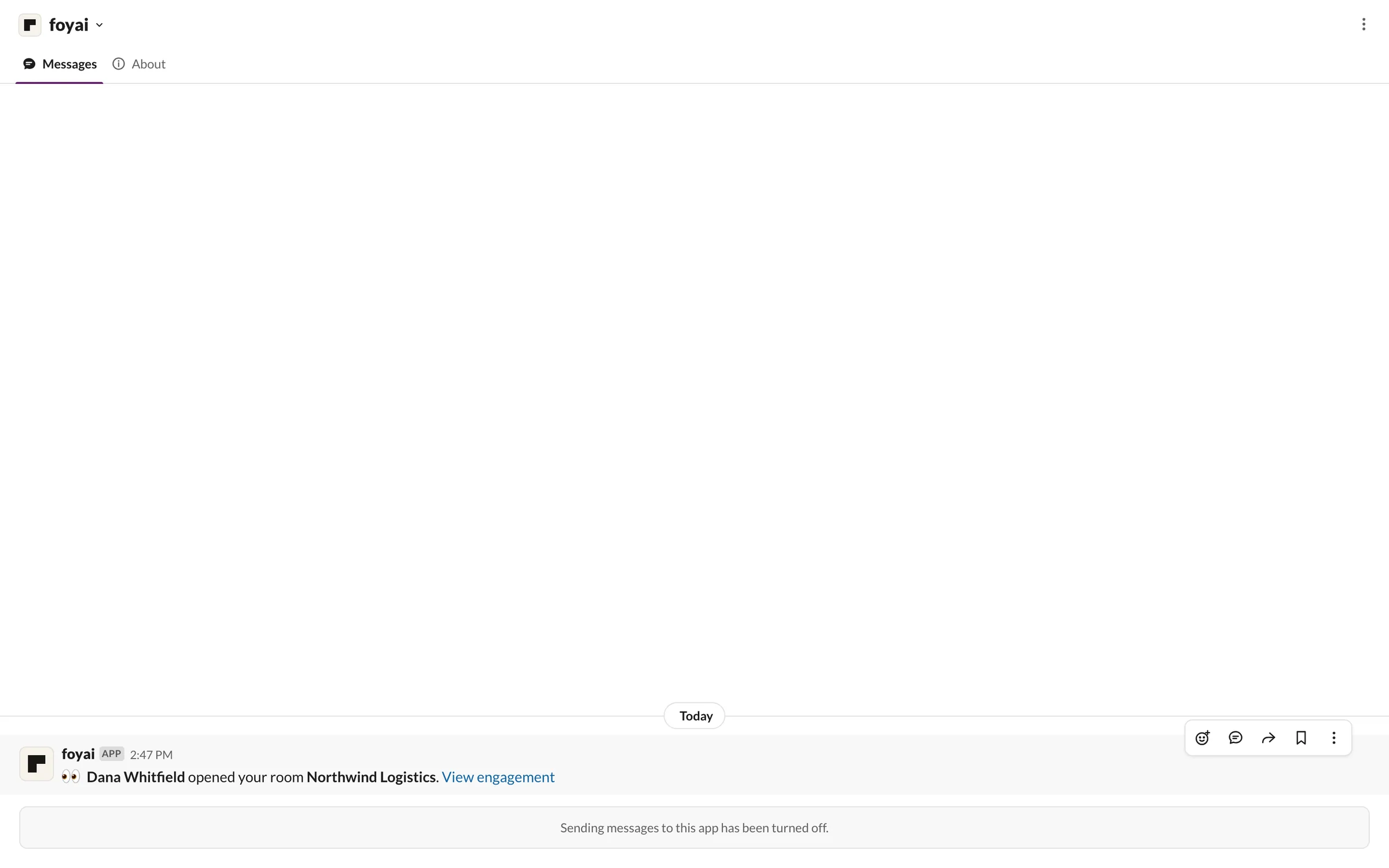
Step 4 of 8 A buyer opens the room The first time Dana opens Northwind Logistics, Sam gets a message with a link to the room's engagement.
-
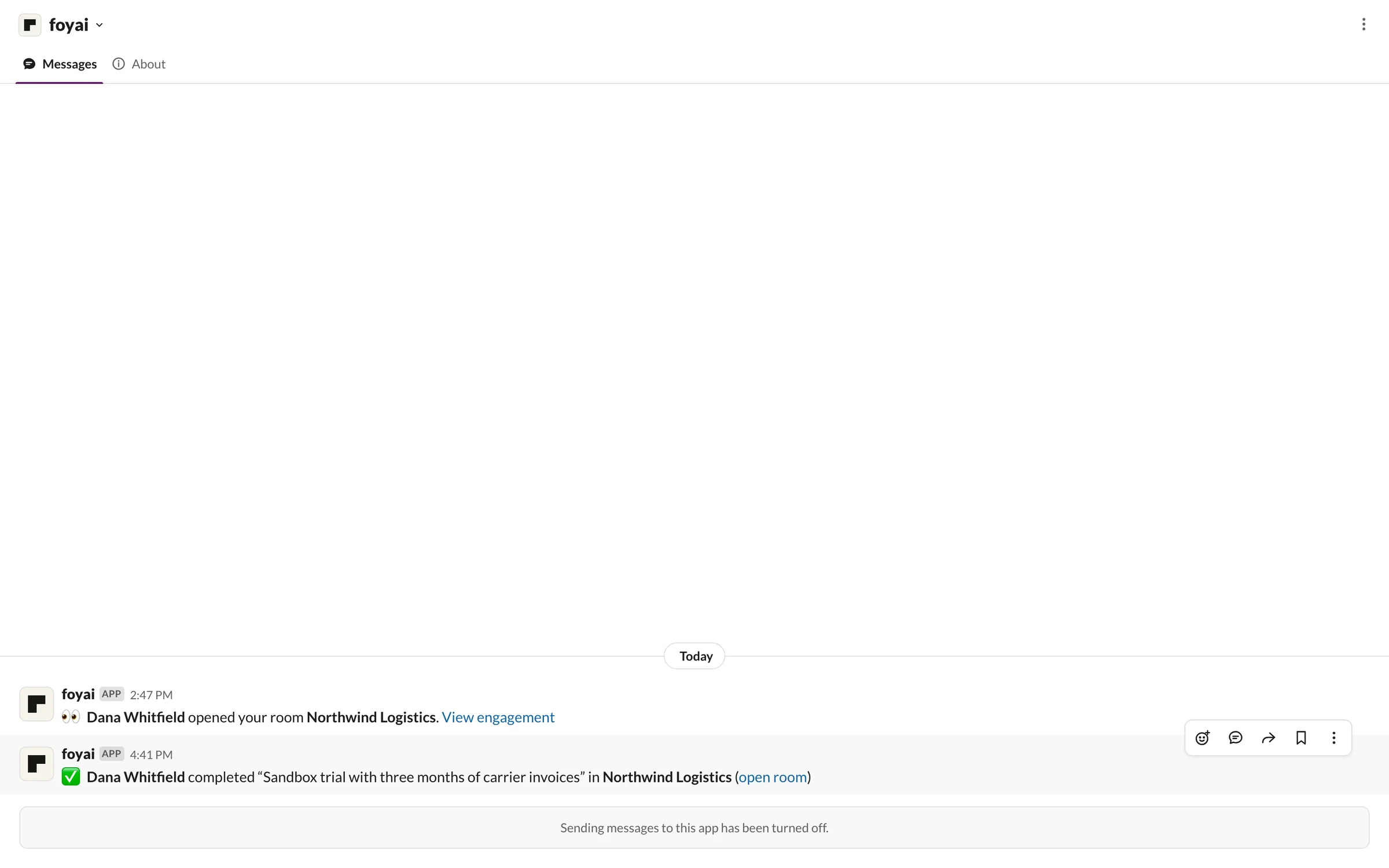
Step 5 of 8 A step gets ticked off Later, Dana completes the sandbox trial step, and Sam hears which step, in which room.
-
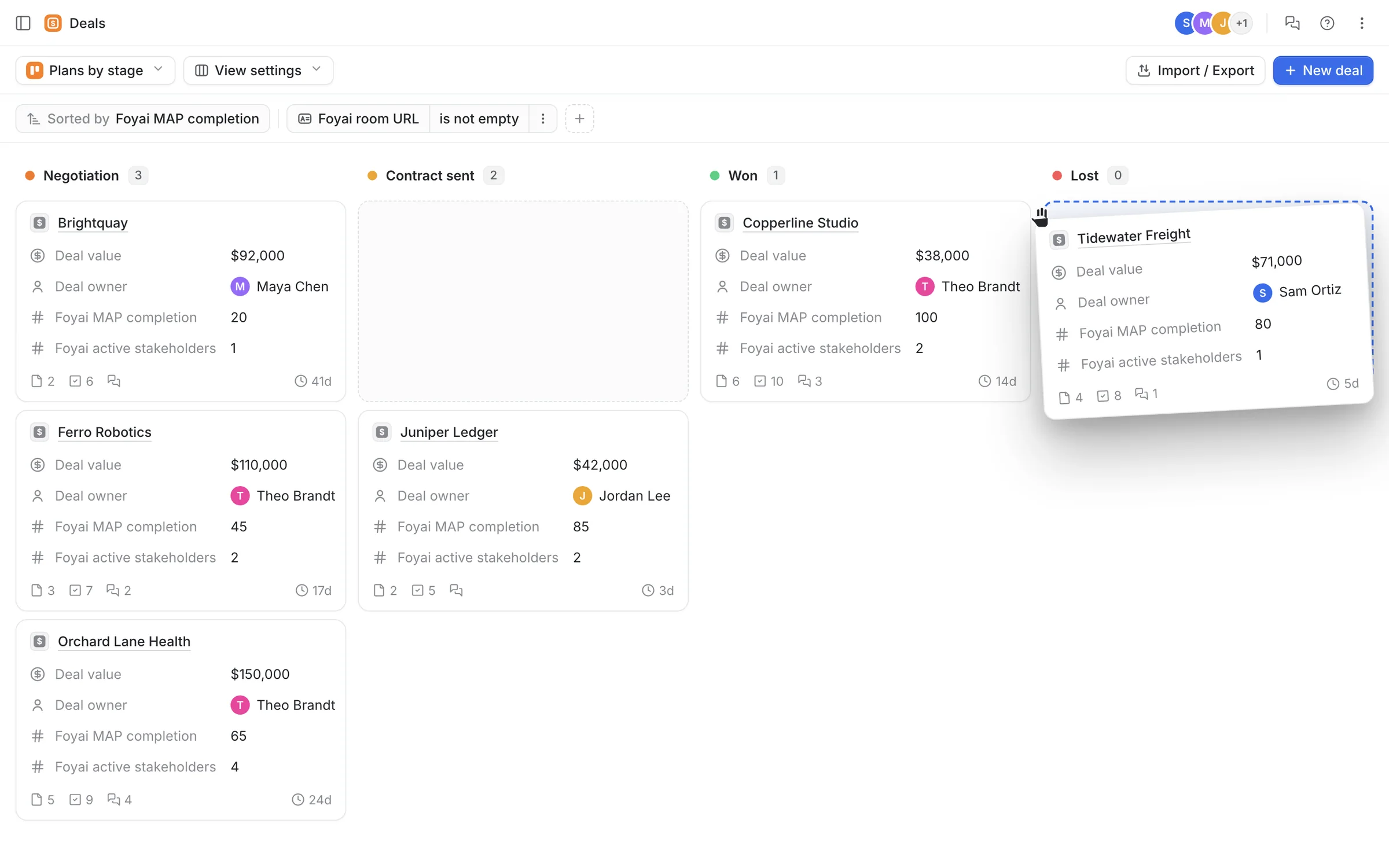
Step 6 of 8 The deal is lost in Attio Sam drags Tidewater Freight to Lost on the Attio deals board while its room is still live.
-
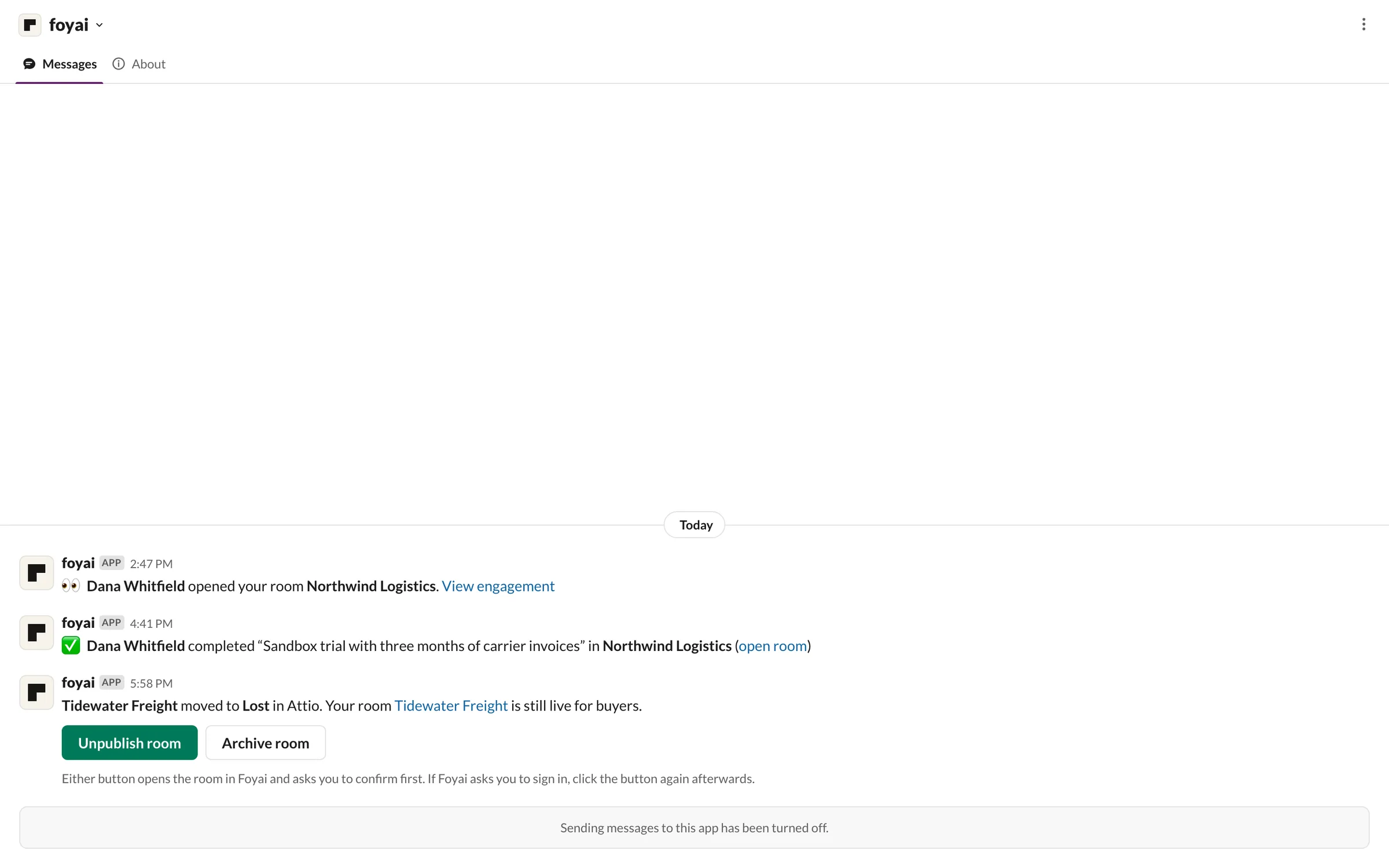
Step 7 of 8 Take the room offline foyai tells Sam the deal is lost and the room is still live, with Unpublish room and Archive room buttons.
-
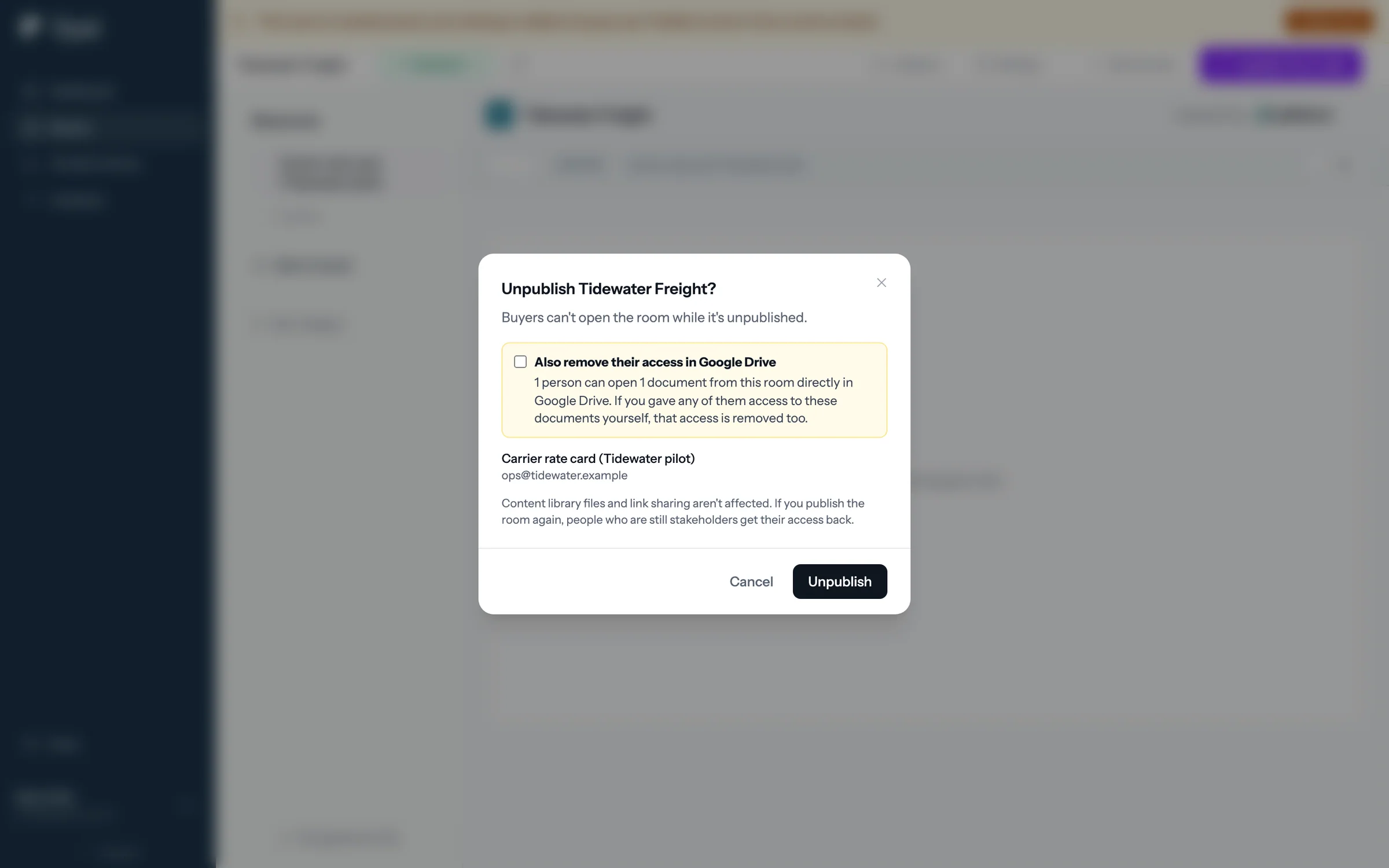
Step 8 of 8 Confirm in foyai Either button opens the room and asks first, including whether to remove buyers' Google Drive access too.
Hear about buyer activity where you already work.
Slack alerts come with Pro and Platform, including the Pro trial.
To disconnect
Admins only: click Disconnect Slack at the bottom of the card. Foyai revokes its access to your Slack workspace and stops sending alerts. You can reconnect later with Add to Slack. A seller who isn't an admin doesn't see this button; they can still turn off alerts for themselves under Your Slack alerts.
If the card says "Needs attention"
Either Slack invalidated Foyai's access (usually because someone removed the app from the Slack workspace), or the connection was made before alerts moved to direct messages and needs permission to message sellers. An admin clicks Reconnect Slack; your alert choices are kept. A seller who isn't an admin sees a note asking them to find an admin instead.
Foyai app for Attio
Videos
 Bulk-creating rooms from AttioVideo · 1:06 · Click through
 Creating a room from AttioVideo · 0:45 · Click through
Want to create rooms and generate drafts without leaving your CRM? Install the Foyai app from the Attio marketplace and your team gets Foyai actions right on Attio records: create a room from a deal, create rooms in bulk from a list, generate a draft, and see each record's room at a glance.
What each action does:
- Create Foyai Room (on a Deal or Company): pick a template or start blank. The picker preselects the template your Room automation settings map to the deal's stage, so most of the time you just confirm. Once the room exists, Foyai drafts it from the record's call recordings, the same as a room created in the app. If the record already has a room, the action links you to it instead of creating a second one.
- Create Foyai Rooms (on a multi-select of Deals or Companies): creates a room for every selected record that doesn't have one yet, applies the stage-mapped template automatically, and drafts each room from its calls. Bulk creation is plan-gated (see Plans and billing); on plans without it the run stops before creating anything and the toast explains why.
- Generate Foyai Draft from Calls: drafts an existing room from the record's calls (see AI drafts).
There is nothing to configure. The app recognises your Attio workspace and connects to the Foyai workspace you signed in with. The only requirement is that someone from your Attio workspace has signed in to Foyai with Attio at least once.
If the app says the workspace is not connected to Foyai yet, sign in to Foyai (app.foyai.com) with Attio from that workspace, then try again.
What each rep needs before using the actions
Because rooms created from Attio can carry a personalized deck, and decks are generated with the requesting rep's own Google account, each rep has to be set up before Foyai will act for them:
- They have signed in to Foyai with Attio at least once, so Foyai can tell which Foyai user the Attio actor is.
- They have connected Google in Settings → Integrations, using a Workspace account.
If either is missing, the action refuses up front with a link to Foyai's integration settings rather than creating a room whose deck could never be filled. Authorizing individual deck templates is not part of this check: a bulk run whose decks park as "waiting for your Google authorization" still produces rooms and drafts worth having, and one authorization afterwards releases all of them at once.
Webhooks
Webhooks let your own tools react to what happens in your rooms. When an event happens, Foyai sends an HTTPS POST with a JSON body to every endpoint you've subscribed to that event. Point them at Zapier, Make, n8n, an Attio workflow trigger, or your own code.
Platform feature. Only workspace admins on the Platform plan can add endpoints. If the workspace leaves Platform, deliveries stop. See Plans and billing.
Events
| Event | When it's sent |
|---|---|
room.published | A room goes live for buyers (from draft or archived to published) |
room.first_view | A buyer opens a room for the first time. Sent once per room; your team's own visits don't count |
task.completed | A task in the room's action plan is checked off, by a buyer or a seller. Sent once per task, so unticking and ticking again doesn't resend it |
webhook.test | You click Send test on an endpoint. Never sent otherwise |
To add an endpoint
- Go to Settings → Integrations and find the Webhooks card.
- Enter your endpoint URL. It must start with
https://and point at a public host. - Tick the events you want, then click Add endpoint.
- Copy the signing secret (it starts with
whsec_). Foyai shows it only once. If you lose it, click Rotate secret to get a new one; the old secret stops working straight away. - Click Send test to check your receiver.
A workspace can have up to 10 endpoints. Turn off pauses an endpoint without deleting it.
What Foyai sends
{
  "id": "evt_3f2a9c...",
  "type": "task.completed",
  "created_at": "2026-10-06T14:03:12.000Z",
  "workspace_id": "a1b2c3d4-...",
  "room_id": "e5f6a7b8-...",
  "attio": {
    "company_record_id": "9c1d...",
    "deal_record_id": "4b7e..."
  },
  "data": {
    "room": {
      "id": "e5f6a7b8-...",
      "title": "Acme × Your company",
      "status": "active",
      "url": "https://rooms.foyai.com/r/acme"
    },
    "task": { "id": "task-1", "title": "Sign the MSA" },
    "completed_by": "buyer",
    "completed_at": "2026-10-06T14:03:11.000Z"
  }
}
idis unique per event. A retry of the same event keeps the sameid, so use it to ignore duplicates.attioholds the Attio record ids of the room's linked company and deal, ornullwhen the room isn't linked.data.roomis on every room event. The otherdatafields depend on the event:published_atforroom.published;viewed_atandviewer_email(when the buyer signed in, elsenull) forroom.first_view;task,completed_by(buyerorseller) andcompleted_atfortask.completed.
Each request also carries the headers Foyai-Event-Id, Foyai-Event-Type, and Foyai-Signature.
Verifying the signature
Check every request before you trust it. The Foyai-Signature header looks like:
Foyai-Signature: t=1791298813,v1=5257a869e7ecebeda32affa62cdca3fa51cad7e77a0e56ff536d0ce8e108d8bd
t is the time Foyai signed the request (Unix seconds) and v1 is a hex HMAC-SHA256 of the string <t>.<raw request body>, keyed with your signing secret. To verify:
- Read the raw request body, before any JSON parsing.
- Compute HMAC-SHA256 of
t + "." + bodywith your signing secret. - Compare it with
v1using a constant-time comparison. - Reject the request if
tis more than 5 minutes away from your clock. This stops someone replaying an old request.
In Node.js:
import { createHmac, timingSafeEqual } from "node:crypto";

function verifyFoyai(rawBody, header, secret) {
  const parts = Object.fromEntries(header.split(",").map((p) => p.split("=")));
  const expected = createHmac("sha256", secret).update(`${parts.t}.${rawBody}`).digest("hex");
  const ok =
    parts.v1?.length === expected.length &&
    timingSafeEqual(Buffer.from(parts.v1), Buffer.from(expected));
  const fresh = Math.abs(Date.now() / 1000 - Number(parts.t)) <= 300;
  return ok && fresh;
}
Responding and retries
Reply with any 2xx status within 10 seconds. Foyai doesn't read your response body. Anything else (another status code, a timeout, a connection error) counts as a failure and Foyai tries again after about 1 minute, 5 minutes, 30 minutes, and 30 minutes again: five attempts in all. Redirects are not followed, so give Foyai the final URL.
The Recent deliveries list on the card shows the last 25 deliveries with their status, attempts, and the last error, so you can see what your endpoint returned.
Troubleshooting
I connected Slack but I'm not getting alerts. Check that the alert is ticked under Your Slack alerts. Alerts go to the room's owner, so you only hear about rooms you own.
The card says it couldn't find me in Slack. Foyai looks you up by the email you use in Foyai. Use the same address in Slack (or ask your Slack admin to add it), then click Save under Your Slack alerts to retry.
The Slack card says "Needs attention". Click Reconnect Slack. Either Slack revoked Foyai's access, or the connection predates direct-message alerts and needs the new permission. Everyone's alert choices are kept.
I don't see the Add to Slack button. Two possible reasons. Slack alerts are a paid feature, also available during the Pro trial; on the Free plan the card explains this in place, and alerts pause until you upgrade if your trial ends. Or you're not a workspace admin: connecting Slack for the team is admin-only, and the card tells you to ask one instead. Email alerts don't need Slack or a paid plan, so they still work either way.
I'm not getting email alerts. Check that the alert is ticked under Email alerts in Settings → Integrations. They're sent to the email address you sign in with.
Connecting Google Drive says I switched Foyai accounts. The Google window was started by one Foyai account and finished while another was signed in (for example, you signed in to a different Foyai workspace in another tab in the meantime), so Foyai connected nothing rather than attach Google to the wrong person. Close the window and connect again.
A buyer says they can't open a Drive file in my room. Check that you (the person who embedded the file) have connected Google Drive under your own account. Connections are personal, so a teammate's connection doesn't cover files you embed.
Room data in Attio looks stale or fields are missing. Run Re-sync on the Attio integration card. It's non-destructive and usually resolves missing fields or subscriptions in under a minute.
The bulk action in Attio says "Foyai rooms not created". Bulk room creation is a Platform feature. On Free or Pro the run stops before creating anything; the same applies while a workspace is suspended for a failed payment. Upgrade in Settings → Plan, or create rooms one at a time with Create Foyai Room, which works on every plan.
I picked a template in Attio but the room came out blank. The template was deleted in Foyai between opening the dialog and submitting it, or nobody in the workspace could be credited with the sections. The room is still created and linked to the record; open it in Foyai and build it from there.
Questions? Email support@foyai.com, or use the in-app chat.