Branding
Every buyer room carries your company's look: name, logo, colors, and footer links. Set them once and every room your team publishes stays on brand.
Where to find it: Settings → Branding.
Video
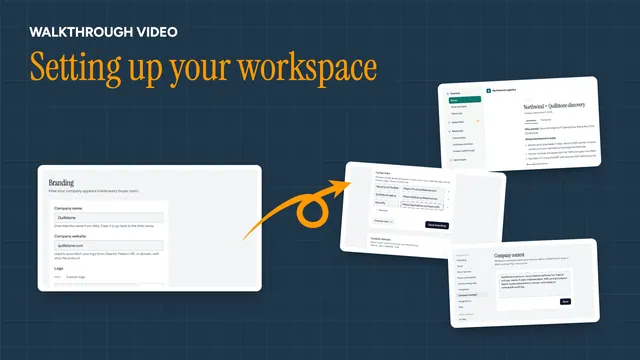 Setting up your workspaceVideo · 1:12 · Click through
Company name and website
- Company name is pulled from Attio automatically. Type a different name to override it for buyers; clear the field to go back to the Attio name.
- Company website powers your logo: paste a URL or bare domain and Foyai fetches your logo automatically. Protocols and
www.are stripped for you.
Logo
The preview shows which logo is in use:
- Auto: fetched from your company website's domain.
- Custom: upload an image, or paste a direct image URL, to override the auto-fetched logo. Clear it to go back to auto.
Your logo is also the browser-tab icon on buyer rooms: an uploaded logo is used directly, the auto-fetched logo is used otherwise, and Foyai's own icon fills in when neither is set. A pasted logo URL shows inside the room while the tab icon stays on the auto-fetched logo (or Foyai's icon when there's no company website), so upload the file if you want it in the tab too.
This page sets your own logo. The buyer's logo, shown in each room's header, is set per room: see Buyer logo.
Color palette
Pick one of six built-in palettes: Midnight (the default), Violet, Navy, Sage, Rose, or Stone. Each swatch previews the three colors it sets.
Choosing Custom reveals three color controls:
- Nav background: the room's sidebar
- Page background: the main content area
- Accent: the active nav item and buttons
Text color on the accent is picked automatically for contrast, so any accent color stays readable.
Footer links
Persistent links shown to buyers at the bottom of every room: your website, help center, contact page. They open in a new tab. You can add up to 8; bare domains get https:// added automatically. Buyers see no footer at all until you add at least one link.
Use Preview room at any time to open a sample buyer room in a new tab and see your branding applied.
Custom domain
Video
 Using your own domain for roomsVideo · 0:57 · Click through
Paid feature. See Plans and billing.
Serve buyer rooms from your own domain, like deals.yourcompany.com, instead of Foyai's.
Enter your domain in the Custom domain card and save. A subdomain like
deals.yourcompany.comis the usual choice.In your DNS provider, create an A record pointing your domain at the IP address shown on the page:
Type Hostname / Name Value A deals(or your subdomain)the IP shown on the page Some DNS providers want the full hostname (
deals.yourcompany.com) in the name field instead of just the subdomain. Remove any existing A or CNAME records for that exact hostname first.Click Verify domain. The status dot turns green with "Verified" once DNS has propagated.
That's the whole setup: HTTPS certificates are issued automatically once DNS resolves, and every buyer link your team shares (rooms, magic links, Slack and Attio surfaces) switches to your domain on its own.
DNS changes can take a little while to propagate; if verification stays pending, give it time and verify again.
Changing the domain later resets verification, so re-verify after any change.
Troubleshooting
The auto-fetched logo is wrong or missing. Auto-fetch uses your website domain. Check the domain is right, or upload your own image (or paste a direct image URL) as a custom logo.
I cleared my custom name but buyers still see the old one. Clearing the override falls back to the name in Attio. If that's stale, update the company name in Attio.
The custom domain card only shows an upgrade note. Custom domains are a paid feature, also available during the Pro trial. A domain you already verified stays on the card on every plan, with re-check and remove controls. See Plans and billing.
My custom domain stopped serving rooms. A verified domain keeps serving rooms on every plan, so a trial ending never takes it down. If you recently changed the domain, verification was reset, so verify again. Otherwise check that the A record in your DNS still points at the IP shown on the page.
Questions? Email support@foyai.com, or use the in-app chat.