Creating and managing rooms
A room moves through three states: draft (only your team can see it), published (live for buyers), and archived (hidden from everyone, history kept). This page covers the full lifecycle.
Creating a room
Video
 Creating your first roomVideo · 1:06 · Click through
From Rooms → New room, pick a starting point:
- From recording: select recent call recordings. At least one call must be linked to a Deal or Company in Attio; if a call isn't linked, Foyai suggests a matching company to confirm. Attio admins see every recent call in the workspace; everyone else sees the calls they were on.
- From CRM record: search your Attio Deals or Companies. Linked calls are pre-selected; uncheck any you don't want the AI to use. No recording for the call you need? Click Upload a transcript to add its transcript to the record (see Uploading a transcript). If you're not an Attio admin, the list starts on My deals: deals you own in Attio, and for companies, the ones linked to your deals. Switch to All deals or All companies to build a room on a teammate's deal (a handoff or onboarding room, say); Foyai remembers your choice. The same switch is in Link Attio record on a room without one.
- Blank: title only, build from scratch.
You'll then choose a template, and if calls are attached, Foyai drafts the room content automatically (see AI drafts).
Rooms can also be created from inside Attio (the Create Foyai Room action on a Deal or Company, which walks you through the same template choice and drafts the room from the record's calls; see Integrations) or automatically by Room automation.
Building the room
Videos
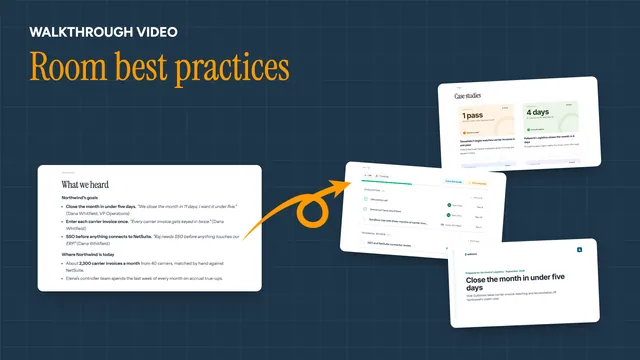 Room best practicesVideo · 1:15 · Click through
 Adding your own deal contentVideo · 1:15 · Click through
 Stakeholders and Drive sharingVideo · 1:11 · Click through
Add content offers these building blocks:
| Block | What it does |
|---|---|
| Meeting Notes | Summarizes one call, with summary and transcript tabs |
| Deal Content | A section generated from your transcripts, using presets like "What we heard" or "Value map", or your own prompt; you can also write or edit it yourself |
| Recommended Case Studies | Auto-picks the most relevant case studies from your Content Library |
| Full-Screen Content | A video, slide deck, Drive doc, PDF, or any URL as its own page |
| Resources Page | A page of handpicked content cards |
| Action Plan | The mutual action plan: phases and tasks for both sides (one per room) |
Beyond blocks, you control:
- Categories: named sections in the buyer's navigation, drag to reorder. The Action Plan and Contact rows can be placed anywhere or hidden.
- Stakeholders: the people on the deal. AI-extracted stakeholders land here too, and their email domains feed the room's allowed-domains list.
- Agreement button: pin a contract or order-form link into the buyer's nav. This one stays live even without republishing.
- Contact section: auto-built from your Profile with a vCard download and optional booking calendar.
Buyer logo
The room header shows the buyer's logo next to the room title, and personalized decks use the same logo for {{logo}}. Foyai finds it on its own, from the buyer's company domain (taken from the CRM record and its people).
If that logo is wrong, or just a plain letter (common for small or new companies), open the room's Settings and go to the Branding tab:
- Upload a logo to use your own image in this room. PNG, JPEG, or GIF, up to 4 MB. Remove goes back to the auto-detected logo.
- Logo domain changes which company domain the auto-detected logo comes from.
Click Save to apply. Buyers see the new logo right away, with no republish needed. If an uploaded image ever fails to load, buyers see the auto-detected logo instead. Decks you already generated keep their old logo until you Regenerate them.
Publishing
Clicking Publish walks through two steps:
- Confirm who can access this room: the access mode and allowed emails/domains, pre-seeded from the CRM record. See Room access.
- Review AI generated content (when the room has any): a reminder that AI can make mistakes. You can tick "Don't show this again."
Publishing takes a snapshot of the room. Buyers always see the last published snapshot, so you can edit freely; the room shows a pending-changes prompt and a Publish changes action when your edits are ready to go live. Renaming a room is an edit like any other: buyers see the new title in the room header once you publish changes. First publish opens the share modal.
Two guardrails: publishing is paused while any AI section is still generating, and sections that failed to generate warn you before you ship them empty.
Free plan: published rooms are capped; the publish flow shows the current limit when you reach it. See Plans and billing.
Sharing
Published rooms live at a unique, unguessable link on Foyai's rooms domain, or on your own custom domain on paid plans. Use Copy link or Share link… from the Published menu. The URL itself is the secret: pre-access screens never show the buyer's name or yours.
The room link
A room linked to a company gets a link that names the buyer's company, followed by a random code: rooms.foyai.com/r/acme-7kq2m9xa. A link that names the buyer reads as made for them, which helps when a champion forwards it to colleagues who have never heard of you. The random code is what keeps the link private, so a link never carries the company name alone. A room created from a deal uses the deal's company, never the deal's name, and a room with no linked company gets a fully random link.
While a room is unpublished, you can change its link in the room's Settings → Access: edit the name, or tick Use a random link. Each save makes a new link with a new code, so a copy of the old link (in a Slack message, say) stops working. The agreement button's booking link and the room's record in Attio follow the new link automatically. A published room's link can't change; to change it, unpublish the room first. Anyone who had the old link can no longer open the room, so send them the new one when you publish again.
Admins can turn company names off for new rooms in Settings → Room access. Links that already exist stay as they are.
-
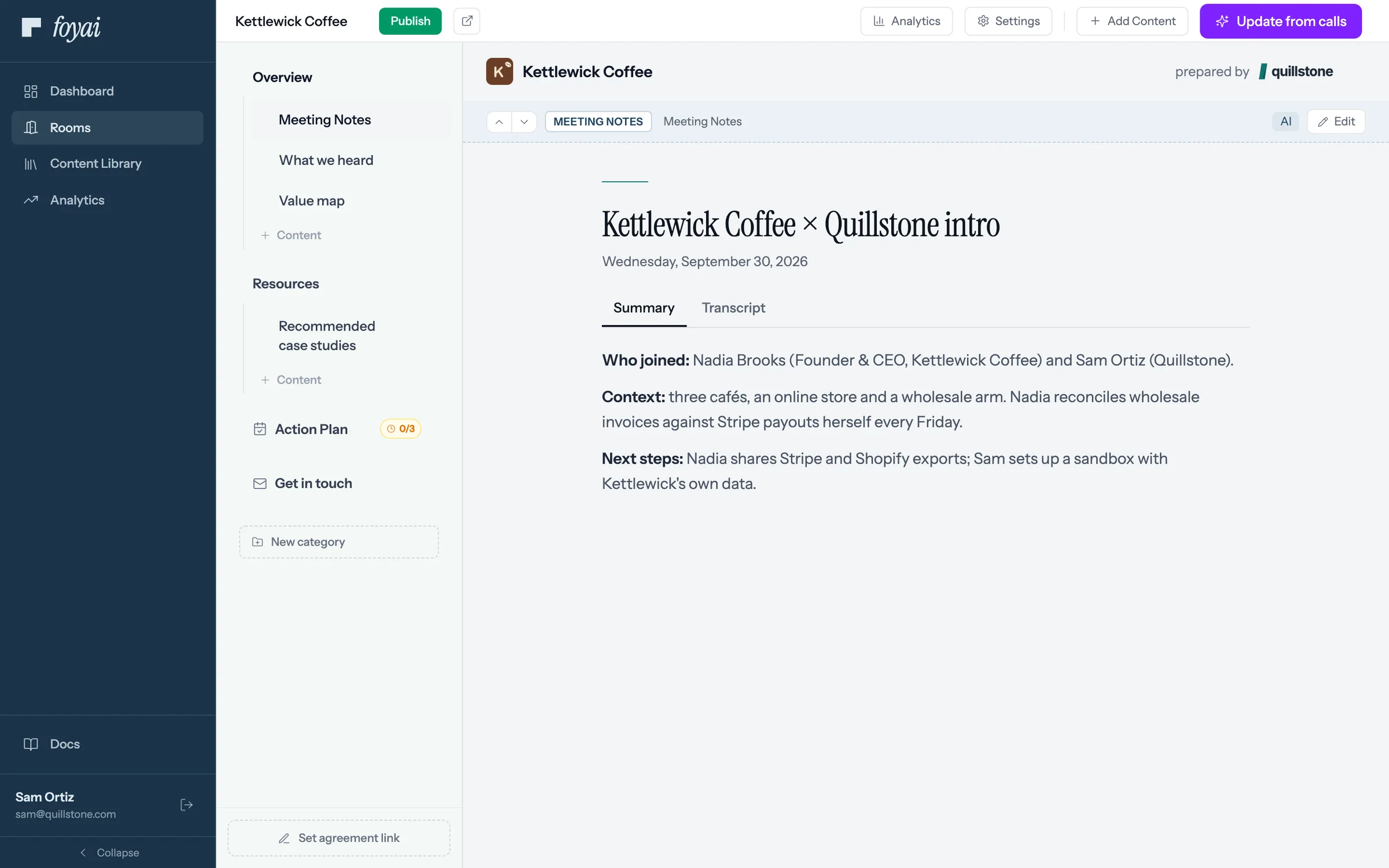
Step 1 of 7 Publish the draft Sam has checked the Kettlewick Coffee draft and clicks Publish.
-
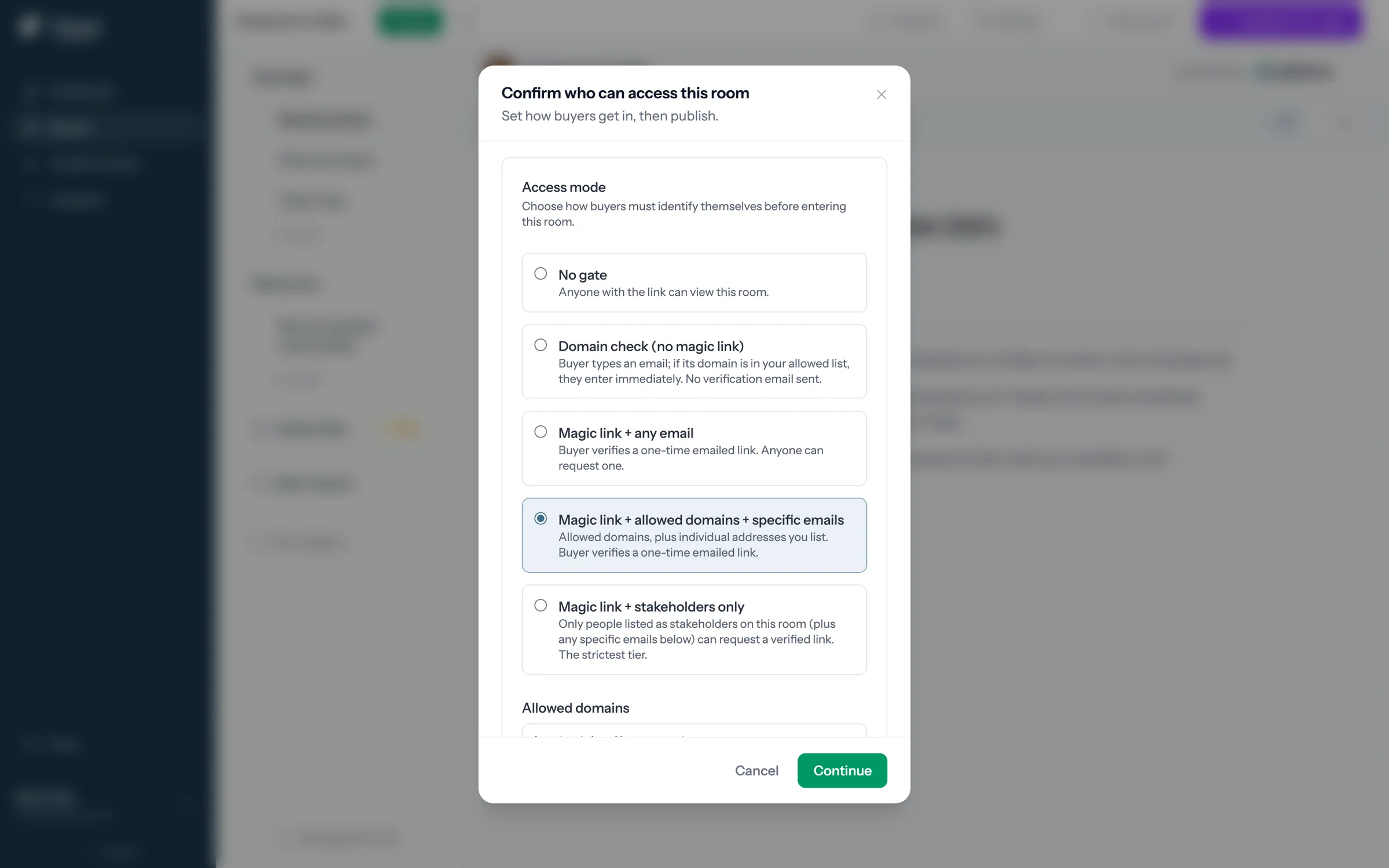
Step 2 of 7 Choose who gets in Each access mode sets how buyers prove who they are. Sam picks a one-time emailed link for allowed domains.
-
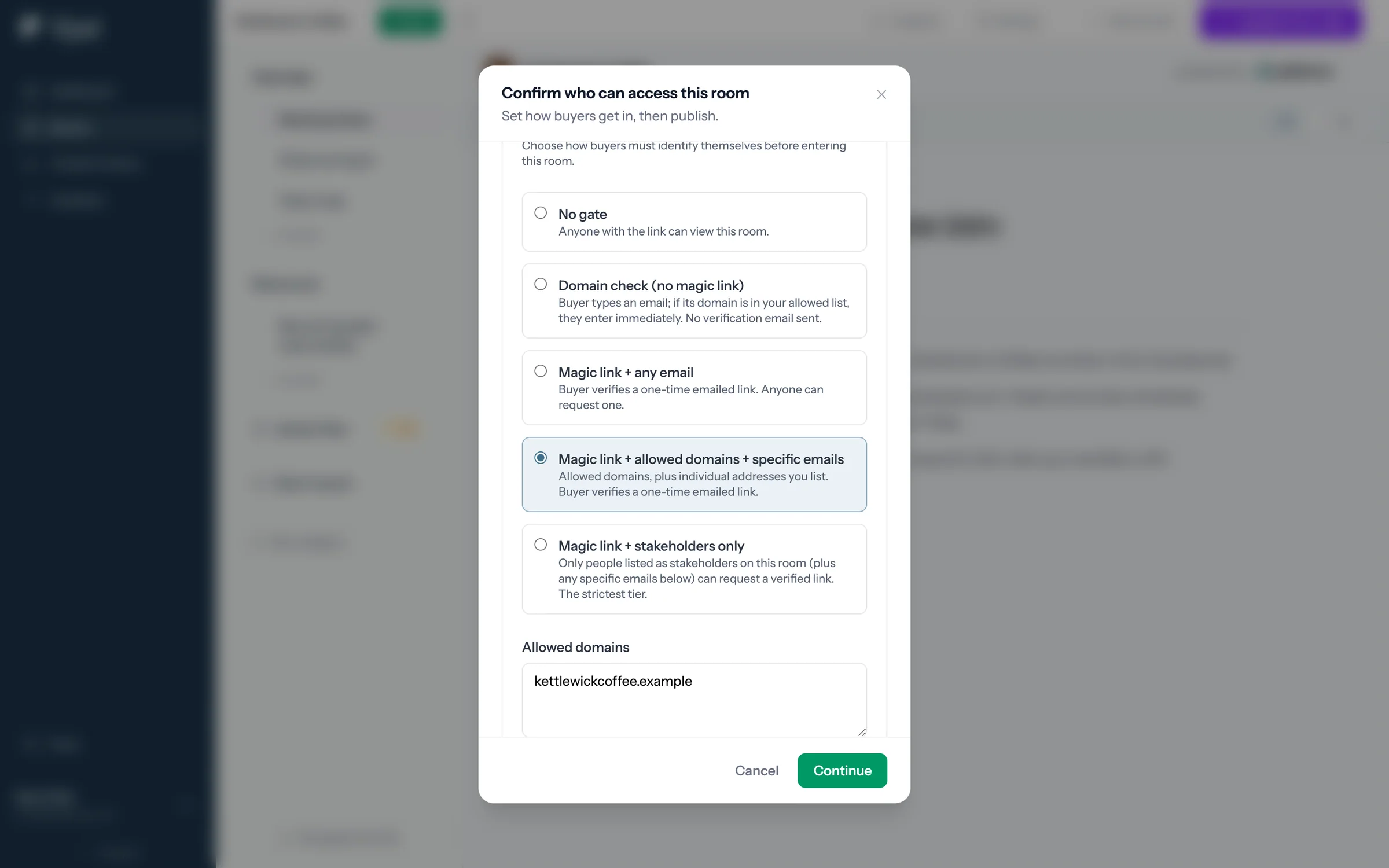
Step 3 of 7 The domain is filled in Allowed domains comes from the Kettlewick Coffee record in Attio. Sam can add more or change it.
-
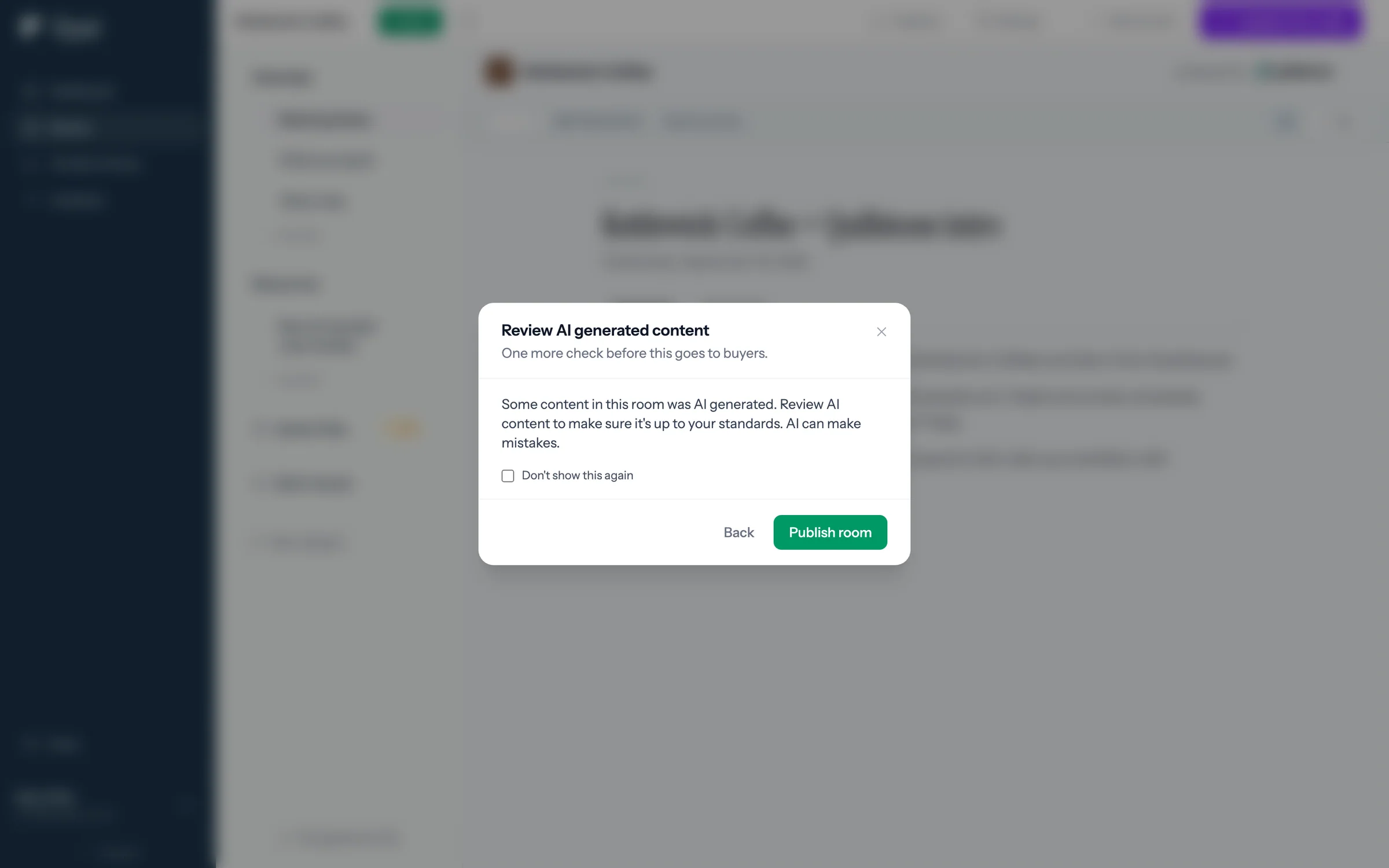
Step 4 of 7 Check the AI content A reminder to read what AI drafted before buyers see it. Then Publish room makes it live.
-
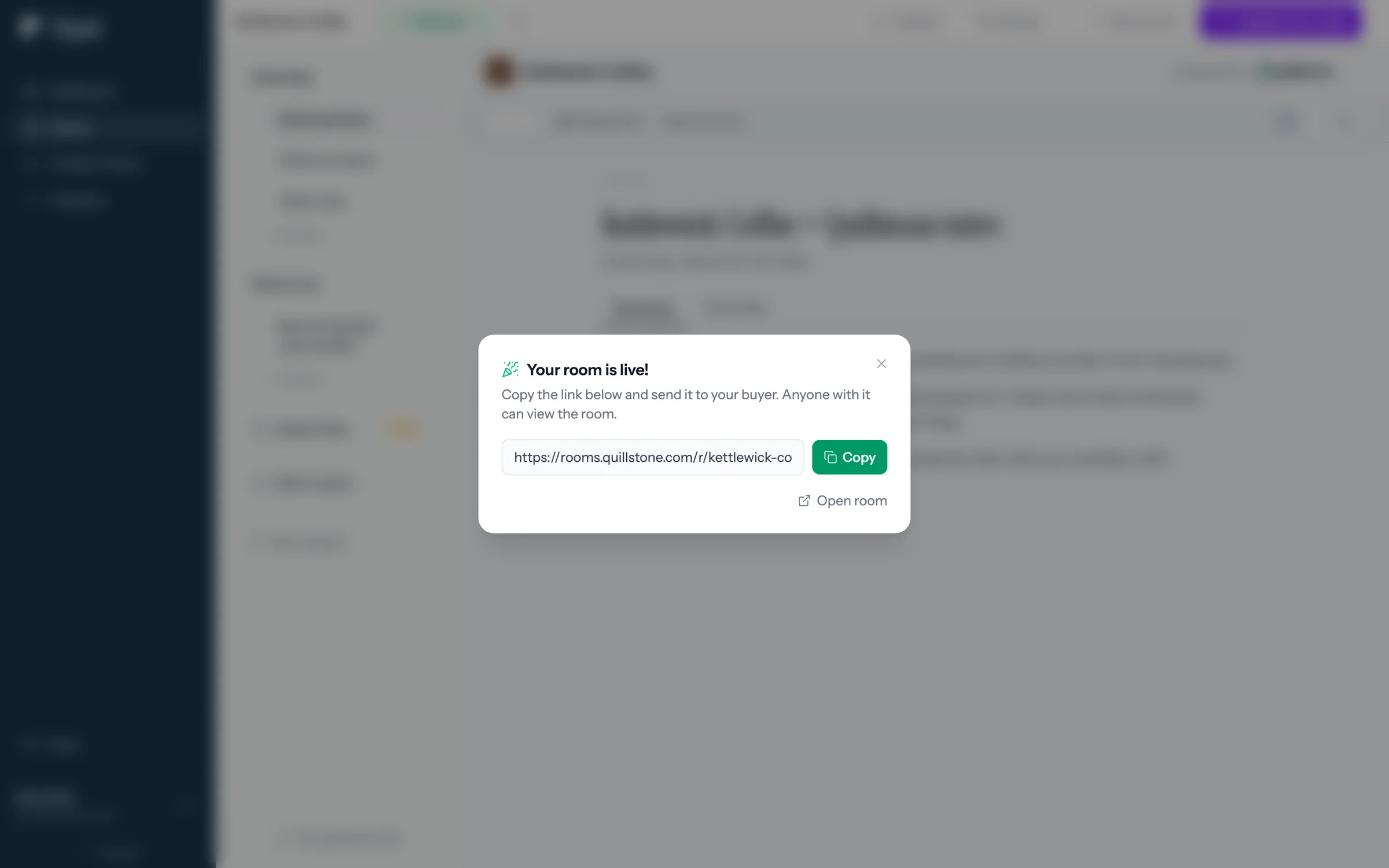
Step 5 of 7 Copy the link The room is live. Sam copies the link to send to Nadia at Kettlewick.
-
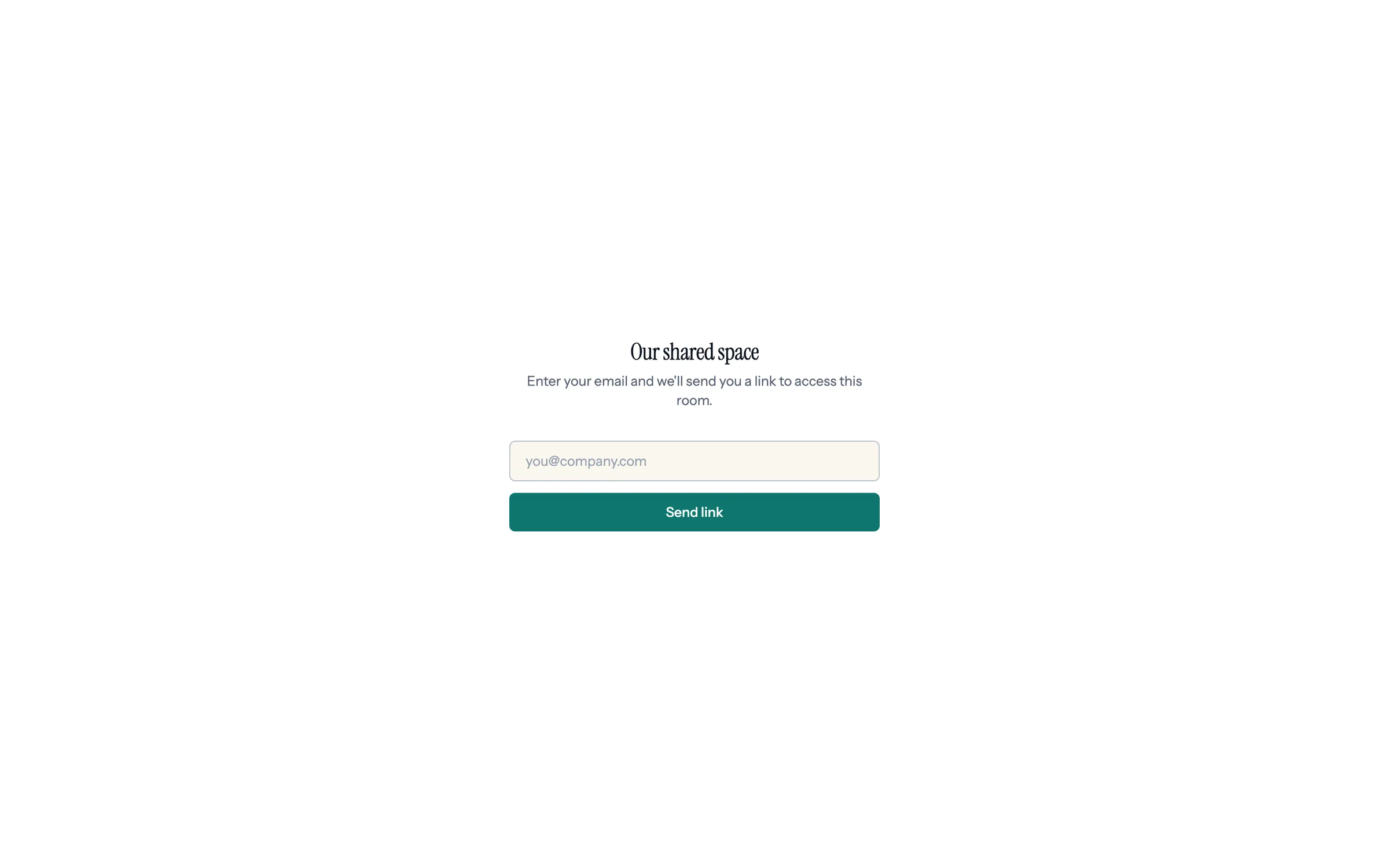
Step 6 of 7 If the link is forwarded Anyone opening it sees Our shared space, with no company names, so a forwarded link doesn't say who's talking to whom.
-
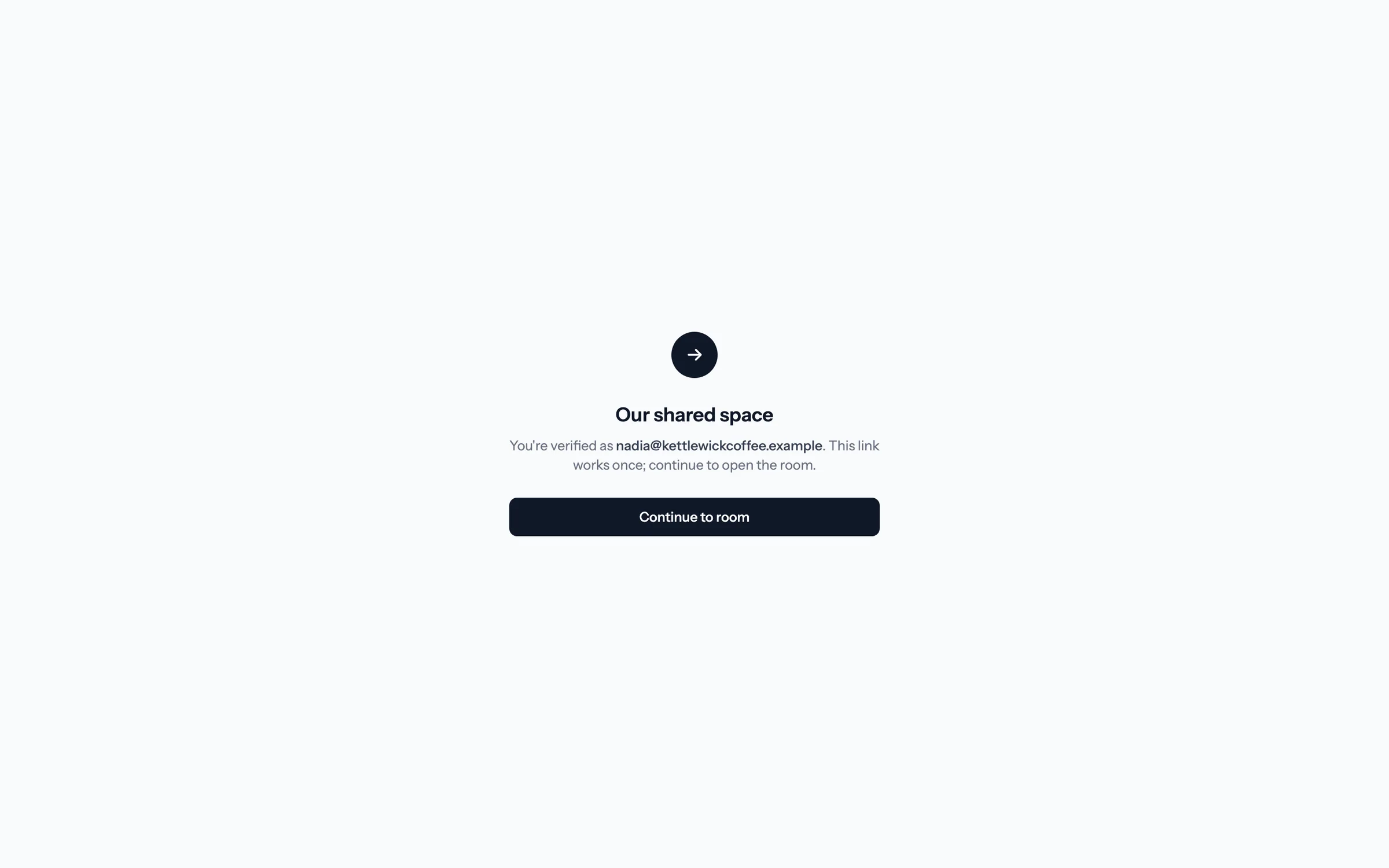
Step 7 of 7 The emailed link works once Nadia confirms on this screen. The link can't be used again, and it expires after 15 minutes.
Decide who gets into each room.
Set a default access mode in Settings, then tighten or open up any room before you publish it.
The rooms list
The Rooms page groups rooms into lanes: Active, Draft, Quiet (published, but no buyer activity in 30 days), and Archived. Admins see every room in the workspace, with the owner's name on each row and a seller filter to narrow the list to one person's rooms. The filter includes an Unassigned option when rooms have no active owner (for example, a teammate who left), so those rooms are easy to find. AEs see their own rooms. The same per-seller view appears in Analytics as the By seller table.
A lane with more than 50 rooms is split into pages of 50; use the page numbers under the lane to move between them.
Finding a room
Type in the search box at the top of the Rooms page (or press / to jump to it). The list narrows as you type, matching the room's name, its company and deal, its link, its campaign, and (for admins) its owner. Every word counts, in any order: "acme renewal" finds a room named "Renewal" for Acme.
To jump to a room from anywhere in Foyai, press ⌘K (Ctrl+K on Windows), or click Search rooms in the sidebar. Start typing, pick a room with the arrow keys, and press Enter to open it. With nothing typed, it lists your most recently updated rooms.
Campaigns
On the Platform plan, you can group rooms into campaigns: an outbound batch, an event, a segment. A room is in one campaign at most. See Plans and billing.
- Filing rooms: tick the rooms you want on the Rooms page (the box in a lane's header selects every room in that lane that matches your search), then choose a campaign in the bar at the bottom and click Move. Choose New campaign… to create one on the spot, or No campaign to take rooms out. AEs can move the rooms they own.
- New rooms: pick a campaign on the last step of the New room wizard, or in the bar when creating rooms in bulk from the dashboard. Starting New room while the list is filtered to a campaign preselects it.
- Filtering: the campaign filter next to New room narrows the list to one campaign, or to rooms in no campaign. Rows show their campaign when the list isn't filtered to one.
- The Campaigns page (the Campaigns button on the Rooms page) lists every campaign with its number of rooms, how many are published, how many a buyer has viewed, and calls booked from them. Anyone can create a campaign there; admins can rename or delete one. Deleting a campaign keeps its rooms; they just leave the campaign.
Archive vs. delete
Video
 Taking a room offlineVideo · 1:18 · Click through
- Unpublish returns a live room to draft; buyers lose access, everything else stays.
- Archive hides the room from everyone but keeps all history. Reversible with Unarchive.
- Delete removes the room, its action plan, stakeholders, visit history, and analytics, permanently. If the room synced tasks to Attio, you'll be offered a checkbox to delete those too. When in doubt, archive instead; the delete dialog offers exactly that.
If a live room's deal moves to Lost in Attio, the room's owner can get a Slack message with buttons to unpublish or archive it. See Slack alerts.
Google Drive access when a room goes offline
If you shared a room's own Google Drive documents with stakeholders (Share with all stakeholders or Share with specific people when you added the file), unpublishing or archiving the room asks whether to also remove their access in Google Drive. The dialog lists each document and who can open it. The box starts unticked for Unpublish and ticked for Archive.
- Only person-by-person sharing from this room is removed. Link sharing ("Anyone with the link") and files from your Content Library are never changed.
- Google keeps one permission per person per file, so if someone could already open a document before you shared it through Foyai, removing it here removes that access too. Check the list before you confirm.
- If another room still shares the same document with the same person, they keep access.
- Publishing the room again gives access back to everyone who is still a stakeholder. Google doesn't email them about it.
- If Google won't let Foyai remove something (for example, your Google Drive connection has expired), the room shows a notice with how many people and which documents, Retry, and Mark as removed for access you've taken off in Google Drive yourself.
Deleting the room, removing a stakeholder, or deleting a shared Drive section removes the access Foyai gave through it, without asking. So does Discard on the pending-changes prompt, for any shared Drive section you added since the last publish.
There's no room duplicate, by design. To reuse a room's structure, open the room's Settings, go to the Template tab, and click Save as template, which captures its modules, categories, and action plan for future rooms. See Templates.
Questions? Email support@foyai.com, or use the in-app chat.